Common Git Pitfalls in RStudio and How to Avoid Them
By Dr. Zubair Khalid, DVM, MS, PhD ·
Most RStudio Git problems come down to one of two causes. Either RStudio cannot find the Git program on your computer, or the folder you have open is not actually a Git repository. Before anything else, open your project folder in your file browser and look for a hidden folder named .git. If it is missing, the folder has never been initialized with Git, and no amount of clicking in RStudio will make the Git pane work. If the .git folder exists but the Git pane still misbehaves, check whether RStudio knows where Git lives under Tools, then Global Options, then Git/SVN.
This article walks through the RStudio Git problems that bioinformaticians and other researchers hit most often, explains the mechanism behind each one, and gives a fix you can apply in minutes. It is written for scientists who use Git daily but never signed up to become version-control administrators. The same principles apply whether you push to GitHub, GitLab, or a university Git server, although the examples here use GitHub because it is the most common host for research code.
How RStudio and Git Work Together
A few definitions keep the rest of this article readable.
Git is a distributed version-control system that records snapshots of your files, called commits, and lets you move between those snapshots at any time. A repository is any folder that Git tracks, marked internally by the hidden .git directory. A commit is a named snapshot of your staged changes together with the author name, email, date, and message you attached to it. Staging means marking specific files or lines to include in the next commit, which is what the checkboxes in the RStudio Git pane do.
A remote is a copy of the repository stored somewhere else, typically on GitHub. Push sends your local commits to the remote. Pull fetches commits from the remote and integrates them into your local copy. A branch is an independent line of commits, and HEAD is a pointer to the commit your working directory currently reflects. A merge joins two branches, and a conflict occurs when both branches changed the same lines and Git cannot decide which version wins.
RStudio wraps a subset of these operations in the Git pane: staging with checkboxes, diffing, committing, pushing, pulling, and a branch dropdown. The pane calls the same Git executable you would use in the terminal. That single fact explains a large fraction of RStudio Git problems. When the pane cannot reach the executable, or when an operation falls outside the pane's limited surface, such as history editing or conflict resolution beyond the built-in merge tool, the error surfaces as a cryptic message or a silently grayed-out button. Understanding that the pane is a thin layer over Git itself turns most RStudio Git problems from mysteries into ordinary Git questions, and the official Git documentation remains the final authority on any behavior the pane obscures.
Git adoption among researchers is now effectively standard practice for computational work. Journals increasingly ask for code and data availability statements, reproducibility checklists reference version control explicitly, and collaborators expect to see a repository. GitHub for researchers is not just code hosting. Issues serve as a lab notebook for problems, pull requests let a supervisor review analysis changes before they touch the main branch, and releases tag the exact code version that produced a figure in a manuscript. Getting Git working smoothly inside RStudio is therefore infrastructure work that pays off across every project that follows.
Start Here: A Five-Step Diagnostic
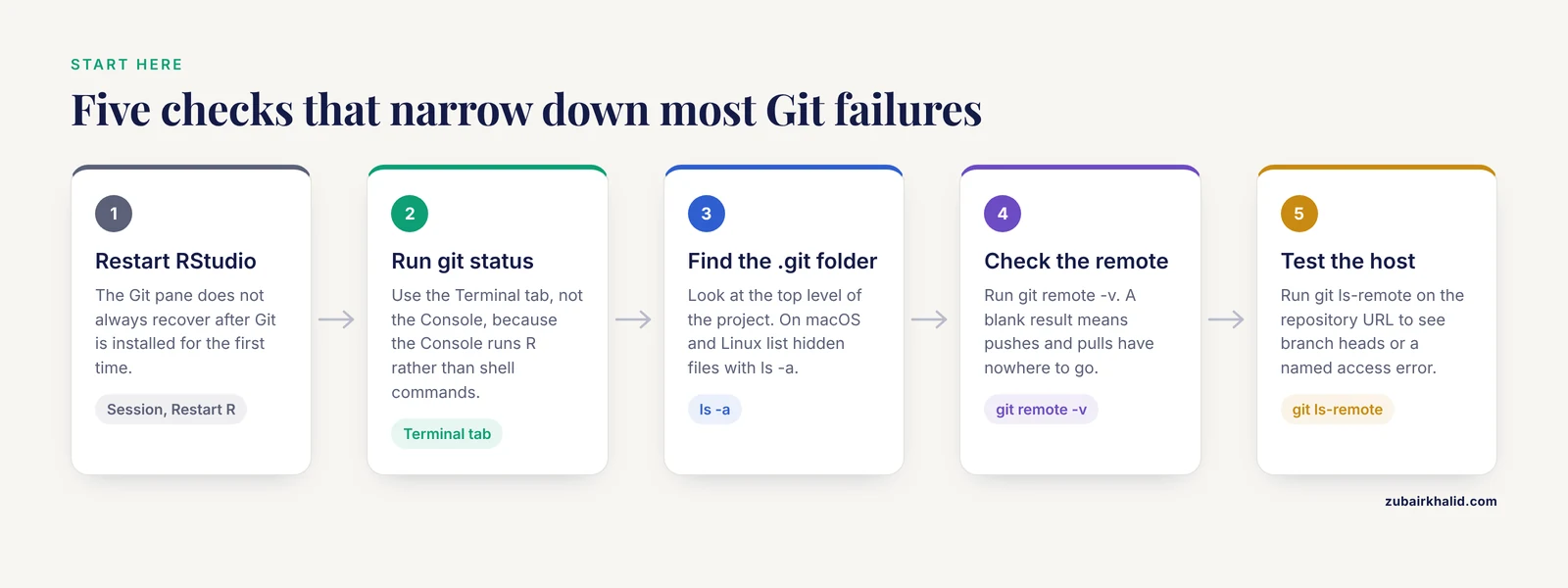
When something breaks, run through this sequence before searching for the specific error message. It resolves a surprising share of RStudio Git problems on its own and narrows down the rest.
- Close and reopen RStudio, or use Session, then Restart R. The Git pane does not always recover cleanly after Git is installed for the first time, and a stale pane state produces phantom symptoms.
- In the Terminal tab (not the Console, because the Console runs R, not shell commands), type
git status. If you get an error that Git is not found, jump to the section on the Git executable. If you get "fatal: not a git repository", the folder is not tracked and you need to initialize or clone. - Confirm the hidden
.gitfolder exists at the top level of your project. On macOS and Linux, list hidden files withls -a. On Windows, enable hidden items in File Explorer's View menu. - Check where your project points with
git remote -v. A blank result means the repository has no remote, which is why pushes and pulls do nothing. - Test the connection to your host. For GitHub over HTTPS,
git ls-remoteon the repository URL will either list the branch heads or fail with an authentication or access error that names the real problem.
Keep the Terminal tab open from now on. Many fixes below require one command, and switching between the pane and the terminal is faster than fighting the pane when it does not expose the operation you need.
Troubleshooting Table: Symptoms, Causes, and Fixes
This table covers the failures in rough order of how often they appear in real research workflows. Each row links to a fuller explanation in the sections that follow.
| Symptom | Likely cause | How to confirm | Fix |
|---|---|---|---|
| No Git tab at all | Git pane disabled in RStudio options | Tools, Global Options, Git/SVN has no checkbox for version control | Enable the checkbox, restart RStudio |
| Git tab present but all buttons grayed out | Folder is not a Git repository, or not opened as an RStudio project | No .git folder, or you opened files rather than the .Rproj | Initialize or clone a repository, reopen the .Rproj |
| Error locating the Git executable | Git not installed, or the path in RStudio options is wrong | git status fails in the Terminal tab | Install Git, set the correct path in Global Options |
| Push asks for a password, then fails | GitHub removed password authentication in 2021, a personal access token is required | Error mentions password authentication or "Terminal prompts disabled" | Create a personal access token, use it as the password, or switch to SSH |
| RStudio repeatedly prompts for credentials | No credential helper is configured | git config credential.helper is empty | Configure the operating system credential helper |
| Commit does nothing or the Staged column is empty | Files were never staged, or they match an ignore rule | Files appear in the Untracked or Modified list but not under Staged | Tick the Staged checkboxes, check the .gitignore |
| Pull produces conflict markers in files | You and a collaborator edited the same lines | Files contain <<<<<<< HEAD markers | Edit the marked files, commit the resolution |
| Push rejected, "non-fast-forward" | The remote has commits you do not have | git status says your branch is behind | Pull with rebase, resolve, then push |
| Push rejected, file too large | A file exceeds the host's size limit | Error names the offending file and size | Remove the file from history, add it to .gitignore, use Git LFS or a data host |
| Every file shows as modified after a fresh clone | Line-ending conversion mismatch between Windows and macOS or Linux | git diff shows changes you never made | Set core.autocrlf consistently across the team |
| "Another git process seems to be running" | A stale index.lock file from a crashed process | A file named index.lock exists inside .git | Close other Git processes, delete the lock file |
| Branch dropdown says HEAD detached | You checked out an old commit instead of a branch | git status says "HEAD detached at" | Create a branch from here or switch back to a named branch |
| Commits show the wrong author name or email | Git identity never configured on a new machine | git log shows an unexpected author | Set user.name and user.email |
| Push fails with "repository not found" | Wrong URL, typo, or no access permission | git remote -v shows an incorrect or misspelled URL | Correct the remote URL, confirm access on the host |
| Commits vanished after a reset or bad merge | The branch pointer moved away from your work | git reflog still lists the lost commits | Reset the branch back to the reflog entry |
The Most Common RStudio Git Problems, Explained
The Git Tab Is Missing From RStudio
RStudio hides the Git pane unless two conditions hold. Version control must be enabled in the options, and the project you opened must sit inside a Git repository. The mechanism is simple. RStudio looks for a .git folder at or above the project directory, and it refuses to show controls that would operate on nothing.
To confirm, open Tools, then Global Options, then Git/SVN, and make sure "Enable version control interface for RStudio projects" is checked. Then confirm the .git folder exists in the project root. If both conditions hold and the tab still does not appear, restart RStudio completely. The pane registers at startup, so installing Git while RStudio runs often requires a full quit and relaunch rather than a session restart.
A related trap: the Git pane only attaches to RStudio projects. If you opened a loose script with File, then Open File, the pane has no project to bind to. Always open the .Rproj file or use File, then Open Project. This single habit prevents a whole family of RStudio Git problems before they start.
RStudio Cannot Find the Git Executable
The error reads "Git was not found" or "unable to locate git" and the Git pane stays dead. The cause is that RStudio needs the full path to the Git binary and either Git is missing or the path points somewhere Git is not.
On Windows, install Git for Windows from the official Git project site and the executable normally lands at C:\Program Files\Git\cmd\git.exe. Enter that path in Global Options, then Git/SVN, then "Git executable". During installation, leave the default options for PATH handling unless your institution's documentation says otherwise.
On macOS, Git ships with the Xcode Command Line Tools. Open a Terminal window and type git. If the tools are missing, macOS offers to install them on the spot, which is the simplest route. Once git status runs in the Terminal, RStudio will usually find the binary at /usr/bin/git automatically.
On Linux, install Git through your distribution's package manager, for example sudo apt install git on Debian-based systems. RStudio then finds it without configuration.
One caveat for Windows users who install R and Git through a version manager or a non-administrator account: the path may differ from the default, and RStudio will not guess it. Copy the exact path from a Terminal window running where git on Windows or which git on macOS and Linux, and paste that into the options field.
Authentication Fails When You Push or Pull
This is the most frequent RStudio Git problem after setup, and it changed shape in recent years. GitHub disabled password authentication for Git operations on August 13, 2021, as announced in the GitHub changelog, so an account password no longer works when the pane prompts for one. The error message typically says that password authentication was removed or that authentication failed.
The mechanism is that Git over HTTPS must prove your identity to the host with a credential. For GitHub that credential is now a personal access token, a long string you generate on the GitHub website under Settings, then Developer settings, then either "Tokens (classic)" or "Fine-grained tokens". When RStudio or the terminal prompts for a password, paste the token. Many researchers lose an afternoon to this because they assume the prompt wants their account password.
A cleaner long-term fix is a credential helper, a small program that stores the token after the first use so you type it once per machine. On Windows, Git for Windows installs Git Credential Manager by default and it will pop up a browser window on first push. On macOS, configure the keychain helper with git config -g credential.helper osxkeychain. On Linux, git config -g credential.helper store writes credentials to a plain file in your home directory, which is acceptable on a personal machine but worth knowing about on shared servers.
The alternative to tokens over HTTPS is SSH, which uses a key pair generated on your machine. Run ssh-keygen -t ed25519 -C "your email", accept the default file location, then add the contents of the public key file (the one ending in .pub) on GitHub under Settings, then SSH and GPG keys. Test with ssh -T [email protected], which should greet you by username. SSH keys never expire on a schedule the way some tokens do, which makes them the more durable choice for a workstation you use daily. Remember that the remote URL must then start with [email protected]: rather than https://, because a repository cloned over HTTPS will keep prompting for tokens until you switch the remote with git remote set-url.
A security note belongs here. A personal access token grants access to your repositories, sometimes with write permission across everything you own. Generate it with the narrowest scopes that work, set an expiration date, and never paste a token into a script, an .Renviron file, or a commit.
Your Changes Do Not Appear in the Commit List
The symptom is a commit box you can type into while the file list above stays empty or the Staged column never fills. Git only commits what you stage, and the RStudio pane reflects that model faithfully. Files fall into three states. Modified files that Git already tracks appear with a status of M, untracked new files appear with a question mark, and both must be checked into the Staged column before the commit button does anything.
The second mechanism behind this symptom is the .gitignore file, a list of filename patterns Git should never track. If a file matches an ignore pattern, it never appears in the pane at all, which looks like Git ignoring your work when Git is following your instructions. Check the file list against the patterns in .gitignore, and remember that a stray pattern such as data* can silently swallow whole directories.
A third trap specific to RStudio: files must be saved before Git sees their current content. Git reads what is on disk, not what is in the editor buffer. The pane does show a marker for unsaved files in recent versions, but the habit of saving before staging prevents confusion on every version.
One subtlety worth knowing once: adding a file to .gitignore does not untrack a file Git already tracks. If you committed a large data file or an .Rhistory file before adding the ignore rule, keep reading, because that fix appears in the section on files you should not have committed.
Merge Conflicts
A conflict happens when two branches change the same lines of the same file and Git cannot choose between them. This occurs most often when you edit code on your laptop and a collaborator (or you, from a second machine) edits the same file, and both of you push. The pull that would have gone through cleanly yesterday now stops with "CONFLICT (content): Merge conflict in ..." and RStudio marks the files.
The mechanism is worth understanding because it demystifies the fix. Git inserts three markers into the affected file: <<<<<<< HEAD above your version, ======= between the two versions, and >>>>>>> followed by the incoming branch name below their version. Open the file in the RStudio source editor and choose one version or blend the two, then delete all three marker lines. The RStudio pane offers a Merge Conflicts viewer with buttons for each side, which is convenient for simple cases, but for .Rmd or .R files with interleaved edits, editing the file directly is usually faster and safer.
After every conflicted file is marker-free and saved, stage it, and commit. The commit completes the merge. Skipping the final commit leaves the repository in a "merging" state that blocks further work, a state you can recognize because git status keeps saying "All conflicts fixed but you are still merging".
Prevention beats cure here. Pull before you start working each day, push when you finish a unit of work, and avoid two people editing the same script for days without integrating. Long-lived parallel edits on one file are the single biggest source of painful conflicts in research teams.
Push Rejected Because the Remote Is Ahead
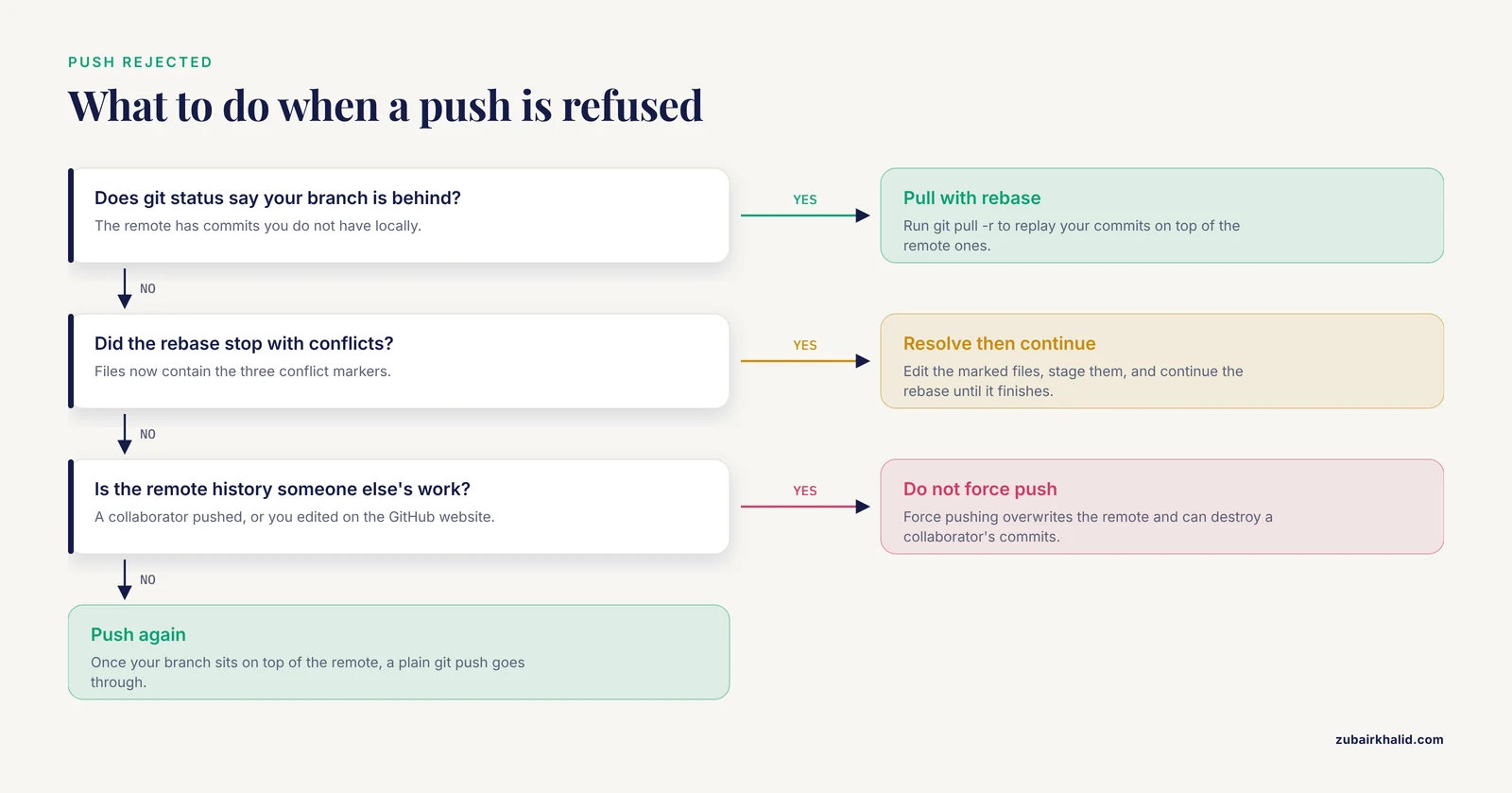
The error reads "non-fast-forward" or "rejected... fetch first". The mechanism is that the remote received commits you do not have locally, usually because a collaborator pushed, or because you made an edit through the GitHub website. Git refuses to overwrite remote history with your local version, which protects everyone's work.
The fix is to integrate the remote commits first. The cleanest option for most research work is a pull with rebase, which replays your local commits on top of the remote ones and keeps history linear:
git pull -r
git push
If the rebase hits conflicts, resolve them as described in the previous section, then continue with git rebase -continue (the flag continuation option) until it finishes. For simple cases the RStudio pane's Pull button with the rebase option selected in Global Options achieves the same thing.
Resist the temptation to force push your way past this error. Force pushing overwrites the remote and can destroy a collaborator's commits. The only common legitimate use is cleaning up your own feature branch after an interactive rebase, and even then, communicate first if anyone else might have pulled that branch.
Detached HEAD
The branch dropdown goes blank or says "detached" and commits seem to vanish. The mechanism is that you checked out a specific commit, often by clicking a row in the History pane, rather than a branch. HEAD now points at that historical commit, and any new commits you make attach to nothing, so they will be lost when you switch branches.
To confirm, run git status in the Terminal and look for "HEAD detached at". The fix depends on what you want. If you were just inspecting history, switch back with git switch main (or your branch's name). If you actually want to build on the old commit, create a branch anchored there with git switch -c resume-from-here, which preserves any commits you already made in the detached state. If you made no commits, nothing is lost and you can simply switch back.
The dangerous variant is realizing you made real work while detached, then switching branches anyway. Before switching, always check git status for the "detached" phrase, and if commits exist that you want to keep, anchor them to a branch name first. Names are cheap. Lost analysis work is not.
Line-Ending Warnings and a Wall of Phantom Changes
You clone a collaborator's repository on Windows and every single file shows as modified before you touched anything. The mechanism is the difference between Windows line endings (CRLF, a carriage return plus a newline) and Unix line endings (LF, a newline alone). Git's core.autocrlf setting controls automatic conversion at checkout and commit, and when collaborators on different operating systems set it differently, every file appears modified even though the content is identical.
Confirm by running git diff and finding either no visible differences or whitespace-only differences, or by running git diff -w, which ignores whitespace, and seeing the changes disappear. The fix is to standardize. The common convention is core.autocrlf true on Windows and core.autocrlf input on macOS and Linux, set once per machine:
git config -g core.autocrlf inputA more robust team-level fix is a .gitattributes file committed to the repository, which pins the behavior for everyone regardless of local settings. For an R project, a line marking all text files to use LF endings ends the argument permanently. If phantom changes are already committed, a one-time normalization commit after setting the attributes cleans the history going forward.
Large Files Rejected by GitHub
The push fails with a message that a file exceeds a size limit. GitHub's documentation sets the thresholds plainly. Files larger than 50 MB generate a warning, and files larger than 100 MB are rejected outright. The mechanism is that Git stores every version of every file in history forever, so a 500 MB imaging file committed today bloats every future clone for every collaborator.
The fix has two parts. First, remove the file from history, because deleting it in a later commit does not shrink the repository. For a file added in your most recent, unpushed commit, undo that commit with git reset -soft HEAD~1 (the soft flag keeps the files on disk), untrack the file, add it to .gitignore, and recommit. For files buried deeper in history, use the git filter-repo tool, which GitHub's own documentation recommends for removing large or sensitive files from repository history, and follow its current instructions carefully.
Second, decide where large data belongs. Options include Git Large File Storage (LFS), which Git tracks through pointer files and stores on dedicated hosting, a university or institutional data repository with a DOI for published datasets, or cloud object storage referenced from the code. The general principle for git for scientists is that repositories carry code, small configuration, and text. Raw data of any real size lives elsewhere, with the download or access instructions recorded in the repository's README.
The index.lock Error
The message reads "Unable to create ... index.lock: File exists" and every Git operation fails. Git creates a lock file before rewriting its index so that two processes cannot corrupt it at once, and it should delete the lock when it finishes. If RStudio or a terminal Git process crashed mid-operation, the lock file survives and blocks everything.
Confirm the diagnosis by looking inside the .git folder for a file named index.lock. Then make sure no Git operation is genuinely running, which on a single-user workstation usually means closing other RStudio or Git GUI windows. Deleting the lock file at that point is safe. On shared servers, check that no colleague is mid-push before deleting, or you can corrupt their operation. If the error recurs constantly, the underlying cause is usually an antivirus or backup program scanning the .git folder while you work, and excluding the project folder from real-time scanning resolves it.
Wrong Author Name and Email on Every Commit
Commits appear on GitHub without your avatar or under a stranger's name, or with a generic machine name. The mechanism is that Git stamps every commit with the user.name and user.email values in its configuration, and a fresh computer has none until you set them. GitHub links commits to your profile only when the email matches one registered to your account.
Fix it once per machine:
git config -g user.name "Your Name"
git config -g user.email "[email protected]"
Verify with git config -g -l and skim the output. Incorrect authorship on past commits can be corrected, but rewriting published history on a shared branch causes exactly the push-rejection and force-push problems described earlier, so weigh that carefully before fixing old commits on a branch others have pulled.
You Committed Files You Should Not Have
The R-specific version of this problem deserves its own section because it bites nearly everyone. .Rhistory records your command history, .RData stores the workspace image, and .Rproj.user holds per-user project settings. Committing any of these pollutes the repository and creates meaningless daily diffs. Secrets are a worse case. If your .Renviron holds API keys or database credentials, committing it publishes those credentials to everyone with repository access, and if the repository is public, to the entire internet.
Add this block to .gitignore at the project root for a typical R project:
.Rhistory
.RData
.Rproj.user
.Renviron
.DS_Store
For files already tracked, the ignore rule alone is not enough because Git keeps tracking anything it has seen before. Untrack without deleting from disk:
git rm -r -cached .Rhistory
git commit -m "Stop tracking history file"
A safety note that has no undo in practice: sensitive data already pushed to a public repository must be treated as compromised regardless of any later deletion, because clones and caches may retain it. Rotate the exposed credential immediately, and use history-rewriting tools to scrub the file. For unpublished patient-level or identifiable research data, do not push it to a public host at all. Keep such repositories on an institutional Git server with access controls, and keep the raw data out of Git entirely.
Accidental Data Loss and Recovery
Two commands cause most of the lost-work panics in RStudio Git problems. git reset -hard throws away uncommitted changes and moves the branch pointer, and git clean -fd deletes untracked files. Both are legitimate tools. Both are also irreversible for the work they discard, because uncommitted content exists nowhere in Git's history.
Treat any command that discards changes as a hazard. Before running one, run git stash -u, which parks your uncommitted changes, including untracked files, in a retrievable stash, then discard with a clear head if you still want to. Stashing is the reversible version of the same operation and costs ten seconds.
If damage is already done to committed work, the recovery path is the reflog, a private journal Git keeps of every commit HEAD has pointed at. Run git reflog, find the entry before the mistake, and restore the branch to it:
git reflog
git reset -hard HEAD@{2}
The reflog saves almost every "my commits disappeared" incident, provided the commits were made in the first place. It cannot recover work that was never committed, which is the real lesson. Commit early and commit often. A messy history is fixable. An empty one is not.
Unrelated Histories When Connecting an Existing Project
You created a repository on GitHub with a README, then tried to connect your local project and push, and pull fails with "refusing to merge unrelated histories". The mechanism is that the GitHub repository has its own initial commit, your local repository has a different initial commit, and Git sees two unrelated lineages rather than one.
The fix is a single pull that permits the join:
git pull origin main -allow-unrelated-historiesThen resolve any conflict in the README, commit, and push. The cleaner prevention is to create the GitHub repository empty, with no README, license, or .gitignore generated on the website, and let your local project supply the first commit. This trap appears so often in github for researchers workflows because the website's own setup page suggests initializing with a README, which is only the right advice for repositories started on the web side.
Common Mistakes and Limitations
Several habits cause repeat failures even after the technical problems are fixed.
The first is trusting the RStudio Git pane as a complete Git interface. It covers staging, committing, pushing, pulling, branching, and basic history viewing. It does not cover rebases beyond simple cases, reflog recovery, submodules, or history rewriting, and its merge tool handles simple conflicts less well than direct editing. Researchers who learn a dozen terminal commands recover from problems the pane cannot touch.
The second is treating the repository as a backup you never test. Pushing regularly is necessary, but a backup you have never restored from is a hope, not a backup. Once per project, clone your own repository into a fresh folder and confirm the analysis runs from that clone. This exercise also catches the most common reproducibility failure, code that depends on files that were never committed.
The third is editing files through the GitHub website while also working locally. Every web edit is a commit on the remote, and forgetting to pull before the next local session manufactures the divergence and conflict problems described above. Pick one place to edit at a time, or pull first, every time.
The fourth is committing directly to the main branch in a collaborative project. Branches cost nothing. A branch per analysis question or manuscript revision lets a supervisor review the diff before it lands on main, and it gives you a safe place to experiment. The main branch should reflect work you would be willing to send to a journal.
The fifth is overestimating what Git protects. Git versions text efficiently and poorly, and it does not protect against credential leaks, does not archive data long-term, and does not make a repository citable by itself. Pair the repository with a data repository for datasets and with a tagged release or DOI service for citable snapshots when a manuscript is published.
A final limitation: this guide covers the failure modes that arise in ordinary solo and small-team research use of RStudio and GitHub. Institutions with managed Git servers, enterprise instances, or compliance requirements add constraints that only your local research computing group can speak to.
Prevention: A Setup That Avoids Most RStudio Git Problems
Almost every problem above becomes rare with a one-time machine setup, a two-minute project setup, and three daily habits.
Set Up Once Per Computer
Install Git before opening RStudio, verify it works in a terminal, and point RStudio's Git/SVN options at the correct executable. Set your global identity with user.name and user.email. Configure the credential helper for your operating system, or set up an SSH key and use SSH remotes. Set core.autocrlf to match your platform, and prefer a committed .gitattributes file in team projects. Generate a personal access token with minimal scopes and an expiration if you use HTTPS.
Set Up Once Per Project
Start new projects the same way every time. Either create an empty repository on the host (no README, no generated files) and connect your local project to it, or create the repository on the host with a README and clone it before writing any code. Both work. Mixing them produces the unrelated-histories error.
In RStudio, use File, then New Project, then either New Directory or Existing Directory with the Git checkbox, or Version Control, then Git to clone an existing repository. Every analysis lives in an RStudio project with its own .Rproj, which also keeps working directories portable across machines.
Write a .gitignore before the first commit, covering the R artifacts listed earlier plus anything project-specific such as large intermediate files. Write a README that states what the project does, how to run it, and where the data comes from. If you use the renv package for dependency management, commit the renv.lock file, which is plain text and records package versions for reproducibility, while letting the renv/library folder stay ignored.
Three Daily Habits
Pull before you start, so you build on the current state rather than a divergent copy. Commit in small units with messages that say why, not just what, because a future you reading "fix scaling bug in normalization plot" six months later is a different person entirely. Push when you stop for the day, so the remote reflects reality and your work survives a dead laptop.
Add one weekly habit for teams: look at the commit history of the shared branch, and when your branch's work is complete and reviewed, merge it and delete the feature branch. Short-lived branches keep conflicts small and reviews useful.
Frequently Asked Questions
Why is the Git tab missing from RStudio?
Either version control is disabled in RStudio's options or the folder you have open is not a Git repository. Check Tools, then Global Options, then Git/SVN, confirm the checkbox for the version control interface is on, and verify that a hidden .git folder exists in your project directory, then restart RStudio.
Why does RStudio keep asking for my GitHub password?
No credential helper is configured, so Git has nowhere to remember you. Configure your operating system's credential helper (Git Credential Manager on Windows, the keychain helper on macOS), or set up an SSH key so no password prompt is needed at all.
How do I fix the "password authentication was removed" error?
GitHub no longer accepts account passwords for Git operations, so create a personal access token under GitHub's developer settings and paste the token when prompted for a password, or switch the remote to SSH authentication.
How do I undo my last commit in RStudio?
Use the pane's rollback option on the latest commit, or in the terminal run git reset -soft HEAD~1 to undo the commit while keeping the changes staged, or git reset -hard HEAD~1 only when you are certain you want the changes discarded, since the hard form deletes them.
Why does git say my local changes would be overwritten?
The remote contains changes to files you have modified locally without committing, and Git refuses to destroy your edits. Either commit your changes first, or park them with git stash -u, pull, and then reapply the stash.
How do I connect an existing R project to a new GitHub repository?
Create the repository on GitHub with no README or generated files, then in the terminal run git init, add the remote with git remote add origin followed by the repository URL, commit your files, and push with -u origin main.
Which files should never be committed in an R project?
Never commit .Rhistory, .RData, .Rproj.user, .Renviron with credentials, or large raw data files. Put them in .gitignore from day one, and keep secrets and patient-level data out of the repository entirely.
How do I recover work after a bad git command?
Run git reflog, find the entry from before the mistake, and reset your branch back to it with git reset -hard on that reflog reference. This recovers committed work in almost every case, but it cannot recover changes that were never committed.