How to Resolve Merge Conflicts in RStudio and JupyterLab
By Dr. Zubair Khalid, DVM, MS, PhD ·
By the end of this guide you will be able to resolve a Git merge conflict inside RStudio, resolve a conflict in a Jupyter notebook where the file is stored as JSON rather than plain code, decide when to keep your version, your colleague's version, or a combination of both, and verify that the merged project actually runs. You will also know how to prevent most conflicts from happening again by cleaning notebook outputs, ignoring generated files, and committing in small pieces.
You need the following on hand before you start:
- Git installed and configured with your name and email (version 2.30 or later is comfortable, older versions work for everything shown here)
- RStudio 2022.02 or later with the Git pane enabled
- JupyterLab 3.x or later
- A repository hosted on GitHub or another Git host, cloned to your machine
- The
nbdimePython package if you work with notebooks often (installation is covered below)
Every command in this guide works in the RStudio Terminal tab, in a JupyterLab terminal, or in any plain terminal window, so you can follow along regardless of which environment opened the conflict.
What a Merge Conflict Is and Why It Happens
A repository is the folder, tracked by Git, that contains your project and its full history. A commit is a saved snapshot of the files you have staged, which means marked as ready to record. HEAD is a Git label that points to the commit you are currently working on. A merge is the operation that combines commits from two different lines of history, usually your branch and a branch your collaborator pushed to GitHub.
Git merges automatically most of the time. It fails and reports a merge conflict only when the two histories changed the same lines of the same file, or when one side changed a file and the other side deleted it. Git has no way to know which change you intended to keep, so it stops, writes both versions into the file with special markers, and asks you to decide.
A conflicted R script looks like this in a text editor:
<<<<<<< HEAD
ggplot(df, aes(x = dose, y = response)) +
  geom_line(color = "steelblue")
=======
plot(df$dose, df$response, type = "l",
     xlab = "Dose (mg/kg)", ylab = "Response")
>>>>>>> feature-dose-response
Three markers define each conflict block:
<<<<<<< HEADstarts the block and everything after it, up to the next marker, is the version on your current branch=======separates your version from the incoming version>>>>>>> feature-dose-responseends the block and names the branch the incoming changes came from
Everything outside these markers is already merged and agreed on by Git. Your job is limited to the marked blocks, but your job inside them is real: Git combines text, not meaning, so a resolution that keeps both sides syntactically can still be scientifically wrong. Only running the code tells you.
Prevent Conflicts Before They Happen
Most conflicts that researchers hit are self inflicted in one of three ways, and all three are fixable in a few minutes.
First, configure Git so commits are attributed correctly and line ending noise is reduced:
git config --global user.name "Your Name"
git config --global user.email "[email protected]"
git config --global pull.rebase false
git config --global rerere.enabled true
The rerere setting stands for reuse recorded resolution. When it is on, Git remembers how you resolved a given conflict and applies the same resolution automatically the next time the identical conflict appears, which happens more often than you would expect on long lived analysis branches.
Second, ignore files that are outputs of running code rather than source code. .RData, .Rhistory, and .ipynb_checkpoints change on every execution, so if anyone commits them, everyone conflicts on them constantly. A standard .gitignore for a mixed R and Python analysis project looks like this:
.Rhistory
.RData
.Rproj.user/
.ipynb_checkpoints/
__pycache__/
*.html
figure_cache/
Third, strip outputs from notebooks before committing. A Jupyter notebook file stores the notebook as JSON (JavaScript Object Notation), a plain text format that keeps data as key value pairs inside braces. By default, a saved .ipynb file is written as a single very long line, so when two people run the same notebook and both save different outputs, Git sees one enormous line changed on both sides and reports the whole file as conflicted. Removing outputs before each commit shrinks the file to the code and markdown cells, which merge like any other text file.
Install the nbstripout utility once per machine:
pip install nbstripoutThen turn it on inside a repository so outputs are stripped automatically on commit:
nbstripout --setupThis writes a filter configuration into the repository's Git attributes so that .ipynb files are cleaned of outputs when they are committed. If you prefer not to set up the automatic filter, clear outputs manually before each commit:
jupyter nbconvert --to notebook --inplace \
  --ClearOutputPreprocessor.enabled=True analysis.ipynb
Alongside these settings, two habits prevent most of the remaining conflicts. Pull from the shared remote branch at the start of every work session, so your local copy is current before you edit anything. Keep commits small and focused, one analysis change per commit, because a commit that changes two lines in one script almost never conflicts, while a commit that rewrites half the project almost always does.
How to Resolve Merge Conflicts in RStudio and JupyterLab: The Shared Workflow
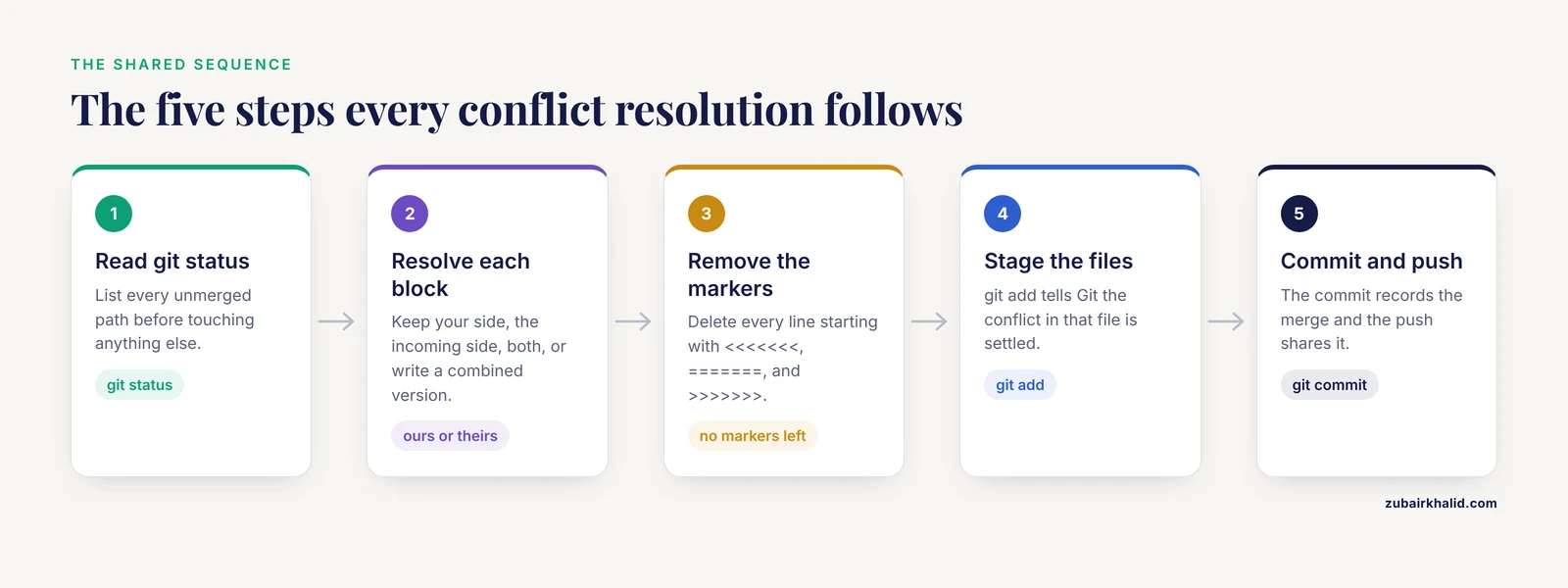
However you reach a conflict, and whichever editor you use to fix it, the underlying workflow is the same five steps. Learn this sequence once and both RStudio and JupyterLab become thin interfaces over it.
- Run
git statusand read the list of unmerged paths. Nothing else is useful until you know exactly which files are conflicted. - Open each conflicted file and decide the resolution for every conflict block. You can keep your side, keep the incoming side, keep both, or write something new that combines them.
- Remove the conflict markers. The lines starting with
<<<<<<<,=======, and>>>>>>>must all be gone from every file. - Stage the resolved files with
git add. Staging is how you tell Git that a file's conflict is settled. - Commit, then push. The commit records the merge, the push shares it.
Two clarifications make the rest of this article easier to follow. During a merge, ours means the branch you are on when the conflict happened, and theirs means the branch you are merging in. If you are on main and run git merge feature-dose-response, yours is main and theirs is the feature branch.
If a merge goes badly and you lose track of what you were doing, you can always return the repository to the exact state it was in before the merge started:
git merge --abortRun that, take a breath, and start the resolution again. Aborting is not failure, it is a normal tool.
Resolving Merge Conflicts in RStudio, Step by Step
RStudio has a Git pane (open it with View, then Show Git Pane if it is not visible) that reads the same repository state as the command line and translates it into clickable controls. The steps below assume your R project lives in a Git tracked repository and that a pull just reported a conflict.
Step 1. Pull and read the error
In the Git pane, click Pull, or run this in the Terminal tab:
git pullExpected output for a conflicted merge looks like this:
Auto-merging analysis/plots.R
CONFLICT (content): Merge conflict in analysis/plots.R
Automatic merge failed. Fix conflicts and then commit the result.
The first line tells you Git attempted a normal merge of analysis/plots.R. The second line names the file that failed. The third line tells you the merge is paused, not finished, and that the repository is now in a special conflicted state.
Step 2. Identify every conflicted file
Run:
git statusExpected output:
On branch main
You have unmerged paths.
Unmerged paths:
        both modified:   analysis/plots.R
        both modified:   renv.lock
Every file under "Unmerged paths" needs a resolution before the merge can be committed. Do not proceed with only the first file you noticed. In the RStudio Git pane, conflicted files are highlighted and their status column shows an unresolved state rather than the ordinary modified marker, so a quick visual scan of the pane catches the same list.
To see which commits from each side touched the conflicted files, which is often the fastest way to understand what happened:
git log --merge --onelineThis lists only the commits that changed the conflicted files, from both your branch and the incoming branch, newest first.
Step 3. Open the file and resolve each block
Double click analysis/plots.R in the Git pane or open it from the Files pane. Recent RStudio versions detect the conflict markers and highlight each conflict block in the source editor, with clickable controls that let you keep your version, keep the incoming version, or keep both for that block. If your RStudio version does not show those controls, editing the text directly works exactly the same way and is always available.
For the example block from earlier, suppose your branch has the ggplot2 version and the incoming branch rewrote the plot with base R graphics, changing the axis labels to include units. Neither mechanical choice is obviously right. If the unit change matters and you prefer ggplot2, write a combined version and delete all three markers:
ggplot(df, aes(x = dose, y = response)) +
  geom_line(color = "steelblue") +
  xlab("Dose (mg/kg)") +
  ylab("Response")
The most common resolution is not choosing a side, it is writing the version both authors would have written if they had talked first. Keep that in mind before clicking any "keep mine" button.
Step 4. Handle the R specific conflict hot spots
Two files in R projects deserve special treatment.
.Rproj files. These small project option files conflict easily because several settings sit on adjacent lines. The settings are simple key value pairs, so it is safe to open the file, keep whichever combination of options the team wants, remove the markers, and save. When in doubt, take either side intact, because a .Rproj file can be regenerated from the project settings dialog at any time.
renv.lock files. The renv package records package versions in a lock file so collaborators all run the same environment. A conflict in renv.lock is really a disagreement about which package versions the project uses. The reliable procedure is:
- Open
renv.lock, keep one side's content completely, and delete every marker and every trace of the other side. - Restart R, then run
renv::restore()in the R console to install the exact package versions the kept lock file specifies. - If the team instead wants the other side's package set, run
renv::snapshot()after updating packages, which rewritesrenv.lockcleanly from the installed library. - Commit the settled lock file.
Never hand edit your way through a conflict inside renv.lock by merging fragments of both sides. The file must describe one coherent set of package versions, and only renv::restore() and renv::snapshot() can guarantee that.
Step 5. Stage, commit, push
Save each resolved file. In the Git pane, tick the Staged checkbox next to every file you resolved (or run git add analysis/plots.R renv.lock in the terminal), then click Commit. RStudio opens a commit dialog where you type a message. For a merge, a short message such as Merge main, resolved plots and renv.lock is enough. Then click Push.
The repository is healthy again when the Git pane shows no pending changes and git status reports nothing to commit.
Resolving Merge Conflicts in JupyterLab, Step by Step
Notebook conflicts look far worse than R script conflicts, but they resolve cleanly once you understand what the file really is. The strategy differs from RStudio in one important way: you usually decide at the file level which version wins, then do any fine tuning at the cell level with a merge tool built for notebooks.
Step 1. Identify the conflict
After a failed pull or merge:
git statusUnmerged paths:
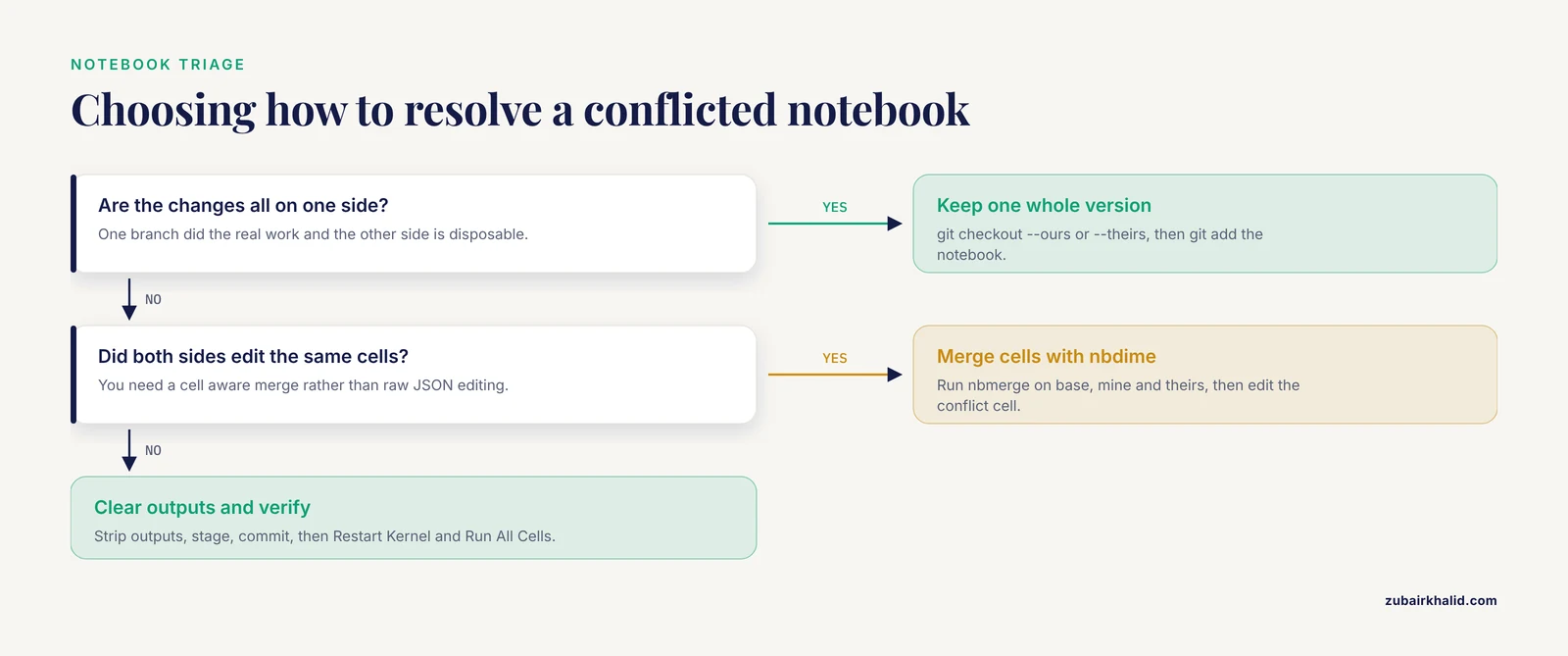
both modified: notebooks/analysis.ipynbIf you open analysis.ipynb directly, you see raw JSON, and if outputs were committed, the conflict can be one unreadable line tens of thousands of characters long. Do not try to hand edit that. Pick one of the three approaches below.
Step 2. Option A, keep one whole version
If one side did meaningful work and the other side's changes are disposable, keep one side wholesale and skip cell level merging entirely:
git checkout --ours notebooks/analysis.ipynb
git add notebooks/analysis.ipynb
-ours keeps your branch's version. -theirs keeps the incoming version instead:
git checkout --theirs notebooks/analysis.ipynb
git add notebooks/analysis.ipynb
These commands replace the conflicted file with one side, unchanged and marker free, and stage it. This is the right choice when the change is all on one side, and it is also the right emergency choice when you are under time pressure, because a one sided resolution can be amended later with a second commit.
Step 3. Option B, merge at the cell level with nbdime
The nbdime tools understand notebook structure, meaning they compare and merge cells, code, and outputs as units rather than as raw text. Install once:
pip install nbdimeTo merge the two conflicting versions, using Git's stored common ancestor as the base:
nbmerge notebooks/analysis.ipynbMore precisely, you pass the three versions explicitly:
git show :1:notebooks/analysis.ipynb > base.ipynb
git show :2:notebooks/analysis.ipynb > mine.ipynb
git show :3:notebooks/analysis.ipynb > theirs.ipynb
nbmerge base.ipynb mine.ipynb theirs.ipynb > merged.ipynb
The :1:, :2:, and :3: syntax asks Git for the base version, your version, and their version of the file from its internal storage during the conflict. nbmerge writes the merged result and, where the two sides changed the same cell in incompatible ways, inserts a clearly marked conflict cell that you edit directly in JupyterLab afterward.
If you prefer a graphical view, run:
nbmerge-web base.ipynb mine.ipynb theirs.ipynbThis opens a browser based three way merge view where you accept or reject changes cell by cell, including differences in images and rich output that plain text diff tools cannot compare.
To make Git use nbdime automatically for every notebook in the repository:
nbdime config-git --enableAfter this, git diff on a notebook shows a structured, cell aware comparison in your browser instead of the wall of JSON, and Git's merge step uses the notebook aware merger. This single setting removes most of the pain of notebook conflicts permanently.
Step 4. Clear outputs, then stage and commit
Whatever resolution path you took, remove outputs before committing so the next conflict is small:
jupyter nbconvert --to notebook --inplace \
  --ClearOutputPreprocessor.enabled=True notebooks/analysis.ipynb
Then stage and commit:
git add notebooks/analysis.ipynb
git commit -m "Merge analysis notebook, kept updated dose-response figures"
Step 5. Verify the notebook actually runs
Open the notebook in JupyterLab and choose Restart Kernel and Run All Cells from the Kernel menu. A merge that leaves syntax errors, duplicated variable definitions, or cells that depend on a removed variable will surface immediately in a full fresh execution, and it will not surface at all if you only skim the file. This run is your real verification.
Using the JupyterLab Git extension
If you live in JupyterLab rather than a terminal, install the Git extension:
pip install jupyterlab-gitThis adds a Git panel to the JupyterLab left sidebar that shows changed and conflicted files, lets you stage files with a click, write commit messages, and push and pull without leaving the browser tab. It reports the same repository state as git status, so conflicted files appear with an unresolved marker, and clicking them opens the file for editing. For reading and merging notebook conflicts inside JupyterLab, pip install nbdime also registers notebook diff and merge views in JupyterLab 3 and later.
Command Reference for Conflict Resolution
The commands below cover nearly every conflict situation in an R or notebook project. Keep this table open the first few times you resolve a conflict and it will start to feel routine.
| Command | What it does | Use it when |
|---|---|---|
| , - | , - | , - |
git status | Lists all unmerged paths | This is always your first command |
git log, merge, oneline | Shows commits from both sides that touched the conflicted files | You need to know who changed what |
git checkout, ours <file> | Replaces the file with your branch's version and stages it | One side's changes are disposable |
git checkout, theirs <file> | Replaces the file with the incoming version and stages it | The incoming branch should win |
git diff, check | Flags leftover conflict markers in changed files | Before you stage the resolution |
git add <file> | Marks a file's conflict as resolved | After editing and saving |
git commit | Records the merge | After every unmerged path is staged |
git merge, abort | Restores the repository to the state before the merge | The merge went sideways |
git config rerere.enabled true | Makes Git reuse your recorded resolutions | You keep resolving the same conflict |
nbmerge base mine theirs | Cell level three way merge of notebooks | Both sides edited the same notebook |
nbdime config-git, enable | Makes Git use notebook aware diff and merge | You commit notebooks regularly |
nbstripout, setup | Strips notebook outputs automatically on commit | You want smaller, cleaner notebook commits |
How to Check That Your Resolution Is Correct
A conflict is resolved when three things are true, and you should verify each one deliberately rather than assuming.
First, no markers remain anywhere in the repository. Before committing, run:
git diff --checkAny output naming a file and line means a marker survived. As a belt and braces check, search the whole repository:
git grep -n "<<<<<<<"Empty output means you are clean.
Second, the code runs. In RStudio, restart R (Session, then Restart R) and run your pipeline entry point, for example:
rmarkdown::render("report.Rmd")or source() the conflicted script directly. A resolution that combined two logically incompatible changes passes the marker check and still fails here, which is exactly why this step exists. In JupyterLab, the equivalent is Restart Kernel and Run All Cells, as described above.
Third, the merge is recorded and the remote agrees. After committing and pushing:
git status
git log --oneline -3
git status should report a clean working tree, and git log should show the merge commit at the top of the history. On GitHub, open the pull request and confirm it no longer reports conflicts with the base branch. If you use pull requests, note that conflicts must be resolved on your local machine and pushed, because GitHub's web interface can merge automatically only when no conflict exists and cannot walk you through a manual resolution.
Common Mistakes and Limitations
These are the errors that cost analysts the most time, with the exact failure you see and the fix.
Committing a file that still contains markers. Git will happily commit a file with <<<<<<< in it if you stage it without editing. The bug appears later as a syntax error: R reports unexpected token near the marker line, and Python raises SyntaxError: invalid syntax. The fix is git diff, check before every resolution commit, and the git grep -n "<<<<<<<" sweep if the bad commit already went in.
Clicking "stage all" or running git add . during a conflict. This stages conflicted files as if they were resolved without you resolving them. It feels efficient and it is almost always wrong. Stage files individually, after reading them.
Confusing ours and theirs during a rebase. During a merge, -ours is your current branch. During a rebase, the meaning flips, because a rebase replays your commits onto the other branch one at a time, so at each replayed commit yours is the branch you are rebasing onto and theirs is your own commit. If a resolution looks inexplicably backward, check whether you are rebasing rather than merging, and remember git rebase, abort exits cleanly at any point.
Resolving notebook conflicts by hand in the raw JSON. A single misplaced comma or bracket makes the entire notebook unloadable, and JupyterLab reports it with a cryptic JSON parsing error when you try to open the file. If you ever end up hand editing JSON, validate it immediately, either by opening it in JupyterLab or with python -m json.tool analysis.ipynb, which prints a clear error identifying the malformed line.
Treating binary files as mergeable. .RData, .xlsx, and similar files do not merge line by line. Git reports them conflicted and there is nothing to edit. Decide which version wins with git checkout, ours or -theirs, or better, keep these files out of Git entirely and regenerate them from code.
Force pushing over shared history. When a push is rejected because the remote moved ahead, the fix is to pull and resolve, never git push, force on a branch other people use. Force push rewrites the shared history and silently discards your collaborators' commits.
Line ending differences creating whole file conflicts. A repository shared between Windows and macOS can show every line of a file as changed when only line endings differ. A .gitattributes file containing * text=auto normalizes this and prevents the recurring noise.
Assuming a clean merge means correct code. Git's job ends when the text is consistent. Two resolutions can both be marker free and both be wrong, one because it duplicates logic and one because it silently drops a colleague's correction. Execution and review, not Git, establish correctness.
Frequently Asked Questions
What do the symbols <<<<<<<, =======, and >>>>>>> mean in my file?
They are Git's conflict markers, written automatically when a merge cannot combine two versions of the same lines. Text between the first two markers is your branch's version, text between the second and third is the incoming branch's version, and all three marker lines must be deleted as part of the resolution.
How do I back out of a merge that went wrong?
Run git merge, abort, which restores your repository to the exact state it was in before the merge started. If you were rebasing instead, run git rebase, abort. Neither command loses any committed work.
Why does my Jupyter notebook show the entire file as one giant conflict?
Notebook files are JSON written as a single long line by default, and outputs from running cells are stored in that line. When two people save different outputs, Git sees one enormous changed line on both sides and conflicts on the whole file. Strip outputs before committing, and use nbdime for cell level merges.
Do I need to install anything extra to handle notebooks in Git?
Yes, pip install nbdime gives you cell aware diffs and merges, and pip install nbstripout strips outputs on commit. Both are optional in the sense that plain Git resolves notebook conflicts too, but both turn an unreadable JSON conflict into a readable, cell level one.
How do I stop RStudio from saving .RData and .Rhistory into my repository?
Add .RData and .Rhistory to the repository's .gitignore file so Git never tracks them. If they were committed previously, also run git rm, cached .RData .Rhistory so Git stops tracking the existing copies while leaving them on your disk.
Can I resolve a pull request conflict directly on GitHub?
No. GitHub's web interface can only merge a pull request automatically when there is no conflict, and it offers no manual conflict editor. Resolve the conflict locally in RStudio or JupyterLab, commit, and push, and the pull request updates itself.
What is the difference between ours and theirs during a conflict?
Ours is the branch you are currently on and theirs is the branch being merged in, so git checkout, ours keeps your version and -theirs keeps the incoming version. During a rebase the two labels swap, because Git replays your commits onto the other branch.
Should I merge or rebase when my pull request has conflicts?
Merge is the safer default for shared analysis branches, because it preserves history exactly as it happened and reversal is a single git merge, abort away. Rebase gives a cleaner linear history but rewrites your local commits, so only rebase branches that nobody else is working on.