How to Remove Large Files from Git History
By Dr. Zubair Khalid, DVM, MS, PhD ·
Someone committed a 2 GB FASTQ, a whole-genome alignment, or a directory of microscope stacks, and now the repository will not push, clones take an hour, and every collaborator is downloading data they never needed. This is the single most common Git failure in computational research, and the most common cause is simple: a data file was committed in the past, and Git still carries every version of it inside the .git directory even after you delete it from the working tree.
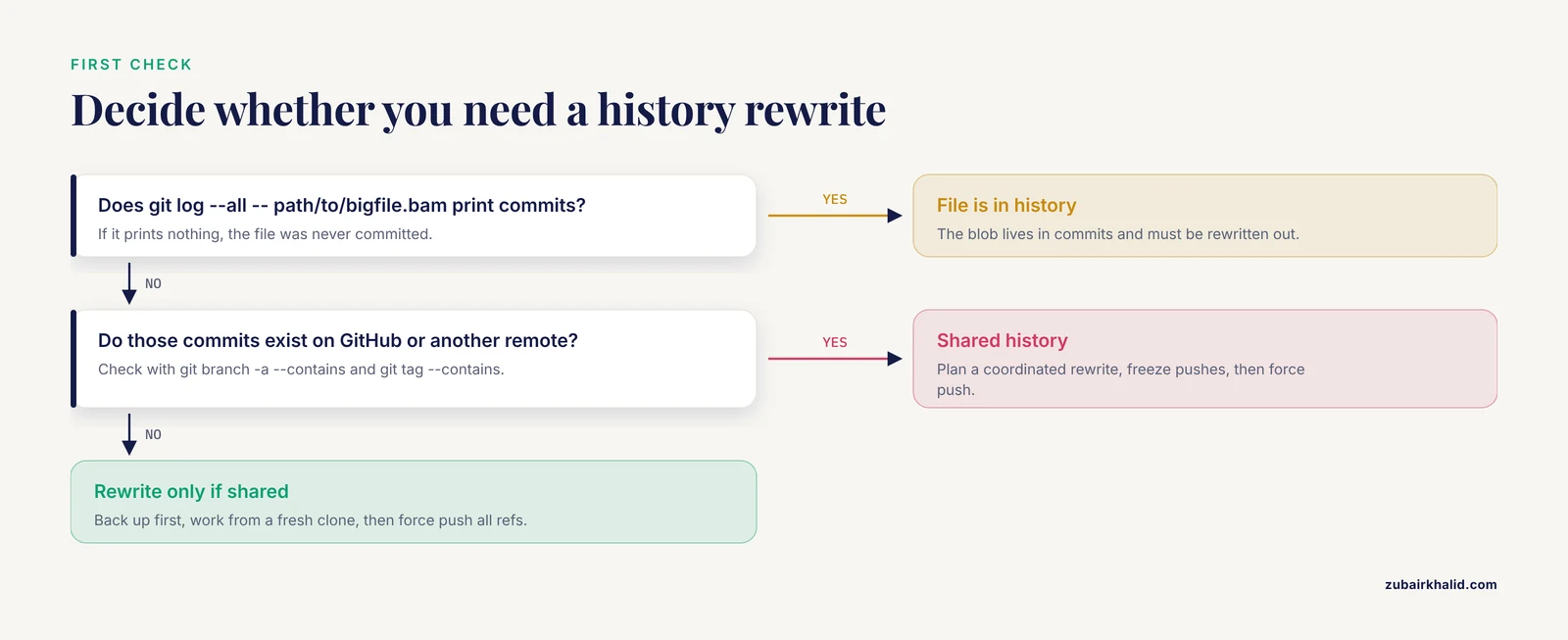
The first thing to check is whether the file has been pushed to a shared remote. Run:
git log --all --oneline -- path/to/bigfile.bamIf this prints commits, the file lives in your history. If those commits exist on GitHub or another remote, you are dealing with a history rewrite plus a coordinated force push. If they exist only locally, you can fix the problem in minutes with a reset or an interactive rebase. The rest of this article walks through both situations, explains why deleting the file in a new commit never works, and gives you a reproducible cleanup procedure using git filter-repo, the tool the Git project itself recommends for this job.
A note on scope before we start. Git was designed for source code and text. Research pipelines generate BAM files, FASTQ files, imaging stacks, and model checkpoints that exceed what Git handles well, and published work on research data management has documented this gap explicitly. The gitOmmix approach for managing omics and imaging data in clinical data warehouses pairs Git with git-annex precisely because Git alone cannot version large scientific data files well [1]. The cleanup procedures below repair the damage. The prevention section at the end keeps it from happening again.
Why Deleting the File Does Not Shrink the Repository
Understanding the mechanism saves you from the most common wasted hour in Git maintenance. Git stores every version of every file ever committed as a compressed object called a blob. Each blob is content-addressed by a SHA-1 hash and stored under .git/objects. When you run git rm bigfile.bam and commit, Git writes a new tree that omits the file, but the old blobs remain reachable through the commits that contained them. The repository keeps the full historical copy.
Three things keep those blobs alive:
- Reachable commits. Any commit on any branch or tag that contains the blob keeps it permanently.
- The reflog. Git records every position your
HEADhas ever pointed at. Deleted branches and amended commits survive in the reflog for a default grace period of 90 days for reachable-from-reflog entries and 30 days for unreachable ones. - Remote-side copies. GitHub, GitLab, and Bitbucket keep their own object stores, including objects that no branch references. Pull requests, cached web views, and fork networks preserve data independently of what you push next.
This is why "I deleted it and committed the deletion" produces a working tree without the file but a .git directory that is exactly as large as before. To truly remove large files from git history, you must rewrite history so that no reachable commit contains the blob, expire the reflog, garbage collect locally, and force push so the remote drops its copies.
Common Causes, Ranked from Most to Least Common
1. A data file was committed before a .gitignore rule existed. This is the dominant cause in research repositories. A collaborator runs the pipeline, the output lands in the working tree, and git add . sweeps in everything. By the time someone writes .gitignore, the file is already in several commits.
2. Results directories tracked alongside code. Analysis outputs such as results/, output/, alignments/, or figures/ get committed once during a deadline crunch and then accumulate every subsequent run.
3. Vendored binaries and containers. Reference genomes, indices, conda environment tarballs, and .sif container images are committed "just this once" so collaborators do not have to download them.
4. Notebook outputs. Jupyter notebooks with embedded base64-encoded plot images routinely reach tens of megabytes, and every re-run of the notebook creates a new blob.
5. Accidental bulk adds. git add -A from the wrong directory, or committing an archive such as data.tar.gz that was meant to be temporary.
6. History contains them but nobody noticed until push failed. GitHub rejects any file over 100 MB outright and issues warnings for files between 50 MB and 100 MB. Researchers who commit locally for weeks before the first push discover the entire accumulated history at once.
Diagnostic Sequence: Find the Large Blobs Before You Delete Anything
Run this sequence on a copy of the repository, or at minimum with a clean working tree and a fresh backup branch. Every command below is standard Git and works on any recent release.
Step 1. Measure the repository.
git count-objects -vH
du -sh .git
git count-objects -vH reports the size of loose objects and packs. A .git directory several times larger than your working tree is the signature of large historical blobs.
Step 2. List the largest blobs in the entire history.
git rev-list --objects --all \
  | git cat-file --batch-check='%(objecttype) %(objectname) %(objectsize) %(rest)' \
  | awk '$1 == "blob" {print $4, $3}' \
  | sort -k2 -n -r \
  | head -25
This prints the 25 largest blobs with their sizes and file paths across all branches and tags. On Git 2.31 and newer you can also use git rev-list, disk-usage, objects, all for a total.
Step 3. Find every commit that touched a suspect file.
git log --all --oneline --follow -- results/alignment.bamThe -follow flag traces renames. This tells you how many commits you are about to rewrite and whether the file appears under several names.
Step 4. Check which branches and tags contain those commits.
git branch -a --contains <commit-hash>
git tag --contains <commit-hash>
A blob can survive a branch cleanup because an old release tag still references it. Tags are the most frequently missed source of large objects.
Step 5. Confirm the file is not required by anything. Search your pipeline scripts, Makefile, Snakefile, or nextflow.config for references to the path. Removing a file that a downstream rule expects will break the pipeline for everyone who pulls the rewritten history.
Troubleshooting Table
| Symptom | Likely cause | How to confirm | Fix |
|---|---|---|---|
| Push rejected with a message that a file exceeds the 100 MB limit | One or more blobs in the outgoing commits exceed the remote host limit | Run the largest-blobs pipeline above and check the listed sizes | Rewrite history with git filter-repo before pushing, or migrate the file to Git LFS |
| Push hangs or fails with an RPC or HTTP 413 error | The pack being pushed is too large for the HTTP transfer buffer or proxy | Check pack size with git count-objects -vH after git gc | Increase http.postBuffer, push over SSH, or shrink the pack by cleaning history first |
Repository clones slowly, .git is huge but the working tree is small | Large historical blobs no longer in the working tree | Compare du -sh .git with du -sh on the working tree, excluding .git | History rewrite plus local garbage collection, then a fresh clone on the remote side |
| File deleted weeks ago but the repository never shrank | Old blobs remain reachable through commits, tags, or the reflog | git log, all, path/to/file still shows commits | Rewrite history, expire the reflog, garbage collect, force push |
| Force push completed but the remote repository size is unchanged | The remote retains unreachable objects until its own garbage collection runs, and pull request references may pin objects | Re-clone the repository and compare sizes | Wait for server-side maintenance, contact support for a manual purge, verify with a fresh clone |
| Collaborators report merge conflicts or duplicated commits after your cleanup | They have local branches based on the pre-rewrite history | Check whether colleagues rebased or re-cloned after the force push | Everyone re-clones or rebases local work onto the rewritten branches, then force-pushes their own rebased branches |
| Clone fails with an LFS smudge error after a history migration | LFS objects were pushed to a different remote or the local LFS cache lacks the objects | Run git lfs ls-files and attempt git lfs pull | Push LFS objects explicitly with git lfs push, all origin, then re-clone |
git filter-repo aborts with a fresh-clone warning | The tool refuses to run on a repository it considers dirty or unsafe | Check for uncommitted changes, stashes, and existing filter-repo history | Run on a fresh clone, or pass the force flag only after verifying backups |
| The large file returns after cleanup | A tag, an archived branch, or a fork still references the old commits | Repeat the largest-blobs listing after cleanup | Strip the same paths from tags, coordinate with fork owners, or delete stale tags |
| Repository grew again weeks later | New commits reintroduced large files because prevention measures were not in place | Re-run the largest-blobs listing and diff against your previous baseline | Add .gitignore rules, a pre-commit size check, and route data to LFS or git-annex |
How to Remove Large Files from Git History with git filter-repo
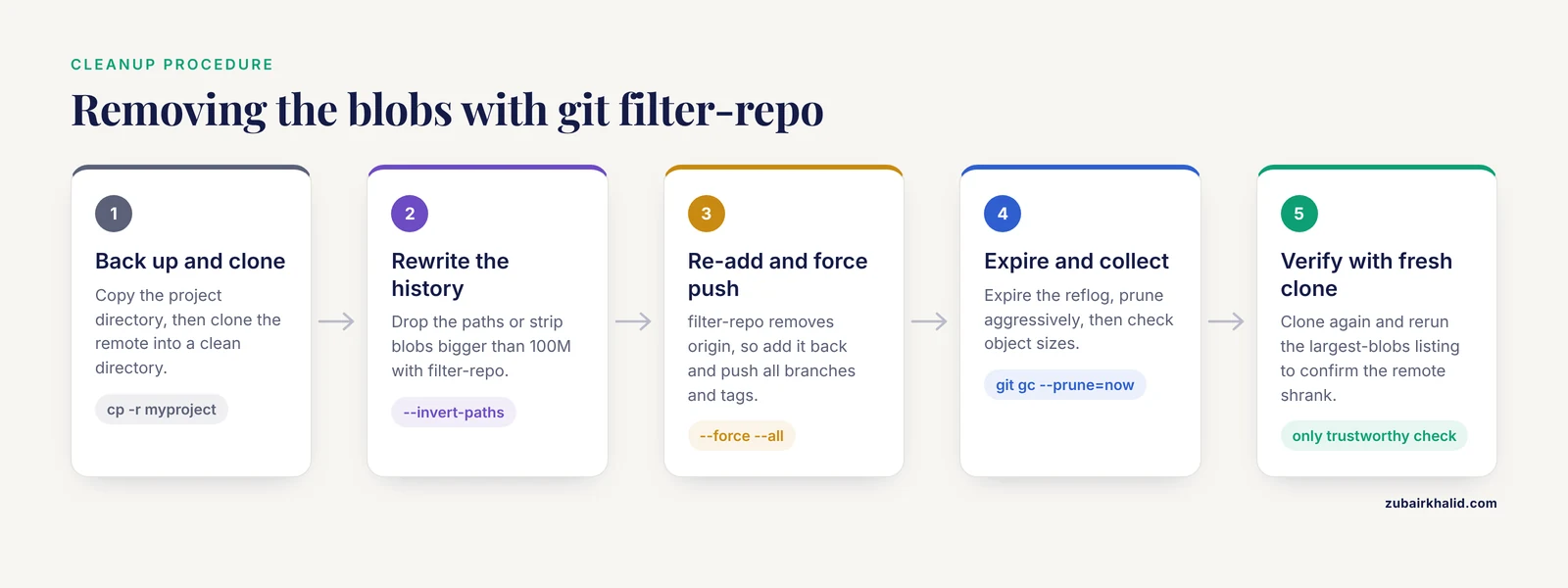
git filter-repo is the successor to git filter-branch, which the Git documentation now flags as unsafe for this purpose. filter-repo is fast, it rewrites all refs including tags, and it strips the remote configuration afterward as a safety measure so you cannot accidentally push a half-rewritten history to the wrong place.
Safety note. History rewriting rewrites every commit SHA that descends from the modified commit. Do this only after you have a complete backup, and never on a repository where collaborators are actively pushing. Announce a maintenance window, freeze pushes, and confirm every collaborator has committed or pushed their work first.
Step 1. Make a full backup.
cp -r myproject myproject-backupA plain directory copy is the most reliable backup because it preserves the reflog and all objects, which is exactly what a history rewrite destroys.
Step 2. Work from a fresh clone. filter-repo checks that the repository looks like a fresh clone and refuses to run otherwise. A fresh clone also guarantees the smallest possible starting object set.
git clone https://github.com/yourlab/yourproject.git yourproject-clean
cd yourproject-clean
Step 3. Install filter-repo. It is a single-file Python script available from the git-filter-repo project on GitHub, and it is packaged as git-filter-repo in conda-forge, Homebrew, and most Linux distributions.
pip install git-filter-repoStep 4. Rewrite history to drop the file.
To remove specific paths from all history:
git filter-repo --path results/alignment.bam --path data/reference.fa --invert-pathsTo remove every blob larger than a size threshold, which is often more thorough when many large files slipped in:
git filter-repo --strip-blobs-bigger-than 100MTo remove an entire directory such as a results folder:
git filter-repo --path results/ --invert-pathsTo restrict the rewrite to a subdirectory history, add -subdirectory-filter. To rewrite only files matching a pattern while keeping everything else, use -path-glob.
Step 5. Re-add the remote and force push. filter-repo removes the origin remote on purpose.
git remote add origin https://github.com/yourlab/yourproject.git
git push --force --all origin
git push --force --tags origin
Step 6. Garbage collect locally and verify.
git reflog expire --expire=now --all
git gc --prune=now --aggressive
git count-objects -vH
Run the largest-blobs listing from the diagnostic sequence again. It should now return nothing above your threshold. Your local .git directory shrinks immediately because the reflog expiration and prune remove the last references to the old objects.
Step 7. Verify the remote with a fresh clone. Clone the repository into a new directory and check its .git size and the largest-blob listing. This is the only trustworthy confirmation that the remote has dropped the data.
Fixing the Problem Before the First Push
If the large file exists only in local commits, you do not need filter-repo.
File added in the most recent commit, not pushed:
git rm --cached data/run_01.fastq.gz
echo "data/" >> .gitignore
git commit --amend --no-edit
File added but not yet committed:
git rm --cached -r data/
git commit -m "Track code, not data"
File buried in the last several unpushed commits: use an interactive rebase to edit or drop the offending commits.
git rebase -i origin/mainMark the relevant commit as edit, remove the file with git rm, cached, amend, and continue. This approach is safe precisely because nothing has been shared yet. Treat the first push as the point of no return: once commits are on a shared remote and others may have pulled them, plan a coordinated rewrite instead.
Fixing the Problem After the Push: Force Push Logistics
Rewriting shared history changes every descendant commit SHA. Collaborators who pull the rewritten branches into their old clones will see phantom conflicts or duplicated history. The clean recovery for each collaborator is:
git fetch origin
git rebase --onto origin/main <old-base> your-branch
In most lab settings the honest recommendation is simpler. Tell everyone to finish and push any unmerged work, merge or close open pull requests, rewrite, force push, and then have everyone re-clone. A fresh clone costs minutes. Resolving a tangled rewrite by hand costs hours.
Safety note. Force pushing overwrites remote branches. If your hosting platform allows branch protection, temporarily enable it during normal work and disable it only for the maintenance window. Never force push to a default branch without confirming that the rewritten history contains everything the old one did, which you can check by diffing the working trees of the backup and the rewritten clone.
When GitHub Keeps the Data Anyway
After a correct rewrite and force push, GitHub's own copy of the repository may still report the old size, and the file may still appear in old commit views. This is expected behavior. GitHub retains unreachable objects until its internal garbage collection runs, and commits referenced by closed pull requests or cached views can keep data visible. For repositories where the removed content is sensitive, the documented remedy is to contact GitHub Support and request a garbage collection run and cache purge. For ordinary size problems, the practical test is the fresh clone in Step 7. If a fresh clone is small, the excess is remote-side residue that serves no one but costs nothing to your collaborators' clones.
Fork networks need attention too. Any fork created before the rewrite still holds the original objects. If the concern is repository size rather than sensitive data, fork residue is tolerable. If the concern is confidential data, treat every fork as a copy you do not control and involve your institution's data governance process.
BFG Repo-Cleaner as an Alternative
The BFG Repo-Cleaner is a mature Java-based alternative that many researchers already have installed. It protects the current HEAD commit by default, which means files present in the latest commit are not stripped unless you delete them first.
bfg --strip-blobs-bigger-than 100M
bfg --delete-files "*.bam"
Run BFG from inside the repository, then expire the reflog and garbage collect exactly as in Step 6. BFG is a reasonable choice when filter-repo is unavailable, but filter-repo offers more precise path handling and is the tool the Git project points to for history rewriting, so prefer it for new workflows.
Migration to Git LFS for Files That Must Stay in the Repository
Some large files genuinely belong under version control: a curated reference index, a small trained model, a figure used in the manuscript. Git LFS (Large File Storage) replaces those blobs in the Git history with pointer files and stores the actual content on an LFS server.
git lfs install
git lfs track "*.bam"
git lfs track "*.cram"
git add .gitattributes
git commit -m "Track BAM and CRAM files with LFS"
To rewrite existing history so old commits also use LFS pointers:
git lfs migrate import --include="*.bam" --everythingThen force push with LFS objects:
git push --force --all origin
git push --force --tags origin
git lfs push --all origin
Check your hosting platform's LFS storage and bandwidth quotas before migrating a large genomics repository. LFS quotas are frequently the next wall researchers hit after the Git size wall.
git-annex for Research Data: When Git Should Not Hold the Data at All
For most laboratory data, the correct answer is that Git should hold pointers, checksums, and provenance, while the data themselves live in object storage or a managed file store. git-annex extends Git with exactly this model. Each large file is replaced by a symlink-style pointer carrying a checksum, and the content is stored in configurable remotes such as a lab server, a directory on external drives, or cloud object storage. Git then versions the pointers, which are small.
This is not a niche pattern. In the gitOmmix work on clinical data warehouses, the authors rely on Git for versioning and on git-annex as the extension that handles large files, linking genomic and imaging data into a provenance knowledge graph so that a clinical interpretation can be traced back through supporting data and analyses to the patient sample [1]. The same design translates directly to research repositories: code and small configuration in Git, checksummed large data in git-annex, and a mapping between commits and data versions that survives even when the data live elsewhere. For a laboratory that already needs reproducibility audits, adopting git-annex from the start is a stronger solution than repeatedly cleaning Git history.
The tradeoff is operational. git-annex requires collaborators to configure where content lives and to run git annex get to fetch data, and it behaves differently from plain Git when locking files on some file systems. Git LFS is simpler but ties you to your host's quotas. Choose LFS for a handful of must-version files and git-annex when the data volume is measured in terabytes or when provenance tracking matters.
Prevention Practices for Research Repositories
The cheapest history rewrite is the one you never perform.
Write .gitignore before the first commit, not after the first push. A sensible starting block for a computational biology project:
data/
results/
output/
*.bam
*.fastq
*.fastq.gz
*.cram
*.sif
*.tar.gz
*.ipynb_checkpoints/
Route data through a data directory that Git never sees. Keep raw and derived data in data/ and results/ with ignore rules, and have pipelines read from and write to those paths. The repository then contains code, parameters, small test fixtures, and documentation, which is the arrangement that scales.
Add a pre-commit hook that blocks large files. A minimal hook that rejects staged files over 100 MB:
#!/usr/bin/env bash
max=104857600
for f in $(git diff --cached --name-only)
do
  if [ -f "$f" ] && [ "$(stat -c%s "$f" 2>/dev/null || echo 0)" -gt "$max" ]
  then
    echo "BLOCKED: $f exceeds 100 MB. Move it to data storage or use Git LFS."
    exit 1
  fi
done
Install it as .git/hooks/pre-commit and make it executable. On macOS, replace stat -c%s with stat -f%z. Teams already using the pre-commit framework can use its check-added-large-files hook instead of maintaining this script by hand.
Strip notebook outputs before committing. Configure your team to clear Jupyter outputs before commit, or store executed notebooks with results in a separate reports location.
Keep reference data in a versioned data store with checksums. Reference genomes and indices change rarely and are large constantly. Record their checksums and source URLs in a references.md file inside the repository, and fetch them in the pipeline rather than committing them.
Track repository size as a routine check. A quarterly git count-objects -vH in each active repository catches creep before it becomes a push failure.
These habits are the core of practical git for scientists workflows: small repositories holding code and metadata, large data held by purpose-built tools, and explicit provenance connecting the two. That division of labor, formalized in systems such as gitOmmix for clinical omics data, is what makes version control durable at research scale [1].
Common Mistakes and Limitations
Deleting the file and pushing a deletion commit. This removes the file from the working tree and future clones' working trees, but every historical blob remains in every clone of the repository. It fixes nothing about size.
Running a history rewrite on the only copy. A rewrite that goes wrong, or a force push that lands before the rewrite is verified, can destroy work. Always rewrite a fresh clone, keep a plain directory backup, and diff the working trees before and after.
Forgetting tags. A release tag pointing at old commits keeps every large blob in those commits alive. Rewrite tags explicitly, as the force push of tags in Step 5 does, and confirm with the largest-blobs listing afterward.
Assuming the remote shrinks immediately. Hosted platforms retain unreachable objects on their own schedule. Verify success with a fresh clone rather than the web interface.
Rewriting without coordinating collaborators. Anyone who pulls after a force push without rebasing can push the old history right back, silently restoring the blobs you removed. Freeze pushes during the maintenance window and have every collaborator re-clone.
Using LFS after the fact without migrating history. Adding an LFS tracking rule stops future large blobs, but the existing plain-Git blobs stay in history. Use git lfs migrate import to convert historical commits, then force push.
Expecting history rewriting to fix access control. If a file contained sensitive human genomic data or credentials, removing it from Git does not un-disclose it. Treat the data as exposed, rotate credentials, and follow your institution's data breach procedures. Git history rewriting is a storage and performance fix, not a security fix.
Individual project constraints. Every repository has its own hosting platform, quota structure, collaborator norms, and data governance requirements. The commands here are standard and portable, but the decision about what belongs in Git versus in a data repository is a local one that should reflect your lab's data management plan.
Frequently Asked Questions
Does deleting a file in a new commit remove it from Git history?
No. The deletion commit removes the file from the working tree going forward, but every historical version remains as blobs reachable from older commits. To remove large files from git history you must rewrite the commits themselves with a tool such as git filter-repo, expire the reflog, and garbage collect.
Can I remove a large file without rewriting history?
Not if the goal is a smaller repository. The blob lives inside historical commits, and only a rewrite removes it. If the file was added in the latest commit and never pushed, git commit, amend avoids a full rewrite because amending simply replaces the tip commit.
Will force pushing break my collaborators' clones?
Their clones will still work, but their local branches will be based on pre-rewrite history and will produce conflicts or duplicated commits when merged. The reliable recovery is for each collaborator to rebase local work onto the rewritten branches or simply re-clone.
What file size limit does GitHub enforce?
GitHub rejects individual files over 100 MB and warns that files above 50 MB are poorly suited to normal Git storage. These are documented platform limits, so a history containing any single blob above 100 MB cannot be pushed to GitHub without first being cleaned or migrated to Git LFS.
Is git filter-repo better than BFG Repo-Cleaner?
For most cleanups, yes. filter-repo is the tool the Git project recommends for history rewriting, it handles arbitrary path and glob rewrites, it rewrites tags by default, and it is faster on large histories. BFG is a solid fallback, particularly for a simple size-threshold strip, but its default behavior protects the current commit, which can leave recent large files in place.
How do I version large data files without bloating Git?
Use Git LFS when a modest number of large files must follow the repository, and git-annex when data volumes are large or when provenance linking matters. Research data management systems pair Git's versioning with git-annex for exactly this purpose, keeping content-addressed pointers in Git and the heavy data in configurable storage remotes [1].
Why is my GitHub repository still large after a successful rewrite and force push?
GitHub keeps unreachable objects until its internal garbage collection runs, and commits referenced by pull requests or cached views can persist. Verify success with a fresh clone. If a fresh clone is small, the remaining remote-side size is residual and will not affect your collaborators' clone times.
How do I prevent large files from being committed again?
Commit a .gitignore covering data and results directories before the first push, install a pre-commit hook that rejects staged files above a size threshold, route raw and derived data into a git-annex or LFS workflow, and record reference data as checksums rather than as committed blobs.