How to Recover Lost Lab Notebook Entries with Git
By Dr. Zubair Khalid, DVM, MS, PhD ·
Most lost lab notebook entries fall into one of two buckets. Either they were never committed, or they were committed and then hidden by a command such as git reset, git rebase, or a branch switch. The first bucket is the most common by a wide margin. Git records nothing until you explicitly stage and commit your work, so a full day of typing that lives only in your editor is invisible to Git. The second bucket looks scarier but is almost always reversible, because Git deliberately keeps orphaned snapshots for weeks before it deletes them.
The first thing to check is also the safest thing to check. Open a terminal in the repository and run these three commands in order:
git status
git stash list
git reflog --date=iso
Do not run git gc, git clean, git reset, git prune, or any command containing the word force until you have finished searching. Each of those can permanently destroy the evidence you are hunting for. If the disk itself is making noises or the filesystem is throwing errors, stop and copy the entire repository folder, including the hidden .git directory, to a different volume before doing anything else.
This guide explains the mechanisms behind lost entries, walks through a short diagnostic sequence, provides a symptom table, and then gives command-level fixes ordered from most common to rarest. It closes with the prevention habits that separate a fragile notebook from one that is effectively unlosable.
Why Lab Notebook Entries Go Missing in Git
To understand both the causes and the fixes, you need a working model of what Git actually stores. Four terms cover most of it.
A repository is the project folder plus a hidden .git directory. The .git directory holds the entire history as objects. A commit is an immutable snapshot of every tracked file, together with a message, an author, a timestamp, and a pointer to its parent commit. The raw stored content of a single file inside a commit is called a blob. A blob has no filename attached, which matters later when you go digging through orphaned snapshots. HEAD is a pointer to the commit you currently have checked out, normally the tip of your active branch.
Between your editor and the history sit two more layers. The working tree is the files you actually see and edit in the folder. The staging area, also called the index, is the draft of your next commit, filled by git add. Git only creates permanent objects when content passes through the staging area into a commit. Content that never leaves the working tree exists nowhere else, which is the root of the most common data loss scenario.
Two safety nets sit underneath all of this. The reflog, short for reference log, is a private journal Git keeps on your machine of every position HEAD has occupied, including commits that were later moved away from. A commit that no branch, tag, or reflog entry points to is called dangling or unreachable. Dangling objects are not deleted immediately. According to the default settings documented in the official Git configuration reference, reflog entries expire after about 90 days for commits still reachable from a branch and 30 days for unreachable ones, and automatic garbage collection gives loose unreachable objects a grace window of roughly two weeks before pruning. Those windows are your recovery margin, and they are the reason you should search sooner rather than later.
With that model in place, the causes of lost entries, ranked from most to least common, look like this.
- The entries were never committed. Git has no record of them. They exist only in the working tree, in an editor buffer, or nowhere at all.
- You are looking in the wrong place. The commits exist on another branch, on another machine, or only on a colleague's clone. Nothing is lost, just misplaced.
- A working-tree command destroyed uncommitted edits.
git reset, hard,git checkout, <file>,git restore <file>, orgit clean -fdoverwrote or deleted files in the working tree. Anything that was staged at some point survives as a dangling blob. Anything never staged is gone from Git's view entirely. - History rewriting orphaned commits.
git commit, amendreplaces the latest commit, andgit rebasereplays commits onto a new base, leaving the originals unreachable. The originals usually remain recoverable through the reflog. - A branch was deleted or HEAD was detached. Deleting a branch removes its name but not its commits. Working in detached HEAD state, where HEAD points directly at a commit instead of a branch, leaves new commits without a branch label. Both cases leave the commits reachable through the reflog.
- A stash was dropped.
git stash dropremoves the label from a stash commit. The commit itself dangles and is usually recoverable. - A force push rewrote the shared remote. On GitHub or another host, overwritten commits can drop out of sight for the whole lab. Pull request references and other people's clones often still hold them.
- Files were ignored all along. A rule in
.gitignorekept instrument exports or data files out of every commit, so they never entered history in the first place. - Infrastructure failure. The
.gitfolder was deleted, the disk failed, or the repository was never initialized. Here Git has nothing to offer and recovery moves to the filesystem and backup layer.
How to Recover Lost Lab Notebook Entries with Git: The First Five Commands
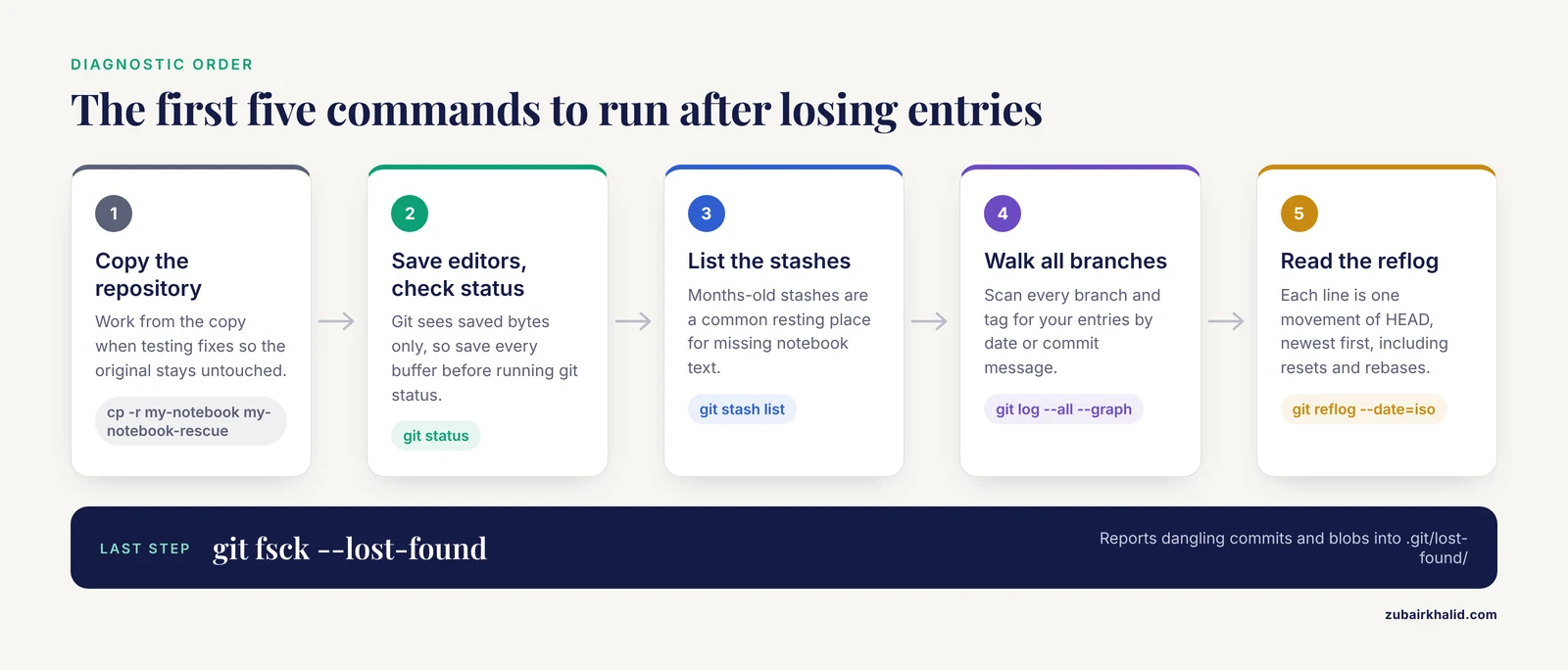
Run these in order. Each one is read-only or writes only to new, safe locations, so none of them can make things worse.
Step 0. Copy the repository.
cp -r my-notebook my-notebook-rescueWork from the copy when you start testing fixes. A recovery attempt that goes wrong on a copy is a lesson, while the same mistake on the original can be a disaster.
Step 1. Save and close your editors, then run git status.
Git sees saved bytes only. Text sitting in an unsaved buffer exists solely in the editor's memory. Save everything, then run:
git statusLook for three things: files listed as modified or deleted that you did not intend, untracked files that should be tracked, and a clean status that tells you the working tree holds nothing recoverable.
Step 2. Run git stash list.
git stash list
git stash show -p stash@{0}
A stash is a commit-like snapshot of uncommitted work set aside with git stash. Entries are named stash@{0}, stash@{1}, and so on, with the newest first. Months-old stashes are a surprisingly common resting place for "missing" notebook text.
Step 3. Run git log, all, graph, oneline, decorate.
git log --all --graph --oneline --decorateThe -all flag walks every branch and tag, not just your current one. Scan the output for your missing entries by date or by a distinctive phrase you remember from a commit message.
Step 4. Run git reflog, date=iso.
git reflog --date=isoTypical output looks like this:
a1b2c3d (HEAD -> main) HEAD@{0}: reset: moving to HEAD~1
9f8e7d6 HEAD@{1}: commit: day 12: western blot quantification
Each line is one movement of HEAD, newest first. HEAD@{0} is where HEAD is now, HEAD@{1} is where it was one move ago, and so on. If you see a reset, a rebase, or an amend entry above a commit that contains your work, that commit is your recovery target. To preview any entry before acting on it, run git show HEAD@{2} (substituting the number you identified).
Step 5. Run git fsck, lost-found.
git fsck --lost-foundThis reports dangling commits and dangling blobs and copies their identifiers into .git/lost-found/commit and .git/lost-found/other. Blobs land in the other folder because a blob carries no filename. You inspect each one by content, which Fix 3 demonstrates.
If any of the five steps turns up your entries, jump to the matching fix below. If all five come up empty, the entries were probably never staged, and Fix 7 is your path.
Troubleshooting Table: Symptom, Likely Cause, Confirmation, Fix
| Symptom | Likely cause | How to confirm | Fix |
|---|---|---|---|
git status lists a file as deleted but you never meant to delete it | Accidental working-tree deletion | The file appears under "deleted:" in git status | git restore path/to/file |
A day of edits vanished right after git reset, hard | Uncommitted changes wiped from the working tree | git reflog shows a "reset: moving to" entry at the top | Fix 3 if the work was ever staged, otherwise Fix 7 |
| Entries were visible yesterday and nothing obvious changed | You are on a different branch, or the commits live on another machine | git log, all, oneline shows them, git log alone does not | Switch branches, or fetch and push from the other machine |
Commits missing after git rebase or git commit, amend | Old commits orphaned by history rewriting | git reflog shows the pre-rebase or pre-amend tip | git branch rescue HEAD@{n} |
A branch name no longer appears in git branch | The branch was deleted | git reflog shows checkout history naming the branch | git branch name SHA |
| The stash list is empty after a failed pop or an accidental drop | Stash dropped | git fsck, unreachable shows a dangling commit | git stash apply SHA |
| "HEAD detached" warnings were ignored and now commits are missing | Commits made on a detached HEAD | git reflog shows the commits with no branch label | git switch -c rescue HEAD@{n} |
An edited file never appears in git status | The path matches a .gitignore rule | git check-ignore -v path/to/file names the rule | Correct .gitignore, then git add -f once |
| Colleagues report missing commits after you pushed | A force push rewrote the remote history | Old commit SHAs differ from the remote log | Fix 6 |
| "fatal: not a git repository" or the whole folder is gone | Wrong directory, deleted .git, or disk failure | ls -a shows no .git directory | Clone from the remote if one exists, otherwise Fix 7 |
The Fixes, From Most Common to Rarest
Fix 1: The Entries Were Never Committed but Are Still on Disk
This is the best possible outcome and the fastest to secure. The work exists in the working tree, so preserve it immediately.
git add notebook/
git commit -m "2026-11-11: recover unsaved day 12 entries"
git push
If git status shows the file as deleted rather than modified, restore it first with git restore path/to/file, then commit. If the file is untracked and you want it tracked permanently, confirm it is not caught by .gitignore using git check-ignore -v path/to/file before adding it.
Make the recovered commit descriptive. A message like the one above tells future you, in one line, that this commit rescued uncommitted work and when it happened.
Fix 2: A Reset, Checkout, or Clean Destroyed Uncommitted Edits
git reset, hard moves the current branch and then overwrites the working tree to match. git restore <file> and git checkout, <file> discard working-tree edits for named files. git clean -fd deletes untracked files outright. All three act on the working tree, and the working tree is the one place Git does not back up.
Safety note: during recovery, do not run any of these commands again, even to "put things back the way they were." Each additional pass overwrites sectors and editor temp files that a later step might have recovered.
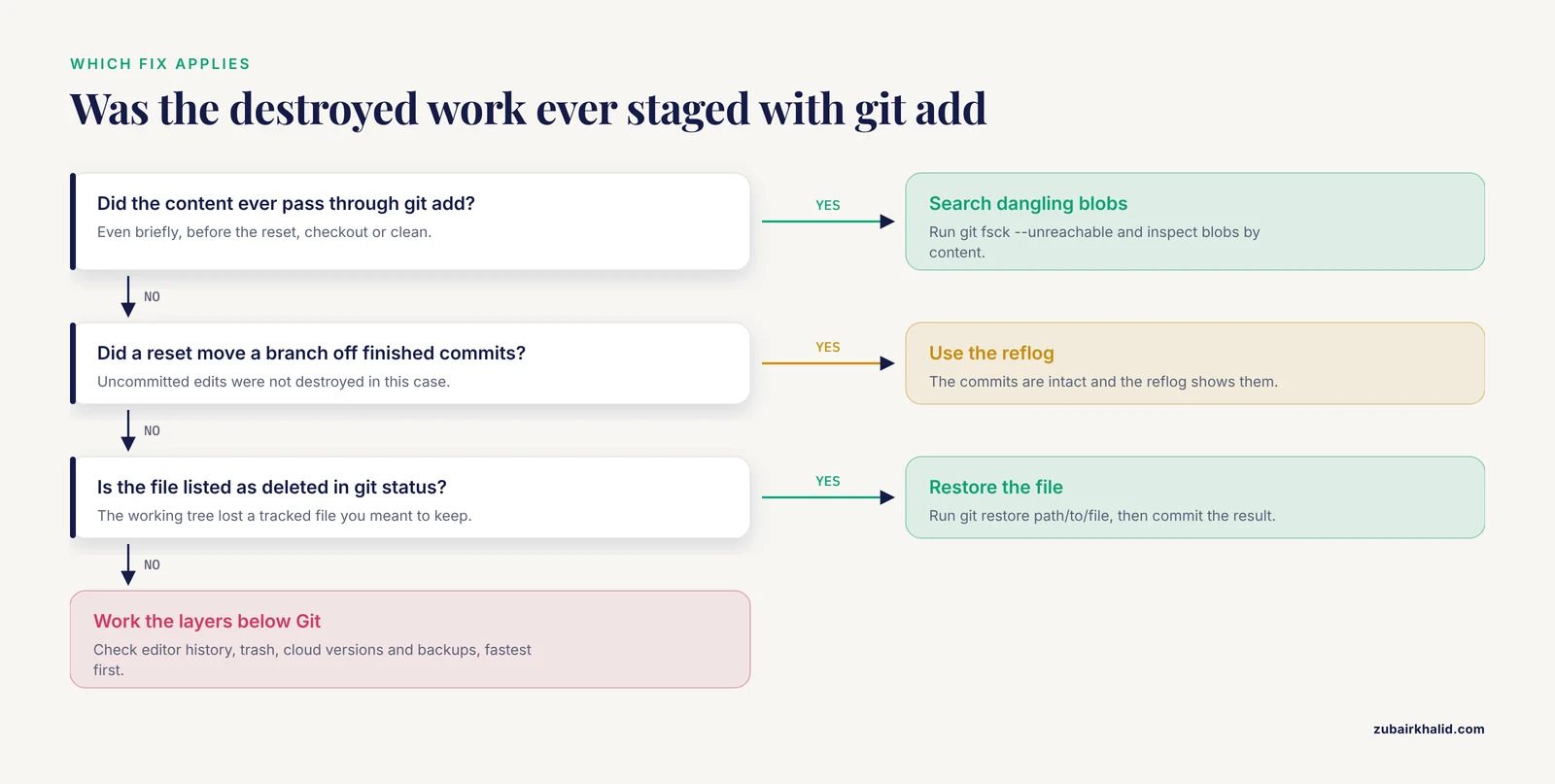
Your options depend on one question: was the destroyed content ever staged, even briefly, with git add?
- If yes, the content exists as dangling blobs. Go to Fix 3.
- If no, Git never stored it. Go to Fix 7 and work the editor and filesystem layer.
There is one more partial case. If the reset moved a branch away from commits that were already made (as opposed to destroying uncommitted edits), the commits are intact and the reflog will show them. That situation is covered by Fix 4.
Fix 3: Dangling Blobs and Commits from Staged-then-Destroyed Work
Any content that passed through git add became a blob object at that moment. Even after git reset, hard, those blobs usually still sit in .git/objects as unreachable objects. Find them with:
git fsck --unreachableOutput lines look like unreachable blob 8f3a21... or unreachable commit 9d4c02.... Inspect a blob by printing its content:
git cat-file -p 8f3a21cBecause blobs have no filenames, search them by content. The following loop prints the identifier of every unreachable blob that contains a phrase you know was in the lost entries:
git fsck --unreachable | awk '/blob/ {print $3}' | while read sha
do
  if git cat-file -p "$sha" | grep -q "mouse 14 dose response"
  then
    echo "$sha"
  fi
done
When you find the right blob, write it back into a file:
git cat-file -p 8f3a21c > recovered-day12.mdIf fsck reported dangling commits instead, inspect each with git show 9d4c02a and, when you find the right one, either branch from it or copy its files out:
git branch rescue-from-fsck 9d4c02aDangling commits found this way are also how dropped stashes come back, which Fix 5 covers.
Safety note: do not run git gc, git prune, or git repack while you are searching, and do not run them with -prune=now at any point in this repository's future unless you are certain nothing is missing. Automatic garbage collection runs on its own after some commands, but its default two-week grace period for loose unreachable objects gives you time if you start now.
Fix 4: Orphaned Commits After Rebase, Amend, or a Deleted Branch
History rewriting commands do not delete the old commits. They create new ones and move the branch label, leaving the originals reachable only through the reflog.
After a rebase or an amend, find the last good state:
git reflog --date=isoReflog entries for a rebase read rebase (start): ... followed by a sequence of rebase (pick) lines. The entry immediately before rebase (start) is your original tip. After an amend, the pre-amend commit is typically HEAD@{1}. After a merge, reset, or rebase, the shorthand ORIG_HEAD also points at the previous tip.
Verify before moving anything:
git show HEAD@{3}Then choose one of two recoveries. To restore the branch exactly as it was:
git reset --hard HEAD@{3}To keep both versions of history, which is the safer habit, label the old line instead:
git branch pre-rebase-backup HEAD@{3}For a deleted branch, find its last tip in the reflog and recreate the name:
git branch experiment-14b 9f8e7d6The reflog is local to your machine and to this particular clone. A freshly cloned repository has an empty reflog, which is a limitation worth internalizing before you rely on it across machines.
Fix 5: Detached HEAD and the Commits Nobody Claimed
Detached HEAD means HEAD points directly at a commit rather than at a branch. It happens when you check out an old commit, a tag, or a remote branch to look around. Any commits you make while detached belong to no branch, and switching back can make them appear to vanish. They are not gone. The reflog holds them:
git reflog --date=isoIdentify the last commit you made while detached, confirm it with git show, then attach a branch to it:
git switch -c recovered-detached-work HEAD@{2}From now on, when Git prints the detached HEAD warning, either create a branch immediately with git switch -c or treat the checkout as read-only browsing.
Fix 6: A Dropped or Corrupted Stash
git stash drop removes the stash@{0} label from a stash commit without deleting the commit. Recovery is a special case of Fix 3:
git fsck --unreachable | grep commit
git show 5aa11bc
When you find the stash commit, either re-register it on the stash list or apply it directly:
git stash store -m "recovered stash from fsck" 5aa11bcor:
git stash apply 5aa11bcA failed git stash pop usually means a merge conflict. The stash commit is kept in that case, so check git stash list before assuming the worst. Conflicted files in the working tree can be resolved with the normal conflict markers workflow, then committed.
Fix 7: A Force Push Overwrote the Shared Remote
When someone runs git push, force, the remote branch label moves and the old commits become unreachable on the host. Nothing is deleted immediately, and several routes usually lead back.
First, check pull requests. Commits referenced by any pull request, open or closed, stay reachable through pull request refs on GitHub. Open the pull request that contained the work and view its commits, or fetch the ref directly:
git fetch origin refs/pull/123/head
git switch -c from-pr-123 FETCH_HEAD
Second, check other clones. Any colleague or continuous integration machine that fetched recently still holds the old objects in its own .git directory, complete with its own reflog. You can fetch from a colleague's clone over the network or from a shared path:
git fetch /path/to/colleagues/cloneThird, contact the hosting provider's support promptly. GitHub's own documentation directs users to support for restoring lost commits, and the window is shorter than anyone would like, so open the ticket the same day. The repository's recent push events can also reveal the SHA of the commit that was replaced, which you can then request or fetch by SHA if the host still holds it.
Safety note: do not attempt a second force push to "fix" the first one. Rewrite the shared main branch only after the lab agrees on a convention, and use protected branches on GitHub to block force pushes to shared branches entirely.
Fix 8: Git Never Saw the Entries
If the content was never staged and never committed, Git genuinely has nothing. Recovery moves to the layers below Git, and speed matters because every new write to the disk can destroy recoverable fragments.
Work this list in order.
- Editor history. Visual Studio Code keeps a per-file Timeline and local history. JetBrains IDEs keep Local History, which survives even files deleted from disk. Vim writes swap files (
.swp) during editing and can keep persistent undo history if configured. Emacs writes auto-save files. Check the editor's own recovery interface first, because it is faster and safer than anything else on this list. - Trash and cloud version history. Check the operating system trash, and if the notebook folder syncs through Dropbox, OneDrive, Google Drive, or an institutional file server, use that service's version history or deleted-files interface.
- System backups. Restore from Time Machine on macOS, File History on Windows, or your institution's backup service. Many universities snapshot home directories nightly.
- Filesystem-level recovery. If the file was on a failing or freshly formatted volume, stop writing to that volume immediately, image it to another disk, and run recovery software against the image. TestDisk and PhotoRec are widely used open-source options. If the data is irreplaceable and the disk is physically failing, a professional data recovery service is the correct next step, not another boot cycle.
Safety note: every minute of normal use on a volume holding the only copy of the lost entries reduces the chance of recovery. Prefer working from a copy or an image, and never run recovery tools against the original disk when the entries are irreplaceable.
Safety Notes: Commands That Destroy Evidence
A short list, because these commands are the hazards of Git recovery. Treat them the way you treat concentrated acids: useful in the right place, catastrophic when grabbed casually.
git reset, hardoverwrites the working tree and discards uncommitted changes with no confirmation prompt.git restore <file>andgit checkout, <file>discard named working-tree edits permanently.git restore, staged <file>is the safe cousin that only unstages.git clean -fddeletes every untracked file and directory, including recovered files you just extracted.git gc, prune=nowandgit pruneimmediately delete all unreachable objects, closing every recovery window this article describes.git push, forcerewrites shared history on the remote and affects every collaborator at once.
The recovery workflow in this article uses none of them except one guarded git reset, hard in Fix 4, and only after you have verified the target with git show and, ideally, labeled it with a branch first.
Common Mistakes and Limitations
- Running cleanup before searching. The instinct to tidy up with
git gcbefore investigating destroys dangling objects. Search first, clean never during an incident. - Continuing to edit during recovery. Every save overwrites working-tree content that a later
fsckpass might have matched. Open the repository read-only, or work from the copy you made in Step 0. - Confusing the two restores.
git restore <file>throws away your edits.git restore, staged <file>only removes files from the staging area and leaves the working tree untouched. Mixing these up converts a small scare into real data loss. - Trusting the reflog across machines. The reflog is per-clone and never pushed. A fresh clone on a new laptop has an empty one. If the commits were never pushed, the old machine is the only place its reflog exists.
- Assuming the remote is a full backup. GitHub stores what you push. It has no knowledge of uncommitted working-tree content, stashes, or local-only branches. Pushing is the single highest-value habit precisely because of this.
- Waiting out the clocks. Reflog expiry (about 90 days for reachable commits, 30 for unreachable ones by default) and the two-week grace period before loose objects are pruned are generous but finite. Recovery odds decay with time.
- Recovering on the live repository. Test any destructive-looking fix on a clone first.
git clone my-notebook my-notebook-testcosts seconds and catches mistakes. - Expecting easy content search in binary files.
fsckrecovers binary blobs just as it recovers text, but you cannot grep a proprietary instrument export for a phrase. Notebooks kept in Markdown or plain text recover far more gracefully than notebooks kept in Word or PDF. - Treating Git as backup. A repository that exists on one laptop, with no remote and no bundle, is a single point of failure regardless of how disciplined the commits are.
Prevention: Build a Notebook You Cannot Lose
Recovery is a skill worth having, but the goal is to never need it. The practices below are the working consensus of the git-for-scientists community, and they map directly onto the failure modes above.
Commit small and commit often. A commit is cheap. Tie commits to natural units of work: one assay, one analysis run, one day's entry. A message convention like 2026-11-11 day 3: dose-response plate B makes both git log and pickaxe searches (git log, all -S"plate B", oneline) effective later.
Push to a remote every day. For individual researchers and labs, GitHub for researchers and institutional GitLab instances both provide free private repositories. A push turns every recovery problem in this article into a trivial git clone. Check your institution's and funder's data policies before placing sensitive or regulated data on a third-party host, and keep raw regulated data out of the repository, storing checksums of it instead.
Keep the notebook in plain text or Markdown. Text diffs cleanly, greps quickly, survives blob recovery, and renders on any host. One file per experiment or per week keeps history readable.
Use a .gitignore deliberately. Exclude bulky instrument output and virtual environments, not notebook text. Verify with git check-ignore -v path whenever a file mysteriously refuses to appear in git status.
Branch per experiment, merge to main. This keeps main stable for the lab while letting risky analysis live on branches. Tag milestones such as submission-v1 so key states are named forever.
Extend the safety clocks. The defaults are reasonable, but a notebook is a long-horizon document. These settings keep reflog entries and unreachable objects far longer:
git config gc.reflogExpire "2 years"
git config gc.reflogExpireUnreachable "1 year"
Make a file-level backup with git bundle. A bundle is a single file containing the entire repository, including all branches. Writing one to an external or network drive on a schedule gives you an off-machine copy that needs no server:
git bundle create notebook-$(date +%F).bundle --allRestore it any time with git clone notebook-2026-11-11.bundle restored-copy.
Add a one-command snapshot. An alias makes the save-and-commit habit nearly frictionless:
git config --global alias.snap '!git add -A && git commit -m "snapshot: $(date +%F %H:%M)"'Then git snap captures the day in one keystroke. It does not replace thoughtful commits, but it removes the excuse for leaving a day uncommitted.
Onboard every lab member the same way. A one-page checklist (initialize the repository on day one, add the remote on day one, enable editor autosave, know the location of the lab's backup bundle) prevents the single-machine, never-pushed repository that produces the worst cases in this article.
Test restores quarterly. Clone from the remote and from the newest bundle, open the notebook, and confirm the latest entries are present. A backup that has never been restored is a hypothesis.
Frequently Asked Questions
Can Git recover work I never committed?
Only if it was staged with git add at least once, in which case it survives as a dangling blob findable with git fsck, lost-found. Content that was never staged exists only in the working tree and editor, so look to editor local history, trash, cloud version history, and system backups instead.
I ran git reset, hard and lost today's entries. What do I do first?
Stop running commands and run git reflog, date=iso followed by git fsck, unreachable. The reflog recovers commits the reset moved away from, and fsck finds blobs from anything you had staged before the reset.
How do I find my commits after a rebase?
Run git reflog, date=iso and locate the entry just before the rebase (start) line, then verify it with git show HEAD@{n}. Label it with git branch pre-rebase-backup HEAD@{n} so it can never be garbage collected.
How do I restore a deleted branch?
Find the branch's last tip in git reflog, then recreate the name with git branch branchname SHA. This works because deleting a branch removes only the label, not the commits, and the reflog still points at them.
I dropped a stash by mistake. Can I get it back?
Usually yes. Run git fsck, unreachable, inspect the dangling commits with git show, and re-register the right one with git stash store -m "recovered" SHA or apply it directly with git stash apply SHA.
Does GitHub keep overwritten or deleted commits?
Often, through three routes: commits referenced by any pull request stay reachable via pull request refs, other people's recent clones still hold the objects, and GitHub support can sometimes restore them if contacted promptly. None of these windows is infinite, so act the same day.
How long does Git keep reflog entries and dangling objects?
By default, about 90 days for reflog entries reachable from a branch, 30 days for unreachable ones, and roughly two weeks of grace before loose unreachable objects are pruned by garbage collection. You can extend both windows with gc.reflogExpire and gc.reflogExpireUnreachable.
How often should I commit and push my lab notebook?
Commit at every natural unit of work and at minimum once per day, then push to a remote daily. That combination makes every failure mode in this article either trivially reversible or impossible in the first place.