How to Recover a Broken Bioinformatics Pipeline in Git
By Dr. Zubair Khalid, DVM, MS, PhD ·
A bioinformatics pipeline that suddenly stops working usually has one of two Git-related explanations, and the most common one takes two minutes to find. In most labs, the failure is uncommitted local edits sitting on top of a commit that used to work, or the researcher is simply on the wrong branch. The first thing to check is git status and git branch, show-current. Those two commands tell you whether your working tree is dirty and where HEAD (the pointer to the commit you have checked out) actually sits. If both look normal, the next most likely cause is a recent commit that changed code, configuration, or a dependency, and Git gives you precise tools to find and undo it.
This guide walks through the causes of a broken pipeline in order from most common to rarest, explains the mechanism behind each one, and gives concrete commands for every fix. It ends with prevention practices so the next failure costs you minutes instead of days. The advice assumes a typical research setup: a pipeline written in Python, R, Snakemake, Nextflow, or shell scripts, tracked in a Git repository, usually hosted on GitHub.
What "Broken" Means in a Git-Tracked Pipeline
Before touching anything, separate the four ways a pipeline can break, because they have different fixes.
Repository: the folder containing your project history, stored in a hidden .git directory plus the files you see. A commit is a permanent snapshot of tracked files at a point in time. The working tree is the current state of files on disk, which can differ from any commit. HEAD is a pointer to the commit or branch you currently have checked out.
A pipeline can break in four independent ways:
- Code state problems. The files on disk do not match the last version that worked, or a bad commit changed the code.
- Environment problems. The code is fine but the conda environment, R library tree, Python virtual environment, or container changed underneath it.
- Data problems. Input files, reference genomes, or annotation files moved, changed, or disappeared.
- Infrastructure problems. The repository itself, its Git Large File Storage objects, its submodules, or its continuous integration configuration is damaged.
Git only manages the first category directly. A large share of "recover broken bioinformatics pipeline git" searches end with the discovery that Git was never the problem, which is why the diagnostic sequence below starts by isolating the code state before anything else.
The First Ten Minutes: A Diagnostic Sequence
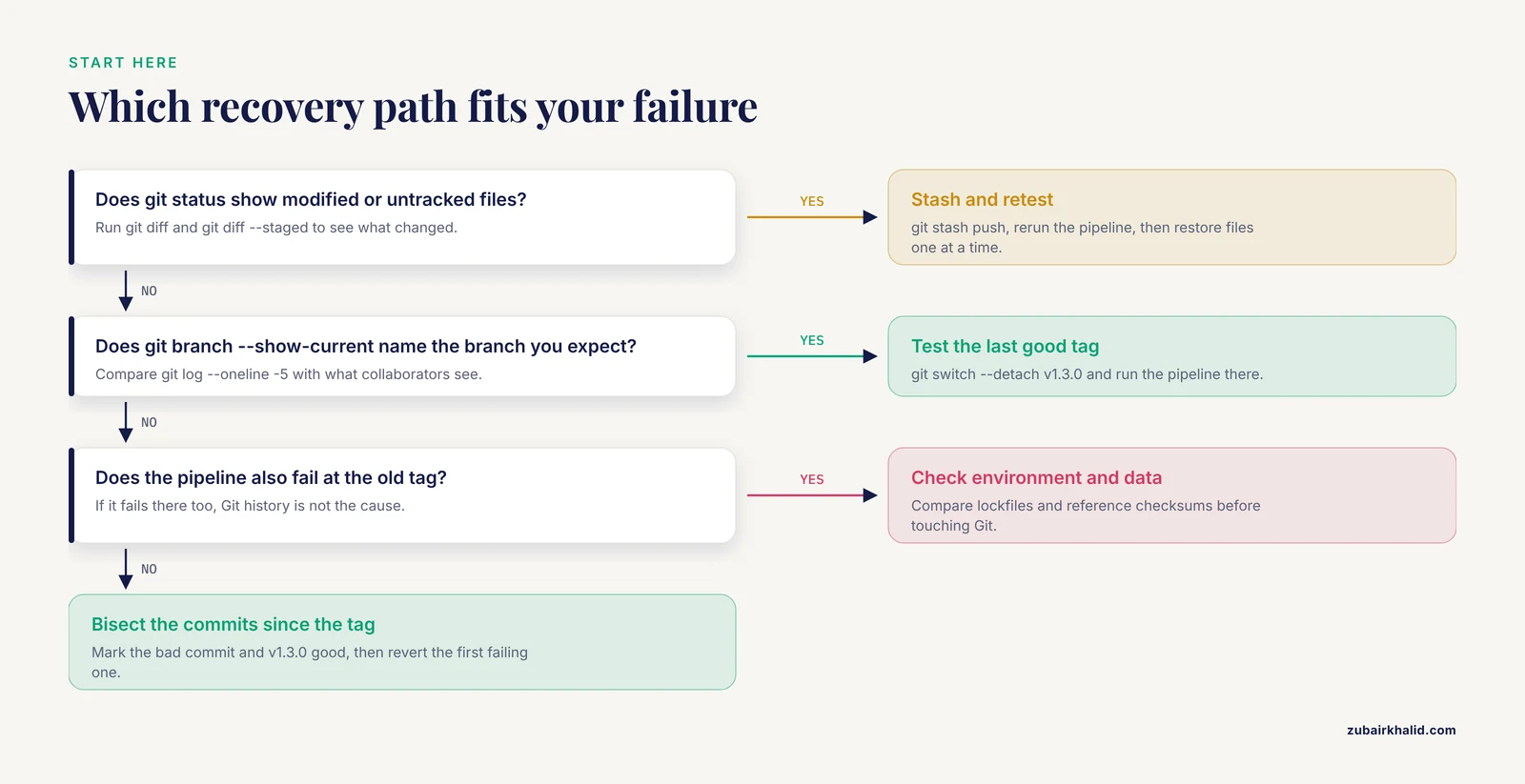
Follow these steps in order. Do not skip ahead to destructive commands.
Step 1. Check where you are and what changed.
git status
git branch --show-current
git log --oneline -10
git status shows modified, staged, and untracked files. git branch, show-current confirms the branch. git log, oneline -10 shows the ten most recent commits so you can spot a change you do not recognize.
Step 2. Inspect uncommitted changes.
git diff
git diff --staged
git diff shows unstaged edits to tracked files. If you see changes you forgot about, that is very often the whole story. A collaborator, a script, or your own editing session last week modified a config file or a script, and the pipeline has been failing ever since.
Step 3. Park your changes safely.
git stash push -m "before recovery attempt 2026-11-11"A stash is a shelf where Git stores uncommitted changes so you can restore a clean state and get the changes back later. Stashing is reversible and safe. After stashing, run git status again. The working tree should now match the last commit exactly.
Step 4. Reproduce the failure and capture the exact error.
Run the pipeline and save the full error output to a file. "Snakefile line 42: MissingInputException for results/align/sampleA.bam" is diagnostic. "It does not work" is not. The exact error message tells you which category of breakage you are in.
Step 5. Test the last known-good commit.
If you tagged or noted a version that worked, check it out in a way that cannot damage anything.
git tag
git switch --detach v1.3.0
git tag lists your tags. git switch, detach puts you in detached HEAD state, meaning you are looking at a specific commit rather than the tip of a branch. In this state you can run the pipeline freely because no branch is being moved. If the pipeline works at the old tag and fails at the branch tip, the breakage is in the code committed since the tag. If it fails at the old tag too, the problem is environmental or data-related, not a Git code problem at all.
Safety note: detached HEAD is safe for testing, but do not commit meaningful work while in it. Commits made in detached HEAD state are easy to lose because no branch points to them. Create a branch first with git switch -c test-old-version if you plan to edit anything.
Step 6. Decide the recovery path based on what Steps 1 through 5 showed. The table in the next section maps each outcome to a fix.
Troubleshooting Table: Symptom, Likely Cause, Confirmation, Fix
| Symptom | Likely cause | How to confirm | Fix |
|---|---|---|---|
Pipeline worked yesterday, fails today, git status shows modified files | Uncommitted local edits | git diff shows edits to scripts or configs | Stash the changes, retest, then restore selectively with git stash pop or git checkout stash@{0}, path/to/file |
git branch, show-current prints an unexpected name | Wrong branch checked out | git log, oneline -5 differs from what you expect | git switch main (or the correct branch), stash first if the tree is dirty |
| Terminal says "HEAD detached at abc1234" | Detached HEAD from a previous checkout or bisect | git status states HEAD is detached | git switch -c new-branch-name to keep work, or git switch main to abandon it |
| Pipeline fails after a specific recent commit | Bad commit changed code or config | git bisect finds the first failing commit | git revert <hash> to undo it cleanly |
Files contain lines starting with <<<<<<< | Unresolved or badly resolved merge conflict | grep -rn "<<<<<<<" . in the repo | Redo the merge, resolve markers properly, or git merge, abort and start over |
| Code unchanged, pipeline fails with missing module or package errors | Environment drift | Compare conda env export or pip freeze against a locked spec file | Rebuild the environment from the lockfile, or pin dependencies and commit the lockfile |
| Inputs "missing" though they ran before | Data or reference files moved or changed | Check paths in the config, verify checksums | Fix paths, re-download references, add checksum verification |
| Collaborator's commits gone from the remote after someone force-pushed | Force push overwrote remote history | Compare git log on the remote branch with your local copy | Recover from the reflog on the machine that had the commits, push to a new branch |
| Branch or tag disappeared | Accidental deletion | git branch -a, git tag, and the GitHub branch list | Restore from reflog locally, or from GitHub's interface if a PR referenced the branch |
| Large FASTA or BAM files show as tiny text files mentioning "lfs" | Git LFS objects not pulled | git lfs ls-files, open a data file and read its contents | git lfs install then git lfs pull |
| Submodule directories are empty | Submodules not initialized after clone | git submodule status | git submodule update, init, recursive |
| Pipeline runs locally but fails in GitHub Actions | CI configuration or environment mismatch | Read the Actions log for the exact failing step | Fix the workflow file, pin versions in the CI environment to match local |
fatal: not a git repository or object corruption errors | Repository metadata damaged, or you are in the wrong directory | ls .git inside the project root, then git fsck, full | Clone fresh from the remote, or repair from a backup copy of .git |
Causes From Most Common to Rarest
Each cause below includes the mechanism, how to confirm it, and the fix. Work down the list in order.
1. Uncommitted Changes and a Dirty Working Tree
This is the single most common cause, and it is not really a Git failure at all. The mechanism is simple: the pipeline worked at some earlier commit, then edits accumulated in the working tree without being committed. Those edits might be your own abandoned experiments, a quick fix a colleague made over your shoulder, or a config change for a different cluster. When the pipeline next runs, it executes the mixed state rather than any coherent version.
Confirm it with git diff and git diff, staged after running git status. If the diff touches files the failing step depends on, you have likely found the cause.
The fix has three options. To preserve the changes and return to the last commit, stash them:
git stash push -m "suspect edits"Then rerun the pipeline. If it works, bring the changes back one file at a time to find the culprit:
git stash pop
git restore --staged --worktree config/params.yaml
git restore resets a named file to the version in HEAD, discarding edits to that file only. Use it on files you are certain you do not need.
Safety note: git restore on a file and git checkout, <file> permanently discard uncommitted edits to that file. There is no recovery for discarded uncommitted work that was never stashed or committed. When unsure, stash first, because a stash keeps everything.
The third option is to commit the changes on a scratch branch so they become part of recoverable history:
git switch -c wip-investigation
git add -A
git commit -m "Save uncommitted state before recovery"
This is almost always the right move when you did not make the changes yourself and cannot tell what they do.
2. Wrong Branch or Detached HEAD
The mechanism: a repository can hold several parallel lines of development called branches. If a colleague pushed a fix to main while you stayed on an old feature branch, or you checked out an old commit to look at something and never switched back, you are running code that is not the version you think you are running.
Confirm it with git branch, show-current and git log, oneline -5. Compare the commit hashes with what your collaborators see, or with the latest commit on GitHub.
The fix is usually one command:
git switch mainIf git status shows uncommitted changes, Git will often refuse the switch to protect them. Stash first, switch, then decide whether the stashed edits still matter on the correct branch. If you did valuable work while in detached HEAD state, preserve it with git switch -c recovered-work before switching anywhere else.
3. A Recent Commit Broke the Pipeline
The mechanism: someone (often you) committed a change that passed a quick manual test but broke the full pipeline. Because each commit is a labeled, recoverable snapshot, this is the easiest serious failure to fix, and it is the situation git bisect was built for.
Bisect is a Git command that performs a binary search over your commit history. You mark one commit as good and one as bad, and Git checks out commits in the middle, halving the search each round. A history of 1,000 commits takes about ten test runs to search.
git bisect start
git bisect bad                 # the commit where the pipeline currently fails
git bisect good v1.3.0         # a tag or hash where it worked
Git checks out a middle commit. Run the pipeline (or, better, a fast smoke test that captures the failure). If it fails, type git bisect bad. If it works, type git bisect good. Repeat until Git names the first bad commit, then exit:
git bisect resetgit bisect reset returns you to where you started and ends the search.
The fix for a single bad commit is revert, not reset. git revert <hash> creates a new commit that applies the inverse of the bad commit, so history stays intact and nothing is rewritten:
git revert abc1234This distinction matters for how to fix recover broken bioinformatics pipeline git situations on shared repositories. Reverting is safe on any branch that others use. Reset moves a branch pointer itself, which rewrites history, and that is only safe on branches nobody else has pulled.
4. A Merge or Rebase Went Wrong
The mechanism: when two branches change the same lines, Git asks you to resolve a merge conflict. Two classic failures follow. First, a conflict is "resolved" by deleting one side wholesale, silently removing someone's work. Second, conflict markers (<<<<<<<, =======, >>>>>>>) get left inside a file, which produces a syntax error the moment the pipeline runs.
Confirm it by searching for leftover markers:
grep -rn "<<<<<<<" --include="*.py" --include="*.R" --include="*.sh" .
grep -rn "<<<<<<<" Snakefile config/ 2>/dev/null
If the merge is still in progress, abort it and start over:
git merge --abortThen redo the merge and resolve conflicts deliberately. For each conflicted file, read both versions, write the correct combined version by hand, remove all marker lines, and mark the file resolved with git add <file>. A useful review step before committing the merge is to run the specific pipeline steps touched by both branches, not just the whole pipeline at the end.
For a rebase that went wrong, git rebase, abort returns you to the state before the rebase began, provided the rebase is still in progress. If the rebase finished and the result is broken, the reflog (covered under force pushes below) holds the pre-rebase state.
5. Dependency and Environment Drift
This cause explains a large fraction of cases where the Git history looks perfectly clean and git bisect finds nothing. The mechanism: Git tracks your code, not the software environment that runs it. If someone updated the shared conda environment, upgraded R, or installed a new Python package, the same commit that ran perfectly last month now fails with ModuleNotFoundError, there is no package called, or a version incompatibility inside a tool.
Confirm it by comparing your current environment against any recorded specification:
conda env export -n mypipeline > current_env.yaml
diff current_env.yaml envs/pipeline.yaml
pip freeze > current_reqs.txt
diff current_reqs.txt requirements.txt
If no lockfile exists in the repository, that absence is itself the finding. Check package versions manually against what the pipeline documentation or its README states.
The fix is to rebuild the environment from a pinned specification. For conda:
conda env create -f envs/pipeline.yaml
conda activate mypipeline
For R projects using renv (an R package manager that records exact package versions in a renv.lock file):
renv::restore()For Python, install from a fully pinned requirements.txt where every line includes a version.
The durable solution is to make the environment reproducible and part of the repository. Commit the conda export, the renv.lock, or the pinned requirements file. Better still, run the pipeline inside a container defined by a Dockerfile or Apptainer definition file, so the environment is captured at the operating-system level and the same commit plus the same image always behaves the same way. Workflow managers such as Nextflow and Snakemake integrate containers per step, which moves environment drift from "silent killer" to "solved problem."
6. Data and Reference Files Moved or Changed
The mechanism: pipelines depend on files Git does not track, such as FASTQ reads, BAM alignments, reference genomes, and annotation tables. A reference genome gets updated, a shared drive is remounted at a different path, or a cleanup script deletes intermediate files, and the pipeline fails with missing-input errors even though every commit is intact.
Confirm it by checking three things. First, that every path in the pipeline configuration exists:
grep -oE "/[^\"']+" config/params.yaml | while read -r p; do test -e "$p" || echo "missing: $p"; doneSecond, that reference files have not changed, by comparing checksums:
md5sum refs/genome.faagainst a recorded value. Third, that input files for the failing sample actually exist and are nonzero in size.
The fix is to restore the data or point the configuration at the correct location, then make the change durable. Keep a config/ directory in the repository that holds all paths, record checksums for every reference file, and prefer relative paths inside a defined working structure over absolute paths to someone's home directory. Git cannot recover data it never tracked, so the repository must document the data rather than contain it.
7. Force Push Overwrote Shared History
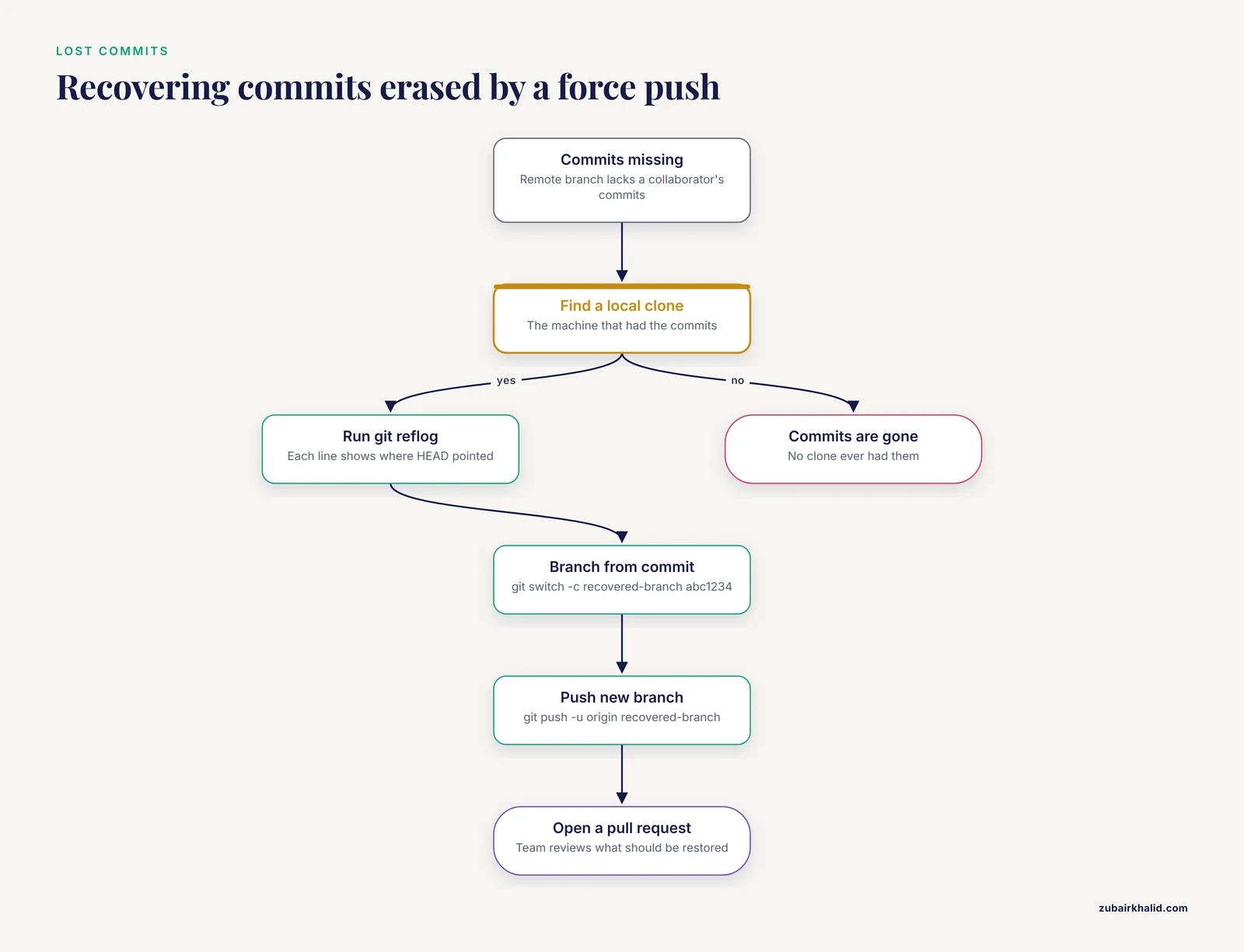
The mechanism: git push, force replaces the remote branch pointer with your local one, discarding whatever commits the remote held that your local copy did not. If a collaborator pushed work in the meantime, a force push can erase it from the shared branch. This is the scariest common failure, and it is recoverable more often than people expect.
Confirm it by comparing histories:
git fetch origin
git log --oneline origin/main -20
against your recollection or a collaborator's local copy. Missing commits that another person made are the signature.
Recovery relies on the reflog, a local log Git keeps of where HEAD has pointed, including commits no longer reachable from any branch. On the machine of whoever had the lost commits:
git reflogEach line shows where HEAD was and when. Find the lost commit, then either inspect it or branch from it:
git switch -c recovered-branch abc1234
git push -u origin recovered-branch
Safety note: never attempt recovery by force-pushing over the damaged branch again. Push the recovered commits to a new branch, open a pull request, and let the team review what should be restored. Also note that the reflog lives only on the machine where the commits existed. If no local copy ever had them, and no other clone does, they are gone, which is why force pushes to shared branches should be disabled.
The preventive setting on GitHub is a protected branch. Repository administrators can forbid force pushes and deletions on main entirely, and GitHub for researchers benefits enormously from enabling this on every lab repository the first day.
8. A Deleted Branch or Tag
The mechanism: git branch -D feature-x or git push origin :branch-name removes a branch locally or remotely. The commits usually still exist in the repository's object store, they simply have no branch pointing at them.
Confirm with git branch -a and git tag -l. On GitHub, if the deleted branch had an open or recently merged pull request, the pull request page offers a one-click restore branch button.
Local recovery uses the reflog as above. For a branch deleted on another machine that never had it, ask whether any clone, CI cache, or fork holds a copy. For a deleted tag, if any clone still has it, git fetch origin tag v1.3.0 brings it back. Recovery via reflog is time-limited because Git eventually prunes unreachable objects during garbage collection, so treat any accidental deletion as urgent.
9. Git LFS Objects Missing or Broken
The mechanism: Git Large File Storage (LFS) is a Git extension that stores large files on a separate server and leaves small pointer files in the repository. If LFS was not installed when a repository was cloned, or the LFS objects were not fetched, the files that should be gigabyte-scale genomes are a few hundred bytes of pointer text, and every downstream step fails with format errors.
Confirm it by opening a suspect file:
cat refs/genome.fa | head -2If you see lines beginning with version https://git-lfs.github.com/spec/v1, you are looking at a pointer, not data.
The fix:
git lfs install
git lfs pull
Also check git lfs ls-files to see which tracked files are managed by LFS. When setting up LFS on a new repository, configure it before adding large files. Retroactively converting already-committed large files into LFS requires history rewriting, which is a coordinated team operation, not a solo recovery step.
10. Submodule Problems
The mechanism: a submodule is a repository embedded inside another repository at a fixed commit. Pipelines commonly use submodules for shared tool repositories. Two failures dominate. After a fresh clone, submodule directories are empty because submodules are not fetched by default. Or the parent repository points at a submodule commit that no longer exists upstream, because the submodule's remote rewrote or deleted its history.
Confirm with:
git submodule statusA minus sign prefix means the submodule is not initialized. A plus sign means the checked-out commit differs from what the parent repo records.
The standard fix for an uninitialized or out-of-date submodule:
git submodule update --init --recursiveIf the recorded submodule commit no longer exists upstream, move the parent repository's submodule pointer to an available commit with git add on the submodule directory after checking out a valid commit inside it, and commit that change. Long term, consider replacing fragile submodule pins with a dependency manager or vendoring small, stable code directly.
11. Continuous Integration Breaks While Local Runs Succeed
The mechanism: on GitHub for researchers, GitHub Actions runs your pipeline steps on hosted or self-hosted runners using an environment defined in a workflow file under .github/workflows/. When the pipeline fails only in CI, the repository code is usually fine. The workflow's environment differs from yours: a different operating system, a missing system library, an unpinned package that drifted, an expired access token, or a YAML syntax error introduced in the last commit.
Confirm it by reading the Actions log for the exact failing step and the exact error line, not the red X at the top. Compare the CI setup block line by line with your local environment setup. A missing shell: bash -el {0} entry, an absent conda activation, or a changed default version is typical.
The fix is to edit the workflow file so CI reproduces your working local environment. Pin the same versions, use the same lockfiles, and commit the corrected workflow. Because the workflow file itself is tracked in Git, git diff between the last green run and the first red run usually points directly at the change.
12. Repository Corruption
The rarest cause. The mechanism: the .git directory stores the entire history as a database of objects, and this database can be damaged by a disk failure, an interrupted file transfer of the whole project folder, or editing inside .git by hand.
Confirm it with:
git fsck --fullgit fsck walks the object database and reports dangling or corrupt objects. Errors such as fatal: object ... is corrupt confirm real damage.
Safety note: before any repair attempt, copy the entire project directory, including .git, to another disk. Do not delete .git or run repair commands that rewrite objects until you hold a backup, because every fix attempt changes the evidence.
If a clean clone from the remote exists, the fastest fix is usually to clone fresh and reapply any uncommitted local work you stashed or copied aside. If the damaged repository is the only copy, git fsck, lost-found can recover some dangling objects, and professional recovery at that point means restoring whatever the object store still holds rather than trusting the working tree alone.
Recovery Workflows That Preserve Evidence
Whatever the cause, three habits keep a recovery from becoming a disaster.
Copy the whole directory first. Before running any command that rewrites history or discards files (git reset, hard, git clean -fdx, git filter-repo), make a plain filesystem copy of the project, including the .git directory, to another location. Filesystem copies recover what Git commands destroy.
Safety note: git clean -fdx deletes every untracked file and directory, including raw data, results, and configuration files Git never tracked. In bioinformatics projects where data is not in Git, this command can destroy months of compute output. Run git clean -nd first to preview what would be deleted, and only proceed file by file.
Work on a branch. Do recovery experiments on git switch -c recovery-attempt-1 rather than on main. A branch makes every experimental state recoverable, and you merge only when the pipeline runs end to end.
Never fix a broken shared branch with force push. Even when you are certain, a force push hides what happened from everyone else. Revert commits and open a pull request instead. On a solo repository the same rule builds the habit before you need it.
Prevention: Making the Next Recovery Trivial
Most of the pain in this article disappears with practices that take an afternoon to set up. These are the core recommendations for Git for scientists in a research setting.
Tag every working version. When the pipeline completes a full run, tag it:
git tag -a v1.3.0 -m "Full run, 48 samples, all QC passed"
git push origin v1.3.0
Tags turn "the version that worked" from a memory into an address. Every recovery in this guide gets faster when a good version is one git switch, detach v1.3.0 away.
Commit small and often. A history of many small commits makes git bisect precise and makes any single bad commit trivial to revert. Committing once a week produces a history where bisect is useless and every candidate change is enormous.
Keep environments in the repository. Commit the conda environment export, renv.lock, or pinned requirements.txt. Update the lockfile in the same commit that changes code that depends on it. This single habit removes cause number 5 from your future.
Use protected branches on GitHub. Enable branch protection on main to block force pushes and deletions. Require a pull request, even for solo projects, so every change passes continuous integration before it lands.
Run CI on every pull request. A fast smoke test that runs the pipeline on one small sample catches most bad commits before they reach main. The cost is minutes of compute. The benefit is that cause numbers 3 and 11 stop reaching the whole team.
Never commit large data or results. Add a .gitignore that excludes data/, results/, and similar directories, and configure LFS deliberately if specific mid-size files (such as test fixtures or small reference subsets) belong in the repository. Git stays fast, and clones stay small.
Record checksums for every reference file. A checksums.md5 file in the repository makes silent reference changes detectable with one command.
Write a README that states the exact run commands. Recovery under pressure is enormously easier when the README says which environment to activate, which config to use, and which command to run first.
Back up beyond the Git host. A repository on GitHub plus a periodic mirror clone (git clone, mirror) on lab storage protects against account compromise, accidental repository deletion, and host-side problems.
Common Mistakes and Limitations
Specific mistakes people make repeatedly during recovery:
- Running
git reset, hardbefore stashing or committing. Uncommitted work destroyed this way is unrecoverable. Stash or commit first, every time. - Using
git push, forceinstead ofgit push, force-with-leasewhen a force push is genuinely required. The-force-with-leasevariant refuses to overwrite commits you have not fetched, which prevents destroying a collaborator's work that landed in the meantime. - Trusting the reflog as permanent. The reflog is local to one machine and Git prunes old entries during routine garbage collection. Treat reflog recovery as days-sensitive, not months-sensitive.
- Resolving merge conflicts by picking one side blindly. This deletes the other side's changes while appearing to resolve the conflict. Read both versions.
- Assuming the repository is broken because the pipeline is broken. In most real failures the Git history is intact and the environment or data changed. Confirm with a known-good tag before suspecting Git itself.
- Committing environment changes and code changes in separate commits. When the pair must move together, splitting them creates commits that are individually broken, which defeats bisect.
- Fixing the symptom by editing files directly on the server or cluster instead of through Git. That edit is invisible to the repository, will be overwritten by the next pull, and guarantees the bug returns.
Limitations to keep in mind. Every repository, cluster, and team differs in configuration, and the exact recovery steps that fit a solo project on a laptop may need adjustment for a shared repository with protected branches and required reviews. Individual cases, especially those involving damaged .git directories or lost uncommitted work, sometimes need help from an experienced administrator or your institution's research computing staff, and there is no substitute for that judgment when data loss is on the line.
Frequently Asked Questions
Can I recover work after running git reset, hard?
Committed work, yes almost always. The reset only moved the branch pointer, and the commits remain in the object store, visible in git reflog and recoverable with git switch -c rescue HEAD@{n}. Uncommitted work that was never stashed is generally gone.
What is the difference between git revert and git reset?
git revert adds a new commit that undoes an earlier commit, preserving history, and is safe on shared branches. git reset moves the branch pointer itself, rewriting history, and is only safe on branches nobody else has pulled.
How do I find the exact commit that broke my pipeline?
Use git bisect. Mark the current state bad and a known-good tag good, then test the commits Git checks out until it identifies the first failing one. A bisect run needs one pipeline test per round and finishes in a handful of rounds even in long histories.
Someone force-pushed and my commits disappeared from the remote branch. Are they lost?
Usually not. The commits still exist in the local clone that had them. Run git reflog on that machine, branch from the lost commit, and push it to a new branch for review. If no clone ever had the commits, they are unrecoverable.
My pipeline runs on my laptop but fails in GitHub Actions. Is that a Git problem?
Almost never. The usual cause is an environment mismatch between your machine and the CI runner, or an error in the workflow file. Read the Actions log for the exact failing step and align the CI environment with your local one using the same lockfiles.
Should I commit FASTQ or BAM files to my pipeline repository?
No. Git handles small text files well and large binary files poorly, and committing reads or alignments bloats the repository for everyone. Track code, configs, and lockfiles, keep data paths in a config directory, and record checksums for reference files instead.
How often should I commit when developing a pipeline?
Commit whenever you reach a state you might want back, which for active development typically means several times a day. Small, frequent commits make bisect precise and reverts surgical, while weekly monolithic commits make every failure expensive to localize.
Is pushing to GitHub a sufficient backup for my pipeline?
It is a strong off-site copy of your tracked files, but not a complete backup. Uncommitted work, untracked data, containers, and computing environments are not covered. Add a periodic mirror clone on separate storage and keep your data under a separate backup regime.