How to Fix Common Python Environment Errors in Bioinformatics
By Dr. Zubair Khalid, DVM, MS, PhD ·

Most Python environment errors in bioinformatics come from a single cause: the interpreter running your script is not the interpreter where your packages are installed. Check that first, before you touch any code.
python -c "import sys
print(sys.executable)"
This prints the full path of the Python binary that is actually executing. If the path does not point inside the environment you set up, for example ~/miniconda3/envs/bio/bin/python, you have found the problem. Activate that environment, or install the missing package into the interpreter that is really running. In the Windows command prompt, quoted strings do not always span lines, so instead run python to open a shell and type import sys followed by sys.executable.
Python for bioinformatics is standard practice, not a niche choice. Primary data analysis such as quality control, normalization, and statistics is commonly performed in scripting languages like R, Perl, and Python, and workflows that manually move data between separate analysis environments are known to be time consuming and error prone [1]. The field has been consolidating in the opposite direction, toward single-language workflows. SNPio, for example, consolidates VCF (Variant Call Format, the standard file for genotype calls) parsing, filtering, visualization, genotype encoding, and population genetic summary statistics in one Python-native framework. Its authors motivate that design by the way fragmented command-line utilities and language-specific environments complicate reproducibility and obscure data provenance, the recorded history of how a result was produced [2]. In benchmarks against the R packages vcfR and SNPfiltR, SNPio ran faster but used more memory.
That consolidation only pays off when your Python installation behaves. This guide orders the causes of Python environment errors in bioinformatics from most common to rarest, explains the mechanism behind each failure, gives a diagnostic sequence you can run in two minutes, and ends with the prevention habits that keep environments stable. A troubleshooting table lets you match your error text to a fix and jump to the section that explains it.
Why Python environments break in bioinformatics work
An environment is a self-contained directory holding one Python interpreter, the program that executes your code, plus its own site-packages directory where installed libraries live. The PATH variable decides which interpreter your shell finds when you type python. Bioinformatics stresses this model in four ways.
First, a typical machine carries several Pythons at once: the operating system Python, a Homebrew or package-manager Python, the conda base environment, and one environment per project. Any of them can intercept the word python.
Second, bioinformatics packages lean heavily on compiled code. NumPy, Biopython, pysam, and scikit-learn ship binary extensions that must match the interpreter version, the processor architecture, and sometimes the exact version of the compiled libraries they were built against.
Third, packages arrive from three sources with different rules: PyPI through pip, and the conda channels (package repositories) conda-forge and bioconda, the latter packaging bioinformatics software for conda. Mixing installers inside one environment is the classic route to conflicts.
Fourth, work is collaborative and long-lived. A pipeline that runs today must run on a collaborator's laptop and on the cluster next year, which is why modern Python frameworks treat reproducibility as a design requirement rather than an afterthought [2].
Multi-environment friction is not new. The PathVisioRPC project built an XML-RPC interface, a way for one program to call another over a network, so that pathway visualization, editing, and statistics in the PathVisio software could be driven directly from Python and other scripting languages, with the functionality demonstrated through Python examples. The authors frame the motivation plainly: workflows that manually shuttle data between separate environments waste time and introduce errors [1]. Every manual hop between tools is also a hop between environments, and each hop is a chance for a version mismatch.
Solving common Python environment errors in bioinformatics: a two-minute diagnostic
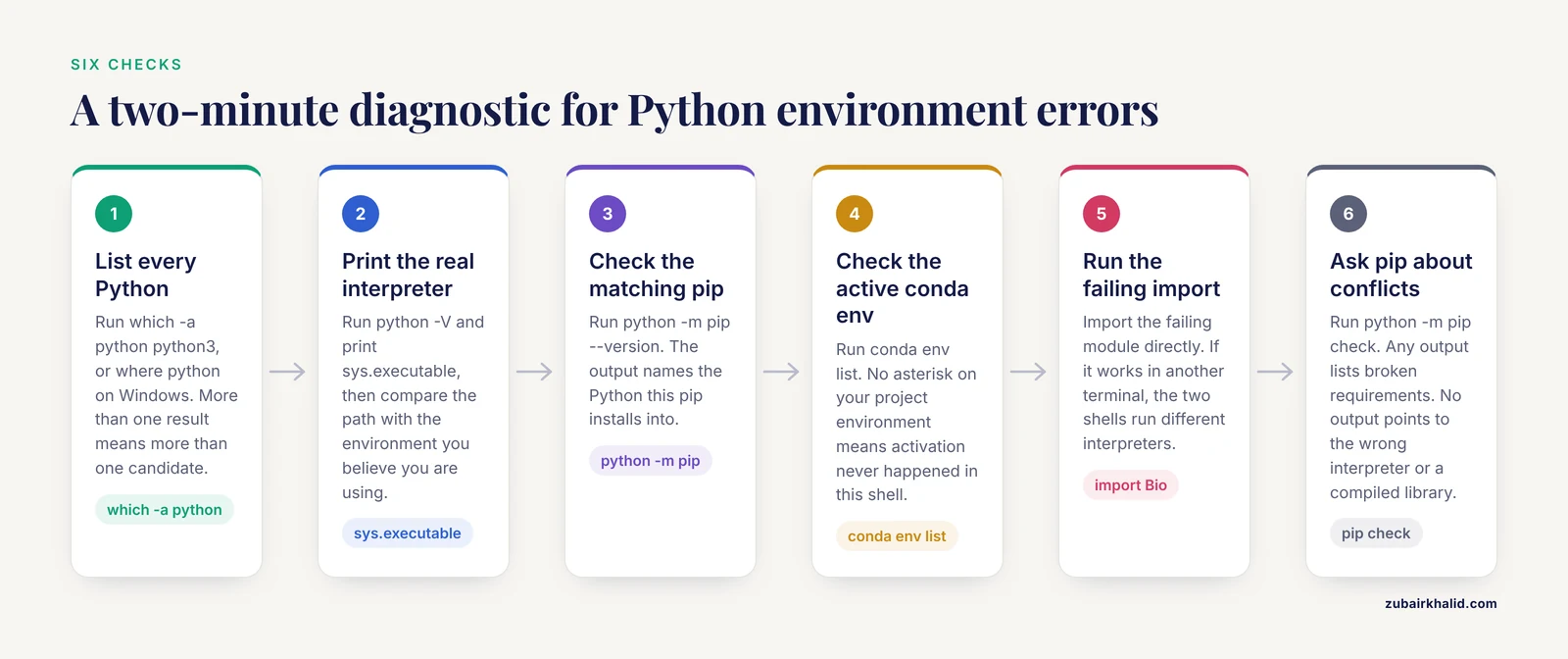
Run these six checks in order. They resolve the majority of cases before you need the table below.
- List every Python on the machine. Some Linux systems name it only
python3.
which -a python python3    # macOS and Linux
where python               # Windows
More than one result means more than one candidate interpreter.
- Identify the interpreter that actually runs.
python -V
python -c "import sys
print(sys.executable)"
Compare the printed path with the environment you believe you are using.
- Identify the pip that goes with it.
python -m pip --versionThe output names the Python this pip installs into. Call pip this way, as python -m pip, from now on, never as a bare pip.
- Check which conda environment is active.
conda env listThe asterisk marks the active environment. No asterisk on your project environment means activation never happened in this shell.
- Run the failing import directly.
python -c "import Bio
print(Bio.__version__)"
Substitute the module that is failing. If the import errors here but works in another terminal, the two shells are running different interpreters.
- Ask pip whether its own records are consistent.
python -m pip checkAny output lists broken dependency requirements. No output means pip sees no conflicts, which points the diagnosis toward the wrong interpreter or a compiled-library problem rather than a version conflict.
Python environment errors in bioinformatics: a troubleshooting table
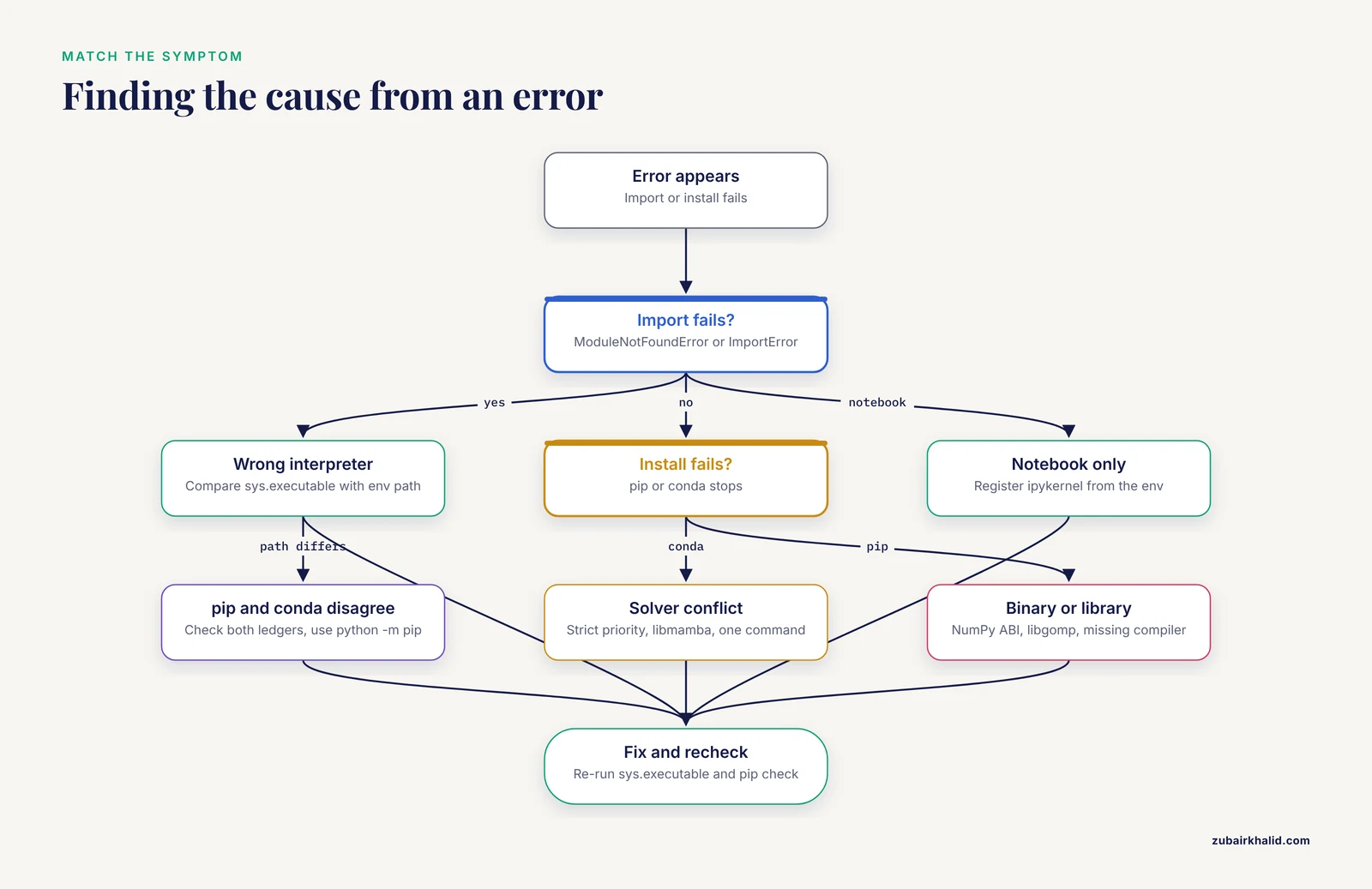
Match your symptom, confirm the cause, apply the fix. Each row names the section that explains the mechanism.
| Symptom | Likely cause | How to confirm | Fix |
|---|---|---|---|
| ModuleNotFoundError: No module named 'Bio' | Wrong interpreter, package absent there | Compare sys.executable with your env path | Activate the env, or install into the interpreter that is running (Cause 1) |
| pip says "Requirement already satisfied" but the import still fails | pip belongs to a different Python, or a user site directory shadows the env | python -m pip, version, compare pip list with conda list | Always use python -m pip, remove stray user installs, recreate the env (Cause 2) |
| ValueError: numpy.dtype size changed, may indicate binary incompatibility | Compiled extension built against a different NumPy ABI | pip check, compare NumPy version before and after the failure | Recreate the env, install the package and NumPy together, pin NumPy (Cause 4) |
| conda activate fails with CommandNotFoundError | conda is not initialized in this shell | The CONDA_DEFAULT_ENV variable is empty | Run conda init for your shell, open a new terminal (Cause 6) |
| Conda hangs on "Solving environment", or UnsatisfiableError | Mixed channels, slow classic solver, contradictory pins | Inspect configured channels and solver setting | Strict channel priority, libmamba solver, fresh env, one install command (Cause 6) |
| error: externally-managed-environment from pip | System Python is protected against package installs | pip -V points to a system or Homebrew path | Create a venv or conda env and install there (Cause 5) |
| ImportError: libgomp, or OMP Error #15 at import | Two copies of the OpenMP runtime from mixed installers | ldd on the failing shared object | One installer per env, recreate the env (Cause 2) |
| Notebook cannot import a package that works in the terminal | Jupyter kernel bound to an old environment | jupyter kernelspec list | Install ipykernel in the env, register the kernel, restart (Cause 7) |
| SSL certificate error during pip install | Corporate proxy or missing CA certificates | Fetch the package index with curl from the same shell | Point pip at the proxy CA bundle (Cause 5) |
| Package tries to compile and fails on Python.h or a missing compiler | Headers or build tools absent | Build log shows a compiler invocation | Install build tools, or install a conda binary instead (Cause 5) |
| Works on the login node, fails on the compute node | Module conflicts or PYTHONPATH (the module search path) leakage on an HPC | module list, echo the PYTHONPATH value | module purge, clean activation inside the job script (Cause 8) |
| Same script, different behavior on a colleague's machine | Unpinned versions | Diff the two environment export or pip freeze outputs | Export, pin, and lock the environment (Prevention) |
Cause 1: the wrong interpreter is running your code
When you type python, the shell searches PATH from left to right and runs the first match. Activating a conda environment prepends its directory to PATH, but activation affects only the current shell session. A new terminal, a cron job, a scheduler job, or a GUI-launched IDE starts fresh, without your activation, and falls back to base or system Python. Scripts can also carry a shebang, the #! first line that selects an interpreter, and that line resolves through whatever PATH exists at runtime.
The signature of this failure is a split result: the import works in one terminal and fails in another, or works interactively and fails under cron or a workload scheduler. That pattern indicates an activation problem, not a broken install.
Fixes:
- Activate in every shell that runs the code:
conda activate bio. - In job scripts, either source the conda profile or call the environment's Python by absolute path, which cannot be intercepted:
~/miniconda3/envs/bio/bin/python run_qc.py- As a robust alternative for one-off commands, use
conda run -n bio python script.py, which targets the environment explicitly. - In VS Code, run the command "Python: Select Interpreter" and confirm the status bar shows the environment you expect.
- After any change, re-run the
sys.executablecheck from the first section.
Cause 2: pip and conda wrote to different places
A bare pip is whatever the PATH finds first, which may belong to another environment or to the system. pip can also install into the user site directory (~/.local/lib/python3.X/site-packages on Linux and macOS), and that directory takes precedence over an environment's site-packages by default. A stale copy installed there months ago can shadow the version you carefully installed into your project environment this morning. Conda and pip additionally keep separate records, so conda list and pip list can disagree about what is installed.
The classic mixed-install symptom is a crash at import time involving OpenMP, the threading runtime underneath many scientific libraries. When pip brings one copy of the runtime and conda another, libraries can load two incompatible runtimes and abort with OMP Error #15 or an ImportError naming libgomp, the GCC OpenMP runtime library.
Fixes:
- Install only through
python -m pip, which guarantees the pip matches the Python you just verified. - Inside a conda environment, avoid user-level installs, which write outside the environment.
- Check both ledgers when confused:
conda listandpython -m pip list. - If an environment has been fed by both installers for months and errors keep surfacing, recreate it. Ten minutes of recreation beats hours of surgery:
conda deactivate
conda create -n bio2 -c conda-forge -c bioconda python=3.11 biopython numpy pandas
Cause 3: dependency conflicts and solver failures
The solver is the component that picks mutually compatible package versions. pip's resolver processes install requests one at a time, and when requirements collide it can backtrack through many version combinations, which looks like pip hanging for minutes and ends in ResolutionImpossible. Conda's solver must satisfy every package in the environment at once, so it fails loudly with an UnsatisfiableError that names the conflicting constraints. Both solvers are only as good as their inputs, and mixed channels plus stale pins are the usual bad inputs.
Fixes that work:
- Install everything in one command so the solver co-resolves the set:
conda create -n bio -c conda-forge -c bioconda python=3.11 biopython pandas scikit-learn. Adding packages one at a time over months is how environments rot. - Set strict channel priority so overlapping packages from different channels cannot fight (shown in Cause 6).
- Use the libmamba solver, the default in current conda releases and dramatically faster on large bioinformatics environments. On older conda, enable it with the solver setting shown in Cause 6.
- Read the solver error. It names the exact pins that conflict, and one of them is usually a leftover from an old install.
- Do not run a full update of every package as routine maintenance in a working project environment. Upgrade on purpose, in a clone, test, then swap.
Package design affects how often you meet these failures. Poincaré and SimBio, two Python packages for simulating chemical reaction networks and SBML models (SBML is the Systems Biology Markup Language used to exchange reaction network models), were written as pure Python with just-in-time compilation through Numba, a compiler that turns Python code into fast machine code at runtime. The authors deliberately avoided the common pattern of wrapping external C or C++ libraries for model definition and solving, and report that this keeps the packages extensible within the Python ecosystem without sacrificing performance, based on benchmarks against curated models from the BioModels repository [3]. Pure-Python packages like these install cleanly almost everywhere, which is a reasonable tiebreaker when you choose between functionally equivalent tools.
Cause 4: binary incompatibility, the NumPy ABI error
Compiled extension modules ship as wheels, the prebuilt binary packages that pip installs. A wheel is compiled against a specific version of NumPy's C interface, called its ABI or application binary interface. NumPy 1.x and 2.x changed that interface, so an extension built against one generation can crash or refuse to load under the other. The failure usually appears right after something upgraded NumPy underneath a package that was not rebuilt:
ValueError: numpy.dtype size changed, may indicate binary incompatibility.
Expected 96 from C header, got 88 from PyObject
A related signature is an ImportError stating that numpy.core.multiarray failed to import.
Fix sequence:
- Confirm with
python -m pip checkand by printing the installed NumPy version. - Recreate the environment and install the failing package together with NumPy in the same command, letting the solver pick a consistent pair.
- If you must keep the environment, force a rebuild of the failing package against the installed NumPy:
python -m pip install --force-reinstall --no-cache-dir the-failing-package- Pin the NumPy version in the environment definition once everything works, and stop casual upgrades.
On the conda side the same rule applies with one addition: keep NumPy and everything that depends on it from the same channel stack. A pip-installed NumPy inside a conda environment is a frequent trigger for this error.
Cause 5: missing system libraries, compilers, and SSL failures
Missing shared libraries. An ImportError naming libgomp.so.1 or a similar file means the operating system lacks a library the package expects. The cheapest fix is usually a conda binary, because conda packages bundle most runtime libraries inside the environment. When you must fix the system instead, the standard toolchain packages cover the common cases.
Missing compilers and headers. When pip finds no wheel for your platform, it downloads source code and builds it, which needs a compiler and the Python headers. The symptoms are distinctive: an error about Python.h means the headers are missing, a Microsoft Visual C++ error on Windows means the build tools are missing, and a clang error on macOS means the Apple command line tools are missing.
xcode-select --install                        # macOS build tools
sudo apt install build-essential python3-dev  # Debian and Ubuntu headers and compilers
Windows needs the Visual Studio Build Tools for the same reason. Weigh the alternatives before installing any of this: a prebuilt wheel or a conda package avoids the entire compilation step.
SSL failures behind proxies. University and corporate proxies re-encrypt traffic, and pip fails with a certificate verification error. Fix it by pointing pip and the requests library at your institution's certificate bundle:
export PIP_CERT=/path/to/ca-bundle.crt
export REQUESTS_CA_BUNDLE=/path/to/ca-bundle.crt
Caution: resist the shortcut of disabling certificate verification through trusted-host flags or verify=False in code. That switch turns off the check that protects package downloads from tampering, and a tampered package executes with your full user permissions. Restrict it to a single, understood, internal mirror, and never as a global habit.
Old operating systems. Some prebuilt wheels require a recent glibc, the C library at the core of Linux, and fail on old cluster images. Conda environments carry most of their own libraries and sidestep the problem, which is one reason conda dominates on shared clusters.
Cause 6: conda-specific failures (activation, channels, and solver state)
Activation failures. The error "Your shell has not been properly configured to use 'conda activate'" means conda's shell hooks are missing from this shell. Run conda init for your shell (bash, zsh, or fish), close the terminal, and open a new one. Inside scripts, do not rely on activation at all: source the conda profile script or call the environment's Python by absolute path, as shown in Cause 8.
Channel mixing. The defaults channel and conda-forge ship overlapping packages with different builds, and mixing them produces solver conflicts that look unfixable. The bioconda project's documented configuration uses conda-forge and bioconda with strict priority:
conda config --add channels bioconda
conda config --add channels conda-forge
conda config --set channel_priority strict
With strict priority, conda-forge wins ties and the solver stops oscillating between channels.
Solver state and recreation. When an environment has survived months of ad hoc installs, repairing it in place is rarely worth the time. Export what you actually asked for, then recreate:
conda env export --from-history > environment.yml
conda env create -n bio2 -f environment.yml
The from-history export records only the packages you explicitly requested, which is usually what you want, and lets the solver re-pick consistent builds. For exact-build reproducibility, the explicit listing (conda list, explicit) writes a full build-level specification you can recreate from later. Current conda defaults to the libmamba solver, which handles large bioinformatics environments far faster than the classic solver, so if solving still takes many minutes, check the solver setting before blaming your channels.
Cause 7: Jupyter kernels bound to the wrong environment
A Jupyter kernel is a running interpreter that the notebook server talks to, registered through a kernelspec that stores an absolute path to a Python binary. The failure mode is common: you create an environment, install packages, open a notebook, and the notebook keeps running the kernel from whatever environment existed when the server started, or from an old kernelspec. The terminal import works, the notebook import does not.
Fix it by registering a kernel from inside the correct environment:
conda activate bio
python -m pip install ipykernel
python -m ipykernel install --user --name bio --display-name "Python (bio)"
jupyter kernelspec list
Select the "Python (bio)" kernel in the notebook and restart it. Remove stale entries with jupyter kernelspec remove NAME. A structural fix that prevents the whole class of error: install jupyterlab inside the environment and launch it from there with python -m jupyter lab, so the default kernel always matches the environment.
Cause 8: HPC modules, shared systems, and bundled scientific Pythons
Cluster module systems load software on demand with module load, and a loaded Python module can prepend its own directories to PYTHONPATH, the variable Python uses to find modules. Those directories then shadow or pollute your environment's packages in ways that differ between login and compute nodes. Diagnose with module list and by echoing the PYTHONPATH value, fix with module purge before activating your environment, and never set PYTHONPATH globally in your shell profile to force an import, because it follows you into every future environment.
Scheduler jobs start a bare shell, so job scripts need explicit setup:
module purge
source ~/miniconda3/etc/profile.d/conda.sh
conda activate bio
python run_pipeline.py
Keep per-project environments in your home or scratch directory, and never install packages into a system site-packages on a shared machine, where they affect every user and can break system tools.
Bundled scientific distributions follow a different rule. PHENIX, the Python-based hierarchical environment for integrated crystallography, ships its own Python together with its tools, and the ERRASER method for RNA structure refinement runs coupled to PHENIX. Across 24 RNA datasets, that coupled refinement corrected the majority of MolProbity-assessed errors (MolProbity is a standard structure-validation suite) and improved the average Rfree factor, the crystallographic residual measuring how well the model agrees with the diffraction data [4]. The operational lesson generalizes beyond crystallography: treat a bundled interpreter as read-only infrastructure. Install your own packages in your own environment next to it, and do not pip install into the bundled Python, because changes there can break the application's tested stack.
Cause 9: platform quirks on Apple silicon, Windows, and old Linux
Apple silicon. Macs run arm64 (native) or x86_64 (through Rosetta, Apple's translation layer) binaries, and an environment that mixes the two produces wheel mismatches and crashes that look like random import errors. Confirm the machine architecture with uname -m and the interpreter's architecture with python -c "import platform" followed by print(platform.machine()). Keep the architecture consistent, prefer native arm64 conda distributions, and recreate any environment built under the other architecture.
Windows. Most bioinformatics tooling is Unix-first, so the lowest-friction setup is WSL2, the Windows Subsystem for Linux, with your environments inside it. If you must run Python natively on Windows and pip insists on compiling, install the Visual Studio Build Tools. Errors about long paths on deep environment directories are fixed by enabling long path support in Windows.
Old Linux. Enterprise cluster images sometimes ship glibc versions too old for recent wheels. Conda environments bundle their own libraries and are the standard workaround, with containers as the stronger option described under prevention.
Worked example: a short Biopython tutorial in a clean environment
This example doubles as a reusable template for any project. Biopython is the standard Python library for sequence input and output, online database access, and much of everyday sequence work.
Create the environment with everything in one command:
conda config --add channels bioconda
conda config --add channels conda-forge
conda config --set channel_priority strict

conda create -n biotut -c conda-forge -c bioconda python=3.11 biopython
conda activate biotut
Verify the interpreter and the import before writing any code:
python -c "import sys
print(sys.executable)"
python -c "import Bio
print(Bio.__version__)"
If you prefer pip, activate an environment first and install with python -m pip install biopython, never with a bare pip.
Save this as count_seqs.py. It reads a FASTA file (the plain-text sequence format) and reports record counts and total length:
from Bio import SeqIO

total = 0
bases = 0
for record in SeqIO.parse("reads.fasta", "fasta"):
    total += 1
    bases += len(record.seq)

print(total, "records", bases, "bases")
Run it with python count_seqs.py. The same parser interface reads GenBank flatfiles, which carry annotations as well as sequence:
from Bio import SeqIO

record = next(SeqIO.parse("example.gb", "genbank"))
print(record.id, record.description)
genes = [f for f in record.features if f.type == "gene"]
print(len(genes), "gene features")
For scripted queries to NCBI databases through Biopython's Entrez module, the query interface to NCBI's online resources, declare an email address in the script and keep request rates low, following NCBI's guidance for scripted access.
Once the environment works, the same pattern extends to specialized libraries. Pydna, a free and open source Python library, simulates molecular biology operations including restriction digestion, ligation, PCR, primer design, Gibson assembly, and homologous recombination. It was designed to be understandable to biologists with limited programming skills by mirroring the way cloning strategies are written in the literature, and running a pydna script yields the sequences of the final construct and its intermediates [5]. It installs into the same environment and turns a cloning plan into a script that documents itself.
Prevention: environments that do not break
The durable solutions for Python environment errors in bioinformatics are habits, not repairs:
- One project, one named environment. Name it after the project, not the tools, so its purpose survives staff turnover.
- Co-resolve on creation. Install all major packages in the create command so the solver picks a consistent set once, instead of patching conflicts for months.
- One installer per environment. Conda first for compiled stacks, pip last for pure-Python gaps, and record every pip install you make inside a conda env.
- Record the environment. Use the from-history export for readable files, the explicit build listing for exact builds, and
pip freezefor pip-only projects. Commit the file alongside the code. - Test recreation before you need it. Build the environment from its file on another machine or a fresh container. An environment file nobody has ever rebuilt is a guess, not a backup.
- Freeze published analyses in containers. A container image packages the interpreter, libraries, and system components together so the analysis runs identically elsewhere. Apptainer, the container runtime common on HPC systems where Docker is unavailable, is the usual choice for clusters.
- Upgrade on purpose. Clone the environment, upgrade there, test, then swap. Never upgrade NumPy or Python inside the environment a paper depends on during revision week.
- Keep the shell clean. No global PYTHONPATH hacks, no sudo pip, no disabled certificate checks as standing configuration.
The payoff is the workflow consolidation the field is already moving toward. PathVisioRPC's XML-RPC bridge exists so that pathway analysis can happen inside the same scripting session as primary data analysis, precisely because manual transfers between environments waste time and introduce errors [1]. A stable, recorded environment is what makes that kind of single-session workflow possible, and it is what a reviewer or collaborator needs in order to rerun your work.
Common Mistakes and Limitations
Specific mistakes that cause most of the avoidable pain:
- Installing with a bare
pipwhile a conda environment is active, then wondering why the environment cannot see the package. Usepython -m pip. - Adding the defaults channel alongside conda-forge "for more packages", which creates conflicts instead of options.
- Responding to an import error by installing the same package repeatedly through different installers until the environment holds three conflicting copies.
- Running
sudo pip install. It writes into system Python, can break operating system tools that depend on it, and never fixes an environment problem. - Setting PYTHONPATH globally to force an import. It silently changes the search path of every future environment.
- Upgrading NumPy or Python inside a working analysis environment mid-project.
- Trusting a Jupyter kernel because the notebook is open, without checking its kernelspec.
- Ignoring
pip checkoutput because the script still runs. Broken requirements fail later, usually at the worst moment. - Recreating an environment from memory instead of from a recorded file.
- Treating bypasses such as forced system installs or disabled certificate checks as permanent configuration rather than one-time, understood exceptions.
Limitations. Error text varies across operating systems, Python versions, and package releases, so match the patterns in the table rather than exact strings. The commands assume a bash or zsh shell and a conda-style installation, and translate directly to mamba. Solver defaults and version numbers change between releases, so confirm against current documentation when behavior differs. Individual setups, especially on managed clusters with site-specific modules and security policies, can need help from local IT or HPC support staff, and complex production pipelines deserve review by someone experienced with that specific system.
Frequently Asked Questions
Why does pip say a package is installed but Python cannot import it?
Because pip and Python belong to different environments. pip installed the package into one interpreter's site-packages while your script runs under another. Confirm with python -m pip, version, which names the Python it installs into, and by printing sys.executable. Align them by activating the intended environment and installing with python -m pip.
Should I use pip or conda for bioinformatics packages?
Use conda with the conda-forge and bioconda channels for compiled bioinformatics stacks, and pip for pure-Python packages conda does not provide. The governing rule is one installer per environment. If you must mix, install conda packages first, pip packages last, and record both lists.
How do I find out which Python is running my script?
Print sys.executable from inside the script or a terminal. The printed path ends in the environment's bin directory (Scripts on Windows), which names the environment unambiguously. If the path surprises you, activation failed or your IDE selected a different interpreter.
What does the externally-managed-environment error mean?
Newer system Pythons are protected so pip cannot install into them directly, because operating system tools depend on their libraries. Create a virtual environment with python -m venv or a conda environment and install there. The protection is intended behavior, not a bug to bypass.
How do I fix the NumPy binary incompatibility error?
Recreate the environment and install the failing package together with NumPy in one command so the solver picks a consistent pair. If you keep the environment, force a reinstall of the failing package so it rebuilds against the installed NumPy, then pin the NumPy version.
Why does conda hang while solving the environment?
Large channel lists, mixed channels, and the old classic solver make solving slow. Set strict channel priority, use the libmamba solver that current conda defaults to, keep the channel list to conda-forge and bioconda, and create new environments with all packages in one command rather than incrementally.
How do I share a working environment with a collaborator?
Export it and commit the file with the code. The from-history conda export writes a readable environment file, pip freeze covers pip-only projects, and the explicit conda listing records exact builds. For publication-grade reproducibility, freeze the whole stack in a container image.
Do I really need a separate environment for a small Biopython script?
Yes, and it costs about a minute. A named environment keeps Biopython's dependencies away from a system Python your operating system may rely on, makes the script shareable through an exported file, and prevents the first environment problem before it starts.
Sources
- Automatically visualise and analyse data on pathways using PathVisioRPC from any programming environment.
- SNPio: a Python interface for population genomic data processing.
- Poincaré and SimBio: a versatile and extensible Python ecosystem for modeling systems.
- Correcting pervasive errors in RNA crystallography through enumerative structure prediction.
- Pydna: a simulation and documentation tool for DNA assembly strategies using python.