NCBI Gene Search Filters: Step-by-Step Guide
By Dr. Zubair Khalid, DVM, MS, PhD ·

By the end of this guide you will be able to build precise queries in the NCBI Gene database using field tags and Boolean operators, apply the sidebar filters in the web interface, retrieve a filtered gene list from the command line with the E-utilities, and export results in formats you can load into a spreadsheet or script. You need only a web browser to follow the web steps. The command-line steps require curl or any tool that can fetch a URL, and the scripted steps require Python 3 with the Biopython package installed.
This guide is part of a broader NCBI databases guide series. The same filter syntax works across Entrez, the family of linked NCBI databases that includes Gene, Nucleotide, Protein, Taxonomy, and PubMed. Once you learn the syntax in one database, you can carry it to the others.
Why Search Filters Matter in the NCBI Gene Database
A plain search in the Gene database for a short term such as insulin returns thousands of records across hundreds of species, because the term matches gene names, aliases, descriptions, and pathway text. Search filters constrain that result set by structured metadata: organism, chromosome, official symbol, database source, and record properties. Used correctly, filters turn a noisy keyword search into a reproducible list of records you can cite in a methods section.
Filters are not a niche trick. Published workflows rely on them routinely. A study of the rbcL gene repository retrieved bulk GenBank records with the query string rbcL AND plants [filter] AND biomol_genomic [PROP] AND is_nuccore [filter] through the Entrez efetch utility implemented in Biopython, then cleaned and analyzed the records [1]. A structural study of the FAM111A protease began with data mining in the NCBI Protein database followed by data filtering to select representative sequences across species [2]. A systematic review of blaKPC mobilization in Pseudomonas aeruginosa built a search algorithm over NCBI databases, then filtered and pair-aligned the resulting sequences to describe the genetic environment of the gene [3]. In each case, the filtering step, not the keyword alone, determined whether the final dataset was usable.
How Entrez Search Syntax Works
Every Entrez database, including Gene, accepts a query language with three components you need to master.
Field tags. A tag in square brackets restricts a term to a specific indexed field. BRCA1[gene] matches BRCA1 in the gene name field, not in the abstract text or the alias list. Without the tag, Entrez searches all fields by default.
Boolean operators. AND, OR, and NOT combine clauses. Operators must be written in capital letters. Parentheses group clauses so the logic evaluates the way you intend.
Filters and properties. Terms tagged with [filter] or [PROP] select records by categorical properties rather than by text matching. The rbcL example above uses biomol_genomic [PROP] to select genomic molecules and is_nuccore [filter] to select nucleotide records [1].
One behavior confuses almost every new user. Entrez performs automatic term mapping, which silently translates your input into a different formal query before running it. If you type insulin without tags, Entrez may expand it to synonyms, MeSH-style concepts, or spelling variants. The translated query is always visible in the Search details box on the results page. Reading that box after every search is the single fastest way to understand why a result set looks the way it does.
The table below summarizes the field tags and operators you will use most often in Gene and related Entrez databases.
| Syntax element | What it restricts | Example | Practical note |
|---|---|---|---|
[orgn] | Organism or taxonomic group | Homo sapiens[orgn] | Accepts full species names and common group names |
[gene] | Gene name and description text | BRCA1[gene] | Broad, matches aliases and descriptions |
[sym] | Official gene symbol field | BRCA1[sym] | Tighter than [gene], use when you know the symbol |
[chr] | Chromosome | 17[chr] | Combine with [orgn] because chromosome numbers repeat across species |
[title] | Record title text | serine protease[title] | Useful for description-driven searches |
[uid] | Numeric record identifier | 672[uid] | Gene ID lookup, exact by definition |
[filter] | Categorical record property | plants[filter] | Used in published bulk-retrieval workflows [1] |
[PROP] | Molecule or record property | biomol_genomic[PROP] | Common in Nucleotide and Protein queries [1] |
AND | Intersect two clauses | insulin AND rat[orgn] | Narrows results |
OR | Union of two clauses | BRCA1[gene] OR BRCA2[gene] | Widens results, use parentheses around OR blocks |
NOT | Exclude a clause | pseudogene[title] NOT reviewed[filter] | Use sparingly, easy to exclude valid records |
Field tag names vary slightly between Entrez databases, so a tag that works in Gene may have a different name in Nucleotide. When in doubt, open the Advanced search builder, pick the field from the dropdown, and read the query it constructs.
Step-by-Step Guide to NCBI Gene Search Filters in the Web Interface
This walkthrough takes you from a noisy keyword search to a filtered, exportable gene list. Follow the steps in order the first time, then reuse whichever steps fit your workflow.
Step 1. Open the Gene database
Go to https://www.ncbi.nlm.nih.gov/gene/. You can also reach Gene from the NCBI homepage dropdown, or by starting at the main search page and clicking Gene in the database list at the top. Starting inside the correct database matters. If you type the same query on the general NCBI search page, it runs across all databases and the counts you see are not Gene counts.
Step 2. Run a plain keyword search and observe the noise
Type insulin into the search box and press Enter. You should see a large result set spanning many organisms, because the word matches gene names, aliases, and descriptions across the database. Scan the first page. You will see records from human, mouse, rat, fish, and plant genomes, and several records that mention insulin only in a functional description.
This noisy result is your baseline. The rest of the walkthrough shrinks it.
Step 3. Add an organism filter with a field tag
In the search box, replace the query with:
insulin[gene] AND Homo sapiens[orgn]Press Enter. The result set should collapse to a handful of human records, with the canonical insulin gene at the top. Click the top hit and confirm the record header shows the species name and a stable Gene ID in the record summary. Getting comfortable with this two-clause pattern, a text term plus an organism tag, covers a large share of everyday Gene queries.
Step 4. Use the Advanced search builder
Below the search box, click the Advanced link. The builder presents dropdowns for each indexed field. Choose a field such as Gene Name, type your term, add a second row with the Organism field set to Homo sapiens, and join the rows with AND. Click Search. The builder constructs the tagged query for you and runs it, which is the fastest way to learn the correct tag names for any database. Inspect the query text it generated, then reuse that text directly in future searches and in E-utilities calls.
Step 5. Apply the sidebar filters
Run a deliberately broad query such as serine protease[gene] and look at the left sidebar. The sidebar groups available filters for the result set, including taxonomic groups, chromosome, and source databases that contributed annotations. Clicking a filter appends the corresponding term to your query and reruns the search. Two practical notes apply here:
- The sidebar only shows filters that are relevant to the current result set, so the options change with every query.
- Each click rewrites the search box. You can copy the rewritten query out of the box and reuse it as a saved, reproducible string.
Step 6. Check the Search details box
Immediately below the search box on any results page, click Search details. This expands to show the exact translated query Entrez executed. Compare it with what you typed. If Entrez expanded a term or added a synonym, you will see it here, and you can correct your query by quoting phrases or adding explicit tags. Published workflows that depend on exact record sets, such as the sequence filtering step in the FAM111A study, stand on the assumption that the executed query matched the intended one [2]. The Search details box is how you verify that assumption.
Step 7. Sort and display results
Use the Display and Sort menus above the results list. Sorting by modification date surfaces records updated recently, which is useful when you are tracking annotation changes. Sort by chromosome when you are working through a genomic region gene by gene. The display can be changed from the standard summary to a condensed table view for faster scanning of long lists.
Step 8. Export the filtered set
With your filtered results on screen, select records with the checkboxes, or tick the checkbox at the top of the list to select the page, then click Send to. Choose File, pick a format, and download. Available formats for Gene include tabular text, a structured gene table, FASTA sequences for the gene products, and a plain list of Gene IDs. The plain ID list is the most script-friendly option, because Gene IDs are stable integers you can feed directly into E-utilities calls.
Step 9. Save the search for reruns
Click Create alert or use My NCBI to save the query. A saved search can email you when new records match, which matters for annotation-dependent projects where new genes appear over time. This is how groups track a growing space of records without rerunning the query manually each week.
Step 10. Verify a record before you trust it
Open one record from your final list and check three things. First, the Gene ID in the header matches the ID you expected or exported. Second, the RefSeq accession and the transcript and protein products listed are consistent with what you plan to use downstream. Third, the linked resources along the right side of the record, such as GenBank and PubMed links, point where you expect. This verification step takes one minute and catches most cases where a filter matched an alias or a predicted record rather than the curated gene you wanted.
Step-by-Step Guide to NCBI Gene Search Filters on the Command Line
The web interface is interactive, but reproducible pipelines need programmatic retrieval. The E-utilities are a set of HTTP endpoints that accept the same Entrez query syntax.
Step 1. Build the query as a URL
The esearch endpoint runs a query and returns matching record IDs. Percent-encode the square brackets as %5B and %5D:
https://eutils.ncbi.nlm.nih.gov/entrez/eutils/esearch.fcgi?db=gene&term=BRCA1%5Bgene%5D+AND+Homo+sapiens%5Borgn%5D&retmode=jsonFetch it with curl:
curl -s "https://eutils.ncbi.nlm.nih.gov/entrez/eutils/esearch.fcgi?db=gene&term=BRCA1%5Bgene%5D+AND+Homo+sapiens%5Borgn%5D&retmode=json"Step 2. Read the expected output
A successful response looks like this, trimmed for readability:
{
  "esearchresult": {
    "count": "1",
    "retmax": "20",
    "idlist": ["672"]
  }
}
The count field tells you how many records matched. The idlist holds the Gene IDs. Human BRCA1 is Gene ID 672, which makes this a good sanity-check query. If your pipeline returns an ID other than 672 for this query, or a count greater than one, the query was translated in a way you did not intend, and you should go back to the Search details box on the web interface to see the translation.
Step 3. Fetch full records by ID
Pass the IDs to efetch. The gene_table return type gives a plain-text summary suitable for parsing:
curl -s "https://eutils.ncbi.nlm.nih.gov/entrez/eutils/efetch.fcgi?db=gene&id=672&rettype=gene_table&retmode=text"The output starts with the gene name and organism, followed by transcript and protein listings. For structured parsing, request XML with retmode=xml instead.
Step 4. Script the whole retrieval with Biopython
Biopython wraps the E-utilities in Python. The following script runs a filtered Gene query, prints the count, fetches records, and extracts identifiers:
from Bio import Entrez

Entrez.email = "[email protected]"
Entrez.api_key = "YOUR_API_KEY_HERE"

query = "BRCA1[gene] AND Homo sapiens[orgn]"

handle = Entrez.esearch(db="gene", term=query, retmax="100")
record = Entrez.read(handle)
handle.close()

print("Match count:", record["Count"])
print("Gene IDs:", record["IdList"])

for gene_id in record["IdList"]:
    h = Entrez.efetch(db="gene", id=gene_id, retmode="xml")
    data = Entrez.read(h)
    h.close()
    print("Retrieved record for Gene ID", gene_id)
Expected console output for the query above:
Match count: 1
Gene IDs: ['672']
Retrieved record for Gene ID 672
Step 5. Respect the rate limits
Without an API key, the E-utilities allow three requests per second. Registering for a free API key linked to your NCBI account raises the limit to ten requests per second. Add a sleep between requests in any loop. A script that ignores the limit will be throttled and can have its IP temporarily blocked, which turns a five-minute task into an hour of debugging.
Step 6. Retrieve sequences for a filtered gene list
Many pipelines need the nucleotide or protein sequences for the genes a filter selected. The rbcL data study shows the pattern in practice. The authors ran a keyword-plus-filter query, rbcL AND plants [filter] AND biomol_genomic [PROP] AND is_nuccore [filter], through the Entrez efetch utility in Biopython version 1.77 to pull bulk GenBank records, then cleaned and analyzed the downloaded records programmatically [1]. Your Gene workflow follows the same shape: esearch in Gene to get Gene IDs, elink to jump to linked Nucleotide or Protein IDs, then efetch for the sequences.
How to Use NCBI Filters Alongside BLAST
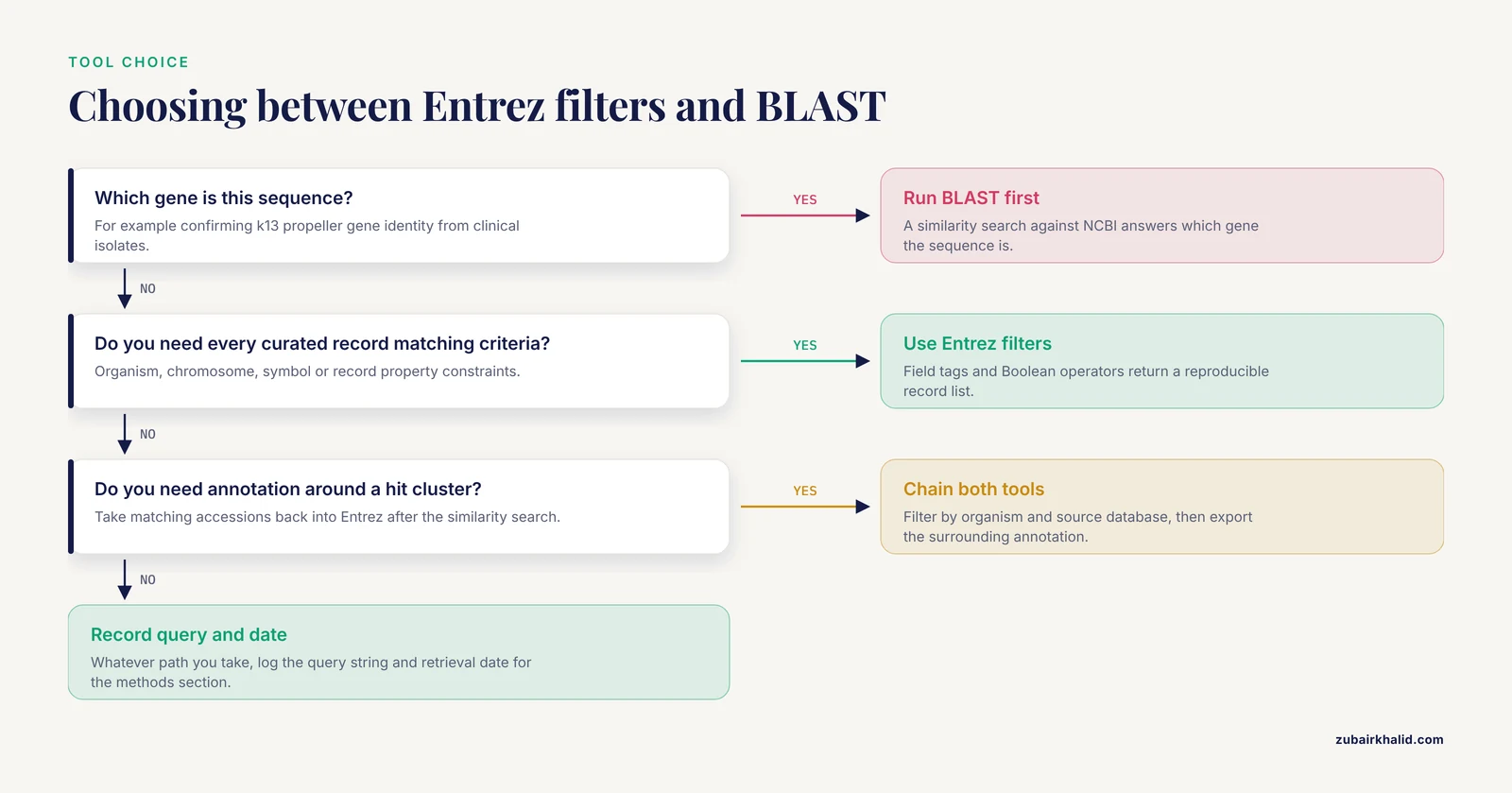
Filters select records by metadata. BLAST selects records by sequence similarity. Knowing which tool answers your question prevents the most common category of wasted effort.
If your question is "which gene is this sequence?" the answer comes from BLAST, not from Gene filters. Studies of Plasmodium falciparum kelch13 polymorphisms sequenced clinical isolates by Sanger methods and then used BLAST against NCBI to confirm k13 propeller gene sequence identity before downstream population-genetic analysis [4]. Similar BLAST-based confirmation of gene identity underpins work in very different systems, from viral ortholog grouping, where a workflow ran BLASTP against the NCBI non-redundant protein database to deduce orthologous groups and then filtered outputs between steps [5], to probe design for a rabbit ocular microarray, where contigs were searched with BLASTN and BLASTX against the NCBI NR and NT databases to assign annotation before array synthesis [6].
If your question is "give me every curated record matching these criteria," the answer comes from Entrez filters. The two tools also chain together. A high-throughput platform built to manage large BLAST jobs provides online filtering of BLAST results and automated annotation against NCBI NR, combining a similarity search with metadata-driven filtering in one pipeline [7]. A recent gene-cluster analysis toolbox goes further by leveraging remote BLAST databases so that homology searches against public genomes always return up-to-date results without local database maintenance [8]. When your similarity search hits a cluster of interesting sequences, take the matching accessions back into Entrez, filter by organism and source database, and export the surrounding annotation.
A practical tip from the literature-annotation side of this workflow: protein entries in the Entrez Protein database carry links to their associated publications, and tools exist to collect and filter those publications automatically for a set of homologous proteins, with adjustable filtering criteria to remove records unlikely to be informative [9]. If your filtered gene list is heading toward a literature review, that filtering layer saves substantial manual work.
Common Mistakes and Limitations
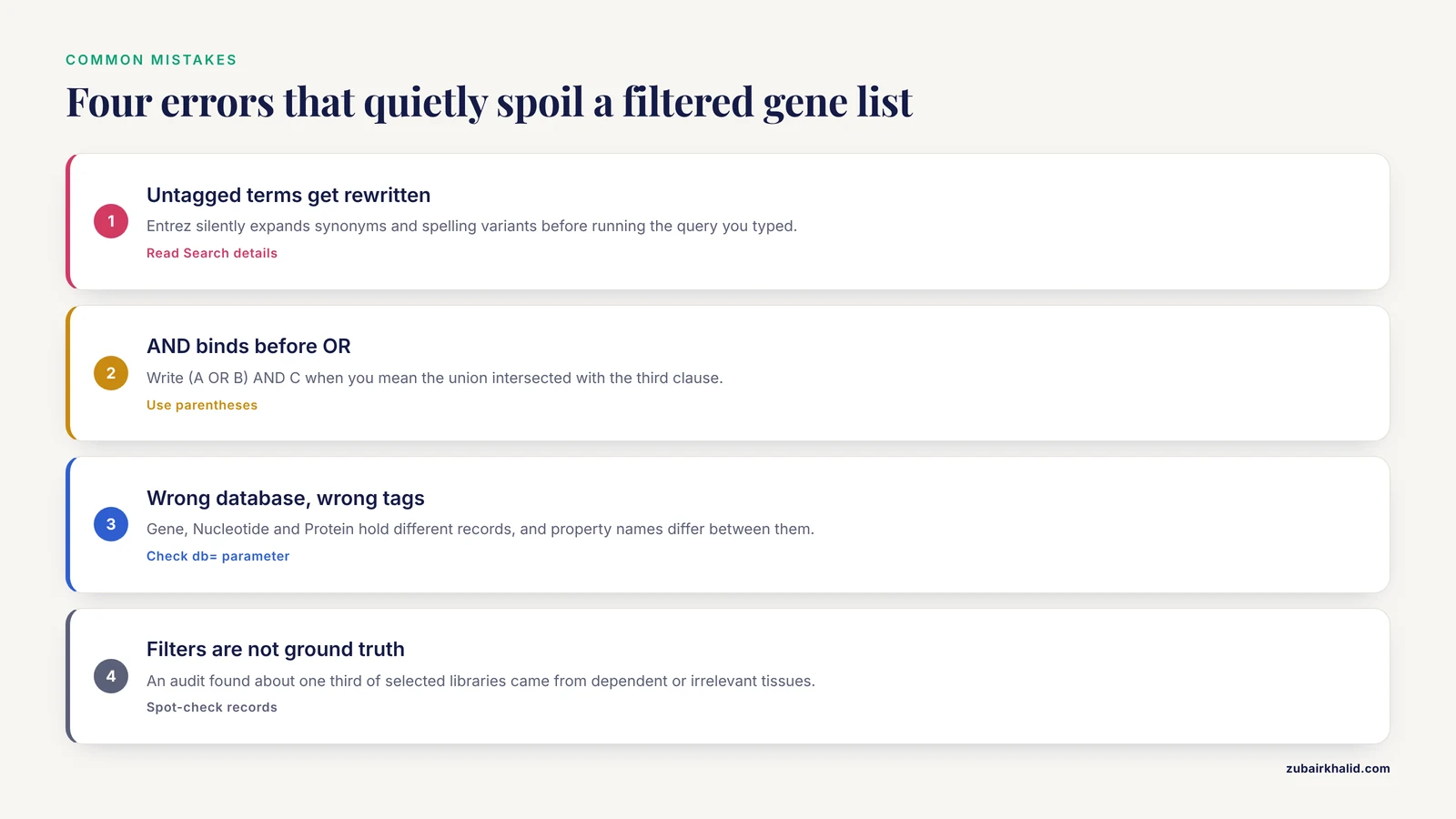
These are the errors that most often produce wrong or silently incomplete gene lists.
Trusting automatic term mapping
Entrez rewrites untagged queries. A search for a gene alias can be silently expanded to include synonyms and related concepts, and the executed query is different from the typed one. The fix is mechanical. After every important search, open the Search details box and compare the translated query with your intent. Quote multiword phrases, and tag every term whose scope matters.
Getting Boolean logic wrong
A OR B AND C does not evaluate the way most readers assume. Without parentheses, the AND binds first. Write (A OR B) AND C when you mean the union of A and B intersected with C. Also remember that NOT in a large result set can exclude records you actually wanted, for example a legitimate gene whose description contains the excluded word. Review a sample of excluded records when you use NOT.
Searching the wrong database
Gene, Nucleotide, and Protein are separate databases with different record types. A structural genomics study mining FAM111A data went to the NCBI Protein database deliberately, because the analysis needed protein sequences across species, and filtered from there [2]. If your result set looks strange, confirm the database name in the breadcrumb or in your esearch db= parameter before debugging the query itself. Filter names also differ between databases, so a [PROP] term valid in Nucleotide, like the biomol_genomic[PROP] used in the rbcL retrieval [1], is not automatically valid in Gene.
Assuming filters are perfectly precise
Filtering by ontology or category is only as accurate as the annotation behind it. A published audit of the CGAP xProfiler tool and the related cDNA DGED, which selected tissue libraries according to the NCBI ontology hierarchy, found that on average about one third of the libraries selected were from dependent or irrelevant tissues, and some tissue searches returned no correct libraries at all. The same audit found genes reported from outside the selected libraries and genes inside the libraries omitted [10]. The lesson transfers directly to any metadata-driven filter: spot-check records against the source annotation, and do not treat a filter result as ground truth without verification.
Using unofficial symbols and aliases
Gene symbols have a long history of renames and competing aliases. A query on an old alias may return fewer records than expected or none at all. If a symbol search disappoints, repeat the search with the gene name spelled out, or search the associated protein or disease term and confirm the Gene ID from a curated record. When you export results, prefer Gene IDs over symbols as the stable key in your dataset.
Ignoring database updates
NCBI records change. Records are added, merged, and reannotated continuously, and saved searches exist precisely because yesterday's result set is not guaranteed to match today's. For a pipeline, record the date of retrieval alongside the query string. For a manuscript, report both. Studies that mine a growing repository, such as the rbcL dataset analysis, treat the database as a moving target and describe the retrieval window explicitly [1].
Breaking rate limits in scripts
A loop that fires requests as fast as Python allows will hit the throttle. Add an explicit delay between calls, register for an API key, and handle transient HTTP errors with a retry after waiting. This is the single most common cause of "the script worked yesterday and fails today" reports.
Assuming taxonomic names resolve the way you expect
Taxonomy-based filters depend on names resolving correctly in the NCBI taxonomy. Taxonomy-aware tools built on NCBI classifiers, such as the ORFanID search engine that identifies taxonomically restricted genes using NCBI systematic classifiers at ranks from species to domain, expose the search parameters to the user for exactly this reason, so the analysis scope is explicit [11]. If a species filter returns nothing, check the spelling, check whether the species has an accepted current name, and try the parent taxon to confirm records exist at a broader rank.
NCBI Gene Search Filters Tips for Daily Work
A few habits make filtered searching faster and more reliable.
Copy the query, not the URL, when you want reproducibility. The query string in the search box is portable across the web interface, E-utilities, and Biopython, while session URLs are not.
Use the search History on the web interface to combine previous result sets. History entries are numbered, so you can intersect two earlier searches with a query like #1 AND #2 without retyping either. This is the quickest way to test whether two filter conditions overlap.
Move between databases through the link menus on a Gene record rather than running fresh searches. The links preserve the association, which matters when you need the protein sequence, the genomic region, or the expression data behind a gene. Expression data live in GEO, and curated resources demonstrate the payoff of this connectivity. The mouse Gene Expression Database provides a searchable index of RNA-Seq and microarray experiments that lets users find specific expression studies in GEO and ArrayExpress, and its enhanced search and filtering capabilities make those experiments accessible alongside genetic and phenotypic information [12].
Keep a query log. A plain text file recording query string, date, database, and record count converts any search into a reproducible method paragraph. Reviewers increasingly expect exactly that information for database-derived datasets.
Verify one record per search. Before you build an analysis on a filtered set, open one record and confirm the species, the gene type, and the product list match your intent. This habit catches alias problems, term-mapping surprises, and wrong-database errors in seconds.
Frequently Asked Questions
What are NCBI Gene search filters?
They are query constraints, written as field tags in square brackets plus Boolean operators, that restrict Gene database results by structured attributes such as organism, chromosome, gene symbol, and record properties. Filters convert broad keyword searches into specific, reproducible record lists.
How do I use a field tag like [orgn] in NCBI Gene?
Append it directly after the term with no space, for example insulin[gene] AND Homo sapiens[orgn]. The tag binds to the term immediately before it, so tag each term individually rather than tagging the whole query.
What is the difference between a field tag and a [filter] term?
A field tag restricts matching to one indexed field, such as gene name or chromosome. A [filter] or [PROP] term selects records by a categorical property such as molecule type, which is how published bulk retrievals select genomic nucleotide records [1].
Can I download filtered Gene results programmatically?
Yes. Run your query with the esearch endpoint of the E-utilities, then pass the returned Gene IDs to efetch for full records, or use the equivalent functions in Biopython. The same query string works on the command line and in the web interface.
Why does my NCBI Gene search return unexpected results?
Entrez automatically maps untagged terms to synonyms and related concepts before executing the search. Open the Search details box under the search box to see the translated query, then add field tags and quotation marks to pin the search to your intended meaning.
How do I combine filters with Boolean operators?
Use capitalized AND, OR, and NOT with parentheses around any OR block, for example (BRCA1[gene] OR BRCA2[gene]) AND Homo sapiens[orgn]. Check the Search details box afterward to confirm the logic executed as written.
Do the same filters work in other NCBI databases?
The syntax carries over, but field and property names differ between databases. An organism tag and Boolean operators work nearly everywhere, while [PROP] terms such as biomol_genomic belong to sequence databases. Build unfamiliar queries with the Advanced search builder to learn each database's tags.
Do I need an NCBI account or API key for scripted searches?
You can run E-utilities queries without an account, limited to three requests per second. A free API key linked to an NCBI account raises the limit to ten requests per second, which matters for any script that loops over many queries.
Sources
- rbcL gene in global molecular data repository.
- The FAM111A Gene: Genetic, Epigenetic, and Pharmacological Targets and Mechanistic Insights with Clinical Relevance.
- Worldwide Dissemination of bla(KPC) Gene by Novel Mobilization Platforms in Pseudomonas aeruginosa: A Systematic Review.
- Novel Plasmodium falciparum k13 gene polymorphisms from Kisii County, Kenya during an era of artemisinin-based combination therapy deployment.
- MimiLook: A Phylogenetic Workflow for Detection of Gene Acquisition in Major Orthologous Groups of Megavirales.
- Development of a microarray chip for gene expression in rabbit ocular research.
- PLAN: a web platform for automating high-throughput BLAST searches and for managing and mining results.
- CAGECAT: The CompArative GEne Cluster Analysis Toolbox for rapid search and visualisation of homologous gene clusters.
- PubServer: literature searches by homology.
- Errors in CGAP xProfiler and cDNA DGED: the importance of library parsing and gene selection algorithms.
- ORFanID: A web-based search engine for the discovery and identification of orphan and taxonomically restricted genes.
- The mouse Gene Expression Database (GXD): 2021 update.