NCBI Datasets Web Interface: Step-by-Step Guide
By Dr. Zubair Khalid, DVM, MS, PhD ·

By the end of this guide you will be able to search the NCBI Datasets web interface for any organism, filter genome assemblies by quality and annotation status, download a complete genome or gene data package, pull orthologs for a gene of interest, and verify that what you downloaded matches what you expected. Everything here runs in a standard web browser. If you also want to work at the command line, the final workflow section shows the matching datasets and dataformat commands so you can reproduce the same downloads in a script or pipeline.
No prior experience with NCBI is assumed. You only need a browser, an internet connection, and optionally about 500 MB of free disk space if you plan to follow the download examples. A tool that opens ZIP archives is useful but almost every operating system now includes one.
What NCBI Datasets Is and Why It Exists
The National Center for Biotechnology Information (NCBI) maintains dozens of interconnected databases covering sequence data, gene records, assemblies, taxonomy, and literature. Learning how to use NCBI traditionally meant visiting each database separately, running searches in each one, and manually stitching results together. NCBI Datasets was created to solve that problem. It provides a single entry point for biological sequences, annotations, and metadata across a wide range of taxa, and it delivers the data as coherent packages rather than as isolated record pages [1].
Three design principles distinguish Datasets from the older, individual NCBI database pages:
- Packages instead of pages. A genome record is not just a summary page. When you download, you receive a bundle containing the genome sequence, the annotation files, the assembly report, and structured metadata, all consistent with each other [1].
- Multiple access routes with the same underlying data. The same search and download operations are available through the web interface, through documented APIs, and through command-line tools, so a workflow you design by clicking can be automated later without changing data sources [1].
- FAIR alignment. The resource is built around Findable, Accessible, Interoperable, and Reusable data principles, which matters when you need to document exactly which assembly version your analysis used [1].
This packaging approach follows a broader pattern in bioinformatics web tools. The BLAST web application was reengineered years earlier with the same goal of simplified search forms and improved navigation [2], and specialized NCBI resources such as NCBI Glycans use focused web pages to gather data scattered across many databases [3]. Datasets applies that interface philosophy to whole genomes and gene sets.
Where Datasets Fits in an NCBI Databases Guide
If you are mapping out the NCBI landscape for the first time, think of it in layers:
- Taxonomy sits at the top. Every sequence and gene in NCBI is attached to a taxon.
- Assemblies and genomes describe the complete genome sequence for a strain or isolate. This is the core of the Datasets genome view.
- Gene records describe individual genes, their transcripts, and their proteins. This is the core of the Datasets gene view.
- Sequence reads in SRA are the raw sequencing data behind assemblies. Datasets links to them but is not their primary interface. When you eventually submit your own raw reads, metadata standardization matters, and tools such as METAGENOTE were built specifically to streamline well-annotated submissions to SRA [4].
- Specialized resources such as BLAST for similarity searches [2] and NCBI Glycans for glycan structures [3] address individual analysis needs.
Datasets is the layer you use when the question is "give me the genomes, genes, or annotations for this organism or this gene set, in one download." It should be your first stop for bulk retrieval, and the individual database pages remain your first stop for reading a single record in full detail.
Getting Oriented in the Web Interface
Open https://www.ncbi.nlm.nih.gov/datasets in your browser. The landing page presents three main tabs that matter for most users:
- Genome. Browse and download genome assemblies by taxon, with quality filters.
- Gene. Search genes by symbol, name, gene ID, or taxon, and download gene data packages.
- Virus. A specialized view for virus genome data, originally built around SARS-CoV-2, with its own filters and phylogenetic displays.
There is also a taxonomy browser reachable from any taxon name, which shows the lineage, genome counts for each rank, and links into the genome and gene views. A single search box at the top accepts organism names, accession numbers, and gene symbols, and the interface routes you to the most likely tab automatically.
A note on interface conventions
NCBI has iterated on its web tooling for years. The BLAST interface redesign introduced ideas such as simplified forms, saved strategies, and recent-result lists [2], and Datasets carries forward the same philosophy: filters on the left and results in a table on the right for the genome and gene tabs, with a download button that opens a configuration panel. If you have used the BLAST web interface, the Datasets interface will feel familiar [2].
Step-by-Step: Find and Evaluate Genome Assemblies
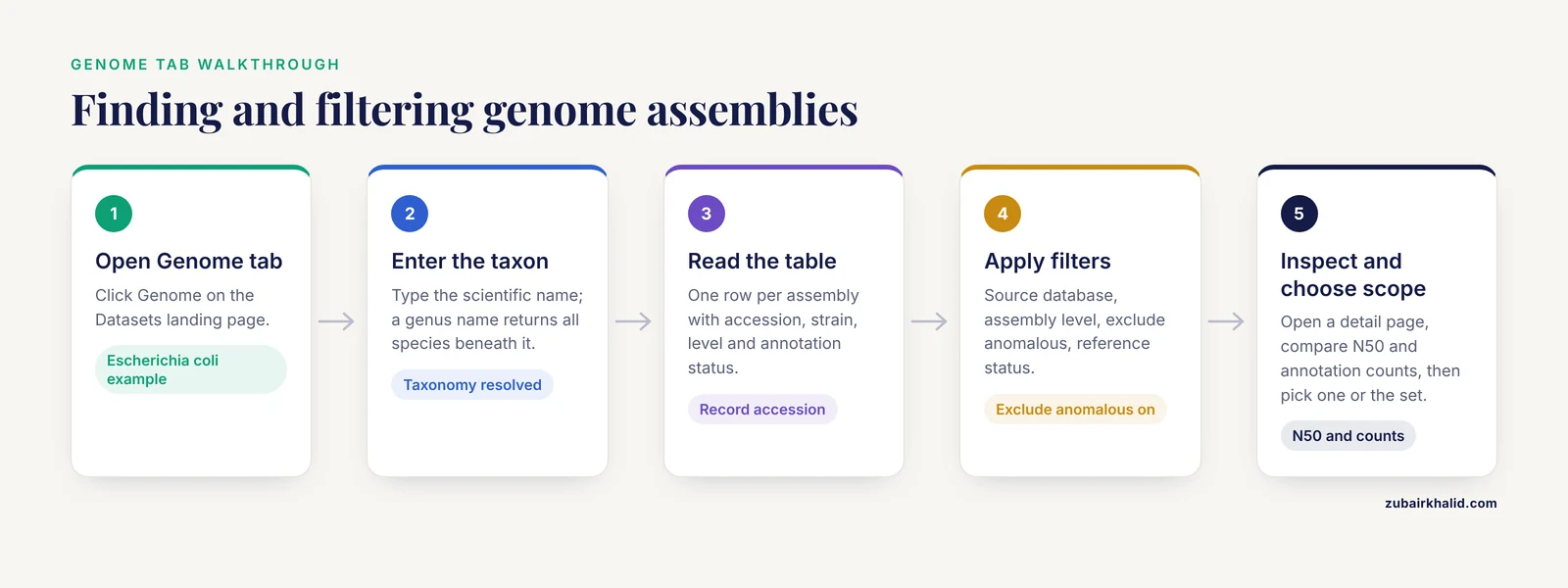
This walkthrough uses Escherichia coli as the example organism. Any species name works the same way.
Step 1. Open the Genome tab. From the Datasets landing page, click "Genome."
Step 2. Enter the taxon. Type Escherichia coli into the search box and press Enter. The interface resolves the scientific name against the NCBI Taxonomy database, which matters because misspellings and synonyms produce different results. A genus name such as Escherichia also works and returns all species beneath it in the tree.
Step 3. Read the result table. You should see a summary stating how many assemblies were found, followed by a table listing one row per assembly. Typical columns include the assembly accession, organism name, strain or isolate name, assembly level, and annotation status. The assembly accession is the identifier you will cite in your methods section, so record it now.
Step 4. Apply filters. On the left side, filters narrow the table:
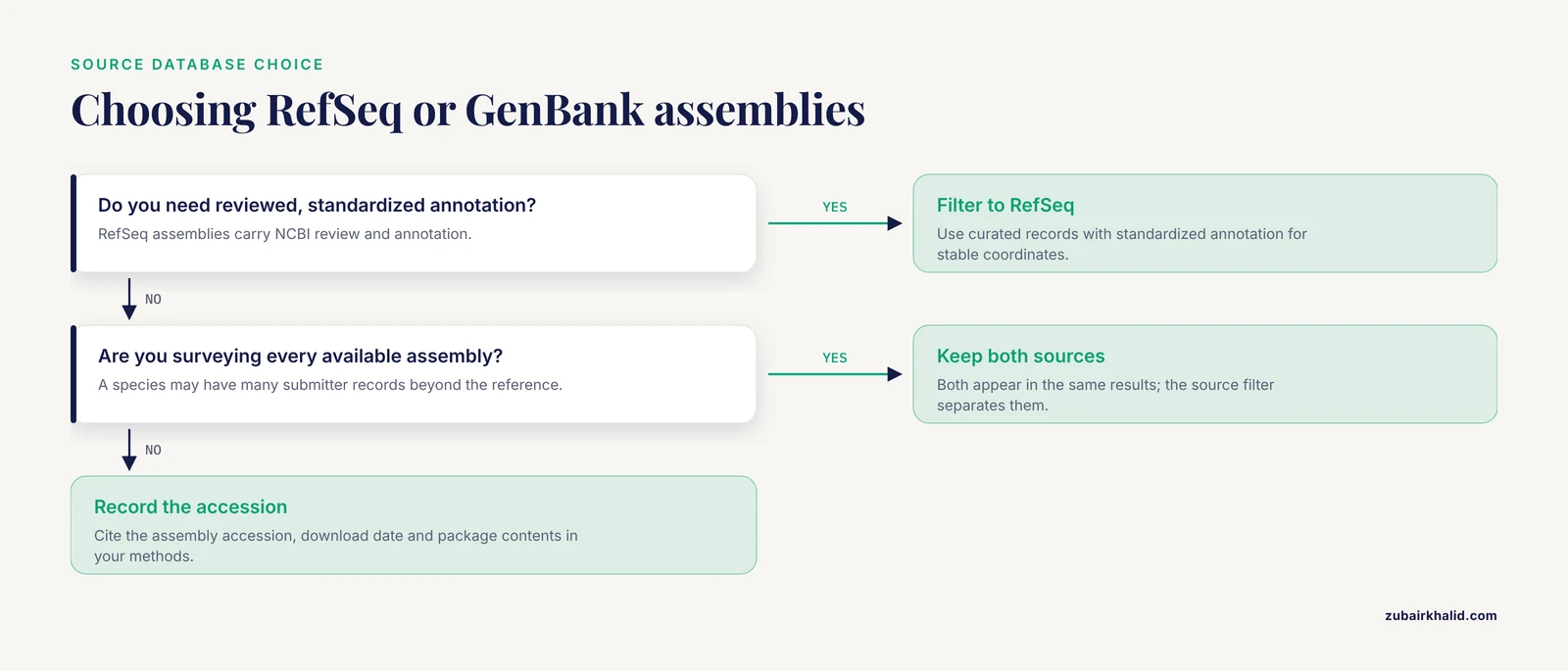
- Source database. Choose RefSeq, GenBank, or both. RefSeq assemblies have undergone NCBI review and annotation, while GenBank assemblies are submitter-provided. When both exist for a strain, the RefSeq entry typically shares the underlying sequence but adds curated annotation.
- Assembly level. Options include complete genome, chromosome, scaffold, and contig. A complete genome is a single closed sequence or a small set of closed sequences. Contigs are the most fragmented.
- Exclude anomalous. This filter removes assemblies flagged by NCBI for problems such as contamination or unusual sequence composition. Leave it on unless you have a specific reason not to.
- Reference or representative status. Selecting this restricts results to the assemblies NCBI designates as reference or representative for each taxon.
Step 5. Inspect a candidate assembly. Click an assembly accession to open its detail page. You will see the assembly statistics, including total sequence length, the number of contigs or chromosomes, the N50 value (the length at which half of the assembly is contained in sequences of that length or longer), and annotation counts for genes and proteins. Compare these numbers across candidate assemblies. For a well-studied organism you usually want the highest assembly level available with the most complete annotation.
Step 6. Choose your download scope. At this point you can download one assembly or the whole filtered set. The next section covers both paths.
Step-by-Step: Download a Genome Data Package
Step 1. Open the download panel. From a filtered genome table, click the "Download" button. From an assembly detail page, use the download control in the upper right. Both open a configuration panel.
Step 2. Configure the package. The panel offers two main choices:
- Data type. Select which file types to include. The genome view offers the DNA sequence in FASTA format, annotation in GFF3 (a standard tab-delimited format for gene features), proteins in FASTA, RNA sequences in FASTA, the full GenBank flat-file record, a sequence report, and the structured metadata report. If you only need sequences, choose the smallest set that answers your question because file sizes grow quickly.
- Structure. Choose whether assemblies should be expanded into per-assembly folders or kept flat. Folder structure matters when you download dozens or hundreds of assemblies.
Step 3. Download and open the ZIP. The interface delivers a ZIP archive. When you extract it, the standard layout looks like this:
my_genome_package/
├── README.md
├── dataset_catalog.json
└── ncbi_dataset/
    └── data/
        └── GCA_000005845.2/
            ├── GCA_000005845.2_genomic.fna
            ├── GCA_000005845.2_genomic.gff
            ├── GCA_000005845.2_protein.faa
            ├── assembly_data_report.json
            └── ...
The README.md explains every file in the package. The dataset_catalog.json is a machine-readable manifest listing the included files and their types. The assembly_data_report.json holds the statistics you saw on the web page, in structured form. This structure is identical whether the package came from the web interface or the command line, which is one of the practical strengths of the resource [1].
Step 4. Record what you downloaded. The assembly accession in the folder name, the date of download, and the package contents together define your input data. When you publish, citing the dataset accessibly supports proper attribution and reuse, a goal the resource was explicitly designed around [1].
Step-by-Step: Genes, Orthologs, and Gene Data Packages
The gene view works by the same pattern but adds an important comparative-genomics feature.
Step 1. Switch to the Gene tab and search for a gene. You can search by symbol (TP53), by NCBI Gene ID, or by a name combined with a taxon, such as brca1 AND human. Each row in the result table shows the gene ID, symbol, organism, and chromosomal location.
Step 2. Open a gene record. Click a gene to open its detail page, which summarizes the gene, lists transcript and protein variants, and shows the genomic context.
Step 3. Explore orthologs. The orthologs section lists genes in other species that descend from the same ancestral gene. NCBI computes these orthologs with a pipeline that integrates protein similarity, nucleotide alignment, and microsynteny, the conservation of gene order in the surrounding chromosome, to achieve high-confidence assignments across eukaryotic genomes, and the results are integrated into NCBI Gene and exposed through Datasets for both web browsing and bulk download [5]. This means the ortholog you see on the web page and the ortholog you get in a command-line download come from the same high-precision dataset.
Step 4. Download a gene data package. The download panel for a gene offers the gene sequence, the transcript sequences, the protein sequences, and the gene metadata report. You can download for a single gene or for a whole list of gene IDs.
Step 5. Consider what you will do with the data. Bulk gene metadata rewards local processing. As a worked example of what becomes possible, GeneBase 1.1 parses and indexes NCBI Gene data locally and computes statistics across any selected gene set, such as median, mean, and standard deviation of transcript lengths and exon counts. Applying it to human nuclear genes produced an updated reference set in which a mean human protein-coding gene spans about 67 kilobases, carries eleven exons averaging 309 base pairs, and contains ten introns averaging 6,355 base pairs [6]. Those numbers came from structured, local analysis of the same NCBI Gene content you are downloading, which shows why grabbing the machine-readable metadata report alongside sequences is worth the extra megabytes.
Step-by-Step: Virus Data and Specialized Views
The Virus tab deserves its own pass because it behaves differently. Originally developed around SARS-CoV-2, it presents virus genome data with filters tailored to viral surveillance, including lineage assignment and geographic and collection-date facets, along with tree-based visualizations. If your organism is a virus, start here rather than in the general genome view, because the filtering model is designed for the large volume and rapid turnover of viral submissions.
Specialized NCBI resources sit alongside Datasets for particular data domains. NCBI Glycans provides a dedicated web page for glycan-related content scattered across multiple NCBI databases and hosts the official Symbol Nomenclature for Glycans (SNFG) reference, the standard graphical notation recommended for publication [3]. Datasets does not replace these resources. It complements them, and an NCBI databases guide that covers genomics workflows should point you to the specialized tool once your question narrows.
Verifying That Your Download Is Correct
Three checks catch most problems before they propagate into an analysis.
Check 1. Compare the report against the web page. Open assembly_data_report.json in the package and compare the total sequence length, contig count, and annotation counts against the assembly detail page you viewed earlier. They should match exactly because both come from the same underlying record.
Check 2. Count your FASTA records. For a genome FASTA, count entries with a quick command:
grep -c "^>" ncbi_dataset/data/GCA_000005845.2/GCA_000005845.2_genomic.fnaThe output should equal the contig or chromosome count shown in the report. For a protein FASTA, the same command should equal the protein count from the report. A mismatch means the package and the report disagree, which occasionally happens when annotation is updated between the moment the web page was cached and the moment the package was built. Redownload if you see a mismatch.
Check 3. Spot-check one annotation. Open the GFF3 file and find a gene whose product name you know. Confirm the coordinates in the GFF3 fall within the corresponding sequence length in the FASTA. This single check exposes the most common real-world problem, which is coordinate conventions differing between files (the GFF3 reports coordinates relative to the genomic sequence, and some downstream tools expect transcript-relative coordinates).
Going Further: Command-Line and API Reproducibility
Every web download has a command-line equivalent, which is what makes a workflow reproducible. Install the datasets and dataformat command-line tools from the NCBI Datasets site, then reproduce the genome example above:
datasets download genome taxon "Escherichia coli" \
  --reference \
  --include genome,gff3,protein \
  --filename ecoli_ref.zip
Expected terminal output looks like this:
Downloading packages: genome, gff3, protein
  | Estimated size 12.5 MB
Unzipping contents to ./ncbi_dataset/ecoli_ref
The resulting folder has the same ncbi_dataset/data/ layout as the web download. The -reference flag restricts results to reference genomes, matching the filter you clicked in the web interface. Other useful flags include -annotated to require annotation, -assembly-level complete to match the assembly-level filter, and -exclude-anomalous to match the anomaly filter.
To convert the metadata report into a spreadsheet-friendly table:
dataformat tsv \
  --package ecoli_ref.zip \
  --fields organism-name,accession,assembly-level,contig-n50,total-sequence-length
Expected output is one header row followed by one row per assembly:
Organism name      Assembly Accession    Assembly Level    Contig N50    Total sequence length
Escherichia coli   GCA_000005845.2       Complete Genome   4641654       4641654
Run dataformat tsv, help for the full list of field names, which is long but stable and documented.
For orthologs, the command-line mirror of the web page is:
datasets download ortholog gene-id 7157 --filename tp53_orthologs.zipGene ID 7157 is human TP53. The package contains one ortholog set per gene, and because it draws on the same high-precision pipeline that feeds NCBI Gene [5], you can treat the CLI output and the web display as interchangeable.
Finally, the documented APIs return the same structured reports as JSON, so a script can poll for updated assemblies and rebuild packages automatically, keeping the FAIR principle of programmatic access intact [1].
Key Options at a Glance
| Option | Where you find it | What it controls | When to use it |
|---|---|---|---|
| Source database (RefSeq vs GenBank) | Genome and gene tabs, left filter column | Curated versus submitter-provided records | Choose RefSeq for stable, reviewed annotation. Include GenBank when surveying all available assemblies |
| Assembly level | Genome tab, left filter column | Fragmentation of the assembly, from contigs to complete genomes | Choose the highest level your downstream tools accept |
| Exclude anomalous | Genome tab, left filter column | Removes assemblies flagged for contamination or other problems | Leave enabled for routine work |
| Reference or representative | Genome tab, left filter column | Restricts to assemblies NCBI designates as reference or representative | Use when you need one genome per species |
| Data type checkboxes | Download panel | Which sequence and annotation files enter the package | Include only what your analysis needs to keep downloads small |
-include flags | Command line datasets download | Same as the data type checkboxes | Mirrors the web panel in scripts |
-reference | Command line datasets download | Restricts to reference genomes | Mirrors the reference filter |
| Ortholog download | Gene detail page and datasets download ortholog | Retrieves cross-species ortholog sets | Use for comparative genomics without manual record-by-record copying |
NCBI Datasets Web Interface Tips
These tips come up repeatedly in real workflows.
Search the genus when the species is uncertain. Typing Escherichia instead of Escherichia coli returns every species and strain beneath it, including candidates you may not have known existed. Narrow from there with filters rather than guessing at the exact binomial.
Read the README before deleting it. The package README documents each file type, and it occasionally changes as NCBI adds content. Two minutes there prevents most format surprises downstream.
Download the metadata report even when you do not need it today. The structured reports are small relative to sequences, and later analyses of gene length, GC content, or assembly statistics can use them without another download. The GeneBase experience shows how much value sits in those structured fields once you start summarizing [6].
Match the web and CLI paths before scaling up. Do a small download through the web interface, confirm the contents, then reproduce it on the command line. Once the CLI version is verified, you can scale to hundreds of taxa with confidence because both paths deliver identical package structure [1].
Keep accession numbers, not file names, as your source of truth. Files get renamed in pipelines. The accession recorded in assembly_data_report.json and in your lab notebook is what reviewers will ask for.
Common Mistakes and Limitations
Treating the search box as a full-text search. The Datasets search resolves against taxonomy, accessions, and gene identifiers. Free-text phrases from a paper title will not behave as they would in PubMed. If a search returns nothing, try the scientific name first and the accession second.
Ignoring the assembly level. Downloading contig-level assemblies for an organism with complete reference genomes available is the single most common wasted effort. Check the assembly-level filter before downloading, and prefer complete genomes or chromosomes for tasks such as primer design and synteny analysis.
Assuming all genomes are annotated equally. RefSeq assemblies carry NCBI annotation. GenBank assemblies may have submitter annotation of variable depth, or none. The annotation counts on the detail page tell you what you are getting, and the -annotated flag enforces it on the command line.
Mixing assembly versions across a project. Assemblies are updated, and the accession string encodes the version (the number after the second dot in GCA_000005845.2). If half your gene coordinates come from version 1 and half from version 2, coordinate-based results will be silently wrong. Lock one version per project and record it.
Confusing the web page summary with the raw annotation. The web page presents curated summaries. The GFF3 and GenBank flat files present every feature NCBI has for the assembly, including features with partial evidence. When a count on the web page differs from your count of a downloaded file, look for feature-type filters before assuming an error.
Expecting raw sequencing reads here. Datasets delivers assemblies and annotations. The underlying reads live in SRA, a different resource with its own metadata standards, and well-annotated raw-data submissions are a separate workflow concern [4]. If your analysis needs reads, follow the links from the assembly page to SRA rather than searching Datasets for them.
Overlooking species-level data volume. A genus-level download with all data types included can reach tens of gigabytes. Start with the sequence report only, inspect the statistics, and then pull full sequences for the subset you actually need.
One boundary worth stating plainly. This guide covers data retrieval and quality checking. Interpreting what a genome or gene means for a specific research or clinical question requires domain expertise that no database interface can substitute for.
Frequently Asked Questions
Is the NCBI Datasets web interface free to use?
Yes. The web interface, the command-line tools, and the APIs are all free and require no account for searching and downloading. NCBI provides them as public resources.
What is the difference between RefSeq and GenBank assemblies in Datasets?
GenBank assemblies are submitter-provided sequence records. RefSeq assemblies are NCBI-curated versions with standardized annotation, and a RefSeq entry usually shares sequence data with a paired GenBank accession while adding review. Both appear in the same search results with a source filter to separate them.
How do I download all genomes for one species?
Search the species name in the Genome tab, apply your filters, and use the Download button without selecting individual rows. The package will contain every assembly matching the filter. On the command line, the same result comes from datasets download genome taxon "Species name" with your chosen -include flags.
Can I get orthologs for a gene without using the command line?
Yes. Open the gene record in the Gene tab and use the orthologs section on the page for browsing, or the download control to fetch the full ortholog set as a package. The command line and the API return the same orthology data computed by the NCBI pipeline.
What is inside the ZIP file I download?
Every package contains a README, a dataset_catalog.json manifest, and a ncbi_dataset folder holding the sequences, annotation files, and a structured JSON report you selected. The structure is identical for web and command-line downloads, so scripts written against one work with the other.
Why do the numbers on the web page differ from my downloaded report?
They normally match because both derive from the same record. Small differences usually mean the record was updated between page views, or that you counted a filtered subset of features rather than all of them. Redownload and recount with the feature type specified in the report.
Do I need an account or login to use the interface?
No. Searching, filtering, and downloading do not require a login. An optional NCBI account saves preferences and search histories on other NCBI resources, but nothing in the Datasets download path depends on it.
How should I cite the data I downloaded from NCBI Datasets?
Record the assembly or gene accessions, the download date, and the Datasets resource in your methods section. The resource was designed to support effective data attribution and reuse [1], and stable accessions are the citation anchors most journals expect.
Sources
- Exploring and retrieving sequence and metadata for species across the tree of life with NCBI Datasets
- NCBI BLAST: a better web interface
- Glycoscience data content in the NCBI Glycans and PubChem
- “METAGENOTE: a simplified web platform for metadata annotation of genomic samples and streamlined submission to NCBI’s sequence read archive”
- NCBI Orthologs: Public Resource and Scalable Method for Computing High-Precision Orthologs Across Eukaryotic Genomes
- GeneBase 1.1: a tool to summarize data from NCBI gene datasets and its application to an update of human gene statistics