How to Use a Markdown Lab Notebook with Git
By Dr. Zubair Khalid, DVM, MS, PhD ·
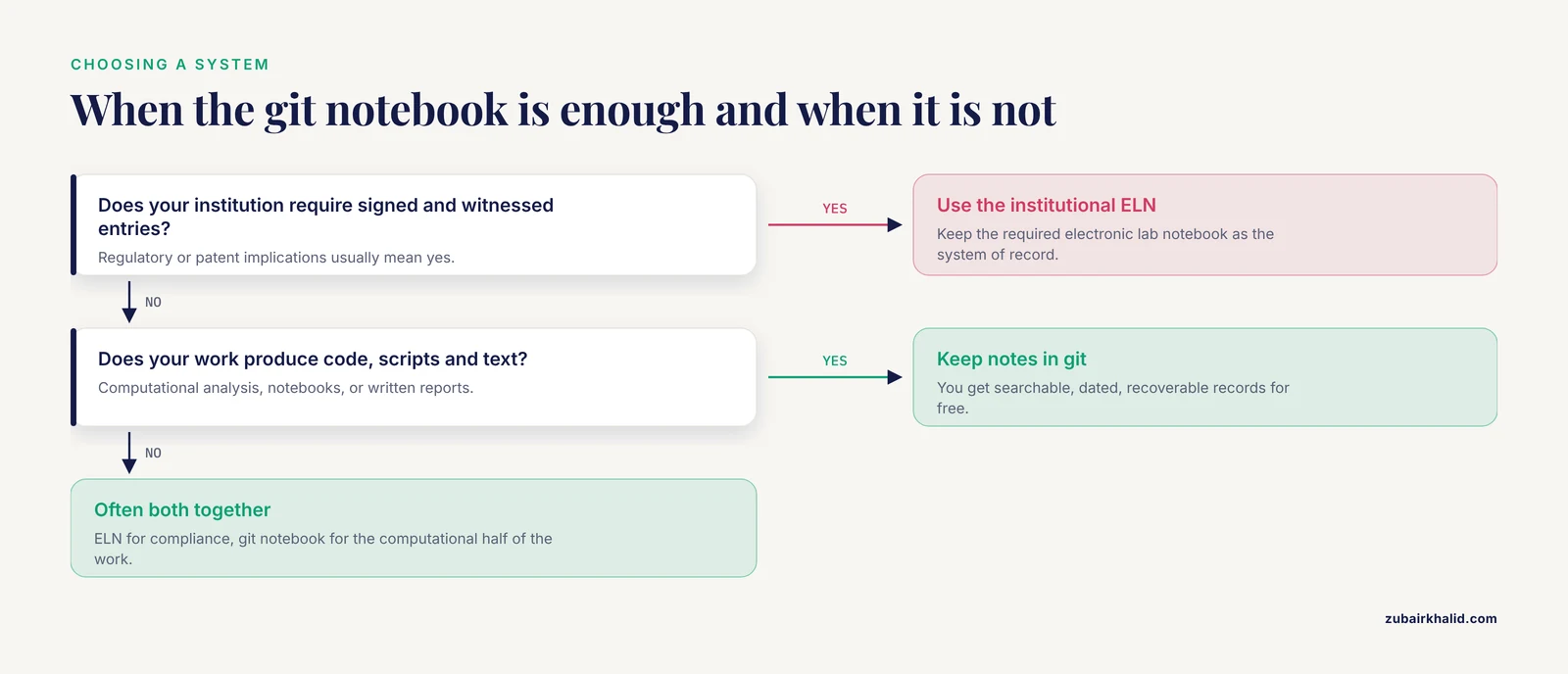
A markdown lab notebook with git is a research journal kept as plain-text markdown files whose complete edit history is recorded by git, the distributed version control system that most software developers and many computational scientists already use. The rule of thumb for choosing this setup is simple: if your work produces code, scripts, and text, keep your notebook as markdown files inside a git repository and you get searchable, dated, recoverable records for free. If your institution requires signed and witnessed entries with a formal audit trail, run the required electronic lab notebook and treat a git-based markdown notebook as a supplement for the computational half of your work.
This guide covers what the setup actually consists of, the main markdown lab notebook git options available today, the pros and cons of each, a minimal working setup you can build in under an hour, worked scenarios for different kinds of labs, and the mistakes that trip up most first-time users.
What a Markdown Notebook with Git Actually Is
Three pieces fit together, and defining them precisely prevents most confusion later.
Markdown is a lightweight plain-text formatting language. You write headings with hash marks, lists with hyphens, tables with pipes, and emphasis with asterisks. A file written in markdown is human-readable in any text editor, and tools can render it into formatted HTML or PDF with headings, tables, images, and links. A file ending in .md is markdown.
Git is a distributed version control system. It records snapshots of every file in a folder, called a repository, each time you make a commit. A commit is a dated, attributed, annotated snapshot. Git also lets you travel back to any earlier snapshot, compare any two snapshots line by line (a diff), and work on parallel branches that can later be merged. Because every clone of the repository contains the full history, git doubles as a backup mechanism when you push to a remote server.
The notebook is just a folder of markdown files, one per experiment, project, or day, plus whatever figures, scripts, and small data files belong alongside them. There is no proprietary database behind it. If the software you use to write disappears tomorrow, the files remain readable.
The core value proposition for scientists is provenance. A commit history answers the question "what exactly did I write on March 4, and what did the analysis script look like at that moment?" in a way that no word processor autosave can. This is a large part of why git for scientists has grown from a niche practice into standard infrastructure in computational fields.
Markdown Lab Notebook Git Options at a Glance
There is no single best markdown lab notebook git setup. The right choice depends on how much code you run, how many people share the notebook, and what your institution demands for record-keeping. The table below summarizes the main options, and each is explained on its own terms in the sections that follow.
| Option | Best for | Runs code in the notebook | Diff readability | Learning curve | Collaboration model |
|---|---|---|---|---|---|
| Plain markdown files plus git in a text editor | Solo researchers, general wet-lab and dry-lab notes | No (links out to scripts) | Excellent (plain text diffs line by line) | Low to moderate | Via push and pull to a shared remote |
| Jupyter or JupyterLab notebooks (.ipynb) | Interactive data exploration in Python and R | Yes, cells execute in place | Poor out of the box (JSON internals) | Moderate | Pull requests with notebook-aware review tools |
| Quarto or R Markdown documents | Reports that mix narrative, code, and figures | Yes, executed at render time | Excellent (text-based source) | Moderate | Pull requests, rendered output reviewed separately |
| Markdown apps with git sync (for example Obsidian with a git plugin) | Long-lived knowledge bases linked across projects | No | Excellent | Low for writing, low to moderate for sync setup | Individual sync, not built for concurrent edits |
| Browser-based collaborative markdown (wikis and Etherpad-style tools with git export) | Real-time co-writing during meetings | No | Good | Low | True simultaneous editing, exported to git |
| Commercial electronic lab notebooks with markdown or plain-text export | Regulated or institutional environments | Varies by product | Depends on export format | Low (vendor-managed) | Vendor-managed accounts and permissions |
The Options Explained
Plain Markdown Files Plus Git in a Text Editor
This is the baseline that every other option reduces to. You create a folder, write your notes as .md files, initialize a git repository in that folder, and commit as you work. Any text editor works. Visual Studio Code is the most common choice because its built-in git integration shows diffs, staged changes, and history in the same window you write in, but vim, Emacs, Sublime Text, and Zed all work identically at the file level.
The strengths of this option explain why it remains the default recommendation for people adopting git for scientists workflows. Everything is plain text, so diffs are precise and readable. Git was designed for exactly this kind of content. Search across years of notes is instant with tools like grep or ripgrep. The files open in any environment, on any operating system, with no license server.
The weaknesses are real. Plain markdown cannot execute code, so a data analysis lives in a separate script that the notebook references. Embedding an image means copying the image file into the repository and linking it with markdown syntax, which works but adds housekeeping. There is no built-in reminder to commit, so discipline is on you.
Pros: maximal durability, precise diffs, instant full-text search, no vendor dependence, works offline completely, tiny storage footprint.
Cons: no code execution, no built-in templates or structured entry forms, image and file management is manual, discipline required for regular commits.
Jupyter and JupyterLab Notebooks
A Jupyter notebook is a document that interleaves markdown text with executable code cells. You write the narrative for an experiment, run the analysis directly inside the document, and the output, tables, and plots appear inline. For many computational biologists, this is the closest digital analogue to a traditional lab notebook, because the record and the action live in the same document.
The complication is git. A .ipynb file is stored internally as JSON, a structured data format that includes not just your text and code but also cached execution outputs and metadata. When two people edit the same notebook, the text diff that git shows is a wall of JSON rather than readable prose, and merges frequently break the file. Clearing outputs before committing shrinks the problem but does not eliminate it. Tools such as nbstripout and review platforms with notebook-aware rendering reduce the friction, and the Jupyter project documentation describes extension and review tooling options for exactly this purpose.
Pros: narrative and executed analysis in one document, immediate reproducibility check, huge ecosystem, markdown cells keep prose readable inside the notebook.
Cons: JSON storage makes diffs and merges painful, output bloat inflates repository size, accidental commit of embedded images and outputs is common, not suited for long-form prose.
Quarto and R Markdown
Quarto is an open-source publishing system for scientific and technical documents, and it is the successor lineage to R Markdown. You write a plain-text document that mixes markdown prose with fenced code blocks, then render it. At render time, the code executes and the output, including figures and tables, is woven into the final document, which can be HTML, PDF, or Word. Because the source file is plain text, git treats it like any other markdown file, and diffs are clean.
This option occupies a sweet spot for analysis sections of a lab notebook. The narrative stays readable in version control, the code actually runs, and the rendered document becomes a shareable report for collaborators who never want to see a terminal. The trade-off is that you do not see results live as you type. You write, render, and inspect, which is a slower loop than Jupyter's interactive execution but produces cleaner records because the committed source fully determines the output.
Pros: plain-text source with clean diffs, executed and reproducible analysis, professional rendered output for reports and publications, strong support for parameterized reports.
Cons: no interactive cell-by-cell execution, requires learning the render workflow, rendering environments need to be managed so results reproduce.
Markdown Apps with Git Sync
Applications like Obsidian store your notes as a folder of local markdown files and add a layer of interlinked navigation, search, and graph views on top. Because the underlying storage is plain markdown in a folder, a git repository can wrap the entire vault, and community plugins can commit and push on a schedule or on every save. This makes Obsidian a popular choice for researchers maintaining a long-lived personal knowledge base that doubles as a lab notebook.
The appeal is the linking. You can connect an observation from today's entry to the protocol it came from and the analysis it fed, and those links survive across years. The limits are the same as plain markdown for anything computational: no code execution, and the git plugin is a convenience layer rather than a collaboration system. Concurrent edits by multiple people on the same file will still produce merge conflicts.
Pros: plain markdown underneath, excellent linking and search, plugin ecosystem, works offline, git sync keeps a full history with minimal effort once configured.
Cons: not designed for team collaboration on shared files, no code execution, plugin-based git sync can silently stop if plugin updates break, vendor lock-in is low but the linking layer is app-specific.
Browser-Based Collaborative Markdown and Wikis
When several people need to write in the same document at the same time, browser-based tools are the answer. Collaborative markdown editors and repository-hosted wikis allow simultaneous editing with cursors visible to all participants, and most can export or sync their content to a git repository. Labs commonly use this pattern for meeting notes, shared protocol drafting, and onboarding documents, while keeping the primary notebook in one of the file-based options above.
Pros: true real-time co-editing, zero installation for contributors, natural fit for meetings and shared protocols.
Cons: usually weaker history granularity than git commits, export fidelity varies, content lives on a server you may not control.
Commercial Electronic Lab Notebooks with Export
Many institutions provide a commercial electronic lab notebook (ELN). These systems offer structured templates, witness signatures, and audit trails that matter in regulated settings, and modern products increasingly support markdown formatting and data export. For a computational scientist the pragmatic pattern is to treat the institutional ELN as the system of record for whatever the institution requires, and to mirror or summarize the computational work in your git-based markdown notebook. When the ELN supports exporting entries as markdown or plain text, exported snapshots can live in the same repository as your analysis code, keeping one timeline for the whole project.
Pros: institutional compliance features, structured templates, vendor support, often single sign-on integration.
Cons: cost, limited control over storage format, export may not capture the full history, concurrent editing model varies by vendor.
Building a Minimal Notebook from Scratch
This section gives the concrete setup that most people should start with. It uses plain markdown files and git, and every command shown is standard git functionality documented in the official Git documentation.
Step 1: Create the Repository
Open a terminal, navigate to where you keep work, and run:
mkdir lab-notebook
cd lab-notebook
git init
git init turns the folder into a git repository by creating a hidden .git directory that stores all history. Nothing else about the folder changes.
Step 2: Add a .gitignore File
A .gitignore file lists patterns git should never track. This is your main defense against bloat and credential leaks. A sensible starting version for a lab notebook:
# Large data files belong elsewhere
*.fastq
*.bam
*.csv
*.tsv
*.h5
*.RData
*.pickle

# System and editor clutter
.DS_Store
*.swp
.ipynb_checkpoints/

# Secrets
.env
credentials*
The exact list should match your data formats. The principle is that the repository holds narrative, code, small configuration, and small result tables, while raw data lives in institutional storage and is referenced by path or identifier in the notebook.
Step 3: Choose a File Organization
A structure that scales well for years is one folder per project and one markdown file per entry, dated so files sort chronologically. A typical layout:
| Path | Purpose |
|---|---|
README.md | What this repository is, how to navigate it, contact |
projects/rnaseq-pilot/2026-11-11-qc-notes.md | One dated entry for one experiment |
protocols/library-prep-v3.md | Versioned protocols, one file per protocol version |
analysis/ | Scripts referenced by notebook entries |
figures/ | Small figures linked from entries |
templates/entry-template.md | The skeleton you copy for each new entry |
An entry template keeps entries consistent. A minimal one:
# 2026-11-11, RNA-seq pilot, QC after alignment

## Objective

## What I did

## Results

## Decisions and next steps
Copy the template into a dated file at the start of each session. Filling in the Objective and Decisions sections is what turns a diary into a notebook someone else (including future you) can follow.
Step 4: Adopt a Commit Rhythm
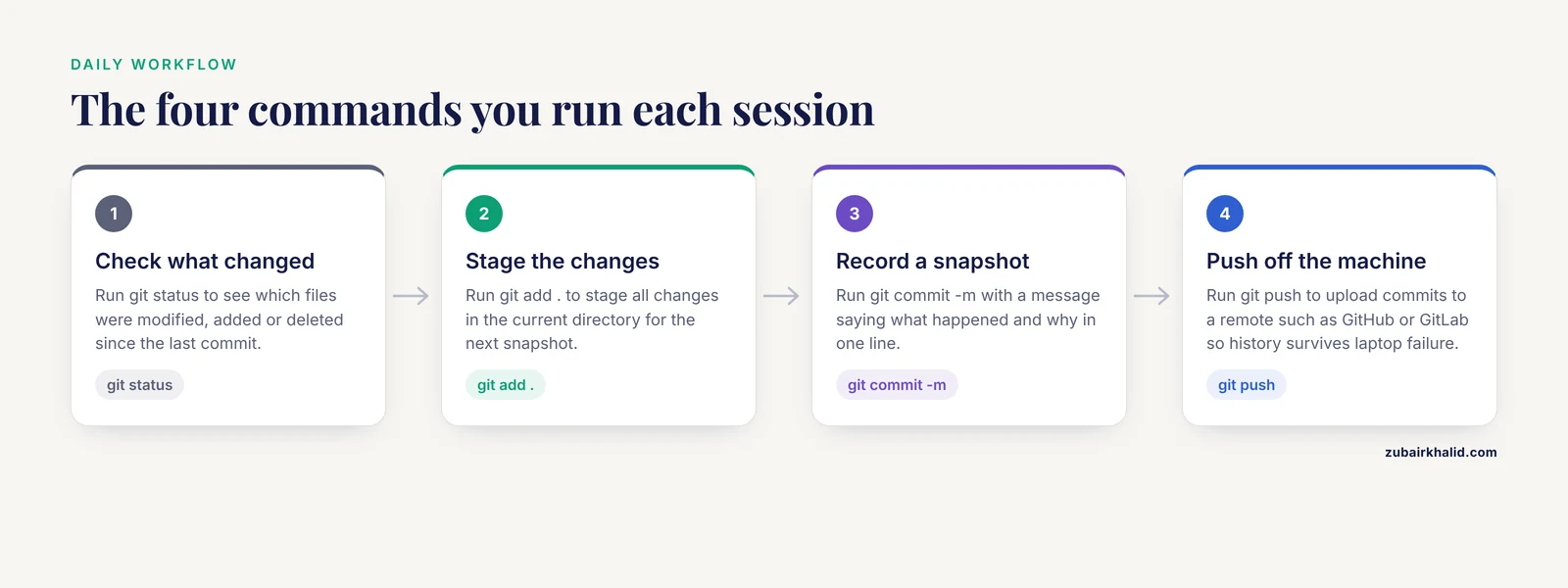
The daily workflow is four commands, run whenever you finish a meaningful unit of work:
git status
git add .
git commit -m "QC on pilot libraries: fastp trimming results recorded"
git push
git status shows what changed. git add . stages all changes in the current directory. git commit -m records a snapshot with a message. git push uploads commits to a remote such as GitHub or a GitLab instance, which is what makes the history survive a laptop failure.
A habit that works well for bench scientists doing occasional computational work is to commit at every natural boundary: before lunch, before leaving, before running a long job, and immediately after recording an unexpected result. Commit messages should say what happened and why in one line. Messages like "update" are legal but useless six months later.
Step 5: Add a Remote
Pushing to a remote gives you off-machine backup and, on hosted services, a web interface for browsing history. The generic pattern, using a remote you create through your provider's web interface:
git remote add origin [email protected]:yourname/lab-notebook.git
git push -u origin main
GitHub is the most widely used public host and is deeply embedded in how researchers share code and methods, which is why github for researchers appears in nearly every modern methods section. GitLab offers the same core functionality and is frequently self-hosted by institutions that require code and notebooks to remain on institutional infrastructure. Both work identically at the git level. The choice is administrative, not technical.
Step 6: Use Branches for Risky Work
Before attempting a risky reorganization or a new analysis direction, create a branch:
git checkout -b try-new-alignmentWork and commit there as usual. If the direction fails, switch back with git checkout main and the main notebook is untouched. If it succeeds, merge with git merge try-new-alignment. Branches let you explore without fear of losing the stable record, and this single habit prevents most of the panic beginners feel about "ruining" their notebook.
Step 7: Recover from Mistakes
Two recovery patterns cover almost everything a notebook user needs. To see and undo uncommitted changes to a file:
git checkout -- filename.mdWait, that pattern contains a double hyphen, so write it the way git accepts single-token alternatives. The fully spelled form avoids ambiguity and is what most documentation recommends for clarity:
git checkout HEAD -- filename.mdThis restores the file to its last committed state. To undo a commit while keeping the changes in your working files, use:
git reset --soft HEAD~1To find any state you have ever committed, even after a bad reset, git reflog lists every position HEAD has occupied, and you can check out any of them. The Git documentation covers these commands in detail. The practical takeaway is that committed work in git is extraordinarily hard to lose accidentally, which is precisely why the system suits lab records.
Comparing the Options on the Criteria That Decide Real Choices
Knowing each tool's feature list matters less than knowing how the differences play out under lab conditions. These are the criteria that actually decide the choice.
Diff readability and merge safety. Plain markdown, Quarto, and Obsidian vaults produce textbook-clean diffs. Jupyter notebooks are the outlier because of their JSON storage, and any plan that involves two people editing the same notebook needs notebook-aware review tooling or a convention of one notebook per person. If merge conflicts across team members are a daily reality, text-based sources win.
Reproducibility. Only Jupyter and Quarto can execute the analysis they describe. Between them, Quarto has the cleaner version-control story because committed source fully determines rendered output, while Jupyter has the faster exploration loop. A common mature pattern uses Jupyter for exploration and Quarto for the record, promoted once the analysis stabilizes.
Onboarding cost. Wikis and Obsidian require almost no git knowledge from contributors. Plain markdown plus git requires teaching the four-command daily loop, which takes under an hour. Jupyter requires understanding both notebooks and git, and Quarto adds the render step. For a lab-wide rollout, budget training time proportional to this list.
Durability and exit path. Every option except the commercial ELN stores plain text you can read in any editor forever. This matters more than it first appears, because notebooks outlive software, grants, and sometimes institutions. When evaluating a commercial ELN, ask specifically what export format is available and whether the export preserves structure.
Search. Plain text is grep-friendly, and both GitHub and GitLab provide repository-wide code search in the web interface. Obsidian adds fast local search and backlink navigation. ELN search quality varies by product and is often limited to metadata fields.
Access control and compliance. Hosted git services offer per-repository permissions fine-grained enough for most academic needs, but they are not designed for the signature and witnessing workflows some regulated environments require. Where those requirements exist, the ELN handles compliance and the git notebook handles computation. This division of labor is the standard pragmatic answer, and it avoids trying to force one tool to do both jobs.
Worked Scenarios
Scenario 1: A solo computational biology graduate student. Best markdown lab notebook git choice: plain markdown files with Quarto documents for any analysis that will appear in a thesis. One repository per thesis chapter or project, one dated markdown entry per working session, scripts alongside notes, push to a private GitHub repository daily. Total setup time is under an hour, and the commit history becomes the backbone of the methods section written two years later.
Scenario 2: A wet-lab and dry-lab hybrid project. The bench notebook stays on paper or in the institutional ELN per institutional policy. The computational side lives in a git repository: a protocols folder holds analysis protocols as markdown, dated entries record every run with sample identifiers that match the bench record, and Quarto documents render the analysis with figures. The link between the two systems is the sample identifier, written identically in both records. This is the most common real-world arrangement and it works because each system handles what it is good at.
Scenario 3: A principal investigator rolling out git for a lab of eight. Do not mandate one tool for everyone. Set a lab convention: one shared repository for protocols and onboarding (wiki or plain markdown, low learning curve), individual repositories for personal notebooks, and notebook-aware review tooling if notebooks are shared. Host on GitHub for openness or on a self-hosted GitLab instance if institutional data policy requires it. Hold two one-hour sessions: one on the daily commit loop, one on branches and recovery. Labs that skip the recovery session generate the most anxiety and the most avoidable support requests.
Scenario 4: A rotating student with a two-month project. Give the student a template repository preloaded with the entry template, the .gitignore, and a README explaining the commit rhythm. The rotation deliverable becomes a repository whose history demonstrates the work, which is far more convincing to the next person who picks up the project than a folder of final figures.
Common Mistakes and Limitations
These are the specific, recurring failures seen when labs adopt this workflow.
Committing large data files. Git stores every version of every tracked file in history. A 2 GB file committed once, then modified and committed again, is stored twice. Repositories accumulate hundreds of megabytes of dead weight and cloning becomes slow. The fix is a strict .gitignore from day one. If large files are already committed, history rewriting tools exist, but prevention is far easier.
Committing credentials. API keys, tokens for sequencing providers, and database passwords end up in notebooks constantly. If you push to a public remote, assume the credential is compromised and rotate it immediately. Keep secrets in a .env file listed in .gitignore, and reference the file from scripts rather than pasting keys into entries.
Using git as backup only, without meaningful messages. A history of messages reading "fix", "update", "changes" cannot answer the provenance questions that justify the whole system. Write messages that state what was done and why.
Assuming git provides compliance-grade audit trails. Git records who committed what and when, on the honor system of local identity configuration. It does not provide cryptographic attestation, witnessed entries, or the tamper-evident record some regulatory frameworks expect. Where those requirements apply, the institutional ELN is the system of record.
Publishing data in public repositories by accident. Unpublished sequencing results, patient-adjacent metadata, and collaborator-restricted materials end up public when a private repository is made public or when a notebook is copied into a new public project. Check what a repository contains before changing visibility, and know your institution's data governance requirements for human-derived data.
Letting binary formats creep in. Word documents, PDFs, and Excel files track poorly in git because diffs are meaningless at the file level and every edit stores a full copy. Keep narrative in markdown and tables in plain text formats such as CSV, which the .gitignore example above excludes only when files are large, so export small final tables deliberately if you want them tracked.
Notebook output bloat in Jupyter. Committed execution outputs, especially embedded plots as base64 text, swell .ipynb files and make diffs unreadable. Adopt a lab convention of clearing outputs before commit, or use an output-stripping filter, and review notebooks with a rendering tool rather than raw diffs.
No remote, ever. A repository that has never been pushed exists on one disk. Laptop loss, ransomware, and hardware failure are ordinary events. The daily loop is not complete until git push succeeds.
Treating the notebook as a diary instead of a record. Entries that say "worked on analysis, made progress" cannot be followed by anyone, including you. The Objective and Decisions sections of a template exist precisely to prevent this, and the discipline of writing a decision line per entry is what separates a useful notebook from a journal of vibes.
Individual cases and local requirements vary. Institutional policies on record-keeping, data storage, and publication govern what you may keep where, and the arrangement described here should be checked against your own lab's rules before you commit to it.
Frequently Asked Questions
Is a markdown notebook with git accepted as an official lab record?
It depends on your institution and field. Many computational groups accept git-hosted notebooks as the primary record for computational work, while wet-lab work with regulatory or patent implications usually requires the institutional notebook system with signatures. Confirm your lab's policy before deciding what your system of record is.
Do I need to know programming to use this setup?
No. Writing markdown and running the four-command daily git loop requires no programming. If you also want to run analyses inside Jupyter or Quarto documents, that adds scripting knowledge, but the notebook itself works fine as pure prose.
Should I use GitHub or GitLab for my lab?
Both work identically for core git functionality. GitHub is the most common public host and integrates smoothly with the wider research software ecosystem, while GitLab is frequently self-hosted by institutions that require code to stay on institutional servers. Choose based on your institution's data policy, not on technical differences.
How do I keep large sequencing files out of my notebook repository?
List large file extensions in a .gitignore file from day one and store raw data in institutional storage, referencing it in notebook entries by identifier and path. If large files are already committed, history-rewriting tools can remove them, but they change every commit ID, so prevention is the better path.
What is the difference between this and a commercial electronic lab notebook?
A markdown and git notebook is plain-text files with a version history you control fully and free of charge, while a commercial ELN provides structured templates, access control, signatures, and vendor support under a subscription. Many researchers use both, with the ELN as the official record and the git notebook as the computational working record.
What happens if I make a mistake in git?
Almost nothing is permanently lost once a commit exists. You can restore a file to its last committed state, undo the most recent commit while keeping the changes, and use git reflog to find any state HEAD has ever pointed to. The genuinely dangerous operations are rare, deliberate ones such as history rewrites on shared branches.