How to Import Ensembl Data into Galaxy
By Dr. Zubair Khalid, DVM, MS, PhD ·

By the end of this guide you will be able to import Ensembl data into Galaxy without downloading anything to your laptop, verify that each imported file is intact, and hand the data straight to downstream tools such as aligners, feature counters, or the Ensembl Variant Effect Predictor. You will need a modern web browser, a free account on a public Galaxy server such as usegalaxy.org or usegalaxy.eu, and the web address of the Ensembl file you want. No command line skills are required for the main method, although one optional path uses a terminal.
The Ensembl to Galaxy connection is one of the most common starting points in genomics. Ensembl publishes reference genome sequence, gene annotation in GTF and GFF3 format, variant data, comparative genomics files, and programmatic REST endpoints [1]. Galaxy gives you a point-and-click environment where every file and every step of an analysis is recorded in a history, and where the platform supports direct data import from remote servers [2]. Combining the two means you can go from a raw Ensembl download to a published, shareable analysis without ever manually copying a file.
What Ensembl Offers and How to Use It
Ensembl is a database and genome browser for vertebrate genomes. The project imports, analyzes, curates, and integrates large-scale reference data to produce evidence-based gene and regulatory region annotation, genome variation resources, and gene trees [1]. Before you import anything, it helps to know how to use Ensembl itself to locate the right file, because importing the wrong file is the single most common failure point in an ensembl to galaxy workflow.
The main entry point is the Ensembl website. From a species page, for example the human page, you can search for a gene, view its structure in the location view, and inspect transcripts, variants, and regulation. For bulk work, the two features that matter most for Galaxy users are the download area and the REST API. Ensembl provides a suite of tools and programmatic access methods so that data analysis and distribution stay uniform across all supported species, and the project has added REST endpoints and a track hub registry to improve data discovery and access [1].
A short ensembl genome browser tutorial for our purposes looks like this. First, open the species page and confirm the assembly name, for example GRCh38 for human. Second, open the download link in the left menu, which leads to the FTP directory where GTF, GFF3, FASTA, and VCF files live. Third, if you need a small custom table rather than a whole-genome file, use BioMart, which lets you filter genes or variants by chromosome, biotype, or other attributes and export the result as a tab-delimited table. Each of these paths maps to a Galaxy import method described below.
Before You Start: Accounts, Browser, and Server Choice
Open a modern browser such as Google Chrome or Firefox. An incompatibility issue between Internet Explorer and the Galaxy system has been documented, so Chrome or Firefox is the recommended choice when following Galaxy procedures. Create a free account on your chosen public server. Accounts are not strictly required to upload files, but they are required to keep a history beyond a single session, and a persistent history is the whole point of importing reference data you will reuse.
Pick the server that matches your data region and your downstream tools. usegalaxy.org and usegalaxy.eu both host the standard NGS tool set, and European servers often have close ties to Ensembl's own host organizations, which keeps reference data access fast. Public servers impose storage quotas per user, so plan your imports rather than pulling in every release of every species. If you later outgrow a public server, the same import steps work on a self-hosted or institutional Galaxy instance.
Choosing the Right Ensembl File
Ensembl publishes many file types, and importing the wrong one is a silent mistake that only shows up hours later when an alignment or counting tool fails. The table below summarizes the files you are most likely to import into Galaxy.
| File type | What it contains | Typical size for human | Use it in Galaxy for |
|---|---|---|---|
| DNA FASTA (primary assembly) | Unspliced genomic sequence, one header per contig | Roughly 3 billion bases, about 1 GB compressed | Reference for read alignment, variant calling, extraction |
| cDNA or CDS FASTA | Spliced transcript or coding sequences | A few hundred MB | Blat-style searches, transcript quantification against reference transcripts |
| GTF | Gene structures with exon, CDS, and transcript features | About 50 MB compressed, over 1 GB uncompressed | Splice-aware alignment, featureCounts, transcriptome assembly |
| GFF3 | Same annotation concept as GTF, different syntax | Similar to GTF | Tools that accept GFF3 annotation |
| VCF | Known variants with allele frequencies | Varies from MBs to GBs | Filtering, annotation input, comparison against called variants |
| TSV from BioMart | Custom gene or variant tables you define | Small, typically KBs to a few MB | Filtering, ID mapping, join operations |
Two naming conventions in Ensembl filenames matter for the rest of this guide. The release number appears in both the directory path and the filename, for example release 113 in a path like pub/release-113 and in a filename like Homo_sapiens.GRCh38.113.gtf.gz. Ensembl issues new releases several times per year, and the release number is how you keep the annotation and the genome sequence matched to each other. The assembly name, GRCh38 for human, appears in the filename as well and must match the assembly your reads or coordinates were produced against.
Import Ensembl Data into Galaxy Step by Step
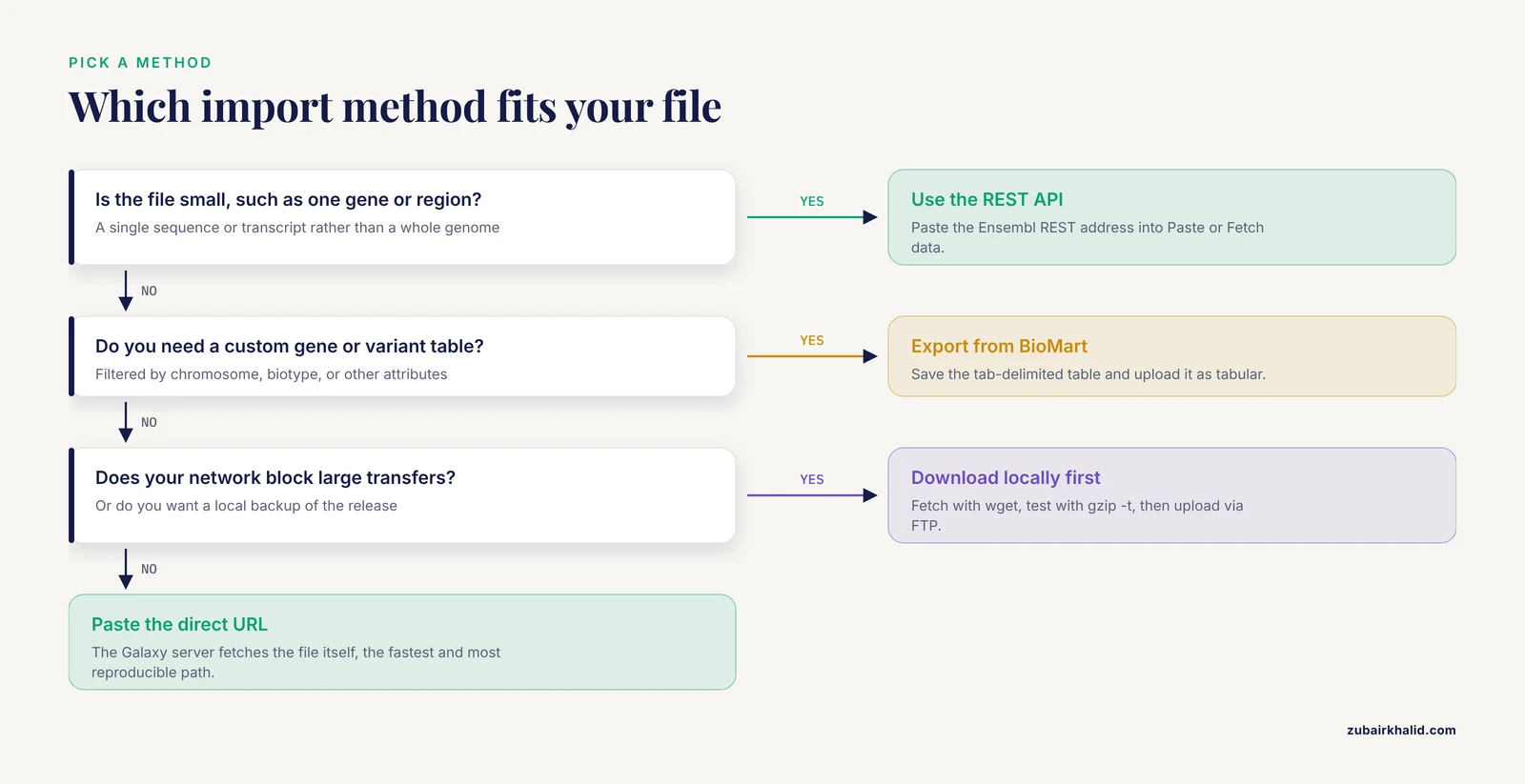
This section walks through four import methods. Method 1 is the one you will use 90 percent of the time. The other three cover cases where URL import alone is not enough.
Method 1: Paste a Direct Ensembl URL into the Galaxy Upload Tool
Galaxy supports direct data import from remote servers, which means the Galaxy server pulls the file itself rather than shuttling it through your browser. This is the fastest and most reproducible way to import ensembl data into galaxy.
Step 1. Find the file on the Ensembl FTP site. Open a browser tab to the FTP directory for your species and file type. The directory pattern is stable across releases:
https://ftp.ensembl.org/pub/release-<RELEASE>/gtf/homo_sapiens/Replace the release number with the current one shown on the Ensembl homepage, and replace gtf with fasta, variation, or another directory as needed. Inside the gtf directory for human you will find files following the pattern Homo_sapiens.GRCh38.RELEASE.gtf.gz, plus a checksum file ending in .gz.md5. Right-click the file you want and copy its full address.
Step 2. Open the upload dialog in Galaxy. In the left tool panel of Galaxy, type "upload" into the search box and open the Upload Data tool. Click the Paste or Fetch data button at the top of the dialog.
Step 3. Paste the URL and set the attributes. Paste the copied Ensembl URL into the large text box. Expand the Type section and set the format. For a GTF file choose gtf. For a gzipped genome FASTA, Galaxy's autodetection usually resolves it correctly, but setting the type explicitly is safer. Leave genomic coordinates as Unspecified unless you know the interval convention of your file. In the Name field, type a name that includes the release, for example Homo_sapiens.GRCh38.113.gtf.gz. Naming with the release is a habit that saves you from version confusion later.
Step 4. Start the upload and wait. Click Start, then Close. A new dataset appears at the top of your history panel, first in gray as queued, then yellow while running, then green when complete. For a human genome FASTA this can take from minutes to an hour depending on server load, because the Galaxy server is downloading close to a gigabyte of compressed sequence on your behalf.
The expected result in your history looks like this when you click the dataset name to expand it:
Homo_sapiens.GRCh38.113.gtf.gz
format: gtf.gz, database: ?
file size: ~50 MB (compressed)
Content preview:
#!genome-build GRCh38
#!genome-version GRCh38
1  ensembl_havana  gene  11869  14409  .  +  .  gene_id "ENSG00000223972" ...
The header lines beginning with #! confirm you grabbed an Ensembl annotation file for the assembly you intended. The database field shows a question mark because Galaxy does not yet know which genome build your file belongs to. Fix that in the verification step below.
Method 2: Download Locally First, Then Upload
Use this method when your network blocks large transfers, when you want a local backup of the release anyway, or when the public Galaxy server is throttling remote fetches. In a terminal on your own machine:
wget -O Homo_sapiens.GRCh38.113.gtf.gz https://ftp.ensembl.org/pub/release-113/gtf/homo_sapiens/Homo_sapiens.GRCh38.113.gtf.gz
gzip -t Homo_sapiens.GRCh38.113.gtf.gz
zcat Homo_sapiens.GRCh38.113.gtf.gz | head -5
The -O flag sets your local filename. The gzip -t command tests archive integrity without extracting, and it exits silently when the file is sound. The zcat and head combination prints the first five lines, and the output should match the preview shown in Method 1. If instead you see the gzip error message "not in gzip format", the download was truncated or redirected, delete the file and fetch it again. Ensembl publishes MD5 checksums next to every file, and comparing your checksum against the published .md5 value before uploading is the professional way to confirm an uncorrupted transfer.
To get a large local file into Galaxy, open the Upload Data dialog and use the option to upload via FTP, which public Galaxy servers provide precisely for files too large for a normal browser upload. Upload the file with a standard FTP client to the address and credentials Galaxy shows in that dialog, and it will appear in the Choose remote files list, ready to be pulled into your history.
Method 3: Small Records Through the Ensembl REST API
Ensembl provides REST endpoints for programmatic access, giving you uniform data retrieval across supported species [1]. When you need one sequence, one transcript, or one region rather than a whole genome, a REST call is faster and cleaner than importing an entire reference file.
A concrete example. The gene identifier ENSG00000139618 corresponds to the human BRCA2 gene. To pull its genomic sequence into Galaxy, copy this address:
https://rest.ensembl.org/sequence/id/ENSG00000139618?content-type=text/plainOpen the Upload Data tool in Galaxy, choose Paste or Fetch data, and paste the address. Because the URL itself requests plain text output through the content-type parameter, Galaxy stores the result as a plain nucleotide FASTA-style text dataset in your history. The expected content is a long uninterrupted string of A, C, G, and T characters representing the sequence for that record, with no annotation columns. If you request JSON instead by changing the parameter to content-type=application/json, Galaxy stores a JSON document, which downstream Galaxy tools can parse with the appropriate format setting.
This method scales down beautifully but not up. For a handful of regions or genes it is ideal. For thousands of records, batch scripts against the REST API belong outside Galaxy, or you should import the bulk Ensembl files instead.
Method 4: BioMart Exports as Tabular Tables
BioMart, part of the Ensembl project's data access toolkit, lets you build custom tables. Suppose you want every protein-coding gene on chromosome 22 with its Ensembl gene ID, gene symbol, and start and end coordinates. Open BioMart from the Ensembl site, choose the Ensembl Genes database, select your species, set filters for chromosome and gene biotype, choose the attributes you want, click export, and save the tab-separated result.
Back in Galaxy, open Upload Data, and either drag the saved file into the dialog or paste the table contents directly. Set the format to tabular. The expected dataset looks like this:
Gene stable ID  Gene name  Chromosome/scaffold name  Gene start (bp)  Gene end (bp)
ENSG00000083064 MJNR1      22                        42166251         42166921
That row is illustrative of the structure rather than a literal Ensembl record, so confirm the actual values for your own export. The import takes seconds because the table is small, and the tabular format is immediately compatible with Galaxy's join, filter, and compare tools.
Verifying the Import
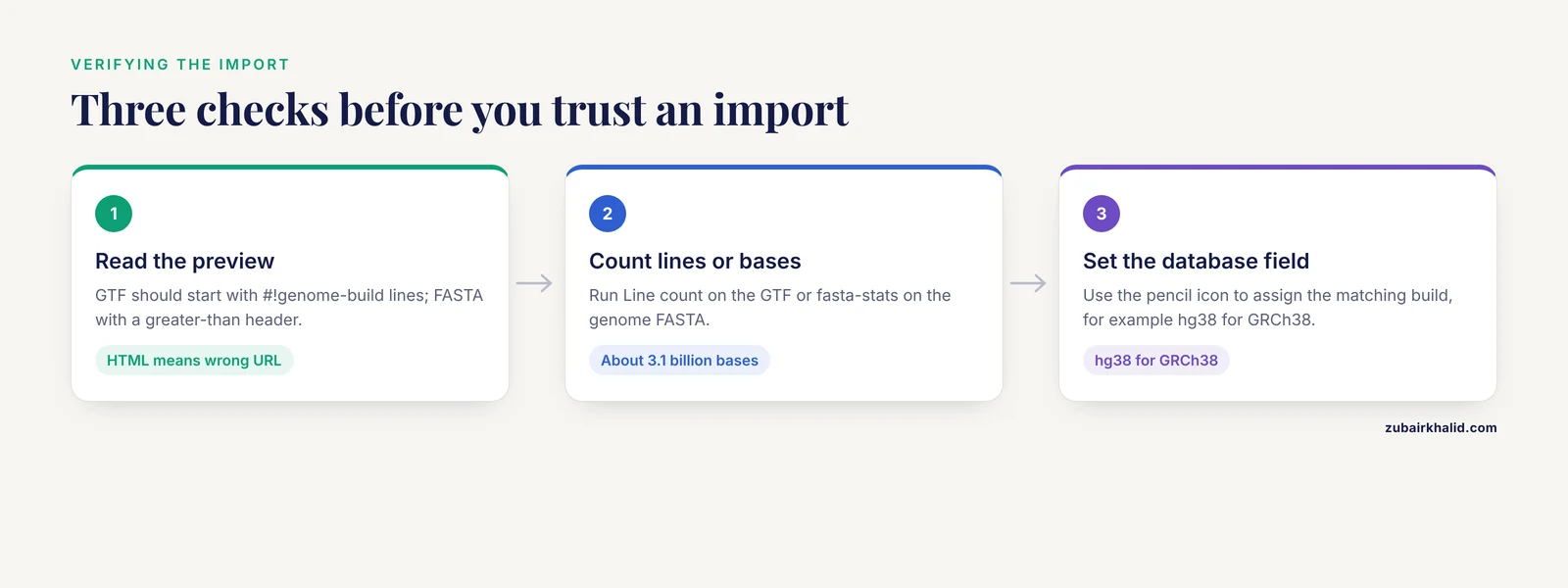
An import that looks green in the history panel can still be the wrong file. Three quick checks catch almost every problem.
Check 1, file identity. Click the dataset in the history panel and read the metadata block. For a GTF import, the content preview should begin with the #!genome-build header lines. For a genome FASTA, the preview should begin with a greater-than character followed by a sequence identifier such as the assembly accession or chromosome name. If the preview shows a web page, an HTML error, or garbled characters, the URL pointed at a directory listing rather than the file itself, or the transfer was truncated. Re-fetch with the exact file URL.
Check 2, line and sequence counts. Run the Line count tool, found by searching the tool panel, on your GTF file. The result panel reports the number of lines, and for a full human annotation you should see a number in the millions. For a genome FASTA, search for and run the fasta-stats tool. It reports the number of sequences and the total length. For the human primary assembly you expect one header per contig or chromosome and a total length in the neighborhood of 3.1 billion bases, which matches the known size of the human genome. Numbers dramatically short of that indicate a partial or wrong file.
Check 3, database assignment. On each imported dataset, click the pencil edit icon, set the genome or database field to the matching Galaxy build, for example hg38 for GRCh38 on usegalaxy.org, and save. Downstream tools that perform coordinate operations use this field to refuse or permit the operation. A mismatch here is one of the most frequent causes of empty results when the files themselves are fine.
Tips for Working with Ensembl Data in Galaxy
These tips turn a one-off import into a durable, reusable analysis environment.
Tip 1, name datasets with the Ensembl release. Ensembl releases new annotation several times per year, and two files named Homo_sapiens.GRCh38.gtf.gz from different months can differ in ways that change your results. Put the release number in the dataset name, in the history name, and in a history tag. This costs nothing at import time and prevents weeks of debugging later.
Tip 2, build a reference history and copy from it. Galaxy lets you copy datasets across histories, so create one history named Reference GRCh38 release 113 containing your genome FASTA, GTF, and any VCF files, then copy those datasets into each project history rather than re-importing them [2]. This saves your storage quota and guarantees every project uses the identical reference files.
Tip 3, capture the whole procedure as a workflow. Once your import and first analysis steps are set up the way you like, extract a workflow from the history so the same ensembl to galaxy path runs on the next dataset automatically. Galaxy's sharing and workflow features are designed for exactly this, letting you hand both the analysis results and the procedure itself to collaborators [2]. This approach generalizes beyond Galaxy, since workflow systems such as Closha were built partly to let users import and run Galaxy-style pipelines on cloud infrastructure [3].
Tip 4, record provenance for reuse. The Galaxy research ecosystem increasingly exchanges workflows and their execution histories using RO-Crate, a packaging format that bundles datasets with machine-readable metadata so analyses remain findable and reproducible [4]. Practically, that means the metadata you attach now, the release number in the name, the database field on each dataset, a descriptive history tag, becomes the record that lets a collaborator or reviewer rerun your work a year later.
Tip 5, remember Galaxy is an application platform too. Projects such as ChemFlow demonstrate that Galaxy can host domain-specific tool suites with their own import, conversion, and analysis modules [5]. If your institution runs a specialized Galaxy server, check whether it already ships an Ensembl-related tool set before hand-rolling your own import pipeline.
Putting the Data to Work: A Worked Analysis Path
Imported Ensembl files become valuable the moment they feed an analysis. A representative path, documented end to end on the Galaxy platform, retrieves sequencing reads in FASTQ format from a public archive, imports them into Galaxy, runs FastQC for quality control, aligns the reads to the human GRCh38 reference with Bowtie2, calls variants with FreeBayes, and annotates them with the Ensembl Variant Effect Predictor before visualization in an external genome browser [6]. Every one of those steps consumes the files you just imported. The FASTA is the alignment target, the GTF is not needed by Bowtie2 but becomes essential the moment you count reads per gene, and VEP depends on Ensembl's own variant resources.
Variant annotation deserves a note because it is where release discipline pays off most. The Ensembl Variant Effect Predictor is the workhorse of functional annotation, and modern pipelines wrap it with curated plugin collections that add predictions such as AlphaMissense, CADD, and SpliceAI to each variant call [7]. VEP caches are release-specific. If you import variants and annotate them against a VEP cache from a different Ensembl release than the one your gene annotation came from, transcript identifiers and even gene models may not correspond exactly. Keep the whole stack, genome, GTF, VCF, and VEP cache, on one release.
Galaxy handles more than human genomics, and the same import pattern applies. One published metavirome study imported public sequencing read data into a Galaxy server, performed quality trimming, de novo assembly for viral sequences with specialized assemblers, and taxonomic classification with Kraken-based tools, all inside the platform [8]. Replace the human reference imports with the Ensembl files for your organism of study and the structure of the workflow is the same.
Common Mistakes and Limitations
These are the errors that appear again and again when people import ensembl data into galaxy for the first time.
Mistake 1, assembly mismatch. Human annotation exists for GRCh37 and GRCh38, and mouse annotation for successive assemblies such as GRCm38 and GRCm39. Mixing a GRCh37 variant list with a GRCh38 reference produces coordinates pointing at the wrong bases. The fix is procedural, not technical. Check the assembly name in the Ensembl filename at import time and put it in the dataset name.
Mistake 2, chromosome naming collisions. Ensembl writes chromosomes as 1, 2, X, MT. UCSC-style files write chr1, chr2, chrX, chrM. If an intersection, join, or merge against UCSC-derived data returns zero results with no error message, the chromosome names disagree. Galaxy ships chromosome name conversion and text manipulation tools that fix this in one step, but only if you think to look for it.
Mistake 3, wrong FASTA flavor. Importing the cDNA FASTA when a splice-aware aligner needs the genomic FASTA plus a GTF is a classic trap. Spliced aligners reconstruct exon boundaries from the annotation and therefore require the genomic sequence. Transcript quantifiers may require the cDNA instead. Read the tool's documentation before choosing which Ensembl FASTA to import, not after the alignment fails.
Mistake 4, coordinate convention confusion. GTF and GFF3 coordinates are 1-based and fully closed, meaning the first base of a sequence is position 1 and both start and end are included. BED coordinates are 0-based with an open end. A gene at positions 11869 through 14409 in GTF corresponds to start 11868 and end 14409 in BED. Tools that switch conventions internally will silently shift features if you hand them the wrong file type.
Mistake 5, treating a decompressed file as different data. Galaxy reads gzipped files natively and most Galaxy tools decompress transparently. Running a manual decompress step inside Galaxy creates a second large dataset, duplicates storage against your quota, and adds clutter. Only decompress when a specific tool genuinely requires it.
Mistake 6, ignoring the database field. As described in the verification section, leaving the genome field blank on imported datasets removes the safety net that Galaxy uses to catch assembly mismatches. Set it immediately after import.
Mistake 7, importing everything. The Ensembl FTP server hosts terabytes of data across all species. Public Galaxy servers give each user a storage quota, and filling it with speculative imports blocks real work. Import what your analysis needs, and lean on the REST API for small lookups.
Limitation worth stating plainly. Public Galaxy servers are shared infrastructure. A multi-gigabyte genome import can queue behind other users, and tool run times vary with load. For sustained heavy work, an institutional or cloud Galaxy deployment is the appropriate setting, and every import step in this guide applies unchanged there.
Frequently Asked Questions
Can I import Ensembl data into Galaxy without downloading it to my computer first?
Yes. Paste the direct FTP or HTTPS file address into the Paste or Fetch data tab of the Upload Data tool, and the Galaxy server fetches the file itself, which is a supported feature for direct import from remote servers.
Which Ensembl files do I need for an RNA-seq count workflow?
You need the genomic DNA primary assembly FASTA for alignment and the matching GTF for gene-level counting. Both must come from the same assembly and, ideally, the same Ensembl release.
Why do my Ensembl and UCSC files not overlap after a join?
Ensembl uses chromosome names without the chr prefix while UCSC files include it. Harmonize the names with Galaxy text manipulation tools before any coordinate operation.
How do I get a single gene sequence into Galaxy instead of a whole genome?
Use the Ensembl REST API, for example the sequence endpoint with a gene identifier and the plain text content type, and paste that URL into the Galaxy upload dialog [1].
Can I run the Ensembl Variant Effect Predictor inside Galaxy?
Yes. VEP is available on public Galaxy servers and fits naturally after variant calling, and published Galaxy-based analyses use exactly this combination for functional annotation of called variants [6].
What is the difference between Ensembl release numbers and assembly names?
The assembly name, such as GRCh38, identifies the version of the genome sequence. The Ensembl release number identifies the version of the annotation and resources. Both appear in filenames and both must stay consistent across your files.
How do I keep my Ensembl imports reproducible?
Record the release number in dataset and history names, set the database field on every dataset, and save the procedure as a Galaxy workflow that can be shared with collaborators [2], [4].
Does importing from Ensembl cost anything?
Ensembl data are freely released to the scientific community and the source code is available under an open source license [1], while public Galaxy servers are free to use within their storage quotas.
Sources
- Ensembl 2017
- Methods for analyzing next-generation sequencing data XII.Galaxy - Sharing histories and workflows
- Closha: bioinformatics workflow system for the analysis of massive sequencing data
- Enhancing RDM in Galaxy by integrating RO-Crate
- ChemFlow, chemometrics using Galaxy
- Identification and Functional Annotation of Expressed Variants in Cystic Fibrosis Using Single-Cell Transcriptomic Data
- MuSA: a Nextflow pipeline for deep, reproducible annotation and clinical ranking of genomic variants.
- Analysis of the RNA-Seq Data of Solanum tuberosum Revealed Viral Sequence Reads of a Severe Laboratory-Developed Strain of SARS-CoV-2 Containing Novel Substitutions