How to Use Man Pages in Linux: A Beginner's Guide
By Dr. Zubair Khalid, DVM, MS, PhD ·

By the end of this guide you will be able to open any manual page on a Linux system, navigate it quickly, search inside it, understand its synopsis notation at a glance, find the right page when you only know the task you want to perform, and pull answers out of man pages fast enough to keep a bioinformatics pipeline moving. You will also know which mistakes waste the most time for beginners and how to avoid each one.
You need very little to follow along. Any Linux shell will do, including the Windows Subsystem for Linux on a Windows laptop or the terminal on a macOS machine, with one caveat for macOS covered later. The examples assume a Debian or Ubuntu style distribution, because that is what most bioinformatics servers and HPC login nodes run. If man itself is missing, install it first:
sudo apt update
sudo apt install man-db manpages manpages-dev
The manpages-dev package matters if you plan to read the pages for system calls and C library functions, which live in sections 2 and 3 of the manual. The man pages for those sections are maintained by the Linux man-pages project, and most minimal cloud images and containers ship without them.
What a Man Page Is and Why Bioinformatics Depends on It
A man page (short for manual page) is the built-in reference documentation for a command, file format, library function, or configuration file. The man command formats and displays these pages in your terminal using a pager, which is a program that lets you scroll and search through text one screen at a time.
Man pages matter more in bioinformatics than in most other computing fields for a simple reason. The tools you use every day, such as samtools, bwa, bowtie2, bcftools, bedtools, seqkit, gatk, and the GNU text utilities that glue every pipeline together, are documented primarily through man pages and -help output. Graphical documentation is inconsistent across versions. The page installed on the server you are logged into always matches the binary installed on that server, which is exactly the version whose behavior you need to understand when a pipeline fails.
The manual is organized into numbered sections. When documentation refers to ls(1) or sort(1), the number in parentheses is the section. Learning this convention early will save you from one of the most common beginner frustrations, described later in this guide.
A man page is a reference, not a tutorial. It tells you what every option does in precise, compressed language. It rarely tells you how to combine steps into a workflow. That is why experienced people read man pages constantly and still keep a few tutorials open in a browser. Both habits are correct.
The Structure of the Manual: Numbered Sections
The traditional manual has eight sections that matter for command-line work. The Linux man-pages project documents this structure, and the man command follows it everywhere you are likely to work.
| Section | Contents | Everyday example |
|---|---|---|
| 1 | User commands | ls(1), grep(1), samtools(1) |
| 2 | System calls (calls into the Linux kernel) | open(2), read(2) |
| 3 | C library functions | printf(3), malloc(3) |
| 4 | Special files, usually devices in /dev | null(4), random(4) |
| 5 | File formats and conventions | crontab(5), fasta(5) on some systems |
| 6 | Games | Rarely relevant to analysis work |
| 7 | Miscellaneous topics, conventions, protocols | regex(7), ascii(7), utf-8(7) |
| 8 | System administration commands | mount(8), useradd(8) |
Two sections deserve special attention from anyone writing scripts. Section 5 documents file formats, which is where you learn exactly what fields a configuration file accepts. Section 7 contains regex(7), the definitive local reference for regular expression syntax, and ascii(7), which lists character codes that matter when you are parsing FASTQ quality lines or fixed-width formats.
How to Use Man Pages in Linux, Step by Step
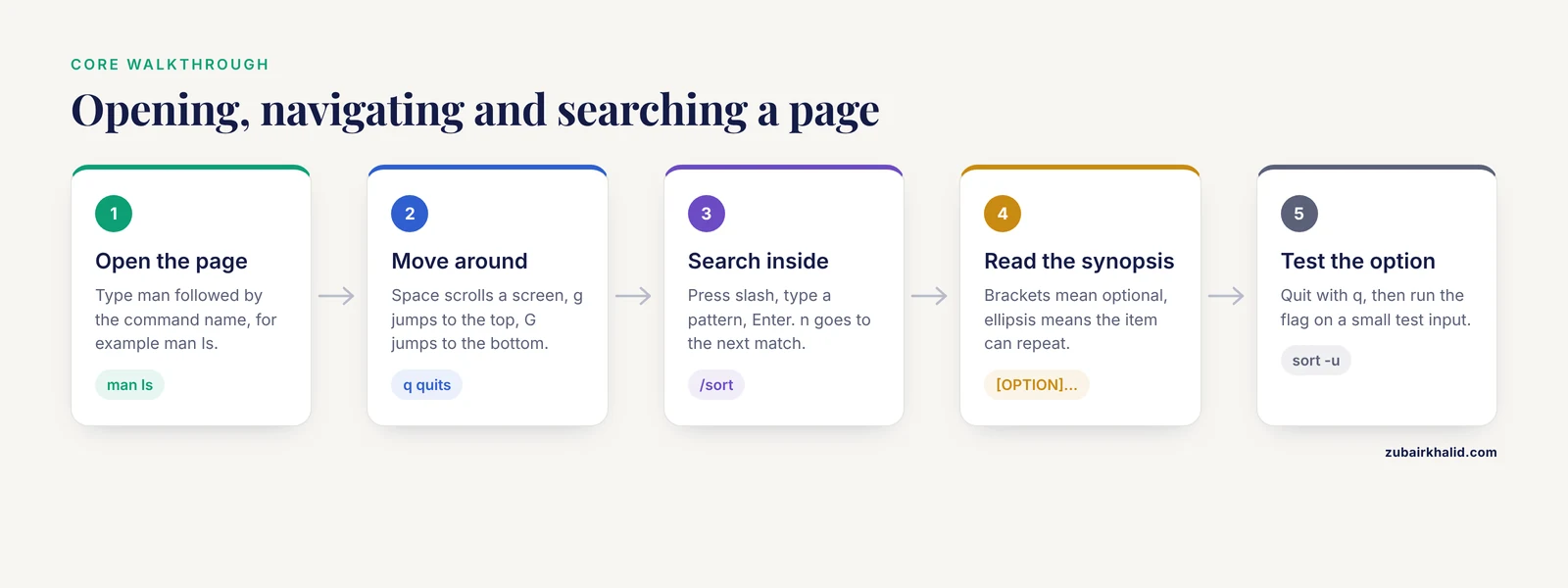
This is the core walkthrough. Follow it once at a terminal and the mechanics become permanent.
Step 1. Open a Page
Type man followed by the command name:
man lsExpected output is the ls manual page filling your terminal, starting at the top. Your terminal prompt disappears while the pager is active. You are now inside a program called less (in almost all modern distributions, man uses less as its pager by default). Everything you type goes to less, not to the shell, until you quit.
If you see No manual entry for ls instead, the page is genuinely missing on that system. On a minimal container, install the manpages package as shown at the top of this guide.
Step 2. Navigate the Page
The keys that matter are few. Practice them on the ls page you have open.
| Key | Action |
|---|---|
| Space or Page Down | Scroll forward one screen |
| b or Page Up | Scroll back one screen |
| Enter | Move forward one line |
| Up and Down arrows | Move one line at a time |
| g | Jump to the top of the page |
| G | Jump to the bottom of the page |
| q | Quit and return to the shell |
The g and G keys are underrated. When you open a long page such as man bash, jumping straight to the bottom and then searching backward is often faster than scrolling from the top.
Step 3. Search Inside a Page
With the page open, press / and type a pattern, then press Enter. Try this on the ls page:
/sortThe pager jumps to the first match and highlights it. Press n to jump to the next match and N to jump to the previous match. To search backward from your current position, use ? instead of /:
?sortTwo refinements make this far more powerful. First, you can anchor a search to the start of a line with ^. Typing /^ *-a finds option entries that begin with -a, which is usually what you want when scanning an OPTIONS section. Second, searches are regular expressions by default, so /colo.u?r matches both spellings. Section 7 of the manual (man 7 regex) documents the syntax in full.
Step 4. Read the SYNOPSIS Before Anything Else
The SYNOPSIS section near the top shows the command's shape. On man sort it begins:
SYNOPSIS
       sort [OPTION]... [FILE]...
       sort [-b] [-c] ...
Decode it this way. Bold text is typed literally. Underlined or bracketed words are placeholders you replace. Items in square brackets are optional. A trailing ellipsis (...) means the item can repeat. Under man grep the synopsis includes:
grep [OPTION]... PATTERNS [FILE]...which tells you immediately that grep takes one or more options, a pattern, and optionally one or more files, and that omitting the filename makes it read standard input. That single line answers the most common beginner question about the GNU text tools.
Step 5. Quit, Then Reopen With an Explicit Section
Press q. Now try the classic trap. On most systems, typing:
man crontabshows the page for the crontab command in section 1. But the file format that a crontab contains is documented in section 5. To reach it, put the section number before the command name:
man 5 crontabThe general pattern is:
man <section> <name>You can list every section containing a page for a name with man -f:
man -f printfExpected output on a system with the C development pages installed looks like this:
printf (1)           - format and print data
printf (3)           - write formatted output to stdout
The first is the shell builtin, the second is the C function. Choosing deliberately between them, rather than accepting whatever man printf happens to show first, is the mark of someone who has moved past the beginner stage. To page through all matching sections in turn, use man -a printf and press q after each one to advance to the next.
Step 6. Verify What You Learned With a Real Command
Reading is not the goal. Close the loop by testing the option you just looked up. From man sort, the -u flag suppresses duplicate lines. Confirm it:
printf "b\na\nb\n" | sort -uExpected output:
a
b
This habit, look up one option and immediately run it on a two-line test input, is the fastest way to convert man page reading into durable skill.
Finding the Right Command When You Only Know the Task
The most common situation is not "I want to read about sort" but "something must exist for counting words." The manual database supports exactly this search. The apropos command (also invoked as man -k) searches the short descriptions of every installed page:
apropos compressExpected output includes lines like:
bzip2 (1)            - a block-sorting file compressor
gzip (1)             - compress or expand files
zcat (1)             - compress or expand files
Each line shows the page name, section, and one-line description, and you can then open any of them with man bzip2. On modern systems apropos matches words anywhere in the description, not just command names, which makes it a genuine task-oriented search.
whatis (also invoked as man -f) does the narrower job of finding pages whose name matches:
whatis sortExpected output:
sort (1) - sort lines of text filesA third search mode is heavier but occasionally indispensable. man -K (capital K) greps the full text of every installed manual page and shows you each match in turn:
man -K "quality encoding"Expect this to take several seconds and to produce false positives. Use it when apropos has failed and you are trying to locate which tool documented a specific concept.
The man Command Options That Matter
The table below covers the options that account for nearly all daily use. Full details are in man man itself.
| Option | What it does | Example |
|---|---|---|
-k | Search descriptions (same as apropos) | man -k compress |
-f | Show one-line descriptions (same as whatis) | man -f printf |
-a | Show every matching section in turn | man -a open |
-w | Print the path of the page file, do not display it | man -w ls |
-l | Format and display a local page file | man -l ./mytool.1 |
-K | Full-text search of all pages | man -K "IUPAC" |
-M | Search an extra manual path for this invocation | man -M ~/tools/share/man mytool |
-s | Restrict to specific sections | man -s 3 printf |
The -w option is more useful than it looks. When you suspect the page you are reading does not match the tool you are running, man -w samtools tells you exactly which file on disk is being displayed, and comparing that path against which samtools resolves the discrepancy in seconds.
Man Pages in a Bioinformatics Workflow
Bioinformatics work concentrates on a small set of general-purpose text tools plus domain-specific binaries. The general tools have excellent, long man pages maintained as part of GNU Coreutils and related projects, and fluency in reading them pays off across every pipeline you will ever touch.
Parsing text with grep, cut, awk, and sort
Suppose you have a GFF annotation file and want every feature of type gene on chromosome 1. From man grep you learn that -P enables Perl-compatible regular expressions and -v inverts the match. From man cut you learn that -f selects tab-separated fields. From man awk (the GNU implementation is gawk) you learn that field variables are $1, $2, and so on. A typical filtering line looks like:
grep -v "^#" genes.gff | awk -F'\t' '$1 == "chr1" && $3 == "gene"' | cut -f1,4,5When a colleague's pipeline sorts a BED file and yours does not, the difference is usually documented in man sort. GNU sort has three options that come up constantly in genomics work. -k selects sort keys by field and character position. -V performs version sort, which orders chromosome names like chr1, chr2, chr10 in natural order rather than lexicographic order. -S sets the memory buffer, which matters on shared HPC login nodes where an unbounded sort can crowd out other users. The sort page also documents a critical environment interaction: setting LC_ALL=C makes sorting byte-by-byte, which is both dramatically faster and required for coordinate-sorted files that downstream tools expect to see in a stable order.
sort -k1,1 -k2,2n -V genes.bed
LC_ALL=C sort -k1,1 -k2,2n genes.bed
The difference between locale-aware and byte-wise collation is a genuine source of pipeline bugs, and the man page for sort is where that behavior is specified.
Reading the page for a domain tool
Command-line bioinformatics tools vary in documentation quality, and knowing where each class of tool keeps its reference material is itself a skill. samtools and bcftools ship real man pages, and the subcommand model means you often want the subcommand section rather than the whole page. Open man samtools, then search for the subcommand:
man samtools
/view
bwa similarly installs a man page covering its subcommands. In contrast, the NCBI BLAST+ suite and many tools distributed as Python or Rust packages do not install man pages at all. For those, the -help flag and the developer's online documentation are the equivalents. Check which situation you are in with a single command:
man -w samtools
man -w blastn
The first returns a path. The second, on a typical BLAST+ install, returns nothing, which tells you immediately to switch to blastn -help.
Combining man pages with shell scripting
The ENVIRONMENT and EXIT STATUS sections of a man page are what turn a command into a scriptable one. From man grep, the EXIT STATUS section specifies that grep exits with status 0 when a match is found, 1 when no match is found, and 2 when an error occurs. That contract is what lets you write:
if grep -q "IKYWQLF\|!!!" quality_report.txt
then
    echo "adaptor contamination suspected"
fi
without relying on undefined behavior. Whenever you build a pipeline step that depends on whether a command succeeded, the man page's EXIT STATUS section is the specification you are coding against.
Controlling How Pages Are Displayed
Because man renders through less, everything you know about configuring less applies. Two environment variables do most of the work.
MANWIDTH forces a fixed display width, which is valuable when you are reading pages over a narrow SSH window and paragraphs rewrap badly:
export MANWIDTH=80MANPAGER (or the generic PAGER) replaces less with something else. A practical combination for readability, supported by less itself, enables case-insensitive search and long prompt strings:
export LESS='-iMRS'
export MANPAGER='less -iMRS'
The -i flag makes searches ignore case, so /chromosome finds Chromosome as well.
To save a page as clean plain text, pipe the output through col -b, which strips the backspace-based overstrike sequences that man pages use for bold text. Without col -b, copied text contains artifacts like bboolldd where bold letters were rendered:
man sort | col -b > sort.txtVerify the result by opening sort.txt and confirming that option names appear once, cleanly. You can then grep this file offline on an HPC node that blocks outbound web traffic, which is a common constraint in secure computing environments.
Modern man implementations can also emit HTML directly. The man-db implementation on Debian and Ubuntu supports:
MAN_KEEP_FORMATTING=1 man --html -T utf8 sort > sort.htmlCheck man man on your own system to confirm whether -html is available before relying on it in scripts.
Keeping the Manual Database Healthy
apropos and man -k do not scan pages live. They query an index built by mandb. After installing new software through your system package manager, the index usually updates automatically. But after installing tools by hand, into conda environments, or into /usr/local, the new pages may be invisible to searches until the database is rebuilt:
sudo mandbTo check what the index currently knows about a name, run whatis samtools. Empty output means the page exists but the index does not cover it, and mandb is the fix.
Conda environments add a second wrinkle. Packages installed into a conda environment place man pages under a path like ~/miniconda3/envs/myenv/share/man, which is not in the default manual search path. The MANPATH environment variable extends the search. Activating a well-built conda package usually injects the right path for you, but when a page does not resolve, inspect the search path directly:
man --pathand compare it against ls $CONDA_PREFIX/share/man. Adding the conda man directory to MANPATH, or invoking man -M $CONDA_PREFIX/share/man samtools for a one-off lookup, brings the page into view.
One macOS caveat belongs here. macOS ships the BSD man implementation rather than GNU man-db, so options such as -html and behaviors such as section ordering differ from Linux. For linux for bioinformatics work specifically, target Linux behavior, and run Linux in a container or WSL if your workstation is a Mac.
Writing and Converting Your Own Man Pages
Sooner or later you will write an internal script used by a whole lab, and it deserves a man page. The native format is troff, the same format the system pages use, and you can preview a file you are writing without installing it:
man -l ./mytool.1Writing troff by hand has a learning curve. Two shortcuts cover most needs. help2man generates a first-draft page automatically from a command's -help output:
help2man --output mytool.1 ./mytooland pandoc converts Markdown into a man page:
pandoc mytool.md -s -t man -o mytool.1Install the source of your page alongside the script, keep it in version control with the code, and regenerate it whenever the -help text changes. A page that drifts out of sync with the tool is worse than no page, because it actively misleads.
Common Mistakes and Limitations
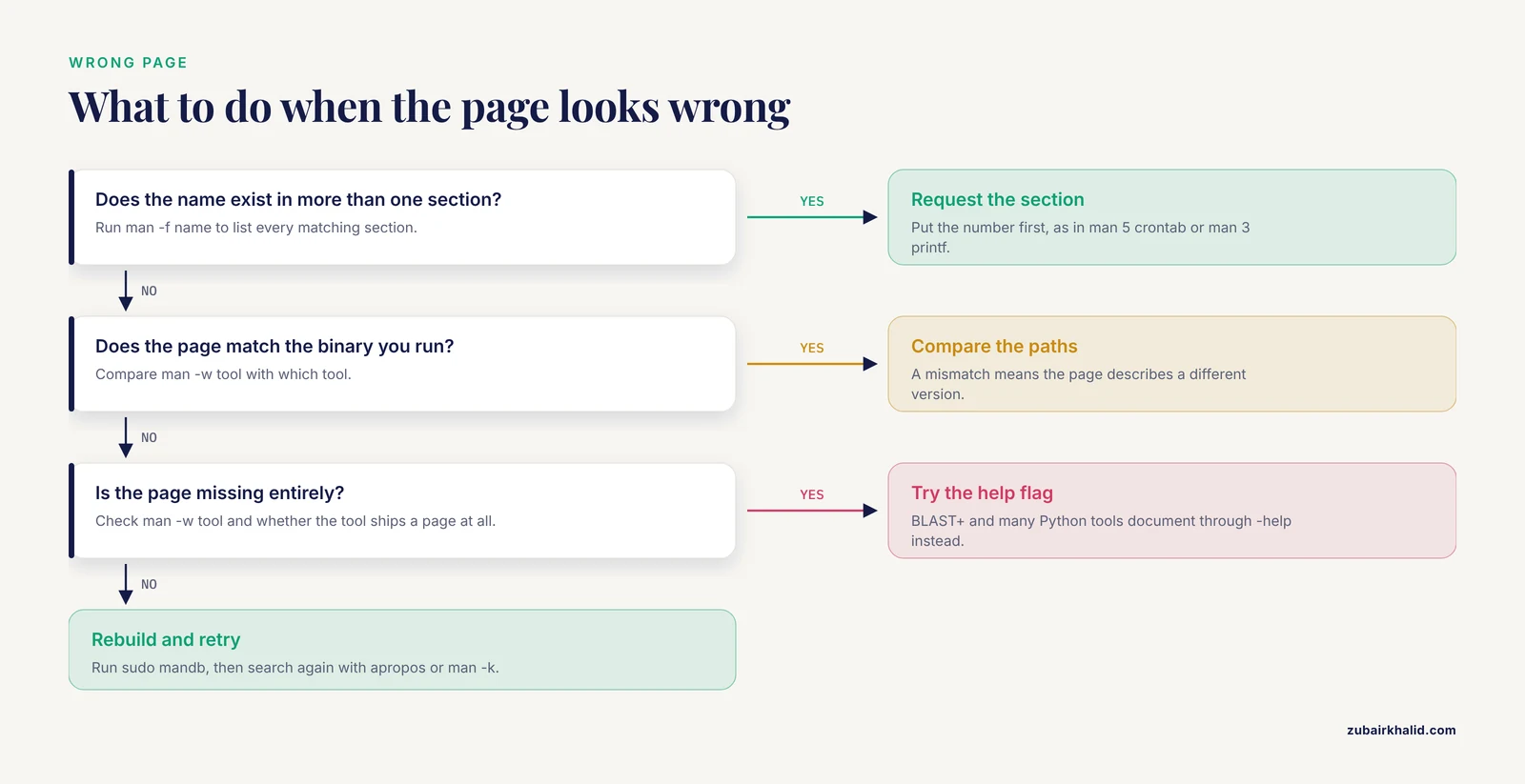
These are the specific errors that cost beginners the most time, with the exact symptoms and fixes.
Reading the wrong section. You type man crontab intending to learn the file format and land on the command instead. The fix is man 5 crontab. The same trap applies to printf (section 1 is the shell builtin, section 3 is the C function) and to open (section 1 on some systems is the macOS command, section 2 is the Linux system call). Always run man -f first when a name exists in more than one section.
Quitting incorrectly and losing your place. Beginners press Ctrl-C to leave a page. In less, Ctrl-C merely interrupts the current operation and keeps you inside the pager, which feels like the program is stuck. Press q to exit. If you want a page to stay open while you work in another terminal, use man -a deliberately or open the page in a separate window rather than fighting the pager.
Copying text that contains artifacts. Text copied from a terminal running a man page contains overstrike sequences, so sort appears as ssoorrtt and underscores double up. This is the classic cause of broken search terms pasted into editors or scripts. Always pipe through col -b before copying or redirecting, as shown earlier.
Treating the man page as a tutorial. A man page specifies what each option does in isolation. It does not teach workflow. Beginners read man bwa expecting an alignment tutorial and conclude the documentation is unusable. Read the man page to check specific flags once you know what you are trying to do, and learn the workflow from tutorials or the tool's published manual.
Trusting a page that does not match the installed binary. On shared systems with old and new software in /usr/bin and conda environments, the page your man finds may describe a different version than the binary your PATH resolves. When behavior contradicts documentation, run man -w <tool> and which <tool> and compare. This mismatch is one of the most common causes of "the flag did nothing" reports on HPC systems.
Assuming every tool has a man page. The BLAST+ suite, many Python-based tools, and most Rust-based tools distribute help through -help or web documentation instead. Check before you promise a collaborator that documentation is installed.
Searching case-sensitively. By default, less searches are case-sensitive, so searching for /vcf misses VCF. Either use the -i less flag through MANPAGER as shown earlier or type the search with a capital first letter, which less interprets as "search case-sensitively only if the pattern contains capitals" when the smart-case behavior is enabled.
Ignoring SEE ALSO. The SEE ALSO section at the end of a page is a curated map to related pages. man sort points you to related Coreutils pages, and man 7 regex is referenced from tools that interpret patterns. Beginners who read only the DESCRIPTION and OPTIONS sections miss the pages that would have answered their actual question.
Stale search results. apropos reflects the database built by mandb, not the filesystem right now. After installing a tool by hand, a search that finds nothing does not mean the page does not exist. Rebuild the index, then search again.
Practical Tips That Pay Off
Go straight to the option list. In a long page, /^ *- jumps through option definitions one n press at a time. Combined with case-insensitive search, this turns a 4,000-line page such as man bash into a lookup table.
Keep a test file in your home directory. A small FASTA and a small FASTQ, each under a hundred lines, let you verify any parsing option from any man page in seconds without touching real data.
Read the EXAMPLES section first when one exists. Many GNU pages include worked examples near the end. man grep and man find both contain example blocks that solve common problems directly, and reading them first is often faster than assembling behavior from option descriptions.
Use man -K for concept searches. When you remember a phrase from documentation but not which tool it belonged to, full-text search across all pages recovers it. Restrict it with -s to keep it fast:
man -K -s 1 "reverse complement"Learn the pager's own help. Pressing h inside a man page shows the full less help screen. Ten minutes there upgrades every future minute in any manual page.
Frequently Asked Questions
What does the number in a reference like ls(1) mean?
It is the manual section. Section 1 holds user commands, section 2 system calls, section 3 C library functions, section 5 file formats, and section 8 administration commands. Type the number before the name, as in man 5 crontab, to open a specific section.
How do I find a command when I do not remember its name?
Use man -k or the equivalent apropos command with a task word, such as man -k compress. It searches the one-line descriptions of all installed pages and lists matches with their section numbers so you can open the right one.
Why does man show a different page than I expected?
The name exists in more than one manual section and man shows the lowest-numbered match first. Run man -f name to list every matching section, then request the one you want explicitly, for example man 3 printf for the C function rather than the shell builtin.
How do I save a man page as plain text?
Run man sort | col -b > sort.txt. The col -b filter removes the overstrike sequences used for bold text, which otherwise appear as duplicated letters when you open the file.
Why is the man page missing for a tool I installed with conda?
The page is probably installed under the environment's share/man directory, which is not in the manual search path. Check ls $CONDA_PREFIX/share/man and add that directory to your MANPATH variable, or view the page once with man -M $CONDA_PREFIX/share/man toolname.
What is the difference between man pages and the, help flag?
-help prints a short usage summary generated by the program itself, while a man page is a full formatted reference with description, options, exit status, environment variables, and examples. Many programs have only one of the two, so check both when documentation seems thin.
How do I make man pages easier to read in the terminal?
Set MANWIDTH=80 for consistent line wrapping and set MANPAGER to less with options such as -i for case-insensitive search. Both variables can be exported in your .bashrc so they apply to every session.
Can I search all man pages at once for a phrase?
Yes. Use man -K followed by the phrase, which greps the full text of every installed page and displays each match in turn. It is slower than man -k because it searches page bodies rather than the description index, so restrict it with -s when you can.