How to Open a Terminal on Windows, Mac, and Linux
By Dr. Zubair Khalid, DVM, MS, PhD ·
By the end of this guide you will be able to open a working terminal on any of the three major operating systems, confirm that the shell is responding, run your first linux commands for bioinformatics, and connect to a remote server or computing cluster without touching a mouse. You need only a computer running Windows 10 or 11, macOS, or a Linux distribution, plus an internet connection if you plan to install extra tools. If you have an account on a university or institutional high-performance computing (HPC) cluster, have your username and connection details nearby, because the last part of this guide uses them.
Why Bioinformatics Lives in the Terminal
A terminal is a text-based window into your computer. You type commands, the operating system executes them, and the program prints text back. There are no drag-and-drop interfaces, no progress bars with cartoon icons, and no hidden steps. Every action you take is written out in plain text, which is exactly why bioinformatics depends on it.
The reason is practical. The analysis software that dominates modern biology research is built for the command line. Published workflows in the field run from proteomics searches that identify modified peptides in mass spectrometry data [1], to characterization of gene sequences and predicted protein domains in non-model organisms [2], to systematic profiling of C-terminal peptides across human cancer cell lines [3], to deep learning models of membrane protein conformations [4], to multi-assay epigenomic studies combining RNA-seq, ChIP-seq, ATAC-seq, and DNA methylation data [5]. Some of these projects ship their analysis code as open-source implementations that you download and run on your own machine, such as the publicly released bronchoconstriction model of asthma pathophysiology [6]. Others provide preconfigured command-line search templates and an automated R pipeline as part of the published protocol, as a recent N-terminomics method does with its FragPipe and DIA-NN templates [7].
None of that software works through point-and-click menus. You install it with a package manager, you run it with typed arguments, and you chain it together with small scripts. That is the entire working model of linux for bioinformatics, and it starts with a window that accepts text.
The good news is that opening a terminal takes under a minute on every platform. The better news is that the skills transfer. A command you learn on your Mac works nearly unchanged on a Linux cluster, because both use a shell descended from the same Unix tradition. Windows now participates too, through the Windows Subsystem for Linux.
Terminal, Shell, and Prompt: Three Words You Will See Everywhere
Before the walkthroughs, get the vocabulary straight, because installers, documentation, and forum answers use these terms interchangeably when they should not.
Terminal (or terminal emulator) is the window itself. Terminal.app on a Mac, GNOME Terminal on Ubuntu, and Windows Terminal on Windows are all terminal emulators. They draw text on screen and pass your keystrokes to the shell.
Shell is the program running inside the terminal that actually interprets your commands. Bash is the classic Unix shell and remains the default on most Linux distributions. Zsh is the default on macOS since Catalina. PowerShell is the modern Windows shell. The shell reads what you type, decides what it means, and runs it.
Prompt is the short line of text the shell prints when it is waiting for you, usually ending in a dollar sign or a greater-than symbol. When a tutorial says "at the prompt, type the following," it means type it on that line and press Enter.
When this guide says "open a terminal," you are really opening a terminal emulator, which starts a shell, which shows you a prompt. All three happen at once with one click or keystroke.
How to Open a Terminal on Windows
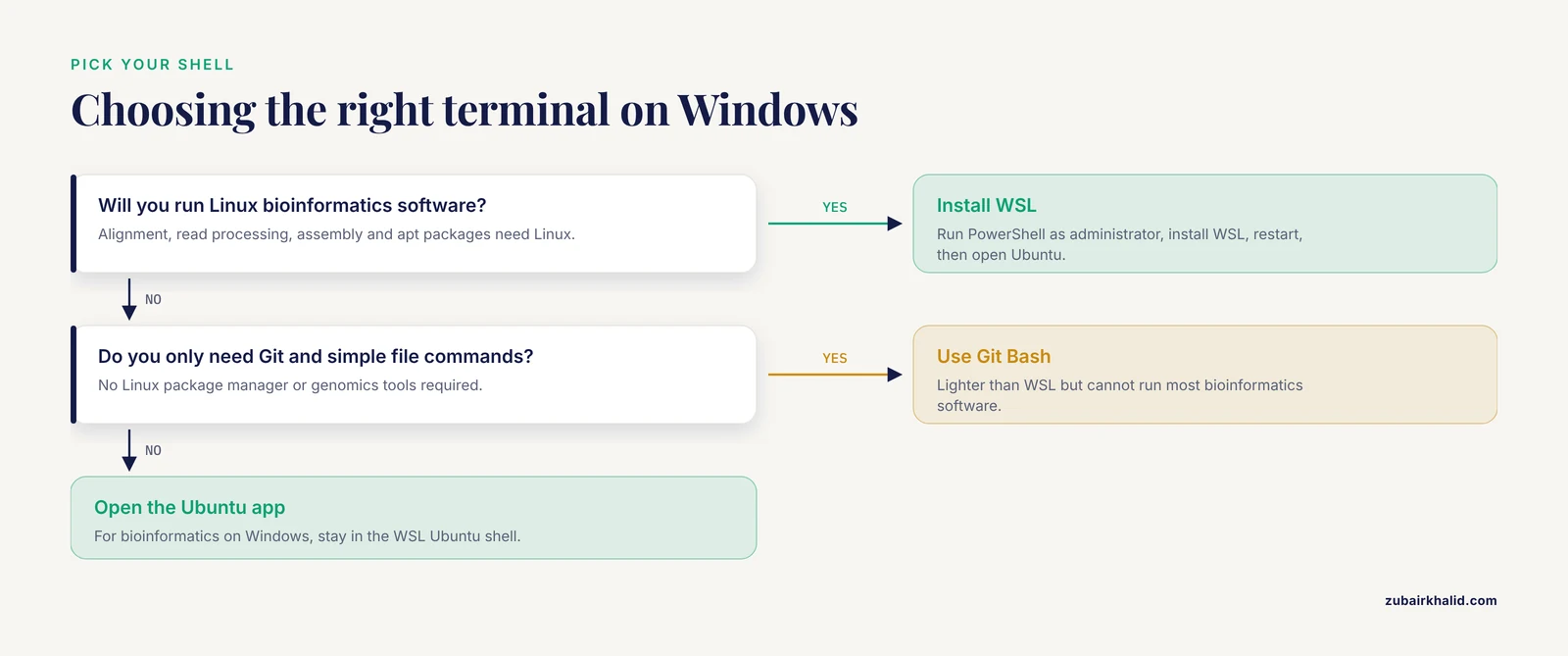
Windows offers several terminal options, and choosing the right one matters for bioinformatics because they are not interchangeable.
Option 1: Windows Terminal (Windows 11, and Windows 10 if installed)
Windows Terminal is the modern terminal application that hosts PowerShell, the classic Command Prompt, and WSL distributions in tabs.
- Press the Windows key, type terminal, and press Enter. On Windows 11, Windows Terminal is the default terminal application.
- Alternatively, right-click the Start button and select Terminal from the menu that appears.
- A window opens with a PowerShell tab active. You will see a prompt like this:
PS C:\Users\yourname>The PS means PowerShell is running. The path C:\Users\yourname is your current directory, called your home directory.
Option 2: PowerShell or Command Prompt on Windows 10
- Press the Windows key, type powershell, and press Enter.
- For the older Command Prompt, type cmd instead and press Enter.
- The Command Prompt shows a prompt like
C:\Users\yourname>, without thePSprefix.
PowerShell is the better of the two native Windows shells. The Command Prompt (cmd) uses an older, weaker command language and you should avoid it for anything serious.
Option 3: WSL, the Option That Actually Matters for Bioinformatics
Most bioinformatics software is written for Linux. Tools for sequence alignment, read processing, and genome assembly expect Linux filesystem conventions, Linux package managers, and a bash-compatible shell. Windows can run this software natively through the Windows Subsystem for Linux (WSL), a compatibility layer Microsoft maintains that runs a real Linux environment alongside Windows. For anyone serious about linux for bioinformatics on a Windows machine, WSL is the standard answer, not a niche option.
Setting it up step by step:
- Open PowerShell as administrator. Press the Windows key, type powershell, right-click the result, and choose Run as administrator.
- Install WSL using the command documented by Microsoft in its official WSL installation guide. On current Windows versions this is a single command that enables WSL, installs a Linux kernel, and downloads Ubuntu by default. Then restart the computer when prompted.
- After the restart, Ubuntu either launches automatically or you can find it in the Start menu under Ubuntu. The first launch takes a few minutes while it finishes setup.
- Ubuntu asks you to create a Unix username and password. The password is separate from your Windows password. You will not see characters as you type it, which surprises beginners but is normal Unix behavior.
- When setup finishes, you land at a Linux prompt:
yourname@DESKTOP-AB12CD:~$The tilde (~) is shorthand for your Linux home directory. Everything before the dollar sign identifies your username and the machine name. You are now typing into a genuine Ubuntu bash shell running on Windows.
- Update the package lists so software installs cleanly:
sudo apt updateEnter your Ubuntu password when asked. sudo means "run this as the administrator," and apt is Ubuntu's package manager. Expected output ends with lines like Reading package lists... Done and All packages are up to date.
- Confirm you are really in Linux:
uname -aExpected output contains the word Linux followed by a kernel version, for example:
Linux DESKTOP-AB12CD 5.15.167.4-microsoft-standard-WSL2 ...From now on, when this guide or any bioinformatics tutorial says "open a terminal" on Windows, open the Ubuntu app (or Ubuntu inside Windows Terminal). Commands written for Linux will work.
Option 4: Git Bash, a Lightweight Middle Ground
If you only need basic Unix commands for file manipulation and Git version control, installing Git for Windows gives you Git Bash, a minimal bash environment. It is far lighter than WSL but cannot run most bioinformatics software, so treat it as a stopgap rather than a workstation.
How to Open a Terminal on macOS
MacOS is built on Darwin, a Unix-derived operating system, which is why the Mac has historically been the favored laptop among bioinformaticians. The shell is ready out of the box.
- Press Command + Space to open Spotlight search.
- Type Terminal and press Enter.
- A window opens with a prompt like this:
yourname@MacBook-Pro ~ %The % at the end indicates the zsh shell, the macOS default since Catalina. The ~ means you are in your home directory, located at /Users/yourname.
Alternative routes:
- Open Finder, click Go in the menu bar, choose Utilities, and double-click Terminal. The folder it lives in is
/Applications/Utilities. - On macOS you can also right-click any folder in Finder and choose New Terminal at Folder (enable this under System Settings, Privacy & Security, Full Disk Access settings for Terminal if it does not appear), which opens a terminal already located in that folder. This is genuinely useful when a dataset sits in a deep folder tree.
Two setup steps most bioinformaticians perform on a new Mac:
xcode-select --installWait. That contains the double-flag punctuation this guide avoids in prose, so let me restate it cleanly: the command is xcode-select, followed by the install option. It installs Apple's command-line developer tools, which include the compilers that many bioinformatics programs need to build from source. A dialog appears asking you to confirm the installation. This command is documented in Apple's developer documentation.
/bin/bash -c "$(curl -fsSL https://raw.githubusercontent.com/Homebrew/install/HEAD/install.sh)"That line installs Homebrew, the de facto macOS package manager, using the exact command published on the Homebrew project's official homepage. After it finishes, brew install wget or brew install r installs tools the same way apt does on Ubuntu.
To check which shell you are running:
echo $SHELLExpected output on a current Mac:
/bin/zshZsh and bash are compatible enough for nearly every bioinformatics tutorial you will encounter. If a script is written for bash and misbehaves under zsh, run it with bash scriptname.sh explicitly.
How to Open a Terminal on Linux
On Linux, the terminal is the native interface, and every desktop environment ships one. The universal attempt first:
- Press Ctrl + Alt + T. On Ubuntu, Linux Mint, Fedora Workstation, and most mainstream distributions this opens a terminal instantly.
- If that does nothing on your system, open your application menu or Activities overview (top-left corner on GNOME), type terminal, and press Enter. On Ubuntu the application is called Terminal, on KDE Plasma it is Konsole, on XFCE it is xfce4-terminal, and Fedora GNOME calls it Console or Terminal depending on version.
- In most desktop file managers (GNOME Files, KDE Dolphin, Thunar), right-click empty space inside a folder and choose Open in Terminal or Open Terminal Here. The terminal opens already positioned in that directory.
A typical Ubuntu prompt:
yourname@ubuntu:~$The dollar sign means you are an ordinary user. If the last character were a hash (#), you would be running as the root administrator, which you should almost never do for daily work.
One caution: Linux also has full-screen text consoles (sometimes called TTYs) reachable with key combinations such as Ctrl + Alt + F3. These are not terminal emulators, they bypass the graphical desktop entirely, and pressing them mid-session can make your screen appear to vanish. Press Ctrl + Alt + F2 (or the key combination that returns you to your graphical session) to get back. Beginners should stick to the graphical terminal.
If you administer the machine yourself, keep the package lists current before installing bioinformatics software:
sudo apt update && sudo apt upgradeThe && means "run the second command only if the first succeeds." On Fedora, the equivalent is sudo dnf upgrade.
Your First Ten Minutes: Linux Commands for Bioinformatics
Now that a terminal is open, this section is a practical primer on linux commands for bioinformatics. Type each command at the prompt and press Enter. Everything here works identically on WSL, macOS, and Linux.
Where Am I? What Is Here?
pwdpwd prints the working directory, your current location in the filesystem:
/home/yournamels -lhls lists files. The -l flag asks for the long format (permissions, size, modification date) and -h prints sizes in human-readable units such as kilobytes. On a fresh home directory you might see:
total 0
drwxr-xr-x 2 yourname yourname 4.0K Nov 11 09:12 Desktop
drwxr-xr-x 2 yourname yourname 4.0K Nov 11 09:12 Documents
Moving Around and Making Folders
cd Documents
mkdir bioinformatics-course
cd bioinformatics-course
pwd
cd changes directory. mkdir creates one. Running pwd afterward shows:
/home/yourname/Documents/bioinformatics-courseTwo shortcuts you will use constantly: cd ~ returns to your home directory from anywhere, and cd .. moves up one level.
Making and Inspecting a Small FASTA File
FASTA is the standard text format for nucleotide and protein sequences. Each sequence starts with a header line beginning with >, followed by sequence lines. Create a tiny example:
cat > sequences.fastaAfter pressing Enter the cursor waits for input. Type or paste these four lines, then press Ctrl + D to finish:
>seq1 description of first sequence
ATGCGTACGTAA
>seq2 description of second sequence
GGCATTGCGGCA
Now inspect it:
cat sequences.fastacat prints the whole file. Expected output is exactly the four lines above.
head -2 sequences.fastahead -2 prints the first two lines, useful for peeking at huge sequencing files without flooding the screen:
>seq1 description of first sequence
ATGCGTACGTAA
Counting Things, the Core Bioinformatics Reflex
Counting sequences in a FASTA file is a one-line task you will repeat on files with millions of reads:
grep -c "^>" sequences.fastagrep searches for a pattern, -c asks it to count matching lines instead of printing them, and "^>" is a pattern meaning "any line that starts with the greater-than character." Expected output:
2Two matches, two sequences, correct.
Total sequence length, in nucleotides:
grep -v "^>" sequences.fasta | awk '{s += length($0)} END {print s}'grep -v inverts the match, so it prints every line that is not a header. The pipe character | sends that output into awk, a small text-processing language, which adds up the length of each line and prints the total at the end:
24Twelve nucleotides per sequence, two sequences, twenty-four total. This pattern of piping one small program into another is the heart of command-line analysis. You compose simple, single-purpose tools into exactly the computation you need.
Finding Software and Getting Help
which python3which reports where a program lives on disk, if it is installed:
/usr/bin/python3If a command is missing, the shell tells you immediately:
python3: command not foundThat message means one of two things: the software is not installed, or it is installed but not in your PATH, the list of directories the shell searches for executables. The fix is almost always installing the tool (for example sudo apt install samtools on Ubuntu) or activating the environment that contains it (for example conda activate myenv if you use the conda package manager, the standard way bioinformaticians isolate tool versions per project).
For documentation on any command:
man lsman opens the manual page. Press q to quit. Nearly every Unix command has one.
A Step-by-Step First Session, Start to Finish
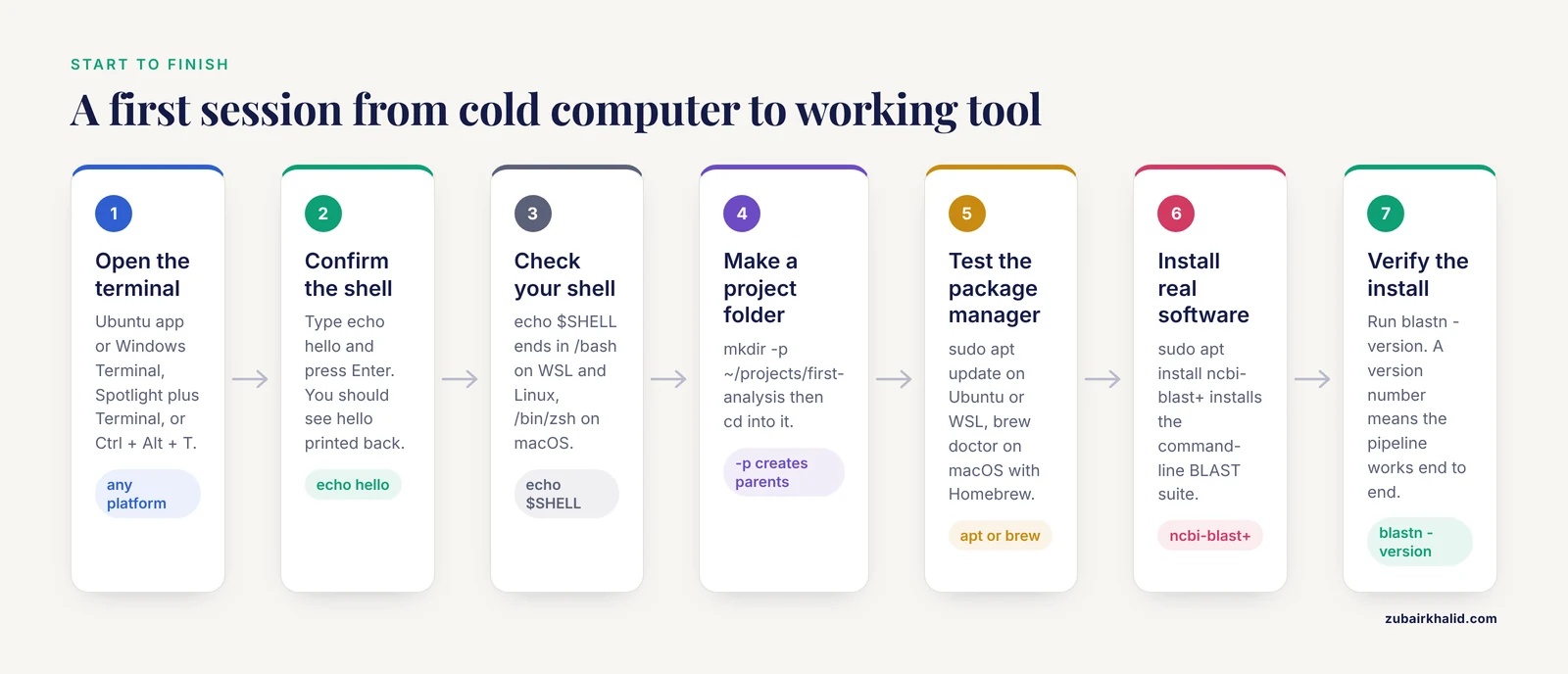
This condensed walkthrough covers how to open a terminal for bioinformatics step by step, from a cold computer to a running analysis, on any platform.
- Open the terminal using the method for your system: the Ubuntu app or Windows Terminal on Windows, Spotlight plus Terminal on macOS, or Ctrl + Alt + T on Linux.
- Confirm the shell responds by typing
echo helloand pressing Enter. Expected output is the single linehello. If you see nothing happen, check that the window has focus by clicking inside it. - Confirm which shell you are in with
echo $SHELL. On WSL and Linux expect something ending in/bash, on macOS/bin/zsh, and on Windows native PowerShell the command differs, so prefer a WSL shell for command-line bioinformatics work. - Make a dedicated project directory with
mkdir -p ~/projects/first-analysisand move into it withcd ~/projects/first-analysis. The-pflag creates all missing parent folders at once and does not complain if they already exist. - Create a small test file and verify you can read it, using the FASTA example from the previous section.
- Check that your package manager works:
sudo apt updateon Ubuntu or WSL, orbrew doctoron macOS with Homebrew installed. - Install one piece of real bioinformatics software to prove the pipeline works end to end, for example
sudo apt install ncbi-blast+on Ubuntu, which installs the command-line BLAST suite from NCBI. - Verify the installation by asking the tool for its version: run
blastn -version. Expected output names the program and prints a version number. If instead you seecommand not found, the installation failed or the tool is not on your PATH, and the error message section below covers the fix. - Write down or bookmark the commands that worked. Everything you typed is also retrievable with the up arrow key or the
historycommand.
If all eight steps succeeded, your terminal environment is functional and you are ready for real coursework or datasets.
Tips That Save Hours Later
These are the habits that separate a comfortable command-line user from a frustrated one, and they answer most "how to open terminal for bioinformatics tips" searches in practice, because the terminal is easy to open and the friction comes afterward.
Tab completion is not optional. Type the first few letters of a file or directory name and press Tab. The shell completes it. Press Tab twice to see all possibilities. This eliminates typos in long filenames like sample_R1_trimmed.fq.gz and is the single highest-value habit on this list.
The up arrow replays history. Every command you ran is in the shell history. Press the up arrow to walk backward through them, or press Ctrl + R and start typing a fragment to search history interactively.
Ctrl + C cancels a running command. If a program hangs or you realize you typed something wrong, Ctrl + C sends an interrupt and returns you to the prompt. Ctrl + L clears the screen. Ctrl + D signals end-of-input, which is how you finished the FASTA file earlier.
Long jobs belong in tmux. Tools such as tmux keep a session alive after you close the terminal window or lose an SSH connection. Start it with tmux, work inside it, detach with Ctrl + B then D, and reattach later with tmux attach. Anyone running multi-hour analyses on a cluster needs this.
Quote every path containing spaces. cd My Data fails confusingly. cd "My Data" works. Better yet, avoid spaces in bioinformatics filenames altogether and use underscores.
Download verification is cheap. After fetching a large reference file, compare its checksum with the one the source publishes:
md5sum genome.fa.gzIf the printed digest differs from the published one, the download is corrupt, and you have saved yourself hours of debugging downstream errors.
Record what you did. Redirect the transcript of a session with script (as in script logfile.txt), or simply keep every analysis command in a plain-text notebook file. When a reviewer or collaborator asks exactly how you filtered the data six months from now, the answer is in that file.
Environment variables and the PATH. Run echo $PATH to see the directories your shell searches. When an installed tool is "not found," the usual reason is that its directory is absent from this list. Conda users sidestep most of this, because activating an environment adjusts the PATH automatically.
Quick Reference Table
| Task | Command | Notes |
|---|---|---|
| Show current directory | pwd | Works on all three platforms in a Unix shell |
| List files with sizes | ls -lh | Add -a to include hidden files |
| Change directory | cd path | cd ~ goes home, cd .. goes up |
| Count matching lines | grep -c "pattern" file | "^>" counts FASTA records |
| First lines of a file | head -n 5 file | Use tail -n 5 for the last lines |
| Word and line counts | wc -l file | Lines, words, bytes by default |
| Find a program | which toolname | Empty result means not on PATH |
| Manual page | man command | Press q to exit |
| Cancel running job | Ctrl + C | Returns you to the prompt |
| Clear screen | Ctrl + L | Or type clear |
| Search command history | Ctrl + R | Type a fragment to find an old command |
| Copy file to remote host | scp file user@host:path | Runs over the same protocol as ssh |
| Keep a session alive | tmux | Detach with Ctrl + B then D |
Connecting to a Remote Server or Cluster
Most serious compute in bioinformatics happens on shared Linux servers, because genome-scale analyses routinely need more memory and CPU cores than a laptop provides. The terminal is your doorway to them, and the tool is ssh, the secure shell.
ssh [email protected]Substitute the hostname your institution gives you. The first connection asks you to confirm the server's fingerprint, which you should verify against the one your IT department publishes. Then it asks for your password or prompts a key-based login if your administrators configured one. Once connected, your prompt changes to the remote machine's name, and every command you type runs on the cluster, not your laptop.
Moving files back and forth uses scp, which shares ssh's authentication:
scp results.csv [email protected]:~/projects/first-analysis/This copies results.csv from your local machine into your project directory on the cluster. Reversing the argument order copies files back down.
Cluster systems commonly load scientific software through the module system, so a session often starts with commands like module avail to list software and module load samtools to make a specific tool available. Your institution's cluster documentation, not a generic tutorial, is the authority on its module names, scheduler commands, and partition policies, because these differ between sites.
This is also where the published literature connects to your terminal. The multi-assay epigenomic datasets described in the glioblastoma study, spanning RNA-seq, ChIP-seq, ATAC-seq, and DNA methylation measurements [5], are processed with exactly the kind of Linux command-line pipelines you are now equipped to run, on exactly the kind of cluster you would ssh into. The scale of modern datasets, from millions of mass spectra in open spectral library searches [1] to thousands of C-terminal peptide identifications across cell lines [3], is why the field standardized on scriptable, text-driven tooling rather than interactive graphical software.
Common Mistakes and Limitations
Nearly every beginner stumbles on the same short list of issues. Here they are, with the exact symptoms and fixes, along with an honest account of what a terminal on a personal computer can and cannot do.
Opening the wrong terminal on Windows. The most common Windows failure is typing Linux commands into the Command Prompt. ls in cmd produces the confusing error "'ls' is not recognized as an internal or external command," because cmd's directory command is dir. Conversely, typing dir inside WSL works only by accident of aliases. Decide once: for bioinformatics on Windows, open the Ubuntu (WSL) terminal and stay in it. If you see PS C:\Users\...>, you are in PowerShell, not Linux, and most genomics commands will not run there.
Treating the terminal as dangerous by default. A terminal executes exactly what you type, with exactly the permissions you have. It does not invent commands. The genuinely risky command is rm -rf combined with a wrong path, because rm deletes permanently and there is no recycle bin. The protective habits are simple: always run pwd before a destructive command, never copy a rm -rf line from a forum without understanding it, and never use sudo for ordinary work.
Unquoted paths with spaces. The error cd: too many arguments almost always means an unquoted filename containing spaces. Quote the path or rename the file.
Sudo where it does not belong. Running analysis scripts with sudo pollutes file ownership and can break conda environments. Use administrator rights only for system-level installs through the package manager.
Pasting multi-line commands blind. Forums sometimes show command blocks that include lines meant to be edited. Pasting six lines at once and pressing Enter executes all six before you can stop. Paste one command at a time until you know exactly what each line does.
Confusing the terminal with the shell prompt characters. When a tutorial shows $ ls -lh, the $ is the prompt, not part of the command. Typing $ first produces $: command not found. Copy only the text after the prompt symbol.
Expecting a laptop to do cluster-scale work. Opening a terminal on any machine costs nothing, but the analyses behind studies like deep learning models of membrane transporter conformational states [4] or genome-scale proteomics searches [1] require memory and compute far beyond a typical laptop. A personal terminal is perfect for learning commands, inspecting small files, and preparing scripts. Production analysis belongs on a server, and knowing how to open and use a terminal locally is precisely the skill that gets you there.
A limitation worth stating plainly. Every computer, cluster, and course environment differs in installed software, versions, and access rules. The commands in this guide are standard and broadly portable, but for your specific institution's cluster, the local documentation governs, and for individual project design questions the appropriate subject-matter expert or core facility should be consulted.
Frequently Asked Questions
Is there a keyboard shortcut to open a terminal on Windows?
Yes. Press the Windows key, type "terminal" or "powershell," and press Enter, which works on any Windows 10 or 11 machine without configuration. On Windows 11 you can also right-click the Start button and choose Terminal. For bioinformatics work specifically, open the Ubuntu app from the Start menu after installing WSL, since that launches a Linux shell rather than a Windows one.
Do I need Linux for bioinformatics if I have a Mac?
No separate installation is needed. MacOS already includes a Unix terminal with zsh or bash, opened through Spotlight with Command + Space, and most Linux commands work identically. Install Homebrew to gain the same package-management convenience Linux users have, and reserve true Linux environments for tools that specifically require them, often via Docker or a remote cluster.
What is WSL and why do bioinformaticians use it?
WSL, the Windows Subsystem for Linux, is a Microsoft-maintained layer that runs a real Linux distribution alongside Windows. Bioinformaticians use it because most genomics and proteomics software is written for Linux, and WSL lets that software run on a Windows laptop with its native package manager and bash shell. It is installed from an administrator PowerShell window using the command in Microsoft's official WSL documentation, followed by a restart.
What is the difference between a terminal and a shell?
The terminal is the window that displays text and sends keystrokes, while the shell is the program inside it that interprets the commands you type. Opening Terminal.app on a Mac launches a terminal running the zsh shell, and opening the Ubuntu app on Windows launches a terminal running bash. You can swap shells within the same terminal, which is why documentation often says "open a terminal" as shorthand for both.
How do I know my terminal is working correctly?
Type echo hello and press Enter. If the shell prints hello on the next line and gives you a fresh prompt, everything works. For deeper confidence, run pwd to confirm it reports your current directory and which python3 to confirm the shell can locate installed programs. Any of these failing points to a shell or PATH configuration problem rather than a broken terminal application.
Can I damage my computer from the terminal?
You can delete files permanently with commands like rm -rf pointed at the wrong directory, and you can break system configuration with careless use of sudo, but simply opening a terminal and typing ordinary commands carries no risk. Protect yourself by running pwd before any deletion, never pasting commands you do not understand, and doing your learning inside a dedicated project folder.
How do I run bioinformatics software once the terminal is open?
Install it with your platform's package manager or conda, then run it by name with arguments. On Ubuntu or WSL, sudo apt install ncbi-blast+ installs the BLAST suite, after which blastn -version confirms it works. Most tools follow the same pattern of program subcommand options input-file, and man program or program -h shows the manual.
How do I open a terminal on a remote server?
You do not open a terminal on the remote server directly. You open a terminal on your own computer and connect with ssh username@server-address, after which the prompt changes to the server's name and your commands execute there. Files move over the same connection with scp, and long-running analyses should be launched inside tmux so they survive a dropped connection.
Sources
- POMS enhances open spectral library search for identification of modified peptides.
- Bioinformatics characterization and tissue-specific expression of MARCKS and MLP genes in the regenerating salamander Cynops orientalis.
- Systematic Analysis of C-Termini of Small Open Reading Frame-Encoded Peptides in Human Cancer Cell Lines.
- Memorization bias impacts modeling of alternative conformational states of solute carrier membrane proteins with methods from deep learning.
- Bromodomain and extra-terminal motif (BET) inhibition induces coordinated repression of the stem cell-related HOX signature in glioblastoma uncovering an epigenetic vulnerability.
- Self-organized ventilation defects in asthma: insights and open-source implementation of the Venegas-Winkler model.
- Hunter-Dia: An updated protocol for enrichment and mass spectrometry-based identification of protein N-terminal peptides.