How to Use Git with R Projects
By Dr. Zubair Khalid, DVM, MS, PhD ·
Using Git with R projects means placing the scripts, reports, and configuration files of an R analysis under Git, a distributed version control system that records a permanent, reviewable history of every change. The result is an analysis whose code, decision points, and collaborator contributions can be audited, restored, or shared at any moment.
For anyone doing data analysis in R, this matters for a simple reason. Analysis code evolves. You trim a filtering step, change a statistical model, fix a plotting bug, and rerun everything. Without version control, that evolution lives in files named analysis_final.R, analysis_final2.R, and analysis_FINAL_use_this_one.R, and the connection between a figure in a manuscript and the exact code that produced it is lost. With Git, every state of the project is captured with a timestamp, an author, and a message, so the code behind Figure 3 from eighteen months ago is one command away. This is why Git has become a baseline skill for scientists, bioinformaticians, and research groups, and why GitHub for researchers has become the standard place to publish the code that accompanies a paper.
This guide explains what Git with R projects actually involves, how the mechanism works, how to set it up from scratch, what a realistic daily workflow looks like, and where beginners most often go wrong.
What Is Git with R Projects?
Git is a free, open source version control system. A version control system records snapshots of a folder of files over time, lets you move between those snapshots, and lets several people work on the same folder without overwriting each other. Git is distributed, which means every person who clones a project holds a complete copy of its history, not just the latest files.
A Git repository (usually shortened to "repo") is any folder that Git is tracking. In an R context, a repository typically contains:
- R scripts (
.Rfiles) and literate analysis documents (.Rmdor.qmdfiles) - The RStudio project file (
.Rproj) that anchors relative paths - A
DESCRIPTIONfile if you follow the R package structure, even for analyses renv.lock, the package environment snapshot (covered later)- A
.gitignorefile listing files Git should deliberately skip - A
READMEexplaining what the project does and how to run it - Small, essential metadata such as a codebook or a sample sheet in CSV form
"Git with R projects" is simply the practice of combining these two things: treating your R analysis as a project with a recorded, shareable history. The phrase describes a workflow, not a separate piece of software. You use ordinary Git commands, inside an ordinary RStudio project, with a handful of R-specific conventions (mainly the .gitignore entries and the renv lockfile) layered on top.
Two clarifications prevent most early confusion. First, Git and GitHub are different things. Git is the version control tool that runs on your computer. GitHub is a hosting service that stores copies of repositories online and adds collaboration features. You can use Git for years without ever touching GitHub, though in practice most researchers do both. Second, Git tracks text superbly and binary files poorly. R scripts, Markdown, CSV files, and configuration files are text, so Git can show you exactly which line changed. Plots, databases, and spreadsheets saved in binary formats are opaque to Git, which is why data handling needs its own plan.
Why Git Matters for Scientists and Researchers
The case for Git in research rests on four practical benefits.
Provenance. A commit history is a lab notebook for code. When a reviewer asks how a p-value was computed, or when you need to check whether an earlier version of an analysis gave a different result, the history answers with dates, authors, and exact diffs (the line-by-line record of what changed).
Reversibility. Every committed state is recoverable. If a change to a normalization function silently breaks a downstream plot, you can compare versions, find the culprit, and restore the working code without reconstructing it from memory.
Collaboration. Git gives several people a structured way to modify the same project. Instead of emailing scripts back and forth, collaborators work on separate branches and merge their changes through a reviewable proposal (a pull request on GitHub). Conflicting edits surface as explicit conflicts rather than silent overwrites.
Portability and publication. A repository moves cleanly between a laptop, a lab server, and an HPC environment, and a public GitHub repository is now the expected companion to a methods-heavy paper. Journals increasingly ask for code availability statements, and a repository link satisfies that expectation far better than a zip file attached to a response letter.
There is also a quieter benefit that experienced users mention most often: Git removes fear. When every state is recorded, you can attempt aggressive refactoring, try a riskier model, or reorganize a pipeline, knowing that recovery is trivial.
Terms Most Often Confused
Beginners frequently blur several tools that occupy different layers of the same workflow. The table below separates them.
| Term | What it is | What it does | What it does not do |
|---|---|---|---|
| Git | Version control software running on your computer | Records snapshots, manages history and branches locally | Does not require the internet or any website |
| GitHub | A web hosting service for Git repositories | Stores remotes, enables pull requests, issues, and code review | Is not the only host (GitLab and institutional servers work the same way) |
| RStudio project | A folder anchored by an .Rproj file | Sets the working directory and restores settings when opened | Does not track history on its own |
| renv | An R package for environment management | Locks exact package versions in renv.lock so others can rebuild your library | Does not version your code (that is Git's job) |
| Dropbox or OneDrive | File synchronization services | Keeps the latest files on every device | Has no meaningful history, no branching, no review, and syncs conflicts silently |
| Git LFS | An extension for large files | Stores big binary files outside normal Git storage while tracking them in the repo | Is not a general-purpose data archive |
The Dropbox row deserves emphasis. Sync folders create a state, while Git creates a history with structure. A collaborator who overwrites your script in a sync folder has destroyed your work unless you dig through version history, if the service even kept it. In Git, that same edit arrives as a proposal you inspect before accepting.
How Git Works, Step by Step
A mental model of the mechanism makes every command easier to predict. Git organizes your work across three areas.
- The working directory. This is the ordinary folder you see in RStudio's Files pane, containing your scripts as they currently are on disk.
- The staging area (also called the index). A proposed next snapshot. You choose which changes belong in the next commit by staging them. This intermediate step is what allows you to commit one logical change (a fix to the filtering code) while leaving unrelated edits (an unfinished plotting function) out of it.
- The repository history. The permanent chain of committed snapshots stored in a hidden
.gitfolder inside your project.
A typical cycle moves changes through these areas:
- You edit
clean_data.Rin RStudio and save. - You run
git status, which lists modified files not yet staged. - You run
git add clean_data.R, which stages the file. - You run
git commit -m "Drop samples with missing batch IDs", which writes a snapshot of the staged changes into history.
Each commit stores a full snapshot of the tracked files (compressed and de-duplicated internally, so identical files across commits cost almost nothing), along with the author, the timestamp, a message, and a pointer to the parent commit. Every commit has a unique identifier called a hash, usually shown in short form such as a1b2c3d. A branch is simply a movable label pointing at one commit, which is why creating branches in Git is instant and cheap.
HEAD is the name for whichever commit you currently have checked out, meaning the state your working directory reflects. When you "check out an old version," you move HEAD and Git rearranges your files to match that snapshot.
Because Git is distributed, cloning a repository copies the entire history to your machine. Your local history is complete even if you work offline on a plane or a field laptop, and you synchronize with a remote (such as GitHub) only when you choose to push or pull.
Setting Up Git for R Work, from Zero
The following walkthrough creates a fresh, version-controlled R project called mouse-metabolomics. Every step includes the terminal command and its intent.
Step 1. Install Git.
- Windows: install Git for Windows from its official site, which also provides the Git Bash terminal.
- macOS: install the Xcode Command Line Tools from Apple, or install Git through Homebrew with
brew install git. - Linux: use your package manager, for example
sudo apt install giton Debian or Ubuntu systems.
Verify the installation from any terminal with git, version. Note that this command contains two hyphens in the flag itself, which is normal command syntax.
Step 2. Introduce yourself to Git. Every commit is stamped with a name and email, so configure these once:
git config --global user.name "Jane Doe"
git config --global user.email "[email protected]"
Use the same email as your GitHub account if you have one, so commits are linked to your profile.
Step 3. Create the R project with Git already enabled. In RStudio, choose File, then New Project, then New Directory, then New Project. Name it mouse-metabolomics and check the box labeled Create a Git repository. RStudio initializes the repository, creates a starter .gitignore, and adds a Git tab to the environment pane. If you prefer the R way, the usethis package does the same thing from the console:
install.packages("usethis")
usethis::create_project("mouse-metabolomics")
usethis::use_git()
After calling use_git(), restart RStudio so the Git tab appears.
Step 4. Write a proper .gitignore before the first commit. The .gitignore file tells Git which files to never track. The usethis::git_vignette defaults are reasonable, and a solid R starting point looks like this:
.Rhistory
.RData
.Rproj.user/
.httr-oauth
.DS_Store
rsconnect/
renv/library/
renv/staging/
Each line matters. .Rhistory and .RData are machine-specific session debris that change constantly and can even harbor stale objects that mask bugs. .Rproj.user/ holds your personal IDE preferences and would create pointless conflicts between collaborators. renv/library/ is excluded because package libraries are rebuilt from the lockfile rather than shared.
Step 5. Make the first commit. Stage the .Rproj, .gitignore, and any starter files, then commit:
git add .gitignore mouse-metabolomics.Rproj
git commit -m "Start project with RStudio and gitignore"
From this point, the project has a history, and everything you commit is recoverable.
Adding Git to an Existing R Project
Most people arrive at Git after a project already exists. The procedure is nearly identical, with one extra caution.
First, look at what is in the folder. If it contains raw sequencing data, large image files, or anything above tens of megabytes, deal with that before the first commit, because files committed once stay in history even if you delete them later. Create or update the .gitignore first, list the large and machine-specific files, and only then initialize:
usethis::use_git()Restart RStudio, review the Git tab, uncheck anything you do not want (or better, add it to .gitignore), and make an initial commit with a message such as Add existing analysis scripts under version control. To connect the local repository to a remote afterward, see the GitHub section below.
The Daily Workflow
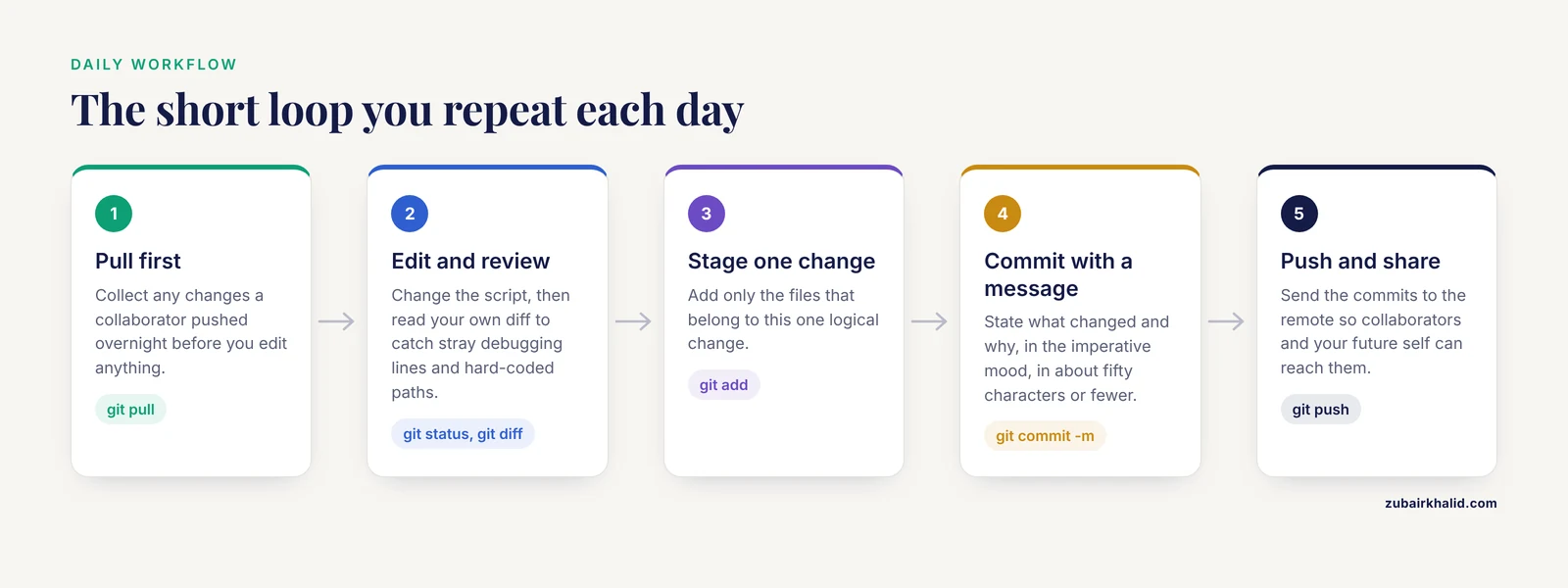
Day-to-day Git use is a short loop, repeated many times a day. Here it is in practice, using the mouse-metabolomics example.
You open the project in the morning and run git pull to collect any changes a collaborator pushed overnight. You edit differential_expression.R, adding a covariate to the model. Before committing, you review your work:
git status
git diff
git status lists modified, staged, and untracked files. git diff shows unstaged changes line by line, with removed lines prefixed by a minus sign and added lines prefixed by a plus sign. Reading your own diff before committing is the single best habit in this entire workflow, because it catches stray browser() calls, hard-coded paths, and debugging lines before they enter history.
You then stage and commit:
git add differential_expression.R
git commit -m "Add batch covariate to differential expression model"
A good commit message states what changed and why, in the imperative mood, in roughly fifty characters or fewer for the subject line. Compare Add batch covariate to DE model with changes. Six months from now, only one of those messages will help you find the commit where the model changed.
At the end of the session, share your work:
git pushand if a collaborator has pushed since, git pull first. If both of you edited the same lines, Git reports a conflict, which the branching section below addresses.
How often should you commit? More often than feels necessary. A commit is cheap, and a history of small, well-described commits (one logical change each) is far more useful than a weekly megacommitt. A workable rhythm for analysts is one commit per completed subtask, such as "fix sample ID parsing" or "add volcano plot theme," and at least one push per day.
Branches and Merging
A branch is an independent line of development. The default branch is usually called main. Branches let you pursue risky or exploratory work without touching the stable version of the analysis.
Suppose a reviewer asks for a sensitivity analysis using an alternative batch correction. That work could destabilize the main pipeline, so you create a branch:
git switch -c sensitivity-analysisThis creates the branch and moves you onto it in one step. You edit scripts, commit several times, and the main branch remains untouched. When the sensitivity analysis works, you merge it back:
git switch main
git merge sensitivity-analysis
git branch -d sensitivity-analysis
If the two branches edited different files, or different parts of the same file, Git merges them automatically. If both branches edited the same lines, Git stops and reports a merge conflict, inserting markers into the file:
<<<<<<< HEAD
filter(batch == "A")
=======
filter(batch != "C")
>>>>>>> sensitivity-analysis
Resolution is manual and simple in principle: open the file, decide which version (or a combination) is correct, delete the marker lines, save, then git add the file and git merge, continue or commit. Conflicts in R scripts are usually easy to resolve because you can read both sides and even test the result. Conflicts in the .Rproj file are common but trivial, because the fix is usually to accept either side. A practical habit that avoids most conflicts is for collaborators to coordinate who works on which files, and to pull before starting work each day.
Using GitHub for Researchers
A local repository is complete but stranded on one machine. A remote is a copy of the repository on a server, and GitHub is the most widely used host. GitHub for researchers serves three purposes: backup, collaboration, and publication.
To publish an existing local project, create an empty repository on GitHub (without a README, so it does not conflict with your local files), then connect and push:
git remote add origin [email protected]:janedoe/mouse-metabolomics.git
git push -u origin main
The name origin is simply the conventional nickname for your primary remote. The -u flag records the link so that future pushes and pulls need no extra arguments. To work on an existing project from GitHub, such as a lab pipeline or a paper's code, you clone it:
git clone [email protected]:lab/repo-name.gitThis downloads the project with its full history and connects it to the remote automatically.
A few GitHub features map directly onto research practice:
- Pull requests propose a set of commits for review. A collaborator (or your future self) reads the diff, comments on specific lines, and approves or requests changes before the branch merges. For methods-heavy code, this review step catches real errors and documents decisions.
- Issues track tasks and questions attached to the code, which replaces scattered email threads about a pipeline bug.
- Releases tag a specific commit as a version, for example
v1.0as the exact state of the code at manuscript submission. Tagging the submission state is a small habit with large payoff when revisions arrive months later. - README and LICENSE. A README states what the analysis does, its inputs, and how to run it. A LICENSE states what others may do with the code. Public research repositories without a license are technically all rights reserved, which defeats the point of sharing.
Authentication is the one friction point. Pushing to GitHub requires a credential, and GitHub no longer accepts account passwords for this. The two standard options are a personal access token used in place of a password over HTTPS, or an SSH key pair. The usethis and gh packages guide you through setup with usethis::git_sitrep() for diagnosis and the GitHub CLI (gh auth login) for the simplest path.
Keeping R Projects Reproducible with renv and Git
Git versions your code, but your code depends on package versions, and packages change. A script that ran against dplyr version 1.0 may fail against version 2.0. The renv package closes this gap by recording the exact package versions your project uses in a lockfile.
The setup is short:
install.packages("renv")
renv::init()
renv::init() creates a project-local package library and writes renv.lock, a JSON file listing every package and its exact version. Commit three files to Git: renv.lock, .Rprofile, and renv/activate.R. Ignore renv/library/ (the actual installed packages), which your starter .gitignore already does.
Now the collaboration loop closes cleanly. A collaborator clones the repository, opens the RStudio project, and runs:
renv::restore()renv downloads and installs the exact package versions from the lockfile, and the analysis runs in the same computational environment you used. This pairing, Git for the code and renv for the packages, is the practical core of reproducible R work. Renaming a package version after a cryptic failure is the classic symptom of a project without a lockfile.
Reproducibility also depends on how scripts address files. Git lets a project move between machines, but only relative paths (paths stated from the project root) preserve that portability. RStudio projects make this nearly automatic, because opening an .Rproj file sets the working directory to the project root. Avoid setwd("C:/Users/jane/...") lines entirely. They work on one computer and fail everywhere else, which quietly undoes the portability Git provides.
What to Commit and What to Ignore
Deciding file by file what belongs in the repository is the most common judgment call in Git with R projects. The table below summarizes standard practice.
| File or pattern | Commit it? | Reasoning |
|---|---|---|
.R scripts | Yes | The core of the analysis, small, text-based, diff-friendly |
.Rmd and .qmd files | Yes | Analysis and narrative in one, essential for reproducibility |
.Rproj file | Yes | Anchors the project for everyone who clones it |
.gitignore | Yes | Defines what stays out, must travel with the project |
renv.lock, .Rprofile, renv/activate.R | Yes | Let others rebuild your exact package environment |
DESCRIPTION | Yes | Declares dependencies if you use the package structure |
| README, LICENSE, codebooks | Yes | Documentation is part of the analysis |
| Raw data (FASTQ, large CSVs, images) | Usually no | Too large for Git, often license or privacy restricted, keep in data storage or Git LFS |
Generated outputs (plots, HTML, *.png) | Usually no | Regenerable from code, bloat the history, unless a paper needs the exact figure |
.Rhistory, .RData | Never | Session debris, machine-specific, can hide bugs |
.Rproj.user/ | Never | Personal IDE state |
| Credentials, API keys, tokens | Never | Anyone who clones the repository obtains them, and public history is effectively permanent |
For data that must travel with the repository, Git LFS (Large File Storage) is the standard extension. You install it once with git lfs install, declare file patterns with git lfs track "*.RData", and commit as usual. The repository stores lightweight pointers, and the actual files live in LFS storage. Note that GitHub's free LFS quota is limited, so check the current terms before committing large datasets there, and remember that repositories intended for archival distribution are usually better served by a data repository such as Zenyo or your institution's storage. For most analyses, the cleanest split is code and small metadata in Git, data in a managed store, and a script or README documenting exactly where the data lives and how it was obtained.
Checking That Your Setup Actually Works
Version control is only real if you can demonstrate it. These checks, run in order, verify a complete setup.
- The status is clean. After a commit and push,
git statusreports "nothing to commit, working tree clean." If it lists untracked files you expected to ignore, your.gitignoreneeds a line for them. - The history reads like a narrative.
git logshows a dated, authored sequence of commits with meaningful messages. Scrolling through it should reconstruct the project's story. - The remote is connected and current.
git remote -vlists your GitHub address, andgit statusreports your branch is up to date with its remote counterpart. - A stranger could run it. Clone your own repository into a fresh temporary folder, open the project, run
renv::restore(), and execute the pipeline in a fresh R session. This "naive collaborator test" is the honest measure of reproducibility. Anything that fails here (an absolute path, a missing lockfile entry, an undocumented data dependency) is exactly what a real collaborator would hit. - Automated checks run on push. Teams that want continuous verification use GitHub Actions, which can render R Markdown documents, run tests, or check the package each time code is pushed. This is optional for a solo analysis but standard for shared pipelines.
Common Misconceptions
"Git and GitHub are the same thing." Git is the local version control engine. GitHub is one hosting service for Git repositories, alongside GitLab, Bitbucket, and institutional servers. Everything in this article up to the GitHub section works with no internet connection at all.
"Committing often clutters the history." Small commits are the point. The history exists to be searched, and fine-grained commits with clear messages are far easier to search than monolithic ones. Commits are not permanent fixtures cluttering your folder, they are entries in an index.
"Once a file is tracked, .gitignore still applies to it." It does not. .gitignore only prevents untracked files from being added. A file committed before being ignored stays tracked, so adding data.csv to .gitignore after committing it changes nothing. The fix is git rm, cached data.csv followed by a commit, which stops tracking the file while leaving it on disk.
"Git is a backup of my data." Git versions what you commit, when you commit it. Work that has not been committed exists in no history, and files you deliberately ignore (including most data) are not protected by a push to GitHub. Data backup and code version control are separate responsibilities.
"Merge conflicts mean someone broke the repository." A conflict is the system working correctly. Git detected that two lines of history disagree and paused for a human decision, rather than silently picking one.
"I need to master Git before it benefits me." The loop of pull, status, diff, add, commit, push covers the overwhelming majority of daily work. Branching and conflict resolution come next. Advanced history surgery is genuinely rare for analysts.
"renv replaces Git, or Git replaces renv." They solve different problems. Git records what your code looked like over time. renv records which package versions that code depends on. A project with only one of the two is half reproducible.
Common Mistakes and Limitations
These are the failures seen most often in real research repositories, with the practical fix for each.
- Committing large data files. This is the most damaging beginner error, because history retains the file even after deletion. Repositories swell to gigabytes, clones become slow, and GitHub rejects individual files above its documented 100 MB limit. Prevent it with a complete
.gitignorewritten before the first commit, and move large inputs to dedicated storage with documented paths. - Committing credentials. API keys (an NCBI API key, a database password, a cloud storage token) hardcoded in a script and pushed to a public repository are effectively compromised. Keep secrets in a file ignored by Git, or read them from environment variables, and treat any secret that enters public history as revoked.
- Rewriting shared history. Commands that amend or reset history are safe on commits you have never pushed and dangerous on commits others have pulled. Force-pushing a shared branch replaces the shared record and derails collaborators. Rule of thumb: rewrite only your own unpushed work.
- Committing
.Rhistoryand.Rproj.user. These generate endless noise diffs and pointless conflicts. They belong in.gitignorefrom day one. - Vague commit messages. "fix", "update", "final" carry no information. Write messages you would want to find while debugging at midnight.
- Working without pulling first. Starting edits on a stale copy guarantees avoidable conflicts. Pull, then work.
- Absolute paths and
setwd(). These make the repository unusable on any machine but yours, quietly defeating the portability that Git enables. - Treating Git as quality control. Git records whatever you commit, including broken code. It preserves history, it does not validate analysis. Pair it with tests, or at minimum with the fresh-session clone test described above.
The genuine limitations are worth stating plainly. Git handles text beautifully and binary formats poorly, so spreadsheets saved as .xlsx, Word documents, and figure files get coarse whole-file tracking rather than line-level diffs. It does not manage data versioning, computational environments beyond what renv captures, or execution, and it carries a real learning curve, particularly around conflict resolution and history manipulation. And as with any research method, a well-versioned repository is documentation of an analysis, not a substitute for the subject-matter judgment behind it. Individual analyses still need expert oversight in their scientific domain.
Quick Review
- Git records snapshots (commits) of your R project's text files, each with an author, timestamp, message, and unique hash, giving every analysis an auditable history.
- Git is the local tool, GitHub is a hosting service, and renv is the companion package that locks package versions in
renv.lock. - The daily loop is
pull, edit,status,diff,add,commit,push, with a descriptive imperative commit message each time. - Write the
.gitignorebefore the first commit, excluding.Rhistory,.RData,.Rproj.user/,renv/library/, and large or sensitive files. - Commit code, documentation, and the renv lockfile. Ignore data, generated outputs, session debris, and any credentials.
- Use branches for risky or parallel work, resolve conflicts by editing the marked file and committing, and never force-push shared branches.
- Test the setup by cloning into a fresh folder, running
renv::restore(), and running the pipeline in a clean R session.
Frequently Asked Questions
Do I need GitHub to use Git with R projects?
No. Git runs entirely on your computer, and a project can benefit from version control with no remote at all. GitHub adds online backup, collaboration features, and publication, and most researchers add it once a project involves more than one person or needs to accompany a paper.
Should I commit my data files to Git?
Usually no. Git handles text efficiently and large or binary files poorly, so keep data in dedicated storage or Git LFS and document its location in the repository. Small codebooks and sample sheets in CSV form are the exception and belong in the repo.
How is Git different from saving numbered copies of a script?
Numbered copies capture a few states, consume space, and cannot show which lines changed between versions. Git captures every committed state with a searchable, line-level history, lets you move between states, and supports branches and collaboration, none of which file copying provides.
How do I undo a bad commit in an R project?
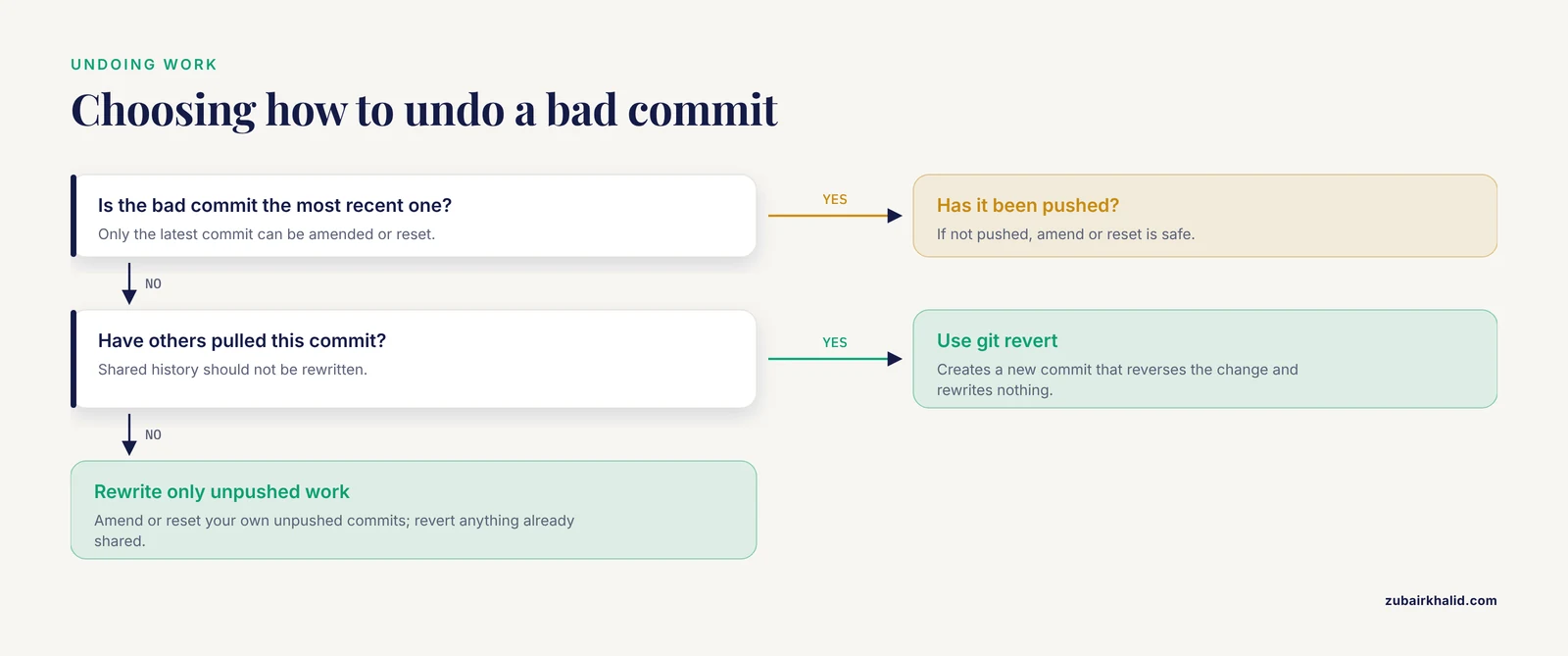
If the commit is the most recent one and unpushed, git commit, amend replaces it, or git reset HEAD~1 undoes it while keeping your edits. For older work, git revert <hash> creates a new commit that reverses a specific change, which is the safe option on shared branches because it rewrites nothing.
Can I use Git with R Markdown and Quarto documents?
Yes, and they work particularly well, since both are plain text that Git diffs line by line. Commit the source .Rmd or .qmd files and ignore the rendered HTML or PDF outputs, which can be regenerated from the source at any time.
How do I add Git to an R project I already started?
Install Git, add a .gitignore covering session files and large data, then run usethis::use_git() from within the project and restart RStudio. Review the file list in the Git tab, stage what belongs, and make an initial commit to establish the history.