How to Revert a Commit in Git Without Losing Data
By Dr. Zubair Khalid, DVM, MS, PhD ·
By the end of this guide you will be able to undo a Git commit on any branch while keeping every line of your work recoverable. You will know how to revert a single commit, a merge commit, a range of commits, and selected files. You will also know how to recover work after an accidental reset, how to revert changes you have not committed yet, and how to verify that the revert did exactly what you intended.
This is written for people who run analyses for a living. If you manage pipelines, notebooks, and manuscript code, you already know that "delete the bad version" is never the right instinct. The same habit that keeps reproducibility intact in your analyses, keeping a permanent record of what changed and when, is exactly what makes Git safe to undo. That habit is the core of good version control practice for research code, and it is why a revert-based workflow is the standard recommendation for teams using GitHub for research projects.
What you need on hand before starting:
- Git installed and available in your terminal. Any version from roughly 2.23 onward supports every command shown here, including
git restore. Check withgit, version. - A repository with at least one commit you want to undo. A scratch clone of a practice repository is the safest place to learn.
- A configured text editor or the willingness to accept default commit messages with the
-no-editflag. - A backup habit. Push to a remote, or at minimum clone the repository a second time as a spare copy. Reverting is safe, but every recovery technique in this guide works best when a second copy exists.
Revert, Reset, Checkout: Three Different Kinds of Undo
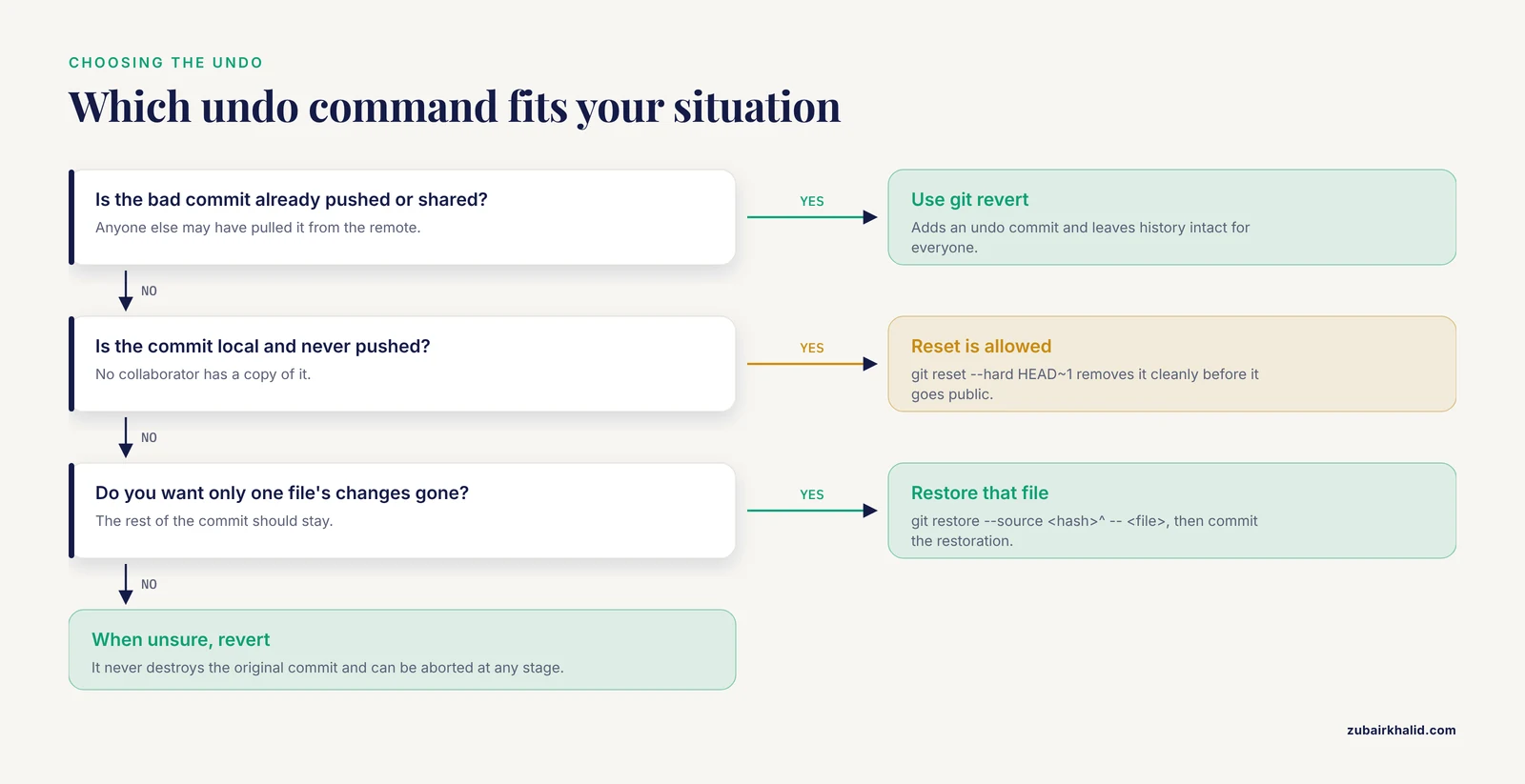
Git offers several commands that all look like "undo" from the outside. Choosing the wrong one is the single most common cause of lost work, so the distinctions matter.
Revert creates a brand new commit that applies the exact opposite of an existing commit. History stays intact. The original commit remains visible in the log, and a new commit undoes its effect. Nothing is destroyed. The official documentation for git revert describes it as undoing a commit by adding a new commit, which is the definition this guide relies on.
Reset moves the current branch pointer to a different commit and optionally changes your working directory. With -hard, it discards changes in your working directory. This is the command most often involved in "I lost my work" emergencies. The official documentation for git reset explicitly warns that hard resets discard uncommitted changes.
Checkout and restore change which files appear in your working directory. git checkout <commit> used to be the catch-all command for looking at old versions, which is why many older tutorials use it for undo operations. Since Git 2.23, git switch changes branches and git restore restores files, which removed most of the ambiguity.
The rule of thumb:
| Situation | Use | Why |
|---|---|---|
| Bad commit is already pushed and others may have pulled it | git revert | Adds an undo commit without rewriting shared history |
| Bad commit is local, unpushed, and no one has it | git reset, hard HEAD~1 | Clean removal before the commit goes public |
| You want one commit's changes gone but everything else kept | git revert <hash> | Surgical, reversible, reviewable |
| You want to look at old files without changing history | git restore, source <hash> <file> | Touches only your working directory |
| You have unsaved work and need to switch tasks | git stash | Stores uncommitted changes safely |
For any commit that exists on a shared remote, on GitHub, or on a collaborator's machine, revert is the safe answer. Reset rewrites history, which forces everyone to reconcile their local copies against a moved branch and is where work gets destroyed.
Step-by-Step: Revert a Commit Without Losing Data
This walkthrough reverts a single ordinary commit on a branch called main. Follow it on a practice repository first.
Step 1. Find the commit you want to revert
List recent commits with short hashes:
git log --onelineExpected output:
a1b2c3d (HEAD -> main) Add cross-validation script
9f8e7d2 Fix normalization bug in counts matrix
7c6b5a4 Initial import of metadata
HEAD is a pointer to the commit your branch currently references. Here HEAD points to a1b2c3d on main.
If the bad commit is more than a screenful back, limit the log:
git log --oneline -15You can also search commit messages, which is faster than scrolling when the repository has months of history:
git log --oneline --grep="normalization"Step 2. Inspect exactly what the commit changed
Never revert blind. Look at the diff first:
git show 9f8e7d2Expected output, abbreviated:
commit 9f8e7d2a1b...
Author: Jane Doe <[email protected]>
Date:   Mon Nov 2 14:22:01 2025 -0500

    Fix normalization bug in counts matrix

diff --git a/scripts/normalize.py b/scripts/normalize.py
index 3f2c1ab..8d1e4f7 100644
--- a/scripts/normalize.py
+++ b/scripts/normalize.py
@@ -12,7 +12,7 @@ def normalize(counts):
-    scaled = counts / counts.sum(axis=1)
+    scaled = counts / counts.sum(axis=0)
To see only which files were touched, with no diff body:
git show 9f8e7d2 --statThis step answers the question that prevents most accidental data loss: does the commit contain only the change you want gone, or does it bundle other work you need to keep? If it bundles several unrelated changes, skip to the partial revert section later in this guide.
Step 3. Make sure your working directory is clean
Revert applies changes to your working directory, so uncommitted edits to the same files will block it:
git statusExpected output for a clean tree:
On branch main
Your branch is up to date with 'origin/main'.

nothing to commit, working tree clean
If you have in-progress edits you want to keep, stash them first. Stashing saves uncommitted changes to a stack you can restore later, which the official Git documentation describes as a way to set aside dirty working-directory state safely:
git stash push -m "wip: figures for revision 2"Expected output:
Saved working directory and index state On main: wip: figures for revision 2You will get this work back with git stash pop after the revert. The exact procedure is in the section on uncommitted changes below.
Step 4. Run the revert
git revert 9f8e7d2Git opens your editor with a prepared message, by default:
Revert "Fix normalization bug in counts matrix"

This reverts commit 9f8e7d2a1b2c3d4e5f6a7b8c9d0e1f2a3b4c5d6.
Save and close the editor. Expected terminal output:
[main 4d5e6f7] Revert "Fix normalization bug in counts matrix"
 1 file changed, 1 insertion(+), 1 deletion(-)
If you prefer not to open an editor at all, accept the default message directly:
git revert --no-edit 9f8e7d2The -no-edit flag uses the prepared message without opening the editor, which the git revert documentation lists among its standard options.
Two flags worth knowing here:
| Flag | What it does | When to use it |
|---|---|---|
-no-edit | Accepts the default revert message | Quick single reverts with a clean default message |
-no-commit | Performs the inverse change but stops before committing | Bundling several reverts into one commit, or editing the result first |
-e | Same as default behavior, forces the editor | When a configured alias or script has suppressed editing |
With -no-commit, Git stages the inverse changes and leaves them uncommitted:
git revert --no-commit 9f8e7d2Expected output:
[main 5f6a7b8] Revert "Fix normalization bug in counts matrix"Actually, with -no-commit there is no commit line yet. Expected output is simply:
Auto-merging scripts/normalize.pyfollowed by git status showing:
You are currently reverting commit 9f8e7d2.
  (all conflicts fixed: run "git revert --continue")
  (use "git revert --skip" to skip this patch)
  (use "git revert --abort" to cancel the revert operation)

Changes to be committed:
  modified:   scripts/normalize.py
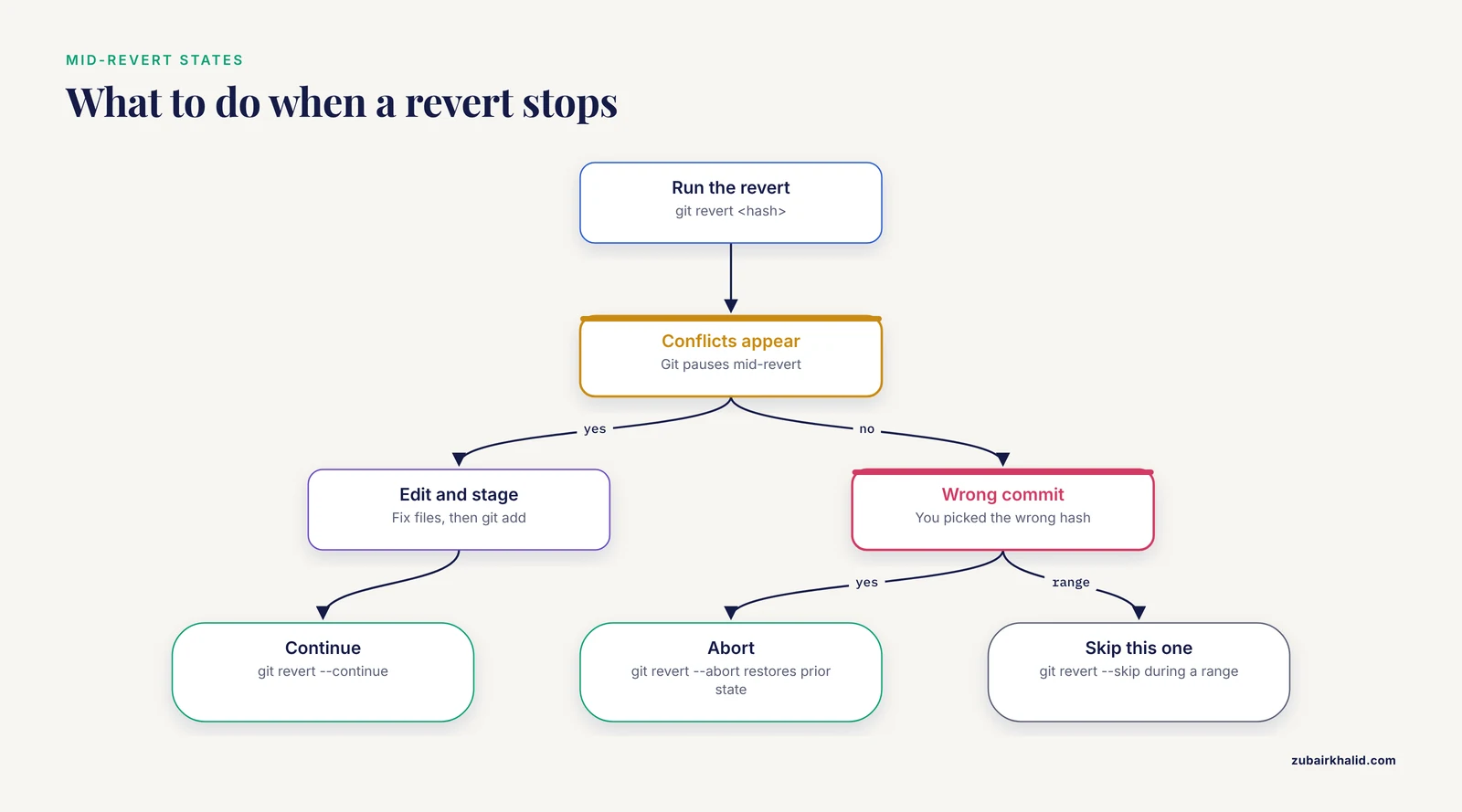
You are now in a special state mid-revert. Finish it with git revert, continue, or bail out entirely with git revert, abort, which returns your repository to the exact state before you started. That abort switch is one of the main reasons revert is safe: at every stage there is a documented way back.
Step 5. Confirm the revert did what you meant
Three quick checks, in order:
git log --oneline -34d5e6f7 (HEAD -> main) Revert "Fix normalization bug in counts matrix"
a1b2c3d Add cross-validation script
9f8e7d2 Fix normalization bug in counts matrixThe original commit is still in the log. That is the guarantee you were after: nothing was destroyed, the undo is itself a normal commit.
git show 4d5e6f7 --statThis confirms the revert touched only the files the original commit touched.
git diff 9f8e7d2^ 4d5e6f7This compares the tree just before the original commit against the tree after the revert. Empty output means the revert exactly cancelled the original commit, which is the strongest possible verification. In many cases the diff will not be perfectly empty because later commits touched the same lines, in which case confirm the specific behavior you cared about instead, for example by rerunning your analysis or test suite.
Step 6. Push the revert
git push origin mainBecause revert added a normal commit on top of the existing history, the push is an ordinary fast-forward push. No force, no warning, no coordination problem for collaborators. On GitHub, the revert commit appears like any other commit, and reviewers can see both the original change and its undo side by side, which is one of the practical reasons researchers prefer revert-based undo on shared repositories.
Reverting a Merge Commit
Merge commits have two parents, and Git needs to know which lineage you are keeping. Attempting a plain revert on a merge produces this error:
error: commit 3f2a1bc is a merge but no -m option was given.The fix is the -m flag with a parent number. Parent 1 is the branch you were on when you merged. Parent 2 is the branch that was merged in.
Find the parents first:
git show 3f2a1bcExpected output, first lines:
commit 3f2a1bc...
Merge: 9f8e7d2 2c4d6e8
Author: Jane Doe <[email protected]>
Date:   Tue Nov 4 09:15:22 2025 -0500

    Merge branch 'feature-qc'
The line Merge: 9f8e7d2 2c4d6e8 lists the two parents in order. If you merged a feature branch into main, parent 1 is your main side and parent 2 is the feature side. To undo the feature work while staying on main:
git revert -m 1 3f2a1bcExpected output:
[main 7a8b9c0] Revert "Merge branch 'feature-qc'"
 3 files changed, 12 insertions(+), 40 deletions(-)
A note for teams: reverting a merge commit has a well-known consequence documented in the Pro Git book. If you later want the same feature branch merged again, a fresh merge will not bring the changes back, because Git sees them as already in history. The standard remedies are to revert the revert, or to rebase the feature branch into new commits and merge those. Knowing this ahead of time turns a confusing afternoon into a five-minute decision.
Reverting a Range of Commits
To undo several consecutive commits, revert them oldest first. Given this history:
e1f2a3b (HEAD -> main) Add third analysis
c4d5e6f Add second analysis
9a8b7c6 Add first analysis
1234567 Baseline
Revert the three analysis commits as separate commits:
git revert --no-edit 9a8b7c6 c4d5e6f e1f2a3bOrder matters. Reverting oldest first minimizes conflicts, because each revert is applied against a tree that still resembles the one where the next-older commit was made.
To fold all three undos into a single commit:
git revert --no-commit 9a8b7c6^..e1f2a3b
git commit -m "Revert analyses 1 through 3"
The range 9a8b7c6^..e1f2a3b means every commit after the parent of the oldest one, up to and including the newest. The caret notation, as in 9a8b7c6^, means the parent of that commit, and the official Git revision-range documentation covers these selectors in detail.
If the range contains a merge commit, plain range revert fails on it. Either revert merges individually first with -m 1, or skip them with git revert, skip while the sequence is paused, then handle them deliberately.
Reverting Only Part of a Commit
Sometimes a commit contains one bad change among several you want to keep. Rather than reverting the whole commit, restore the specific file to its pre-commit state, then commit that restoration.
Bring one file back to how it looked in an older commit:
git restore --source 9f8e7d2^ -- scripts/normalize.pyThe -source flag tells git restore which commit to take the file contents from. Here 9f8e7d2^ means the parent of the bad commit, that is, the state before the bad change. Then review and commit:
git diff
git add scripts/normalize.py
git commit -m "Restore normalize.py to pre-bug behavior"
The older syntax still works and appears in many older tutorials:
git checkout 9f8e7d2^ -- scripts/normalize.pyBoth forms put the old file contents into your working directory and staging area. The git restore form is preferred because it cannot accidentally switch your whole working tree, which was one of the hazards of the old checkout syntax.
To revert a single file entirely from an already-pushed commit while leaving the rest of the commit in place, this restore-and-commit pattern is the correct tool. If the file needs to come back to match the state two commits ago rather than one, adjust the source accordingly, for example -source 9f8e7d2~2.
Reverting When You Have Not Committed Yet
Uncommitted work is the most fragile state in Git, because nothing points to it yet. Three tools cover it.
Stash everything, including untracked files:
git stash push -u -m "wip: peak calling parameters"The -u flag includes untracked files, which otherwise stay in the working directory and can be clobbered. List your stashes and recover them:
git stash liststash@{0}: On main: wip: peak calling parameters
stash@{1}: On main: wip: figures for revision 2git stash poppop restores the most recent stash and removes it from the stack. Use git stash apply instead if you want the changes back but want to keep a copy in the stash as insurance. The official documentation recommends this kind of deliberate, stack-based handling precisely because stashed work is recoverable work.
Unstage without losing edits:
git restore --staged scripts/normalize.pyThis moves the file out of the staging area while keeping your edits in the working directory. Nothing is deleted.
Discard edits to one file, deliberately:
git restore scripts/normalize.pyThis is the one command in the guide that truly erases uncommitted changes to a file, and it does so without recourse unless the file was stashed or committed earlier. Treat it like rm on a file you have not saved anywhere else. If you are ever unsure, stash first. A stash costs nothing and preserves everything.
Recovering Data You Thought Was Lost
Git rarely deletes anything immediately. Almost every "I lost my work" incident is recoverable, and the recovery tool is the reflog.
The reflog is a local journal of where HEAD has pointed. The official documentation describes it as a record of every movement of HEAD, including resets, and the safety net behind most recoveries.
Suppose you ran git reset, hard and a commit seems gone:
git reflogExpected output:
b2f4c6a HEAD@{0}: reset: moving to b2f4c6a
d8e10f2 HEAD@{1}: commit: Add QC plots and coverage summary
b2f4c6a HEAD@{2}: checkout: moving from feature-qc to main
The commit d8e10f2 still exists. Point a branch at it:
git branch recover-qc d8e10f2
git switch recover-qc
Now all the work from that commit is back, intact, in a branch you can merge or copy from. Alternatively, move main itself back:
git switch main
git reset --hard d8e10f2
Only do the hard reset variant when you are certain nothing newer than d8e10f2 needs keeping, since -hard discards uncommitted changes.
If the commit does not appear in the reflog, for example because it was created in a different session and never referenced, look for dangling commits:
git fsck --lost-foundExpected output:
Checking object directories: 100% (256/256), done.
dangling commit a7b8c9d...
Inspect a dangling commit the same way as any other:
git log --oneline a7b8c9d
git show a7b8c9d
If it is your work, branch to it immediately. Dangling objects are eventually cleaned by Git's garbage collection, so treat recovery as time-sensitive and copy anything valuable to a branch or a pushed remote right away.
Pushing the Revert Safely
After a revert, the push is ordinary:
git push origin mainThe dangerous alternative, often suggested in older forums, is to reset locally and force-push:
git reset --hard HEAD~1
git push --force
Never do this on a shared branch. Force-pushing overwrites remote history, and any collaborator who had pulled the old commits now holds commits the remote no longer contains. Their next push, or their local branch state, becomes a conflict scenario where real work gets discarded. On GitHub, protected branch rules exist partly to prevent exactly this, and the GitHub documentation treats history rewriting on shared branches as a workflow hazard to be avoided by default. A revert achieves the same practical result, removing the bad change from the tip of the branch, without removing anything from history.
Two legitimate exceptions exist, and both are deliberate, coordinated operations. Rewriting your own unpushed commits with an interactive rebase is safe. Force-pushing a feature branch that only you use, after clearly announcing it, is a normal cleanup. Neither applies to shared main branches or to any branch a collaborator may have pulled.
For research teams this distinction has a reproducibility payoff. Because revert preserves the original commit, anyone auditing a paper's code months later can see the buggy version, the revert, the commit message linking them, and the date. That audit trail is exactly what reviewers and collaborators need, and it is a major part of what makes GitHub for researchers more than free storage.
Command Summary
| Command | Effect on history | Risk to committed data | Typical scenario |
|---|---|---|---|
git revert <hash> | Adds an undo commit | None, original preserved | Undoing a pushed commit |
git revert -m 1 <merge> | Adds an undo commit for a merge | None | Backing out a merged feature |
git revert, no-commit <range> | Stages inverse changes, no commit | None until you commit | Squashing several undos into one commit |
git revert, abort | Cancels an in-progress revert | None | Wrong commit reverted by mistake |
git reset, soft <hash> | Moves branch, keeps changes staged | Low | Local, unpushed history cleanup |
git reset, hard <hash> | Moves branch, discards working changes | High for uncommitted work | Local-only, deliberate reset |
git restore, source <hash> <file> | Touches working directory only | None | Bring one file back to an old state |
git stash push -u | Stores uncommitted changes | None, recoverable from stash | Parking in-progress work |
git branch <name> <hash> | Creates a pointer to an old commit | None | Reflog and fsck recovery |
Common Mistakes and Limitations
Using reset on a pushed commit. This is the top cause of genuine data loss in team settings. Reset rewrites history, and force-pushing the rewrite strands every collaborator's local copy. Once a commit is on a remote that anyone else can pull, revert is the only appropriate undo.
Reverting a merge and expecting to re-merge the branch later. After git revert -m 1 <merge>, Git considers the merged changes already handled. A later plain merge of the same branch brings nothing back. Plan for it with a revert of the revert or with rebased replacement commits.
Reverting without looking first. git show <hash> before every revert. If the commit bundles several concerns, a full revert destroys good changes along with the bad one. Use the partial restore pattern instead.
Leaving a revert half-finished. After a conflicted revert with -no-commit, the repository sits in a special state. Forgetting it and starting other work leads to confusing staged changes. Resolve conflicts, then run git revert, continue, or run git revert, abort and start over. Do not leave the state idle overnight.
Confusing git checkout <hash> with undo. Checking out an old commit without a branch puts you in detached HEAD state. Commits made there are easy to lose track of, although not truly lost until garbage collection runs. If you find yourself on an old commit exploring, create a branch immediately with git switch -c <name> so every new commit has a home.
Trusting the working directory alone. Uncommitted changes have no protection. Stash or commit before switching branches, before rebasing, and before any undo operation. The two-minute stash habit eliminates most loss scenarios outright.
Assuming recovery windows are infinite. Reflog entries age out, and garbage collection eventually prunes unreachable objects. When recovering, act promptly and push or branch the recovered work the same day.
Deleting the folder to start over. Some people, especially those coming to Git from spreadsheet workflows, respond to a mess by deleting the repository directory. This destroys the reflog, the object database, and every recovery path at once. Even in the worst tangle, clone or copy the repository directory elsewhere first. A byte-for-byte copy of .git preserves every recoverable object.
One honest limitation applies to all of this. Git protects committed and stashed data. Files that were never added, never committed, and never stashed, for example a scratch script deleted from the working directory, were never in Git at all, and no Git command can bring them back. Individual cases vary, so the habit that matters is committing early and committing often, even to a personal branch nobody else sees.
Frequently Asked Questions
Does git revert delete my commit from history?
No. git revert creates a new commit whose contents are the inverse of the commit you name. The original commit stays in the log, reachable and inspectable, which is what makes revert safe on shared branches.
What is the difference between git revert and git reset?
Revert adds a new commit that cancels an old one, leaving history intact. Reset moves your branch pointer, and with -hard it can discard uncommitted work. Use revert on anything pushed or shared. Use reset only on local history you have not published.
How do I revert a commit I already pushed?
Find the hash with git log, oneline, run git revert <hash>, keep the default message, and push. The push is an ordinary fast-forward because revert only adds commits.
Can I revert a merge commit?
Yes, but you must tell Git which parent to keep with -m 1, as in git revert -m 1 <hash>. Parent 1 is the branch you were on when you merged. Omitting the flag produces an error saying the commit is a merge.
How do I recover a commit after git reset, hard?
Run git reflog to find the hash of the commit before the reset, then create a branch pointing at it with git branch <name> <hash>. The commit still exists in the object database and the reflog documents it.
What do I do when git revert causes a conflict?
Edit the conflicted files to the state you want, stage them with git add, then run git revert, continue. If the conflict reveals you picked the wrong commit, git revert, abort returns everything to the pre-revert state.
How do I revert only one file from a commit?
Restore that file from the commit's parent with git restore, source <hash>^, <file>, review with git diff, then commit. This preserves the rest of the original commit's changes untouched.
Can I undo a revert?
Yes. Revert the revert commit exactly as you would revert any other commit, with git revert <revert-hash>. Because both operations are ordinary commits, the cycle is fully reversible and history keeps every step recorded.