How to Use Git Reset to Undo Staged Changes
By Dr. Zubair Khalid, DVM, MS, PhD ·

By the end of this guide you will be able to unstage a single file, unstage everything at once, undo a local commit while keeping your edits, pick the correct reset mode the first time, and recover commits that a reset left behind. Every command comes with the output you should expect, so you can check your own terminal line by line.
You need Git 2.23 or newer (run git, version to confirm), a terminal, and about ten minutes. All practice happens in a throwaway repository built in Step 1, so no real project is at risk while you learn.
The guide is written for scientific computing, where a repository usually holds analysis scripts, environment files, manuscripts, and small results tables. The commands are identical in any field. What differs is the cost of a mistake, because a lost day of pipeline edits is a lost day of experiments. That is why this walkthrough treats git reset to undo staged changes as a deliberate, verifiable operation rather than a reflex.
The Three Trees: Working Tree, Staging Area, and HEAD
Git tracks three snapshots of your project, and every reset acts on some combination of them.
The working tree is the set of files you see and edit on disk.
The index, which almost everyone calls the staging area, is the snapshot Git will convert into your next commit. Running git add copies the current content of the named files into the index. A file is staged when its content in the index differs from the last commit because you staged it on purpose.
A commit is a permanent snapshot of the index, recorded with the author, date, message, and a pointer to the previous commit, called its parent. Each commit has an object ID, a 40-character hash usually shortened to 7 or 8 characters such as 3f2a9c1.
HEAD is a pointer to the tip of your current branch, and a branch is itself just a movable pointer to one commit. A commit advances the branch, so HEAD follows.
The normal flow is edit in the working tree, stage into the index with git add, then record the index with git commit. git status compares all three snapshots and reports the differences, which is why it is the first command to run before and after any reset. Three diff commands map onto the same comparisons: git diff shows working tree versus index, git diff, staged shows index versus HEAD, and git diff HEAD shows working tree versus HEAD.
Staging lets you compose a commit deliberately. In a scientific project you might stage analysis.py and environment.yml together as one reproducible unit while leaving a half-edited manuscript out. The staging area is also the safety boundary for reset: mixed mode edits only the index, so your on-disk files stay untouched.
What git reset Actually Does
git reset has one core job: move the current branch pointer to a commit you name, then optionally synchronize the other two snapshots to that commit. The mode flag decides how far the synchronization goes.
In soft mode (git reset, soft), Git moves the branch pointer and stops. The index and working tree are untouched, so everything that was staged stays staged.
In mixed mode (git reset, mixed), the default, Git moves the branch pointer and rewrites the index to match the target commit. The working tree is untouched. This is the mode that unstages.
In hard mode (git reset, hard), Git moves the branch pointer, rewrites the index, and overwrites the working tree to match the target commit. Uncommitted edits to tracked files (files present in the index) are destroyed. Untracked files, meaning files Git has never been told to track, are left alone.
When you pass file paths instead of a commit, reset behaves differently. It never moves the branch pointer. It copies the named paths from the commit you named (HEAD by default) into the index only, which is the classic unstage operation.
Keep two consequences in mind. First, reset does not immediately delete anything. Commits that fall off the branch become unreachable, meaning no branch or tag points to them, but their objects remain in .git and can be recovered until Git's periodic cleanup, called garbage collection, removes them. Second, because mixed is the default, plain git reset is the everyday answer to the core question of this guide. It undoes staging while keeping every edit on disk.
Using git reset to Undo Staged Changes, Step by Step
This section builds a two-commit practice repository and walks through each unstage and undo operation with expected output. Type the commands exactly as written and compare your terminal with the output blocks.
Step 1: Create a Practice Repository
git init reset-demo
cd reset-demo
echo 'print("QC summary")' > qc_report.py
git add qc_report.py
git commit -m "Add QC report script"
echo "sample,A,B" > results.csv
git add results.csv
git commit -m "Add results table"
Expected output (object IDs and paths on your machine will differ):
Initialized empty Git repository in /home/you/reset-demo/.git/
[main (root-commit) 4d5e6f7] Add QC report script
 1 file changed, 1 insertion(+)
 create mode 100644 qc_report.py
[main 3f2a9c1] Add results table
 1 file changed, 1 insertion(+)
 create mode 100644 results.csv
Older Git versions may print master instead of main, depending on the init.defaultBranch setting. Everything else behaves the same.
Step 2: Stage a Change on Purpose
echo 'print("QC summary v2")' >> qc_report.py
git add qc_report.py
git status
Expected output:
On branch main
Changes to be committed:
  (use "git restore --staged <file>..." to unstage)
	modified:   qc_report.py
The hint line names the modern unstage command. On Git versions older than 2.23 the same hint reads (use "git reset HEAD <file>..." to unstage). Both commands do the same job.
Step 3: Unstage One File and Keep the Edits
git reset HEAD -- qc_report.py
git status
Expected output from the reset:
Unstaged changes after reset:
M	qc_report.py
Expected status afterward:
On branch main
Changes not staged for commit:
  (use "git add <file>..." to update what will be committed)
  (use "git restore <file>..." to discard changes in working directory)
	modified:   qc_report.py
The edit is still on disk. Confirm with git diff qc_report.py, which prints the unstaged difference, or simply open the file. The staging area now matches the last commit, which is exactly what "unstaged" means. The modern spelling of the same operation is git restore, staged qc_report.py.
Step 4: Unstage Everything at Once
Stage two files, then clear the whole index:
echo 'sample,A,B,C' > results.csv
git add qc_report.py results.csv
git reset
Expected output:
Unstaged changes after reset:
M	qc_report.py
M	results.csv
Plain git reset means git reset, mixed HEAD. It empties the staging area back to the last commit and touches nothing on disk. This is the command to reach for when you staged several files and want a clean start. One detail to remember: if a file was newly added and never committed, unstaging leaves it untracked rather than deleted.
Step 5: Undo the Last Commit and Keep the Changes Staged
Turn the staged work into a commit so there is something to undo:
git add qc_report.py results.csv
git commit -m "Update QC report and results"
Now remove that commit while keeping its content staged:
git reset --soft HEAD~1
git status
Expected output:
On branch main
Changes to be committed:
  (use "git restore --staged <file>..." to unstage)
	modified:   qc_report.py
	modified:   results.csv
HEAD~1 means the parent of HEAD, one commit back. The soft reset moved the branch pointer to the previous commit and left the index alone, so the removed commit's content is staged again, ready to recommit with a better message. If the only problem is the last commit's message or a missing file, git commit, amend replaces the last commit in one step and is usually simpler.
Step 6: Undo the Last Commit and Unstage the Changes
Recreate the commit, then undo it in mixed mode:
git commit -m "Update QC report and results"
git reset HEAD~1
git status
Expected output:
On branch main
Changes not staged for commit:
  (use "git add <file>..." to update what will be committed)
  (use "git restore <file>..." to discard changes in working directory)
	modified:   qc_report.py
	modified:   results.csv
The commit is gone from history and from the index, and both edits are back in the working tree as unstaged changes. Nothing was deleted from disk.
Step 7: Discard Staged Changes Entirely (Destructive)
git reset --hard HEAD
git status
Expected output:
HEAD is now at 3f2a9c1 Add results table
On branch main
nothing to commit, working tree clean
The branch pointer was already at HEAD, so it stayed put. The index and working tree were reset to the last commit, which destroyed the staged and unstaged edits to both tracked files. In real work, stash the edits first if there is any chance you want them back. git stash shelves uncommitted changes, restores a clean tree, and holds the work for later:
git stash push -m "wip calibration"
git reset --hard HEAD
git stash pop
Untracked files survive a hard reset, which is one reason to keep datasets untracked.
Step 8: Verify the Result
Four checks cover every reset in this guide:
git status
git log --oneline
git diff
git diff --staged
Expected result after Step 7: status reports a clean working tree, the log shows the two original commits, and both diff commands print nothing. Read the checks this way. git status confirms how the index and working tree differ from HEAD. git log, oneline confirms where the branch now points. git diff prints unstaged changes, and git diff, staged (the same flag as -cached) prints staged changes. Empty output from both diffs means nothing is pending, staged or otherwise.
Reset Modes, Targets, and Flags Explained
Every reset is a combination of three choices: a mode, a target commit, and optionally a set of paths. Getting these three choices right is the whole skill.
The Modes
Soft moves the branch pointer only. Mixed moves the pointer and rewrites the index. Hard moves the pointer and rewrites the index and working tree. With paths, the mode must be mixed (or left at the default), because soft and hard cannot be combined with paths.
-p (short for -patch) adds an interactive prompt that lets you unstage individual hunks, where a hunk is one contiguous block of changed lines. -quiet suppresses the "Unstaged changes after reset" report. -merge exists to abort a conflicted merge, resetting the index and updating working tree files that differ between HEAD and the target while leaving identical files alone. -keep resets the index and working tree like hard mode but aborts instead of overwriting files that carry local changes, printing error: Entry 'qc_report.py' not uptodate. Cannot merge. when it refuses. That makes -keep a safer way to move the tree while preserving unrelated local edits.
The Targets
HEAD is the current commit. HEAD~1 is its parent, HEAD~2 the grandparent, and so on. A short object ID such as 3f2a9c1 works, and git log, oneline lists them. A branch name such as main resets that branch.
A remote is another copy of the repository, typically on a server. origin/main is a remote-tracking branch, your local record of where the branch stood on the remote named origin the last time you fetched. @{u} (short for @{upstream}) is the branch your current branch pushes to, so git reset, soft @{u} gathers all unpushed commits into the staging area at once, a clean way to squash them into one commit.
ORIG_HEAD records where HEAD pointed before the last history-moving operation such as a reset, merge, or rebase, so git reset, hard ORIG_HEAD undoes the most recent one. HEAD@{1} is where HEAD pointed one reflog entry ago, covered in the recovery section below.
Paths and the Separator
git reset <commit>, <path> copies that path from the commit into the index without moving the branch. For example, git reset HEAD~2, analysis.py stages the two-commits-older version of analysis.py, which is a selective way to back out one file's change. The - separator tells Git that everything after it is a path, not a revision, which matters when a file shares a name with a branch.
Quick Reference Table
| Command | Moves the branch pointer | Resets the staging area | Changes the working tree | Use it when |
|---|---|---|---|---|
git reset, soft <commit> | Yes | No | No | You committed too early and want to recommit, with everything already staged |
git reset <commit> (default, mixed) | Yes | Yes | No | You want to uncommit and unstage but keep every edit on disk |
git reset, hard <commit> | Yes | Yes | Yes | You want to discard all uncommitted work and move back (destructive) |
git reset <commit>, <path> | No | Yes, for that path | No | You want to replace the staged copy of one file with an older version |
git restore, staged <file> | No | Yes, for that file | No | You only want to unstage a file (Git 2.23 and newer) |
git reset, hard | No, stays at HEAD | Yes | Yes | You want to discard all staged and unstaged edits (destructive) |
Read the table as a decision aid. If the goal is unstaging, rows four, five, and six cover it. If the goal is undoing a local commit, rows one through three cover it. Rows marked destructive deserve a stash first.
Recovery: The Reflog and Other Safety Nets
Reset becomes low risk once you know how to reverse it.
The reflog is a local journal of every place HEAD has pointed, recorded on each commit, reset, checkout, merge, and rebase. Suppose you ran git reset, hard HEAD~1 and lost a commit. Run git reflog:
4d5e6f7 (HEAD -> main) HEAD@{0}: reset: moving to HEAD~1
a1b2c3d HEAD@{1}: commit: Add variant annotation step
4d5e6f7 HEAD@{2}: commit: Add QC report script
Entries are numbered from most recent, so HEAD@{0} is where HEAD points now. Restore the lost commit by object ID or by reflog entry:
git reset --hard a1b2c3dExpected output:
HEAD is now at a1b2c3d Add variant annotation stepgit reset, hard HEAD@{1} would work identically here. Note that HEAD@{n} counts reflog entries, not commits, so the numbering shifts with every history operation.
The reflog has limits. It is per clone and never pushed, so it cannot recover someone else's work or survive a fresh clone. Git expires reflog entries by default after 90 days for commits reachable from a branch or tag and 30 days for unreachable ones, after which garbage collection may delete the objects permanently (these defaults come from Git's documented gc.reflogExpire settings). If the reflog is gone, git fsck, lost-found lists dangling commits, commits that no reference points to and that garbage collection has not yet removed.
The hard limit: committed work is recoverable, uncommitted work is not. Content that never entered a commit or a stash exists only in the working tree, never in the object database (the store of commits and file content under .git), so a hard reset erases it with no Git-level recovery. That is why the habit in Step 7 is stash first, reset second. Editors and IDEs often keep their own local history, which is worth checking after an accidental hard reset.
One more safety net applies to pushed work: commits on a remote are immune to local reset accidents. Pushing a feature branch to GitHub before risky history surgery is cheap insurance.
git reset Compared with restore, checkout, and rm, cached
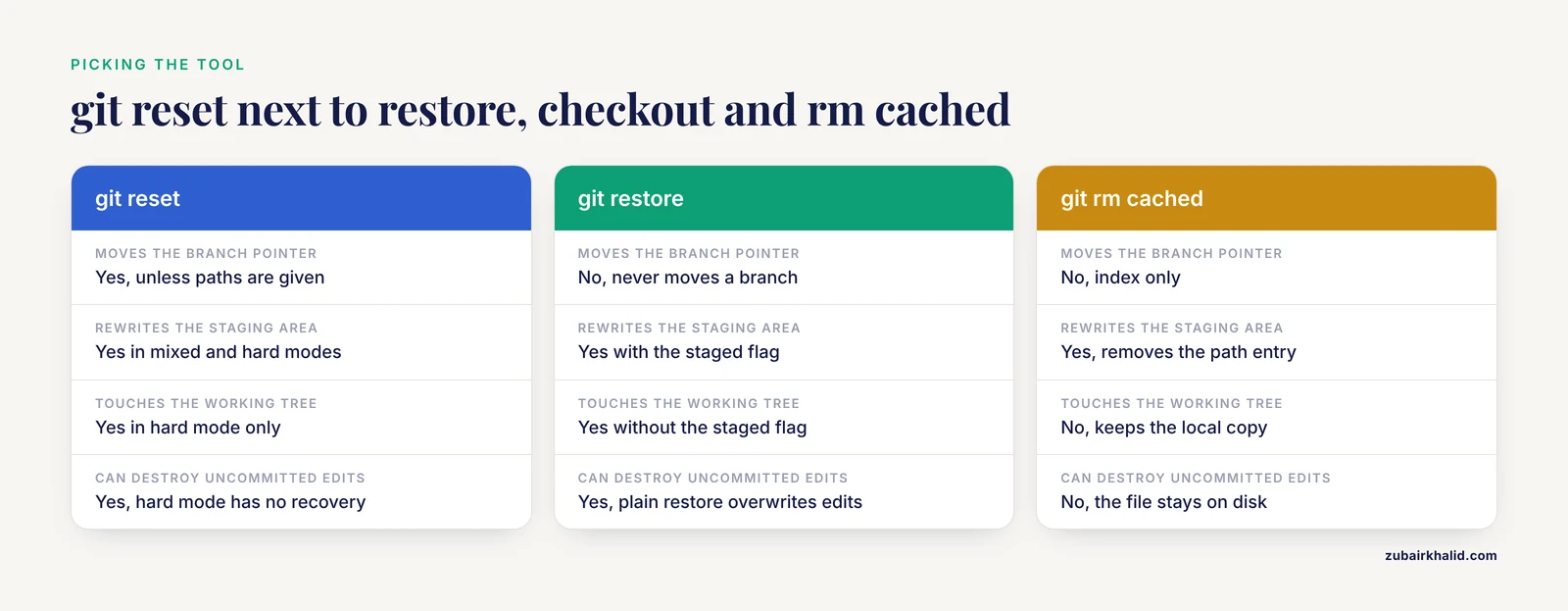
Git has accumulated several commands that overlap with reset, and knowing the boundaries prevents wrong-tool damage.
git restore, staged <file> unstages a file and nothing else. It arrived in Git 2.23 as a safer, narrower alternative to reset with paths. It cannot move branches, so it cannot destroy history.
git restore <file> copies from the index into the working tree, discarding unstaged edits. It is destructive and has no reflog safety net for uncommitted content, because that content never entered the object database.
git checkout <commit>, <path> is the older form of copying a path from a commit into the index and working tree. git switch <branch> and git checkout <branch> move HEAD between branches, which is a different job from reset: reset moves the branch, switch moves you.
git rm, cached <file> removes a path from the index. For a file you only staged, it unstages the file and leaves it untracked. For a committed file, it stages a deletion while keeping the local copy, which is how you untrack a data file without deleting it. If you staged a deletion with git rm and change your mind, git reset HEAD, <file> restores the index entry, and git restore <file> brings the content back to disk.
git clean removes untracked files, which reset never touches. Always dry-run first with git clean -n, then run git clean -fd to remove untracked files and directories. Never add -x casually, because -x also deletes ignored files, which is where datasets usually live.
git revert <sha> creates a new commit that inverts an earlier one. It is the correct undo for any commit that has been pushed to a shared branch, because it adds history instead of rewriting it.
| Task | Command | Notes |
|---|---|---|
| Unstage a file | git restore, staged analysis.py | Keeps edits on disk |
| Unstage everything | git reset | Default mixed mode |
| Discard unstaged edits in one file | git restore analysis.py | Destructive, no recovery |
| Untrack a committed file | git rm, cached data.csv | Keeps the local copy |
| Delete untracked files | git clean -n then git clean -fd | Dry run first |
| Undo a pushed commit | git revert <sha> | Safe on shared branches |
Practical Tips for Scientific Workflows
These habits turn reset from a rescue tool into a routine part of a git for scientists workflow.
Stage in reproducible units. Commit analysis.py together with environment.yml or requirements.txt so each commit pairs code with its runnable environment. Review the exact contents with git diff, staged before committing, the same way you proofread a figure before submission.
Keep data out of Git with a .gitignore file, which lists patterns Git should ignore, such as data/ or *.fastq.gz. For files too large for plain Git, Git LFS (Large File Storage, an extension that stores the file on a server and keeps a small pointer in the repository) is the standard option. The payoff for reset safety is direct: untracked and ignored files survive even git reset, hard.
Use aliases for the moves you make most. An alias is a custom shorthand command defined in your Git configuration:
git config --global alias.unstage "restore --staged"
git config --global alias.undo "reset --soft HEAD~1"
After this, git unstage analysis.py unstages that file and git undo removes the last commit with its content staged.
Stage and unstage in pieces. git add -p walks through the diff hunk by hunk and asks y or n for each, and git reset -p does the same in reverse for unstaging. This is how you commit a finished function while leaving debug prints out.
Work on a branch per analysis or question. Branches make resets low stakes, because main can stay clean while you experiment.
Stash when interrupted. git stash push -m "wip calibration" shelves all uncommitted work with a label, git stash list shows the shelf, and git stash pop restores it. Git 2.35 and newer also accept git stash push, staged to stash only the staged portion.
For collaboration, GitHub for researchers is the usual sharing layer: push feature branches for backup and for code availability at submission, protect main with branch protection (a GitHub setting that blocks force pushes and deletions), and treat pushed commits as published. A force push is a push that replaces remote history. If you must overwrite a pushed branch that only you use, git push, force-with-lease is the safer form, because it refuses if the remote moved since your last fetch (a fetch downloads new work from the remote without merging it).
Common Mistakes and Limitations
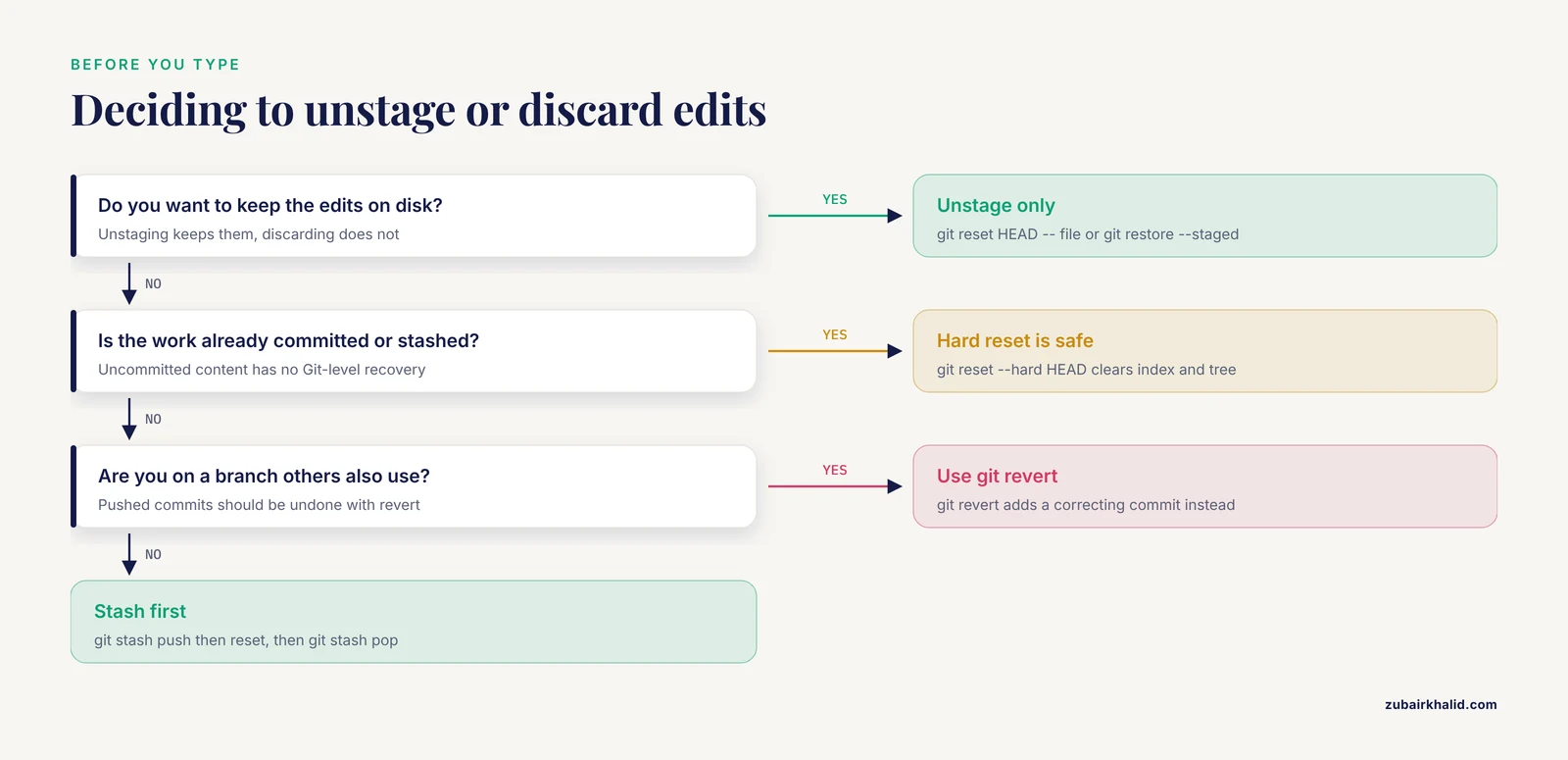
Most reset damage comes from a handful of repeatable errors. Each one below lists the symptom, the exact message where Git provides one, and the fix.
- Using hard when mixed was intended. Symptom:
git statusreports a clean tree and your edits are gone. Fix: there is no Git-level recovery for uncommitted edits, so check your editor's undo history or IDE local history, and prevent it by stashing before any hard reset.
- Forgetting that mixed is the default. Plain
git reset HEAD~3unstages three commits of work at once. Symptom: a long "Changes not staged for commit" list after what you meant as a small fix. Fix: nothing is lost, stage selectively withgit add -por recommit. The lesson is to name the flag explicitly.
- Combining soft or hard with paths. Symptom and exact message:
fatal: Cannot do soft reset with paths.The parallel message for hard mode is fatal: Cannot do hard reset with paths. Fix: path resets are always mixed. Use git reset HEAD, <file> or git restore, staged <file>.
- Naming a revision that does not exist. Symptom and exact message:
fatal: ambiguous argument 'HEAD~10': unknown revision or path not in the working treeFix: run git log, oneline, count the commits, and remember HEAD~1 is one parent back. Merge commits have two parents, and HEAD~ counts only first parents.
- Expecting reset to delete untracked files. It never does. Symptom: files still present after a hard reset. Fix: if removal is the goal, run
git clean -nto preview, thengit clean -fd. Read the preview carefully, because clean does not ask twice.
- Confusing unstage with discard.
git restore analysis.pydoes not unstage, it overwrites your on-disk edits with the staged version. Symptom: recent edits vanish with no reset involved at all. Fix: unstage withgit restore, staged analysis.pyorgit reset HEAD, analysis.py, and reserve plaingit restorefor edits you truly want gone.
- Resetting while in detached HEAD state, where HEAD points directly at a commit instead of a branch (this happens after checking out an old commit or a tag). A reset there moves no branch name, and commits made in that state become unreachable once you switch away. Fix: create a branch first with
git switch -c rescue, then reset.
- Resetting commits you already pushed, then force-pushing over a shared branch. Collaborators see the histories diverge, and their next push fails:
! [rejected] main -> main (non-fast-forward)Fix: on shared branches use git revert <sha> (for a merge commit, git revert -m 1 <sha>). Reserve reset plus force push for branches nobody else builds on, and prefer git push, force-with-lease.
- Trusting the reflog for everything. The reflog is local to your clone, never pushed, and expires (90 days for reachable commits, 30 days for unreachable ones, by default). It contains no uncommitted edits. Fix: stash or commit before risky operations, and push a feature branch to a remote as backup.
- Line-ending noise on Windows. With
core.autocrlfenabled, files can show as modified immediately after a reset even when the content is logically identical. Fix: this is display noise, not data loss, andgit diffwill show whole-file changes caused by line endings.
The limitations of reset itself come down to three facts. Reset rewrites local history only, so it cannot repair a remote you have already polluted, only revert can add a correcting commit there. Reset cannot recover uncommitted work. On a shared repository, team policy about which branches may be rewritten outranks any command in this guide, and when the safe choice is unclear, revert is the conservative default.
Next Steps
After a reset, decide where the work goes next rather than leaving the tree half-clean. Recommit with a better message (the soft and mixed flows from Steps 5 and 6), stash it for later, or move it to a branch with git switch -c experiment before deciding. If the reset was a response to a mess, the durable fixes are the two aliases from the tips section, a .gitignore that keeps data out of the index, and a pushed feature branch on GitHub as backup. For shared history, default to git revert and keep reset for local, unpushed work.
Frequently Asked Questions
Does git reset delete my staged changes?
With the default mixed mode, no. git reset removes entries from the staging area and leaves every edit in the working tree. Only hard mode discards content, and even then untracked files survive.
How do I unstage a single file?
Run git restore, staged analysis.py, or the equivalent git reset HEAD, analysis.py. The file's edits stay on disk and become unstaged changes.
How do I unstage everything at once?
Run git reset with no arguments. It clears the entire staging area back to HEAD and touches nothing on disk.
What is the difference between soft and mixed reset?
Soft moves only the branch pointer, so the removed commit's content stays staged. Mixed also rewrites the staging area, so the content becomes unstaged while remaining on disk.
How do I undo my last commit but keep the work?
Run git reset, soft HEAD~1 to keep the work staged, or git reset HEAD~1 to keep it unstaged. Both leave every edit in the working tree.
Can I recover work after git reset, hard?
Committed work, yes. Find it with git reflog and restore it with git reset, hard <sha>. Uncommitted work is generally unrecoverable, because it never entered Git's object database.
Is git reset safe on a branch I already pushed?
Not on a shared branch. Reset rewrites history, so collaborators' pushes fail and their work can be overwritten. Use git revert on pushed commits and save reset for local, unpushed history.
What is the difference between git reset and git restore?
git reset can move the branch pointer and has soft, mixed, and hard modes. git restore only copies between the index and the working tree, cannot move branches, and is the narrower tool for unstaging a file.