How to Set Up a Git Repository for Your Lab Notebook
By Dr. Zubair Khalid, DVM, MS, PhD ·
By the end of this guide you will have a working git repository lab notebook setup: a plain-text notebook under version control, a private offsite copy on GitHub, a repeatable daily commit routine, and clear rules for the files that must never enter the repository. You will be able to answer, for any past date, what you did, why you did it, and exactly which protocol version you followed, and you will be able to prove it with a timestamped history.
You need four things on hand:
- A computer with Git installed. The first section below covers installation on macOS, Windows, and Linux.
- A terminal. On macOS and Linux this is Terminal or any shell. On Windows, use Git Bash, which ships with Git for Windows.
- A plain-text editor. VS Code, Sublime Text, nano, or vim all work. Do not plan to write entries in Microsoft Word.
- A free account on GitHub, or access to an institutional GitLab or Gitea server if your lab runs one.
First-time setup takes about 30 minutes. The daily routine that follows takes under two minutes.
Why Git Works as a Lab Notebook
Git is a distributed version control system, meaning every copy of a project contains the complete history rather than only the current files. Linus Torvalds created Git in 2005 to manage Linux kernel development, and it became the standard way programmers track changes. Scientists adopted it for analysis code, and the same properties that make it good for code make it good for a notebook.
Three properties matter most:
- Every commit is a snapshot with a timestamp, an author, and a message. A commit is a recorded state of the files in the repository. Git identifies each commit by a cryptographic hash, a 40-character string derived from the file contents (SHA-1 by default), so history cannot silently change. If a reviewer asks what you knew on March 14, you can show them exactly that state.
- The history travels with every copy. Your laptop, your lab desktop, and the server each hold the full history. You can work offline in a cold room or on a flight and sync later.
- Diffs are readable. A diff is the line-by-line difference between two versions. Plain text produces diffs a human can actually read, which is why this guide insists on Markdown over Word documents.
This approach also matches how funders now expect records to be kept. The NIH Data Management and Sharing Policy, in effect since January 2023, asks researchers to plan for data provenance and metadata from the start of a project. The FAIR principles (findable, accessible, interoperable, reusable), promoted by the GO FAIR initiative, push in the same direction. A version-controlled notebook with dated entries and a linked remote satisfies those expectations without new software. Git for scientists is now standard training material: Software Carpentry has taught version control with Git to researchers for more than a decade, and the Git project maintains free documentation, including the Pro Git book, at git-scm.com.
Install Git and Set Your Identity
Install Git
macOS. Install the Xcode Command Line Tools, which include Git, or use Homebrew:
xcode-select --install
# or, if you use Homebrew
brew install git
Windows. Install Git for Windows from git-scm.com, or use the winget package manager:
winget install --id Git.Git -e --source wingetUbuntu or Debian Linux:
sudo apt update && sudo apt install gitFedora Linux:
sudo dnf install gitVerify the installation:
git --versionExpected output (your version will differ):
git version 2.47.1Any Git from version 2.28 onward supports every setting used in this guide. Older versions work but default to a branch named master instead of main.
Set your identity and defaults
Git stamps every commit with a name and email. Configure these once, globally. The global option writes to your user-level configuration file at ~/.gitconfig, so the settings apply to every repository you create:
git config --global user.name "Ada Lovelace"
git config --global user.email "[email protected]"
git config --global init.defaultBranch main
git config --global core.editor "code --wait"
What each parameter does:
- user.name and user.email. Attached to every commit you make. If the email matches a verified email on your GitHub account, GitHub attributes the commits to your profile, which matters for credit in shared repositories. Use your institutional email for work records.
- init.defaultBranch main. Names the first branch main instead of the older default master. Git adopted this recommendation in version 2.28, and GitHub uses main.
- core.editor. The editor Git opens for commit messages when you do not supply one inline. The example uses VS Code with a wait flag so Git pauses until you close the tab. Use "nano" if you want something simpler.
Two more settings prevent the most common annoyances:
# Windows: convert line endings on checkout, back to LF on commit
git config --global core.autocrlf true

# macOS and Linux: never convert on checkout, strip CRLF on commit
git config --global core.autocrlf input
Line endings are invisible characters that mark the end of a line. Windows historically uses CRLF (two characters) and macOS and Linux use LF (one). Mixed settings across machines produce noisy diffs full of phantom changes. Setting autocrlf once per machine fixes it.
Finally, set a credential helper so you do not retype a password on every push:
# macOS (built in)
git config --global credential.helper osxkeychain

# Windows (bundled with Git for Windows, usually already active)
git config --global credential.helper manager

# Linux (caches credentials in memory for 1 hour)
git config --global credential.helper "cache --timeout=3600"
Check your work:
git config --global --listExpected output:
user.name=Ada Lovelace
[email protected]
init.defaultBranch=main
core.editor=code --wait
core.autocrlf=input
credential.helper=osxkeychain
Plan the Notebook Structure
Decide three things before running any more commands.
One repository per project. A repository is the unit of history, sharing, and backup in Git. Give each project its own repository so its history stays clean and you can share or archive one project without dragging the rest of the lab along. A single shared lab repository works only if everyone follows identical conventions, and it makes access control coarse.
Plain text over binary. Write entries in Markdown, a plain-text format where hash marks create headings, asterisks create lists, and backticks mark code. Markdown files are small, readable in any editor, render nicely on GitHub, and produce readable diffs. Word documents, Excel workbooks, and proprietary electronic lab notebook exports are binary or near-binary. Git can store them, but it cannot show you what changed between two versions in any useful way.
A layout that works well for a wet-lab-plus-analysis project:
- README.md at the top level, describing the project, the owner, and the notebook policy.
- notebook/, holding one dated Markdown file per entry, named like 2026-11-11-day-001.md so entries sort chronologically.
- protocols/, holding versioned protocol writeups.
- analysis/, holding small text outputs such as QC summaries and result tables.
- .gitignore, covered in the walkthrough.
Decide what never enters. Git handles thousands of small text files well. It handles 50 GB of FASTQ files badly. Keep raw data on institutional storage, and record inside each entry the sample identifiers, file paths, and checksums. A checksum is a short fingerprint of a file's contents, generated by tools such as sha256sum, that lets anyone later verify the file is unchanged. Never commit credentials, API keys, patient identifiers, or data your IRB agreement restricts. If your work involves human subjects data, assume commercial cloud services are off limits until your institution says otherwise, and use an institutional Git server instead.
Git Repository Lab Notebook Setup, Step by Step
This is the core walkthrough. Run the commands from your terminal.
Step 1: Create the project folder and initialize the repository
mkdir -p ~/lab-notebooks/rna-seq-pilot
cd ~/lab-notebooks/rna-seq-pilot
git init
Expected output:
Initialized empty Git repository in /Users/alovelace/lab-notebooks/rna-seq-pilot/.git/git init creates a hidden .git directory. That directory is the repository: it stores the entire history and configuration. The files you see and edit around it are the working tree, the current checked-out version of the project. If you ever see this error, you are outside a repository:
fatal: not a git repository (or any of the parent directories): .gitFix: change into the project directory, or run git init if you meant to create one here.
Step 2: Write the .gitignore before your first commit
A .gitignore file lists patterns Git should never track. Create it now, before any files are added:
nano .gitignoreContent for a typical notebook:
# Raw data never enters the notebook repository
data/
*.fastq.gz
*.fastq
*.bam
*.bai
*.vcf.gz

# Analysis scratch and system files
.Rhistory
.Rproj.user/
.ipynb_checkpoints/
__pycache__/
.DS_Store
*.log

# Never track credentials
secrets.env
*.key
Lines starting with a hash mark are comments. A trailing slash (data/) matches a directory. A wildcard matches by suffix. Git applies .gitignore to untracked files only, which is why adding it before the first commit matters. If you add it late, files that were already committed stay tracked, and you need git rm with the cached flag to untrack them (covered in the mistakes section).
Step 3: Create the README and your first entry
nano README.mdKeep the README short and factual:
# RNA-seq pilot notebook

Owner: Ada Lovelace ([email protected])
Started: 2026-11-11
Policy: one Markdown entry per working day in notebook/, named YYYY-MM-DD-day-NNN.md.
Raw data lives on the lab server at /lab/data/rna-seq-pilot/ and is never committed.
Protocol changes get their own commit with the protocol version in the message.
Then the first entry:
nano notebook/2026-11-11-day-001.mdA template that holds up over years:
---
date: 2026-11-11
operator: A. Lovelace
project: rna-seq-pilot
objective: Establish baseline RNA quality for the pilot samples
---

## What I did
- Received 6 pilot samples (IDs P01 to P06) from the Anderson lab.
- Extracted RNA with Trizol per protocols/trizol-rna-extraction-v2.md.

## Observations
- Sample P03 looked viscous, possible incomplete homogenization.
- [Nanodrop 260/280](/knowledge/molecular-biology/nanodrop-260-280) ratios ranged from 1.98 to 2.11 across all 6 samples.

## Data locations
- Raw files: /lab/data/rna-seq-pilot/2026-11-11/
- sha256 checksums recorded in analysis/checksums-2026-11-11.txt

## Next steps
- Bioanalyzer run tomorrow, request RIN values ([RNA integrity number](/knowledge/diagnostics/molecular/rna-integrity-assessment-rin-values-gel-electrophoresis),
  a 1 to 10 quality score) for all 6 samples.
Step 4: Stage and commit
Check what Git sees:
git statusExpected output:
On branch main

No commits yet

Untracked files:
  (use "git add <file>..." to include in what will be committed)
	.gitignore
	README.md
	notebook/

nothing added to commit but untracked files are present (use "git add" to track)
Untracked means present in the working tree but not yet recorded in history. The staging area (also called the index) is the draft of your next commit. You choose what goes into it with git add, then record it with git commit:
git add .gitignore README.md notebook
git commit -m "Initialize notebook: README, ignore rules, day 001 entry"
Expected output:
[main (root-commit) 3f2a91c] Initialize notebook: README, ignore rules, day 001 entry
 3 files changed, 38 insertions(+)
 create mode 100644 .gitignore
 create mode 100644 README.md
 create mode 100644 notebook/2026-11-11-day-001.md
Parameters that matter here:
- git add with a directory name stages everything under it that is not ignored. git add with a dot stages the current directory. The all-files option (-A) stages every change across the repository, including deletions.
- The -m option takes the message inline. Without it, Git opens the editor you configured in core.editor.
- The parenthetical (root-commit) marks the first commit in a repository. The 7-character string 3f2a91c is the shortened commit hash, the identifier you will use to refer to this snapshot.
Step 5: Read your history
git log --onelineExpected output:
3f2a91c (HEAD -> main) Initialize notebook: README, ignore rules, day 001 entryHEAD is a pointer to the commit you currently have checked out, and main is your branch, the line of history you are working on. A useful alias for a richer view:
git config --global alias.lg "log --oneline --graph --decorate --all"
git lg
After a few weeks this renders a labeled map of your branches and merges. To see exactly what changed in a commit:
git show --stat HEADStep 6: Connect GitHub and push
Now create the offsite copy. On GitHub, sign in, choose New repository, name it (for example rna-seq-pilot-notebook), set it to Private, and leave every initialization checkbox unchecked. If GitHub creates a README on the server, your local and remote histories start from different points, and the first pull fails with "fatal: refusing to merge unrelated histories."
Then connect and push:
git remote add origin [email protected]:alovelace/rna-seq-pilot-notebook.git
git remote -v
git push -u origin main
Expected output from git remote -v:
origin  [email protected]:alovelace/rna-seq-pilot-notebook.git (fetch)
origin  [email protected]:alovelace/rna-seq-pilot-notebook.git (push)
Expected output from the push:
Enumerating objects: 6, done.
Counting objects: 100% (6/6), done.
Writing objects: 100% (6/6), 1.42 KiB | 1.42 MiB/s, done.
Total 6 (delta 0), reused 0 (delta 0), pack-reused 0
To github.com:alovelace/rna-seq-pilot-notebook.git
 * [new branch]      main -> main
branch 'main' set up to track 'origin/main'.
Parameters that matter:
- A remote is a named copy of the repository elsewhere. By convention the primary one is called origin.
- The git@ form of the URL uses SSH. The https:// form uses HTTPS with a token instead.
- The -u option (short for set-upstream) records that local main tracks origin/main, so future pushes and pulls need no extra arguments.
Authentication is a one-time task. GitHub no longer accepts account passwords for Git operations, having removed password authentication in August 2021. Choose one of two methods:
- SSH keys, recommended for a machine you own. Generate a key, print the public half, and paste it into GitHub under Settings, then SSH and GPG keys:
ssh-keygen -t ed25519 -C "[email protected]"
cat ~/.ssh/id_ed25519.pub
ssh -T [email protected]
Expected output from the last command:
Hi alovelace! You've successfully authenticated, but GitHub does not provide shell access.- HTTPS with a personal access token, a long random string that acts as a password scoped to specific permissions. Create one under GitHub Settings, Developer settings, Personal access tokens. Git Credential Manager on Windows and macOS saves it after the first push, so you type it once.
Step 7: The daily loop
From tomorrow onward, the entire day's recordkeeping is this:
git pull
nano notebook/2026-11-12-day-002.md
git add notebook/2026-11-12-day-002.md
git commit -m "Day 002: Bioanalyzer QC, RIN 8.9 to 10.2, P03 flagged for re-extraction"
git push
git pull fetches new commits from origin and merges them into your local branch. Start every session with it, especially if you work from more than one machine. Commit at the end of every working day at minimum. Commits are cheap, and a day you do not record is a day you cannot reconstruct.
One convenience and one trap: git commit with the -a option stages modified files that Git already tracks and commits them in one step, but it never picks up brand-new files. Forgetting that distinction is the classic reason an entry silently fails to appear in the repository.
Step 8: Branch for experiments that might fail
A branch is a parallel line of history. Use one when you want to try something without cluttering the main record:
git switch -c try-new-library-kit
# ... work, add, commit on the branch ...
git switch main
git merge try-new-library-kit
git branch -d try-new-library-kit
git switch with -c creates and enters a new branch (available since Git 2.23). git merge replays the branch commits into main. If the experiment failed, skip the merge and delete the branch. Note that -d refuses to delete a branch with unmerged commits, which is a safety feature, and -D forces deletion. Failed experiments are exactly what a notebook exists to remember, so merging a failed attempt into main with a clear message is usually the better choice.
Step 9: Tag milestones
A tag is a named marker on a single commit, useful for milestones like a grant submission or a sample shipment:
git tag -a v1.0-progress-report -m "Data as submitted with the R01 progress report, 2027-02-01"
git push origin v1.0-progress-report
git tag -n
The -a option creates an annotated tag, which stores a message, author, and date, rather than a lightweight pointer. git tag with -n lists tags with their messages.
Step 10: Clone on a second machine or for a collaborator
On any other computer:
git clone [email protected]:alovelace/rna-seq-pilot-notebook.git
cd rna-seq-pilot-notebook
A clone is a full copy of the repository including all history, not just the current files. Pull before you start work, push when you stop. If two machines ever diverge because you forgot to pull, the push is rejected, and the fix appears in the mistakes section below.
Large Files, Figures, and Git LFS
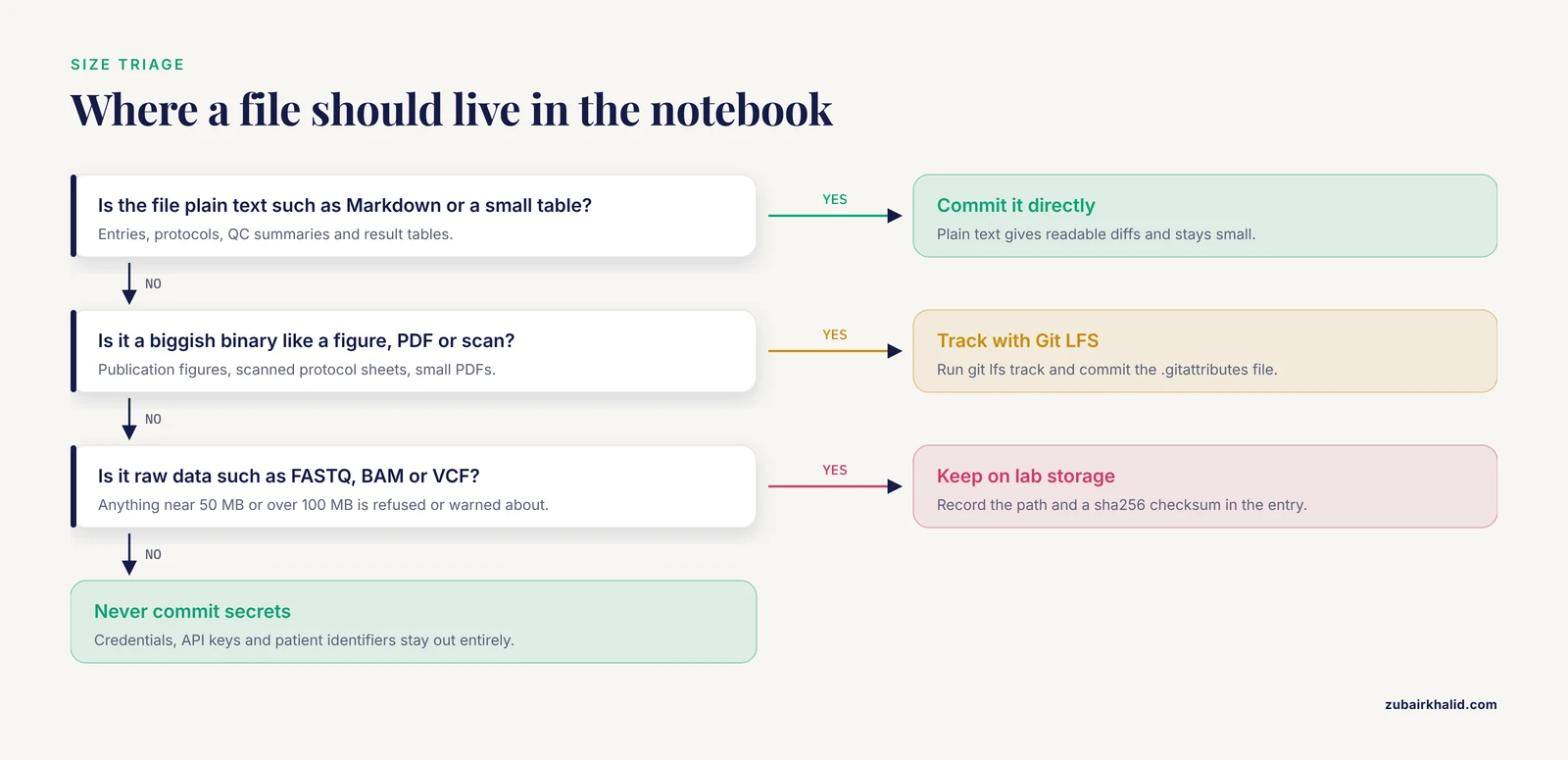
GitHub warns when a single file exceeds 50 MB and refuses anything over 100 MB outright, per GitHub's documented limits. Histories also bloat permanently: once a large file is committed, every future clone downloads it forever, even if you delete it later.
For genuinely useful binary files that are merely biggish (publication figures, scanned protocol sheets, small PDFs), use Git LFS (Large File Support), an open-source Git extension that stores file contents on separate storage and leaves lightweight pointer files in the repository:
git lfs install
git lfs track "*.pdf" "*.png" "*.tif"
git add .gitattributes
git commit -m "Track figures and PDFs with Git LFS"
git lfs track writes patterns into a .gitattributes file, so anyone who clones the repository gets the same rules. GitHub's free tier includes a small LFS storage and monthly bandwidth allowance, so check the current limits before tracking hundreds of megabytes.
For anything larger, keep the file on institutional storage and record a pointer in the entry, with a checksum:
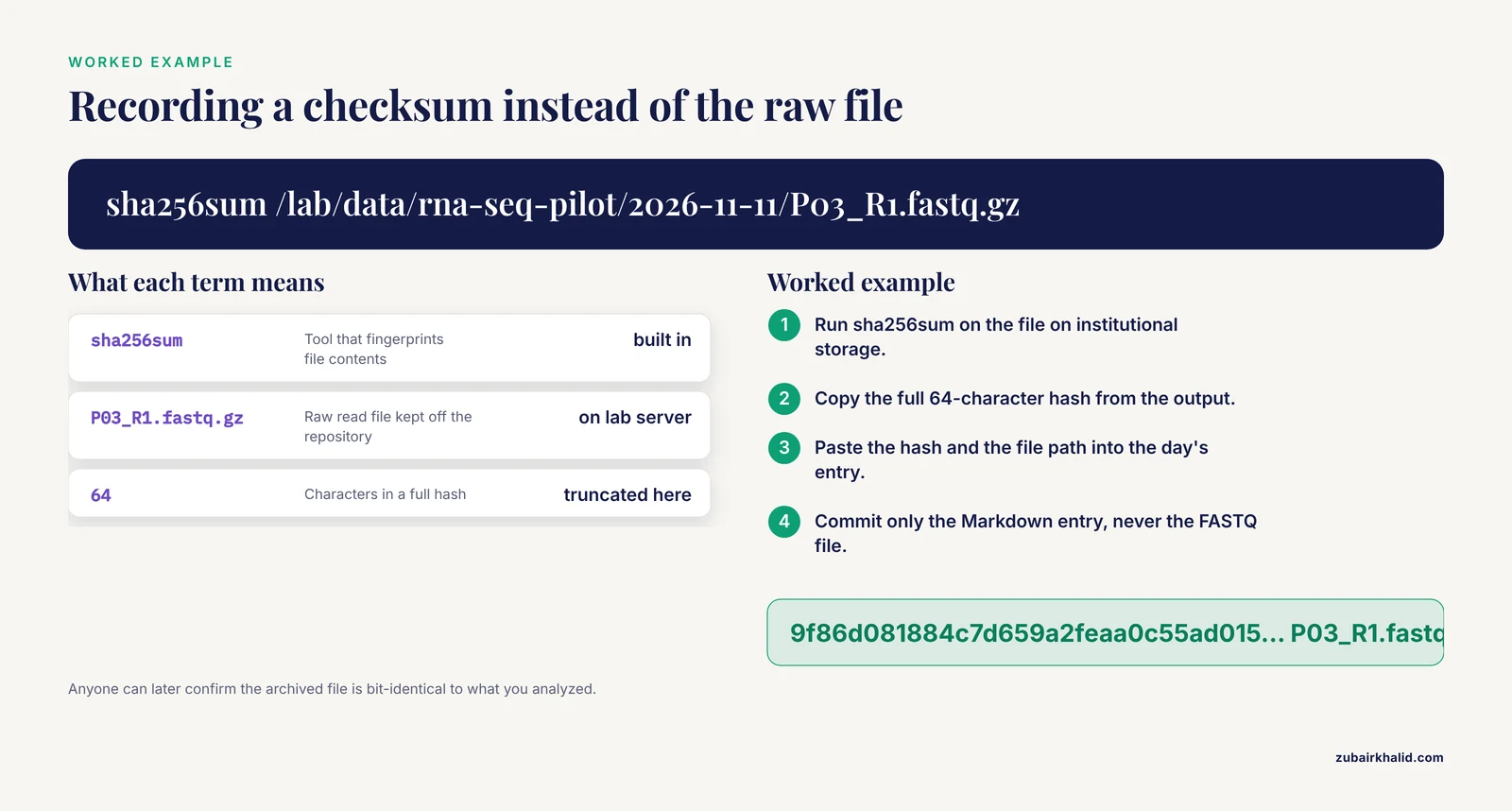
sha256sum /lab/data/rna-seq-pilot/2026-11-11/P03_R1.fastq.gzExpected output (real hashes are 64 characters, truncated here for display):
9f86d081884c7d659a2feaa0c55ad015... P03_R1.fastq.gzPaste the full checksum into the day's entry. Anyone can later confirm the archived file is bit-identical to what you analyzed. If your lab versions datasets heavily, look at DVC (Data Version Control), an open-source tool that pairs Git-tracked metadata with data stored on external systems.
Finding Things Again: Search and Audit
A notebook compounds in value only if you can search it. Git gives you several layers:
# Search the content of all tracked files
git grep -n "RIN"

# Search your commit messages
git log --grep="P03" --oneline

# Show everything from a date range
git log --since="2026-11-01" --until="2026-11-30" --oneline

# Which commit last touched each line of an entry
git blame notebook/2026-11-11-day-001.md

# Full change history of one file, following renames
git log -p --follow -- notebook/2026-11-11-day-001.md
git grep searches tracked files only, which keeps ignored data dumps out of your search space. git blame annotates each line with the commit that last modified it. On GitHub, the web interface adds full-text search across the repository and a compare view that shows any two dates side by side, the fastest way to answer what you believed about a sample in March versus June.
Worked example: in April, a collaborator asks whether the low yield in sample P03 was known before submission. Three commands answer it:
git log --grep="P03" --oneline
git grep -n "P03" notebook/
git show 7c1e4b2
The log line finds the commit where P03 was flagged, the grep shows every entry mentioning it, and git show prints the full diff of the commit you pick. Total time, under a minute.
Backup, Sharing, and Access Policy
A pushed repository is an offsite backup, but a backup policy is more than one push.
- Private by default. Unpublished results in a public repository are discoverable, and sometimes citable by accident. Keep notebook repositories private until the associated paper is out. GitHub offers unlimited private repositories with unlimited collaborators on its free plan, which is why GitHub for researchers usually starts here.
- Two-factor authentication on. GitHub requires two-factor authentication for code contributors, and you should enable it regardless. It protects exactly the thing an attacker wants, the ability to alter your scientific record.
- Access is explicit. Add collaborators under Settings, Collaborators. GitHub repository roles run from read (view and clone) through triage and write (push commits) to maintain and admin. A notebook collaborator needs write, nothing more.
- Protected branches for shared notebooks. If the whole lab shares a repository, protect main so changes land through pull requests (proposed changes that others review before merging) rather than direct pushes. For a solo notebook this is optional overhead.
- Cold backup. Deletion on the remote, malicious or accidental, is possible. Once a month, make a single-file snapshot of the entire repository:
git bundle create notebook-backup-2026-11.bundle --allA bundle is a complete archive of the repository that can later be cloned directly. Copy it to institutional storage.
- Restricted data stays on institutional servers. Patient data, export-controlled material, and IRB-restricted records belong on a Git server your institution controls. GitLab and Gitea both run on a single lab server. This is a policy decision to make with your PI and compliance office, not alone at your desk.
- DOI when you publish. When the paper comes out, Zenodo can archive a GitHub release (a packaged snapshot of a tagged commit) and mint a citable DOI, giving readers a frozen, verifiable record of the notebook state behind your results.
Git Repository Lab Notebook Setup Tips
These habits separate notebooks that get used from notebooks that get abandoned.
- Commit at the end of every working day, no matter what. A boring entry that says the gels all failed and you suspect bad agarose is exactly what future you needs. Set a calendar reminder for the first month until it sticks.
- Write commit messages for searching, not for style. Include sample IDs, protocol versions, and outcomes. "Day 014: P03 re-extraction, Trizol v2, yield 1.8 ug/ul" beats "update" every time. A subject line of roughly 50 characters or fewer, followed by a blank line and details, is the convention the Git project itself recommends.
- Use a commit message template. Save a file with prompts (what, why, data touched) and point Git at it:
git config --global commit.template ~/.gitmessage.txt- Keep an entry template. Store a blank entry with your front-matter fields in the repository and copy it each morning. Consistent fields make git grep searches reliable years later.
- Add a .gitattributes in shared repositories. A single line, * text=auto, tells Git to normalize line endings on commit, which ends cross-platform churn.
- Learn one graphical client alongside the terminal. VS Code's Source Control panel or GitHub Desktop make the daily add-commit-push loop visual, and they run the same Git underneath. The commands above are the ground truth, the graphical user interface is a convenience layer.
- Rehearse recovery once. Delete a file, restore it with git restore and the file path, and confirm you understand the mechanism before you need it in an emergency.
Once the daily loop feels automatic, sensible next steps are a shared protocols repository for the lab, a GitHub Action that renders your Markdown entries to a readable site, and a quarterly review of collaborator access.
Command Reference
| Command | What it does | When you use it |
|---|---|---|
| git init | Creates a repository in the current folder | Once, at notebook setup |
| git status | Shows staged, unstaged, and untracked files | Before every commit |
| git add <path> | Stages changes for the next commit | Before each commit |
| git commit -m "msg" | Records staged changes with a message | End of each work unit or day |
| git log, oneline | Compact history with short hashes | Reviewing what happened when |
| git diff | Shows unstaged changes line by line | Before staging, to check edits |
| git show <hash> | Prints one commit's full diff | Auditing a specific change |
| git remote add origin <url> | Registers the offsite copy | Once, when connecting GitHub |
| git push -u origin main | Uploads commits and sets tracking | After committing |
| git pull | Downloads and merges remote commits | Start of every session |
| git clone <url> | Copies a repository with full history | New machine or collaborator |
| git switch -c <name> | Creates and enters a new branch | Starting a side experiment |
| git merge <name> | Replays a branch into the current one | Finishing a side experiment |
| git tag -a <name> -m "msg" | Marks a commit as a milestone | Submissions, shipments, releases |
| git blame <file> | Shows which commit last changed each line | Tracing when a fact entered the record |
| git grep "term" | Searches tracked files | Finding entries and results |
Common Mistakes and Limitations
Each mistake below includes the error you will see and the fix.
- Committing a huge file. The push fails with a message like:
remote: error: GH001: Large files detected. You may not push files over 100.00 MBIf the commit is the most recent one and unpushed, untrack the file, ignore it, and commit:
git rm --cached bigfile.fastq.gz
echo "bigfile.fastq.gz" >> .gitignore
git commit -m "Remove large file from tracking"
If the file is buried deeper or already pushed, rewrite history with git filter-repo (the tool GitHub's own documentation recommends for this) or the BFG Repo-Cleaner, then force-push. Coordinate with any collaborator first, because rewriting history invalidates everyone else's clones.
- Committing a credential. GitHub's push protection scans for known token formats and blocks the push with a GH013 rule violation naming the secret type. Treat any committed credential as compromised even if you delete it in a later commit, because it remains in earlier history. Revoke or rotate the token first, then remove it from history with git filter-repo.
- Vague commit messages. "update", "fix", and "changes" are useless six months later. The fix is a habit, not a command: sample IDs, protocol versions, and outcomes in every message.
- Forgetting to pull before working on a second machine. The push is rejected:
To github.com:alovelace/rna-seq-pilot-notebook.git
 ! [rejected]        main -> main (fetch first)
error: failed to push some refs to 'github.com:alovelace/rna-seq-pilot-notebook.git'
Fix: run git pull, resolve any conflict, commit, push again. Making fast-forward-only pulls your default habit keeps surprises rare.
- Merge conflicts in an entry. When two machines edit the same lines, git pull stops and inserts markers into the file:
<<<<<<< HEAD
- Nanodrop 260/280 ranged from 1.98 to 2.11.
=======
- Nanodrop 260/280 ranged from 1.97 to 2.15.
>>>>>>> origin/main
Fix by hand: open the file, keep the correct line (or both, if both facts are true and you label them), delete the marker lines, then git add the file and git commit to conclude the merge. If you panic mid-merge, git merge with the abort option returns everything to the pre-merge state.
- Adding .gitignore too late. Ignored patterns apply only to untracked files. If data/ got committed on day one, untrack it without deleting it:
git rm -r --cached data/
git commit -m "Stop tracking raw data directory"- Line-ending churn across machines. The warning "LF will be replaced by CRLF the next time Git touches it" means autocrlf settings differ between machines. Set core.autocrlf as shown in the installation section on every machine, and add a .gitattributes with * text=auto to the repository.
- Treating the repository as raw data storage. Git is built for text. Tens of gigabytes of reads make every clone and every GitHub operation slow, and LFS quotas make bulk data expensive. The pattern that works: raw data on institutional storage, checksums and paths in the notebook.
- Assuming Git equals a compliant electronic record by itself. Git provides a tamper-evident, timestamped history, which is a large part of what regulated recordkeeping wants. It is not, by itself, a validated electronic lab notebook. Work under GLP, CLIA, or FDA 21 CFR Part 11 style requirements (electronic records and electronic signatures) needs access controls, signature events, and system validation that your institution must approve. Clinical and diagnostic laboratories follow additional recordkeeping standards set by bodies such as CLSI. Confirm the arrangement with your PI and quality office before relying on it for regulated studies.
- A notebook nobody else can read. The most common failure is not technical. Entries written in shorthand for present-day you ("the usual prep, as always") are worthless in two years. Write each entry so a competent stranger could repeat the day.
- Repository ownership errors in WSL or containers. Git refuses to operate when the repository folder is owned by a different user account:
fatal: detected dubious ownership in repository at '/home/alovelace/rna-seq-pilot'Fix, if you trust the location:
git config --global --add safe.directory /home/alovelace/rna-seq-pilotLimitations, stated plainly. Git has a learning curve measured in weeks of regular use, and the first month of merge conflicts is genuinely annoying. Graphical clients soften this. A Git notebook records only what you type into it, so it captures intent and observations, not the ambient detail a camera-based system might. And a solo setup reflects solo judgment: before rolling this out lab-wide, have the PI and, where relevant, the institutional compliance office approve the access and data policy.
Frequently Asked Questions
Do I need GitHub to use Git for my lab notebook?
No. Git works entirely on your computer, and a repository with no remote still keeps full local history. A remote adds offsite backup, multi-machine sync, and sharing, which is why most researchers add GitHub, GitLab, or an institutional server.
Should my lab notebook repository be public or private?
Private, until the associated work is published. Public repositories are instantly discoverable, and unpublished results, strain names, and pending grant ideas can be scooped or misused. When you publish, you can make the repository public and archive a tagged release on Zenodo for a citable DOI.
Can I store raw sequencing data in the repository?
No. Keep raw reads, BAM files, and other large data on institutional storage, and record paths and sha256 checksums in your entries. Bulk files bloat every future clone, and Git LFS quotas make large-scale data storage expensive. LFS is for modest binary files like figures, not datasets.
How often should I commit notebook entries?
At least once at the end of every working day, and additionally whenever you complete a meaningful unit such as finishing an extraction or revising a protocol. Small, frequent commits give you finer-grained history and make conflicts rarer.
How is a Git notebook different from Benchling or LabArchives?
Git is a version control tool applied to plain-text files you own, with no vendor lock-in and no per-seat fees. Commercial electronic lab notebooks provide structured templates, inventory integration, and e-signature features out of the box. Many labs use both: the ELN for regulated or templated workflows, Git for analysis code, protocols, and free-form research records.
How do I fix a bad commit?
If it is your most recent commit and you have not pushed, amend it (git commit with the amend flag) to change the message or contents. If you already pushed, revert it (git revert with the commit hash), which creates a new commit that undoes the old one without rewriting shared history. Avoid reset on anything others may have cloned.
What happens if a collaborator and I edit the same entry?
Git merges edits to different parts of a file automatically. If you both changed the same lines, the pull stops with conflict markers inserted in the file, and you resolve it by keeping the correct lines, saving, and committing. Frequent small commits make these rare.
Do I have to use the command line?
No. GitHub Desktop and the VS Code Source Control panel handle the daily add, commit, push loop with buttons, and they run the same Git underneath. Learn the terminal eventually, because it is scriptable and works over SSH on a lab server, but a graphical client is a perfectly good way to start.