How to Use Git Reflog to Recover Lost Commits
By Dr. Zubair Khalid, DVM, MS, PhD ·
By the end of this guide you will be able to recover commits that disappeared after a hard reset, a botched rebase, an amend, a deleted branch, or a dropped stash. You will also know how the reflog stores history, how long entries survive, how to verify a recovery, and which mistakes destroy recoverable data permanently.
You need a terminal, Git version 2.x or later installed (run git, version to check), and a repository you can experiment in. Every example below uses a repository named rnaseq-pipeline with a main branch. All commands work identically on Linux, macOS, and Windows PowerShell, with one quoting note covered later.
For anyone doing git for scientists work, this skill matters more than in most fields. A dropped commit can represent a week of pipeline tuning, a curated variant list, or the exact code state that produced a figure in a manuscript. Git keeps almost everything you commit, even after commands that appear to delete it. The reflog is the index that lets you find it.
What the Reflog Is and Why Commits Get Lost
A commit in Git is a snapshot with a unique identifier called a SHA, a 40-character hexadecimal string such as a1b2c3d.... Branches are simply movable pointers to a commit. When you run a command that moves a branch pointer backward or rewrites history, Git does not delete the old commits. They stay in your local object database. What changes is which commits are "reachable" from a branch name.
The reflog (short for reference log) is a local, append-only record of every time HEAD or a branch reference moved in your repository. HEAD is the pointer to the commit you currently have checked out. Every checkout, commit, reset, rebase, merge, and pull appends a line to this log. The official Git documentation describes the reflog as a record of where the tips of your references have been, and that description is exactly what you exploit during recovery. Pro Git, the canonical open-source book on Git, calls the reflog one of the best-kept secrets in Git because it lets you unwind almost any local mistake.
The reflog lives in plain-text files inside the hidden .git directory:
.git/logs/HEADrecords every movement of HEAD.git/logs/refs/heads/mainrecords every movement of themainbranch tip- equivalent files exist for every other branch
You never edit these files by hand. You query them with git reflog.
Two properties of the reflog shape everything else in this article:
- It is local. The reflog is never pushed, pulled, or cloned. Each clone has its own. A commit you lost on your machine has no reflog entry on a collaborator's machine, and vice versa. GitHub for researchers workflows that rely on shared repositories still benefit, because the reflog on your own machine covers your own mistakes, which are the most common kind.
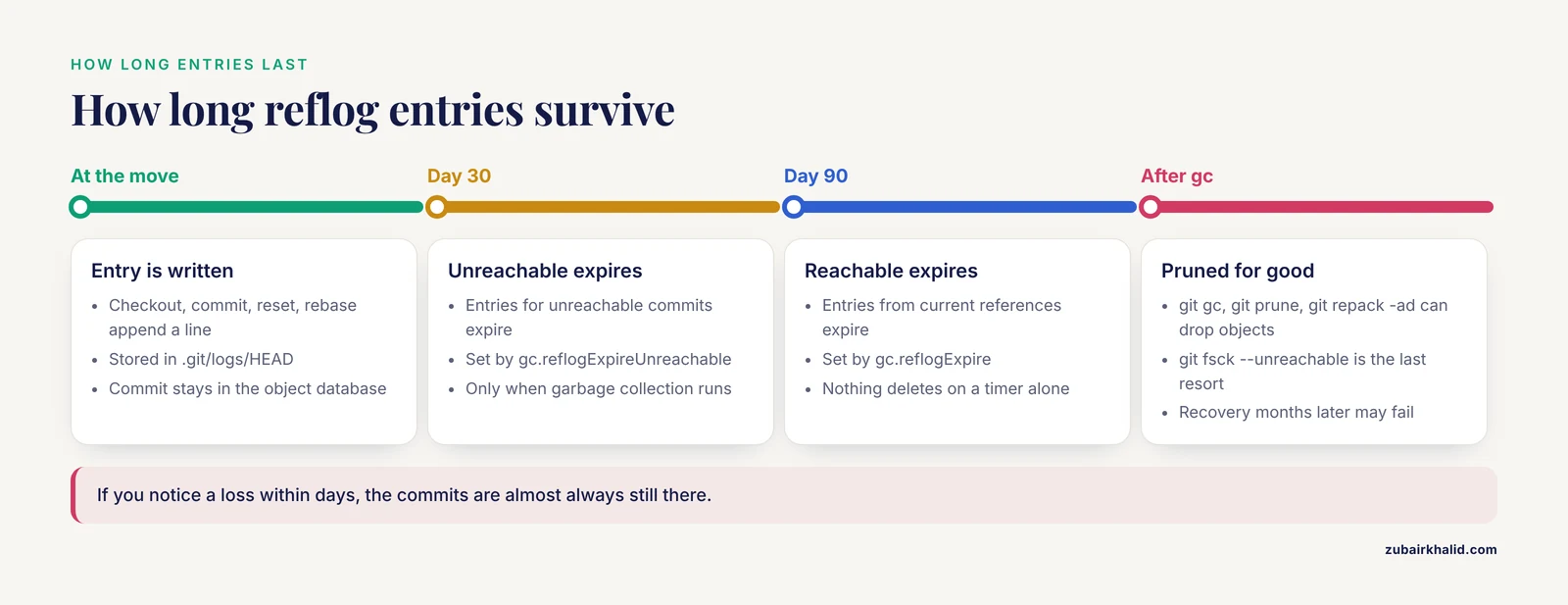
- It expires. Entries are cleaned up by garbage collection. By default, entries reachable from a current reference are kept for 90 days and entries pointing at unreachable commits are kept for 30 days. These defaults come from the
gc.reflogExpireandgc.reflogExpireUnreachableconfiguration settings. Until garbage collection runs, the commits themselves remain in the object database.
This is why recovery is a race against time only in a weak sense. In practice, if you notice a loss within days, the commits are almost always still there.
Reading the Reflog
Before recovering anything, learn the addressing syntax. The general forms are:
HEAD@{n}        the value HEAD had n moves ago
HEAD@{<time>}   the value HEAD had at that time, e.g. HEAD@{2.hours.ago}
main@{n}        the value the branch main had n moves ago
@{n}            shorthand for the current branch's reflog
HEAD@{0} is where you are now. HEAD@{1} is where you were one move before. Note the distinction from HEAD~1, which means the parent commit of your current commit. HEAD@{1} and HEAD~1 usually differ, and confusing them is a classic source of further damage.
Run the basic command:
git reflogExpected output in a working repository:
a1b2c3d (HEAD -> main) HEAD@{0}: reset: moving to HEAD~
4f5e6d7 HEAD@{1}: commit: add fastq quality filter step
8c9d0e1 HEAD@{2}: commit: trim adapters with cutadapt
b3c4d5e HEAD@{3}: commit (initial): scaffold Snakemake pipeline
Read each line right to left. HEAD@{1}: commit: add fastq quality filter step means that one move ago, HEAD pointed at a commit whose message was "add fastq quality filter step". The word after the colon tells you what action caused the move: commit, reset, checkout, rebase, merge, pull, clone, amend, or rebase (finish).
For timestamps, use:
git reflog --date=isoExpected output adds a date column:
a1b2c3d (HEAD -> main) HEAD@{0}: reset: moving to HEAD~ 2026-11-10 14:32:07 -0500
4f5e6d7 HEAD@{1}: commit: add fastq quality filter step 2026-11-10 14:30:51 -0500
The -date=iso flag prints full dates with time zones, which helps when you are trying to locate work from a specific afternoon.
An alternative view with more detail is:
git log -g --onelineThis walks the reflog as if it were history and shows commit messages alongside. Add -date=iso there too when timestamps matter.
Step-by-Step Recovery: Hard Reset
This is the most common recovery and the core of any git reflog recover lost commits research step by step procedure. The scenario: you had three commits of pipeline work, ran git reset, hard HEAD~2, and two commits vanished from git log.
Step 1. Stop and inspect
Do not run git gc, git prune, or any cleanup command. Run:
git reflogExpected output:
a1b2c3d (HEAD -> main) HEAD@{0}: reset: moving to HEAD~2
4f5e6d7 HEAD@{1}: commit: differential expression plots
8c9d0e1 HEAD@{2}: commit: DESeq2 contrast table
b3c4d5e HEAD@{3}: commit (initial): scaffold Snakemake pipeline
The entry right below the reset is the commit tip you lost. Here it is 4f5e6d7 at HEAD@{1}.
Step 2. Inspect the candidate commit before moving anything
Never recover blind. Confirm the commit contains what you expect:
git show --stat HEAD@{1}Expected output:
commit 4f5e6d7...
Author: You <[email protected]>
Date:   Mon Nov 10 14:30:51 2026 -0500

    differential expression plots

    results/plots/volcano.Rmd    | 120 ++++++
    results/plots/volcano.png    | Bin 0 -> 88412 bytes
    2 files changed, 120 insertions(+)
If HEAD@{1} is not the right commit, walk further down with HEAD@{2}, HEAD@{3}, or use git log -g, oneline to see the whole logged history at once.
Step 3. Recover onto a new branch (the safe option)
git checkout -b recovered-de-plots 4f5e6d7Expected output:
Switched to a new branch 'recovered-de-plots'This puts the lost commits on a new branch without touching main. You can review, diff, and merge at your leisure. This is the recommended default for anyone doing careful work, because it is non-destructive no matter how wrong your guess was.
Step 4. Or recover in place with reset
If you are certain and want main back exactly as it was:
git reset --hard HEAD@{1}Expected output:
HEAD is now at 4f5e6d7 differential expression plotsgit reset, hard <target> moves the current branch pointer to the target and makes your working tree and index match it. Because the target here is the commit tip from before the bad reset, this exactly undoes the reset.
Verify:
git log --oneline -3
git status
Expected output:
4f5e6d7 (HEAD -> main) differential expression plots
8c9d0e1 DESeq2 contrast table
b3c4d5e scaffold Snakemake pipeline

nothing to commit, working tree clean
Two of many practical git reflog recover lost commits research tips fit here. First, always recover to a new branch first and reset only after you have confirmed the content. Second, note the SHA explicitly, for example git branch backup-de 4f5e6d7, before experimenting further. SHAs never change, while HEAD@{n} positions shift every time you run another command that moves HEAD.
Step-by-Step Recovery: Deleted Branch
You deleted a feature branch with git branch -D drop-filter-step before merging it. Deleting a branch deletes its pointer, not its commits.
git reflogExpected output (abridged):
a1b2c3d (HEAD -> main) HEAD@{0}: checkout: moving from drop-filter-step to main
7e8f9a0 HEAD@{1}: commit: drop low-count features pre-filter
9a0b1c2 HEAD@{2}: commit: add read-count normalization
...
HEAD@{0} shows the checkout back to main, which is the move you made right before or after deleting the branch. The commit tip of the deleted branch is the last commit you had checked out on it, here 7e8f9a0 at HEAD@{1}.
Alternatively, and often faster, query the branch's own reflog directly:
git reflog show drop-filter-stepIf the branch was deleted recently this still works, because the log file .git/logs/refs/heads/drop-filter-step is removed on deletion, so in practice the HEAD reflog is the reliable route after a deletion. The per-branch form works while the branch exists.
Recover:
git branch drop-filter-step 7e8f9a0Expected output:
fatal: a branch named 'drop-filter-step' already existsYou would only see that error if the branch still existed. When the branch is truly gone, the command produces no output and simply recreates it. Verify:
git log --oneline -2 drop-filter-stepExpected output:
7e8f9a0 drop low-count features pre-filter
9a0b1c2 add read-count normalization
Step-by-Step Recovery: Botched Rebase or Merge
An interactive rebase that went wrong, a merge with conflicts resolved badly, or a git pull, rebase that mangled your commits all leave the pre-rebase state in the reflog. Git also records the pre-rebase tip in a special reference called ORIG_HEAD, which is set automatically before operations that rewrite history, including rebase, reset, and merge.
Quick route using ORIG_HEAD:
git reset --hard ORIG_HEADThis restores the exact state from before the rebase, assuming you have not run another history-rewriting operation since.
General route using the reflog, which works even after intervening commands:
git reflogExpected output:
c4d5e6f (HEAD -> main) HEAD@{0}: rebase (finish): returning to refs/heads/main
d5e6f7a HEAD@{1}: rebase (pick): add [bootstrapping](/blog/data-analysis/what-is-bootstrapping-resampling-examples) script
e6f7a8b HEAD@{2}: rebase (start): checkout main
f7a8b9c HEAD@{3}: commit: add bootstrapping script
...
rebase (start) marks where the rewrite began. HEAD@{3} here, the commit just before the start entry, is your original pre-rebase tip. Confirm it:
git log --oneline HEAD@{3} -3Then recover to a branch:
git checkout -b pre-rebase-backup HEAD@{3}The same approach covers a bad merge. Look for the merge entry in the reflog and take the position before it.
Step-by-Step Recovery: Amended Commit
git commit, amend replaces the previous commit with a new one. The original commit leaves git log but stays in the reflog.
git reflogExpected output:
8d9e0f1 (HEAD -> main) HEAD@{0}: commit (amend): fix adapter trimming parameters
9e0f1a2 HEAD@{1}: commit: fix adapter trimming parameters
HEAD@{1} is the pre-amend commit. If the amend lost changes you wanted, restore it:
git reset --hard HEAD@{1}Or cherry-pick the old commit onto your current state if you want to keep both:
git cherry-pick 9e0f1a2Step-by-Step Recovery: Dropped Stash
Stash entries live on their own reflog, attached to the reference refs/stash. If you ran git stash drop or git stash pop and lost work:
git reflog stashExpected output:
stash@{0}: WIP on main: 4f5e6d7 differential expression plots
stash@{1}: WIP on main: 8c9d0e1 DESeq2 contrast table
If the entry you need still appears, apply it:
git stash apply stash@{1}If it was dropped and no longer appears, find it through the object database:
git fsck --unreachable --no-reflogsExpected output (abridged):
unreachable commit 1f2a3b4...
unreachable tree 2a3b4c5...
Each unreachable commit line is a candidate. Identify the right one:
git show --stat 1f2a3b4Then recover:
git stash apply 1f2a3b4If that fails because the SHA is a merge-style stash commit, use git stash store to re-register it first, or apply it directly as a commit with git cherry-pick on a clean working tree. The fsck route is the fallback for anything the reflog no longer shows, and it works because fsck walks the raw object database rather than any log.
Command Reference
| Command | What it does | When to use it |
|---|---|---|
| , - | , - | , - |
git reflog | List HEAD movements, newest first | First command after any suspected loss |
git reflog, date=iso | Same list with absolute timestamps | Locate work from a specific time |
git log -g, oneline | Walk the reflog with commit messages | Survey many candidate commits quickly |
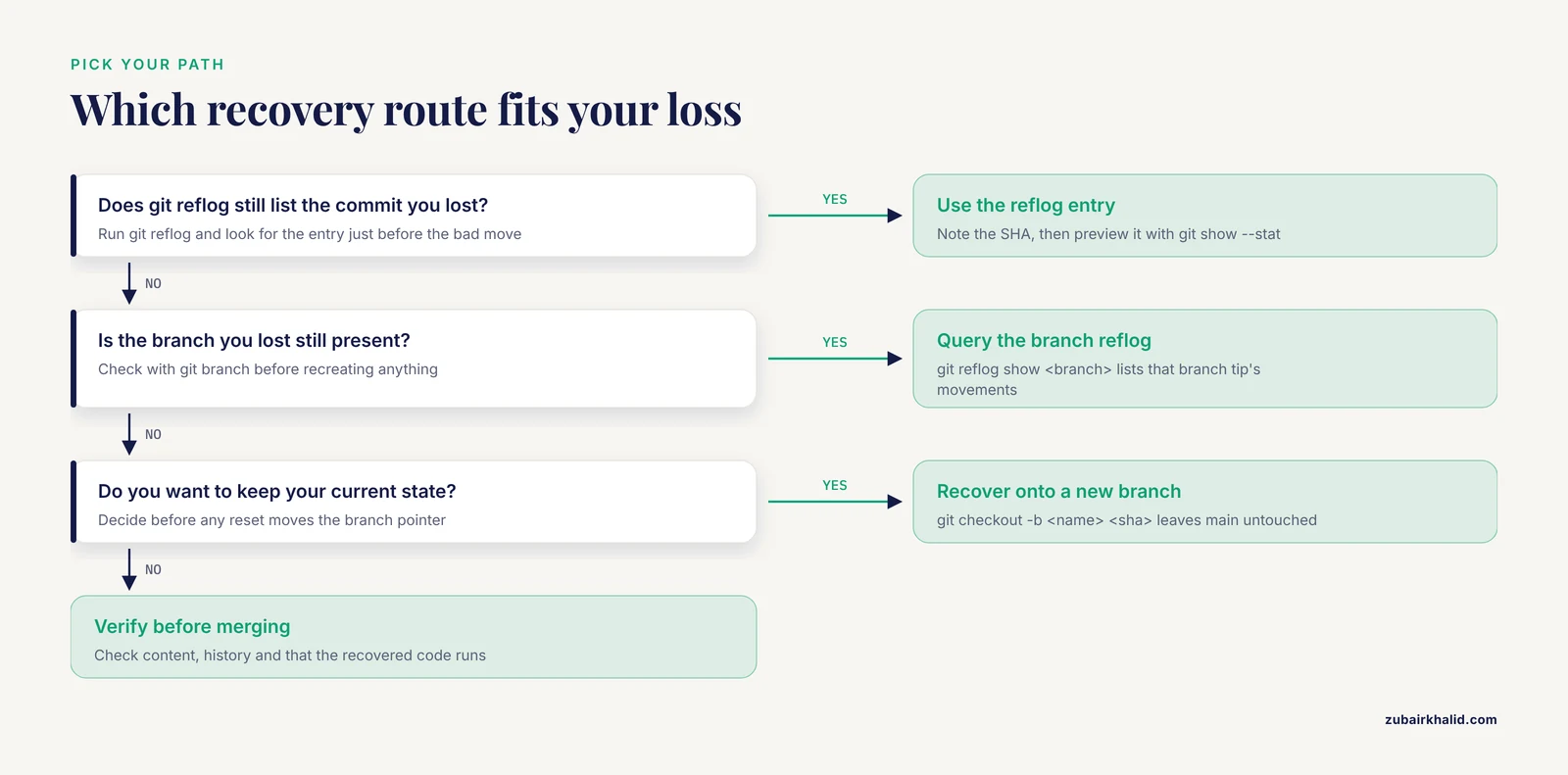
git reflog show <branch> | List movements of a branch tip | Recover a branch that still exists |
git reflog stash | List stash reflog entries | Recover dropped or popped stashes |
git show, stat HEAD@{n} | Preview a candidate commit's contents | Confirm before recovering |
git checkout -b <name> HEAD@{n} | Put a lost commit on a new branch | Safest recovery, review before merging |
git branch <name> <sha> | Recreate a deleted branch pointer | Recover deleted branches |
git reset, hard HEAD@{n} | Move current branch to a reflog entry | Undo reset, rebase, amend in place |
git reset, hard ORIG_HEAD | Move to the pre-rewrite tip | Undo the most recent rebase, merge, or reset |
git cherry-pick <sha> | Copy a lost commit onto current branch | Keep current state and add lost work |
git fsck, unreachable | Find commits no reference points at | Reflog is empty or expired |
git reflog expire, expire=90.days, all | Force reflog entry expiration | Only when you intentionally want to purge history |
Verifying the Recovery
A recovery is not complete until you have checked three things.
- The commit content is intact. Run
git show, stat <sha>on the recovered tip and confirm the file list and line counts match your memory or notes. For a pipeline, open the changed files and confirm the code is the version you expected. - The history is coherent. Run
git log, oneline -10andgit status. The log should show your expected sequence of commits and the working tree should be clean, or contain only changes you made after the recovery. - The recovered code actually runs. For research code, this is the decisive test. Re-run the affected step of your pipeline on a small test input and compare output to any saved result. A recovered commit is only useful if the analysis reproduces.
If you recovered onto a new branch and are satisfied, merge or fast-forward your main branch:
git checkout main
git merge --ff-only recovered-de-plots
The -ff-only flag refuses anything but a fast-forward, which prevents an accidental merge commit from sneaking divergence into your main line. If it fails, review the divergence deliberately rather than forcing it.
Common Mistakes and Limitations
These are the errors that turn a recoverable situation into a permanent loss, along with the exact failure modes you will see.
Mistake 1: running garbage collection in a panic. git gc, git prune, and git repack -ad can drop unreachable objects before you have identified them. If you suspect lost work, your first command is git reflog, never a cleanup command. Note that git gc runs automatically under some conditions in modern Git, which is one reason to investigate losses within days rather than weeks.
Mistake 2: expecting the reflog to hold uncommitted changes. The reflog indexes commits, not working-tree edits. If you never committed, staged, or stashed the changes, there is no reflog entry to recover. Editors with local history, IDE checkpointing, and periodic git commit on a scratch branch are the actual protections against this. Commit early and commit often is not a stylistic preference, it is what makes reflog recovery possible at all.
Mistake 3: confusing HEAD@{n} with HEAD~n. HEAD~2 walks parent commits from your current position. HEAD@{2} reads where HEAD itself was two moves ago. Recovering with the wrong one silently moves you to an unrelated commit. Always git show, stat the candidate before resetting to it.
Mistake 4: unquoted braces in some shells. In shells with brace expansion, such as zsh under certain settings, HEAD@{1} can be misparsed. If you see fatal: ambiguous argument 'HEAD@{1}': unknown revision or path not in the working tree when the entry plainly exists in the reflog, quote it:
git reset --hard 'HEAD@{1}'Single quotes work in every POSIX shell, PowerShell, and cmd.
Mistake 5: assuming the reflog exists everywhere. A freshly cloned repository has a reflog containing essentially only the clone event, because reflog entries are written by local actions. Shallow clones (created with -depth) and bare repositories do not keep reflogs by default. If git reflog returns only one or two lines in a repository where you remember many commits, you are likely in a clone, and the reflog you need lives on the machine where the commits were made.
Mistake 6: relying on the reflog for shared or remote losses. If a collaborator force-pushed a shared branch, your local reflog contains your own history but the reflog on the machine where the old tip was created is the one that matters. Ask the person whose push rewrote history to check their own reflog. Similarly, commits lost on a remote, for example through a forced push on GitHub, are sometimes recoverable through that platform's support for events on the repository, but that is outside the reflog mechanism.
Mistake 7: resetting hard over uncommitted changes. git reset, hard destroys uncommitted modifications in the working tree as a side effect. Run git status first. If you have live edits you want to keep, stash them (git stash push -m "wip before recovery") before any reset. This is the single most common way people lose data while trying to recover other data.
Limitation: expiry is real. Unreachable commits become eligible for deletion after the configured expiry windows pass and garbage collection runs. A recovery attempt months later may fail. When a reflog entry is gone, git fsck, unreachable is the last resort, and it too comes up empty after objects are pruned.
Limitation: the reflog records movements, not intent. It tells you where HEAD was, in order, with the command that moved it. It does not tell you which commit contained which logical change beyond the commit message. Annotate your commits with meaningful messages so that a future scan of git log -g, oneline is legible.
Reflog Habits for Research Repositories
For git for scientists workflows, where repositories hold pipelines, notebooks, and results alongside manuscripts, a few low-cost habits make the reflog far more useful when you need it.
- Commit checkpoints on scratch branches. Before running a risky command,
git checkout -b wip-2026-11-10and commit. Abandoned scratch branches cost nothing and give every experiment a named reflog anchor. - Use descriptive commit messages. "fix" recovers nothing in a scan. "fix cutadapt -m minimum length for miRNA reads" lets you find the right reflog entry at a glance a month later.
- Never reset hard on branches others build on. History rewriting on shared branches shifts recovery from a local reflog problem to a coordination problem across every clone.
- Push early. A commit on GitHub is protected against local disasters that the reflog cannot cover, such as disk failure. The reflog covers your own history-rewriting mistakes. Pushing covers everything else.
- Check the reflog after any surprising command output. A quick
git reflog -5after a rebase, merge, or pull tells you immediately whether history moved the way you thought it did, while the fix is still one step away.
Frequently Asked Questions
Does git reflog work after git gc?
Sometimes. Garbage collection expires reflog entries on a schedule, with defaults of 90 days for reachable entries and 30 days for unreachable ones. After gc runs, recent entries usually survive, but commits pruned from the object database are gone permanently. If git reflog shows nothing useful, try git fsck, unreachable immediately, before any further cleanup runs.
How long do reflog entries last?
By default, entries reachable from your current references expire after 90 days and entries for unreachable commits expire after 30 days, controlled by the gc.reflogExpire and gc.reflogExpireUnreachable settings. Nothing is deleted on a timer by itself, only when garbage collection runs.
Can I recover uncommitted changes with the reflog?
No. The reflog tracks movements of references between commits, so only committed (or stashed) work has entries. Uncommitted working-tree edits need protection from your editor's local history, IDE checkpoints, or a habit of committing to a scratch branch.
Is the reflog shared with teammates or pushed to GitHub?
No. The reflog is strictly local to each clone and is never transmitted by push, pull, fetch, or clone. If a lost commit exists on a collaborator's machine, that collaborator's reflog is the one to search.
How do I recover a deleted branch?
Find the branch's last commit tip in git reflog, typically the entry just before the checkout: moving from <branch> to ... line, then run git branch <branch-name> <sha>. This recreates the branch pointer exactly where it was, with all of its history.
What is the difference between ORIG_HEAD and HEAD@{1}?
ORIG_HEAD is a single reference Git sets to the tip before the most recent history-rewriting operation, such as a rebase, merge, or reset. HEAD@{1} is the previous entry in the HEAD reflog regardless of what caused it. They often point to the same commit right after a rebase, but ORIG_HEAD is overwritten by the next rewriting operation while the reflog keeps a long record.
Can the reflog help after a force push on a shared branch?
Yes, if the old commits were created on your machine. Your local reflog records the pre-push history of the branch, and you can restore it with git branch <name> HEAD@{n} or git reset, hard HEAD@{n}. If the force push came from someone else, the commits you lost were never on your machine, so their reflog on the machine that created them is where recovery starts.
What if the reflog is empty or missing the commit I need?
Use git fsck, unreachable, no-reflogs to list commits that no reference points at, inspect each candidate with git show, stat <sha>, and recover with git branch <name> <sha> or git cherry-pick <sha>. This walks the raw object database and finds commits the reflog no longer mentions, as long as garbage collection has not pruned them.