Git Pull for Scientific Collaboration: Step-by-Step Guide
By Dr. Zubair Khalid, DVM, MS, PhD ·
By the end of this guide you will be able to bring a collaborator's changes into your local analysis repository with git pull, preview their commits before integrating them, resolve a merge conflict in a script without panic, verify that the merged code still runs, and undo a pull that went wrong. You need three things on hand: Git installed locally (version 2.27 or newer, confirmed with git, version), a terminal, and a clone of a shared repository hosted on GitHub or a similar service, along with an account that has access to it.
The command deserves a dedicated guide because shared research code fails at the sync step more often than at the coding step. Journals in surgical research and across biomedicine increasingly request code availability statements at publication, yet most trainees and faculty receive no formal training in version control [1]. A lab can adopt Git in an afternoon and still lose a day of work to a mishandled pull. If you are new to Git for scientists workflows, read the mental model section first, then run the six-step procedure on a test repository before you touch the lab's real pipeline.
Why Git Pull Matters in Research Collaboration
Modern analysis is a team effort. A retrospective registry study, a multi-institution trial, or a methods benchmark produces scripts, configuration files, notebooks, and documentation that several people edit in parallel. Git is the version control system that academic and industrial software development has converged on, and GitHub is the hosting platform that wraps it with review and discussion tools [1]. Making that infrastructure work for research rests on a small set of habits rather than on memorized commands.
The pull command sits at the center of the daily rhythm. One collaborator fixes an off-by-one error in the read counter. Another adds a batch correction step. A third updates the sample sheet. Each change lands on the shared branch on GitHub, and every other member of the lab needs a predictable way to bring those changes down to their own machine. That is git pull. Used with discipline, it is boring in the best way. Used carelessly, it produces merge commits nobody can explain, conflicts resolved by deleting the wrong lines, and, in the worst case, exposure of data that never belonged in the repository [1].
This guide builds the habit in layers: a mental model, a safe preparation routine, a six-step pull procedure, the errors you will actually see, and the collaboration practices that keep pulls small.
What Git Pull Actually Does
A primer on Git and GitHub for surgical data science identifies four mental models that underpin all Git use: the repository, the commit, the branch, and the remote [1].
- Repository: the project folder plus its complete history. Everything Git knows lives here.
- Commit: an immutable snapshot of staged changes, with an author, a timestamp, and a message. Commits form the history you can always return to.
- Branch: a movable pointer to one commit. The default branch in most research repositories is
main. - Remote: another copy of the repository, usually on GitHub. The conventional name for the lab's shared copy is
origin.
Around those four models sits the daily edit-stage-commit cycle, which is the dominant workflow in version-controlled projects [1]. You edit files in the working tree, stage the changes you want to keep, and commit them with a message.
git pull runs two operations in sequence:
git fetch origin
git merge origin/main
git fetch contacts the remote, downloads any new commits, and updates your local remote-tracking branch, origin/main, which is your copy's record of where the shared branch stands. Fetch never touches your working files. The merge step then integrates origin/main into your current branch. Three outcomes are possible:
- Fast-forward: you have no local commits that the remote lacks, so Git slides your branch pointer forward to the fetched tip. No extra commit is created.
- Merge commit: both sides have new commits, so Git creates a commit with two parents that combines them.
- Rebase: only when you request it. Git replays your local commits one at a time on top of the fetched commits, which keeps history linear.
Two more terms appear throughout error messages, so define them now. HEAD is a pointer to your current position, usually the tip of the current branch. The staging area (also called the index) holds the changes you have marked for the next commit. A pull interacts with all three layers, which is why the state of your working tree decides whether a pull is routine or dramatic.
Before You Pull: Put the Repository in a Safe State
Three checks take under a minute and prevent most pull disasters. Run them at the start of every work session.
Check 1: a clean working tree.
$ git status
On branch main
Your branch is up to date with 'origin/main'.

nothing to commit, working tree clean
If you instead see "Changes not staged for commit" or "Untracked files", make a decision for each file: commit it, shelve it with git stash, or delete it. A pull with uncommitted changes is not always fatal, but it removes your margin for error.
Check 2: the remote is what you think it is.
$ git remote -v
origin  https://github.com/yourlab/rnaseq-pipeline.git (fetch)
origin  https://github.com/yourlab/rnaseq-pipeline.git (push)
On a shared lab server or a fork-based workflow, this confirms you are pulling from the intended copy and not from a stale URL.
Check 3: your branch tracks a remote branch.
$ git branch -vv
* main a1b2c3d [origin/main] Add QC thresholds
  dev  9c8d7e6 [origin/dev] Draft batch correction
The bracketed text is the tracking relationship that tells a plain git pull where to pull from. If it is missing, you will meet the "no tracking information" error below.
If you have half-finished work you do not want to commit yet, shelve it and continue:
$ git stash
Saved working directory and index state WIP on main: a1b2c3d Add QC thresholds
Bring the work back after the pull with git stash pop, and check the shelf with git stash list if you are unsure what is stored. Treat the stash as short-term storage, because forgotten stashes are painful to untangle. One reassuring fact: git fetch is safe to run at any time, on any state of the repository, because it changes only the remote-tracking refs and never your files.
Using Git Pull for Scientific Collaboration, Step by Step
The running example is rnaseq-pipeline, a repository with an R differential expression script, a Python counting script, and a config file. A collaborator, Maria, has pushed two commits while you were teaching. The procedure below is the core of git pull for scientific collaboration: fetch, preview, integrate, verify, share.
Step 1: Fetch and preview the incoming work
$ git fetch origin
remote: Enumerating objects: 12, done.
remote: Counting objects: 100% (12/12), done.
remote: Compressing objects: 100% (7/7), done.
remote: Total 9 (delta 4), reused 9 (delta 4), pack-reused 0
Unpacking objects: 100% (9/9), 2.31 KiB | 1.18 MiB/s, done.
From https://github.com/yourlab/rnaseq-pipeline
   a1b2c3d..e4f5a6b  main       -> origin/main
The final lines report which branch moved and between which commits. Your working files have not changed. Now list the commits you are missing:
$ git log HEAD..origin/main --oneline
e4f5a6b Add batch correction step to differential expression script
9c8d7e6 Fix off-by-one error in read counter
The two-dot range means commits reachable from origin/main but not from HEAD, in other words, exactly the work you do not have. To see the file-level impact:
$ git diff HEAD...origin/main --stat
 analysis/deseq.R       | 24 ++++++++++++++++++-----
 scripts/count_reads.py |  2 +-
 2 files changed, 19 insertions(+), 6 deletions(-)
The three-dot form compares your current tip against the merge base (the last commit the two branches share), so it shows only Maria's changes, not yours. If she edited a file you are actively working on, read her patch before integrating:
$ git log -p HEAD..origin/main -- analysis/deseq.RFetch first, look second, integrate third. This preview habit is the single highest-value tip in this guide, because thirty seconds of reading prevents most conflicts.
Step 2: Choose the integration strategy
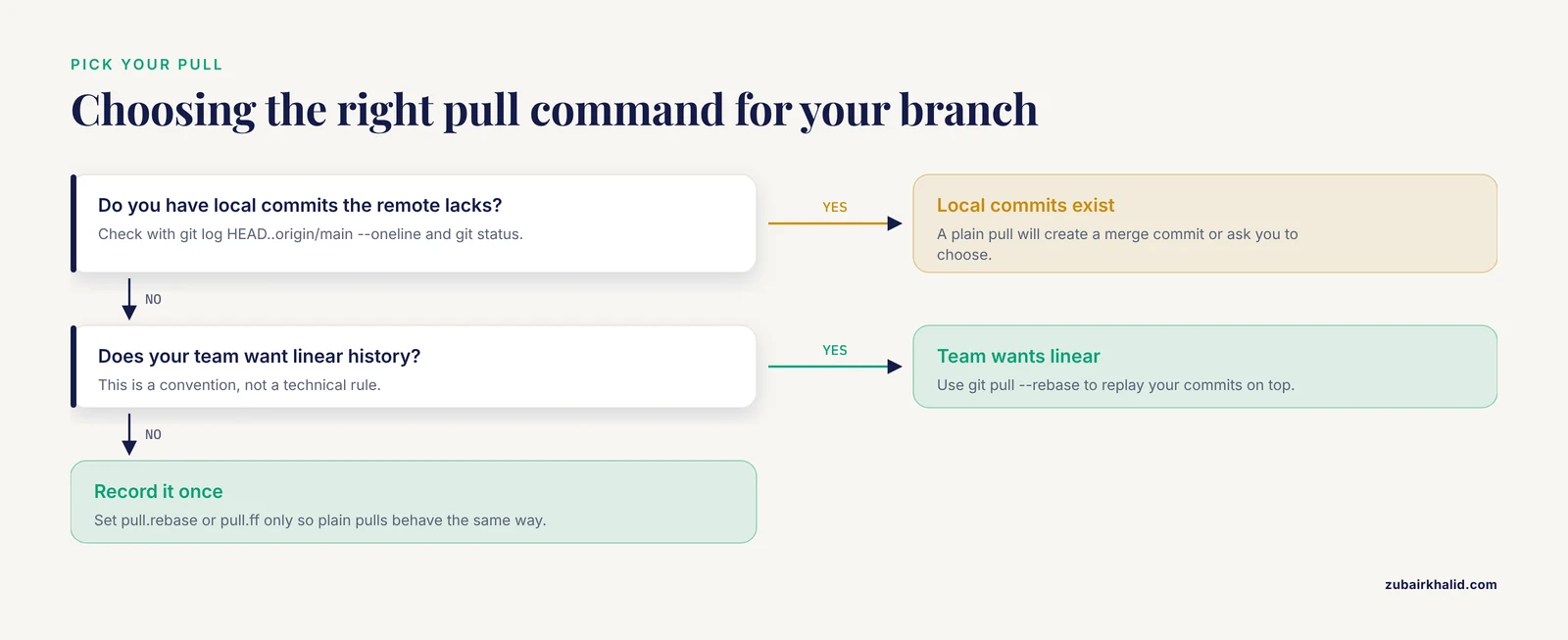
Pick a strategy before you pull, not after:
- No local commits since the last sync: use
git pull, ff-only. It either fast-forwards or refuses, which is exactly the safety you want. - Local commits exist and your team prefers linear history: use
git pull, rebase. Rebase rewrites your local commits on top of the fetched ones, so the shared history reads as a straight line. - Your team convention is merge commits: use a plain
git pull. Merge commits preserve the exact shape of the collaboration, at the cost of noisier history.
Set the choice once per repository so a plain git pull behaves the way your team decided:
$ git config pull.rebase true      # rebase on every pull
$ git config pull.ff only          # never guess, fast-forward or refuse
Add -global to either command to make it the default for all your repositories.
Step 3: Pull
$ git pull --ff-only
From https://github.com/yourlab/rnaseq-pipeline
 * branch            main       -> FETCH_HEAD
Updating a1b2c3d..e4f5a6b
Fast-forward
 analysis/deseq.R       | 24 ++++++++++++++++++-----
 scripts/count_reads.py |  2 +-
 2 files changed, 19 insertions(+), 6 deletions(-)
Read the summary the way Git means it: two files changed, 19 lines added, 6 lines removed. Fast-forward confirms no merge commit was needed. If you had local commits and chose rebase, the closing line instead reads Successfully rebased and updated refs/heads/main.
Step 4: Resolve conflicts if Git reports any
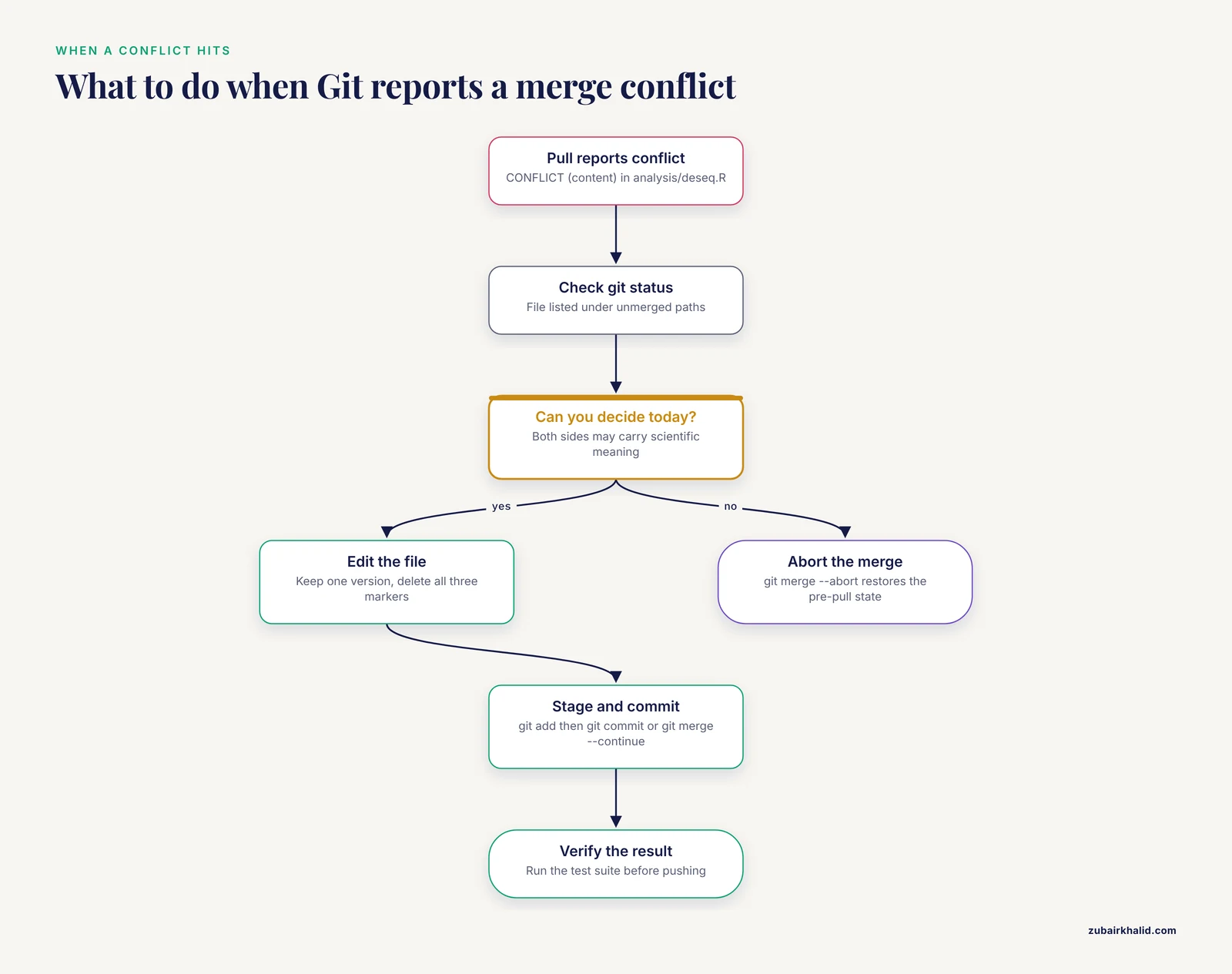
Conflicts happen when both sides changed the same lines. Git says so plainly:
$ git pull
From https://github.com/yourlab/rnaseq-pipeline
 * branch            main       -> FETCH_HEAD
Auto-merging analysis/deseq.R
CONFLICT (content): Merge conflict in analysis/deseq.R
Automatic merge failed. Fix conflicts and then commit the result.
git status now shows the situation in detail:
$ git status
On branch main
Your branch and 'origin/main' have diverged,
and have 1 and 2 different commits each, respectively.

You have unmerged paths.
  (fix conflicts and run "git commit")
  (use "git merge --abort" to abort the merge)

Unmerged paths:
  (use "git add <file>..." to mark resolution)
        both modified:   analysis/deseq.R
Open the file and find the conflict markers:
<<<<<<< HEAD
alpha <- 0.01
=======
alpha <- 0.05
>>>>>>> origin/main
The block reads as: your version (HEAD) on top, the incoming version (origin/main) below. Decide the scientifically correct value, edit the file so only one version remains, and delete all three marker lines. Then:
$ git add analysis/deseq.R
$ git commit
Git opens an editor with a prepared merge message. Accept it. On Git 2.12 and newer, git merge, continue does the same thing. If the conflict turns out to be beyond what you can safely decide today, back out cleanly:
$ git merge --abortThat restores the exact pre-pull state. Aborting is not failure, it is scheduling the decision for when you and your collaborator can look at the code together.
Step 5: Verify the result
A pull is not done when the merge succeeds. It is done when the code works.
First, confirm the history looks as intended:
$ git log --oneline -5
e4f5a6b (HEAD -> main, origin/main) Add batch correction step to differential expression script
9c8d7e6 Fix off-by-one error in read counter
a1b2c3d Add QC thresholds
Second, run the test suite. For a Python project:
$ python -m pytest tests/
================= test session starts =================
collected 14 items

tests/test_count_reads.py ......                        [ 42%]
tests/test_deseq.py ........                            [100%]
================= 14 passed in 3.42s ==================
For an R project, run whatever test script the repository provides. If the pull brought a new requirements.txt, renv.lock, or environment.yml, install the updated dependencies before testing, because a passing test suite against the wrong environment proves nothing.
Third, run a smoke test on a small built-in dataset if the repository includes one. Merged code can import cleanly and still break when a config schema changed underneath it, and this is the failure mode that most often reaches the collaborator who pulls after you.
Fourth, check the final state:
$ git status
On branch main
Your branch is up to date with 'origin/main'.

nothing to commit, working tree clean
Step 6: Push your work and open a pull request
If your pull created a merge commit, share it:
$ git pushFor new analysis work, the better route is a branch and a pull request. Push a feature branch with git push -u origin feature-name, open a pull request on GitHub, and let a teammate review the diff before it lands on main. Branches and pull requests are the standard collaboration mechanism in version-controlled research and software projects alike [1], and GitHub for researchers adds the review layer on top of the version control layer. A useful pull request description for research code states what changed methodologically, what output changes to expect, and what the reviewer should check first.
When the analysis reaches the version used for a manuscript, tag it so the exact code state is recoverable at review time:
$ git tag -a v1.0.0 -m "Analysis code as used for the manuscript"
$ git push origin v1.0.0
Fork-based workflows add a second remote, usually named upstream, and the same procedure applies with git pull upstream main.
Key Options at a Glance
| Command or option | What it does | When to use it |
|---|---|---|
git pull | Fetch, then merge | Routine sync when your team accepts merge commits |
git pull, ff-only | Fetch, then fast-forward or refuse | Safest default when you have no local commits |
git pull, rebase | Fetch, then replay your commits on top | You have local commits and want linear history |
git pull origin main | Pull a named branch | Tracking is not configured, or syncing across branches |
git fetch plus git log HEAD..origin/main, oneline | Preview incoming commits | Before any nontrivial integration |
git pull, no-commit | Merge but stop before committing | You want to inspect the merged tree first |
git pull, rebase, autostash | Stash and reapply local changes automatically | Occasional dirty tree, use with care |
git config pull.rebase true | Set rebase as the pull default for this repo | Recording a team convention |
Common Error Messages and How to Fix Them
These are the messages you will actually meet, with the exact wording and the fix.
"Your local changes to the following files would be overwritten by merge"
error: Your local changes to the following files would be overwritten by merge:
        analysis/deseq.R
Please commit your changes or stash them before you merge.
Aborting
Git stopped before touching anything. Run git status, then either commit the listed files or git stash them, and pull again. If the file is scratch work you do not need, delete it.
"You have divergent branches and need to specify how to reconcile them"
On Git 2.27 and newer, a pull between diverged branches refuses to guess:
hint: You have divergent branches and need to specify how to reconcile them.
hint: You can do so by running one of the following commands some time
hint: before your next pull:
hint:
hint:   git config pull.rebase false  # merge
hint:   git config pull.rebase true   # rebase
hint:   git config pull.ff only      # fast-forward only
hint:
fatal: Need to specify how to reconcile divergent branches.
The message is a prompt to record a team convention. Choose one line from the hint, run it once, and the warning disappears. You can also pass -rebase, -no-rebase, or -ff-only on a single pull to override the default for that pull only.
"CONFLICT (content): Merge conflict in ..."
Covered in Step 4. The short version: open the file, keep the correct lines, delete the three marker lines, git add the file, then git commit or git merge, continue. git merge, abort returns you to the pre-pull state at any point.
"There is no tracking information for the current branch"
There is no tracking information for the current branch.
Please specify which branch you want to merge with.
See git-pull(1) for details.

    git pull <remote> <branch>

If you wish to set tracking information for this branch you can do so with:

    git branch --set-upstream-to=origin/<branch> main
This happens on a brand-new local branch that has never been pushed. Either name the branch explicitly once (git pull origin main) or set the tracking relationship permanently (git branch, set-upstream-to=origin/main main). When you push a new branch, git push -u origin feature-name creates the tracking link in the same step.
"fatal: refusing to merge unrelated histories"
fatal: refusing to merge unrelated historiesYour local repository and the remote share no commit history, which typically happens when someone ran git init locally while the GitHub repository was created independently with its own README. If you have confirmed both histories describe the same project, allow the merge once:
$ git pull origin main --allow-unrelated-historiesExpect a conflict in the README or any file both sides created, resolve it as in Step 4, and commit.
"error: cannot pull with rebase: You have unstaged changes"
error: cannot pull with rebase: You have unstaged changes.
error: Please commit or stash them.
Rebase rewrites your local commits, so it demands a clean tree. Commit or stash, then pull again.
"fatal: Not possible to fast-forward, aborting."
You asked for -ff-only, but both sides have commits, so nothing was changed. Decide between a rebase (git pull, rebase) and a merge (plain git pull), or rework your local commits first.
Protecting Patient Data While You Pull
Pulling is also how dangerous files travel. Guidance written for surgical data science states the rule without exceptions: identifiable patient data must never enter a version-controlled repository, and a .gitignore file is the standard tool for preventing inadvertent commits [1]. A .gitignore lists filename patterns that Git will refuse to stage:
# Raw and processed patient data
data/
*.csv
*.xlsx
*.vcf

# Outputs regenerated by the pipeline
results/
figures/

# Credentials and environment files
.env
credentials.json

# Editor and system noise
.DS_Store
Two properties of Git make prevention essential. First, a commit is permanent: deleting a sensitive file in a later commit removes it from the current version but not from history, and anyone who can clone the repository can retrieve it. Second, hosting platforms hold full clones, so a public repository that once contained a patient file has disclosed it beyond recall. Cleaning history after the fact requires rewriting commits and force-pushing, which is a job for your institution's research computing or data security staff, not a solo afternoon. Keep the .gitignore in place from the first commit, check git status before every commit, and treat any near miss as a stop-everything event.
Collaboration Habits and Practical Tips That Make Pulls Painless
The pulls that hurt are the ones that integrate a month of parallel work. The pulls that never hurt integrate a day of it. Four habits, and a few practical tips, keep the interval short.
Pull at fixed moments. Start of every work session, before you begin new edits, and immediately before you push or open a pull request. A fixed rhythm turns conflict resolution from an archaeology project into a two-line decision.
Commit small, logical units. The edit-stage-commit cycle is the dominant daily workflow in version-controlled projects [1]. A commit named "Fix off-by-one error in read counter" merges cleanly. A commit named "Various updates" does not, because nobody, including you next month, can tell which behavior it was meant to change.
Use branches and pull requests for anything shared. Branches isolate work in progress, and pull requests put a reviewer's eyes on the diff before it reaches main [1]. For research code, the review is not bureaucracy. It is a second scientist checking that a threshold, a filter, or a statistical model choice is defensible before it becomes the version everyone else pulls.
Credit shared work in the commit itself. GitHub and GitLab support the Co-Authored-By: trailer, which records multiple authors on a single commit. Research on the OpenStack ecosystem examined this kind of fine-grained collaboration directly: across 1,804 project repositories and roughly 1 million commits over a 9-year period, with about 631,000 reviewed change sets and 2 million patch sets, multiple-author commits proved common enough to study systematically, and interviews with 16 contributors yielded practical recommendations for promoting such micro-collaboration [2]. In practice, the trailer is one extra paragraph in the commit message:
$ git commit -m "Add QC threshold sweep across batches" \
    -m "Co-Authored-By: Maria Chen <[email protected]>"
The hosting platform then displays the co-author on the commit page, which matters for authorship discussions long after the analysis is finished.
Common Mistakes and Limitations
Committing data or credentials "just temporarily". One commit into a shared or public repository is a disclosure. Deleting the file later does not remove it from history. Keep the .gitignore active from the first commit and review git status before every commit [1].
Pulling with a dirty working tree as a routine. Sometimes the merge aborts safely, sometimes it proceeds around your edits and leaves you with a confusing mix. Commit or stash first, every time.
Letting local work diverge for weeks. The longer the interval between pulls, the larger the overlap between your edits and your collaborators' edits, and the harder every conflict becomes. Daily pulls keep conflicts small.
Assuming git pull updated everything. It updates the current branch and the remote-tracking refs. Your other local branches stay exactly where they were. Check with git branch -vv before switching.
Editing on the GitHub website while local edits sit uncommitted. The web edit and your local edit then collide on the next pull. Commit locally before you touch the web interface, or expect a conflict with yourself.
Resolving a conflict by deleting one side wholesale. In analysis code, both sides often carry scientific meaning, such as two different significance thresholds or two different filter criteria. Read both versions, choose deliberately, and record the decision in the merge commit message.
Fixing a bad pull with a force push. git push, force can erase collaborators' commits from the shared branch. If a force push is ever genuinely required, use git push, force-with-lease, which refuses when the remote has moved beyond your last fetch, and never force a branch that others build on.
Treating pull as a backup. Your backup is what you push. Pull only moves work from the remote to your machine, so uncommitted local work is protected by nothing.
Skipping verification after a clean merge. A merge with no conflicts can still break the analysis when a config schema or a dependency changed. Run the test suite and a smoke test every time.
When a pull does go wrong, learn the recovery trio rather than improvising: git restore recovers files, git reset moves branches, and git revert undoes commits that are already shared. On limitations: this guide covers standard single-remote setups on GitHub. Repositories that use submodules, Git LFS for large files, or shared accounts on a lab server add behavior that the repository's own documentation should cover. For high-stakes recovery, such as rewriting history that contains sensitive data, involve your institution's research computing or data security staff before running destructive commands, because a wrong command can make recovery harder. And when a repository's state looks inexplicable, ask the maintainer before improvising.
Frequently Asked Questions
What does git pull actually do?
It runs git fetch to download new commits from the remote, then integrates them into your current branch with a merge or, if configured, a rebase. Your uncommitted local changes are never part of that integration.
How is git fetch different from git pull?
git fetch downloads and updates the remote-tracking branch without touching your files, so it is always safe to run. git pull is fetch plus integration, which is the step that can produce conflicts.
How often should I run git pull on a shared research repository?
At the start of every work session, before you begin new edits, and again right before you push or open a pull request. Frequent small pulls keep conflicts two lines long instead of two hundred.
Should I use git pull, rebase or a plain merge?
Both are correct, so follow your team's convention. Rebase keeps a linear history with no merge commits, a plain merge preserves the exact shape of the collaboration, and git config pull.rebase records whichever you choose.
Can git pull destroy my uncommitted changes?
A merge that would overwrite modified files aborts with an error before touching anything, but rebase and later cleanup commands are stricter about a dirty tree. Commit or stash before pulling and the question never arises.
How do I undo a bad git pull?
After a merge pull, git reset, hard ORIG_HEAD returns the branch to its pre-pull commit. For any pull, git reflog lists where HEAD was before the pull, and git reset, hard to that entry restores it. Both discard uncommitted changes, so stash anything you need first.
Does git pull behave differently on GitHub, GitLab, or Bitbucket?
No. Pull is a local Git operation, and the hosting service only stores the remote you fetch from, so the command behaves identically everywhere.
Why does git pull ask me to choose between merge, rebase, and fast-forward?
Git 2.27 and newer refuse to guess a strategy when your branch and the remote have diverged. The message is a prompt to set one team-wide default with git config pull.rebase or git config pull.ff only.
Further Reading
- WSSM: A Weakly Supervised Oral Mucosal Disease Segmentation Model Based on Multi-Task Collaboration.