How to Track Changes in Jupyter Notebooks with Git
By Dr. Zubair Khalid, DVM, MS, PhD ·

By the end of this guide you will be able to put a Jupyter notebook project under Git version control, commit notebooks without their outputs, read and merge notebook changes with tools built for the .ipynb format, pair each notebook with a plain Python script, automate cleanup so nothing noisy reaches your history, and publish a tagged release on GitHub that collaborators and reviewers can cite. You need Git 2.28 or newer, Python 3.9 or newer, Jupyter Notebook or JupyterLab, a terminal, and a free GitHub account. Everything here runs on macOS, Windows, or Linux.
Version control matters in computational biology because analyses change constantly and reviewers eventually ask exactly what changed and when. Reproducibility is a core requirement of the scientific process, and it becomes especially urgent in data-rich fields such as phylogenomics [1]. Git gives you a dated, annotated record of every analysis decision. The catch is that notebook files resist the way Git normally works, so this guide adds three small tools, nbstripout, nbdime, and jupytext, that make the pair behave.
Why Notebooks and Git Fight Each Other
Git records the history of a repository, which is the folder of files you asked it to track. A commit is a named snapshot of every tracked file at one moment, plus a message, an author, and a timestamp. A diff is the line-by-line comparison between two snapshots. All three concepts assume files that change a few lines at a time.
A Jupyter notebook is not that kind of file. The .ipynb format is JSON, a plain-text data format, and it stores four things you did not necessarily intend to version: your code, the outputs of every executed cell, the execution counts, and notebook metadata such as the kernel name. Here is a fragment of a real notebook file:
{
 "cells": [
  {
   "cell_type": "code",
   "execution_count": 3,
   "source": [
    "volcano_plot(de_results, fdr=0.05)"
   ],
   "outputs": [
    {
     "data": {
      "image/png": "iVBORw0KGgoAAAANSUhEUgAAAZAAAAEACAYAAAB..."
     },
     "execution_count": 3,
     "metadata": {},
     "output_type": "execute_result"
    }
   ]
  }
 ]
}
Three problems follow from that structure.
Diff noise. Change one character of code and rerun the cell, and Git sees a changed code line plus a completely new multi-hundred-kilobyte base64 line for the plot. Base64 is a text encoding for binary data, and it inflates image bytes by roughly one third. A one-line scientific change looks like thousands of changed lines.
Merge conflicts. Git merges files line by line. Two colleagues who both run cells in the same notebook produce different output blocks, and Git reports a conflict even when the code agrees. Resolving raw JSON conflicts by hand is impractical.
History bloat and hidden state. Every commit that includes outputs re-stores those outputs forever. Worse, outputs reflect the order in which cells actually ran, which the saved file does not record, so the committed artifact does not fully describe how its results were produced.
Bioinformatics has faced this before. The ReproPhylo phylogenomics environment stores an entire experimental workflow as a single serialized Python object that carries explicit provenance and environment information, with changes managed automatically by Git [1]. The lesson generalizes: treat Git as the provenance backbone and engineer the file formats around it. The three fixes are to strip outputs from stored history, to diff and merge notebooks with structure-aware tools, and to pin the software environment alongside the code.
What You Need Installed
Confirm the three base tools from a terminal:
git --version
python --version
jupyter --version
Expected output on a working machine:
git version 2.45.1
Python 3.12.3
jupyter core     : 5.7.2
jupyter-notebook : 7.2.2
The jupyter command lists every installed component and version. Any recent versions work, but Git must be at least 2.28 for the -b flag used below. Install the notebook-specific tools with pip:
python -m pip install nbstripout nbdime jupytext pre-commitIf you manage environments with conda, use this instead:
conda install -c conda-forge nbstripout nbdime jupytext pre-commitnbstripout removes stored outputs, nbdime provides notebook-aware diffs and merges, jupytext pairs notebooks with scripts, and pre-commit runs checks automatically before each commit.
Git Jupyter Notebook Version Control, Step by Step
The walkthrough builds a small real project, a differential expression notebook, from an empty folder to a pushed GitHub repository. Run every command from inside the project folder.
Step 1. Create the repository
mkdir rna-seq-notebooks
cd rna-seq-notebooks
git init -b main
Expected output:
Initialized empty Git repository in /home/yourname/rna-seq-notebooks/.git/git init turns the folder into a Git repository by creating a hidden .git directory that stores all history. The -b flag names the first branch main. Older Git versions default to a branch named master, so if you see master in later commands, either rename it once with git branch -m main or set the default for future repositories with git config, global init.defaultBranch main.
Step 2. Ignore what does not belong in history
A .gitignore file lists patterns Git should never track. Create one before the first commit, because Git does not untrack files retroactively. A notebook-friendly starting point:
# Jupyter autosave copies
.ipynb_checkpoints/

# Raw data and large files, kept elsewhere
data/
*.h5
*.fastq.gz

# Secrets and credentials
.env
credentials.json

# Operating system noise
.DS_Store
Thumbs.db
Each line matters. .ipynb_checkpoints/ holds Jupyter autosave copies that change constantly and add nothing to history. data/ keeps raw reads and tables out of Git, which matters because GitHub rejects any file larger than 100 MB and warns above 50 MB, and because data belongs in managed storage with its own accession or provenance record. The secret entries keep API keys and database passwords out of a repository you may later make public. Commit the .gitignore itself, since it is project policy rather than a private preference.
Step 3. Make the first commit
Create or copy a notebook into the folder, for example analysis.ipynb with two code cells. Then ask Git what it sees:
git statusExpected output:
On branch main

No commits yet

Untracked files:
  (use "git add <file>..." to include in what will be committed)
        .gitignore
        analysis.ipynb

nothing added to commit but untracked files present (use "git add" to track)
Untracked means Git sees the files but stores nothing about them yet. git add moves files into the staging area, the set of changes that will form the next commit:
git add .gitignore analysis.ipynb
git commit -m "Add differential expression notebook and gitignore"
Expected output:
[main (root-commit) 3f9c1ae] Add differential expression notebook and gitignore
 2 files changed, 312 insertions(+)
 create mode 100644 .gitignore
 create mode 100644 analysis.ipynb
The -m flag supplies the message inline. If the commit fails with a message telling you that author identity is unknown, set it once with git config, global user.name "Your Name" and git config, global user.email "[email protected]", then commit again.
Write messages that record the scientific decision, for example "Tighten FDR threshold to 0.05 after reviewer comment", because six months from now the message is the fastest way to find the commit where a choice changed. That habit is what makes Git for scientists useful rather than ceremonial.
Step 4. Connect to GitHub
A remote is a copy of the repository on another server, and origin is the conventional name for the primary one. Create an empty repository named rna-seq-notebooks on GitHub and leave every initialization checkbox unchecked so the remote starts empty. Then connect and push:
git remote add origin [email protected]:yourusername/rna-seq-notebooks.git
git push -u origin main
Expected output:
Enumerating objects: 4, done.
Counting objects: 100% (4/4), done.
Writing objects: 100% (3/3), 3.10 KiB | 3.10 MiB/s, done.
Total 3 (delta 0), reused 0 (delta 0), pack-reused 0
To github.com:yourusername/rna-seq-notebooks.git
 * [new branch]      main -> main
branch 'main' set up to track 'origin/main'.
The -u flag links your local main to origin/main, so plain git push and git pull work from now on. Verify the connection with git remote -v, which prints the fetch and push URLs. Use the SSH URL if you have uploaded an SSH key to GitHub, otherwise use the HTTPS URL and authenticate with a personal access token, since GitHub no longer accepts account passwords for Git operations. A collaborator joins the project with git clone [email protected]:yourusername/rna-seq-notebooks.git, which copies the repository and its full history.
Step 5. Branch before you experiment
A branch is an independent line of history. Branching lets you test a different threshold, filter, or method without touching the version that currently works:
git switch -c fdr-sensitivityExpected output:
Switched to a new branch 'fdr-sensitivity'The -c flag creates the branch and switches to it in one step. On Git versions older than 2.23, git switch does not exist, so use git checkout -b fdr-sensitivity instead. Edit the notebook, commit on the branch, then fold the work back in:
git switch main
git merge fdr-sensitivity
Expected output when history is linear:
Updating 3f9c1ae..8b2d4f6
Fast-forward
 analysis.ipynb | 18 ++++++++----
 1 file changed, 10 insertions(+), 8 deletions(-)
Fast-forward means Git moved the main label to the newer commit without needing a merge commit. If both branches changed the same lines, Git stops and asks for a merge resolution, which the nbdime section below covers.
Step 6. Run the daily cycle
Day to day, Git Jupyter notebook version control is a four-command loop. Work in the notebook, then:
git status
git diff
git add analysis.ipynb
git commit -m "Tighten FDR threshold to 0.05 and add volcano plot"
git push
git status shows what changed, git diff shows the unstaged line changes, git add stages them, git commit records the snapshot, and git push uploads it. Check the shape of your history at any time:
git log --oneline --statExpected output:
8b2d4f6 (HEAD -> main) Tighten FDR threshold to 0.05 and add volcano plot
 analysis.ipynb | 22 ++++++++++++++-------
 1 file changed, 14 insertions(+), 8 deletions(-)
3f9c1ae Add differential expression notebook and gitignore
 2 files changed, 312 insertions(+)
If that diff stat looks enormous for a small edit, outputs are leaking into history, and the next section fixes it. Three habits keep the loop healthy. Commit before you close Jupyter, because an uncommitted day of work is one spilled coffee from gone. Make one idea per commit, so a reviewer can trace a single decision to a single snapshot. Pull before you start work, so you build on what your collaborators already pushed.
Strip Notebook Outputs from History with nbstripout
nbstripout removes outputs, execution counts, and transient metadata from the version of the notebook that Git stores, while leaving your working copy untouched. It works as a Git filter. A filter is a program Git runs on file contents as they enter or leave the repository, the clean direction runs when you git add, and the smudge direction runs when Git hands the file back. Configure it once per repository:
nbstripout --installThe command registers a clean filter in the repository's .git/config and adds a rule to .gitattributes that applies it to every .ipynb file. Verify both:
cat .gitattributes
git check-attr filter -- analysis.ipynb
Expected output:
analysis.ipynb: filter: nbstripoutDifferent nbstripout versions have used slightly different filter names, so trust your own output over any printed example. What matters is that the filter attribute resolves for your notebooks.
If notebooks were already committed before you installed the filter, Git does not retroactively clean them. Renormalize, which re-applies current filters and attributes to tracked files:
git add --renormalize .
git commit -m "Strip stored notebook outputs"
Expect one large diff that deletes the stored outputs, and expect history before that commit to still contain the old blobs, where a blob is Git's internal term for one stored version of a file. After renormalization, git add on a notebook stores a stripped copy while your file on disk keeps its plots and tables, which is exactly what you want during an analysis session.
Three lighter-weight alternatives exist for one-off cleaning. Run nbstripout analysis.ipynb to strip a single file in place, run jupyter nbconvert, clear-output, inplace analysis.ipynb for the same job through nbconvert, or use the interface, Edit then Clear All Outputs in JupyterLab, or Cell then All Output then Clear in classic Notebook. The filter approach wins because it removes the human step that everyone eventually forgets.
Two consequences to expect. A fresh clone of the repository contains notebooks with no outputs, so run Restart and Run All to regenerate figures. And the first diff after installing the filter looks dramatic, which is normal.
Read and Merge Notebook Changes with nbdime
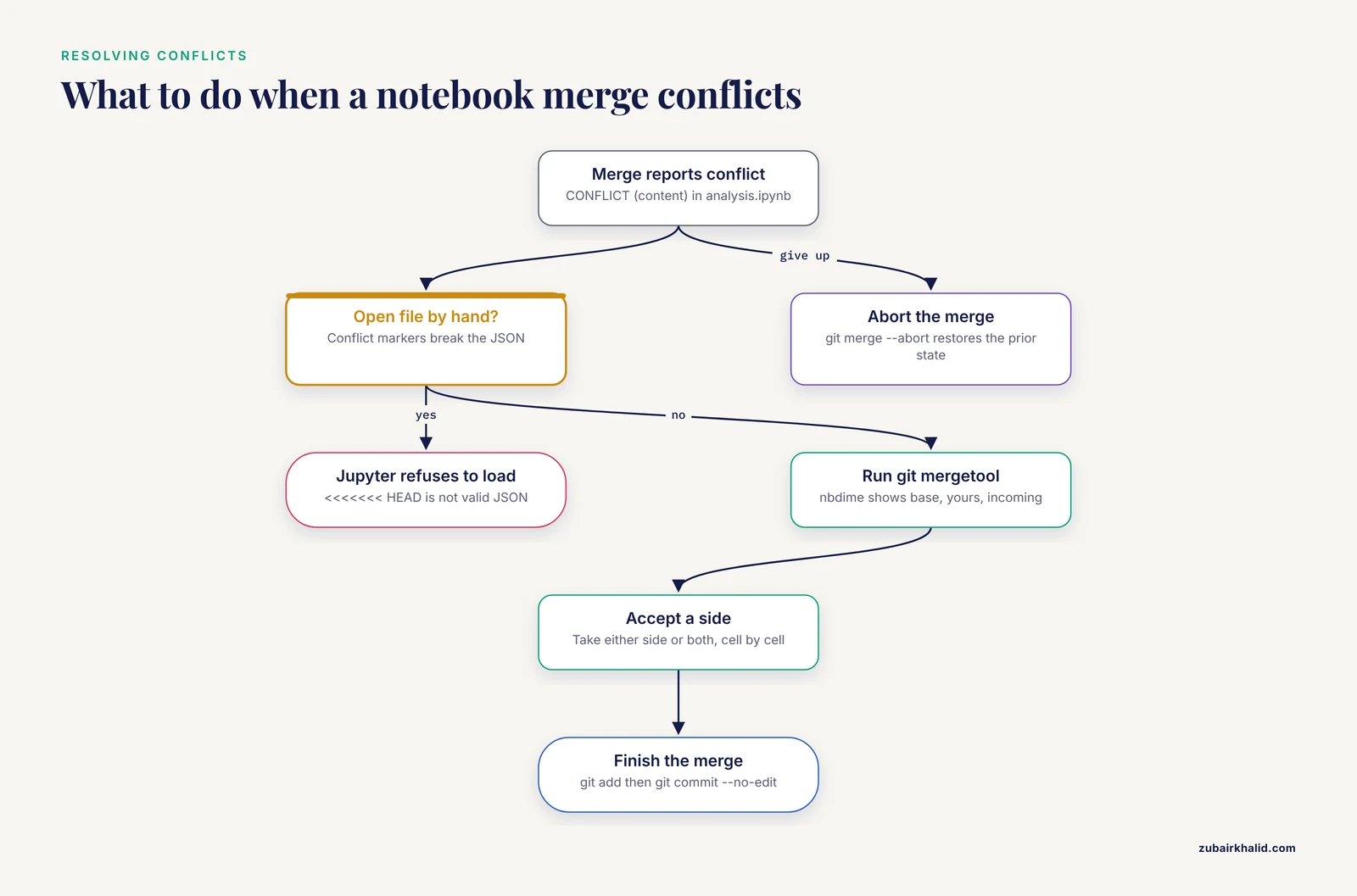
Even a stripped notebook is JSON, and line-based tools still show changes to cell boundaries rather than changes to meaning. nbdime parses the notebook structure and compares notebooks the way a scientist reads them, cell by cell, with source, outputs, and metadata reported separately. It also works outside Git for two arbitrary files with nbdiff a.ipynb b.ipynb. Enable its Git integration once per repository:
nbdime config-git enableThis registers nbdime as a Git difftool and mergetool. To compare the current working copy against the last commit:
git difftool HEAD^ -- analysis.ipynbHEAD^ means the commit before the current one. Instead of raw JSON, you get a structured report grouped by notebook part. A representative console view looks like this:
nbdiff [2] analysis.ipynb [3] analysis.ipynb
## modified /cells/1/source:
-  de_results = run_deseq(counts, fdr = 0.1)
+  de_results = run_deseq(counts, fdr = 0.05)
Output changes and metadata changes appear in their own sections, so a reviewer can see at a glance that only the threshold moved. For larger changes, open the same comparison in a browser:
nbdiff-web old.ipynb new.ipynbMerges are where nbdime earns its keep. Suppose the fdr-sensitivity branch and main both edited the notebook after diverging:
git switch main
git merge fdr-sensitivity
Expected output:
Auto-merging analysis.ipynb
CONFLICT (content): Merge conflict in analysis.ipynb
Automatic merge failed, fix conflicts and then commit the result.
Do not open the file and start deleting marker lines. Conflict markers such as <<<<<<< HEAD are plain-text merge syntax, and inserting them into a notebook breaks the JSON, so Jupyter will refuse to load the file. Use the structure-aware tool instead:
git mergetool analysis.ipynbGit shows the base version, your side, and the incoming side, then launches the nbdime merge view, which presents the conflict cell by cell and lets you accept either side or both. Save the resolution, then finish the merge:
git add analysis.ipynb
git commit --no-edit
The -no-edit flag accepts the prepared merge message. If a merge goes wrong midway, git merge, abort returns the repository to the state before the merge started, which is the safest undo in Git.
Pair Each Notebook with a Script Using jupytext
Reviewers, continuous integration systems, and text-based tools all handle .py files better than .ipynb files. jupytext solves this through pairing, which keeps one notebook and one script in the same directory with synchronized content. The script uses the percent format, where a line starting with # %% marks a cell boundary:
# %%
import pandas as pd

counts = pd.read_csv("results/counts.csv", index_col=0)

# %%
de_results = run_deseq(counts, fdr=0.05)
volcano_plot(de_results, fdr=0.05)
Turn on pairing for an existing notebook:
jupytext --set-formats ipynb,py:percent analysis.ipynb
jupytext --sync analysis.ipynb
The -set-formats command records the pairing in the notebook metadata, and -sync updates whichever file is older so the two never drift. Commit both files. Teams then choose a policy. Many labs treat the .py file as the reviewable artifact and read its diffs in pull requests, while the .ipynb file carries the narrative and figures. Others commit only scripts and regenerate notebooks on demand with jupytext, to ipynb analysis.py. Pairing costs nothing at runtime and removes the argument about which format to store.
Automate Cleanup with pre-commit
A Git hook is a script Git runs automatically at a fixed point, and the pre-commit hook runs just before a commit is created, with the power to reject it. The pre-commit framework manages such hooks from a declarative file. Create .pre-commit-config.yaml in the repository root:
repos:
  - repo: https://github.com/kynan/nbstripout
    rev: 0.8.1
    hooks:
      - id: nbstripout
Pin rev to the newest release tag on the nbstripout repository rather than copying the value here blindly. jupytext publishes a hook the same way, so a second entry can keep paired scripts synchronized on every commit. Activate the hooks:
pre-commit installExpected output:
pre-commit installed at .git/hooks/pre-commitThen test against everything already in the repository:
pre-commit run --all-filesExpected output when a notebook still contains outputs:
nbstripout...........................................................Failed
- hook id: nbstripout
- files were modified by this hook
The hook lists each file it cleaned. Stage the cleaned files and commit again, and from then on any commit that would store outputs is blocked until it is clean. That single automation prevents the most common repository pollution in notebook-based projects.
A Repository Layout That Survives Review
GitHub for researchers works best when a stranger can open the repository and understand it in one minute. A layout that survives review contains the following files.
- README.md, stating the biological question, how to set up the environment, and the order in which to run notebooks.
- environment.yml or requirements.txt, the pinned software environment.
- notebooks/, holding numbered notebooks such as 01-qc.ipynb and 02-differential-expression.ipynb so run order is explicit.
- src/, holding functions imported by the notebooks, which keeps cell code short and testable.
- data/, ignored by Git, with the data source documented in the README.
- figures/, holding the small final files you do want to share.
- LICENSE, because code without a license is unusable by others by default.
- .gitignore and .pre-commit-config.yaml, the policy files from earlier sections.
The environment files deserve emphasis, because Git stores code and never the interpreter. Export the conda environment with:
conda env export --from-history > environment.ymlThe -from-history flag records the packages you explicitly requested, which keeps the file portable across operating systems. For pip-based projects use pip freeze > requirements.txt, which records exact versions of everything installed. For heavier reproducibility, add a container. ReproPhylo distributed its environment as a platform-independent Docker image with a Jupyter Notebook interface, an early version of the pattern now standard in the field, where Git tracks the code and the container image freezes the software stack [1].
Testing belongs in the same repository. The DrugUtilisation package, developed for drug utilisation studies on the OMOP Common Data Model, ships comprehensive unit tests and standardized output formats so results stay consistent across databases and coding errors surface early [2]. A tests/ folder with a few pytest functions around the code in src/ gives you the same safety on a smaller scale.
Finally, freeze citable versions. A tag is a named, immutable marker on one commit:
git tag -a v1.0 -m "Analysis as submitted"
git push origin v1.0
The -a flag creates an annotated tag with a message, and tags need an explicit push. On GitHub, the tag becomes a Release, and connecting the repository to Zenodo archives each release with a DOI, a digital object identifier that a manuscript can cite. ReproPhylo aimed at the same endpoint from the other direction, generating a human-readable report and a comprehensive experimental archive suitable for submission alongside a publication [1]. Pull requests close the loop for collaboration: a colleague opens a branch, you review the notebook diff with nbdime, and the merge records who approved what.
Where to go next
Once the team commits regularly, add continuous integration so GitHub executes the notebooks on every push and reports failures loudly, and adopt a pull request rule that no one merges their own notebook changes without a second reader. Both build directly on the tools already in place.
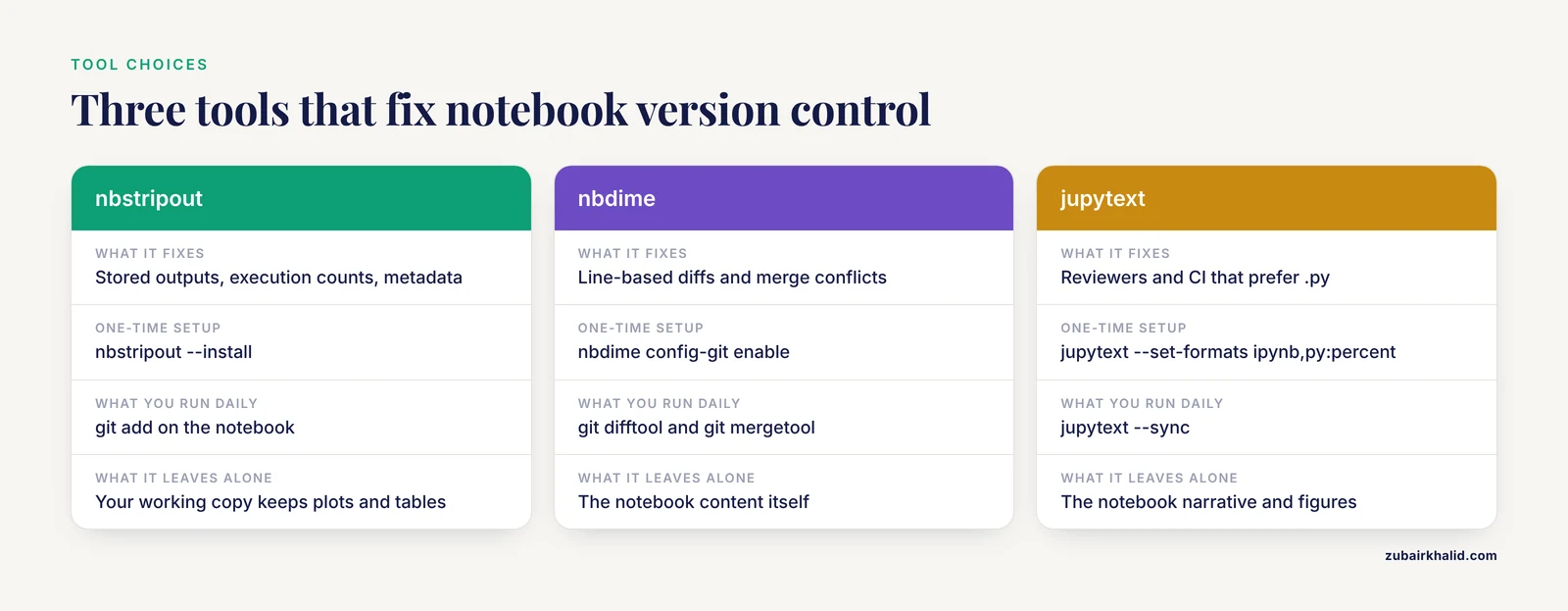
Tools at a Glance
| Tool or command | What it does | One-time setup | Notes |
|---|---|---|---|
| nbstripout | Strips outputs and execution counts from stored notebooks | nbstripout, install | Working copy keeps outputs, clones arrive clean |
| nbdime | Notebook-aware diff and merge | nbdime config-git enable | Use git difftool and git mergetool |
| jupytext | Pairs a notebook with a .py script | jupytext, set-formats ipynb,py:percent notebook.ipynb | Keep both current with jupytext, sync |
| pre-commit | Runs checks automatically before each commit | pre-commit install | Rejects commits that fail the checks |
| nbconvert | Clears outputs once, no filter needed | none | jupyter nbconvert, clear-output, inplace file.ipynb |
| git tag | Freezes a named version of the project | none | Push tags explicitly with git push origin v1.0 |
Common Mistakes and Limitations
- Running Git commands in the wrong folder. The error
fatal: not a git repository (or any of the parent directories): .gitmeans the current directory is outside any repository. Move into the project folder withcd, or rungit initif the project genuinely has none.
- Committing Jupyter autosave files. If .ipynb_checkpoints appears in
git status, the .gitignore was written after the files were tracked. Remove them from tracking while keeping the local copies withgit rm -r, cached .ipynb_checkpoints, commit, and the ignore rule takes effect from then on.
- Pushing a branch name that does not exist locally. The message
error: src refspec main does not match anyusually means your local branch is still named master while you push main. Rename withgit branch -m mainand push again.
- Being surprised by a rejected push. When a colleague pushed first,
git pushfails with the hint that the remote contains work you do not have locally. Fetch and rebase withgit pull, rebase origin main, resolve anything nbdime flags, then push. Never force push to a branch other people pull from, because force pushes rewrite shared history and destroy their commits.
- Hand-editing merge conflicts in a notebook. Conflict markers turn the file into invalid JSON and Jupyter will fail to open it. Abort with
git merge, abortand resolve withgit mergetoolunder nbdime instead.
- Assuming a later delete shrinks history. Deleting a large file in a new commit removes it from the working tree but leaves every old copy in history, so clone sizes stay large. To truly remove one, rewrite history with git filter-repo, which changes every commit ID and requires coordination with everyone who holds a clone.
- Committing credentials. An API key in a commit is compromised the moment the repository leaves your laptop, even in a private repository. Rotate the key first, then remove it from history with git filter-repo, then push.
- Trusting stale outputs. A notebook whose plots were produced in a different cell order misdescribes its own code. If outputs matter, run Restart and Run All immediately before committing.
- Treating Git as a reproducibility guarantee. Git records the text of the analysis, not the environment and not the execution. Pin the environment in a committed file, rebuild it in a fresh clone as a check, and add tests for the functions your notebooks call. Systems built for provenance in genomics pair Git with explicit provenance capture precisely because version control alone does not carry enough information [1], and tested, standardized analysis packages catch classes of errors that version control never sees [2].
- Collecting tools instead of committing to a workflow. nbstripout, nbdime, jupytext, and pre-commit are each useful only if every team member runs them. Install the smallest set your group will actually use, and encode the choices in .gitattributes, .pre-commit-config.yaml, and the README so the policy travels with the repository.
One structural limitation remains. Git tracks lines of text, so it cannot tell you that two notebooks answer the same question with different parameter values, and it stores no record of data versions. For large datasets, directory-level versioning tools such as Data Version Control (DVC) extend Git to data files, and data should carry its own accession numbers or checksums regardless.
Frequently Asked Questions
Should I commit the .ipynb file or a Python script?
Commit the notebook and pair it with a script using jupytext so both exist. The notebook carries the narrative and figures for human readers, the script diffs and reviews cleanly, and jupytext, sync keeps the two identical.
How do I stop Jupyter from cluttering my repository?
Add .ipynb_checkpoints/ to .gitignore and strip outputs with nbstripout before commits. The autosave folder then never enters history and stored notebooks stay small.
Why does my diff show hundreds of changed lines for a one-line edit?
The notebook stores outputs and metadata as JSON, so rerunning a cell rewrites large output blocks. Install nbstripout to remove outputs from stored history and use nbdime for a cell-level diff.
Can Git merge two people's notebook edits?
Yes, when nbdime is configured as the Git mergetool. Plain Git merging treats the notebook as text and usually reports conflicts, while nbdime resolves differences cell by cell.
I committed a huge file by accident. How do I remove it?
Stop tracking it with git rm, cached, add it to .gitignore, and rewrite history with git filter-repo to shrink the repository. Coordinate the history rewrite with everyone who has a clone.
Do I commit data files?
In most cases no. Keep data in managed storage, document its source in the README, and use a tool such as DVC when data must live beside code.
How do I share a version reviewers can cite?
Tag the commit with git tag -a, push the tag, create a GitHub Release, and archive the release with Zenodo to obtain a DOI.
What is the difference between git add and git commit?
git add stages selected changes for the next snapshot, and git commit records the staged snapshot permanently in history. Add is selective, commit is the record.
Further Reading
- Redistribution of Gaze Patterns in Facial Localized Scleroderma Following Autologous Fat Transfer: An Eye-Tracking Study.
- Object speed and distractor number affect performance but not attentional allocation in multiple object tracking.