How to Create and Switch Branches in Git for Research
By Dr. Zubair Khalid, DVM, MS, PhD ·
By the end of this guide you will be able to create a branch, switch between branches without losing work, push a branch to GitHub, open a pull request, merge finished work back into your main branch, and recover from the failures that catch out new users. You need Git 2.23 or newer installed (check with git, version), a terminal, and a repository to work in, either one you create below or an existing project cloned from GitHub.
Version control is now part of publication. Journals increasingly request code availability statements, and reviewers may ask for the exact scripts behind a figure, yet most surgical trainees and faculty receive no formal training in version control [1]. The gap extends across the life sciences. This git branch for scientists guide covers the feature that closes that gap in daily work: the branch, which lets you test a new analysis, prepare a manuscript revision, or refactor a pipeline while the version that already works stays untouched.
If Git is newly installed, run this one-time setup:
git config --global user.name "Your Name"
git config --global user.email "[email protected]"
git config --global init.defaultBranch main
The first two commands stamp your identity on every commit. The third names the default branch of new repositories main, which requires Git 2.28 or newer.
Why Scientists Need Branches
Git is a version control system that records snapshots of your project, called commits, so you can return to any earlier state. A branch is an independent line of work inside one repository. GitHub is a hosting service where repositories live online so collaborators can share, review, and merge work [1]. Git for scientists is the same tool software teams use, pointed at analyses, pipelines, and manuscripts instead of application code.
Branches solve problems that recur in research code:
- A reviewer asks for a sensitivity analysis. You want to write that code without disturbing the scripts that produced the submitted manuscript.
- You want to compare two normalization methods while keeping the first one intact.
- Two institutions contribute code to one analysis and must not overwrite each other, a workflow that primers on surgical data science treat as a standard use case for branches and pull requests [1].
- A community pipeline you depend on, such as the EasyAmplicon workflow for amplicon sequencing analysis, is maintained and updated by its authors through GitHub, and you want to test an update before adopting it [2].
Without branches, this work happens in copied folders named final, final2, and final_reviewed_June. With branches, every line of work lives in one repository under a name, with a history and a clean path back into the main line.
The Four Concepts Behind Every Branch Command
A Git primer written for surgical data science groups describes four mental models that explain every Git command: the repository, the commit, the branch, and the remote [1]. Each maps directly onto the commands below.
Repository and commit
A repository (repo for short) is a project folder plus a hidden .git directory that stores the entire history. A commit is one snapshot of the files you track, together with a message, an author, a timestamp, and a checksum such as 3f9c2ab that identifies it. Git refers to history through these checksums.
Branch and HEAD
A branch is not a copy of your files. It is a file of roughly 41 bytes that stores the checksum of one commit, which is why creating a branch is instant and uses almost no disk space. HEAD is Git's name for the commit or branch you currently have checked out, in other words, where you are now. The working tree is the set of files you actually see and edit. The staging area (also called the index) holds the changes you have marked for the next commit.
Remote, origin, and upstream
A remote is another copy of the repository, usually on GitHub. By convention, the remote you cloned from is named origin. An upstream branch is the remote branch your local branch is linked to, so a plain git push or git pull knows where to send or fetch commits without extra arguments.
The edit-stage-commit cycle
Daily Git work follows one loop: edit files, stage the changes with git add, and record them with git commit [1]. Branches wrap around that loop. You run it on one branch, and every commit advances that branch's pointer while other branches stay where they were.
Git Branch for Scientists: The Step-by-Step Walkthrough
The running example is a repository called project with a main branch that holds a working amplicon analysis. You want to test a stricter minimum-depth filter for alpha diversity without touching the version that produced your current figures. The same steps fit any change, from an R script to a Snakemake pipeline.
1. Look before you branch.
git statusOn branch main
Your branch is up to date with 'origin/main'.
nothing to commit, working tree cleanThis confirms two things: which branch you are on and whether uncommitted edits exist. Starting a branch from a dirty working tree is legal but confusing, because uncommitted changes follow you (explained below). Run git branch as well to list local branches, where the asterisk marks the current one.
2. Update the base branch.
git switch main
git pull
git switch moves HEAD to main. git pull is a combination of git fetch, which downloads new commits from origin, and a merge of those commits into your current branch. Branching from an up-to-date main keeps your eventual merge small.
3. Create and switch in one command.
git switch -c filter-threshold-testSwitched to a new branch 'filter-threshold-test'The -c flag means create. Without it, git switch only moves to a branch that already exists. Branch names may contain letters, digits, hyphens, and slashes, and may not contain spaces, end with a period, or end with .lock. Slashes give useful grouping, as in analysis/alpha-rarefaction.
Older tutorials use the equivalent form git checkout -b filter-threshold-test. Both work. Git version 2.23 (2019) introduced switch and restore to split checkout's mixed jobs apart, and switch is the safer habit.
A two-step alternative also appears in older material:
git branch filter-threshold-test
git switch filter-threshold-test
Note that git branch alone creates the branch but does not move you onto it. Forgetting that difference is a classic way to commit work onto the wrong branch.
4. Confirm where you are.
git branch* filter-threshold-test
maingit status now reports On branch filter-threshold-test.
5. Edit, stage, and commit.
Open scripts/alpha_diversity.R, change the filter, then:
git add scripts/alpha_diversity.R
git commit -m "Test min-depth filter of 1000 reads for alpha diversity"
[filter-threshold-test 8d1e4f2] Test min-depth filter of 1000 reads for alpha diversity
1 file changed, 6 insertions(+), 2 deletions(-)git add stages the file, meaning it selects what the next commit will contain. Staging lets you commit part of your edits, for example the script change but not a scratch notebook. The -m flag supplies the message inline. Commit small and often. Every commit is a restore point, and a message written like a methods note saves real time later.
6. Push the branch and link it to GitHub.
git push -u origin filter-threshold-testEnumerating objects: 5, done.
Writing objects: 100% (3/3), 402 bytes, done.
Total 3 (delta 1), reused 0 (delta 0)
remote: Create a pull request for 'filter-threshold-test' on GitHub by visiting:
remote: https://github.com/lab/project/pull/new/filter-threshold-test
To github.com:lab/project.git
* [new branch] filter-threshold-test -> filter-threshold-test
branch 'filter-threshold-test' set up to track 'origin/filter-threshold-test'.The -u flag (short for set-upstream) links your local branch to its copy on origin, so future git push and git pull commands need no arguments. Pushing also backs the work up off your laptop.
7. Open a pull request.
On GitHub, the freshly pushed branch offers a compare-and-pull-request button. A pull request is a proposal to merge one branch into another, with a page for review, comments, and checks. Pull requests are the part of GitHub for researchers that turns a branch into a reviewable unit of work, and primers written for research groups recommend branches plus pull requests as the standard collaboration mechanism [1]. Open one even when you work alone. The diff view is the cheapest code review available.
8. Keep the branch current while you work.
If main moves while your branch is open:
git switch main
git pull
git switch filter-threshold-test
git merge main
Merging main into your branch pulls other people's changes into your line of work and surfaces conflicts early, while the conflicts are small. On a branch that lives more than a week or two, do this regularly.
9. Merge the finished branch.
The preferred route is merging the pull request on GitHub. The local equivalent is:
git switch main
git merge filter-threshold-test
git push
Updating 3f9c2ab..8d1e4f2
Fast-forward
scripts/alpha_diversity.R | 8 ++++++--
1 file changed, 6 insertions(+), 2 deletions(-)Fast-forward means main slid its pointer to your last commit because nothing else had moved. If main did move, Git creates a merge commit instead and opens an editor for its message.
10. Delete the finished branch.
git branch -d filter-threshold-test
git push origin -d filter-threshold-test
git fetch -p
Deleted branch filter-threshold-test (was 8d1e4f2).The -d flag deletes a local branch but refuses if it holds unmerged commits, which makes the safe form safe by design. The second command removes the branch from GitHub, and git fetch -p clears the stale remote-tracking entry from your local copy.
Two variants cover most remaining cases. To branch from an older release, for example to reproduce or patch a submitted version, branch from a tag (a named marker frozen to one commit):
git switch -c reproduce-v1 v1.0-submissionTo work on a branch a collaborator pushed:
git fetch origin
git switch their-branch-name
Git creates a local branch of the same name and sets it to track the remote branch automatically.
Switching Branches When Work Is Unfinished
Git allows you to switch branches with uncommitted edits as long as those edits do not collide with files that differ between the two branches. The edits travel with you to the new branch. This behavior surprises people who expect a refusal, so run git status after any switch you did not intend.
When a collision exists, Git blocks the move:
error: Your local changes to the following files would be overwritten by checkout:
	scripts/alpha_diversity.R
Please commit your changes or stash them before you switch branches.
Aborting
Nothing is lost. You have three options, in order of preference. Commit the work on the current branch. Stash it, which stores the edits on a temporary shelf. Or discard the edits deliberately with git restore, which is permanent.
The stash workflow:
git stash push -m "wip: beta diversity plots"Saved working directory and index state WIP on main: 3f9c2ab Add alpha diversity plotsgit stash liststash@{0}: WIP on main: 3f9c2ab Add alpha diversity plotsSwitch away, handle the interruption, switch back, then recover the edits:
git stash poppop restores the edits and removes them from the stash list. Use git stash apply instead if you want the edits restored and kept on the shelf. Stashes form a local stack, they are never pushed to GitHub, and a stash is not a backup.
Detached HEAD is the other surprise. It happens when you check out a tag or a checksum instead of a branch, for example git switch v1.0-submission:
You are in 'detached HEAD' state. You can look around, make experimental
changes and commit them, and you can discard any commits you make in this
state without impacting any branches by switching back to a branch.
...
HEAD is now at 3f9c2ab Add alpha diversity plots
HEAD now points at a commit rather than a branch. You can read and run anything safely. The trap is committing here: those commits belong to no branch, and switching away makes them hard to find. If you commit while detached, run git switch -c rescue-branch immediately to attach the commits to a real branch. To return to normal work, git switch main. git status always tells you whether HEAD is detached.
A Branching Model That Fits Research Projects
A model that works across many labs has five rules.
Keep main runnable. The main branch should always reproduce the current manuscript figures or the current pipeline output. Anything experimental belongs elsewhere.
One branch per question. Start a branch per analysis question, per reviewer response, or per bug fix, not per calendar month. A branch named revision/r1-normalization documents itself.
Keep branches short-lived. Days to a couple of weeks. A branch that lives for months accumulates merge conflicts and drifts from main.
Tag milestones. Before each submission or revision:
git tag -a v1.0-submission -m "Initial submission"
git push origin v1.0-submission
A tag is a permanent, named address for one commit, so every figure ends up with a permanent code address.
Protect main on shared projects. On GitHub, branch protection rules (under Settings, Branches) can require a pull request and reviews before anything lands on main. For multi-institutional studies this is the mechanism that prevents accidental overwrites, and it pairs with the pull-request workflow that research primers recommend [1].
The table below collects the commands that cover nearly all day-to-day branch work.
| Command | What it does | Notes |
|---|---|---|
git branch | Lists local branches, asterisk marks current | Run it before you branch |
git branch NAME | Creates NAME without switching | A common cause of commits landing on the wrong branch |
git switch -c NAME | Creates NAME and switches to it | The modern, preferred form |
git checkout -b NAME | Legacy create-and-switch | Identical effect, older syntax |
git switch NAME | Moves to an existing branch | Run git fetch first if the branch exists only on GitHub |
git switch - | Returns to the previous branch | Quick toggle between main and a working branch |
git push -u origin NAME | Uploads the branch and sets its upstream | Once per branch |
git merge NAME | Merges NAME into the current branch | Switch to the destination branch first |
git branch -d NAME | Deletes a fully merged local branch | Refuses unmerged work |
git branch -D NAME | Forces deletion | Only when you accept losing unmerged commits |
git push origin -d NAME | Deletes the branch on GitHub | Run after the local delete |
git fetch -p | Prunes stale remote-tracking branches | Run after collaborators delete branches |
git tag -a NAME -m "msg" | Marks a milestone commit | Tag every submission and revision |
How to Verify a Branch Before You Build On It
Four checks take under a minute.
git status answers where am I and is my tree clean. It names the current branch, states whether the branch is ahead of or behind its upstream, and lists uncommitted files. The phrase behind 1 means one commit exists on origin that you have not pulled yet.
git branch -vv adds the tracking link to the listing:
* filter-threshold-test 8d1e4f2 [origin/filter-threshold-test] Test min-depth filter
  main                  3f9c2ab [origin/main] Merge pull request 3
A branch with no bracketed upstream has never been pushed, which explains most failed pushes.
git log, oneline, graph, all shows the shape of history:
* 8d1e4f2 (HEAD -> filter-threshold-test, origin/filter-threshold-test) Test min-depth filter
| * 3f9c2ab (origin/main, main) Merge pull request 3
|/
* 7b5a9c1 Add alpha diversity plots
git log, oneline main..filter-threshold-test lists the commits that exist only on your branch. Empty output means there is nothing to merge, which is the fastest way to confirm a branch finished its job.
git remote -v prints the address of origin, which settles most this-is-pushing-to-the-wrong-place questions:
origin  [email protected]:lab/project.git (fetch)
origin  [email protected]:lab/project.git (push)
On GitHub itself, the branch dropdown at the top of the repository page lists every branch, and each branch page shows its commits, its pull requests, and whether it is ahead of main.
Common Errors and Their Exact Fixes
fatal: not a git repository (or any of the parent directories): .git
You ran a Git command outside a repository. Change into the project directory that contains the .git folder. To turn the current folder into a repository, run git init. To copy an existing project from GitHub, run git clone followed by the repository URL.
fatal: a branch named 'filter-threshold-test' already exists
git branch NAME or git switch -c NAME met an existing branch. Run git branch to see what exists, switch to it with git switch filter-threshold-test, or choose a new name.
fatal: invalid reference: NAME
The name does not match any local branch, tag, or commit. Check spelling with git branch -a, which also lists remote-tracking branches. If the branch exists only on GitHub, run git fetch origin and try again. In a brand-new repository with no commits, the default branch does not exist yet, so make the first commit before branching.
error: Your local changes ... would be overwritten by checkout
Shown in the switching section above. Commit, stash, or deliberately discard with git restore before switching.
fatal: The current branch filter-threshold-test has no upstream branch
fatal: The current branch filter-threshold-test has no upstream branch.
To push the current branch and set the remote as upstream, use

    git push --set-upstream origin filter-threshold-test
A plain git push on a branch that has never been pushed. Run the command Git prints, or the shorter git push -u origin filter-threshold-test, once. After that, plain git push works.
! [rejected] main -> main (fetch first)
! [rejected]        main -> main (fetch first)
error: failed to push some refs to 'github.com:lab/project.git'
Someone pushed commits you do not have. Run git pull, resolve any conflict, then push again. Do not force-push a shared branch to make the error disappear. A force push overwrites remote history and erases collaborators' commits.
error: The branch 'filter-threshold-test' is not fully merged
error: The branch 'filter-threshold-test' is not fully merged.
If you are sure you want to delete it, run 'git branch -D filter-threshold-test'.
git branch -d found unmerged commits and stopped. If the work matters, merge it first. If the work is genuinely disposable, git branch -D deletes it deliberately. Even then the commits remain findable for a while through the reflog, covered below.
CONFLICT (content): Merge conflict in scripts/alpha_diversity.R
A merge hit two edits to the same lines. Git prints the CONFLICT line, marks the file with blocks like these, and pauses the merge:
<<<<<<< HEAD
min_depth <- 500
=======
min_depth <- 1000
>>>>>>> filter-threshold-test
Open the file, keep the version you want, delete the marker lines, then:
git add scripts/alpha_diversity.R
git commit
To abandon the merge entirely, git merge, abort returns the repository to the state before the merge started.
Recovering From Branch Mistakes
Training materials written for research groups demonstrate recovery scenarios explicitly, because undo operations are where new users freeze [1]. Four commands cover most situations.
Discard unstaged edits in one file:
git restore scripts/alpha_diversity.RThe file returns to its last committed state, and the discarded edits are gone.
Unstage a file but keep the edits:
git restore --staged scripts/alpha_diversity.RUndo the last commit but keep the edits in the working tree:
git reset HEAD~1HEAD~1 names the commit before the current one. The commit disappears from the branch, and its edits return, unstaged, ready to recommit correctly.
Undo a commit that is already public:
git revert 8d1e4f2revert creates a new commit that reverses the named one. History stays intact, which makes revert the safe choice on shared branches, unlike reset, which rewrites the branch.
Recover a deleted branch. git reflog lists where HEAD has been:
8d1e4f2 HEAD@{0}: commit: Test min-depth filter
3f9c2ab HEAD@{1}: merge filter-threshold-test: Fast-forward
7b5a9c1 HEAD@{2}: checkout: moving from main to filter-threshold-test
Find the checksum of the lost tip and reattach it:
git branch recovered 8d1e4f2Reflog entries expire after months, so recover promptly rather than after a disk cleanup.
The blunt instrument is git reset, hard 3f9c2ab, which moves the branch and wipes uncommitted changes without asking. Use it only when you can name every edit you are destroying.
Branching Tips for Scientists
- One branch, one question.
analysis/tmm-vs-rlecommunicates more thanupdate2ever will. - Commit small and often, with messages written as methods notes. Six commits named for their steps beat one commit named
fixes. - Start every session with
git statusand, onmain,git pull, before you branch. - Use
git switch -to hop back to the branch you just left. - Tag every submission and revision.
v1.0-submissionandv1.1-revision1give every figure a permanent address. - Open pull requests even for solo work. The review page is a readable record of what changed and why, and it is the mechanism research primers recommend for collaboration [1].
- Write the
.gitignorefile in the first commit, listing data directories, results, large tables, and.envfiles. It is the standard safeguard against inadvertent commits, and identifiable patient data must never enter a version-controlled repository at all [1]. - Record the exact version of community pipelines in your methods. EasyAmplicon, for example, is updated regularly through GitHub by its maintainers, so note the release or commit you ran alongside your parameters [2].
- Keep branches under two weeks old. Merge
maininto an aging branch, or split the work. - Learn one rescue cold:
git reflogto find the checksum,git switch -cto reattach a branch. Most accidents end there.
Sensible next steps: protect main on any shared project, add a README that states your lab's branching convention, and tag your next submission.
Common Mistakes and Limitations
Doing everything on main. Every experiment then lands in the permanent history, and undoing one bad idea means unpicking shared commits. Branch first.
Confusing create with create-and-switch. git branch NAME leaves you where you were, so the next commit lands on the old branch. Confirm with git status before you start editing.
Branching from a stale base. If main moved last week and you branch from your memory of it, the eventual merge includes a month of other changes. Pull first.
Committing data, especially patient data. Identifiable patient data must never enter a version-controlled repository, and a .gitignore file that excludes data directories is the standard preventive measure [1]. Add it in the first commit, not after the first accident. Git keeps every version in history, so deleting a file later does not remove it from earlier commits.
Committing large binaries. Fastq files, microscopy stacks, and model checkpoints bloat a repository and slow every clone. Keep raw data in institutional or controlled storage and commit code, small tables, and parameter files. Git LFS exists for the exceptions, but treating it as the default is a design smell.
Committing credentials. API keys and .env files pushed to GitHub are effectively public. Rotate any credential that appears in a commit.
Keeping zombie branches. A branch from eight months ago is a merge conflict generator. Merge it or delete it.
Force-pushing shared branches. Rewriting history that collaborators built on erases their work. Reserve force pushes for branches nobody else uses.
Treating a branch as reproducibility. A branch records the state of code, not the state of data, parameters, or software environments. Record data versions, parameter values, environment files, and the release of any community pipeline you ran [2].
Notebooks with embedded outputs. Jupyter and R Markdown files that carry plot outputs produce noisy conflicts. Commit clean versions where the workflow allows.
Limitations. Git handles plain text well and binary data poorly. Conventions differ between labs, so follow the project README and your principal investigator's policy, and keep data governance agreements ahead of any commit that touches human data.
Frequently Asked Questions
Do I need GitHub to use branches?
No. Branches are a Git feature that works entirely on your own computer. GitHub adds backup, sharing, pull requests, and a public home for your repository.
What is the difference between git switch and git checkout?
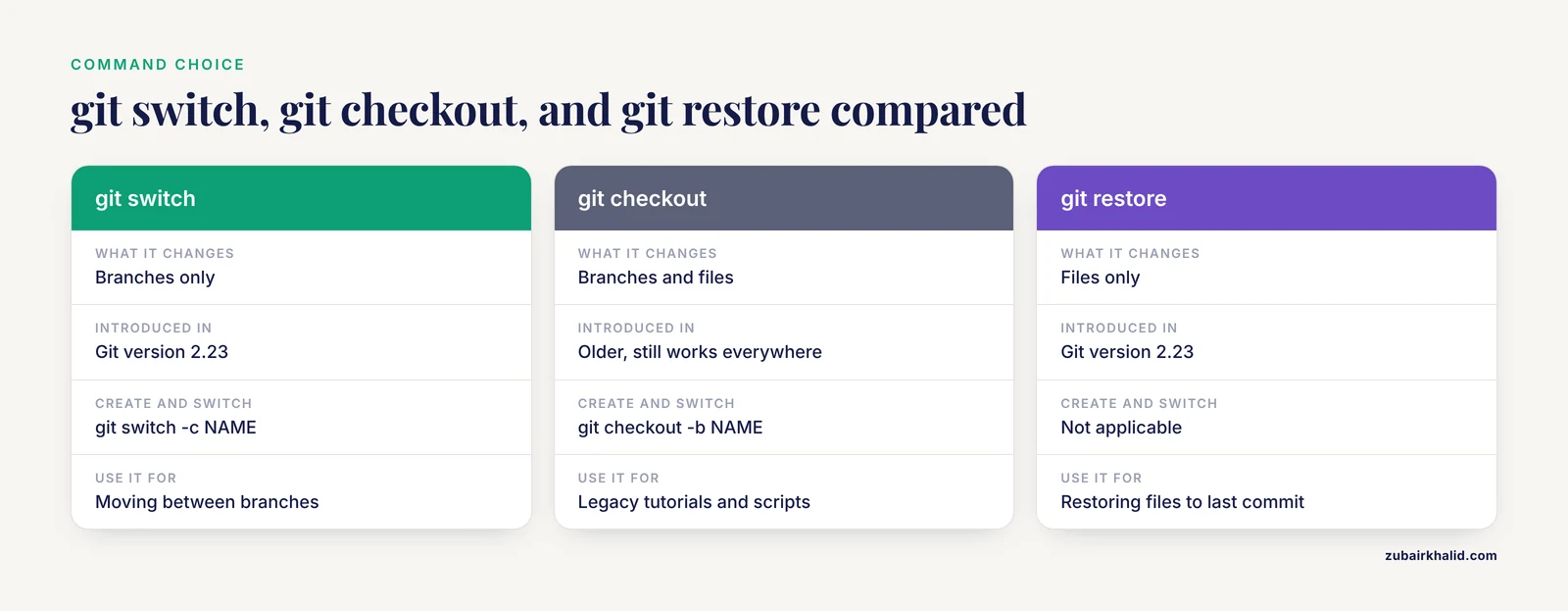
Both change branches. Git introduced switch in version 2.23 to handle branch changes alone, while checkout also restores files. Use switch for branches, restore for files, and note that checkout -b still works everywhere.
What happens to uncommitted changes when I switch branches?
They travel with you if they do not collide with files that differ between the branches. When they collide, Git blocks the switch and asks you to commit or stash first.
How do I rename a branch?
Run git branch -m old-name new-name to rename locally. Push the new name with git push -u origin new-name, then remove the old remote branch with git push origin -d old-name.
Can two people work on the same branch?
Yes, but coordinate like a shared desk: pull before you push and expect frequent merges. One branch per person or per task, each merged through a pull request, stays cleaner for most research collaborations.
Is it safe to delete a branch after merging?
Yes. git branch -d refuses to delete a branch with unmerged commits, so the safe form is safe by design. After a merge, the commits live on in main.
How do I test an idea without touching my working branch?
Branch from it. git switch -c idea-test creates a branch from your current position, and git switch -c idea-test main creates one from main. Branches cost nothing, so delete the branch when the idea fails.
Should every small analysis get a branch?
No. Small, safe additions can go straight on main with a clear commit message. Branch anything risky, parallel, or tied to a manuscript revision, and follow your lab's written convention if one exists.