Git Add for Researchers: Step-by-Step Guide
By Dr. Zubair Khalid, DVM, MS, PhD ·

By the end of this guide you will be able to put an analysis project under version control, stage exactly the files and changes you intend with git add, inspect what you staged before it becomes permanent, undo a wrong staging decision, and publish a clean snapshot to GitHub. You need three things on hand: Git installed on your computer (check with git, version), a terminal, and a text editor. The unstage command shown here, git restore, requires Git 2.23 or newer, released in 2019. A free GitHub account is optional until the sharing section near the end.
This walkthrough covers git add for researchers from the first commit to the first push, using a small clinical data analysis project as the running example. The same commands work for any project that mixes code, notebooks, and a manuscript.
Why version control belongs in every research project
Most labs already run a version control system without naming it: analysis_final.R, analysis_final_v2.R, analysis_final_v2_REAL.R. Those filenames encode a history that the filesystem cannot answer, such as which version produced the figure in your last submitted manuscript. Git replaces that convention with a repository, a complete ordered record of committed snapshots, each annotated with an author, a timestamp, and a message explaining why the change happened.
The staging area is the quality gate in that record. Before any change becomes permanent, git add lets you decide precisely what enters it, file by file and even line by line. Open-source research software shows the standard this supports. DrugUtilisation, an open-source R package for drug utilisation studies built on data mapped to the OMOP Common Data Model, implements comprehensive unit tests and standardized output formats that keep results consistent across databases and minimize coding errors [1]. That level of engineering is only practical when every change to the code is tracked and reviewable.
The same discipline matters well beyond a single laptop. An evaluation of national perinatal quality collaboratives argues that inconsistent measurement of key outcomes over time and unrecorded intermediate changes in clinical practice make it hard to separate genuine health improvements from data artifacts, and recommends systematic registries that track quality initiatives [2]. A Git history is that registry at project scale. It answers the question every collaborator, reviewer, and future version of you will ask: which exact version of the code produced this result?
Git for scientists differs from Git in commercial software teams mainly in what gets staged. Analysis scripts, notebooks, manuscript sources, and small configuration files go in. Raw data, large generated outputs, and anything sensitive usually stay out, as the walkthrough shows.
How git add works: working tree, index, and commits
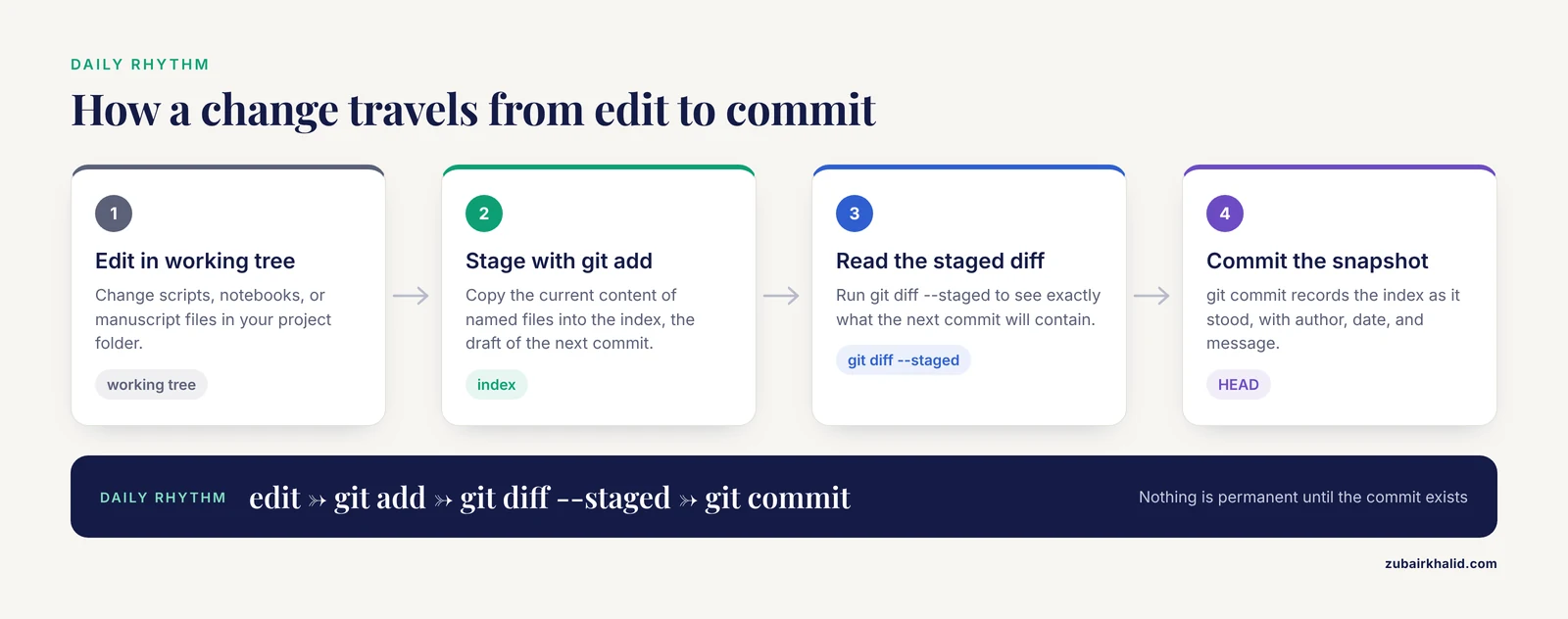
Four terms cover everything in this guide.
- The working tree is the set of files you actually see and edit in your project folder.
- The repository is the hidden
.gitdirectory plus the history it holds.git initcreates it. - The index, also called the staging area, is the draft of your next commit.
git addwrites the current content of named files into it. - A commit is a permanent snapshot of the index, recorded with an author, date, and message.
HEADis Git's name for the commit you are working on top of, normally the latest commit on your current branch.
The daily rhythm is edit, stage, commit. You edit files in the working tree, stage the changes you want with git add, and record the staged content with git commit. Two properties of this design matter in practice. First, git add stores whole file snapshots rather than diffs, so staging is cheap and safe to repeat. Second, nothing is permanent until a commit exists, and nothing leaves your machine until you push, so every mistake in this guide is recoverable up to those points.
git add for researchers: the step-by-step workflow
The running example is a project folder named patient-analysis containing these files:
README.md, a short project description.gitignore, the exclusion list you will create in step 2scripts/01_clean.Randscripts/02_stats.py, analysis codenotebooks/eda.ipynb, an exploratory Jupyter notebookdata/raw/patients.csv, a large raw data file that will be ignoredresults/figures/fig1.png, a generated figure that will be ignored
Step 1. Initialize the repository and identify yourself
Move into the project folder and create the repository:
cd ~/projects/patient-analysis
git init
Expected output:
Initialized empty Git repository in /home/you/projects/patient-analysis/.git/Everything Git knows about your project now lives in the .git folder. Delete that folder and you have deleted the history, so never edit its contents by hand.
Tell Git who you are, because every commit records an author name and email:
git config --global user.name "Your Name"
git config --global user.email "[email protected]"
If you skip this, the error appears later, at your first commit. The exact message and fix appear in the mistakes section.
Step 2. Write .gitignore before the first add
Create a file named .gitignore in the project root:
# Large or regenerable content
data/
results/

# Credentials and secrets
.env
credentials*.json

# System and editor noise
.DS_Store
Thumbs.db
__pycache__/
*.pyc
.ipynb_checkpoints/
Each line is a pattern. data/ excludes the whole directory, *.pyc excludes any file ending in .pyc, and lines starting with # are comments. Write this file before your first git add because it is far easier to prevent a file from entering the index than to remove it from history afterward.
Step 3. Look before you stage
Ask Git what it sees:
git statusExpected output:
On branch main

No commits yet

Untracked files:
  (use "git add <file>..." to include in what will be committed)
	.gitignore
	README.md
	notebooks/
	scripts/

nothing added to commit but untracked files present (use "git add" to track)
An untracked file exists in the working tree but has never been staged or committed. Notice that data/ and results/ are absent, because .gitignore excludes them. The compact form git status -s prints one line per path, with ?? marking untracked entries:
?? .gitignore
?? README.md
?? notebooks/
?? scripts/
Step 4. Stage one file
git add scripts/01_clean.RSuccessful git add prints nothing. Silence means success, which surprises many newcomers. Confirm the result:
git statusChanges to be committed:
(use "git restore --staged <file>..." to unstage)
new file: scripts/01_clean.RThe file now sits in the index as a new file. Nothing is saved to history yet. Staging is safe and fully reversible, so stage freely and refine later.
Step 5. Read the staged diff before committing
Before committing, read exactly what you staged:
git diff --stagedExpected output for the new script:
diff --git a/scripts/01_clean.R b/scripts/01_clean.R
new file mode 100644
index 0000000..8a4c1f9
--- /dev/null
+++ b/scripts/01_clean.R
@@ -0,0 +1,7 @@
+library(readr)
+library(dplyr)
+
+raw <- read_csv("data/raw/patients.csv")
+clean <- raw |>
+  filter(!is.na(patient_id))
+write_csv(clean, "data/clean/patients_clean.csv")
Lines beginning with + are additions and lines beginning with - are deletions. A hunk is a contiguous block of changed lines, marked by the @@ header that shows its line numbers. Three diff variants cover daily work:
git diffshows working tree changes that you have not staged yet.git diff, stagedshows what is in the index, ready to commit.-cachedis an exact synonym.git diff HEADshows all changes, staged and unstaged, against the last commit.
Step 6. Stage more files, directories, and patterns
Stage several paths in one command, including whole directories:
git add README.md .gitignore
git add scripts/
git add "scripts/*.R"
git add notebooks/eda.ipynb
Adding a directory stages every non-ignored file under it, recursively. The quoted glob "scripts/*.R" is a pathspec, a pattern Git matches against file paths. Quoting it hands the pattern to Git instead of letting the shell expand it, which keeps behavior consistent across terminals.
Step 7. Stage everything at once, deliberately
Three commands stage broadly, and the differences matter:
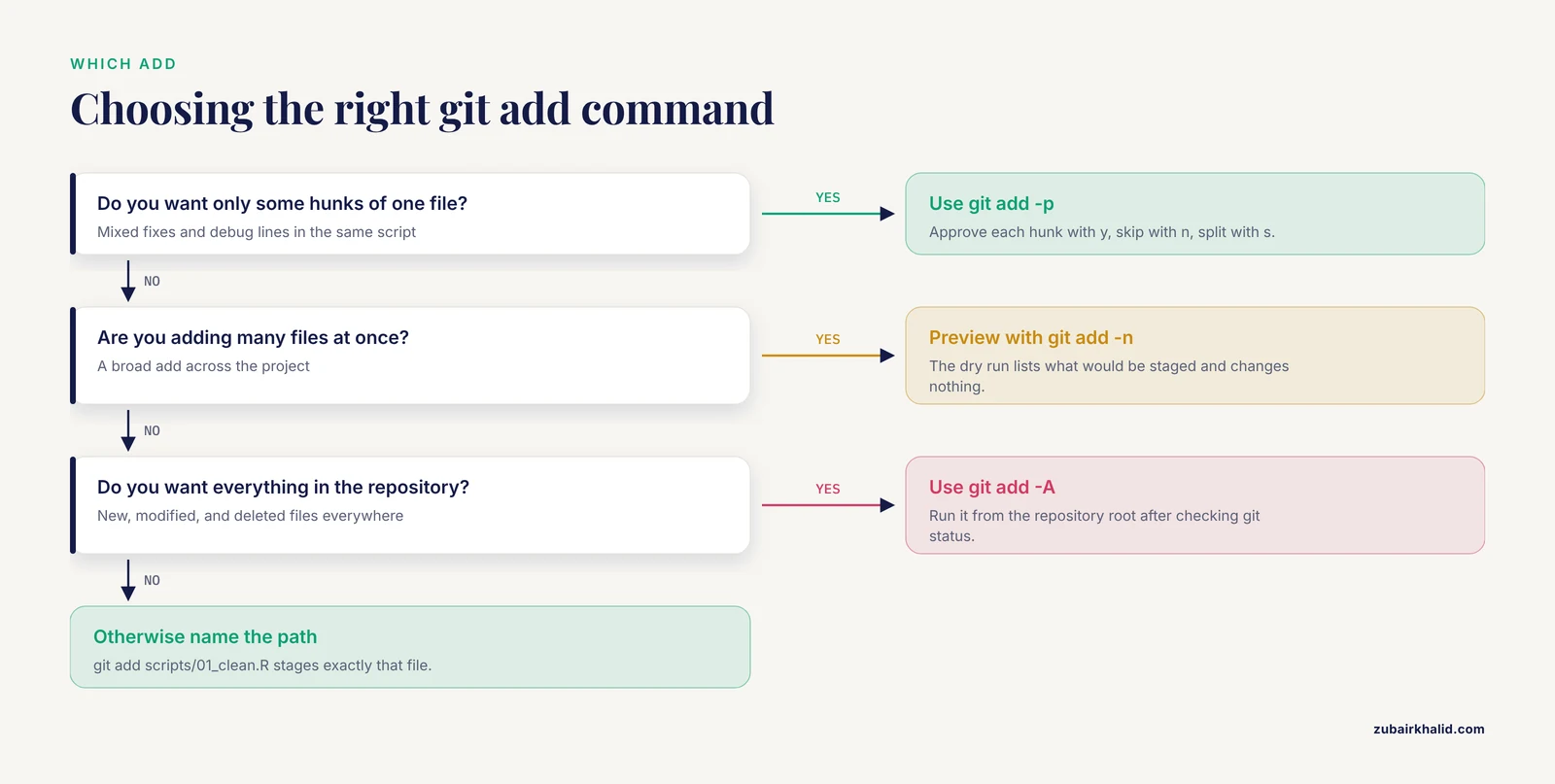
git add -Agit add .stages new, modified, and deleted files in your current directory and below. Since Git 2.0, this includes deletions.git add -Astages new, modified, and deleted files across the entire repository, no matter where you run it.git add -ustages modifications and deletions of already-tracked files only. It never picks up new files.
Run git status immediately after any broad add so you know what you just staged. When you truly want everything, git add -A from the repository root is the clearest choice. To move or rename a tracked file and stage the change in one step, use git mv oldname newname.
Step 8. Stage pieces of a file with git add -p
Mixed changes in one file are the norm in research code: a real fix next to a leftover debug line. Patch mode lets you approve changes hunk by hunk:
git add -p scripts/02_stats.pyExpected session:
@@ -14,7 +14,10 @@ def summarize(df):
     grouped = df.groupby("arm")
     means = grouped["score"].mean()
+    print("DEBUG", means)
     counts = grouped["score"].size()
     return means, counts

Stage this hunk [y,n,q,a,d,s,e,?]?
Answer with a single letter:
ystage this hunknskip this hunkssplit the hunk into smaller pieces when possibleeedit the hunk manually in your editorastage this hunk and all remaining hunks in the filedskip this hunk and all remaining hunks in the fileqquit without staging further hunks
Pressing ? prints the full key list. This is the single most useful staging tool for keeping debug prints, abandoned experiments, and unrelated refactoring out of a commit.
Step 9. Preview a broad add with a dry run
Before staging many files, preview the outcome without changing anything:
git add -n .Expected output:
add 'scripts/02_stats.py'
add 'notebooks/eda.ipynb'
The -n or -dry-run flag stages nothing. If the list shows a file you do not want, fix .gitignore first, then add.
Step 10. Commit the staged snapshot
git commit -m "Add cleaning and summary scripts with .gitignore"Expected output:
[main (root-commit) 3f9c1d2] Add cleaning and summary scripts with .gitignore
 5 files changed, 112 insertions(+)
 create mode 100644 .gitignore
 create mode 100644 README.md
 create mode 100644 notebooks/eda.ipynb
 create mode 100644 scripts/01_clean.R
 create mode 100644 scripts/02_stats.py
The commit records the index exactly as it stood, not the current working tree. 3f9c1d2 is the short hash, a unique identifier for the snapshot, and root-commit marks the first commit in the history. Write messages in the imperative mood and lead with the why: "Add sensitivity analysis for missing covariates" beats "changes".
Step 11. Undo staging mistakes
To remove a file from the index while keeping your edits in the working tree:
git restore --staged notebooks/eda.ipynbOn Git older than 2.23, the equivalent is git reset, notebooks/eda.ipynb. To stop tracking a file that is already committed while keeping it on disk, use git rm, cached data/leaked.csv. That removes it from future commits but not from past history, which is why prevention through .gitignore matters more.
Step 12. Verify the result
Three checks confirm a clean state:
git status
git log --oneline
git show --stat HEAD
Expected output for the first:
On branch main
nothing to commit, working tree clean
For the second:
3f9c1d2 (HEAD -> main) Add cleaning and summary scripts with .gitignoregit show, stat HEAD lists the files and line counts in the latest commit. To see every file Git is tracking, run git ls-files, and add -stage to see the raw index entries with their content hashes.
Key git add options at a glance
| Command | What it stages | Use it when |
|---|---|---|
git add scripts/01_clean.R | One named file or path | You know exactly which file changed |
git add scripts/ | Everything under a directory, recursively | A whole folder of related changes |
git add . | New, modified, and deleted files in the current directory and below (Git 2.0+) | A broad change from the project root, after checking git status |
git add -A | New, modified, and deleted files across the whole repository | One commit should capture everything |
git add -u | Modifications and deletions of tracked files only, never new files | You edited or renamed existing files and created nothing new |
git add -p | Individual hunks you approve interactively | Mixed changes in one file, or debug lines to exclude |
git add -n | Nothing, it prints what would be staged | Previewing a broad add |
git add -f | A file that .gitignore would normally exclude | Deliberate exceptions, such as a small test fixture |
git add -v | Prints the names of staged files | Confirmation inside scripts and logs |
git restore, staged <file> | Nothing, it removes the file from the index | Undoing an add while keeping your edits |
What to stage and what to leave out
Stage content that is small, text-based, and meaningful to a human reader:
- Source code in any language, plus shell scripts and Makefiles or pipeline definitions
- Notebook files, ideally with large outputs cleared before staging
- Manuscript sources in Markdown, LaTeX, or plain text
- Environment definitions such as
requirements.txtorenvironment.yml - Small configuration files and the
.gitignoreitself - Tiny test fixtures, a few kilobytes at most
Leave out content that is large, regenerable, or sensitive:
- Raw data files, instrument outputs, and database dumps
- Generated figures, tables, and model checkpoints that your scripts can rebuild
- Credentials, API keys,
.envfiles, and service account JSON files - Protected health information or any identifiable participant data, which must never enter a repository, especially one with a remote copy
To find out which rule is excluding a file, ask Git directly:
git check-ignore -v data/raw/patients.csv.gitignore:2:data/ data/raw/patients.csvThe output names the file, line number, and pattern responsible. To track an otherwise empty directory, such as a templates folder, add a placeholder file conventionally named .gitkeep:
mkdir -p scripts/templates
touch scripts/templates/.gitkeep
git add scripts/templates/.gitkeep
Git tracks files, not directories, so a directory with no files simply does not exist in the repository.
For files that must be versioned but are too large for normal handling, Git Large File Storage (LFS) replaces the file in the repository with a small pointer and stores the actual content on a separate server-side store:
git lfs install
git lfs track "*.fastq.gz"
git add .gitattributes
Run git lfs track before adding the large file, because the pattern is recorded in .gitattributes. Hosting platforms meter LFS storage and transfer separately from ordinary repository content. GitHub rejects individual files above its documented 100 MB limit and warns about files above 50 MB, which is why a stray git add . in a data directory usually surfaces at push time.
Sharing your work on GitHub
GitHub for researchers adds three things on top of local version control: an off-machine backup, a shareable home for collaborators and reviewers, and pull requests, which are proposed changes that teammates can comment on before you merge them.
Create an empty repository on the GitHub website, then connect and publish your local history:
git remote add origin https://github.com/yourname/patient-analysis.git
git branch -M main
git push -u origin main
Here origin is the nickname for the remote copy, and -u records it as the default destination so future pushes need only git push. Before your first push, audit what history will publish, because pushing sends every commit, including ones you forgot about:
git ls-files
git log --stat
For day-to-day work, develop on a branch, a parallel line of history, and open a pull request when it is ready:
git switch -c sensitivity-checksKeep pre-publication work in a private repository, and make it public when the manuscript is out if funder or journal policy allows. A sensible next step after your first push is a pre-commit hook, a script Git runs before each commit, to block large files or credential patterns automatically.
Practical git add tips for researchers
- Stage in logical units. One commit should contain one idea: a fix, a new analysis, or a documentation update. Reviewers and collaborators read history by commits, not by lines.
- Make
git statusa reflex. Run it before everygit add. Ten seconds of looking beats ten minutes of unstaging. - Pair every add with
git diff, staged. The diff is the last chance to catch a debug print or a hardcoded path before it becomes permanent. - Use
git add -pfor anything you edited heavily. Hunk-level staging keeps unrelated changes out of each other's commits. - Preview broad adds with
git add -n. A dry run costs nothing and catches ignored-file surprises early. - Re-add after late edits. If you edit a file after staging it, the index still holds the older snapshot.
git statuswill list the file under both "Changes to be committed" and "Changes not staged for commit". Rungit addagain to refresh. - Use
git commit -a -mfor tracked-file edits. It stages modifications to tracked files and commits in one step, but it never picks up new files, so brand-new scripts still needgit add. - Set two aliases to speed up the safe path:
git config --global alias.st "status -sb"
git config --global alias.unstage "restore --staged"
After this, git st shows a compact status and git unstage file.R undoes an add.
Common Mistakes and Limitations
git add cannot find your file
fatal: pathspec 'analys.R' did not match any filesThe path you typed does not exist from where you stand. Causes are a typo, running from the wrong directory, a file not yet created, or case mismatch, because paths are case-sensitive on most servers. Run git status to see real names, use shell tab completion, and prefer paths relative to the repository root.
Git refuses to add an ignored file
The following paths are ignored by one of your .gitignore files:
data/raw/patients.csv
hint: Use -f if you really want to add them.
This is .gitignore doing its job. Run git check-ignore -v data/raw/patients.csv to find the responsible rule, then either fix the pattern or, if the file genuinely belongs in version control, add it with git add -f as a deliberate exception.
git add runs outside a repository
fatal: not a git repository (or any of the parent directories): .gitYou are in a folder with no repository above it. Move into the project with cd, or create a repository with git init if the project has none.
Treating git add as a save button
git add stages content, it does not record it. Checkpoints in history are commits, and only commits appear in git log. If you staged work at the end of the day and turned off the computer, the staging area survived, but a commit is what makes the snapshot findable and restorable later.
Editing a file after staging it
The index holds the content as of the moment you staged. Edit afterward and git status shows the file in two places at once:
Changes to be committed:
  (use "git restore --staged <file>..." to unstage)
	modified:   scripts/02_stats.py

Changes not staged for commit:
  (use "git add <file>..." to update what will be committed)
	modified:   scripts/02_stats.py
The staged version and the working tree version differ. Run git add again to stage the newer content, or git diff to see what changed since you staged.
Staging data files and huge binaries
A broad git add . in a data-heavy project produces slow pushes and, on GitHub, a rejection for files above the platform's 100 MB limit. Worse, Git history keeps everything forever, so deleting a 2 GB file in a later commit does not shrink the repository. Fix this before the first add with a thorough .gitignore, and use Git LFS for the few large files that genuinely need versioning.
Committing credentials or patient data
.env files, API keys, and identifiable participant data must stay out of repositories. History retains removed content, so a leaked key in an old commit is still a leaked key. If credentials ever reach a commit, rotate them immediately, then remove them from history with a rewrite tool such as git filter-repo and follow your hosting platform's guidance on sensitive data removal. Prevention through .gitignore is the control that actually works.
The embedded repository warning
warning: adding the embedded git repository: notebooks/old-analysis
hint: You've added another git repository inside your current repository.
hint: Clones of the outer repository will not contain the contents of
hint: the embedded repository and will not know how to obtain it.
This happens when you git add a folder that contains its own .git directory. The outer repository records a bare pointer with no way for collaborators to fetch the content, so their clone shows an empty folder. Decide deliberately: either absorb the files by deleting the inner .git directory and re-adding the folder, or register it properly as a submodule, a repository nested inside another with its version pinned, using git submodule add.
Confusing unstage with discard
git restore, staged file.R keeps your edits and only empties the staging entry. git restore file.R throws away the working tree edits permanently. When in doubt, unstage first, look at git diff, and only discard changes you can regenerate.
Smaller stumbles
On Windows you may see warning: LF will be replaced by CRLF in scripts/01_clean.R. This comes from the core.autocrlf setting translating line endings and is harmless, but agree on one setting across your team to avoid noisy diffs. Empty directories vanish from commits because Git tracks files, so use a .gitkeep placeholder where the folder itself matters.
Two limitations bound this guide. Commands and defaults follow current Git behavior, and installations older than 2.23 differ in the unstage command. Beyond mechanics, deciding what belongs in a repository is a policy question that depends on your data governance rules, funder requirements, and institutional policy, so agree on a written convention with your team before the first commit.
Frequently Asked Questions
What does git add actually do?
git add copies the current content of the files you name into the staging area, also called the index, which is the draft of your next commit. Nothing is permanently recorded until you run git commit, and nothing leaves your computer until you push.
What is the difference between git add . and git add -A?
Scope. git add . stages new, modified, and deleted files in your current directory and below, while git add -A does the same across the entire repository regardless of where you run it. Both include deletions in Git 2.0 and newer.
How do I undo git add?
Run git restore, staged <file>. Your edits stay in the working tree, they simply leave the next commit. On Git older than 2.23, use git reset, <file> instead.
Should researchers commit their data files?
Usually no. Keep raw and large data out of Git with a .gitignore entry, use Git LFS for the few large files that must be versioned, and never commit identifiable participant data or credentials, because history preserves removed files.
Why does git add say my file did not match any files?
Because the path you typed does not exist from your current directory. Check git status for the real names, fix the spelling, or move to the repository root before adding.
What is a hunk in git add -p?
A hunk is a contiguous block of changed lines in a file. Patch mode shows each hunk in turn and lets you stage it with y, skip it with n, split it with s, or edit it with e.
Do I need GitHub to use git add?
No. git add works entirely on your own machine, and so do commits. GitHub becomes relevant when you want remote backup, sharing, and pull request review, which starts at your first push.
How often should I stage and commit?
Small and often. Stage one logical change, review it with git diff, staged, and commit it with a message that says why, ideally before you switch to a different task.
Further Reading
- Dual-pathway processing of AI-generated Chinese ink painting: evidence from eye-tracking, EEG, and artistic expertise.
- A unified decision-driven framework: Long-term tracking via visual-language models with motion estimation.
- Redistribution of Gaze Patterns in Facial Localized Scleroderma Following Autologous Fat Transfer: An Eye-Tracking Study.
- Interferon release does not add discriminatory value to smear-negative HIV-tuberculosis algorithms.