How to Find Large Files with du in Bioinformatics
By Dr. Zubair Khalid, DVM, MS, PhD ·
By the end of this guide you will be able to locate the directories and files eating your disk, tell the difference between real usage and reporting artifacts, check that your numbers are correct, and set up a repeatable disk audit you can run before every sequencing batch. You need a Linux or macOS shell, the standard du, find, and sort utilities that ship with GNU coreutils, and optionally the interactive tool ncdu. You do not need root access for anything inside your own project and home directories.
Disk pressure is a constant in genomics and other data-heavy life science work. Sequence archives, alignment files, annotations, and reference databases keep growing, and the same trend shows up across computational disciplines that maintain large public data resources. PubChem, for example, holds more than 100 million chemical records, and its maintainers describe the combined load of growing databases and high-throughput service demands as a significant challenge for both data hosts and workflow developers [1]. A sequencing group without a storage plan faces the same arithmetic at smaller scale. The du (disk usage) command is the standard first tool for the job, and learning to use it well is one of the highest-value linux commands bioinformatics analysts keep in their toolkit.
Why Bioinformatics Directories Fill Up
Before running commands, know where the bytes typically hide. The usual suspects, in rough order of how often they surprise people:
- Raw data and read files. Compressed FASTQ files from a single sequencing run can reach hundreds of gigabytes. Copying them into per-analysis folders doubles the cost.
- Alignment files. A position-sorted BAM file for a 30-fold coverage human genome is typically tens of gigabytes. Secondary analysis on a cohort of dozens or hundreds of samples multiplies this.
- Index files. Alignment indices, k-mer databases, and variant caller resource bundles each occupy several gigabytes. Teams routinely keep three or four copies of the same reference index because different tools or pipeline versions demanded it.
- Workflow scratch directories. Snakemake and Nextflow keep intermediate files by default. A
.nextflowdirectory with itsworksubtree, or a Snakemake directory tree under.snakemake, can grow larger than the final results. - Package and container caches. Conda downloads every package into a
pkgscache before linking it. Apptainer and Singularity store container images in a cache directory. Over months, these caches rival the project data themselves. - Temporary files. Tools like GATK and Cell Ranger write large temporary files to
TMPDIR. If a job dies mid-run, those files stay behind. - Logs and diagnostics. Verbose per-sample logs, multiQC inputs, and old run reports accumulate silently.
Knowing these patterns shapes how you read du output. A directory named work inside a Nextflow project is never a surprise, but an 800 gigabyte .cache directory in a home folder usually is.
What du Measures and What It Does Not
du walks a directory tree and sums the disk space each file occupies. Two distinctions matter immediately.
Allocated space versus apparent size. Filesystems allocate storage in blocks, commonly 4 KiB on ext4 and similar systems. A file containing 13,000 bytes occupies 4 blocks, so du reports 16 KiB by default. The -apparent-size flag reports the 13,000 bytes instead. For most bioinformatics work, block-based accounting is what you want, because block usage is what fills the filesystem. The gap matters most when millions of tiny files are involved, which happens with per-cell or per-contig outputs.
Directory size versus file size. When du reports a directory, it reports the recursive total of everything under it. When it reports a file, it reports that file alone. This is why du -ah output mixes single files with directory totals, and why you should sort before reading.
One more property worth knowing: within a single du invocation, hard links are counted only once. Across two separate du runs of different directories, a hard-linked file appears in each total. Reference genomes and their indices are sometimes hard-linked to save space, so keep this in mind when summing separate directory reports.
Step-by-Step: Find Large Files and Directories with du
The following walkthrough assumes GNU coreutils on Linux. macOS differences are noted where they matter.
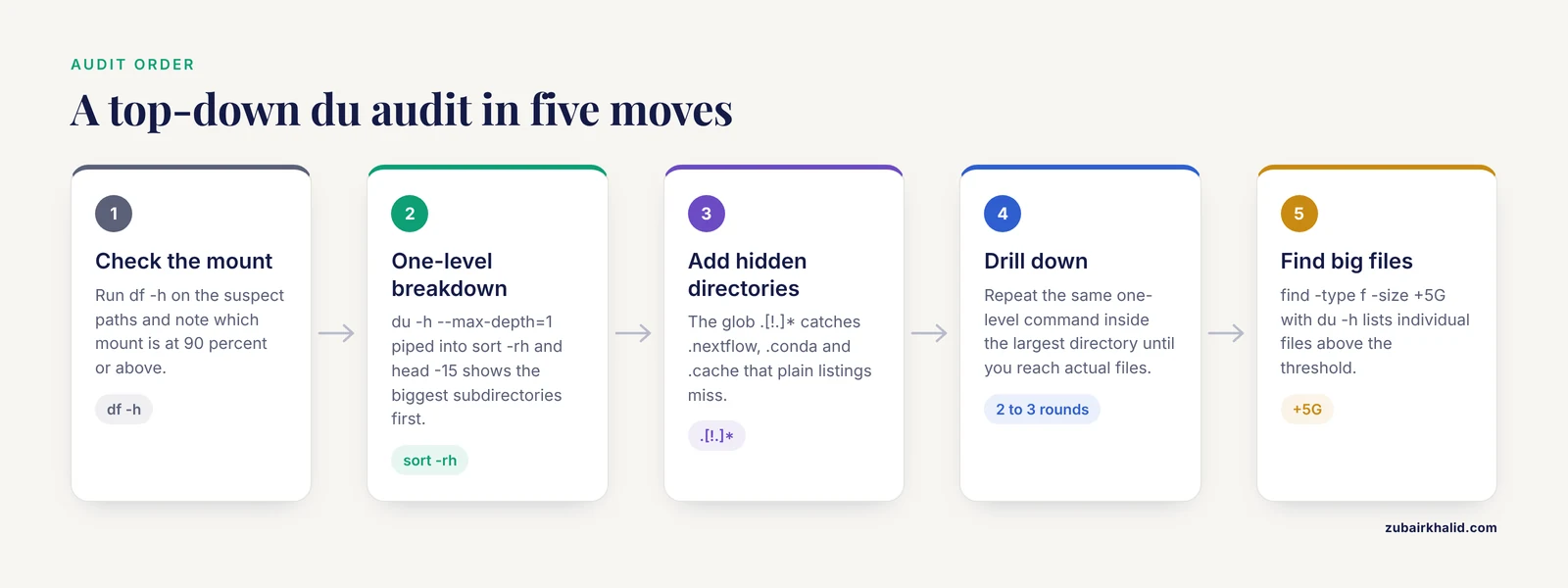
Step 1. Check the filesystem level first
Start with df, which reports filesystem-level usage and often reveals that the problem is not where you think it is.
df -h /data /homeExpected output looks like this:
Filesystem      Size  Used Avail Use% Mounted on
/dev/nvme0n1p3  1.8T  1.6T  130G  93% /data
nfsmount:/vol1  4.0T  3.9T   97G  98% /home
Use% at 90 percent or above tells you which mount to investigate. Note the mount point, because du can cross mount boundaries, and a directory on one mount can contain subdirectories that physically live on another.
Step 2. Get the one-level breakdown
Move into the suspect tree, or run against its path, and ask for a summary one directory deep.
du -h --max-depth=1 /data/seq | sort -rh | head -15Expected output:
3.1T    /data/seq
1.4T    /data/seq/2025_run042
830G    /data/seq/2025_run039
620G    /data/seq/references
210G    /data/seq/2025_run038
58G     /data/seq/pipeline_tests
14G     /data/seq/logs
The flags do the following work:
-hprints human-readable sizes (K, M, G, T).-max-depth=1limits the report to directories one level below the target, instead of listing every subdirectory in the tree.sort -rhsorts human-readable numbers in reverse order, so 1.4T sorts above 830G. Sorting without-his a classic error, because a lexical sort puts 9.9G above 10G.head -15trims the list to the largest entries.
The pipe into sort -rh | head is the single most useful pattern in this whole article. Memorize it.
Step 3. Include hidden directories
Hidden directories, those starting with a dot, hold most of the pipeline and cache surprises. A plain du -h -d1 . includes them in the parent total but the glob in many shell setups skips them when you pass explicit arguments. Cover both:
cd /home/analyst
du -sh .[!.]* * 2>/dev/null | sort -rh | head -20
The glob .[!.]* matches dotfiles and dot-directories but excludes . and ... 2>/dev/null suppresses errors for arguments that no longer exist. Typical output:
412G    .nextflow
210G    miniconda3
 88G    .conda
 61G    .cache
 34G    projects
 29G    .apptainer
 4.1G   .local
In this example, three of the five largest entries are caches and workflow state, not project data. That outcome is common enough that you should never skip Step 3.
Step 4. Drill down into the largest directory
Repeat the pattern one level deeper, inside the directory you identified.
du -h --max-depth=1 /data/seq/2025_run042 | sort -rh | head -10Keep repeating until you reach the directory that holds actual files rather than subdirectories. Two or three iterations usually take you from a mount-level view to a specific folder.
If you already suspect the tree is not too deep, or you are willing to wait, one command lists every file and directory at once:
du -ah /data/seq/2025_run042 | sort -rh | head -30-a (all) reports files as well as directories. On a tree with millions of files this run takes minutes and puts real load on parallel filesystems, so prefer it for medium-sized directories and use the find approach in the next step for very large trees.
Step 5. Use find for large files directly
du answers "where is the space," and find answers "which individual files exceed a threshold." Combining them gives the fastest answer for very large trees:
find /data/seq -type f -size +5G -exec du -h {} + | sort -rh | head -20This finds every regular file larger than 5 GiB anywhere under /data/seq, prints each with a human-readable size, sorts largest first, and shows the top 20. Expected output:
56G     /data/seq/2025_run042/bam/sample_A.sorted.bam
55G     /data/seq/2025_run042/bam/sample_B.sorted.bam
43G     /data/seq/references/gencode/GRCh38/transcriptome_all.gtf.fa.idx
12G     /data/seq/2025_run039/fastq/lane1/run039_L001_R1.fastq.gz
The -size suffixes are c (bytes), k, M, and G. +5G means strictly greater than 5 GiB. -type f restricts the search to regular files, which excludes directories, links, sockets, and devices.
On GNU systems you can skip du and format the output with find itself:
find /data/seq -type f -size +1G -printf '%10s %p\n' | sort -rn | head -20Here %s prints the file size in apparent bytes, so the numbers are exact file contents, not allocated blocks. This variant is fast but does not reflect block overhead. BSD find on macOS lacks -printf, so on a Mac use the find -exec du -h {} + form above.
For a threshold you can scan quickly at a glance, 100 MiB works well as a first cut in most projects:
find /data/seq -type f -size +100M -exec du -h {} + | sort -rh | head -30Step 6. Respect mount boundaries with -x
If you run du against / or a directory that contains mounts, du will walk into every mounted filesystem it can reach, including network drives, and the run can appear to hang. Use -one-file-system (short form -x) to stay on one filesystem:
du -xh --max-depth=2 / 2>/dev/null | sort -rh | head -30This audits the root filesystem without descending into /data if /data is a separate mount, and the error suppression hides the routine permission messages under /proc, /sys, and /run.
Step 7. Count files when the count, not the bytes, is the problem
Parallel filesystems and backup systems choke on file counts before they choke on bytes. Millions of small per-contig or per-cell files make tar archives, rsync, and metadata operations slow even when total bytes look manageable. Check inode usage at the filesystem level and directory level:
df -i /data
du --inodes -d1 /data/seq/2025_run042 | sort -rh | head -10
Expected output from the second command:
1.2M    /data/seq/2025_run042/cellranger
148K    /data/seq/2025_run042/bam
 9.3K   /data/seq/2025_run042/fastq
-inodes replaces the byte count with a count of files and directories in the GNU version of du. A df -i report near 100 percent IUse% means the filesystem cannot create new files regardless of free bytes.
Step 8. Compare block usage with apparent size where it matters
Archives that are mostly compressed, such as .tar.gz bundles of old runs, show block usage close to apparent size. Sparse files, which some tools produce for large preallocated outputs, show allocated space far below apparent size. Compare both views on the same directory when the numbers look wrong:
du -sh /data/seq/2025_run042
du -sh --apparent-size /data/seq/2025_run042
If the two totals differ wildly, sparse files are present, and copying that tree without a sparse-aware tool (rsync -S or cp, sparse=always) will silently consume the difference in real space.
Step 9. Check the classic caches before blaming your data
These are the paths to check in your own home directory, in this order, because they hide the most reclaimable space:
du -sh ~/.cache ~/.conda ~/miniconda3/pkgs ~/anaconda3/pkgs \
      ~/.apptainer ~/.singularity .nextflow/work .snakemake 2>/dev/null
Conda caches every downloaded package tarball under pkgs even after the environment uses it. conda clean, all removes them. Apptainer and Singularity keep layer caches that are safe to clear when no jobs are running. Workflow tools keep intermediates under their work directories, which is project data rather than cache, so archive or delete those deliberately using your pipeline's cleanup mechanism rather than rm -rf on a directory you do not fully control.
Step 10. Turn the audit into a repeatable workflow
A one-time du run solves today's crisis. A scheduled audit prevents the next one. Structured workflow engineering methods, including Business Process Mapping and root-cause analysis with Why-Why trees, have been shown to convert recurring operational problems into repeatable procedures in other service settings [2], and the same discipline applies to storage management. A minimal weekly audit looks like this:
#!/usr/bin/env bash
# du-audit.sh: record the 50 largest subtrees under each project root
set -euo pipefail
STAMP=$(date +%Y%m%d)
OUT="$HOME/audits/du-audit-$STAMP.txt"
mkdir -p "$HOME/audits"
for root in /data/seq /home/analyst; do
    echo "== $root ==" >> "$OUT"
    du -h --max-depth=2 "$root" 2>/dev/null | sort -rh | head -50 >> "$OUT"
done
echo "Audit written to $OUT"
Schedule it with cron:
0 6 * * 1 /home/analyst/bin/du-audit.shIn a crontab, percent signs must be escaped as \% inside the command if you generate filenames inline, so keeping the date logic inside the script, as shown, avoids that trap. Keeping weekly snapshots of the same report lets you diff consecutive audits and see which directories grew, which is far more informative than any single snapshot. Environmental monitoring research makes the same argument from the measurement side: delayed, one-off measurements limit the ability to respond before conditions compound, which is why continuous near-real-time monitoring is emphasized across fields from sludge treatment to ammonia management [3], [4]. A weekly du audit is the storage equivalent.
Quick Reference: Key du and find Options
| Option | Tool | What it does | When to use it |
|---|---|---|---|
| , - | , - | , - | , - |
-s | du | Summary of the argument only, no subdirectory lines | Total size of one directory |
-h | du | Human-readable units (K, M, G, T) | Almost always, paired with sort -rh |
-max-depth=N (GNU) or -d N (BSD) | du | Limit report depth to N levels | Top-down drill-down |
-a | du | List files as well as directories | Locating individual large files in medium trees |
-x, -one-file-system | du | Do not cross mount points | Auditing /, avoiding NFS walks |
-apparent-size | du | Report file content bytes, not allocated blocks | Diagnosing sparse files and tiny-file overhead |
-inodes (GNU) | du | Count entries instead of bytes | Diagnosing millions of small files |
-exclude=PATTERN | du | Skip matching paths | Reporting "everything except the BAMs" |
-size +NG | find | Match files larger than N GiB | Fast large-file search in huge trees |
-type f | find | Restrict to regular files | Keeping directories out of find results |
Combining du with Other Linux Commands Bioinformatics Work Needs
A few combinations cover most real questions.
What is big besides the alignments? Exclude them:
du -h --max-depth=1 --exclude='*.bam' --exclude='*.cram' /data/seq/2025_run042 | sort -rhThis view surfaces the reference copies, scratch files, and logs hiding behind the BAM totals.
Which of these large files are hard links to the same data?
find /data/seq/references -type f -links +1 -printf '%i %10s %p\n' | sort -k1,1n | headFiles sharing an inode number in the first column are the same physical data. This prevents you from deleting one "copy" and being surprised that another path lost its content too.
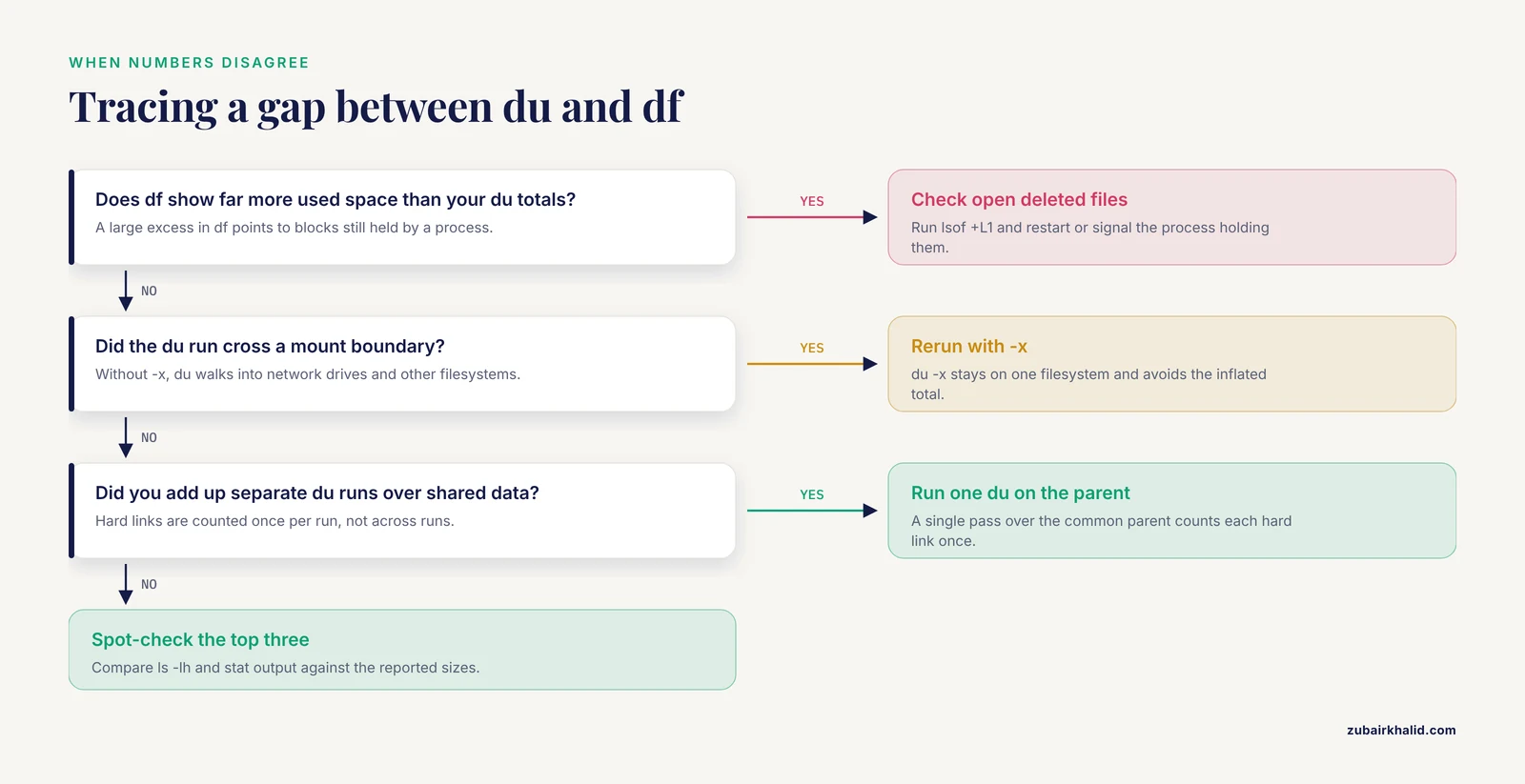
Which deleted files are still holding space? When df says the disk is full but du totals come up short, a running process holds open files that were already deleted from the directory tree. Find them:
lsof +L1 | sort -k7 -rn | headThe fix is usually to restart or signal the holding process. This is the single most common reason du and df disagree.
What is the exact byte size of one file?
stat -c '%s bytes %n' /data/seq/2025_run042/bam/sample_A.sorted.bamUse this when a quota system or a transfer tool needs the true byte count rather than a human-readable approximation.
Interactive exploration. For directories you audit by hand often, ncdu gives the same information with a navigable interface and a delete key:
ncdu /data/seqIt caches a scan in its own database, which makes repeat sessions fast, but be aware that its default delete operation is immediate and unrecoverable.
Checking That Your Result Is Right
Trust the output only after three sanity checks.
- Sum consistency. Add the child directory totals from a
-max-depth=1run and compare against the parent's-stotal. They should match within a few percent. A large gap means hard links counted differently, files that changed during the run, or a mount boundary you crossed in one pass but not the other. - Cross-check against df.
df -hon the mount should show a used value close to the sum of yourdutotals for everything on that filesystem. A large excess indfpoints to deleted-but-open files or reserved blocks. A large excess induusually means you double-counted a mount or randuon two overlapping directories and added the results. - Spot-check the winners. For the top three entries, run
ls -lhandstatdirectly. A 56G BAM should look like a 56G BAM inls -lh. If the file was deleted mid-scan or renamed, rerun that part.
On network and parallel filesystems, numbers can drift while long jobs write new data. For a stable picture, run the audit when no pipeline is writing to the tree, or accept that the report is a snapshot with a stated timestamp, which is exactly why the scheduled audit writes a dated file.
Common Errors and Exact Fixes
du: cannot access '/data/seq/private': Permission denied Some path is unreadable by your account. For your own trees, check ownership with ls -ld and fix with chown if you own the parent. For directories owned by others, either accept the suppressed partial result with 2>/dev/null or run a privileged audit explicitly (sudo du -sh /data/seq/private) on shared systems where policy allows it.
du: cannot read directory '/mnt/archive': Input/output error The underlying mount is failing, not your command. Check dmesg for the device errors, unmount and remount the filesystem, and treat any data on it as suspect until the filesystem check passes. du results from a partially readable tree are incomplete by definition.
du: WARNING: Circular directory structure ... this nearly always means a hard link between directories Something has hard-linked one directory into another, creating a loop. GNU du skips the loop to avoid infinite recursion. Find the offending link with find -type d -links +1 in the reported area and remove it.
The command seems to hang on an NFS or Lustre mount. du performs a metadata-heavy traversal, and network filesystems are slow at exactly that. Run du on the storage server itself where possible, add -max-depth to reduce work, and never run large recursive scans on a shared login node during business hours. Cluster etiquette matters here as much as correctness.
du: cannot access '/proc/12345/task/12345/fd/9': No such file or directory Normal on a live system. The target disappeared between listing and reading. Suppress with 2>/dev/null and interpret the totals as slightly conservative.
Results differ between two runs minutes apart. A pipeline is writing into the tree. Either rerun when the system is quiet or accept the drift and compare only against audits taken under similar conditions.
On macOS, -max-depth is rejected. BSD du uses -d N instead, and -apparent-size and -inodes differ. Install GNU coreutils (the binaries are then named gdu, gsort, and so on) if you need identical behavior across platforms.
Common Mistakes and Limitations
- Sorting without
-h.sort -ralone orders 9.9G above 10G. Always pair human-readableduoutput withsort -rh. - Reading
dunumbers as exact file sizes.dureports allocated blocks by default. Use-apparent-sizeorstat -c %swhen a transfer tool or quota system needs true bytes. - Missing hidden directories. A tree can look clean at
-max-depth=1while.nextflow,.snakemake, or.cachequietly holds hundreds of gigabytes inside it. Always audit dot-directories explicitly. - Crossing mounts unintentionally. Without
-x, adurun against your home directory can silently walk into an attached external drive and attribute its size to the wrong branch. - Counting hard links twice across separate runs. Summing
du -shoutputs from two directories that share hard-linked files overstates total usage. Run oneduover the common parent instead. - Treating byte pressure and file-count pressure as the same problem. A full filesystem shows in
df, inode exhaustion shows indf -i. Both block new work, and the remedies differ.du, inodesfinds the file-count culprits. - Deleting from scratch directories by hand. Removing files from a running pipeline's
workdirectory corrupts the run. Use the workflow manager's own cleanup (for example,nextflow cleanor Snakemake'stemp()directive) between runs. - Assuming the largest number is the safest target. The biggest directory is often raw data that must be preserved under data-retention policy. Confirm what is reproducible output before deleting anything, and prefer moving to archive storage over deletion when in doubt.
- One-off audits only. A single scan tells you where the space went, not what is growing. Growth rates need repeated dated audits, which is why Step 10 exists.
ducannot tell you what data is worth keeping. It reports usage, not value. Deciding whether an intermediate BAM should become a CRAM, move to cold storage, or be regenerated on demand is a policy question that lives in your data management plan.
Sensible Next Steps After You Find the Culprits
Once the audit names the offenders, act in this order of safety:
- Clear pure caches first.
conda clean, all, Apptainer and Singularity cache cleanup, and staleTMPDIRleftovers are zero-risk. - Compress or convert the heavy intermediates. Converting position-sorted BAM to CRAM with
samtools view -Ctypically reduces footprint substantially while preserving the alignment, and re-extracting a BAM later is a single command. Re-compress leftover uncompressed FASTQ or SAM text withbgziporpigz. - Archive completed runs. Move finished project trees to institutional archive or cloud cold storage, keep a manifest, and note that some archives cannot be regenerated from a public database copy, so verify checksums after transfer.
- Fix the pipeline. Mark intermediates as temporary in the workflow, point
TMPDIRat scratch space that auto-cleans, and stop copying raw reads into per-analysis directories. Referencing a shared read-only copy costs almost nothing.
Frequently Asked Questions
What is the difference between du and df?
du sums the space used by files in a directory tree, while df reports usage of the whole filesystem. When they disagree, deleted-but-open files or mount crossings are usually the cause.
Why does du show a different size for the same file on two systems?
Different filesystems use different block sizes and overhead, so allocated space differs even for identical file contents. Compare with -apparent-size to remove the filesystem effect.
How do I find the largest individual files, not just directories?
Use find /path -type f -size +1G -exec du -h {} + | sort -rh | head -20 to list individual files above the threshold, largest first.
Is du safe to run on a shared HPC filesystem?
It is safe but metadata-heavy, so avoid running large recursive scans on shared login nodes or against busy parallel filesystems during peak hours. Use -max-depth and run on the storage server when possible.
Why does du not show the space freed after I deleted files?
A running process still holds the deleted file open, so the blocks are not released. Find the holder with lsof +L1 and restart or signal that process.
How do I include hidden directories like .nextflow in my du totals?
Use du -sh .[!.] | sort -rh so the shell expands dot-directories as arguments, since ordinary globs skip them.
What is the fastest way to find large files on a slow network drive?
Run du on the storage server itself, or use find with a size threshold rather than a full du -ah, because both reduce the number of metadata round trips.
Should I compress my BAM files or convert them to CRAM?
For reference-aligned data, converting BAM to CRAM with samtools view -C generally saves considerably more space than gzip-level compression of BAM alone, and a BAM can be recovered from the CRAM on demand.
Further Reading
Sources
- Empowering large chemical knowledge bases for exposomics: PubChemLite meets MetFrag.
- AntLink: A Biomimicry-Orientated System for Workflow Improvement at an Automobile Aftersales Service Centre.
- Advancements in rapid sludge moisture content detection: A comprehensive review of methods and online monitoring techniques.
- Controlling ammonia in aquatic environments: a critical review linking monitoring, prevention, and recovery.