Why Your Bioinformatics Scripts Break: File Permission Errors
By Dr. Zubair Khalid, DVM, MS, PhD ·
A bioinformatics pipeline that ran yesterday can fail today with a single line of red text: Permission denied. The most likely cause is simple. You are not the owner of the file or directory the script is trying to touch, or the file is missing its execute bit. The first thing to check takes ten seconds. Run id to see which user and groups you belong to, then run ls -l on the exact path the error names. Compare the owner and the permission bits on the left of that output against your own identity. In the majority of cases, the mismatch between those two lines explains the failure.
Permission errors are uniquely frustrating because the message rarely tells you which condition failed. The kernel reports the outcome, not the reason. A file you can read cannot be deleted because the parent directory is not writable. A script you can read cannot be run because the execute bit is missing. A directory you can enter with cd cannot receive new files because the write bit is absent. Each of these produces the same two words, Permission denied, behind three different mechanisms.
This article walks through those mechanisms from the most common cause to the rarest, gives you a diagnostic sequence you can follow on any Linux system, and ends with prevention practices that keep pipelines running. The commands are standard tools available on virtually every Linux server, cluster node, and container you will ever run genomics work on, which is why fluency with basic Linux commands for bioinformatics pays for itself the first week you spend on a sequencing core's compute server.
Why Linux File Permissions Break Bioinformatics Scripts
Every file and directory on a Linux system carries three sets of permissions, one for the owner, one for the group, and one for everyone else. Each set contains three bits: read (r), write (w), and execute (x). You see them as the string rwxr-xr- in the output of ls -l. The numeric form compresses the same information. Read is 4, write is 2, execute is 1. The mode 755 means the owner can read, write, and execute, while the group and everyone else can read and execute. The mode 644 means everyone can read but only the owner can write.
Three rules trip up almost everyone working in genomics at least once.
First, permission checks stop at the first match. If you own a file, the owner bits apply to you and the group and other bits are never consulted, even if you are also a member of the group that owns the file. A researcher who is both the owner of a data directory and a member of the lab group sometimes gets denied access that a colleague in the same group has, because their personal owner bits are more restrictive.
Second, directories need the execute bit to be usable at all. Execute on a directory means permission to pass through it, to access files inside it. Without x on a directory, you cannot cd into it, cannot read files inside it, and cannot run binaries inside it, even if the files themselves are world-readable. Read on a directory only lets you list the names it contains.
Third, deleting or renaming a file depends on the write bit of the directory that contains it, not on the file itself. This is why you can own a read-only file in a writable directory and still remove it, and why you can be denied deletion of a file you can read.
When a script runs under a pipeline manager, a scheduler, or a container, the user identity can change without you noticing, and the permission checks follow that identity, not yours. Multi-user infrastructure amplifies the problem. As the number of users and shared resources grows, permission management becomes more complicated and oversights in assigning access become routine rather than exceptional. Anyone who has administered a shared cluster scratch directory recognizes this immediately.
The Troubleshooting Table
The table below is the core of this article. Every common variant of the permission error in bioinformatics work maps to a row here. Work down the list in order of frequency.
| Symptom | Likely cause | How to confirm | Fix | |
|---|---|---|---|---|
bash: ./script.sh: Permission denied | Missing execute bit on the script | ls -l script.sh, look for rw- where rwx should be | chmod u+x script.sh | |
permission denied when opening a file for writing inside a script | Output directory not writable by your user | ls -ld /path/to/output and id | Write to a directory you own, or ask the owner to grant write access | |
rm: cannot remove 'file': Permission denied even though you can read the file | Parent directory not writable by you | ls -ld /path/to/parent | Fix the directory permissions, not the file | |
cd: /path: Permission denied | Missing execute bit on a directory in the path | namei -l /path/to/file | chmod u+x on each directory along the path that lacks it | |
| Command works interactively but fails inside Nextflow, Snakemake, or a cron job | Job runs as a different user, from a different working directory, or with a different umask | Print whoami and pwd from inside the failing job | Correct paths, use absolute paths, align the job's identity with file ownership | |
tar: file: Cannot chown: Operation not permitted during extraction | Archive stores ownership you are not allowed to set | ls -l the extracted files, check owner | Extract with plain tar -xf as your own user, then adjust permissions | |
permission denied only inside a Docker or Apptainer container | Container runs as an internal user whose UID does not match the mounted volume | Run id inside the container against a mounted directory | Run the container with your own numeric UID and GID mapping | |
UNPROTECTED PRIVATE KEY FILE or Permission denied (publickey) during git clone or SSH | Private key file permissions too open | ls -l ~/.ssh/id_rsa shows group or world read | chmod 600 ~/.ssh/id_rsa | |
Read-only file system when writing | Mounted volume is read-only | `mount | grep path or findmnt /path` | Remount read-write or move work to writable storage |
Works as your user, fails under sudo, or vice versa | Two different identities with different permissions and different PATH lookups | which tool as each user | Install tools in locations both identities can execute, or run consistently as one user |
Cause 1: You Are Not the Owner of the File
This is the most common cause of Permission denied in bioinformatics work, and it usually arrives through one of three doors.
The first door is sudo. A researcher runs sudo pip install or sudo conda once, out of frustration, and every file the installer writes is now owned by root. Later, the package manager, a virtual environment, or the researcher's own scripts cannot modify those files. The telltale sign is a mixture of ownership inside a single directory. Run ls -la in your conda environments directory or your Python site-packages directory. If you see entries owned by root next to entries owned by you, a previous sudo run caused the damage. The clean fix for a Python environment is to delete it and recreate it without elevated privileges, because patching ownership file by file reliably misses something.
The second door is shared scratch space. On many clusters, the scratch or nobackup filesystem is a free-for-all, and a lab mate or an administrator creates a parent directory you now need to write into. You can read everything but create nothing. Confirm with ls -ld /scratch/lab/shared. The d in the command matters, because ls -ld shows the directory's own permissions rather than the contents. If the output reads drwxr-xr-x root lab, only root can create files there. The correct fix is organizational, not technical. Ask the owner to create a subdirectory for you and chown it to your account, or to add write permission for the lab group with chmod g+w.
The third door is your own past self using a different account. On institutional systems, people accumulate accounts: a personal account, a service account for web tools, an account on a legacy server. Data copied by one account cannot be overwritten by another. id followed by ls -l on the failing path resolves the confusion in seconds.
The honest fix for ownership problems is chown, and chown almost always requires administrative rights. Before running any command with sudo, print the exact path first with pwd and ls -l. Never combine sudo with a wildcard or a recursive flag on a path you have not verified character by character. A single mistyped space in sudo chown -R user / has destroyed production systems.
Cause 2: Missing Execute Bit on Scripts and Tools
Permission denied on ./my_script.sh almost always means the execute bit is missing. Scripts arrive this way constantly: downloaded from a repository, emailed by a collaborator, copied from a shared drive that strips permissions, or written with an editor that creates files as plain text.
The fix is one command. chmod u+x my_script.sh grants execute to the owner. chmod +x my_script.sh grants it to everyone. For a private analysis script, u+x is the safer habit.
A related failure looks similar but has a different mechanism. If the interpreter named on the shebang line does not exist, or the interpreter itself lost its execute bit, you get a permission error or a confusing "bad interpreter" message. Check the first line of the script and confirm the interpreter path exists with which bash or which python3.
Conda environments introduce a subtle variant. Activating an environment changes which binaries your shell finds first through the PATH variable. If a tool inside the environment directory lost its execute bit, or if an old binary elsewhere on the system is shadowing the one you want, the error appears to come from nowhere. which bwa and type -a bwa show you every copy of the tool your shell can find, in search order. This is a core linux for bioinformatics habit worth building early, because it resolves a large fraction of "the tool is installed but will not run" reports.
Cause 3: Directory Permissions Along the Path
A script can fail on a path where every individual file looks fine. Access to a file requires execute permission on every directory from the root down to the file's parent. If one directory in the chain denies you the execute bit, nothing beneath it is reachable, and the error surfaces at whatever operation touched the path first.
The fastest diagnostic is namei -l /path/to/problem/file. This command walks the path component by component and prints the permissions of every directory along the way. Read the output top to bottom. Any d-- or missing x for your identity marks the broken link in the chain. This one command replaces twenty minutes of poking at individual directories.
The parent directory rule also explains the deletion puzzle. When rm fails on a file you can plainly read, the problem is the containing directory. Check it with ls -ld, look at the write bit for your identity class, and fix the directory. The same rule explains failures in pipeline staging directories: a workflow can read every input file and still fail the moment it tries to rename a temporary file into place, because renaming is a write operation on the directory.
Cause 4: Pipeline Managers, Schedulers, and Changed Context
A script that works when you type it and fails when the workflow engine runs it is failing because the execution context changed. Three things change under Nextflow, Snakemake, SLURM, or cron.
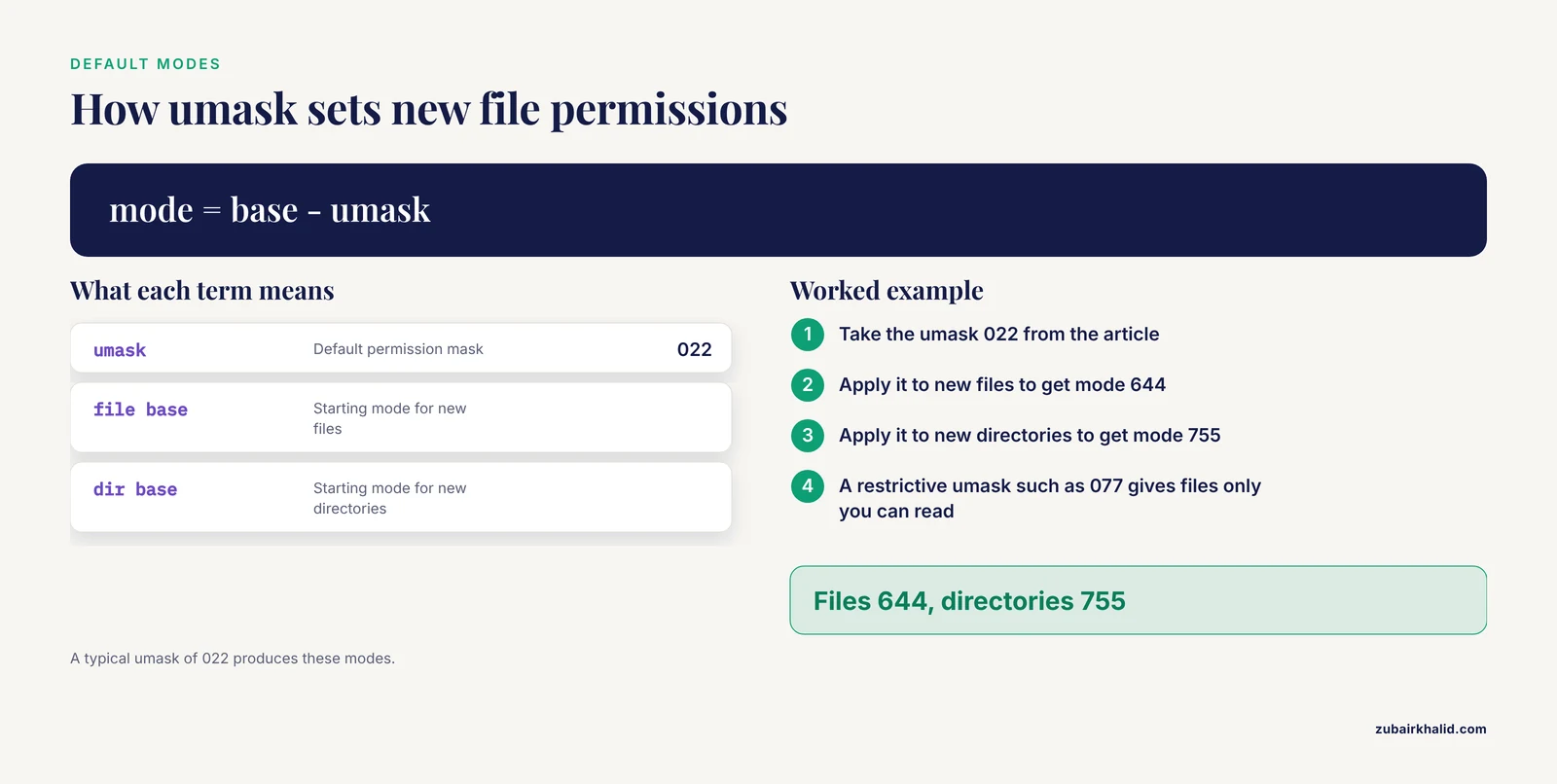
The user identity can change. Jobs submitted through a scheduler run as you, but jobs launched through a shared service account, a web gateway, or a container do not. The working directory changes. Nextflow stages its work in a work directory, often on a different filesystem than your data, and a relative path that resolved in your home directory resolves nowhere from inside the work directory. The umask changes. The umask determines the default permissions on newly created files. A typical umask of 022 produces files with mode 644 and directories with mode 755. A restrictive umask such as 077 produces files only you can read, which then breaks downstream steps that run as a different user or that try to publish results into a shared location.
Diagnose from inside the failing process. Add a step to the failing task that prints whoami, pwd, and umask, and redirect the output into the task's log. Compare those three values against the interactive session where the command works. The difference is almost always the entire explanation.
Also verify the output directory the pipeline publishes into. Workflow engines frequently fail at the publish step, after hours of successful computation, because the publish target belongs to someone else or sits on a read-only mount. A five-second check of ls -ld on the publish directory before launching a long pipeline is cheap insurance.
On shared infrastructure, this class of problem is structural. Access to compute, data, and tools is deliberately partitioned so that different users can view or modify different resources, and the partitions differ between platforms and institutions [1]. What looks like a bug is often the system enforcing exactly the access boundaries it was configured to enforce.
Cause 5: Ownership Surprises from Copying, Moving, and Extracting
Data movement commands silently change who owns what.
tar archives can carry ownership information. When root extracts such an archive, the extracted files receive the original owner, which may be a UID that maps to nothing or to a colleague on your system. When a normal user extracts an archive that tries to preserve ownership, tar reports Cannot chown errors. The practical rule is to extract archives as your own user with plain tar -xf and adjust permissions afterward if needed.
cp -a and rsync -a attempt to preserve every attribute, including ownership. Run as a non-root user, they emit Operation not permitted warnings when the destination does not allow you to set ownership, and the copied tree ends up with inconsistent attributes. If you are copying data into your own working area, cp -r or rsync -r without the preservation flags is usually what you want.
scp and sftp transfers land with your ownership on the receiving side, which is correct, but the transfer tool's own settings can restrict them. And moving files across filesystems, for example from home to scratch, is a copy plus delete, so the copy rules apply.
The general habit: after any bulk data move, run ls -l on a sample of the copied files and confirm the ownership and modes match what your pipeline expects. Ten seconds of checking prevents an afternoon of debugging.
Cause 6: Read-Only Filesystems, Quotas, and Network Storage
Some permission failures are not permission failures at all, but they mimic them closely enough to waste hours.
A Read-only file system error means the mount itself forbids writes. Confirm with findmnt /the/mount/point and look at the options column for ro. Reference data directories, container image caches, and portions of shared filesystems are frequently mounted read-only by design. The fix is to point your outputs elsewhere or to ask an administrator for a writable mount, not to fight the mount.
Network filesystems add a second wrinkle. On NFS, the root account on a client machine is deliberately stripped of its powers on the server, a mechanism called root squashing, so files created by root through an NFS mount are owned by an anonymous user instead. A pipeline that runs a step with sudo and writes to NFS can produce files its own next step cannot modify. The fix is to avoid mixing sudo with network-mounted working directories.
A third mimic is the disk quota. When a quota is exhausted, writes fail, though usually with a "No space left on device" or "Disk quota exceeded" message rather than Permission denied. If a directory suddenly refuses new writes and its permissions look correct, check space with df -h . and your own usage against the quota before suspecting permissions.
Cause 7: Containers and Cloud Platforms
Containers concentrate permission problems because a container can run as a user that does not exist on the host.
Docker containers default to running as root inside the container, which means files written to a bind-mounted volume are owned by root on your host filesystem. You then cannot modify or delete your own output. The fix is to run the container under your own numeric identity, passing your UID and GID to the user option of docker run. Get those numbers with id -u and id -g. Apptainer and Singularity, common on HPC systems, invert the problem. They run you as you by default, which is why a tool containerized for Docker sometimes misbehaves under Apptainer when it assumes it can write to fixed paths.
Conda and Python virtual environments live in your home directory and inherit its permissions. Two classics recur. A virtual environment created with sudo is owned by root and unusable by you. And an environment copied between users or machines by an archive can carry stale absolute paths and mismatched permissions. Recreating the environment from its specification file is faster than repairing it.
Cloud analysis platforms handle permissions differently, and this catches people transferring from local HPC work. On the Cancer Genomics Cloud, a platform for cancer genomics analysis built around hosted datasets and computation, work is organized into projects that bundle data files, tools, and settings, and each project carries fine-grained permission settings that let the owner share it with others for viewing or for editing [1]. A permission denied on such a platform is usually an authorization setting in the project rather than a Unix mode bit, so the fix lives in the sharing interface, not in a shell. The transferable lesson is to always ask which layer is denying you: the operating system, the scheduler, the container, or the platform's own access controls. Layers stack, and each one can independently say no.
Cause 8: SSH Key Permissions and Security-Triggered Denials
One permission error in bioinformatics has nothing to do with data files. When you clone a repository or connect to a cluster, SSH refuses to use a private key whose permissions are too open, printing an error that names the file and reports Permission denied (publickey) on the connection. SSH treats a group-readable or world-readable private key as compromised by definition.
The check and the fix are both trivial. ls -l ~/.ssh/id_rsa should show read and write for the owner only. If it shows anything broader, run chmod 600 ~/.ssh/id_rsa. Do the same for any key files you generate or copy onto a new system. This failure appears most often right after cloning a home directory to a new machine or restoring from a backup, when file modes were not preserved.
A Diagnostic Sequence You Can Follow
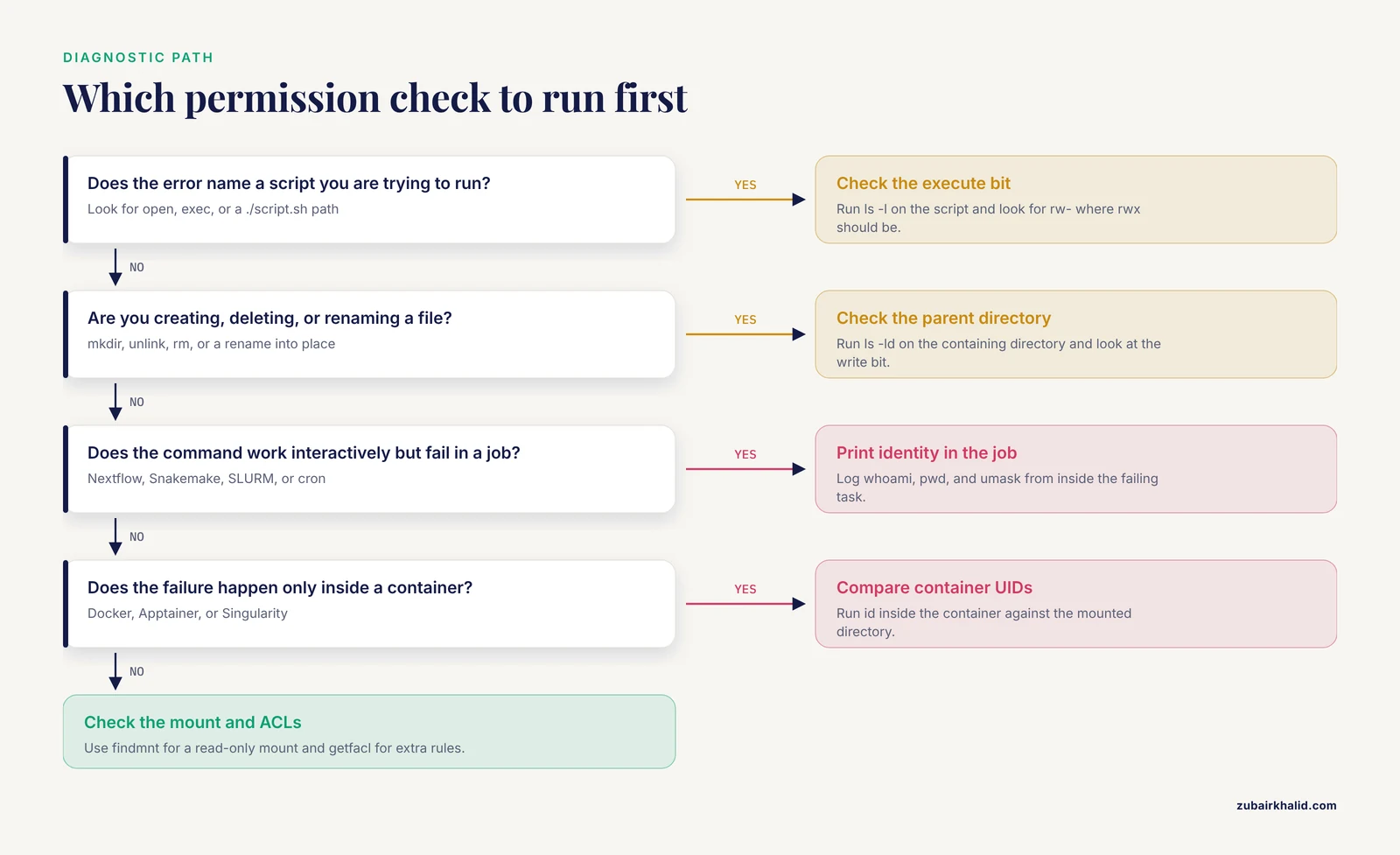
When a permission error appears and the cause is not obvious, work through this sequence in order. Each step either solves the problem or eliminates a class of causes.
- Read the error literally. Note the exact operation (
open,exec,mkdir,unlink), the exact path, and which process reported it. - Run
idto confirm who you are and which groups you belong to. - Run
ls -lon the exact path named in the error. If the path is a directory, usels -ld. - If the path is deep, run
namei -l /full/pathto inspect every directory along the chain for a missing execute bit. - Confirm the filesystem is writable with
findmnton the mount point, and check available space withdf -h .if writes are failing. - If the command works interactively but fails in a pipeline or scheduler job, print
whoami,pwd, andumaskfrom inside the failing task and compare. - If the failure involves a container, run
idinside the container against the mounted directory and compare UIDs with the host. - If the failure involves extraction or bulk copying, check the ownership of the affected files with
ls -land re-copy without preservation flags if ownership is wrong. - If permissions look correct but access still fails, check for access control lists with
getfacl /path, which can reveal extra rules set by an administrator. - If everything above checks out, ask your system administrator. Shared systems carry centrally managed restrictions, and a five-minute conversation can explain what no command output will.
For deeper permission forensics, getfacl and setfacl manage access control lists, which extend the standard model with per-user and per-group entries beyond the single owner and group. On shared servers, administrators use ACLs to grant one collaborator access to one directory without reshuffling group membership, and an unexpected ACL entry is occasionally the reason a ls -l output looks fine but access still fails.
Fixes That Cause More Damage Than the Bug
A short list of fixes to refuse, because each one trades a small, local problem for a large, latent one.
Do not use chmod 777 as a first response. It grants every permission to every user on the system, including write access to your data and scripts. Any other account or process can then modify or delete your analysis. On shared systems, world-writable files are a security finding, not a convenience. If you need broad access, chmod 755 for executables and directories, plus group write where genuinely needed, achieves the goal without opening the door completely.
Do not run chmod -R or chown -R across large trees without first running ls -l on a sample and confirming the target path. Recursive permission changes are hard to reverse precisely, because the original modes are not recorded anywhere.
Do not solve ownership problems by running everything with sudo. Beyond the files it creates as root, sudo runs commands with a different environment and different PATH, which produces a second class of subtle failures.
Do not change permissions on system directories such as /usr, /etc, or /tmp to make a tool run. System directories carry permission patterns that the operating system and other software depend on. The temporary directory, for example, carries the sticky bit, which allows users to delete only their own files in a shared directory, and removing it creates an avenue for other users to interfere with your running jobs.
Common Mistakes and Limitations
These are the specific, recurring mistakes that turn a five-minute fix into an afternoon.
Misreading which file the error refers to. A Python traceback that ends in PermissionError names the file and operation, but people often fix the script instead of the file. Read the last line of the traceback first.
Fixing the file when the directory is the problem. As covered above, creating, deleting, and renaming depend on the containing directory. When a write fails, check ls -ld on the parent before touching the file itself.
Assuming the graphical file manager reflects the server. A file that opens on your laptop's shared drive can still be inaccessible to a script running on the cluster, because the two systems may mount the storage differently and authenticate differently.
Confusing a full disk or exhausted quota with a permission problem. The error messages differ, but in a long pipeline log, one Permission denied from an unrelated earlier failure can send you hunting in the wrong place. Check df -h early in the diagnostic sequence.
Rebuilding environments instead of repairing them. A conda environment or virtual environment with mixed root ownership is rarely worth fixing file by file. Delete it, reinstall from the environment specification without elevated privileges, and move on.
One limitation belongs at the front of your mind rather than at the end of a checklist. Permission behavior depends on your specific institution, cluster configuration, storage system, and platform. The mechanisms described here are universal, but the correct fix on your system depends on policies only your administrator knows. Individual environments differ, and when a fix in this article conflicts with your local policy, ask before acting.
Finally, permissions are documented exhaustively in the manual pages on your own system. man chmod, man chown, and man umask describe exactly the behavior your installed version implements, which occasionally differs from old tutorials on the internet.
Prevention Practices for Bioinformatics Workflows
Prevention costs less than diagnosis. These practices eliminate most permission errors before they happen.
Run analyses as your own user, always. If a step seems to require sudo, the real problem is almost always the installation location or the directory permissions, and those deserve proper fixes.
Install tools in user-owned locations. Conda, Python virtual environments, and user-local software directories keep every file you create owned by you, which removes the single largest source of permission failures in practice.
Use absolute paths in pipeline configuration. Relative paths resolve against a working directory that changes between interactive sessions, schedulers, and containers. Absolute paths make the permission check land where you expect.
Check output directories before launching long jobs. ls -ld on every directory a pipeline will write to, run once before submission, prevents the classic failure where twelve hours of computation completes and the publish step fails.
Standardize your umask. Adding umask 022 to your shell configuration produces predictable default modes on new files and directories, which keeps shared pipelines readable across a lab without becoming world-writable.
Use groups deliberately for shared data. A lab group, a shared directory owned by that group with chmod g+s so new files inherit the group, and write permission for the group covers most collaboration needs cleanly. This is far more maintainable than ad hoc per-file grants, because as users and resources multiply, per-resource permission management becomes increasingly error-prone.
Copy data locally before analyzing it. Working directly on read-only reference mounts invites permission errors at every write. A one-time rsync of the inputs you need into your own scratch directory makes the entire downstream analysis permission-safe.
Map container identities to your own. Get in the habit of running containers with your UID and GID so that output files are yours, and note which of your tools assume writable fixed paths, because those assumptions break under both containers and read-only mounts.
Match permissions to the platform you are on. Local Unix permissions, scheduler policies, container user mappings, and cloud platform sharing settings are separate layers, each of which can grant or deny independently [1]. When you move a workflow between layers, audit the permission-relevant settings at the new layer before the first run.
Invest in baseline Linux fluency. The commands in this article, ls, id, chmod, chown, namei, findmnt, df, which, are the working vocabulary of day-to-day genomics computing. Structured training in these fundamentals is a recognized need across the bioinformatics community, and conferences and organizations dedicated to bioinformatics consistently identify training as a central activity for the field [2]. An hour spent practicing on a test directory pays back the first time a pipeline fails at two in the morning with a deadline at nine.
Frequently Asked Questions
What does "Permission denied" actually mean in bioinformatics?
It means the operating system compared your effective user identity against the permission bits on the file or directory involved and found no granting rule for the operation your script attempted. The same message can mean a missing execute bit, an unwritable directory, a read-only mount, or a container user mismatch, so the exact operation and path in the error message are your best clues.
Why does my script run on my laptop but fail on the HPC cluster?
Because the cluster is a shared, multi-user system with different ownership, different mount options, and often different umask settings. Your laptop gives you broad defaults on your own files, while the cluster enforces restrictive group policies. Diagnose by comparing id, ls -l, and umask output on both systems.
How do I fix a permission denied error without using sudo?
In most cases you cannot change ownership or another user's files without administrative rights, but you can usually avoid the problem entirely. Write outputs to directories you own, install tools in user-owned locations such as conda environments, and copy needed inputs from shared read-only locations into your own working directory before processing them.
Why does chmod +x fix some errors but not others?
chmod +x only addresses a missing execute bit on the file itself. It does nothing for an unwritable output directory, a parent directory missing the execute bit, a different user running the job, or a read-only mount. If the error involved opening or creating files rather than executing a program, the execute bit was never the issue.
Why can I read a file but not delete it?
Because deletion is a write operation on the containing directory, not on the file. Check the directory with ls -ld /path/to/parent and look at the write bit for your identity class. Granting yourself write permission on the directory, or moving the file's location, resolves it.
Should I ever use chmod 777?
No, not on shared systems. It grants every user full read, write, and execute access, which lets any account or process modify your data and scripts. Use 755 for executables and directories and add group write access only where it is genuinely needed.
Why do permissions break inside Docker or Singularity containers?
Because the container may run as a different user than you. Docker defaults to running as root inside the container, so files it writes to a mounted volume end up owned by root on your host. Run containers with your own numeric UID and GID to keep output files owned by you. Apptainer runs you as yourself by default, which causes the opposite set of mismatches with tools that expect to write to fixed system paths.
How do I check what permissions a file has?
Use ls -l filename for files and ls -ld directoryname for directories. The first ten characters show the file type and the owner, group, and other permission bits, followed by the owner and group names. For a complete view including extra access rules, use namei -l /full/path to see every directory along the path and getfacl for access control list entries.