df vs. du for Bioinformatics: Key Differences
By Dr. Zubair Khalid, DVM, MS, PhD ·
df reports how much free space remains on an entire filesystem. du adds up the space used by the files inside a directory tree you point it at. The rule of thumb for bioinformatics is simple. Run df before you launch a pipeline, because it tells you whether the filesystem can absorb the output at all. Run du when you need to know which project, sample, or subdirectory is actually eating the space.
Anyone doing linux for bioinformatics hits this decision within the first week. A human whole-genome alignment run, a single-cell quantification job, or a metagenomic classifier can write hundreds of gigabytes of intermediates in a few hours. When a job dies at step 47 because the scratch volume filled up, the difference between knowing that the volume is full (df) and knowing which directory filled it (du) is the difference between a five-minute fix and an afternoon of forensic work. This article covers the difference between df and du for bioinformatics in detail, shows a side-by-side comparison, walks through real scenarios, and lists the mistakes that catch new analysts most often.
What df actually reports
df, short for "disk free", asks the filesystem itself how much space is allocated and how much remains. It reads filesystem metadata, not your files. Because of that, it is fast (it returns in milliseconds regardless of how many terabytes you own) and it answers a filesystem-level question.
The most common invocation is:
df -hThe -h flag renders sizes in human-readable units (K, M, G, T). A typical row looks like this:
Filesystem      Size  Used Avail Use% Mounted on
/dev/nvme0n1p2  3.6T  2.1T  1.3T  62% /data
Reading it left to right, you learn the device, the total size of the filesystem, the space in use, the space available, the percentage used, and where the filesystem is mounted. Three details matter for bioinformatics work and are easy to miss.
First, df reports on the filesystem, not on your account. If 40 lab members share /data, the Used column includes everyone's data. Your du total can be 200 GB while df shows the shared volume at 97 percent. Both numbers are correct. They answer different questions.
Second, the Use% column can lie about your real situation on some filesystems, especially NFS exports with quotas and ext4 with reserved blocks. Standard ext4 filesystems reserve a block percentage (often around 5 percent on the root filesystem, tunable with tune2fs -m) for the root user and for filesystem fragmentation control. A non-root process can hit "No space left on device" while Use% reads 95 percent rather than 100. On shared HPC storage, a quota server may limit you long before the filesystem itself fills.
Third, space is not the only resource that runs out. Inodes are the filesystem structures that represent files and directories. A filesystem with a fixed inode table fills up in "file count" terms even when it has terabytes of free blocks. This bites bioinformaticians who generate millions of tiny per-cell or per-chunk files. The check is:
df -i /scratchA row like IUse% 98% with gigabytes still available predicts exactly the kind of failure that confuses people, because the disk looks empty and writes fail anyway.
Two more df variants earn their keep. df -T adds a column naming the filesystem type (ext4, XFS, NFS, tmpfs, overlay). Knowing whether your scratch space is a fast local XFS volume, a networked NFS mount, or a RAM-backed tmpfs changes where you should stage intermediates. Filtering the noise is useful on busy systems:
df -hT -x tmpfs -x devtmpfsThat drops the pseudo-filesystems so you see real storage. On HPC clusters running Lustre, the equivalent cluster-native check is lfs df -h /path, which breaks capacity down per storage target, and lfs quota -h /path, which shows your allocation. Those commands matter because df on a Lustre mount reports what the mount sees, while your group quota may be much smaller than the filesystem.
What du actually reports
du, short for "disk usage", walks a directory tree, stats every file it can read, and sums the disk blocks those files occupy. It answers the question df cannot: which directory, which project, which sample?
The workhorse invocation is:
du -sh /data/projects-s summarizes (one total instead of per-subdirectory lines) and -h keeps the output human-readable. The single most useful bioinformatics variant is depth-limited:
du -h --max-depth=1 /data/projects | sort -rh | head -20That one line lists each project directory from largest to smallest. When a shared volume hits 100 percent, this is usually the first command an administrator runs. GNU coreutils also offers a dedicated shortcut:
du -h --inodes --max-depth=1 /scratch/runsThat counts files and directories per subtree instead of blocks, which pairs naturally with df -i when you suspect inode exhaustion rather than block exhaustion.
Two behaviors of du surprise people, and both matter in genomics.
The first is what du counts. By default it counts allocated blocks, not logical file size. A file that reports 3.2 GB with ls -lh may occupy less if it is sparse (mostly empty regions not stored on disk) or more, in edge cases, than apparent size suggests on unusual filesystems. Adding -apparent-size switches du to logical sizes. For most ext4 and XFS work the default (allocated blocks) is the number that matters, because allocated blocks are what df sees.
The second behavior is hard-link handling. A hard link lets two directory entries point to the same file content. Backup and snapshot tools built on rsync, link-dest or cp -al exploit this to store hundreds of "copies" of a reference genome or pipeline executable as a single physical copy. du counts the content once per traversal by default, so a snapshot tree can report a deceptively small total. Run du twice with -l (count all links) and without it, and the difference tells you how much deduplication is saving you.
Practical caveats when running du on real data. It is slow on millions of files because it must stat every one, so on an NFS or Lustre mount a full du can take minutes to hours and loads the metadata server. Add -x to stop du from crossing into other mounted filesystems, which otherwise silently mixes volumes into your totals:
du -shx /dataIt undercounts anything you lack permission to read, which on shared systems means your total may exclude other users' data (that is usually what you want, but understand that du totals are scoped to what you can see). And on a live cluster, du gives you a moving picture: files written and deleted during the scan produce totals that are approximately right, not exactly right.
df vs. du for bioinformatics: side-by-side comparison
The table below is the core of the df vs. du for bioinformatics decision. Print it, pin it, and the choice becomes automatic.
| Criterion | df | du |
|---|---|---|
| Question answered | How much room is left on this filesystem? | What is using the room inside this tree? |
| Scope | Whole filesystem or mount point | Directory tree you name |
| Source of truth | Filesystem metadata | stat() on every file it can read |
| Speed | Instant, even on petabyte volumes | Slow on millions of files, slow over NFS |
| Effect on storage | None (read-only metadata) | Read load from traversal, notable on network filesystems |
| Inode usage | Yes, with df -i | Yes, with du, inodes |
| Sees deleted-but-open files | Yes (space stays allocated) | No (the path is gone from the tree) |
| Sees data you cannot read | Yes (whole filesystem) | No (permission-denied files are skipped) |
| Per-user or per-project accounting | No | Yes, by running it per directory |
| Sees sparse files' allocated blocks | Yes | Yes by default, apparent size with -apparent-size |
| Hard links | Counts content once (as stored) | Counts content once per tree by default |
| Quotas | May not reflect your quota on NFS/HPC | Reflects files you own in the tree you scan |
| Typical bioinformatics use | Preflight check before a pipeline run | Cleaning up old runs, size-per-sample reports |
If the table had to collapse to one line, it would be this. df tells you whether the tank has fuel. du tells you which experiments drank it.
Why df and du disagree in real genomics work
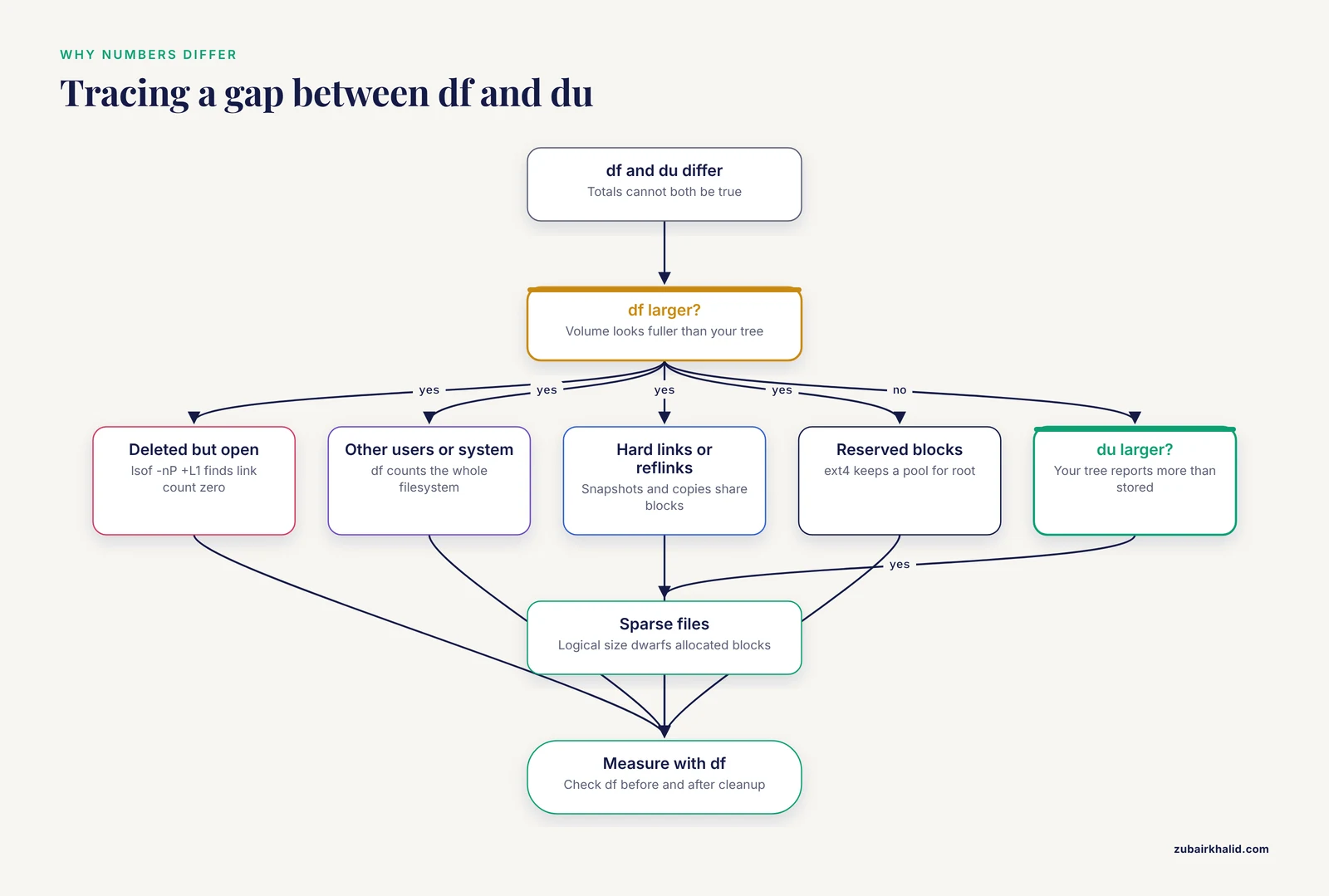
Every analyst eventually sees df and du totals that cannot both be true, for example a volume where df says 95 percent used but the visible du sums to 40 percent. The disagreement is diagnostic, not a bug. Here are the causes you will actually meet in linux commands bioinformatics work, ordered by how often they cause real incidents.
Deleted files still held open. When a process deletes a file, the space stays allocated until every process holding the file open closes it. Long-running pipelines that write large temporary files and then unlink them while keeping the descriptor open (common with sort steps, samtools sorting pipelines, and some Nextflow or Snakemake temp strategies) keep terabytes invisible to du. The fix is finding the culprit:
lsof -nP +L1 /data+L1 lists unlinked (link count zero) files still open. Killing or restarting the holding process releases the space. This one trick resolves a large share of "the disk is full but nothing is here" tickets.
Different views of the same volume. df sees everything on the filesystem, including other users, system logs, and databases. du sees only the tree you named and only files you can read. If a shared /home fills up because a neighbor's copy of several reference transcriptomes landed in it, your du stays small while df screams.
Hard-linked snapshot trees. Backup directories built with rsync, link-dest look enormous when you du each snapshot independently, because each traversal sees the full content. The filesystem stores one copy. df reflects the truth, per-snapshot du overstates it. Add up the snapshots' apparent total and panic for no reason, or better, check df before and after pruning to see the real savings.
Copy-on-write and deduplication. On XFS with reflink support, cp, reflink=always of a large BAM takes a moment and almost no new blocks until one of the copies diverges. ZFS and Btrfs compress and deduplicate. In all these cases a directory's apparent size, and even du's block total, can be far larger than the new storage the copy consumed. df before and after the copy is the honest measurement.
Sparse files. Tools that preallocate large files or that skip writing zero regions produce files whose logical size dwarfs their allocated size. du without -apparent-size reports allocated blocks, so a "100 GB" file may occupy a few megabytes. This matters most with virtual machine images, some simulation outputs, and truncated placeholder files, and it is the reverse direction of most disagreements.
Reserved blocks on ext4. The root filesystem's reserved block pool makes Use% reach 100 percent only when non-root users have already lost write access. On a workstation, df showing 95 percent can mean your account is already out of room.
Overlay filesystems in containers. Inside a Docker or Apptainer container, / is an overlay filesystem. df -h inside the container shows overlay capacity that may not match the host volume the container actually writes to. Bioinformatics containers writing to /tmp inside the container layer can fill a small overlay while df on the host shows free space. The habit that prevents this is writing intermediates to a bind-mounted path and checking df on that path from the host.
NFS and quota reporting. On NFS exports, df reports the server's view of the export. Your personal or group quota can be a fraction of that. If your quota is 2 TB on a 100 TB export, df saying 30 percent used tells you nothing about whether your next 5 TB of FASTQ output will fit. Use the quota tool the site provides (quota -s, lfs quota, or the storage vendor's command) and treat df on NFS as a sanity check only.
When to use df
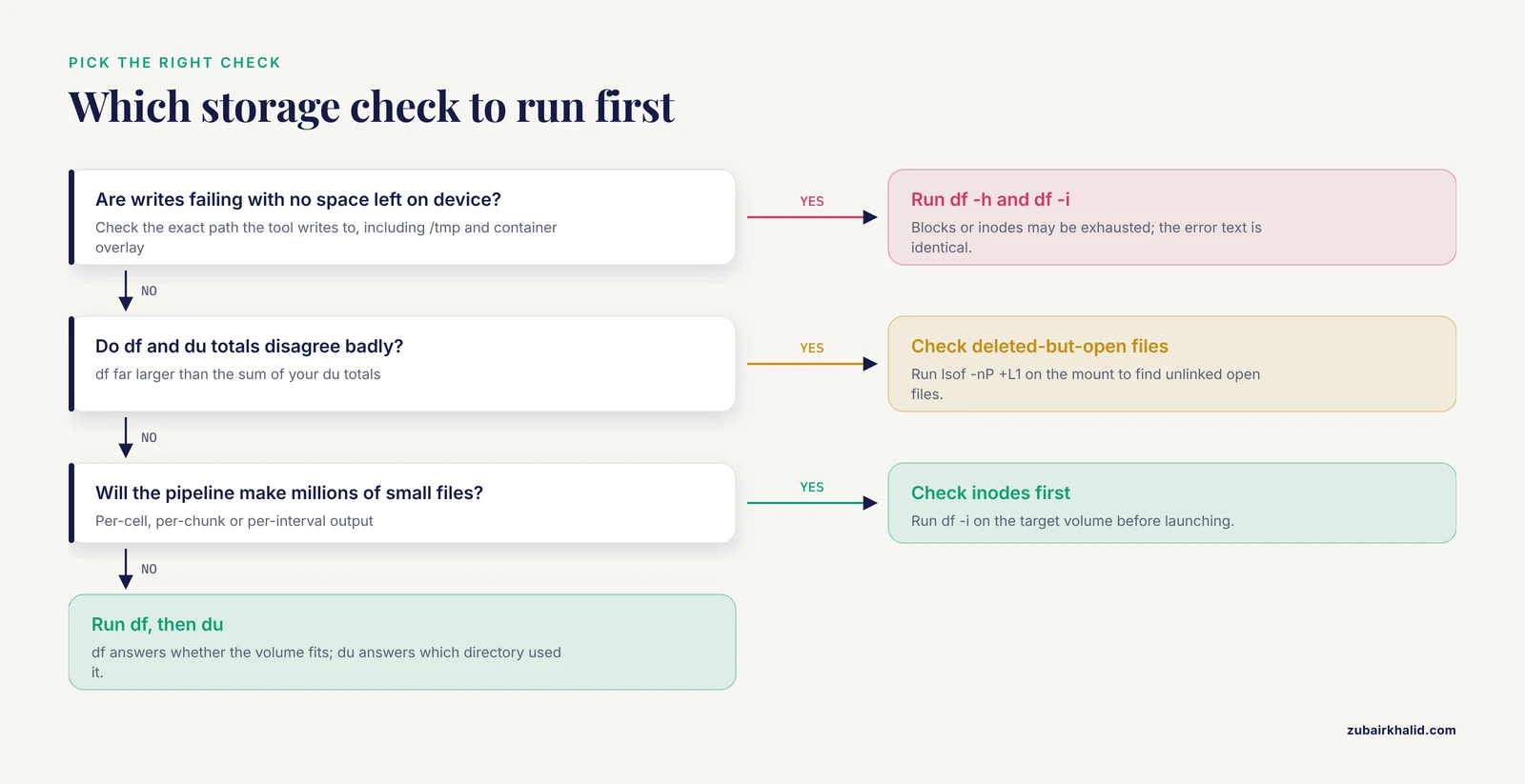
The "when to use df" question resolves into a handful of recurring checkpoints in genomics workflows. Each one takes seconds and prevents failures that cost hours.
Before launching any long pipeline. Estimate the output size, run df -h on every filesystem the pipeline will touch (raw data, scratch, reference databases, results), and require meaningful headroom. Converting per-sample output into per-cohort output multiplies your storage needs. A cohort of 200 samples with 500 MB of BAM each is a 100 GB commitment before indexes, which often add a comparable amount.
Before jobs that explode intermediate file counts. Alignment sorting, variant calling with per-interval chunks, and single-cell pipelines generating per-cell or per-barcode fragments can create millions of small files. Run df -i on the target filesystem first. Running out of inodes on a scratch volume mid-pipeline looks identical to running out of blocks from the error message ("No space left on device"), but the remedies are completely different.
When writes fail mysteriously. A failing write is a df -h and df -i question first, and a du question only after you know the volume is actually the constraint. Checking df on the exact path the tool writes to (including /tmp, /dev/shm, and the container overlay if you are in a container) is the fastest way to localize the failure.
When you suspect deleted-but-open files. If du totals look sane but df shows the volume full, the deleted-but-open scenario is the leading suspect, and the combination df -h plus lsof -nP +L1 on the suspect mount confirms or clears it in one pass.
To characterize your storage before choosing a strategy. df -T tells you what you are working with. Writing 100 GB of intermediates to a tmpfs volume counts against RAM, writing them to an NFS home directory torments the metadata server and your runtimes, and writing them to local scratch on a compute node means you must handle cleanup before the node is released. Knowing the type of each mount, which takes one df -T, shapes decisions about temp directories (-T flags on sort tools, TMPDIR environment variables) and about what to keep between pipeline steps.
When to use du
Reach for du once df has told you the constraint is real and you need attribution. The recurring bioinformatics situations look like this.
Reclaiming space after a project ships. Analysis directories accrete. Raw FASTQ you will never re-download, CRAM files with their FASTQs retained, old log directories, and abandoned test runs. du -h, max-depth=1 from the project root, repeated as you descend, finds the biggest contributors in a few commands. Piping to sort -rh | head turns a wall of output into a hit list.
Per-sample accounting. Checking that every sample in a run produced output of a plausible size is a du job. A per-sample BAM that is half the size of its siblings is a QC signal (a failed lane, a truncated write, a sample mix-up) long before anything downstream complains. A loop over sample directories with du -sh produces a table worth keeping in the run report.
Checking quota headroom for your own data. On systems where your quota is far smaller than the filesystem, du on your own directories is the number that predicts whether your next run fits. Pair it with the site's quota command for an exact accounting, since quota can include things like snapshot reservations that du does not see.
Investigating inode waste. du, inodes, max-depth=2 on a scratch root reveals which pipeline stage is fragmenting output into millions of tiny files. The usual fix is redirecting that stage to a filesystem that tolerates it, or consolidating chunks before the next step.
Container and conda environment bloat. Conda environments, R libraries, and Docker layers are notorious space consumers that are easy to forget because they sit in dot-directories. du -sh ~/.conda ~/miniconda3 ~/.cache and the equivalent for container storage roots quantify them. This is also where an interactive tool earns its keep. ncdu presents the same information du computes as a browsable interface with delete actions, which turns cleanup from a script-writing exercise into a two-minute session.
Worked scenarios
These four scenarios cover the situations that generate most real storage trouble in bioinformatics. Each one shows the commands, the reasoning, and the outcome, with illustrative numbers.
Scenario 1: The volume is full but your directories look small
A shared scratch volume fills during the night. Jobs fail. df -h /scratch shows 20 TB used of 20 TB. A group member runs du -shx /scratch/* and the totals sum to 9 TB. Where are the other 11 TB?
The next command is:
lsof -nP +L1 /scratchThe output shows a 10 TB file held open with link count 0, owned by a long-running process that deleted its sorted temp file but kept writing. Another few terabytes belong to a second job doing the same thing. Restarting those processes releases the space. The lesson is procedural: when df and du disagree in the "df is bigger" direction, suspect open deleted files first, hidden directories second (du on . patterns or an explicit du -sx on the mount root finds dot-directories that casual du -sh misses), and other users' unreadable data third.
Scenario 2: Preflight before a 40-sample alignment run
You are about to start an alignment and variant-calling run. Estimated intermediates are roughly 2 TB. The preflight takes one minute:
df -hT /scratch
df -i /scratch
df -hT /data/results
/scratch is a local XFS volume with 6 TB free and inodes at 12 percent. /data/results is NFS with 1.5 TB free. The numbers say the plan fits, but with one refinement. The results volume has less headroom than the intermediates, so you decide to write final CRAM outputs (with their indexes) to /data/results continuously and to let only intermediates live on /scratch, and you add a cleanup step to the pipeline's success handler. Without the preflight, the run would have discovered the tight results volume at hour nine. This is the essence of when to use df, and it costs 60 seconds.
Scenario 3: Writes fail while df shows free space
A single-cell pipeline crashes writing fragment files. df -h on the scratch volume shows 40 percent used. The instinct is to suspect the tool. The correct second command is:
df -i /scratchIUse% reads 99 percent. The volume holds millions of small files from previous chunked runs. The blocks are free, the inodes are not, and every open() call fails. The remedy is deleting obsolete chunked output (or asking the administrator to raise the inode count on a rebuild, which for ext4 requires re-creating the filesystem). du, inodes, max-depth=2 /scratch identifies the directory with the worst count so the cleanup is targeted. Anyone who has lived through this never skips df -i again.
Scenario 4: Container pipeline fills up invisibly
A workflow inside a Docker container writes intermediates to /tmp inside the container. Hour four, the pipeline fails with a write error. On the host, df -h shows the main volume at 50 percent. Inside the container, df -h /tmp shows the overlay at 100 percent. The container's writable layer is a small upper directory on the host, not the big volume. The fix is rerunning with intermediates directed to a bind-mounted work directory on the host volume and checking df on that host path. As a bonus, bind-mounted intermediates survive container exits, which makes resuming crashed pipelines possible rather than mandatory reruns.
A practical command playbook
Keep this short list within reach. It covers nearly every storage question that arises in day-to-day bioinformatics, and each command is safe (read-only) unless noted.
| Task | Command | ||
|---|---|---|---|
| Overview of all real filesystems | df -hT -x tmpfs -x devtmpfs | ||
| Check a specific target before a run | df -h /scratch && df -i /scratch | ||
| _inode headroom check_ | df -i /scratch | ||
| Largest top-level directories | `du -h, max-depth=1 /data | sort -rh | head -20` |
| Single total for a project | du -shx /data/projectA | ||
| Per-sample sizes | for d in samples/*; do du -sh "$d"; done | ||
| Inode attribution | `du, inodes -h, max-depth=2 /scratch | sort -rh | head -20` |
| Find deleted-but-open space | lsof -nP +L1 /data | ||
| Interactive cleanup | ncdu /data (interactive, has delete actions) | ||
| Apparent vs allocated size | du -sh, apparent-size bigfile vs du -sh bigfile |
Two habits multiply the value of this list. First, alias the preflight pair (df -h plus df -i on your standard mounts) so it runs without thought before every substantial job. Second, log the df -h output at pipeline start into the run's log directory. When a run fails at hour ten, the starting snapshot is the baseline that makes root-cause analysis fast. Note that the for loop example is deliberately simple and does not handle filenames with spaces gracefully, which sample directories usually do not have, but quote your variables anyway because the day you forget is the day a collaborator names a directory "sample 12 final".
Common Mistakes and Limitations
These are the errors that show up repeatedly in real labs and on real clusters. Each one is avoidable with a habit rather than a tool.
- Trusting
Use%on shared or networked storage. On NFS with quotas and on ext4 with reserved blocks, the percentage does not mean your writes will succeed. Check quotas with the site's tool and treatdfas one input, not the verdict. - Skipping
df -i. The "No space left on device" error text is identical whether blocks or inodes ran out. Running onlydf -hsends you chasing gigabytes when the problem is file count. - Running
du -sh *and trusting the total on a shared volume. That pattern skips dot-directories, skips files you cannot read, and misses data outside the directories you named. It answers a narrower question than most people assume. - Running
duover NFS or Lustre as a reflex. It is slow, it loads the metadata server, and on a busy shared system it can annoy every colleague using the same storage. Prefer the smallest possible scope (-max-depth, single project directories) or a tool that caches (ncdu -ocan export a scan for later browsing). - Deleting a large log or temp file while a job is running and expecting space back. Space returns when the last file descriptor closes. For a running process that holds the file, truncate instead (
: > bigfile.log) or accept that the space frees at job end, and verify withdfrather than assuming. - Ignoring snapshot and backup behavior. On ZFS or Btrfs, deleting files does not free space while a snapshot retains them. On rsync-based snapshot trees,
duper snapshot overstates independent cost because of hard links. Checkdfbefore and after any cleanup to measure the real effect. - Letting tools write to tmpfs unintentionally.
/tmpand/dev/shmmay be RAM-backed. A pipeline that spills hundreds of gigabytes to tmpfs consumes memory that the scheduler reserved for your compute, which can get the job killed. SetTMPDIRexplicitly to disk-backed scratch for jobs with large intermediates. - Assuming container filesystems match host filesystems. Inside a container,
dfshows the overlay and any mounts from the container's point of view. Verify the path where outputs actually land from the host side. - Treating
dutotals as exact on live systems. Files created or deleted during a scan make totals approximate. For billing-grade or compliance-grade accounting, rerun on a quiet system or use the storage system's own accounting.
One limitation belongs in its own sentence. Storage commands tell you what is on disk, and df's filesystem-level view plus du's tree-level view together cover nearly everything, but neither command reads file content, validates data integrity, or knows your institution's retention policy, so cleanup decisions still need a human who knows the project.
Frequently Asked Questions
Should I run df or du before starting a big sequencing pipeline?
Run df first. Before a long run you need to know the filesystem can hold the output, and df -h on every target path answers that in seconds. Add df -i if the pipeline generates many small files. du comes later, when you need per-project or per-sample attribution.
Why do df and du show completely different numbers on my cluster?
They measure different things. df reports the whole filesystem, including other users and system files, while du reports only the tree you can read. Deleted-but-open files, hard-linked snapshots, copy-on-write copies, and reserved blocks explain most of the remaining gap. Check lsof -nP +L1 on the mount when df is far larger than the sum of your du totals.
I deleted a huge file but the disk is still full. What happened?
A running process still holds the deleted file open, so the space stays allocated. Find it with lsof -nP +L1 on the affected filesystem, then close or restart the holding process. Deleting files is only the first half of freeing space.
What are inodes and why should a bioinformatician care?
An inode is the filesystem record that represents a file or directory. Filesystems have a finite inode count, so a volume can refuse new files while showing gigabytes of free space. Pipelines that create millions of small per-chunk or per-cell files exhaust inodes, and df -i on the target volume before the run reveals the risk.
How do I find what is using the most space in my results folder?
Run du -h, max-depth=1 /path/to/results | sort -rh | head -20. That lists the largest subdirectories in order, and you can repeat it as you descend. For interactive cleanup with previews and delete actions, use ncdu on the same directory.
Can I rely on df and du over NFS or cloud storage?
Partially. du works but is slow over network filesystems and only sees files you can read. df over NFS reports the server's view of the whole export, which often says little about your personal quota. On networked and cloud storage, use the quota and reporting tools the storage system provides, and treat df and du as supporting checks.
Further Reading
- Advancements in rapid sludge moisture content detection: A comprehensive review of methods and online monitoring techniques.
- AntLink: A Biomimicry-Orientated System for Workflow Improvement at an Automobile Aftersales Service Centre.
- Real-time intelligence framework for microplastic monitoring and coastal resilience.
- Controlling ammonia in aquatic environments: a critical review linking monitoring, prevention, and recovery.