How to Fix 'Package Not Found' Errors in Conda
By Dr. Zubair Khalid, DVM, MS, PhD ·

The single most common cause of a "package not found" error in conda is a missing channel. Conda only searches the channels listed in your configuration, and a large share of bioinformatics software lives on the bioconda channel, which is not enabled by default. If you run conda install bwa on a fresh installation and conda reports PackagesNotFoundError, the first thing to check is whether bioconda and conda-forge are in your channel list at all. Run conda config, show channels and, in most cases, you will find they are absent.
This matters constantly in bioinformatics practice because conda has become a primary distribution vehicle for analysis tools. Recent methods papers routinely ship a conda package alongside their code so that other laboratories can install the software in one command, as the Virseqimprover viral contig correction pipeline does [1]. When that install command fails with a "not found" message, the fault is usually in your environment configuration rather than in the package itself. This article walks through the causes from most common to rarest, gives a short diagnostic sequence you can follow in order, and ends with prevention practices that keep the error from coming back.
How Conda Actually Finds Packages
Before fixing the error, it helps to know what conda is doing when it searches. Conda is a package manager and environment manager. A package is a compressed archive containing a program plus metadata about its dependencies. An environment is an isolated directory holding a specific set of packages, so different projects can use different versions of the same tool without interfering with each other.
A channel is a hosted repository of packages. Conda queries a channel's index (a file called repodata.json) to learn what is available. Three channels dominate bioinformatics work:
- defaults, the channel set configured by Anaconda's installer, which covers general-purpose Python libraries.
- conda-forge, a large community channel that hosts thousands of general scientific packages.
- bioconda, a community channel purpose-built for bioinformatics software. Tools such as samtools, bwa, fastqc, and thousands of others are distributed here and nowhere else.
When you type conda install samtools, conda looks up the package name in the indexes of your configured channels, restricted to the subdirectory (also called subdir or platform build) matching your system, such as linux-64 or osx-arm64. The solver then works out a consistent set of package versions that satisfy every dependency. If the name does not appear in any configured channel for your platform, conda raises PackagesNotFoundError. If the name appears but no compatible version set exists, conda raises a conflict error instead, which looks similar to a beginner but has a different cause and a different fix.
A Short Diagnostic Sequence
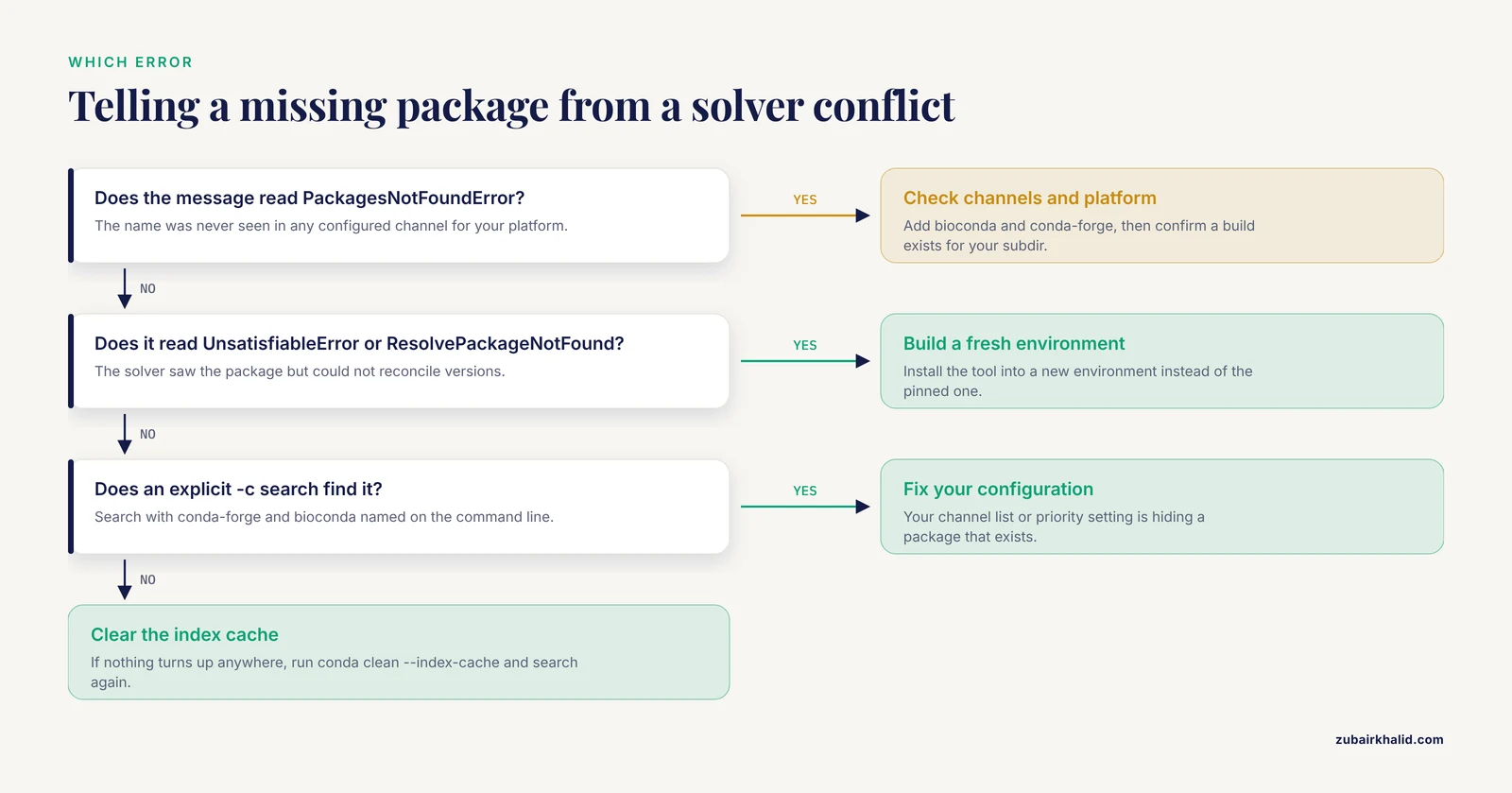
Work through these steps in order. Each one narrows the problem, and by the end you will know which of the causes below applies to you.
- Confirm conda itself is working and note your platform.
conda --version
conda info
Look at the platform line in the output (for example linux-64 or osx-arm64). Write it down. Many "not found" errors are actually platform mismatches.
- Search for the package with explicit channels, bypassing your configuration.
conda search -c conda-forge -c bioconda samtoolsIf this finds the package, the problem is your channel configuration. If it does not, the package is either absent from these channels or unavailable for your platform.
- Check which channels you actually have configured.
conda config --show channels
conda config --show channel_priority- Check availability for your specific platform.
conda search -c bioconda --subdir linux-64 samtools- Attempt the install with an explicit channel list and strict priority, which tells the solver to trust packages from higher-priority channels first.
conda install -c conda-forge -c bioconda -c defaults samtools- If the error mentions conflicts rather than a missing name, read the solver output carefully. It usually names the exact package and version that could not be reconciled.
- If the package is listed on the channel's website but conda still cannot find it, clear the cached channel indexes and retry.
conda clean --index-cache- If conda finds nothing anywhere, check whether the tool exists on PyPI, on the developer's GitHub page, or as a container image. Section five covers those fallbacks.
Safety note. Only ever add channels you trust and only install packages from the official bioconda and conda-forge channels or from a channel URL published in the tool's own documentation. Conda packages can run installation scripts on your machine, so a hostile or spoofed channel is a genuine security risk, not just a broken install.
Troubleshooting Table
| Symptom | Likely cause | How to confirm | Fix |
|---|---|---|---|
| , - | , - | , - | , - |
PackagesNotFoundError on a fresh conda install for a known bioinformatics tool | bioconda channel never added | conda config, show channels lacks bioconda | Add conda-forge and bioconda, set strict priority, retry |
| Error persists although the tool's website says it is on bioconda | Stale cached channel index | conda clean, index-cache then a successful search | Clear the index cache and update conda |
PackagesNotFoundError on a Mac with Apple silicon for a tool that installs fine on Linux | No build for osx-arm64 | conda search, subdir osx-arm64 <name> returns nothing | Use Rosetta with an osx-64 env, build from source, or run a Linux container |
| Error names a Python or library version conflict rather than the package name | Solver conflict, not a missing package | Message reads UnsatisfiableError or lists pinned versions | Relax the pin, or install into a fresh environment |
| Package found on PyPI but not in any conda channel | Tool published only through pip | The project README says pip install ... | Create a conda env, then run pip install inside it |
| Nothing anywhere: not on conda, not on PyPI | Tool never packaged, or distributed another way | Check the methods paper or GitHub for install instructions | Build from source, use a language-specific manager, or use a container image |
| Conda works on the login node but fails on compute nodes of an HPC cluster | Module system or a different conda on the compute node | which conda gives different paths on the two nodes | Use the cluster's documented conda, or submit jobs with the full path to your env |
| Colleague installs fine, you get not found on the same operating system | Different .condarc or a corporate mirror/proxy in between | Compare conda config, show-sources between machines | Align the configuration files or fix the mirror |
The Causes, From Most Common to Rarest
1. The channel was never added
This is the cause behind the majority of "package not found" reports from bioinformatics newcomers. The default Anaconda or Miniconda installation ships with the defaults channel only. Bioinformatics tools overwhelmingly live on bioconda, which must be added deliberately. The widely used recipe is:
conda config --add channels defaults
conda config --add channels bioconda
conda config --add channels conda-forge
conda config --set channel_priority strict
With strict priority, conda treats the channels in a defined order and will not silently substitute a package from a lower-priority channel, which prevents a whole family of subtle version problems later. Note that in this ordering conda-forge has the highest priority. If you later install a package with -c somechannel on the command line, remember that this search is additive to your configured channels, not a replacement for them.
2. The package name is misspelled or differs from the tool name
Package names on conda do not always match the tool's display name. The read QC tool is fastqc, the aligner is bwa, but the adapter trimmer Cutadapt installs as cutadapt, and some projects use names with hyphens, underscores, or prefixes that differ from the paper's title. A typo produces exactly the same PackagesNotFoundError as a missing channel, so the two causes are easy to confuse.
The reliable habit is to search before you install:
conda search -c bioconda cutadaptSearching also shows you the available versions and build strings, which is useful when a paper specifies an exact version for reproducibility.
3. Strict channel priority hides a package that exists
Strict channel priority solves one problem and creates another. If a package exists in defaults but a conflicting package name exists in conda-forge, strict priority can mask the lower-priority copy. Conversely, if a package exists only in a channel that sits below a strict higher-priority channel that already ships a package of the same name, you can get a "not found" or a wrong-version result.
If your search with explicit -c flags finds the package but your plain install does not, inspect the priority setting:
conda config --show channel_priorityYou can temporarily relax it with conda config, set channel_priority flexible, install, and then decide whether to keep the relaxed setting. In practice, keeping strict priority and installing with explicit -c flags per package is the more predictable pattern for bioinformatics work.
4. A stale index cache
Conda caches channel indexes between runs so that it does not re-download the full package listing every time. If a package was added to bioconda very recently, or if your cache became corrupted after an interrupted update, conda may fail to find something that genuinely exists. This is one of the conda package not found causes that looks illogical from the outside: the web page shows the package, your friend can install it, and your machine cannot.
The fix is to clear the index cache and let conda rebuild it:
conda clean --index-cache
conda search -c bioconda <package-name>
If that does not work, updating conda itself is the next step, because older conda versions have had trouble parsing newer repodata formats.
5. No build exists for your platform
Conda packages are built per platform. A package can exist on bioconda with builds for linux-64 and osx-64 while having no build for osx-arm64 (Apple silicon) or linux-aarch64 (ARM servers). In that case conda reports the package as not found, because for your machine it genuinely is not available.
Confirm with an explicit subdir query:
conda search -c bioconda --subdir osx-arm64 <package-name>Your realistic options depend on the platform. On Apple silicon, creating an environment that emulates osx-64 under Rosetta often works:
CONDA_SUBDIR=osx-64 conda create -n legacy-env
conda activate legacy-env
conda env config vars set CONDA_SUBDIR=osx-64
On ARM Linux servers, or whenever an emulator route is fragile, running the tool inside a Linux x86-64 container is usually cleaner. Containers are a well-established answer in this field precisely because they sidestep per-platform packaging problems, a point developed in the section on fallbacks below.
A related and very common variant is a Python version mismatch. The package exists, but only with builds for Python versions other than the one pinned in your environment. Creating a fresh environment with the required Python (for example conda create -n myenv python=3.10) resolves most of these.
6. A solver conflict dressed up as "not found"
Two different conda errors get flattened into "package not found" in conversation, and they need opposite fixes. PackagesNotFoundError means the name was never seen in any configured channel. UnsatisfiableError or ResolvePackageNotFound means the solver saw the package but could not construct a consistent set of versions, usually because your environment pins an old Python, an old libstdcxx, or another package that conflicts with the new tool's requirements.
Read the solver message. It names the specific requirement that failed. The practical fix is almost always to install the new tool in a fresh environment rather than into an existing one:
conda create -n virscan -c conda-forge -c bioconda python=3.10 spadesOne environment per project or per tool is a core habit in bioinformatics precisely because solver conflicts compound over time. Modern conda ships the libmamba solver, which is dramatically faster and produces clearer conflict reports than the classic solver, so keeping conda reasonably current also improves the error messages you see.
7. The package is published through pip or another package manager instead
Not every tool reaches conda. Some projects publish to PyPI only, and some publish through the package manager of their implementation language. This is normal and is not a conda failure. The adaptivetesting package, for example, is distributed on both PyPI and conda-forge so that users can install it with either pip or conda [2], while RedLionfish, a Richardson-Lucy deconvolution package for microscopy data, is explicitly usable through conda or PyPI depending on the user's preference [3]. SciKit Digital Health, a wearable sensor processing framework, is distributed through the Python Package Index [4].
The standard pattern for a PyPI-only tool is to install it with pip inside a conda environment, so you keep conda's environment isolation while borrowing from PyPI:
conda create -n evanalysis python=3.11
conda activate evanalysis
pip install <pypi-package-name>
Mixing pip and conda in one environment can produce dependency inconsistencies, so keep pip-installed packages confined to dedicated environments and install pip packages after the conda packages, never before.
Other languages ship their own managers. A Julia package such as COCOA.jl, which analyzes modularity in biochemical networks, installs through the Julia package manager rather than conda [5]. In that case, create a conda environment to hold Julia itself, then use the language manager inside it.
8. The tool was never packaged for anyone
Some bioinformatics software exists only as a source code repository or as a downloadable binary from the developer's website. Long before conda existed, this was the normal situation, and installing a local copy of a tool like BLAST from obtained distributions was a documented, deliberate procedure [6]. That tradition continues for niche tools.
When conda, pip, and language managers all come up empty, read the tool's GitHub README or the methods paper. The install instructions usually fall into one of three buckets: compiling from source with make or cmake, downloading a static binary, or pulling a container image. Compiling from source requires a compiler toolchain, which on Linux is typically available through your system package manager.
9. HPC module systems and broken or shadowed conda installs
On institutional clusters, the "conda" on your PATH may not be the conda you configured. Clusters often load software through a module system, so running module load conda or module load anaconda can put a cluster-managed conda, with its own channel configuration, ahead of your own Miniconda installation. The symptom is that a package you installed successfully yesterday cannot be found today, or that installs work on the login node but fail inside submitted jobs.
Confirm with basic Linux commands:
which conda
echo $PATH
If which conda points somewhere unexpected, either adjust your module loads or call your conda and your environments by full path:
~/miniconda3/envs/myenv/bin/samtools --versionA genuinely broken conda installation (for example, after a partial base environment upgrade) is rare but does happen. The cleanest fix is to install a fresh Miniconda under your home directory and rebuild your environments from export files, rather than attempting surgery on the base environment.
10. Private channels, mirrors, and proxies
The rarest category. Institutions sometimes mirror conda channels internally and block direct internet access from compute nodes. If your cluster routes conda through an internal mirror that lags behind the public channels, packages that appeared recently will be missing even though everything else works. Compare your configuration against a colleague's using:
conda config --show-sourcesThe .condarc file in your home directory (or in a location set by the CONDARC environment variable) holds channel settings, and a file named .condarc placed in a shared or cluster-specific location can silently override your personal one. If a mirror is the cause, the fix belongs to your systems administrators, and the workaround is to name the public channel explicitly for interactive work where network policy allows it.
Fallbacks When Conda Truly Cannot Install the Package
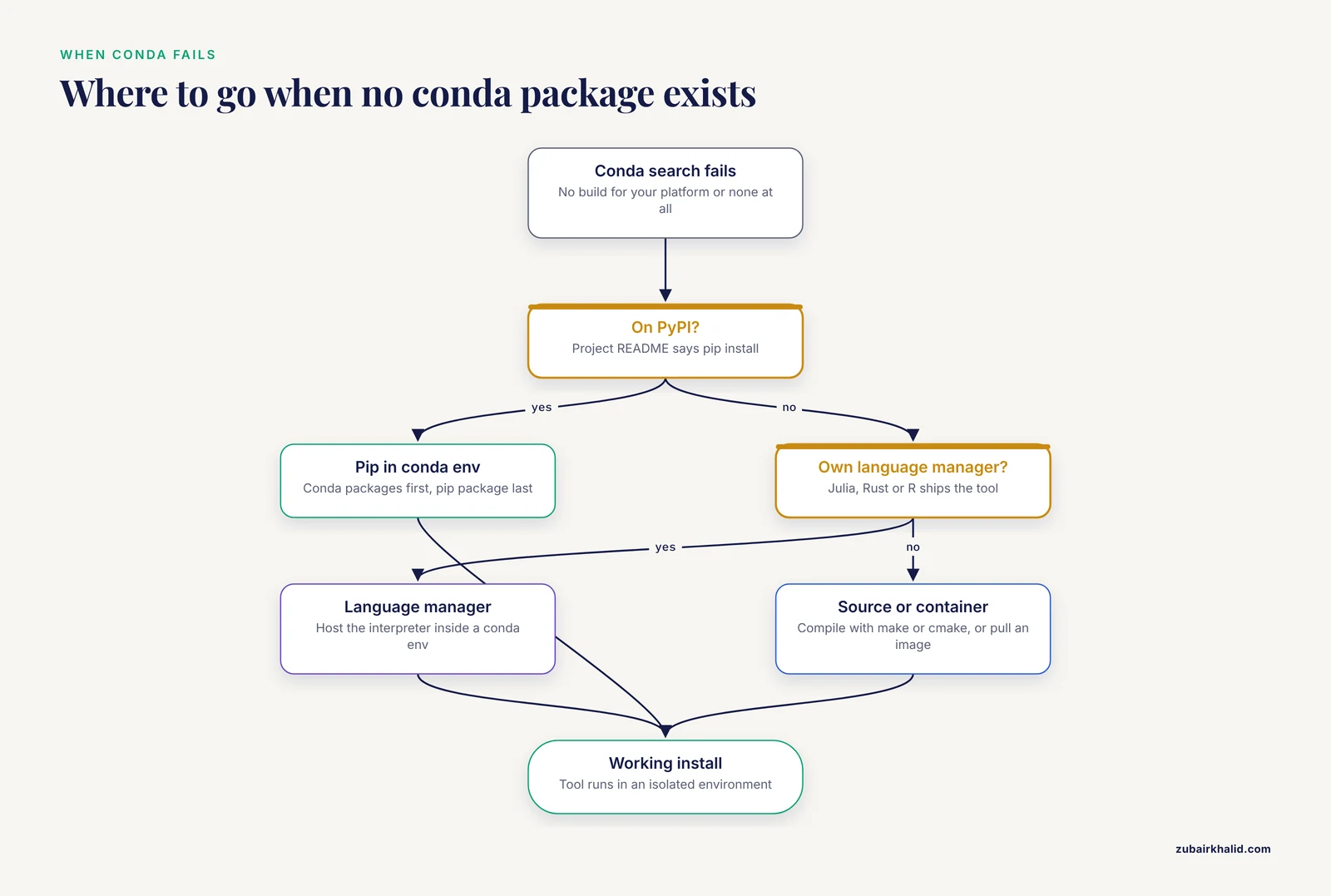
When the diagnosis confirms that no conda package exists for your platform or at all, you have four escalation paths, in rough order of preference.
Pip inside a conda environment. For Python software published on PyPI, this is the standard route, as described above. It works well for tools like RedLionfish, which was designed to be installed either programmatically through conda or PyPI or interactively as a plugin [3].
Language-specific package managers. Julia, Rust, and R each have their own managers, and some recent tools ship exclusively through them [5]. A conda environment can still host the interpreter and the working directory structure, giving you a single place to point your scripts.
Building from source. This is the old-school route that predates conda entirely. Installing BLAST for local workstation use, including building searchable databases and maintaining the installation, was documented step by step decades ago [6], and the same discipline applies to modern niche tools. Expect to need gcc, make, and sometimes specific library headers from your system package manager.
Containers. A Docker image bundles an entire operating system userland plus the tool and every dependency, which removes the platform and dependency problems that cause "not found" errors in the first place. This approach is well developed in bioinformatics. Dugong, a Docker image based on Ubuntu, automates the installation of more than 3500 bioinformatics tools with their libraries and dependencies [7]. The COMBAT-TB Workbench for tuberculosis whole-genome sequencing combines a web interface and the Galaxy workflow engine in a single easy-to-install application using Docker container technology [8]. CREDO generates Dockerfiles for bioinformatics applications and explicitly handles packages and environments from sources such as Bioconductor and Conda, storing all package information in a version-controlled format [9]. BioShaDock provides a bioinformatics-focused, community-driven registry so that users can find curated domain-specific images rather than searching a generic public registry [10]. If a tool exists as a container but not as a conda package, the container is usually the faster and more reproducible path.
Linux for Bioinformatics: Commands That Make Diagnosis Faster
Most conda troubleshooting happens at a Linux or macOS shell, and a handful of basic commands account for most of the diagnostic work. If you are new to Linux for bioinformatics, these are the ones to learn first.
which condaandwhich samtoolsshow the exact path of the executable your shell will run. Mismatched paths explain many "it worked yesterday" problems.echo $PATHandecho $CONDA_PREFIXshow the search path and the currently active environment. A wrongCONDA_PREFIXmeans your shell is pointed at an environment that lacks the package, which can look like a missing package.conda env listlists every environment conda knows about. Being in the wrong environment is the second most common cause of "package not found" after missing channels, because a package installed in one environment is invisible to all others.cat ~/.condarcprints your conda configuration file, andconda config, show-sourcesshows every file contributing settings.grepfilters long output. Pipingconda list | grep samtoolstells you instantly whether a package is present in the active environment and at what version.headandtailshow the first or last lines of a file, which is how you inspect a long solver error saved to a log.historyshows recent commands, which helps you reconstruct what changed before the error appeared.ls -la,chmod, anddu -shcover file permissions and disk usage. Conda environments are large, and a full home directory quota produces errors that superficially resemble missing packages.
Safety note. Never run install scripts or one-line setup commands copied from unverified websites with administrator privileges, and avoid piping downloaded content directly into a root shell. Malicious or compromised package sources can execute arbitrary code during installation, so the supply chain itself is the hazard, not just the commands.
Prevention: Stop the Error Before It Happens
Most "package not found" errors recur because environments are rebuilt by hand from memory. These practices prevent that.
Write environment files. A environment.yml file records the channels, package names, and versions for an environment. You create it once, share it with collaborators, and rebuild identically anywhere:
conda env export --from-history > environment.yml
conda env create -f environment.yml
The -from-history flag exports only what you explicitly asked for, which keeps the file portable across platforms where build strings differ.
Standardize your channel recipe. Adopt one channel configuration (conda-forge, bioconda, defaults, with strict priority), apply it to every machine you use, and stop improvising per install. Consistency here eliminates the largest class of these errors.
One environment per project or tool. Small, purpose-built environments conflict less, solve faster, and are cheaper to delete and recreate than one giant environment accreted over months.
Freeze validated workflows. When an analysis must be rerun identically months or years later, record the exact environment and consider containerizing it. The reproducibility motivation is well recognized in the field, since inconsistent analysis processes undermine confidence in results [9], and regulated settings go further still, requiring documented, validated software environments for data analysis [11]. A pinned container image or a fully exported environment file is the practical equivalent for ordinary research work.
Update conda, not your habits. Newer conda versions with the libmamba solver give faster installs and clearer conflict messages, which makes the rare genuine failures much easier to diagnose.
Common Mistakes and Limitations
- Installing into
base. Adding bioinformatics tools to the base environment guarantees eventual solver conflicts and broken upgrades. Keep base nearly empty. - Mixing pip and conda freely in one environment. Install conda packages first, pip packages last, and keep the two in separate environments when a project allows it.
- Assuming a search on the channel's website means conda will find it. The web listing may show builds for platforms other than yours, so always confirm with
conda search, subdir. - Adding channels with
-con every command without recording them. The install succeeds, but the environment file you export later misses the channel, and collaborators hit the exact error you just solved. Explicit is better, but only if it ends up in the file. - Treating
UnsatisfiableErroras a missing package and repeatedly retrying the same install. A conflict needs a fresh environment or a relaxed pin, not a retry. - Ignoring the platform line in
conda info. Half of the hardest cases are simply ARM or Apple silicon machines where no build exists. - Copying channel configurations from blog posts of uncertain age. Channel recommendations have changed over the years, so prefer the guidance published by bioconda and conda-forge themselves.
One honest limitation: this guide covers the conda side of the problem. If a tool's own dependencies require system libraries that your cluster or workstation does not provide, the same symptoms can appear even with perfect conda configuration, and resolving those requires administrator-level help.
Frequently Asked Questions
Why does conda say a package is not found when I can see it on the bioconda website?
Because conda only searches the channels configured on your machine, and bioconda is not enabled by default. Add conda-forge and bioconda with strict priority, or search with explicit -c bioconda -c conda-forge flags, and the package will usually appear.
What is the difference between PackagesNotFoundError and UnsatisfiableError?
PackagesNotFoundError means the package name was never found in any configured channel for your platform. UnsatisfiableError means the package exists but the solver could not build a consistent set of versions, usually because of a conflicting pin in your current environment. The first needs a channel or platform fix, the second needs a fresh environment.
Should I use pip inside a conda environment?
Yes, when a tool is published on PyPI but not in any conda channel. Create a dedicated conda environment, activate it, and install the conda packages first and the pip package second. Keep pip use confined to that environment to avoid dependency conflicts.
Does conda channel order really matter?
Yes. Under strict channel priority, conda resolves packages according to channel order and will not substitute lower-priority copies, which prevents silent version mismatches. Under flexible priority, packages can be pulled from any channel, which is convenient but can produce confusing dependency sets.
How do I install a package on an Apple silicon Mac if conda cannot find it?
Confirm with conda search, subdir osx-arm64 that no build exists. If none does, either create an osx-64 environment that runs under Rosetta or run the tool in an x86-64 Linux container. Containers are usually the more reliable option for complex genomics tools.
Can I use mamba instead of conda?
Yes. Mamba is a drop-in replacement with the same channel and environment model and a faster solver, and modern conda already ships the libmamba solver internally, which delivers most of the same speed benefit. Any package resolvable by one is resolvable by the other.
How do I share an environment so collaborators do not get package not found errors?
Export it with conda env export, from-history > environment.yml, include the channel list in that file, and have collaborators create it with conda env create -f environment.yml. For maximum robustness, export an explicit package list or ship a container image instead.
Why does conda work on the login node but not on the compute node of my cluster?
The compute node may load a different conda through the cluster's module system, or may route traffic through an internal mirror with an incomplete channel copy. Run which conda on both nodes to compare, and use your cluster's documented method for making your environments visible in submitted jobs.
Sources
- Virseqimprover: an integrated pipeline for viral contig error correction, extension, and annotation.
- Customizable Bayesian adaptive testing with Python - The adaptivetesting package.
- RedLionfish - fast Richardson-Lucy Deconvolution package for efficient point spread function suppression in volumetric data.
- SciKit Digital Health: Python Package for Streamlined Wearable Inertial Sensor Data Processing.
- COCOA.jl-a Julia package for high-performance analysis of concordance and kinetic modules in biochemical networks.
- Installing, maintaining, and using a local copy of BLAST for intranet and workstation use.
- Dugong: a Docker image, based on Ubuntu Linux, focused on reproducibility and replicability for bioinformatics analyses.
- The COMBAT-TB Workbench: Making Powerful Mycobacterium tuberculosis Bioinformatics Accessible.
- CREDO: a friendly Customizable, REproducible, DOcker file generator for bioinformatics applications.
- BioShaDock: a community driven bioinformatics shared Docker-based tools registry.
- Moving analytical ultracentrifugation software to a good manufacturing practices (GMP) environment.