How to Show the Conda Environment in Your Bash Prompt
By Dr. Zubair Khalid, DVM, MS, PhD ·

If you have ever launched a RNA-seq pipeline in one terminal, trimmed adapters in a second terminal, and assembled a genome in a third, you already know the problem. Every terminal looks the same, and the only thing telling you which environment you are in is a small parenthetical prefix, or the absence of one. Then you run python and get the wrong interpreter, or worse, you run a tool that exists in one environment and not the other, and you lose an hour to a confusing error.
This guide shows you how to display the active conda environment in your bash prompt, in a format you control, with colors, custom prefixes, and a setup that survives reboots, SSH logins, and long-running screen or tmux sessions. By the end you will be able to:
- Explain where the default
(base)or(env_name)prefix in your prompt comes from - Turn the default behavior on, off, or replace it with your own prompt design
- Build a custom
PS1string that shows the environment name, user, host, and working directory - Diagnose the exact error messages that appear when conda is not initialized in your shell
- Avoid the mistakes that break prompts on HPC clusters and in non-interactive shells
What you need on hand before starting:
- A Linux machine (or a macOS terminal running bash, or a Windows machine using WSL) with bash as your shell
- A working conda installation. Miniconda, Miniforge, or full Anaconda all work. You can verify it with
conda, version, which should return something likeconda 24.7.1 - Write access to your home directory, because you will edit the
.bashrcfile that bash reads at the start of every interactive session
Everything in this guide uses only tools that ship with bash and conda. You do not need to install anything new.
Why the Prompt Matters in Bioinformatics Work
Environment management is one of the core skills in linux for bioinformatics. Most modern pipelines pin their software versions inside conda environments. You might have an environment called rna-seq with STAR and featureCounts at fixed versions, another called assembly with SPAdes and QUAST, and a third called qc with FastQC and MultiQC. When three terminals are open side by side, the prompt is the only at-a-glance record of which environment each one is using.
Consider what the wrong environment costs you. You run samtools index alignment.bam in a terminal you believe is using the mapping environment. If that environment is not active, the shell either reports samtools: command not found or, if samtools is in your base environment at an older version, runs the old tool against a new file format. Neither outcome is obvious from the output alone. A prompt that clearly shows the active environment removes that entire class of mistake.
The bash prompt is controlled by a shell variable named PS1. Every interactive bash session reads PS1 and renders it before each command. Conda integrates with PS1 through a configuration option and a shell function, and once you understand those two pieces, you can make the prompt behave exactly the way you want.
How Conda Manages Your Prompt by Default
When you install Miniconda or Miniforge, the installer offers to initialize your shell. If you accepted, or if you later ran conda init bash, the conda setup appended a block of shell code to your ~/.bashrc file. That block does two things relevant to your prompt.
First, it activates the base environment whenever you open a new terminal. That is why fresh terminals show (base) at the start of the prompt even before you touch anything.
Second, it sets up a mechanism that updates the prompt whenever you run conda activate or conda deactivate. By default, conda prepends the environment name in parentheses to your existing prompt. The behavior is controlled by a conda configuration setting called changeps1, which is set to True in a fresh installation.
Conda builds that prefix from a shell variable called CONDA_PROMPT_MODIFIER. When the base environment is active, this variable contains the string (base) (with a trailing space). When no environment is active, the variable is empty. Your PS1 contains a reference to that variable, so the prefix appears and disappears as you switch environments.
You can inspect all of this yourself. Run:
conda config --show changeps1Expected output on a default installation:
TrueAnd run:
echo "$CONDA_PROMPT_MODIFIER"Expected output while base is active:
(base) If the second command prints an empty line while you believe base is active, conda was probably not initialized in your current shell. That situation has its own fix, covered in the troubleshooting section below.
If changeps1 is False, conda will not touch your prompt at all, and you will build the display yourself using the CONDA_DEFAULT_ENV variable. That variable holds the name of the currently active environment, such as base, rna-seq, or the full path if the environment was activated by path.
Show the Conda Env in Bash Prompt, Step by Step
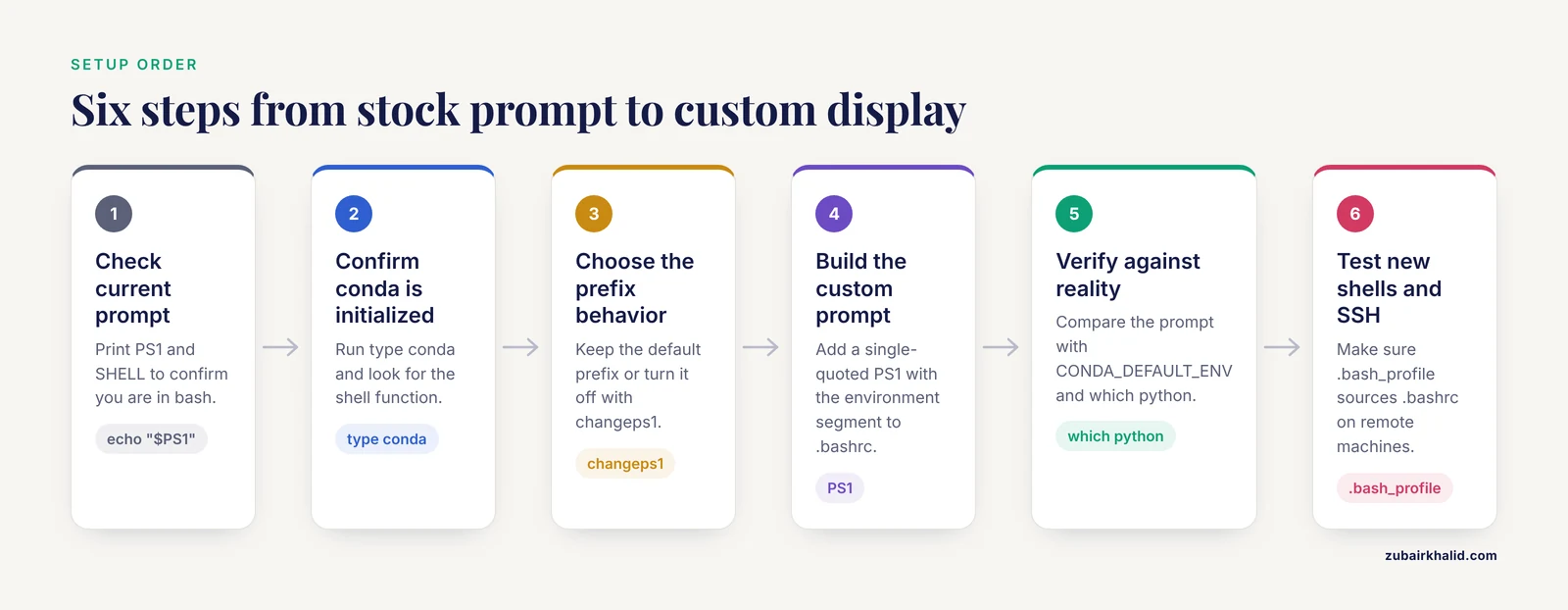
This walkthrough takes you from a stock installation to a clean, colored, informative prompt. Work through the steps in order and run the verification command at each stage before moving on.
Step 1: Check Your Current Prompt Setup
Open a terminal and print your current PS1 value in a readable form:
echo "$PS1"A typical default looks like this:
\u@\h:\w\$That string means "username, an @ sign, hostname, colon, working directory, dollar sign". If conda's initialization is already in place, you may instead see something that contains \$(CONDA_PROMPT_MODIFIER) or $CONDA_PROMPT_MODIFIER near the front. The \$ is an escaped dollar sign, which renders as either $ for a regular user or # for root.
Also check where you are allowed to keep your customization:
echo "$SHELL"Expected output:
/bin/bashIf this returns /bin/zsh or /bin/fish, you are not using bash, and the PS1 syntax in this guide will not apply directly. Zsh uses a different variable called PROMPT. The FAQ at the end covers the zsh case briefly.
Step 2: Confirm Conda Is Initialized for Bash
Run:
type condaA correctly initialized shell answers with something like:
conda is a functionfollowed by the function body. If instead you see:
bash: type: conda: not foundconda is not initialized in this shell. You can fix that for all future sessions by running:
conda init bashThen close the terminal, open a new one, and run type conda again. You should now see the function. What conda init actually did was append a managed block to your ~/.bashrc containing code that defines the conda shell function and, during activation, sets the prompt-related variables.
You can confirm the block exists by searching for it:
grep -n "conda initialize" ~/.bashrcExpected output on a standard installation:
# >>> conda initialize >>>as the first matching line, plus a closing marker line later in the file. The exact line numbers vary depending on what else your .bashrc contains.
Step 3: Decide Whether You Want the Default Prefix
If the default (env_name) prefix already appears in your prompt and you like it, you are done. If you want more control, or if you want the environment name in color, or placed at the end of the prompt instead of the front, keep going.
To let conda keep managing the prefix, leave changeps1 alone (or explicitly set it):
conda config --set changeps1 TrueTo stop conda from touching your prompt entirely:
conda config --set changeps1 FalseAfter setting it to False, the (base) prefix will not disappear from already-open terminals. Close and reopen your terminal, or run source ~/.bashrc, and the prefix will be gone. From that point on, you display the environment yourself, which is what the next two steps do.
A practical tip. If you set changeps1 False and also remove the CONDA_PROMPT_MODIFIER reference from PS1, and you never add your own display, you will lose the at-a-glance environment indicator entirely. Do not skip Steps 4 and 5 if you disable the default behavior.
Step 4: Build a Custom Prompt That Includes the Environment Name
Open your .bashrc in a text editor:
nano ~/.bashrcScroll to the bottom, below the conda initialize block, and add these lines:
# Custom prompt with conda environment
parse_git_branch() {
    git branch 2> /dev/null | sed -n 's/^\* \(.*\)/[\1]/p'
}

PS1='\[\e[36m\]\u@\h\[\e[0m\]:\[\e[33m\]\w\[\e[0m\]\[\e[35m\]$([[ -n "$CONDA_DEFAULT_ENV" ]] && echo " ($CONDA_DEFAULT_ENV)")\[\e[0m\]$(parse_git_branch)\$ '
Save the file with Ctrl+O and Enter, then exit with Ctrl+X. Reload the configuration:
source ~/.bashrcHere is what each piece does, from left to right inside the PS1 string:
\[\e[36m\]begins cyan text. The\[and\]wrappers tell bash that these characters take no horizontal space, which prevents your cursor from drifting out of position when you edit long commands. Skipping those wrappers is one of the most common prompt bugs.\u@\hprints your username, an at sign, and the hostname. This matters when you work across a login node and compute nodes, or across several servers, because every terminal window then tells you which machine it belongs to.\[\e[0m\]resets the color back to default.:and then\[\e[33m\]\w\[\e[0m\]print a colon and the current working directory in yellow.- The longer segment starting with
$([[ -n ...is a conditional. It tests whetherCONDA_DEFAULT_ENVis non-empty. If an environment is active, it prints a space, the environment name in parentheses, all in magenta. If no environment is active, it prints nothing. This is what makes the environment name appear and disappear cleanly as you runconda activateandconda deactivate. $(parse_git_branch)appends the current git branch in brackets when you are inside a git repository, and nothing when you are not. Pipeline directories under version control benefit from this.\$prints the$prompt character (or#for root) followed by a space so commands do not start flush against the prompt.
The result, in the rna-seq environment inside a directory called myproject, looks like this:
zubair@hpc-login-01:~/myproject (rna-seq)[main]$Switch environments and watch it update:
conda activate qcPrompt now reads:
zubair@hpc-login-01:~/myproject (qc)[main]$Deactivate and the magenta segment vanishes:
conda deactivatePrompt now reads:
zubair@hpc-login-01:~/myproject[main]$Step 5: Verify That the Display Reflects Reality
The point of the prompt is to be truthful, so test it against a command that reports the environment independently:
echo "$CONDA_DEFAULT_ENV"
which python
With the rna-seq environment active, the first command prints rna-seq and the second prints a path inside your conda installation, for example:
/home/zubair/miniconda3/envs/rna-seq/bin/pythonIf the prompt says one environment and which python reports a binary from a different one, your prompt is stale or your shell is confused. That situation almost always traces back to one of the mistakes listed later in this guide.
A second useful verification is a round trip through activation:
conda activate assembly
echo "$CONDA_DEFAULT_ENV"
conda activate rna-seq
echo "$CONDA_DEFAULT_ENV"
conda deactivate
echo "$CONDA_DEFAULT_ENV"
Expected outputs, in order: assembly, then rna-seq, then an empty line after the final deactivate. Your prompt should have matched each value at the moment you ran the command. If the prompt updates one command late, your PS1 is probably referencing a variable that bash evaluates when the prompt string was set rather than when it is rendered. Using the single-quoted form of PS1 as shown in Step 4 avoids this, because single quotes defer evaluation until the prompt is drawn.
Step 6: Make Sure New Terminals and SSH Sessions Match
The .bashrc file is read by interactive non-login shells, which is what you get when you open a terminal window or most terminal emulators. Interactive login shells, which is what you get when you SSH into a cluster, read ~/.bash_profile or ~/.profile instead, and on many systems those files source .bashrc for you.
Test your setup across a real SSH connection:
ssh [email protected]Once logged in, check two things:
echo "$CONDA_DEFAULT_ENV"
echo "$PS1"
If CONDA_DEFAULT_ENV is empty on the remote machine but the prompt looks right locally, the remote shell never activated base. That is often deliberate on HPC systems, where clusters frequently prefer environment modules over auto-activating conda. The prompt will still show the environment name the moment you run conda activate there, which is the behavior you want.
If the remote prompt looks bare and your customizations are missing, check whether the remote ~/.bash_profile sources ~/.bashrc:
grep -n "bashrc" ~/.bash_profileIf there is no match, add this to the top of ~/.bash_profile:
if [ -f ~/.bashrc ]
then
    . ~/.bashrc
fi
Log out and back in, and your customized prompt should appear.
Reference Table: Prompt Codes and Conda Settings
The following table collects the escape sequences, variables, and settings you will use most often when controlling how the conda env appears in your bash prompt.
| Item | What it does | Example or value |
|---|---|---|
\u | Current username | zubair |
\h | Hostname up to the first dot | hpc-login-01 |
\w | Working directory with the home path shortened to ~ | ~/projects/rnaseq |
\W | Only the last component of the working directory | rnaseq |
\$ | $ for regular users, # for root | $ |
\[\e[0m\] | Reset all colors and attributes | none |
\[\e[31m\] | Begin red text (31, green 32, yellow 33, blue 34, magenta 35, cyan 36) | none |
CONDA_DEFAULT_ENV | Name of the active environment, or a path if activated by path | rna-seq |
CONDA_PROMPT_MODIFIER | The prefix string conda builds, such as (base) , or empty when inactive | (base) |
changeps1 | Conda setting that controls whether conda modifies PS1 | True or False |
auto_activate_base | Conda setting that controls whether base activates on shell startup | True or False |
Two settings in that table deserve a closer look. Setting auto_activate_base to False stops conda from activating base in every new shell:
conda config --set auto_activate_base FalseAfter this change, new terminals start with no environment active. Your custom prompt segment stays hidden until you explicitly run conda activate. Many bioinformaticians prefer this, because it makes "which environment am I in" an explicit decision at the start of each session rather than a silent default.
The CONDA_PROMPT_MODIFIER route deserves a note as well. The simplest possible custom prompt that shows the environment is:
PS1='$CONDA_PROMPT_MODIFIER\u@\h:\w\$ 'This keeps conda as the source of truth for the prefix text and lets you reposition it. If you want the environment at the end of the prompt instead of the front, write:
PS1='\u@\h:\w\$ $CONDA_PROMPT_MODIFIER'The tradeoff between CONDA_PROMPT_MODIFIER and CONDA_DEFAULT_ENV is flexibility versus simplicity. The modifier respects conda's own prefix format, including any custom env_prompt template you set (covered in the tips section). The default variable gives you the raw environment name so you can style it however you like.
Tips for Getting More Out of the Environment Display
These conda env in bash prompt tips go beyond the basic setup. Each one is aimed at a situation that comes up regularly in day-to-day linux commands for bioinformatics work.
Shorten Long Environment Names
Environment names in bioinformatics tend to get long, because descriptive names are cheaper than confused analyses. A name like chipseq-igg-control-rerun-2024 will eat a third of your terminal width. Conda has a configuration option called env_prompt that changes the default prefix format:
conda config --set env_prompt '({name})'The {name} placeholder resolves to the environment name, while {default_env} resolves to the full path when the environment was activated by path. If you are using your own PS1 with CONDA_DEFAULT_ENV, you can truncate the name directly in the prompt with bash parameter expansion:
PS1='\[\e[35m\]${CONDA_DEFAULT_ENV:0:12}\[\e[0m\] \$ 'That shows at most the first 12 characters of the environment name. Pick a length that keeps the distinguishing prefix of each of your environments visible.
Color-Code Environments by Purpose
Assign a color to each class of work and set the prompt color when you activate. Add functions like these to your .bashrc:
env_color() {
    case "$CONDA_DEFAULT_ENV" in
        base)        echo "31" ;;
        rna-seq)     echo "32" ;;
        assembly)    echo "34" ;;
        qc)          echo "33" ;;
        *)           echo "35" ;;
    esac
}

PS1='\[\e[${BASH_SOURCE:+}$(env_color)m\]\u@\h:\w ($CONDA_DEFAULT_ENV)\[\e[0m\]\$ '
Simplify that to a straightforward version if the nesting bothers you:
PSCOLOR=$(env_color)
PS1="\[\e[${PSCOLOR}m\]\u@\h:\w ($CONDA_DEFAULT_ENV)\[\e[0m\]\$ "
The catch with the second form is that it freezes the color when .bashrc is read, so it will not change per environment unless you re-source. The case-statement function evaluated inside PS1 at render time is the reliable approach, and the first example shows the pattern. Green for analysis environments, blue for assembly, red for base. After a few days, a wrong-colored environment name jumps out at you before a wrong-version tool does.
Keep Prompts Straight Across SSH, screen, and tmux
Long-running jobs in bioinformatics mean you will use screen or tmux to survive disconnects, and you will SSH into clusters. Nested sessions create nested prompts. When you SSH from your laptop into a login node and then start tmux, your prompt may show two or three layers of environment and hostname information stacked together.
A clean convention: put the hostname in the prompt of every remote machine, and rely on color to distinguish local from remote. Set the username, hostname, environment, and directory on the remote side, and keep the local prompt minimal. Within tmux, conda environments behave exactly as in a plain terminal, because each tmux pane is an interactive bash process that reads .bashrc. One caveat applies: if you attach to an old tmux session that predates a change to your .bashrc, the panes in that session still carry the old prompt definition. Start a new session or run source ~/.bashrc inside each pane after editing the file.
Add the Environment to Your Window Title Instead of the Prompt
On narrow terminals, or when running interactive programs that redraw the screen, the prompt text can get in the way. An alternative is to leave the prompt alone and put the environment in the terminal window title. Bash supports this through PROMPT_COMMAND, a variable holding a command that bash runs before rendering each prompt:
PROMPT_COMMAND='printf "\033]0;%s@%s:%s (%s)\007" "$USER" "${HOSTNAME%%.*}" "${PWD##*/}" "$CONDA_DEFAULT_ENV"'Your terminal tab or window header then reads something like zubair@hpc:rnaseq (qc) while the in-terminal prompt stays short. You can combine this with a short prompt for the best of both approaches. Note that PROMPT_COMMAND replaces whatever was there before, so if your distribution already sets it (some do, for tracking command history across terminals), extend it rather than overwrite it. Check first:
echo "$PROMPT_COMMAND"Remember the Prompt Is a Display, Not a State Change
The single most useful mental model for this whole topic: the prompt is a readout. It does not determine which environment your commands run in. CONDA_DEFAULT_ENV, the conda shell function, and the PATH variable determine that. The prompt only reports it. This distinction matters for scripts, for cron jobs, and for anything launched outside an interactive shell, none of which see your PS1 at all. If a pipeline step needs a specific environment, activate it in the script or use conda run -n envname command, and let the prompt do what it is good at, which is telling you, the human at the keyboard, where you are.
Troubleshooting: Exact Error Messages and Fixes
These are the failures you are most likely to hit, with the exact messages and their fixes.
conda: command not found
The shell cannot find the conda executable. This appears when conda is installed but its directory is not on your PATH, typically because the installer's initialization step was skipped. Fix it by locating your installation and initializing:
ls ~/miniconda3/bin/conda
conda init bash
If the ls line also fails, search for the installation:
which -a conda 2> /dev/null
find / -name conda -type f 2> /dev/null | head -5
Then run conda init bash with the full path, for example ~/miniconda3/bin/conda init bash, close the terminal, and open a new one.
CommandNotFoundError: Your shell has not been properly configured to use 'conda activate'.
This is the classic error after installing conda without initializing, or after starting a shell that never ran the conda initialization code. The full message continues with instructions to run conda init before conda activate. The fix is exactly that:
conda init bash
source ~/.bashrc
conda activate rna-seq
The underlying cause is that conda activate is not a standalone executable. It is implemented inside the shell function created by initialization. If the function is missing, the conda shim script reports this error. Note that the error can also appear inside scripts run with bash script.sh, because non-interactive shells do not read .bashrc. The fix for scripts is to source the conda profile explicitly at the top:
source ~/miniconda3/etc/profile.d/conda.sh
conda activate rna-seq
The prompt does not update after conda activate
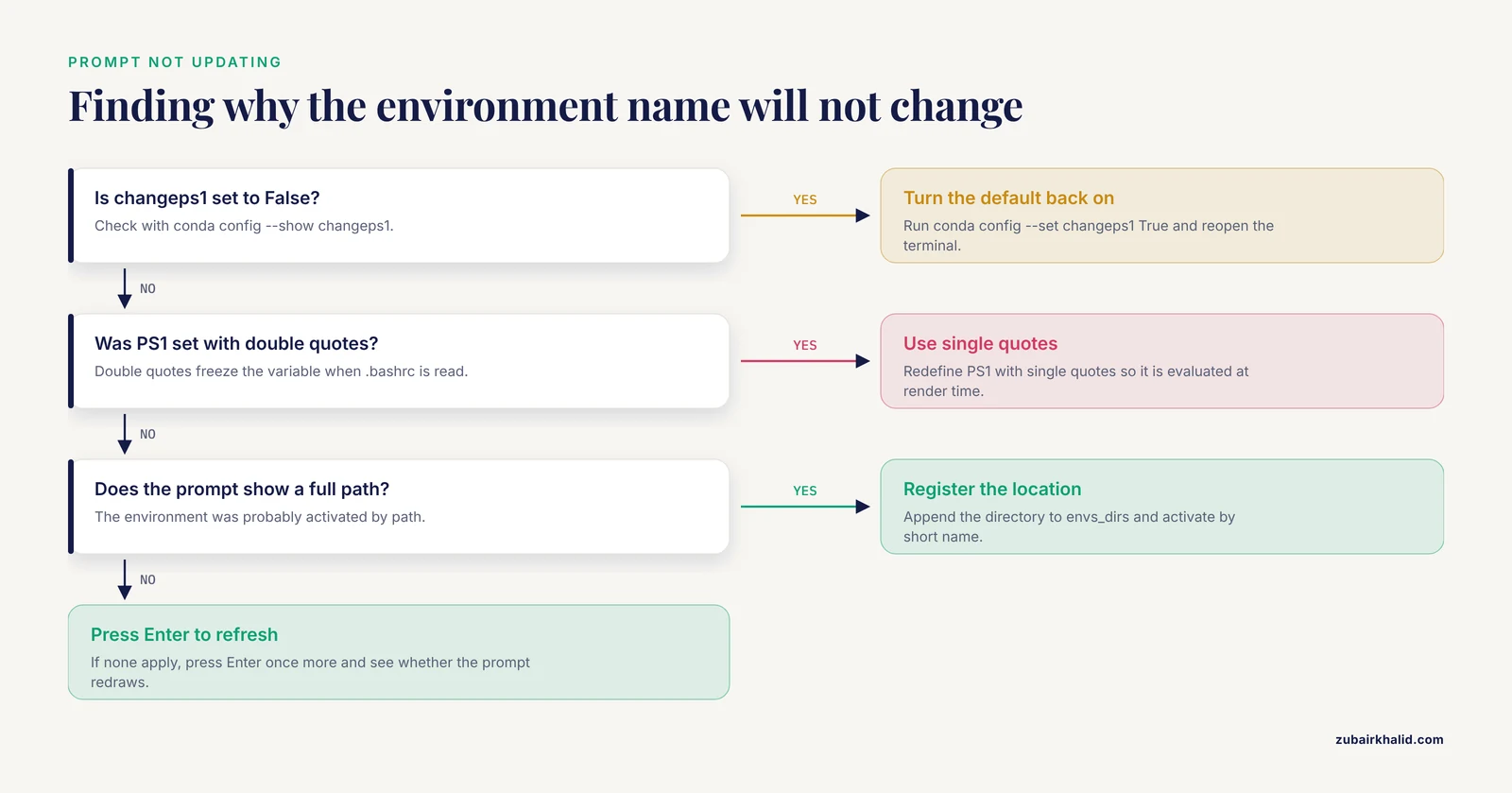
Three separate causes account for nearly all cases.
First, changeps1 may be set to False while you are relying on conda's default prefix. Check with conda config, show changeps1 and set it to True if you want the default behavior back.
Second, your PS1 may have been set with double quotes at some point in your .bashrc, which expanded CONDA_DEFAULT_ENV to empty at load time and froze it. The fix is to define PS1 with single quotes so the variables are re-evaluated each time the prompt is drawn.
Third, the environment may genuinely have activated without error, but you are looking at a prompt drawn before the activation. Prompt rendering happens after each command completes, so this is rare, but it surfaces in odd corners such as prompt commands that crash silently. Test by pressing Enter once more and seeing whether the prompt refreshes.
The environment name shows a full path instead of a short name
If you activated an environment by path, for example conda activate /data/envs/chipseq, then CONDA_DEFAULT_ENV holds that full path and conda's default prefix shows the directory name. This is correct behavior. If you want short names in this situation, either register the location so conda recognizes named environments:
conda config --append envs_dirs /data/envs
conda activate chipseq
or accept the path display, which is arguably more informative because it tells you exactly which copy of the environment you are using.
Duplicate or stacked prefixes such as (base) (rna-seq)
This appears when two layers both try to modify the prompt, for example conda's default prefix plus your custom segment that also prints the environment name. Pick one mechanism. Either set changeps1 False and use your custom segment, or keep changeps1 True and do not print CONDA_DEFAULT_ENV yourself. The stacked display is not wrong, since both report the same environment, but it wastes width and looks messy.
EnvironmentNameNotFound: Could not find conda environment: ...
This is not a prompt problem, but it looks like one when you are testing activation round trips. It means the environment name you passed to conda activate does not exist. List what actually exists:
conda env listExpected output format:
# conda environments:
#
base                  /home/zubair/miniconda3
rna-seq               /home/zubair/miniconda3/envs/rna-seq
assembly              /home/zubair/miniconda3/envs/assembly
qc                    /home/zubair/miniconda3/envs/qc
The asterisk in the right-hand column marks the active environment. Compare the names in that list against the one you typed, watching for typos and plural versus singular names.
Common Mistakes and Limitations
Each of these is a real mistake that bioinformaticians make with the conda environment display, along with the fix and the boundary of what the display can do.
Editing .bash_profile when the terminal reads .bashrc, or the reverse. Bash reads different files depending on how the session started. Terminal emulators typically start interactive non-login shells that read ~/.bashrc. SSH logins start interactive login shells that read ~/.bash_profile (or ~/.profile if the former is absent). If your prompt customization works locally but not over SSH, or vice versa, the cause is almost always file selection. The robust pattern is to put everything in .bashrc and have .bash_profile source it, as shown in Step 6.
Leaving out the \[ and \] wrappers around color codes. Without them, bash counts the invisible escape-sequence characters toward the line length. The visible symptom is that after editing a long command, your cursor position and the text on screen drift apart, and line wrapping breaks mid-word. Wrap every escape sequence in \[ at the start and \] at the end. This is the single most common cause of garbled prompts after a customization attempt.
Freezing PS1 with double quotes. A line like PS1="... $CONDA_DEFAULT_ENV ..." in .bashrc expands the variable once, when the file is read. The prompt then shows whatever was active at startup, forever. Single quotes defer evaluation to render time, which is what you want for anything that changes between commands.
Assuming the prompt reflects the environment inside scripts and jobs. Your PS1 does not exist in non-interactive shells. Batch scripts submitted to a scheduler, cron jobs, and bash script.sh invocations do not read .bashrc and never display a prompt. If a script depends on a specific environment, activate it explicitly inside the script, sourcing conda.sh as shown in the troubleshooting section, or invoke tools with conda run -n envname.
Forgetting that changeps1 and your custom PS1 can fight each other. If conda's default mechanism prepends (env_name) while your custom segment also prints the environment, you get duplicated names. More subtly, if you later edit PS1 without telling conda, conda's initialization re-adds its modifier reference on some upgrades. After any conda update, re-check your prompt and re-apply conda config, set changeps1 False if you use a custom display.
Auto-activation of base hides mistakes. With auto_activate_base True, every shell starts in base, and tools installed there are always available. That availability is a trap. A tool run from base when you intended to use a pinned version from a project environment produces results with the wrong software version, and nothing in the output tells you. Turning off auto-activation and keeping a visible environment name makes the state explicit.
Displaying the environment is not reproducibility. A prompt that says rna-seq proves only the environment name. It does not prove the environment contents. Two machines can have environments with the same name and different package versions, and a rebuilt environment can drift from its original state. Export and version the environment specification for real reproducibility:
conda env export > environment.ymlKeep that file in your pipeline repository. The prompt is for humans in terminals. environment.yml is for the record.
The display has no meaning on clusters that use environment modules. Many HPC systems manage software through Lmod or similar module systems rather than conda alone. On those systems, a prompt showing (rna-seq) says nothing about which modules you have loaded. Some clusters let you stack conda on top of modules, in which case both the module list and the conda environment are part of your actual software state. Treat the prompt as one input among several, and verify the software you are about to run with which and command -V when the stakes are high.
Frequently Asked Questions
Why does my prompt show (base) when I open a terminal?
Conda initialized your shell, and the auto_activate_base setting is on by default, so the base environment activates at shell startup and its name is prepended to your prompt. To stop this, run conda config, set auto_activate_base False and open a new terminal.
How do I remove the conda prefix from my bash prompt entirely?
Run conda config, set changeps1 False, then close and reopen your terminal, and the automatic prefix disappears. If you still see it, your PS1 contains a reference to CONDA_PROMPT_MODIFIER that you should remove from your .bashrc.
How do I show the conda environment without the parentheses?
Define your own PS1 that prints $CONDA_DEFAULT_ENV without surrounding characters, for example PS1='$CONDA_DEFAULT_ENV \u@\h:\w\$ '. Set conda config, set changeps1 False first so the two mechanisms do not stack.
Does this work the same way in zsh or fish?
No. Zsh uses a variable called PROMPT instead of PS1 and needs a different conditional syntax, and fish uses the fish_prompt function. Conda still sets CONDA_DEFAULT_ENV in those shells, so the environment variable itself carries over, but the prompt syntax differs.
Why does the prompt show the environment but my script runs the wrong Python?
The prompt only exists in interactive shells. Scripts run in non-interactive shells that never read .bashrc and never display a prompt, so they need their own explicit activation, either by sourcing conda.sh and running conda activate inside the script or by using conda run -n envname.
What is the difference between CONDA_DEFAULT_ENV and CONDA_PREFIX?
CONDA_DEFAULT_ENV holds the environment name as you would type it after conda activate, which is what you want to display. CONDA_PREFIX holds the full filesystem path to the environment, which is what you want when a script needs to locate files inside the environment such as binaries under its bin directory.
Why does my customized prompt not appear when I SSH into a server?
SSH starts a login shell, which reads ~/.bash_profile rather than ~/.bashrc, so your remote machine needs either the customization in its own .bashrc plus a .bash_profile that sources it, or conda initialized on that machine. The customization is per-machine and per-user.
Can I show both the conda environment and the git branch in my prompt?
Yes. Print the git branch with a small function that parses git branch, and print the environment with $CONDA_DEFAULT_ENV, both inside a single PS1 string. The worked example in Step 4 shows both together.