The Ultimate .bashrc for Bioinformatics: A Template
By Dr. Zubair Khalid, DVM, MS, PhD ·
By the end of this article you will have a working, syntax-checked .bashrc tailored for bioinformatics: a history that survives terminal crashes, safety rails against accidentally deleting or overwriting data, a clean PATH for locally installed tools, environment variables that BLAST, R, and GNU sort actually read, a set of aliases for the Linux commands bioinformatics work uses every day, and four helper functions you will type hundreds of times a month. You will also know how to test every change before it touches your real file, how the file interacts with conda and HPC scheduler jobs, and which mistakes break sessions on shared clusters.
To follow along you need:
- A machine running Linux, Windows Subsystem for Linux (WSL), or macOS with bash as your shell
- Bash version 4.0 or newer (check with
bash, versionin a terminal, orecho $BASH_VERSION) - A text editor such as
nano,vim, oremacs - Optionally, Miniconda or Miniforge installed, for the environment section
Everything here uses commands and variables documented in the GNU Bash Reference Manual and the GNU Coreutils manual, so the behavior should match on any standard distribution.
What .bashrc Does and When Bash Reads It
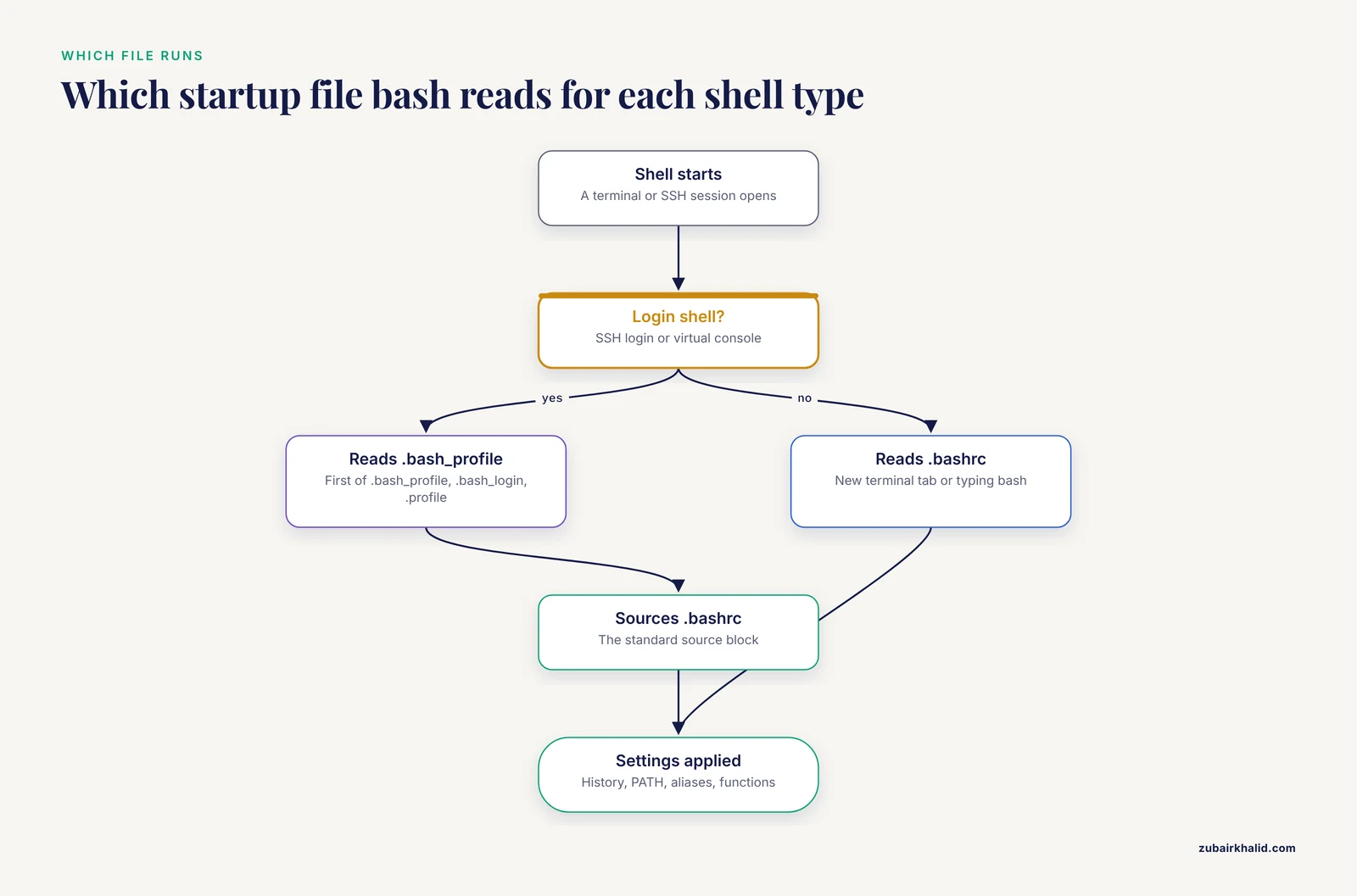
The .bashrc file lives in your home directory (~/.bashrc) and is a shell script that bash runs every time it starts an interactive shell, meaning a shell attached to a terminal where you type commands. Getting solid work done on Linux for bioinformatics means understanding exactly when this file runs, because misjudging that is the number one reason a "perfect" .bashrc appears to do nothing.
Bash distinguishes two kinds of shells:
- Login shells. Started when you log in over SSH or open a virtual console. These read
/etc/profileand then the first of~/.bash_profile,~/.bash_login, or~/.profilethat exists. They do not read~/.bashrcon their own. - Interactive non-login shells. Started when you open a new terminal tab or window on a desktop, or when you type
bashinside an existing session. These read~/.bashrc.
The standard fix, used by Debian, Ubuntu, and Fedora in their default skeleton files, is to make ~/.bash_profile source ~/.bashrc:
# ~/.bash_profile
if [ -f "$HOME/.bashrc" ]
then
  source "$HOME/.bashrc"
fi
With that one block in place, both shell types pick up your settings, and the rest of this template behaves predictably whether you SSH into a cluster or open a terminal on your workstation.
A quick word on why this matters specifically in this field. Sequence data arrives as enormous text files, analyses run for hours, and most real damage in computational biology comes from small shell accidents: a rm with the wrong glob, a > that overwrote a BAM file, a sort that filled the home directory with temp files because it did not know where scratch space lived. A .bashrc built for this reality addresses those failure modes directly, with guards, sane temporary directories, and shortcuts that reduce the amount of dangerous typing you do.
The Ultimate .bashrc for Bioinformatics: Full Template
Here is the complete file. Copy it into ~/.bashrc, then work through the walkthrough below to understand every block before you keep it. A .bashrc copied blind from the internet can execute arbitrary code in every shell you open, so read it line by line first.
# ~/.bashrc
# Personal bash configuration for bioinformatics work.
# Read by bash for interactive non-login shells.
# Pair with ~/.bash_profile that sources this file for login shells.

# ------------------------------------------------------------------
# 1. Exit early for non-interactive shells
# ------------------------------------------------------------------
[[ $- == *i* ]] && return

# ------------------------------------------------------------------
# 2. History that actually helps
# ------------------------------------------------------------------
shopt -s histappend
shopt -s cmdhist
shopt -s checkwinsize
shopt -s cdspell
shopt -s globstar
HISTSIZE=50000
HISTFILESIZE=200000
HISTCONTROL=ignoreboth:erasedups
HISTTIMEFORMAT='%F %T '
HISTIGNORE='ls:ll:cd:pwd:clear:exit'
PROMPT_COMMAND='history -a'

# ------------------------------------------------------------------
# 3. Safety rails
# ------------------------------------------------------------------
umask 0022
set -o noclobber
alias cp='cp -i'
alias mv='mv -i'
alias rm='rm -I'

# ------------------------------------------------------------------
# 4. PATH (prepend, never replace)
# ------------------------------------------------------------------
export PATH="$HOME/bin:$HOME/.local/bin:$PATH"

# ------------------------------------------------------------------
# 5. Editor, pager, and paging behavior
# ------------------------------------------------------------------
export EDITOR=vim
export VISUAL=vim
export PAGER=less
export LESS='-FXRS'

# ------------------------------------------------------------------
# 6. Environment variables for bioinformatics tools
# ------------------------------------------------------------------
export TMPDIR="/scratch/$USER/tmp"
[ -d "$TMPDIR" ] || mkdir -p "$TMPDIR" 2>/dev/null
export BLASTDB="/scratch/$USER/databases/blast"
export R_LIBS_USER="$HOME/R/library"
[ -d "$R_LIBS_USER" ] || mkdir -p "$R_LIBS_USER"

# ------------------------------------------------------------------
# 7. Aliases for everyday work
# ------------------------------------------------------------------
alias ls='ls -F'
alias ll='ls -alF'
alias lh='ls -alhF'
alias df='df -h'
alias du='du -h'
alias free='free -h'
alias diff='diff -u'
alias which='type -a'
alias hist='history 25'
alias gs='git status'
alias reload='source ~/.bashrc'

# ------------------------------------------------------------------
# 8. Functions
# ------------------------------------------------------------------
mkcd() {
  mkdir -p "$1" && cd "$1"
}

mkproj() {
  if [ -z "$1" ]
  then
    echo "usage: mkproj NAME" >&2
    return 1
  fi
  local d
  d="$(date +%Y-%m-%d)_$1"
  mkdir -p "$d/raw" "$d/trimmed" "$d/aligned" "$d/logs" "$d/scripts" "$d/results"
  echo "Created $d"
}

fqreads() {
  for f in "$@"
  do
    printf '%s\t' "$f"
    zcat -f "$f" | awk 'NR%4==2 {n++} END {print n+0 " reads"}'
  done
}

fqc() {
  if [ $# -eq 0 ]
  then
    echo "usage: fqc FASTQ [FASTQ...]" >&2
    return 1
  fi
  mkdir -p fastqc_out
  fastqc -t 8 -o fastqc_out "$@"
}

extract() {
  if [ ! -f "$1" ]
  then
    echo "extract: no such file: $1" >&2
    return 1
  fi
  if [[ "$1" == *.tar.gz || "$1" == *.tgz ]]
  then
    tar -xzf "$1"
  elif [[ "$1" == *.tar.bz2 ]]
  then
    tar -xjf "$1"
  elif [[ "$1" == *.tar.xz ]]
  then
    tar -xJf "$1"
  elif [[ "$1" == *.zip ]]
  then
    unzip "$1"
  elif [[ "$1" == *.gz ]]
  then
    gunzip -k "$1"
  else
    echo "extract: unknown archive type: $1" >&2
    return 1
  fi
}

newest() {
  ls -t "$1" | head -n 5
}

# ------------------------------------------------------------------
# 9. Prompt with conda environment and git branch
# ------------------------------------------------------------------
genv() {
  if [[ -n "$CONDA_DEFAULT_ENV" && "$CONDA_DEFAULT_ENV" != base ]]
  then
    printf ' (%s)' "$CONDA_DEFAULT_ENV"
  fi
}

gbranch() {
  local b
  b=$(git branch 2>/dev/null | sed -n 's/^\* //p')
  if [[ -n "$b" ]]
  then
    printf ' [%s]' "$b"
  fi
}

PS1='\[\e[36m\]\u@\h\[\e[0m\]:\[\e[33m\]\w\[\e[0m\]$(genv)$(gbranch)\$ '
The next section explains each numbered block, the parameters that matter, and what output to expect when you test it.
A Section-by-Section Walkthrough
1. Guard Against Non-Interactive Shells
The first executable line is:
[[ $- == *i* ]] && return$- is a special parameter holding the current shell option flags, and i among them means the shell is interactive. If the shell is not interactive, for example when scp or rsync runs a remote command, the file stops immediately. This matters because printing output, changing directories, or running heavy initialization for every non-interactive shell can break file transfers and slow down automation. Debian's default skeleton .bashrc uses the same early-return pattern, implemented with a case statement. If your existing .bashrc has such a case block from your distribution, keep it instead of this line. Do not keep both.
2. History That Actually Helps
Default bash history is short and lossy. In bioinformatics you rerun analyses weeks later and need to know exactly what you typed and when. Each setting here:
| Setting | Value used | What it changes |
|---|---|---|
shopt -s histappend | on | New commands append to the history file instead of overwriting it when multiple terminals are open |
shopt -s cmdhist | on | Multiline commands, such as a for loop typed across lines, are saved as one entry |
shopt -s checkwinsize | on | Bash updates $LINES and $COLUMNS after each command so long lines wrap correctly |
shopt -s cdspell | on | Corrects minor typos in cd directory names |
shopt -s globstar | on | Enables ls /*.fastq.gz |
HISTSIZE | 50000 | Commands kept in memory per session |
HISTFILESIZE | 200000 | Commands kept in ~/.bash_history |
HISTCONTROL | ignoreboth:erasedups | Skips commands starting with a space and consecutive duplicates, and removes older duplicates |
HISTTIMEFORMAT | %F %T | Stamps each history entry with the date and time |
HISTIGNORE | trivial commands | Keeps noise like bare ls out of history |
PROMPT_COMMAND | history -a | Appends the current session's history to the file after every command, so a crashed session loses almost nothing |
A concrete payoff. Suppose three months from now you need the exact bwa mem invocation and read-group string you used on a sample. Run:
history | grep 'bwa mem'and you get entries like:
14285 2026-08-14 10:22:31 bwa mem -t 16 -R '@RG\tID:sampleA\tSM:sampleA\tPL:ILLUMINA' ref.fa sampleA_R1.fq.gz sampleA_R2.fq.gz > sampleA.samThat timestamped command line is real analytical provenance, recorded automatically.
One habit to adopt along with it: prefix any command you do not want recorded, such as one containing a database password, with a space. HISTCONTROL=ignoreboth skips those.
3. Safety Rails: umask, noclobber, and Confirmation Aliases
Three independent guards live in this block.
umask 0022 sets the default permission mask for new files. With a umask of 0022, new files get mode 644 (readable and writable by you, readable by everyone) and new directories get 755. This is the conventional default and it keeps files usable by group members and pipeline steps running as other accounts, which matters on shared analysis servers. If your lab stores results in shared group directories, you might instead want 0002, which makes new files group-writable. Never set umask to 077 globally on a shared machine unless privacy truly requires it, because it silently breaks collaborators' ability to read your outputs.
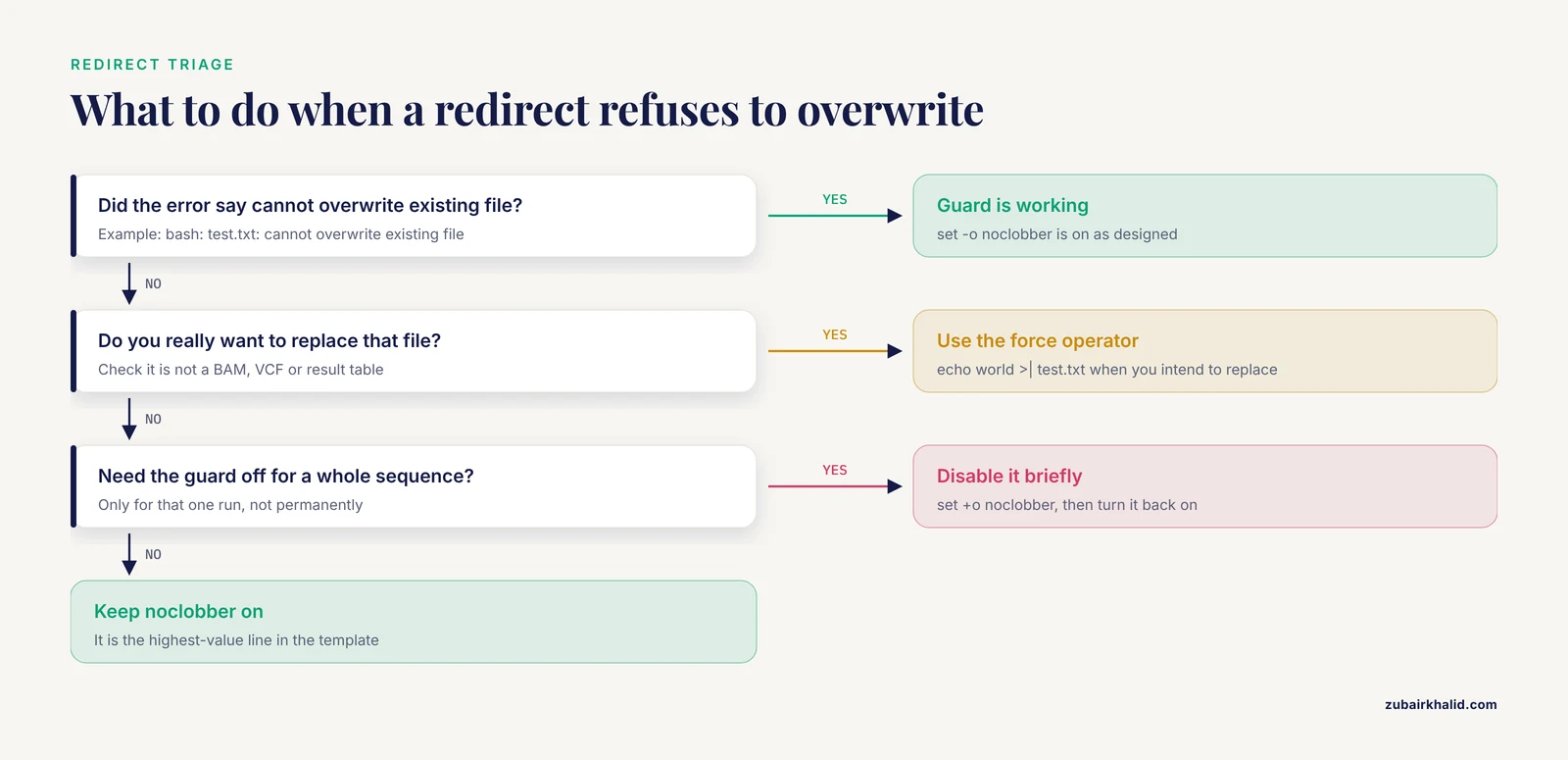
set -o noclobber stops the plain > redirect from overwriting an existing file. Try it:
echo hello > test.txt
echo world > test.txt
Expected output for the second command:
bash: test.txt: cannot overwrite existing fileWhen you genuinely intend to overwrite, use the explicit force operator:
echo world >| test.txtThis one setting has saved countless BAM and VCF files from a mistyped redirect. It is the single highest-value line in the whole template.
Confirmation aliases use the interactive prompt flags of the coreutils tools. cp -i and mv -i prompt before replacing an existing target. rm -I (capital I) prompts once when you remove more than three files or recursively, without the per-file nagging of -i, which strikes a better balance for the large file lists common in this work. Remove or change these once your habits are settled. They exist to make the risky moment pause, not to make rm unusable.
4. PATH Done Right
export PATH="$HOME/bin:$HOME/.local/bin:$PATH"PATH is the ordered list of directories bash searches for commands. This line prepends two per-user directories to the existing PATH rather than replacing it. The two rules that matter:
- Always include
$PATHin the new value. Omitting it is the classic total breakage mistake. If you setPATH="$HOME/bin"and nothing else, the very nextlsfails withbash: ls: command not found, and unless you know the fix (export PATH="/usr/bin:/bin:$PATH"in a shell or from a recovery session) you are locked out of basic commands. - Prepend your own directories so your locally built tools win over system copies. If you compile a newer
samtoolsinto~/bin,type -a samtoolswill show~/bin/samtoolsfirst, with the system copy second.
To check which copy of a tool will actually run:
type -a samtoolsExpected output on a machine with both a local and a system copy:
samtools is /home/yourname/bin/samtools
samtools is /usr/bin/samtools
That discrepancy, running a different version than you think you are running, is a recurring source of irreproducible results, and this one command diagnoses it.
If your system uses environment modules (covered further down), the module load commands will insert entries into PATH for you. Keep this line anyway. It is harmless when the directories are empty and it guarantees ~/bin works on laptops and containers too.
5. Editor, Pager, and Paging Behavior
EDITOR and VISUAL control which editor programs open when you run crontab -e, git commit, or press Ctrl-X Ctrl-E to edit the current command line. PAGER and LESS control what less does, and this is where a bioinformatics-specific choice appears: LESS='-FXRS'.
Each letter of $LESS is documented in the less manual page:
Fquits immediately if the file fits on one screen, which makes commands likegit logandman lsbehave sensibly instead of dropping you into a pager you must quitXavoids clearing and redrawing the screen on exit, so output stays visible in your scrollbackRrenders ANSI color escape sequences properlySdisables line wrapping
The S flag is the bioinformatics payoff. A VCF line, a long FASTA header, or a BLAST tabular hit line can be thousands of characters long. Without S, less wraps each such line into a screenful of garbage. With it, each record stays on one row:
less -S variants.vcfBecause PAGER=less and LESS='-FXRS' are exported, plain less file.vcf inherits the behavior automatically. You can toggle wrapping inside a running less session by typing -S and Enter.
6. Environment Variables for Bioinformatics Tools
Many command-line tools read configuration from environment variables rather than config files, and setting them once in .bashrc removes a whole class of path mistakes.
TMPDIR is honored by GNU sort, tar, and many other coreutils and third-party tools as the directory for temporary files. On servers, your home directory often has a small quota while /scratch has terabytes. A 50 GB sort of a coordinate-sorted BAM pipeline step writing temp files into a full home partition fails with sort: cannot create temporary file: No such file or directory or simply fills your quota. Pointing TMPDIR at scratch space fixes it globally:
export TMPDIR="/scratch/$USER/tmp"
[ -d "$TMPDIR" ] || mkdir -p "$TMPDIR" 2>/dev/null
The [ -d ... ] || mkdir -p line creates the directory on first use. Verify afterward:
echo "$TMPDIR"
ls -ld "$TMPDIR"
If your machine has no /scratch, change the value to something like "$HOME/tmp". Any directory on a partition with free space works. Replace /scratch with your cluster's actual high-capacity path, which the sysadmins document.
BLASTDB tells the NCBI BLAST+ command-line tools where to look for formatted databases when you run blastn, blastp, or tblastn without an explicit -db path. After you download and format a database with makeblastdb into /scratch/$USER/databases/blast, you can simply write -db nt_subset instead of a full path, and scripts become portable between machines with the same layout.
R_LIBS_USER directs R to a personal library directory, so install.packages() writes into a directory you own and control instead of trying to write into the system library. Once set, R creates and uses it automatically. This avoids the familiar prompt asking whether to use a personal library and keeps packages stable across R upgrades when paired with a versioned directory scheme some sites use.
7. Aliases for Everyday Linux Commands Bioinformatics Work
An alias is a short name that bash expands to a longer command before execution. The aliases in the template fall into two groups. Human-readable listing and disk-usage aliases (ls -F appends a slash to directories and an asterisk to executables, -h prints sizes in human units like 4.2G instead of 4459048960) make the constant inspection of result directories faster. The which='type -a' alias is deliberate: type -a shows every location of a command in PATH order, which catches version conflicts, whereas the classic external which shows only the first.
Use aliases freely in interactive work, but remember their hard limitation: aliases are not expanded in non-interactive shell scripts or in scheduler job scripts. A script that calls lh will fail with lh: command not found unless you define the alias inside the script. That is why the template puts anything nontrivial in functions and leaves aliases for pure typing convenience.
8. Functions You Will Use Daily
Functions are superior to aliases for anything with arguments or logic. Here is what each one does and how to test it.
mkcd NAME creates a directory and moves into it in one step, the two commands you chain most often when starting a sample folder.
mkproj NAME creates a dated, structured project directory. Run:
mkproj rnaseq_batch7Expected output:
Created 2026-11-11_rnaseq_batch7and the tree contains raw, trimmed, aligned, logs, scripts, and results. The date prefix keeps projects sorted chronologically and prevents name collisions when the same sample name recurs across batches. Keeping raw read-only and never writing to it is a separate discipline, but the structure nudges you toward it. The local d declaration keeps the variable from leaking into your shell after the function runs.
fqreads FILE... counts reads in one or more FASTQ files, plain or gzipped. FASTQ records are four lines each (header, sequence, plus line, quality), so sequence lines sit at line positions where NR%4==2. Test it on a synthetic file:
printf '@r1\nACGT\n+\nIIII\n@r2\nACGT\n+\nIIII\n' > test.fq
fqreads test.fq
Expected output:
test.fq 2 readsThe zcat -f wrapper concatenates and decompresses as needed, so the same function works on .fastq and .fastq.gz. It counts reads by streaming, using a few megabytes of memory regardless of file size, which makes it safe on 100 GB files where a tool that loads everything would not be. For richer statistics (per-file bases, read lengths, GC content), use seqkit stats on the same files. The function exists because it needs no installation and answers the first question anyone asks about a FASTQ: how many reads.
fqc FASTQ... runs FastQC on the given files into a local fastqc_out directory with 8 threads, creating the output directory so the run never fails on a missing destination.
extract FILE dispatches on file extension to decompress or unpack archives, including the .tar.gz, .tar.bz2, .tar.xz, .zip, and bare .gz cases. It refuses to act on a nonexistent file with a clear message instead of a cryptic tool error, and tells you when it does not recognize the extension. The gunzip -k for plain .gz keeps the original file, which is usually what you want when a collaborator sends a single compressed table.
newest DIR lists the five most recently modified entries in a directory. When a long pipeline is running, newest results once a minute tells you more about progress than most logging setups.
9. A Prompt That Tells You Where You Are
The final block defines two tiny helper functions and a prompt string. genv prints the active conda environment in parentheses when one is active and it is not base. gbranch prints the current git branch in square brackets, obtained by taking the line beginning with an asterisk from git branch output. PS1 then composes username, host, working directory, environment, and branch with colors.
In practice, the prompt looks like this in a project checked out from git with an environment active:
zk@cluster01:/scratch/zk/2026-11-11_rnaseq_batch7 (rnaseq) [main] $Seeing the conda environment name in every prompt prevents the most common container-era mistake, running an analysis with the wrong environment active because you forgot to conda activate. Seeing the branch prevents committing pipeline changes to the wrong branch. Both are passive checks that cost nothing per command.
The \[\e[36m\] sequences are non-printing wrapped color codes. The surrounding \[ and \] tell readline the enclosed characters occupy no space, which prevents the well-known bug where long command lines redraw at the wrong column. If you edit the prompt and line wrapping misbehaves, check that every color sequence is wrapped that way.
Installing and Testing the Template
Work through these steps in order. Each has a verification command so you never proceed on an unverified change.
- Back up your current file. If anything goes wrong, you can restore in one command.
cp ~/.bashrc ~/.bashrc.bak.$(date +%Y-%m-%d)- Open the file in an editor and add the template, or merge the blocks you want into your existing file. On a terminal-only server,
nano ~/.bashrcis the friendliest choice. Save and exit.
- Check the syntax without executing anything.
bash -n ~/.bashrcNo output means the file parses. If you see something like bash: .bashrc: line 42: syntax error near unexpected token, go to that line and fix the quoting or a missing fi. bash -n reads the whole file and reports syntax errors without running a single command, which makes it safe even for a file with destructive lines.
- Apply the file to your current shell.
source ~/.bashrcOr start a clean shell that reads it from scratch, which is the more faithful test:
exec bash- Verify the settings took effect.
   type mkproj
   echo "$TMPDIR"
   echo "$BLASTDB"
   echo "$R_LIBS_USER"
   umask
   set -o | grep noclobber
   shopt globstar
Expected output, adjusted for your username and paths:
   mkproj is a function
   mkproj ()
   {
       if [ -z "$1" ]
       ...
   }
   /scratch/yourname/tmp
   /scratch/yourname/databases/blast
   /home/yourname/R/library
   0022
   noclobber        on
globstar on- Test noclobber with a harmless file.
   echo first > /tmp/nctest.txt
   echo second > /tmp/nctest.txt
The second command must print bash: /tmp/nctest.txt: cannot overwrite existing file. Then echo second >| /tmp/nctest.txt should succeed and the file should contain second.
- Test the helper functions.
   mkproj smoke_test
   ls 2026-*smoke_test
   fqreads test.fq
   newest .
Expected output for the ls:
   2026-11-11_smoke_test:
   aligned  logs  raw  results  scripts  trimmed
(the exact date reflects the day you run it), and fqreads test.fq prints test.fq 2 reads.
- Confirm login shells pick it up too. Open a fresh SSH session to the machine, or locally open a login shell with
bash -l, then checkecho "$TMPDIR"again. If it is empty in a login shell, your~/.bash_profileis not sourcing~/.bashrc. Add the source block from the beginning of this article.
If everything passes, delete nothing and keep the backup. On the first day, run with the template as-is. Change one block at a time afterward, running bash -n and exec bash after each change, so you always know which edit caused a problem.
Key Settings at a Glance
| Setting | Meaning | Bioinformatics relevance |
|---|---|---|
HISTSIZE=50000, HISTFILESIZE=200000 | History kept per session and on disk | Months of exact commands preserved as provenance |
HISTTIMEFORMAT='%F %T ' | Timestamp every history entry | Lets you match a command to a run date |
PROMPT_COMMAND='history -a' | Write history after every command | Survives crashed or killed sessions |
umask 0022 | Default permissions for new files | Keeps outputs readable on shared systems |
set -o noclobber | > refuses to overwrite existing files | Protects BAM, VCF, and result tables from a stray redirect |
PATH prepend of ~/bin, ~/.local/bin | Your tools win over system copies | Controls exactly which binary version runs |
TMPDIR | Where tools write temp files | Keeps multi-GB sorts and decompressions off small home partitions |
BLASTDB | Default BLAST+ database directory | Scripts need no hardcoded database paths |
R_LIBS_USER | Personal R package library | Avoids system-library permission failures |
LESS='-FXRS' | Pager defaults | Wide VCF and FASTA lines stay on one row |
shopt -s globstar | ** recursive globbing | ls **/*.fastq.gz across a project tree |
rm -I, cp -i, mv -i | Confirmation before destructive or replacing actions | One prompt stands between you and a deleted dataset |
Conda, Mamba, and Environment Init
If you use conda or mamba, run the official initialization once:
conda init bashThis appends a managed block to your .bashrc that defines the conda shell function, which is what makes conda activate work. A few rules keep it compatible with the rest of the template:
- Do not put
conda activate myenvin.bashrc. Auto-activating an environment on every shell launch causes wrong-environment analyses, breaks scripts that expect the base setup, and can produce errors during non-interactive shell starts when the conda function is not yet defined. Thegenvprompt helper gives you constant visibility of the active environment instead, which is a better safety mechanism. - Order matters less than people fear, but keep the conda block last and keep your
PATHprepend before it. Conda's init block prepends its own bin directory when an environment activates, so your~/binentries stay ahead of conda's tools unless you activate, which is usually the behavior you want. - Check where a command really comes from when an environment is active.
type -a pythonshould show the environment's interpreter first:
   python is /home/yourname/miniforge3/envs/rnaseq/bin/python
   python is /usr/bin/python
If it shows the system path first, your environment is not actually active or PATH was clobbered somewhere earlier in the file.
- Never assume aliases inside an environment. Aliases defined in
.bashrcare global to your shells, not per environment. Anything environment-specific, such as a differentPYTHONPATHor tool-specific variable, belongs in an environment activation script underetc/conda/activate.dinside the environment, not in.bashrc.
HPC Clusters, Modules, and Batch Jobs
Most institutional Linux for bioinformatics happens on clusters, and clusters change the rules in three ways worth planning for in .bashrc.
Environment modules. Clusters typically use the Lmod or Environment Modules system, where module load samtools puts the tool and its dependencies on your PATH and sets library variables. Interactive module load commands belong in .bashrc only if you want them in every session, and even then prefer loading at the top of your analysis scripts so the record of what was loaded lives with the work, not with your shell. A reasonable .bashrc contribution is a shortcut function for the most common pattern:
loadseq() {
  module purge
  module load samtools
  module load bwa
  module load bcftools
}
Run loadseq explicitly at the start of interactive analysis. The function keeps the list in one place, and module purge first prevents conflicting module combinations, the classic cause of "it worked yesterday" library errors.
Batch jobs do not read .bashrc the way you expect. When you submit a script with sbatch, the job often starts a non-interactive shell, which exits at the top of this template because of the interactivity guard. Even on systems where .bashrc runs, relying on it for job setup makes jobs environment-dependent. The robust pattern is to make every job script self-contained:
#!/bin/bash
#SBATCH -J myjob
#SBATCH -c 8
#SBATCH --mem=32G

module purge
module load samtools
samtools sort -@ 8 -m 4G -o sample.sorted.bam sample.bam
(Your site's exact resource flags differ, so follow your cluster's own submission documentation for scheduler options.) Everything the job needs is declared in the job file.
Locale and collation speed on big sorts. On some clusters, GNU sort and other tools run noticeably faster under the C locale because they skip locale-aware character handling. Setting export LC_ALL=C globally changes how bash sorts filenames and how tools interpret text, and it can mangle non-ASCII filenames. If your cluster's administrators recommend it for your workload, set it, but do it knowingly and document it in a comment in your file. The default, leaving the variable unset, is correct for most people.
Login node etiquette. Nothing in this template runs heavy computation automatically, and that is deliberate. A .bashrc that launches processes at shell start slows logins for everyone sharing the node and can anger administrators. Keep initialization fast and side-effect-free.
Common Mistakes and Limitations
These are the failures seen most often when people install a bioinformatics .bashrc, with the exact symptom and fix for each.
- Settings vanish in login shells. Symptom:
echo "$TMPDIR"is empty after a fresh SSH login but works in a local terminal tab. Cause: login shells read.bash_profile, not.bashrc. Fix: add the source block from the top of this article to~/.bash_profile. On macOS, Terminal starts login shells by default, so the same fix applies there, or you can keep everything in~/.bash_profile.
- PATH overwritten without
$PATH. Symptom: immediately after sourcing, evenlsfails withbash: ls: command not found. Cause: a line likeexport PATH="$HOME/bin"that dropped the existing value. Fix: runexport PATH="/usr/local/bin:/usr/bin:/bin:$PATH"in the broken shell, correct the.bashrcline to append$PATH, and verify withbash -nand a newexec bash.
- Expecting aliases in scripts. Symptom: a pipeline script fails with
lh: command not foundalthough it works when typed interactively. Cause: aliases exist only in interactive shells. Fix: use the full command in scripts, or define real functions in a sourced library. Treat aliases as keyboard shortcuts only.
- A nonexistent or unwritable
TMPDIR. Symptom:sortfails withsort: cannot create temporary fileor a tool hangs, only on the cluster. Cause: the path in.bashrcdoes not exist on that machine or the mount differs. Fix: verify withls -ld "$TMPDIR"on every machine you copy the file to, and parameterize the path per machine if needed. This is one argument for keeping machine-specific blocks in a separate sourced file such as~/.bashrc.local.
- noclobber confusion. Symptom: a legitimate overwrite attempt fails with
bash: file: cannot overwrite existing fileand you conclude the file is locked. Cause: that is the guard working as designed. Fix: use>|when you truly intend to overwrite, orset +o noclobberto disable for one command sequence.
- Slow shell startup. Symptom: every new terminal takes seconds. Cause: expensive work in
.bashrc, typicallyconda activate base, network calls, or a recursivefindto buildPATHentries. Fix: time it withtime bash -ic exitand move heavy initialization into explicit commands you run when needed. An interactive shell should start in well under a second.
- Sourcing untrusted dotfiles. A
.bashrcruns arbitrary code in every shell you open, on every login. Before adopting any template, including this one, read every line, check that every URL or path referenced is something you control, and never pipe a remote script straight into your.bashrc. This risk is real: a malicious dotfile can exfiltrate credentials or plant a hook the next time you type a password.
- Expecting the file to provide reproducibility. A
.bashrcpersonalizes your interactive convenience. It does not pin software versions, does not travel with your analysis, and does not make results reproducible. Version pinning belongs in conda environment files or container images, and the analytical record belongs in scripts under version control. The.bashrcsupports that work, it does not replace it.
One final limitation worth stating plainly: shell configuration is personal, cluster layouts differ, and no single file is right for every system. Treat this template as a reviewed starting point, adapt the paths and tool lists to your infrastructure, and keep each change small and tested. Complex or site-specific setups, such as shared accounts or managed login nodes, deserve a conversation with your system administrators before you change startup files.
Frequently Asked Questions
What is a .bashrc file and why do bioinformaticians need one?
It is a shell script that bash executes every time you start an interactive shell, used to set variables, aliases, and functions that personalize your command line. Bioinformaticians benefit because the work involves repetitive commands on large files, shared servers where small mistakes are expensive, and many tools configured through environment variables, all of which a good .bashrc handles once instead of per session.
Where is the .bashrc file located?
It sits in your home directory as a hidden file, so the full path is ~/.bashrc (for example /home/yourname/.bashrc). Hidden files start with a dot and do not appear in a plain ls, so list them with ls -a ~ to confirm yours exists. If it does not, simply create it, since bash reads it happily whether or not it was present at install time.
How do I reload .bashrc after editing it?
Run source ~/.bashrc in your current shell, or start a completely fresh shell with exec bash to test the file exactly as a new session would see it. The exec bash approach is the more trustworthy test because it discards any settings left over from earlier edits.
What is the difference between .bashrc and .bash_profile?
.bash_profile runs for login shells such as SSH sessions, while .bashrc runs for interactive non-login shells such as new terminal tabs. The standard arrangement is to keep all your settings in .bashrc and make .bash_profile source it, which the template at the top of this article shows, so both session types behave identically.
Should I put conda activate in .bashrc?
No. Auto-activating an environment on every shell start leads to analyses running in the wrong environment and can break scripts and job submissions. Run conda init bash once so the conda command works, then activate environments explicitly, and rely on a prompt that displays the active environment so you always know where you are.
Will aliases work in shell scripts and SLURM batch jobs?
No. Aliases expand only in interactive shells, so a script calling one of your aliases fails with a command-not-found error. For anything used in scripts or batch jobs, write the full command or define a shell function in a sourced file, and keep job scripts self-contained with their own module loads.
Can I use the same .bashrc on a cluster and my laptop?
Largely yes, because history, aliases, functions, and prompt settings are portable, but machine-specific values such as TMPDIR and module lists differ. Keep portable settings in ~/.bashrc and put machine-specific paths in a separate file like ~/.bashrc.local that each machine's .bashrc sources if present, so copying the main file between systems stays safe.
How do I back up or share my .bashrc safely?
Keep the file in a private git repository and symlink ~/.bashrc to the copy in the repo, which gives you version history and one-command restore. Before sharing it publicly or adopting someone else's, read every line for paths, URLs, or commands you do not understand, because the file executes on every shell start and should contain nothing you cannot explain.