How to Create a Bioinformatics-Friendly Bash Prompt
By Dr. Zubair Khalid, DVM, MS, PhD ·

By the end of this guide you will be able to build a Bash prompt that tells you, at a glance, which conda environment is active, which machine or cluster node you are on, how many background jobs are running, whether your last command failed, and which directory you are in. You will install nothing beyond Bash itself, a text editor, and (optionally) the conda package manager most bioinformaticians already use. Every change lives in one file, so you can undo the whole setup by restoring a backup.
A prompt is the line of text Bash prints before each command. Most people treat it as decoration. For bioinformatics work it is closer to a dashboard. You move between a laptop, a university login node, and interactive compute sessions. You switch between conda environments for QIIME2, samtools, and R. You run long pipelines in the background and occasionally forget they exist. A well-designed prompt surfaces all of that before you type a single command.
This guide covers the prompt itself, the Bash mechanisms behind it, a full step-by-step build, bash prompt bioinformatics tips for cluster and pipeline work, common mistakes with exact fixes, verification steps, and answers to frequent questions.
Why Linux and the Command Line Dominate Bioinformatics
Bioinformatics pipelines are built from small programs glued together with shell scripts. DoriTool, a pipeline for post-association functional annotation, is built from scripts written in Bash, Perl, and R precisely because shell integration lets researchers combine up-to-date functional data with third-party tools in a reproducible, modular workflow [1]. The shell is the connective tissue of that workflow, and the prompt is the part of the shell you interact with hundreds of times a day.
Shell scripting is also a legitimate engineering discipline on its own. Work on text-based task managers implemented in shell script shows that command-line tools can handle multitasking, process management, and system resource monitoring with a lightness that heavyweight interfaces struggle to match [2]. A bioinformatics prompt applies the same idea at a smaller scale. It is a small shell program that monitors your session continuously and reports the state that matters for your work.
Finally, the Bash prompt is a user-specific configuration feature. Linux systems store these settings per user, and the shell reads them at session start from dotfiles in your home directory. The same mechanism that lets you register new executables as commands, create symbolic links, and update your system path also governs how your prompt is rendered on every login [3]. Understanding the prompt therefore teaches you the configuration system you will use for everything else in linux for bioinformatics.
How Bash Builds the Prompt: PS1 and PROMPT_COMMAND
Bash draws the prompt from a small set of variables. The textbook treatment of shell programming covers these in depth, and they have been stable for decades, so anything you learn here transfers across servers [4].
The key variables are:
- PS1, the primary prompt string. Bash expands special escape sequences inside it before printing it.
- PS2, the continuation prompt, shown when a command spans multiple lines.
- PROMPT_COMMAND, a command Bash executes immediately before printing PS1. This is where dynamic content belongs.
- PS0 and PS1 timing hooks, which most bioinformaticians can ignore.
Inside PS1, a backslash followed by a character is an escape sequence. \u becomes your username, \h the hostname up to the first dot, \w the current working directory with your home directory abbreviated to a tilde, and \j the number of jobs currently managed by the shell. Non-printing sequences such as color codes must be wrapped in \[ and \] so Bash can calculate the correct line length. If you skip those wrappers, your cursor drifts sideways when you recall long commands.
Dynamic content, such as the active conda environment or the exit status of your last command, should be assembled in a function called by PROMPT_COMMAND. Trying to do everything statically in PS1 makes the prompt brittle and hard to debug.
The escape sequences that matter
| Sequence | Expands to | Why it helps in bioinformatics |
|---|---|---|
\u | Username | Confirms you are root or not before touching shared data |
\h | Hostname without domain | Distinguishes login node from compute node |
\H | Full hostname | Useful when clusters use subdomains |
\w | Working directory, ~ for home | Shows which project directory you are in |
\W | Basename of working directory | Shorter alternative for narrow terminals |
\j | Number of background jobs | Shows running and stopped jobs in this shell |
\$ | # for root, $ otherwise | Instant root check |
\d | Date as "Weekday Month Day" | Useful for logging interactive sessions |
\t | 24-hour time | Timestamps prompt snapshots in screenshots or logs |
\[ ... \] | Wraps non-printing characters | Prevents cursor-position bugs with color |
\e | The escape character, starts color codes | Required for every colored element |
The variables PS1, PS2, and PROMPT_COMMAND are ordinary shell variables, so you can inspect them at any time with echo "$PS1". That is often the fastest way to see what a machine's default prompt is doing before you change it.
Prerequisites and What to Have on Hand
You need:
- A Linux machine or remote server with Bash. Almost every distribution qualifies. Ubuntu is the most common in bioinformatics teaching environments, and the same configuration file conventions apply across distributions.
- A terminal and a text editor. This guide uses
nanofor editing because it is nearly universal. Substitutevimoremacsif that is your habit. - Optionally, conda or Miniconda installed and initialized. Most bioinformatics environments use it for environment management. The prompt shows the active environment only if conda is present.
- Roughly thirty minutes.
Step-by-Step: Build a Bioinformatics-Friendly Bash Prompt
This walkthrough builds the prompt in layers. Each layer is testable on its own. Work in order and test after each step so that if something breaks, you know which step caused it.
Step 1: Back up your shell configuration
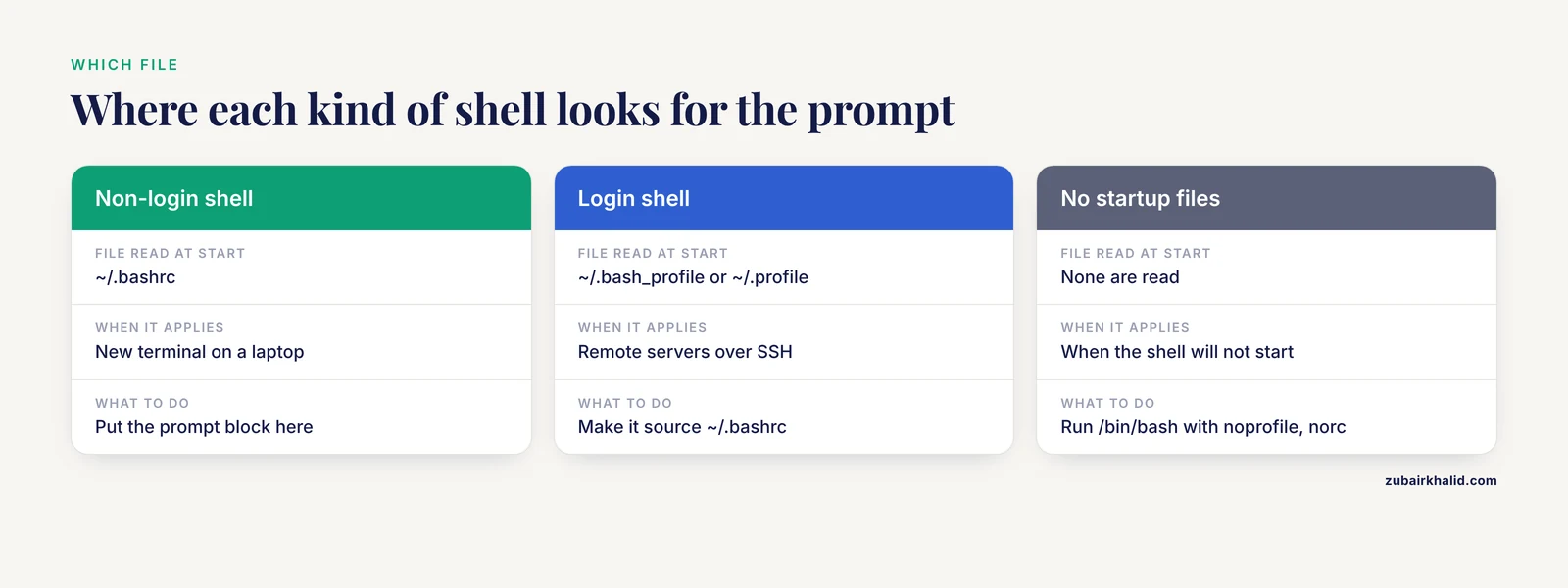
Bash reads its per-user configuration from ~/.bashrc on interactive non-login shells and from ~/.bash_profile or ~/.profile on login shells. Remote servers almost always start login shells, so both files can matter. Back them up first.
cp ~/.bashrc ~/.bashrc.backup.$(date +%Y%m%d)
ls -la ~/.bashrc*
Expected output looks like:
-rw-r--r-- 1 you you 3771 Nov 11 10:02 /home/you/.bashrc
-rw-r--r-- 1 you you 3771 Nov 11 10:02 /home/you/.bashrc.backup.20261111
If the timestamp on the backup is current, the copy worked. To undo every change in this guide, restore with cp ~/.bashrc.backup.20261111 ~/.bashrc and start a new shell.
Step 2: Inspect the current prompt
Before changing anything, look at what Bash is using now.
echo "PS1=$PS1"
echo "PROMPT_COMMAND=${PROMPT_COMMAND-unset}"
Typical output on an Ubuntu server:
PS1=\[\e]0;\u@\h: \w\a\]\[\e[01;32m\]\u@\h\[\e[00m\]:\[\e[01;34m\]\w\[\e[00m\]\$
PROMPT_COMMAND=unset
This tells you the default already colors the username and path. You will extend it rather than replace it blindly. If your server uses a module system such as Lmod or Environment Modules, note that now, because Step 6 has an optional block for it.
Step 3: Open .bashrc and add a clearly marked prompt block
Editing your dotfiles in labeled blocks makes it easy to find and remove your own additions later. This is a practical habit for anyone maintaining shell configuration across many machines [4].
nano ~/.bashrcScroll to the end of the file and add:
# === BEGIN BIOINFORMATICS PROMPT ===
# (content added in later steps)
# === END BIOINFORMATICS PROMPT ===
Save with Ctrl-O, Enter, then exit with Ctrl-X. Do not add working code yet. First confirm the file reloads cleanly, because catching a typo now is cheaper than debugging it inside fifty lines of prompt logic.
source ~/.bashrc
echo $?
Expected output:
0An exit status of zero means the file parsed without errors. If you see a syntax error message instead, fix the block before continuing.
Step 4: Set a readable base PS1 with color
Replace the placeholder block content with a base prompt. This version shows username, hostname, working directory, and the job count, each color-coded.
# === BEGIN BIOINFORMATICS PROMPT ===
# Base prompt: user, host, path, jobs
PS1='\[\e[01;32m\]\u\[\e[00m\]@\[\e[01;36m\]\h\[\e[00m\]:\[\e[01;34m\]\w\[\e[00m\]\[\e[33m\][\j]\[\e[00m\]\$ '
# === END BIOINFORMATICS PROMPT ===
Reload and check:
source ~/.bashrcYour prompt should now look like this (rendered in the colors green, cyan, blue, and yellow):
you@cluster-login1:~/projects/rnaseq$Parameter notes:
\[\e[01;32m\]sets bold green. The01prefix means bold in most terminal emulators. The closing\[\e[00m\]resets attributes. Every color open must have a matching reset, or the color bleeds into everything you type.\jis the job count. The literal brackets around it are plain text, not special sequences.- The trailing space after
\$separates the prompt from your typing. - The
\[ \]wrappers around every escape sequence are mandatory. Bash uses them to mark characters that do not move the cursor.
Test the job count by starting and stopping a background job:
sleep 300 &Expected prompt after the shell prints the job line:
you@cluster-login1:~/projects/rnaseq[2]$Kill the job to clean up:
kill %1The count drops back to `` at the next prompt.
Step 5: Make root visually unmistakable
Accidentally running a destructive command as root on a shared server is a real risk in labs where administrators and analysts share machines. A two-line guard makes root sessions impossible to miss.
Add inside your prompt block:
if [ "$(id -u)" -eq 0 ]
then
    PS1='\[\e[01;37;41m\]*** ROOT on \h ***\[\e[00m\] \[\e[01;31m\]\w\[\e[00m\]# '
else
    PS1='\[\e[01;32m\]\u\[\e[00m\]@\[\e[01;36m\]\h\[\e[00m\]:\[\e[01;34m\]\w\[\e[00m\]\[\e[33m\][\j]\[\e[00m\]\$ '
fi
Now sudo -i produces a prompt with white text on a red background reading ROOT on cluster-login1 . Nothing subtle about it. Type exit to return to your normal user and confirm the regular prompt returns.
Step 6: Show the active conda environment
The single most common source of silent errors in interactive bioinformatics work is running a command in the wrong environment. Running R from the base environment when you meant to use the environment with your Bioconductor packages produces confusing errors downstream. Surfacing the environment in the prompt removes the guesswork.
Add this function and hook to your prompt block:
# Show active conda environment in the prompt
conda_env_info()
{
    if [ -n "$CONDA_DEFAULT_ENV" ]
    then
        if [ "$CONDA_DEFAULT_ENV" = "base" ]
        then
            printf "\[\e[01;35m\](base)\[\e[00m\] "
        else
            printf "\[\e[01;35m\](%s)\[\e[00m\] " "$CONDA_DEFAULT_ENV"
        fi
    fi
}

if [ -z "$PROMPT_COMMAND" ]
then
    PROMPT_COMMAND=conda_env_info
fi
There is a subtlety here. PROMPT_COMMAND runs before Bash expands PS1, and its output goes directly to the terminal, not through PS1. That means the \[ \] wrappers, which are meaningful only inside PS1, would print literally as characters if echoed raw. The clean solution is to let the function set a variable that PS1 references:
# Build the environment tag as a plain string, no \[ \] needed
CONDA_PROMPT_TAG=""
conda_env_info()
{
    if [ -n "$CONDA_DEFAULT_ENV" ]
    then
        CONDA_PROMPT_TAG="\[\e[01;35m\]($CONDA_DEFAULT_ENV)\[\e[00m\] "
    else
        CONDA_PROMPT_TAG=""
    fi
}
PROMPT_COMMAND=conda_env_info
Then reference the variable inside PS1:
if [ "$(id -u)" -eq 0 ]
then
    PS1="\[\e[01;37;41m\]*** ROOT on \h ***\[\e[00m\] \w# "
else
    PS1='$CONDA_PROMPT_TAG\[\e[01;32m\]\u\[\e[00m\]@\[\e[01;36m\]\h\[\e[00m\]:\[\e[01;34m\]\w\[\e[00m\]\[\e[33m\][\j]\[\e[00m\]\$ '
fi
Note the single quotes around the non-root PS1. Single quotes prevent Bash from expanding $CONDA_PROMPT_TAG when the variable is assigned. Bash expands it later, after PROMPT_COMMAND has refreshed it, which is exactly the behavior you want.
Reload and test:
source ~/.bashrc
conda activate base
Expected prompt:
(base) you@cluster-login1:~$Then:
conda activate qiime2-2024.10Expected prompt:
(qiime2-2024.10) you@cluster-login1:~$And:
conda deactivateThe tag disappears entirely. This design also works with environment variables other than conda. If your site uses modules, you can extend the same function to check $LMOD_SYSTEM_NAME or the output of module list, but keep it simple at first.
Step 7: Show the exit status of the last command
When a pipeline stage fails, you want to know immediately and you want the prompt to change color when it does. This uses $?, the exit status of the previous command, where zero means success.
Append to your prompt block:
PROMPT_COMMAND=update_prompt
update_prompt()
{
    local last_status="$?"
    conda_env_info
    if [ "$last_status" -ne 0 ]
    then
        EXIT_TAG="\[\e[01;31m\]✘$last_status\[\e[00m\] "
    else
        EXIT_TAG=""
    fi
}
And use it in the final PS1:
if [ "$(id -u)" -eq 0 ]
then
    PS1="\[\e[01;37;41m\]*** ROOT on \h ***\[\e[00m\] \w# "
else
    PS1='$EXIT_TAG$CONDA_PROMPT_TAG\[\e[01;32m\]\u\[\e[00m\]@\[\e[01;36m\]\h\[\e[00m\]:\[\e[01;34m\]\w\[\e[00m\]\[\e[33m\][\j]\[\e[00m\]\$ '
fi
Test with a command that must fail:
grep "gene_that_does_not_exist_xyz" reference.faExpected prompt afterward, with the failure code in bold red:
✘1 you@cluster-login1:~/projects/rnaseq$Then run:
echo okThe tag vanishes. One caution: update_prompt reads $? on its very first line, before running anything else. If you insert commands between reading $? and using it, you will report the wrong status. Keep that read first.
Step 8: Distinguish login nodes from compute nodes
On clusters, running heavy commands like samtools sort on a login node gets you a polite email from the administrator. A visual cue per node type helps. The mechanism is simple: check the hostname and pick a color.
Add above the final assignment:
HOST_COLOR='01;36'
case "$HOSTNAME" in
    *login*|*head*)
        HOST_COLOR='01;36'
        ;;
    *gpu*)
        HOST_COLOR='01;33'
        ;;
    *)
        HOST_COLOR='01;36'
        ;;
esac
Then use $HOST_COLOR in the PS1 instead of the hard-coded 01;36. Because HOST_COLOR is set once at shell startup and hostnames do not change mid-session, this can be a plain variable rather than something PROMPT_COMMAND updates. GPU nodes render the hostname in yellow, login nodes in cyan.
This pattern extends further. Some laboratories color the whole prompt differently per project directory, or add the SLURM job ID from $SLURM_JOB_ID when inside an allocation. The mechanism never changes: compute a string in a function, store it in a variable, reference that variable in PS1.
Step 9: Reload, verify, and lock it in
Open a brand-new terminal or run:
exec bashThis replaces the current shell with a fresh one that re-reads all startup files, which is a stronger test than source, because it proves a new login will work. Then run a short verification sequence:
conda activate base
echo "$PS1"
false
true
Check three things:
- The prompt shows
(base), your username, hostname, current directory, job count, and no failure tag. - The
falsecommand briefly produced a red✘1tag on the next prompt, cleared by the successfultrue. echo "$PS1"prints a string referencing$EXIT_TAG,$CONDA_PROMPT_TAG, and the escape sequences, not a mangled string.
Finally, apply the same prompt to login shells. If your server starts login shells that read ~/.bash_profile instead of ~/.bashrc, make sure the profile sources the bashrc. Many distributions ship a default ~/.bash_profile that already contains:
if [ -f ~/.bashrc ]
then
    . ~/.bashrc
fi
If that block is missing, add it. Without it, your prompt will appear on laptop terminals but not on SSH sessions, which is a classic source of confusion.
A Table of the Complete Prompt Configuration
The finished block, assembled from the steps above, in one place:
# === BEGIN BIOINFORMATICS PROMPT ===
HOST_COLOR='01;36'
case "$HOSTNAME" in
    *gpu*) HOST_COLOR='01;33' ;;
esac

CONDA_PROMPT_TAG=""
EXIT_TAG=""

conda_env_info()
{
    if [ -n "$CONDA_DEFAULT_ENV" ]
    then
        CONDA_PROMPT_TAG="\[\e[01;35m\]($CONDA_DEFAULT_ENV)\[\e[00m\] "
    else
        CONDA_PROMPT_TAG=""
    fi
}

update_prompt()
{
    local last_status="$?"
    conda_env_info
    if [ "$last_status" -ne 0 ]
    then
        EXIT_TAG="\[\e[01;31m\]✘$last_status\[\e[00m\] "
    else
        EXIT_TAG=""
    fi
}
PROMPT_COMMAND=update_prompt

if [ "$(id -u)" -eq 0 ]
then
    PS1="\[\e[01;37;41m\]*** ROOT on \h ***\[\e[00m\] \w# "
else
    PS1='$EXIT_TAG$CONDA_PROMPT_TAG\[\e[01;32m\]\u\[\e[00m\]@\[\e[01;36m\]\h\[\e[00m\]:\[\e[01;34m\]\w\[\e[00m\]\[\e[33m\][\j]\[\e[00m\]\$ '
fi
# === END BIOINFORMATICS PROMPT ===
One note on syntax. The case statement above uses the two-character ;; terminator, which is Bash grammar inside code, distinct from prose punctuation. The case labels use glob patterns, so gpu matches any hostname containing gpu.
Bash Prompt Bioinformatics Tips for Daily Work
These tips go beyond the base build. Each is small, and together they shorten the gap between "what state am I in" and "what do I type next".
Color-code the prompt per project directory. If you work on three studies with similar directory names, add a block to update_prompt that checks "$PWD" and sets an extra tag. Reusing the variable mechanism from Step 6 keeps it clean.
Add the current git branch when inside a pipeline repository. Most pipelines, from Snakemake to Nextflow wrappers, live in version-controlled directories. Parsing the branch into the prompt tells you whether you are on a clean release branch or an experimental one before you launch a week-long analysis. A lightweight check avoids spawning a full git process on every prompt, which matters on shared filesystems where a stalled network mount can freeze your shell.
Use the job count as a job reminder. The \j tag from Step 4 shows jobs in the current shell only. A sleep 300 & you forgot about will show as `` until you notice it. This complements, rather than replaces, proper job scheduling. The shell-scripting literature covers the difference between monitoring processes inside a session and monitoring system-wide resources, and both have their place.
Keep long prompts on their own line. When a prompt contains the environment tag, hostname, full path, and status tag, it can exceed eighty characters. Add a newline before the input position so the prompt occupies one line and your command starts on the next:
PS1='$EXIT_TAG$CONDA_PROMPT_TAG\[\e[01;32m\]\u\[\e[00m\]@\[\e[01;36m\]\h\[\e[00m\]:\[\e[01;34m\]\w\[\e[00m\]\[\e[33m\][\j]\[\e[00m\]\n\$ 'The \n prints the newline. Everything after it, just \$ , appears on the fresh line.
Set a matching window title. The default Ubuntu PS1 from Step 2 starts with \[\e]0;\u@\h: \w\a\], which sets the terminal window title to user, host, and path. When you have eight terminal tabs open across three servers, the title bar is the fastest way to tell them apart. Preserve that sequence in your custom PS1 if your terminal shows titles.
Share the prompt across machines through your dotfiles. Bioinformaticians routinely configure five or more machines. A popular pattern is to keep the prompt block in a version-controlled dotfile repository and symlink it into ~/.bashrc on each server. The same Linux extensibility mechanism that underlies registering executables as commands, updating system paths, and handling user-specific configurations also supports this dotfile workflow, keeping your environment consistent wherever you log in [3].
Test new prompt code in a throwaway shell. Before editing ~/.bashrc, run bash, norc to start a shell with no startup files, then paste candidate code interactively. A mistake there costs you a closed subshell, not a broken login shell. (Note the double-dash flags here are part of the command syntax, not prose punctuation.)
Common Mistakes and Limitations
These are the errors that account for most broken or abandoned custom prompts, with the exact symptoms and fixes.
1. Omitting the \[ \] wrappers around color codes. Symptom: after recalling a long command with the up arrow, the cursor appears several characters ahead of the text you typed, or characters overwrite each other. Fix: wrap every non-printing escape sequence in \[ and \] inside PS1, as in all the examples above.
2. Expanding PROMPT_COMMAND variables too early. Symptom: the conda tag never appears, or appears with the environment name frozen from shell startup. Cause: writing PS1="$CONDA_PROMPT_TAG..." with double quotes. Bash expanded $CONDA_PROMPT_TAG at assignment time, when it was still empty. Fix: use single quotes around PS1 so expansion is deferred to prompt-drawing time, exactly as in Step 6.
3. Editing .bashrc when the shell reads .bash_profile. Symptom: the new prompt works in one terminal and not in an SSH session, or the reverse. Cause: login shells read ~/.bash_profile or ~/.profile, and many servers stop there unless the profile sources .bashrc. Fix: check which files exist with ls -la ~/.bash* and confirm the sourcing block from Step 9 is present.
4. A slow PROMPT_COMMAND freezing the shell. Symptom: every prompt takes a second or more to appear, especially in directories on a network filesystem. Cause: calling external programs such as git branch or module list on every prompt, each of which must launch a process and read from a possibly stale mount. Fix: compute dynamic values only when cheap, guard expensive checks behind a timeout, or update the git tag in a chpwd-style hook rather than on every prompt.
5. Assuming colors are identical everywhere. Symptom: the prompt looks right on your laptop and unreadable on an old HPC login node through a different terminal emulator. Cause: color rendering depends on the terminal emulator, not on Bash. Fix: stick to the standard eight colors plus bold, which every terminal renders, and test over SSH before adopting exotic palette codes.
6. Setting set -u (nounset) without guarding the prompt variables. Symptom: bash: EXIT_TAG: unbound variable and the shell exits. Cause: the set -u option, sometimes enabled in hardened .bashrc files, makes references to unset variables fatal. Fix: initialize EXIT_TAG="" and CONDA_PROMPT_TAG="" at the top of the block, before any function runs.
7. Diagnosing a silent broken prompt without information. Symptom: the prompt looks identical to before and you do not know whether your block ran at all. Fix: add a temporary echo "prompt block loaded" line at the bottom of the block, run source ~/.bashrc, and watch for the message. Remove it after debugging.
8. Conflating the prompt with environment management. The prompt displays state, it does not create it. Showing (qiime2) in the prompt does not activate anything, and deactivating an environment in one tab does not change another tab. Keep the display honest by deriving every tag from actual environment variables rather than hard-coding labels.
A broader limitation deserves one plain statement: a prompt reflects only what is visible in the current shell session. Cluster-wide resource monitoring, job accounting, and system administration belong to dedicated tooling, and the shell-scripting literature treats those as separate engineering problems. Build the prompt to answer the session-level questions, and reach for proper schedulers and monitoring tools for everything else.
Troubleshooting Reference
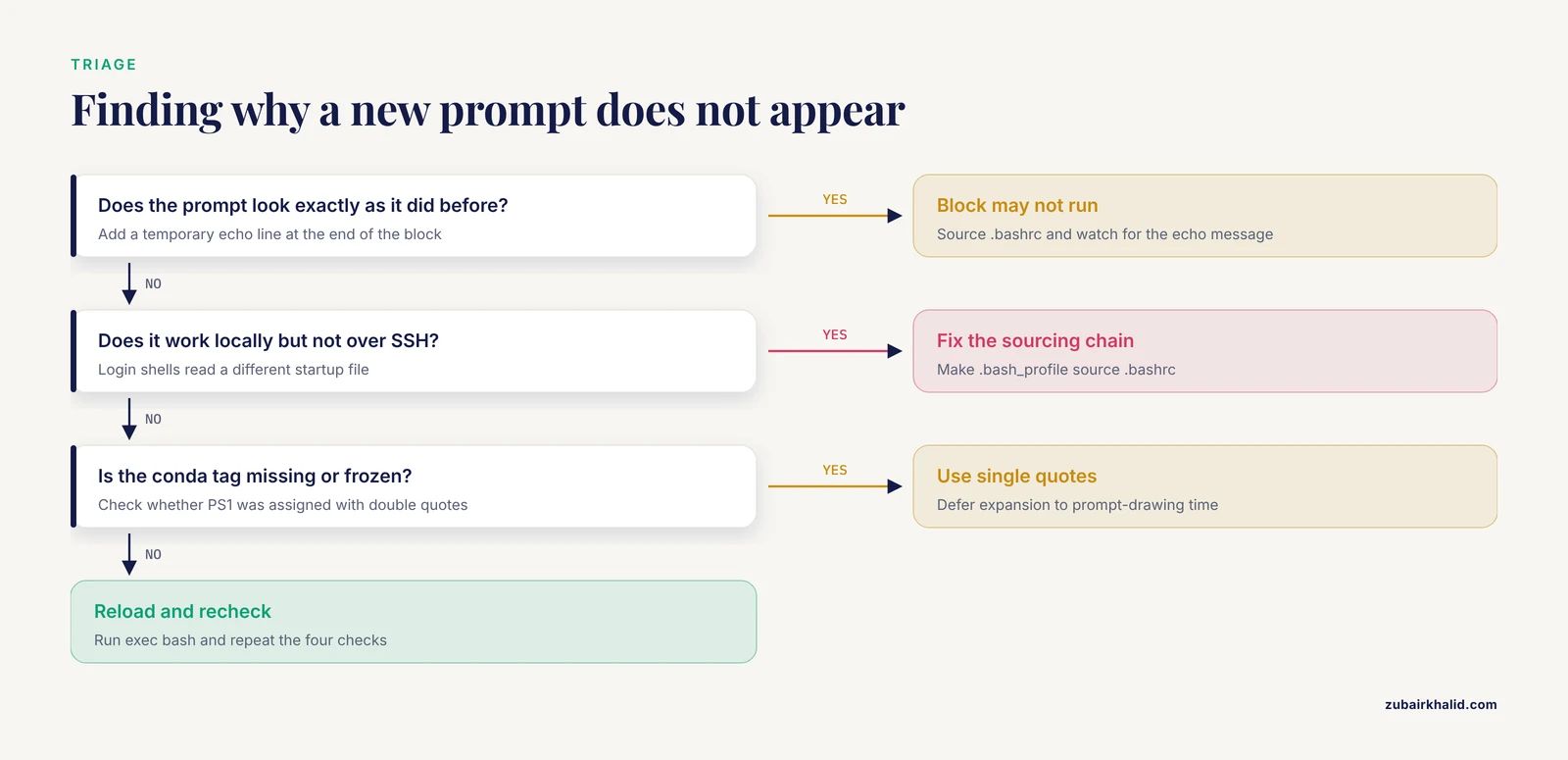
These are the specific failure messages you are most likely to meet while building and maintaining a prompt, each with its cause and remedy.
bash: syntax error near unexpected token 'fi'. Your if block lost its then, or a fi is missing. Check that every if in the block has a matching then on the next line and fi at the end. Run bash -n ~/.bashrc to check syntax without executing the file.
bash: __git_ps1: command not found. A copied snippet references a helper function from the git-prompt.sh contrib script that your distribution does not load by default. Either source that script at the top of your block or replace the helper with your own parser, as suggested in the tips section.
Colors appear as literal text like [01;32m. The escape sequences were written without the leading \e, or the prompt string lost its escaping during a copy-paste through a system that stripped backslashes. Re-copy the block from the table section above.
The prompt is fine until a command fails, then it stays red. Your update_prompt reads $? too late, after some other command has reset it. Move local last_status="$?" to the first executable line of the function.
-bash: id: command not found. Your PATH is broken so badly that even id is missing, usually from an earlier PATH-editing mistake in .bashrc. Recover by running /bin/bash, noprofile, norc and then editing the file with /usr/bin/nano ~/.bashrc using absolute paths.
Prompt looks perfect locally, wrong over SSH. Re-read Step 9. The remote login shell is reading a different startup file. Fix the sourcing chain rather than duplicating the prompt block into a second file, because duplicated blocks drift out of sync.
Checking That the Result Is Right
A correct prompt passes four checks. Run them in a fresh shell started with exec bash.
- State check. Activate a conda environment, start one background job, and make one command fail. The prompt should show the environment name in magenta, `` for the job, and a red failure tag. Deactivate and kill the job, and all three elements should clear.
- Safety check. Run
sudo -iand confirm the red ROOT banner appears. Typeexit. Confirm the normal prompt returns. Never test root customization casually on a shared server. Use a container or a disposable VM if you can. - Persistence check. Log out completely and log back in over SSH. The prompt should be identical, which proves the startup file chain is correct.
- Copy-paste check. Type a command longer than your terminal width, recall it with the up arrow, and edit the middle of it. The cursor and text must stay aligned. If they do not, an escape sequence is missing its
\[ \]wrappers.
Sensible next steps after that: version your prompt block in a dotfile repository, add a git-branch tag for pipeline directories, extend the hostname color logic to your specific cluster naming scheme, and consider a two-line prompt for readability. Each addition reuses the same three-part pattern you have now built three times: compute a string, store it in a variable, reference the variable in PS1. That pattern is the whole secret of a maintainable prompt.
Frequently Asked Questions
What makes a Bash prompt bioinformatics-friendly?
A bioinformatics-friendly prompt surfaces session state that matters to analysis work: the active conda environment, the hostname so you can tell login nodes from compute nodes, the number of background jobs, the exit status of your last command, and the current directory. It turns the prompt from decoration into a live dashboard for your analysis environment.
Do I need conda for a custom Bash prompt?
No. The prompt works without conda, and the environment tag simply never appears because $CONDA_DEFAULT_ENV stays empty. The same design works with any tool that sets an environment variable, including Environment Modules and Lmod, which are common on high-performance clusters.
Where exactly do I put the prompt code?
Put it in ~/.bashrc inside a clearly marked block, and make sure ~/.bash_profile sources ~/.bashrc so login shells over SSH pick it up. Keeping your additions between a BEGIN and END comment marker makes them easy to find, share, or remove later.
Why does my cursor drift when I use colors in the prompt?
Bash calculates line lengths from the characters in PS1, and color escape sequences are invisible characters that move nothing on screen. You must wrap every escape sequence in \[ and \] so Bash excludes them from the length calculation. Without the wrappers, long recalled commands render with the cursor in the wrong place.
How do I show the conda environment in the prompt without conflicts?
Compute the tag in a function run by PROMPT_COMMAND, store it in a variable such as CONDA_PROMPT_TAG, and reference that variable inside a single-quoted PS1. Single quotes defer expansion until the prompt is drawn, so the tag always reflects the environment active at that moment.
Can a Bash prompt slow down my shell or my pipelines?
The prompt itself cannot slow a running pipeline, but a PROMPT_COMMAND that launches external programs on every prompt can make interactive work feel sluggish, especially on network filesystems. Keep prompt functions to shell builtins and simple variable checks, and avoid spawning git or module processes per prompt.
How do I get my prompt back if I broke it?
Restore your backup with cp ~/.bashrc.backup.DATE ~/.bashrc, replacing the date with your actual backup name, then start a new shell with exec bash or log in again. If the shell will not start at all, run /bin/bash, noprofile, norc to get a working shell without startup files and edit the damage out.
Does this work on macOS or Windows?
The prompt syntax works on macOS because it ships Bash, though the startup files differ slightly and the default shell is now zsh on recent versions, where the configuration file is ~/.zshrc and some escape syntax changes. On Windows, the prompt works inside WSL, the Windows Subsystem for Linux, because that runs a real Linux Bash environment.