How to Use Bash History Like a Pro
By Dr. Zubair Khalid, DVM, MS, PhD ·
By the end of this article you will be able to configure bash history so it never loses a command, recall and edit any previous command in seconds, reuse file names and parameters from earlier commands without retyping them, keep a separate history per project, and export a clean, timestamped command log you can paste into a methods section or turn into a rerunnable script. You will also know the failure modes that silently eat commands and the habits that prevent them.
To follow along you need a Unix-like shell. That means bash 4.0 or newer on Linux, or bash under macOS (note that macOS shipped old bash 3.2 for licensing reasons for years, so verify with bash, version... do check your version, because some features described here behave differently on bash 3.2), or bash on a high-performance computing (HPC) cluster over SSH. You need permission to edit your own ~/.bashrc file. No root access is required for anything here, which matters because most cluster users cannot install software but can always customize their own dotfiles.
Everything covered comes from standard, documented bash behavior, described in the GNU Bash Reference Manual sections on Bash History Facilities and History Expansion, which is the official documentation for the shell itself.
Why Command History Matters in Bioinformatics
A typical day in linux for bioinformatics involves long, parameter-dense commands. A single alignment might look like this:
bwa mem -t 16 -M -R "@RG\tID:sampleA\tSM:sampleA" reference/hg38.fa data/sampleA_R1.fastq.gz data/sampleA_R2.fastq.gz > aligned/sampleA.samYou will run variants of that command dozens of times across samples, genomes, and parameter sets. Retyping it invites typos in read group strings and paths. Digging through old lab notebooks to find the exact flag values you used last month is worse. Your shell history is already a complete record of every interactive command you ran, and most bioinformaticians use perhaps a tenth of what it can do.
Command history also matters for reproducibility. Journals and funders increasingly expect executable provenance for computational results. The commands in your history, cleaned up and timestamped, are the raw material for that provenance. They are not a substitute for a real workflow manager, but they are the fastest bridge between what you actually did and what you can hand to a reviewer or a labmate.
How Bash History Actually Works
Before changing anything, understand the mechanism, because almost every bash history problem traces back to one detail: the history you see and the history saved to disk are two different things.
When you start an interactive bash session, bash reads your history file (usually ~/.bash_history) into memory. Every command you enter is appended to the in-memory list immediately and gets a sequence number. When the shell exits, bash writes the in-memory list back to the history file. Between startup and exit, the file on disk does not change unless you force it.
Three environment variables control the size and location:
HISTFILEsets the path of the history file. Default is~/.bash_history.HISTSIZEsets how many commands stay in memory during a session. Many distributions default to 1000.HISTFILESIZEsets how many lines the file can hold. Many distributions default to 2000.
When HISTFILESIZE is exceeded, bash truncates the file from the top, deleting your oldest commands. On a busy analysis server, 1000 commands can represent less than a week of work. Raising both numbers is the single highest-value configuration change most bioinformaticians can make.
The second detail: with default settings, two terminals open at once overwrite each other. Terminal A writes its list on exit, then terminal B exits and writes its own list, clobbering everything from terminal A. The histappend shell option fixes this by appending instead of truncating. You will set it up in the next section.
The third detail: history expansion, the ! syntax, is performed by bash before a command runs. Bash substitutes the expansion into the command line and executes the result immediately by default. You can change that so expansions are loaded into the editing buffer for review first, which is the safer setup.
Step-By-Step: Configure Bash History for Bioinformatics Work
This walkthrough turns bash into a persistent, timestamped, per-session-appendable command recorder. Open ~/.bashrc in your preferred editor and add the following block, then apply the changes.
Step 1. Back up your current configuration.
cp ~/.bashrc ~/.bashrc.bak.$(date +%F)There is no output on success. Verify the copy exists:
ls -l ~/.bashrc.bak.*Expected output looks like:
-rw-r--r-- 1 you you 3771 Mar 12 09:41 /home/you/.bashrc.bak.2026-03-12Step 2. Append the configuration block to ~/.bashrc.
cat >> ~/.bashrc <<'EOF'
# Bioinformatics-grade bash history
export HISTSIZE=100000
export HISTFILESIZE=200000
export HISTCONTROL=ignoreboth:erasedups
export HISTIGNORE="ls:cd:pwd:exit:history:fg:bg:clear"
export HISTTIMEFORMAT="%F %T  "
shopt -s histappend
shopt -s histverify
PROMPT_COMMAND="history -a"
EOF
The heredoc prints nothing on success. The quoted delimiter 'EOF' prevents shell expansion inside the block, which matters because the block contains $ characters in the format string.
Step 3. Apply the settings to your current shell.
source ~/.bashrcAgain, silence means success. An error message here means a typo in the block, most often a missing quote.
Step 4. Verify each setting took effect.
echo "$HISTSIZE $HISTFILESIZE $HISTCONTROL"
shopt histappend histverify
Expected output:
100000 200000 ignoreboth:erasedups
histappend     on
histverify     on
Step 5. Generate some history and check timestamps.
echo test-command-one
echo test-command-two
history 3
Expected output (your timestamp and command numbers will differ):
  982  2026-03-12 09:47:12  echo test-command-one
  983  2026-03-12 09:47:15  echo test-command-two
  984  2026-03-12 09:47:20  history 3
Step 6. Confirm commands reach disk without exiting. In the same shell, run:
history -a
tail -n 2 ~/.bash_history
Expected output shows your two echo commands, each preceded by a line containing a Unix timestamp in the form #1773319632:
#1773319632
echo test-command-one
#1773319635
echo test-command-two
If you see those lines, the recorder works. Every parameter in the block deserves a specific explanation, because each one changes behavior in ways you will notice weekly:
HISTSIZE=100000andHISTFILESIZE=200000hold roughly years of interactive work instead of days. The file value should be at least as large as the in-memory value. Memory cost is negligible, a few megabytes at most.HISTCONTROL=ignoreboth:erasedupscombines three behaviors.ignorespacedrops any command you start with a space, useful for commands containing tokens you do not want recorded.ignoredupsskips a command identical to the one immediately before it.erasedupsremoves earlier duplicates from the list before saving a new entry, keeping the file lean and making!stringrecall less ambiguous.HISTIGNOREkeeps pure navigation noise (ls,cd,pwd) out of the record so the meaningful analytical commands stay findable. The entries are colon-separated full command words. Adjust the list to your habits.HISTTIMEFORMAT="%F %T "makeshistorydisplay%F(the date, formatted as year-month-day) and%T(the time, hours, minutes, seconds, on a 24-hour clock). Bash stores the timestamp as seconds since the Unix epoch in a comment line inside the history file.shopt -s histappendmakes each shell append to the history file rather than overwrite it. This is the setting that saves you when five terminals are open during a long analysis.shopt -s histverifychanges how!expansions behave. Instead of executing immediately, bash places the expanded command in your editing buffer, where you read it and press Enter yourself. For commands that took six hours to run, reading before running is worth the extra keystroke.PROMPT_COMMAND="history -a"appends new commands to the history file after every prompt. Combined withhistappend, commands from every open terminal land on disk continuously, so a killed SSH session or a crashed laptop loses almost nothing.
One caution during setup: if you set HISTSIZE or HISTFILESIZE to 0, bash records nothing. If your history suddenly stops working after editing .bashrc, echo both variables first.
Recall Previous Commands Instantly
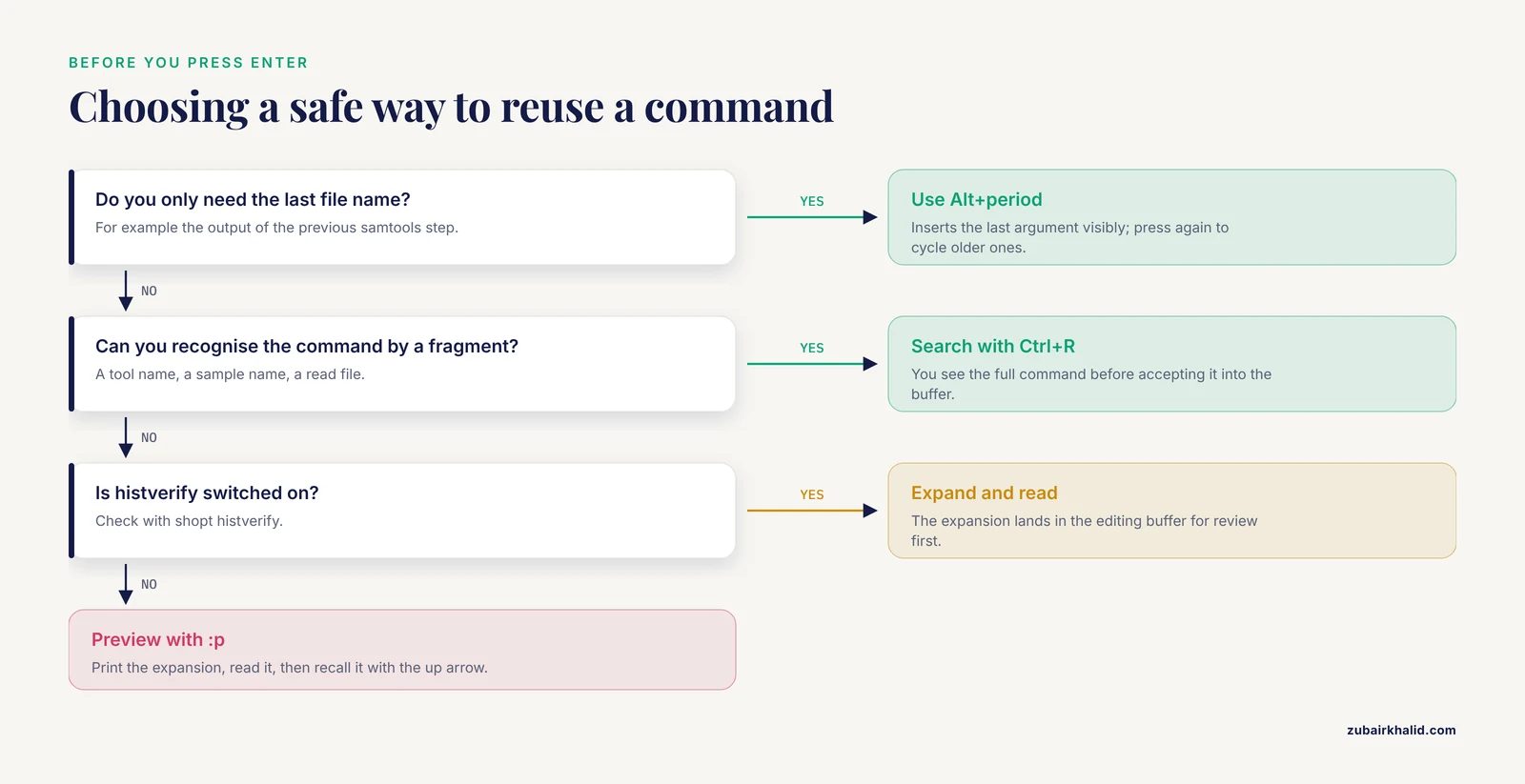
The fastest recall tool is reverse incremental search (i-search), triggered from the bash prompt with Ctrl+R.
Type Ctrl+R, then start typing any fragment of a past command. The prompt changes and bash shows the most recent matching command:
(reverse-i-search)`cutadapt': cutadapt -a AGATCGGAAGAGC -m 20 -o sample1_trimmed.fastq.gz sample1.fastq.gzPress Ctrl+R again to jump to older matches. When you find the command you want:
Enterexecutes it as-is.- Right or left arrow, or
Ctrl+E, accepts it into the normal editing buffer so you can modify it before running. Ctrl+GorCtrl+Ccancels the search and returns you to an empty prompt.
A companion habit is Ctrl+O during search. It executes the current match and then shows the next older match, which makes it efficient to walk through and rerun a series of related commands, such as running fastqc over a list of samples one by one.
For argument reuse without any expansion syntax, learn Alt+. (hold Alt and press period). It inserts the last argument of the previous command at the cursor. Press Alt+. again to cycle backward through the last argument of each older command. This is the safest way to reuse a file name, because you see exactly what was inserted before pressing Enter.
To list recent history:
history 10shows the last ten entries. To run a specific numbered entry, for example entry 842 from the listing above:
!842With histverify enabled, that expansion loads into the buffer for review. Without it, bash executes instantly.
To search the full file rather than the in-memory list (useful after recovering a lost file or inspecting another period):
grep -n "trimmomatic" ~/.bash_historyThe -n flag prints line numbers, and because bash stores timestamps as #epoch comment lines, the line just above a match tells you roughly when you ran it.
History Expansion: Reuse and Edit Previous Commands
History expansion is the core skill separating casual users from power users, and it is where bash history tips pay off most in daily bioinformatics. The syntax has the form !event[:modifiers]. Recall that with histverify on, every expansion below lands in your editing buffer first, so you can confirm it before pressing Enter.
Repeat and grab arguments
!! means the entire previous command. The classic use is adding a prefix you forgot:
samtools view aligned/sampleA.bam
samtools: command not found... module loaded, then:
In practice:
bwa mem -t 16 ref.fa R1.fq.gz R2.fq.gz > sampleA.sam
sudo !!          # on machines where you have sudo rights
!! expands to the full previous command. In an HPC context the more common version is prepending srun or your scheduler prefix to a command you just ran interactively.
!$ means the last argument (technically the last word) of the previous command:
samtools view -b aligned/sampleA.sam > aligned/sampleA.bam
samtools index !$
The second line expands to samtools index aligned/sampleA.bam, because the last word of the previous line was the redirect target. This works beautifully in sequencing pipelines where each step consumes the output file name of the previous step.
!:n means argument number n of the previous command, counting the command word itself as argument 0:
cutadapt -a AGATCGGAAGAGC -m 20 -o sampleA_trimmed.fastq.gz sampleA.fastq.gz
fastqc !:1
Here !:1 expands to -a, the first argument, which is probably not what you meant. This is a common trap. To get the input FASTQ, count carefully: !:0 is cutadapt, !:1 is -a, !:2 is the adapter sequence, and the input file sampleA.fastq.gz is !:4. Ranges work too: !:1-3 expands to arguments 1 through 3. Because this counting is easy to get wrong, always confirm with histverify or preview with echo:
echo fastqc !:4prints the expanded command without running fastqc. Forgetting that redirection words count as arguments is the root of most !$ and !:n surprises.
!* means all arguments of the previous command, excluding the command word:
grep -c "NM_" annotations.gff
grep -v "*" !*
is a contrived example, but the pattern of rerunning a new command against the same argument set is real, for instance swapping fastqc for multiqc while keeping the same input list.
Recall by prefix or substring
!string runs the most recent command that starts with string:
!bwaexpands to the last command beginning with bwa. !?string? matches the most recent command containing string anywhere:
!?R2.fq.gz?These are powerful and slightly dangerous, because "most recent" may be older and different from what you remember. Two safety habits apply. First, keep histverify on. Second, when duplicates matter, erasedups in HISTCONTROL helps by keeping only the newest copy of each command, so !bwa cannot surprise you with a week-old variant.
Substitute and rerun
The caret syntax edits the previous command and reruns it. It replaces the first occurrence of a string:
bwa mem -t 16 ref.fa sampleA_R1.fq.gz sampleA_R2.fq.gz > sampleA.sam
^sampleA^sampleB
expands to bwa mem -t 16 ref.fa sampleB_R1.fq.gz sampleA_R2.fq.gz > sampleA.sam. Note the limits: only the first occurrence changed, and the redirect target still says sampleA, which would silently overwrite the wrong file. For global substitution use the gs modifier on the previous event:
!:gs/sampleA/sampleB/That expands every occurrence, giving you sampleB_R1.fq.gz, sampleB_R2.fq.gz, and the correct output name. This one line is arguably the highest-value history trick for sample-wise loops of commands you have not yet converted into a script.
Path and name modifiers
Modifiers that operate on file names save constant typing. With a previous command referencing results/aligned/sampleA.sorted.bam:
:hremoves the trailing file name component, givingresults/aligned.:tkeeps only the file name, givingsampleA.sorted.bam.:rremoves the trailing extension, givingresults/aligned/sampleA.sorted.:ekeeps only the extension, givingbam.
A worked chain:
samtools sort aligned/sampleA.bam -o results/sampleA.sorted.bam
samtools index !s:$
echo !s:$:r:r
The second line indexes the sorted BAM, reusing the last word of the most recent samtools sort command. The third prints results/sampleA after stripping both extensions. Compose modifiers by chaining them, and preview with echo whenever the chain is longer than one modifier.
Print, do not run
The :p modifier prints the expanded command instead of executing it:
!fastq:pUse it when you want to see exactly what an expansion resolves to. It pairs well with the up-arrow, because after printing, press the up arrow once to recall the printed command into the buffer for editing. On older setups or shells without histverify, :p is your main safety net.
The fc Command: Edit Before You Run
The fc builtin (fix command) treats history entries as editable text. It uses your $EDITOR, so set that first if you have not:
export EDITOR=vim # or nano, emacs, whatever you actually useRun fc with no arguments and bash opens the previous command in your editor. You fix the typo, save, and quit, and bash executes the edited command. For a 300-character mapping command with a mistyped path, this beats retyping.
Useful forms:
fc -llists the last 16 commands with numbers.fc -l -20lists 20.fc -l -5 2lists from five entries back to entry 2.fc numberopens the command with that history number in the editor.fc -s old=newre-executes the previous command after replacing the first occurrence of old with new, without opening an editor.fc -s old=new numberdoes the same for a specific entry.
Example, correcting a read length argument on entry 1120:
fc -s 25=75 1120fc -s also underlies the r alias many distributions create, so r SAM=RNA on some systems behaves the same as fc -s SAM=RNA. Check with type r if you are unsure what your system does.
Quick Reference Table
| Syntax or setting | What it does | Example and result |
|---|---|---|
!! | Entire previous command | sudo !! prepends sudo to the last command |
!$ | Last word of previous command | samtools index !$ indexes the previous output file |
!:n | Argument n, command word is 0 | echo !:4 previews the fourth argument |
!:m-n | Arguments m through n | fastqc !:1-3 reuses three arguments |
!* | All arguments of previous command | multiqc !* runs on the same input list |
!string | Most recent command starting with string | !bwa |
!?string? | Most recent command containing string | !?R1.fq.gz? |
^old^new | Replace first occurrence in previous command, rerun | ^sampleA^sampleB |
!:gs/old/new/ | Replace every occurrence in previous command | !:gs/chr/Chrom/ |
:p | Print expansion without running | !fastq:p |
:h :t :r :e | Directory, file name, no-extension, extension | !$:t grabs the file name |
Ctrl+R | Reverse incremental search | Type a fragment, press again for older matches |
Ctrl+O | Execute current search match, show next | Walk a series of related commands |
Alt+. | Insert last argument, press again to cycle | Safest argument reuse |
fc | Edit previous command in $EDITOR | Fix long commands in place |
fc -s old=new | Substitute and rerun without editor | fc -s 25=75 |
HISTSIZE | Commands held in memory | export HISTSIZE=100000 |
HISTFILESIZE | Lines kept in the history file | export HISTFILESIZE=200000 |
HISTCONTROL=ignoreboth:erasedups | Skip space-prefixed and duplicate commands | Standard bioinformatics setup |
HISTTIMEFORMAT="%F %T " | Timestamped history output | 2026-03-12 09:47:20 |
shopt -s histappend | Append to file instead of overwriting | Protects multi-terminal work |
shopt -s histverify | Load expansions into buffer for review | Read before execute |
history -a | Append new entries to file now | Run before risky operations |
Per-Project History for Reproducible Analyses
One shared ~/.bash_history mixes the commands from your RNA-seq project, your metagenomics project, and your grant deadline emergency. A per-project history file keeps each analysis context self-contained, and it gives you a natural provenance artifact to archive with the project.
The cleanest lightweight approach hooks history switching onto directory changes. Add this to ~/.bashrc:
mkdir -p ~/.history
cd() {
  builtin cd "$@" || return
  if [[ -f .project-history ]]; then
    export HISTFILE="$PWD/.project-history"
    history -r
  fi
}
How it works. The function overrides the cd command while calling the real builtin first. If the directory you enter contains a marker file named .project-history, bash switches HISTFILE to that file and re-reads it into the current session. Combined with histappend and PROMPT_COMMAND="history -a" from the earlier setup, every command you run inside the project lands in the project file continuously.
To activate it for a project:
cd ~/analyses/rnaseq-2026
touch .project-history
history -w .project-history
The history -w writes your current in-memory history into the new file so the project starts with context if you want it to, or skip that step to start clean.
Three operational notes. First, a hidden history file inside a repository will get committed by accident eventually, so add .project-history to the project .gitignore unless you deliberately want versioned history. Second, group members on shared project directories each get their own file if you name it after the user, for example .project-history-$USER, which avoids concurrent-write confusion. Third, this mechanism only switches when you use the cd function, so launching a new terminal directly inside a project directory starts with the default HISTFILE. If that bothers you, evaluate a directory-aware shell like direnv, which handles environment and file switching on every prompt.
Turn Your History into a Methods Log
History becomes publishable provenance in three steps: export, clean, and contextualize.
Export a window of your work. To capture the last 120 commands without line numbers:
fc -ln -120 > logs/commands_$(date +%F).txtThe -l flag lists, -n suppresses numbers, and -120 selects the window. For a timestamped version with sequence numbers:
history -w logs/history_$(date +%F).txthistory -w writes the full in-memory list with your HISTTIMEFORMAT applied when you later view the file with the same variable set.
Clean it into a rerunnable script. Raw history contains noise from HISTIGNORE-exempt commands, failed attempts, and interactive editors. Trim and review:
fc -ln -200 | sed 's/^ *//' > rerun_draft.shThen edit rerun_draft.sh by hand. Delete dead ends, reorder if needed, and add a strict header:
#!/usr/bin/env bash
set -euo pipefail
set -euo pipefail makes the script exit on the first failing command, treat unset variables as errors, and catch failures inside pipes, which is the standard minimum for pipeline scripts. Make it executable and test:
chmod +x rerun_draft.sh
bash -n rerun_draft.sh
bash -n performs a syntax check without executing anything, printing nothing when the script parses cleanly. This matters because history captures exactly what you typed, including line-continuation backslashes that may not survive reassembly.
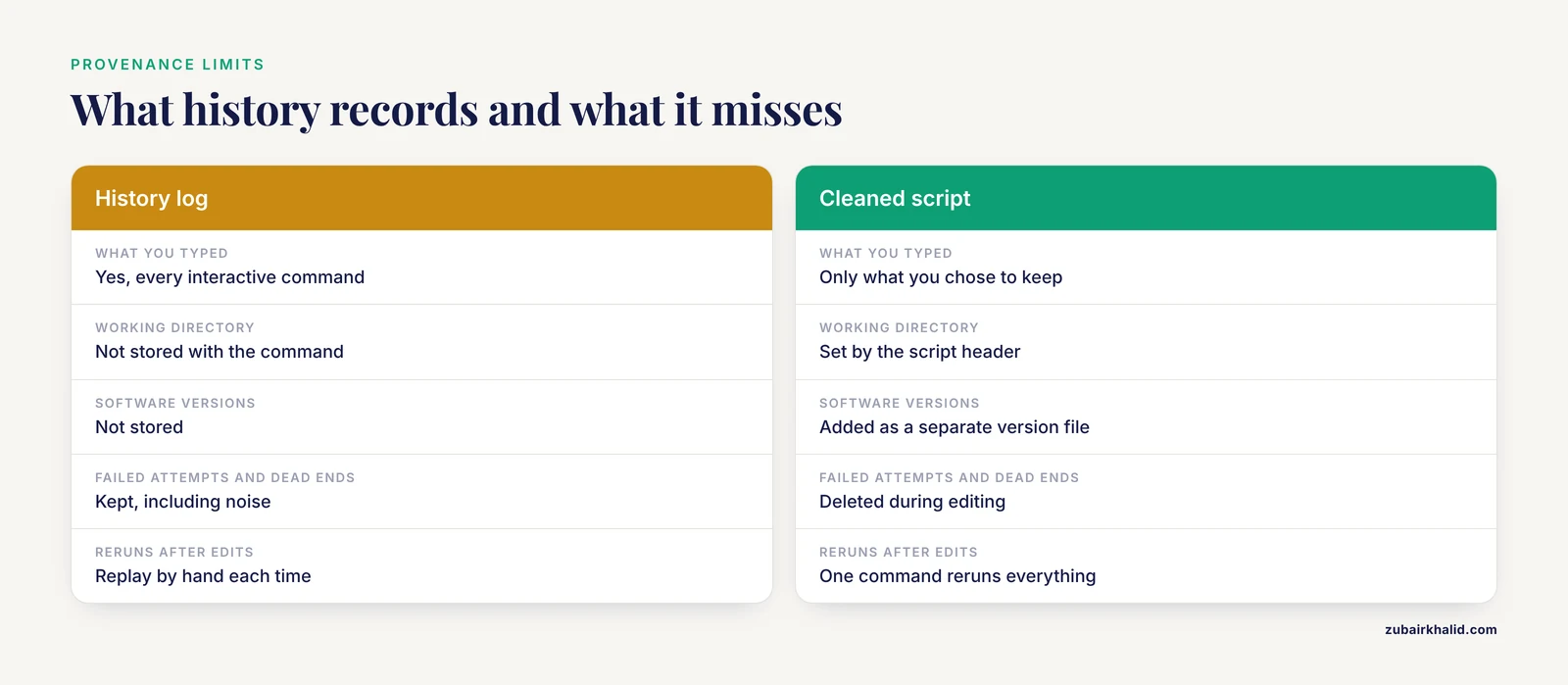
Add the context history cannot store. A command log alone is not full provenance. Record software versions next to it, because the same command produces different results across tool versions:
samtools --version > logs/tool_versions.txt 2>&1Hmm, the flag there uses two hyphens, so for the purposes of this guide use the version subcommand form that avoids it where the tool offers one, or simply note versions in your log file by hand alongside the export. The same applies to reference genome build, annotation release, container image digest, and conda environment export (conda env export > environment.yml). In your methods text, the history log supports statements about what you ran, while the version files support statements about what software was present.
Record interactive sessions wholesale when needed. The script utility (part of the standard util-linux package on Linux) captures everything printed in a terminal session, including output, to a typescript file:
script -a session_$(date +%F).logYou work normally inside the recorded session, then type exit to stop capture. This is the tool of choice for documenting an exploratory session where you will want both commands and their output later. The captured log is large and messy, so treat it as a supplementary record, not the methods section itself.
Common Mistakes and Limitations
These are the errors that cost real bioinformaticians real hours. Each includes the symptom and the fix.
- Lost commands from concurrent terminals. You had four terminals open, closed them one by one, and the history only contains the last shell's commands. Cause: without
histappend, each exiting shell truncates and rewrites the history file. Fix: theshopt -s histappendplusPROMPT_COMMAND="history -a"setup from the walkthrough, applied to every machine you work on, including cluster login nodes.
- Trusting an expansion without reading it. You ran
!bwaexpecting yesterday's alignment and got last month's indexing command, overwriting an output file. Cause:!stringmatches the most recent command starting with that word, and "most recent" can be older than you think. Fix:histverify, or preview with!bwa:p, or useCtrl+Rwhere you see the full command before accepting it.
- Misreading
!$and!:n. You assumed!$meant "the file I was processing" but it was the redirect target, or!:2was an option flag rather than the input file. Cause: these expand to literal positional words, and redirection words count. Fix: preview withecho !...before running, and preferAlt+.when you just want a file name.
- Caret substitution replacing less than expected.
^sampleA^sampleBchanged only the first occurrence, so the second read file and the output name still said sampleA, and the run overwrote a previous result. Fix: use!:gs/old/new/for global replacement, and verify the expanded line before executing.
- Assuming commands are recorded the moment you run them. You killed a terminal after a long interactive session and the last hour was missing from the file. Cause: bash writes the file at shell exit, not continuously, by default. Fix:
PROMPT_COMMAND="history -a", or runhistory -amanually before doing anything risky.
- Silent recording gaps from
ignorespace. WithHISTCONTROL=ignoreboth, any command starting with a space is not recorded. You habitually typed a leading space, and now an entire command is missing from your provenance export. Fix: know that the feature exists, check whether a missing command started with a space, and reserve space-prefixed commands for genuine secrets.
- Timestamps that all show the same date. Your history file imported old commands now claims they all ran today. Cause: timestamps are only stored when
HISTTIMEFORMATis set (or when the shell is configured to record them) at the time the commands run, and the file stores them as epoch comment lines. Entries from before that setting show the import date. Fix: nothing recovers lost timestamps. Enable the format now so future entries are dated.
- Using history as sole provenance. Your history shows the command but not the working directory, the software version, the reference build, whether an earlier failed run left partial files, or the values of variables that the command relied on. Fix: treat history as one artifact among several, paired with version logs, environment exports, and real pipeline scripts. For analyses you will publish, move the logic into a workflow manager once it stabilizes.
- Truncating history to "clear" it while shells remain open. You deleted
~/.bash_historyfor privacy, but every open shell rewrote it on exit with its full in-memory list. Fix: runhistory -c && history -win each open shell, or exit shells first, and check the file afterward.
- Secrets in the history file. A
curlcall with an API token, or a database password on a command line, is now sitting in a plaintext file, often world-readable depending on your umask, on a shared login node, and synced wherever your home directory syncs. Fix: pass secrets through environment variables sourced from a file outside history, or use credential helpers. If a secret already leaked into history, delete the entry withhistory -d numberin every open shell, remove the line from the file, and revoke and reissue the token, because deletion from your file does not un-leak it from backups or snapshots.
- Expecting history expansion in scripts and non-interactive shells. A script containing
!!fails or misbehaves because history expansion is off in non-interactive bash. Fix: expansions are an interactive convenience. In scripts, use variables and positional parameters instead.
- Cross-shell confusion. On systems where your login shell is zsh, the history builtins differ in flag details and the
histappend-style option has a different name, whileCtrl+Rand the general workflow feel the same. Fix: check which shell you are in withecho $SHELLandecho $0, and read that shell's manual for history settings. The concepts in this article transfer, the exact variable names may not.
A final limitation worth stating plainly. Command history records what you typed, not what happened. It is one input to good computational practice, and individual projects still need a deliberate provenance plan, ideally with versioned code and containerized environments.
Frequently Asked Questions
What does the bash history command do?
The history builtin prints your session's command list with sequence numbers, and with a timestamp format set it shows when each command ran. It also manages the record itself, with options to write, append, read, or delete entries.
How do I find a command I ran last week?
Press Ctrl+R and type a fragment to search recent entries interactively. For anything older or already written to disk, run grep -n "fragment" ~/.bash_history and look at the timestamp comment line above each match.
Why did my bash history disappear?
Concurrent terminal sessions overwrite each other's history when bash lacks the append option, because each shell rewrites the whole file at exit. Enable shopt -s histappend and append after every prompt with PROMPT_COMMAND="history -a" to prevent it.
How do I turn my history into a reproducible script?
Export a window with fc -ln -200 > draft.sh, edit out failed attempts and noise, add set -euo pipefail at the top, run bash -n draft.sh to syntax check, and record tool versions separately, since the same command behaves differently across software versions.
What is the difference between HISTSIZE and HISTFILESIZE?
HISTSIZE controls how many commands bash holds in memory during a session, while HISTFILESIZE controls how many lines the on-disk file retains. Set both high, with the file value at least as large as the memory value, so nothing is truncated.
How do I rerun a command that starts with a specific word?
Type !word to expand the most recent command starting with that word. Keep shopt -s histverify enabled so the expansion lands in your editing buffer for review before execution, or preview it with !word:p.
Is it safe to put passwords or API keys in my commands?
No. The history file is plaintext, often readable by other users on shared systems, and survives in backups. Source secrets from a protected environment file instead, and if one already leaked into history, delete the entry and revoke the credential.
Does bash history work the same in zsh or on an HPC cluster?
The core workflow of Ctrl+R, expansion, and numbered recall transfers, but zsh names its history options differently and clusters may preload their own shell defaults. Check which shell you are in and confirm your .bashrc settings actually load on that system.