AlphaFold GPU Errors: Fixing CUDA and cuDNN Issues
By Dr. Zubair Khalid, DVM, MS, PhD ·
Most AlphaFold GPU errors trace back to one of two things: an NVIDIA driver that is missing or too old for the CUDA version inside the AlphaFold container, or a Docker setup that never passes the GPU to the container in the first place. The first thing to check is always the same. Open a terminal and run nvidia-smi. If that command prints a table with your GPU name, driver version, and CUDA version, the hardware and driver layer are alive and your problem lives higher up the stack. If it prints "command not found" or an error about being unable to communicate with the driver, you have found your root cause before touching anything else.
This article walks through every layer where AlphaFold can fail on the GPU, from the driver at the bottom to JAX memory settings at the top, explains why each failure happens, and gives you a diagnostic sequence you can finish in about ten minutes. The guidance is grounded in how DeepMind's AlphaFold distribution actually works: it runs inside a Docker container that carries its own CUDA and cuDNN libraries, which changes what you need to fix on the host machine and what you should leave alone.
AlphaFold GPU Errors at a Glance
The table below covers the errors that account for the large majority of AlphaFold GPU failures. Work through it top to bottom because the most common causes appear first. Each row gives you a way to confirm the diagnosis before you change anything, which matters because several of these errors share overlapping symptoms.
| Symptom | Likely cause | How to confirm | Fix | |
|---|---|---|---|---|
nvidia-smi: command not found | Driver not installed | `lspci \ | grep -i nvidia` shows the card but no driver | Install the NVIDIA driver package, reboot |
NVIDIA-SMI has failed because it couldn't communicate with the NVIDIA driver | Kernel driver mismatch after a kernel update, or driver install failed | `dmesg \ | grep -i nvrm` shows NVRM errors | Reinstall the driver with DKMS so it rebuilds per kernel, reboot |
could not select device driver "nvidia" with capabilities: [[gpu]] | nvidia-container-toolkit missing or Docker not restarted | `docker info \ | grep -i runtime` shows no nvidia runtime | Install nvidia-container-toolkit, restart Docker, rerun with -gpus all |
CUDA driver version is insufficient for CUDA runtime version | Driver older than the CUDA the container expects | Compare the driver version from nvidia-smi against the CUDA compatibility table from NVIDIA | Upgrade the NVIDIA driver to a version supporting the container's CUDA | |
Failed to dlopen ... libcuda.so | libcuda missing inside the container, usually broken GPU passthrough | Run a CUDA test container with -gpus all | Fix container toolkit setup, confirm the test container sees the GPU | |
Could not create cudnn handle ... CUDNN_STATUS_INTERNAL_ERROR | cuDNN cannot initialize, often because the GPU already holds all its memory or the driver is unstable | Check nvidia-smi for other processes holding memory | Kill competing processes, reboot the node, or lower preallocation | |
Resource exhausted: Out of memory or OOM when allocating tensor | GPU memory exhausted | Watch nvidia-smi while the run starts | Use a GPU with more VRAM, disable preallocation, or reduce the input | |
No GPU/TPU found or a JAX warning about falling back to CPU | JAX build has no CUDA support, or CUDA libraries are not visible | python -c "import jax; print(jax.devices())" | Install a jaxlib build with CUDA support inside the environment | |
Unable to load libdevice or an XLA error about libdevice.10 | XLA cannot find the CUDA toolkit components it needs | Check the CUDA toolkit path environment variables inside the container | Point XLA at the toolkit shipped in the container, do not mix host and container toolkits | |
| Run freezes at kernel compile or crashes with no GPU messages | ECC errors, overheating, or flaky PCIe link | nvidia-smi -q shows ECC errors or abnormal temperature | Reset ECC, check cooling and seating, run nvidia-smi -q after the crash |
How AlphaFold Uses the GPU
Understanding the stack makes every error in the table easier to interpret. AlphaFold is not a single program talking to the GPU. It is a chain of components, and each one can fail independently.
At the bottom sits the NVIDIA driver, the kernel-level software that lets the operating system talk to the GPU. Above it sits CUDA, NVIDIA's parallel computing platform and runtime, which is the interface through which programs launch work on the GPU. Above CUDA sits cuDNN, NVIDIA's library of tuned primitives for deep learning operations such as convolutions and attention-style matrix products. AlphaFold's neural network relies on cuDNN for its heaviest arithmetic.
On top of those libraries sit two frameworks. Early AlphaFold releases ran the network through TensorFlow. Current releases of the DeepMind distribution build the model in JAX, a numerical computing framework whose programs are compiled by XLA, an ahead-of-time compiler that generates GPU code. When you see XLA in an error message, the failure happened inside that compiler or its runtime, typically while it was trying to allocate GPU memory or locate CUDA components.
The final layer is the container. The official AlphaFold distribution ships as a Docker image. Docker wraps the program together with its own copies of CUDA and cuDNN, so the container does not care which CUDA toolkit is installed on the host. It does care intensely about two things: the host driver must be new enough to run the container's CUDA version, and the nvidia-container-toolkit must be present so Docker can hand the GPU device files into the container. Almost every confusing AlphaFold GPU error comes from a misunderstanding of this split. People upgrade the host CUDA toolkit to fix a container problem, which does nothing, while the actual problem is a driver from 2019 that cannot run CUDA 11.
The Ten-Minute Diagnostic Sequence
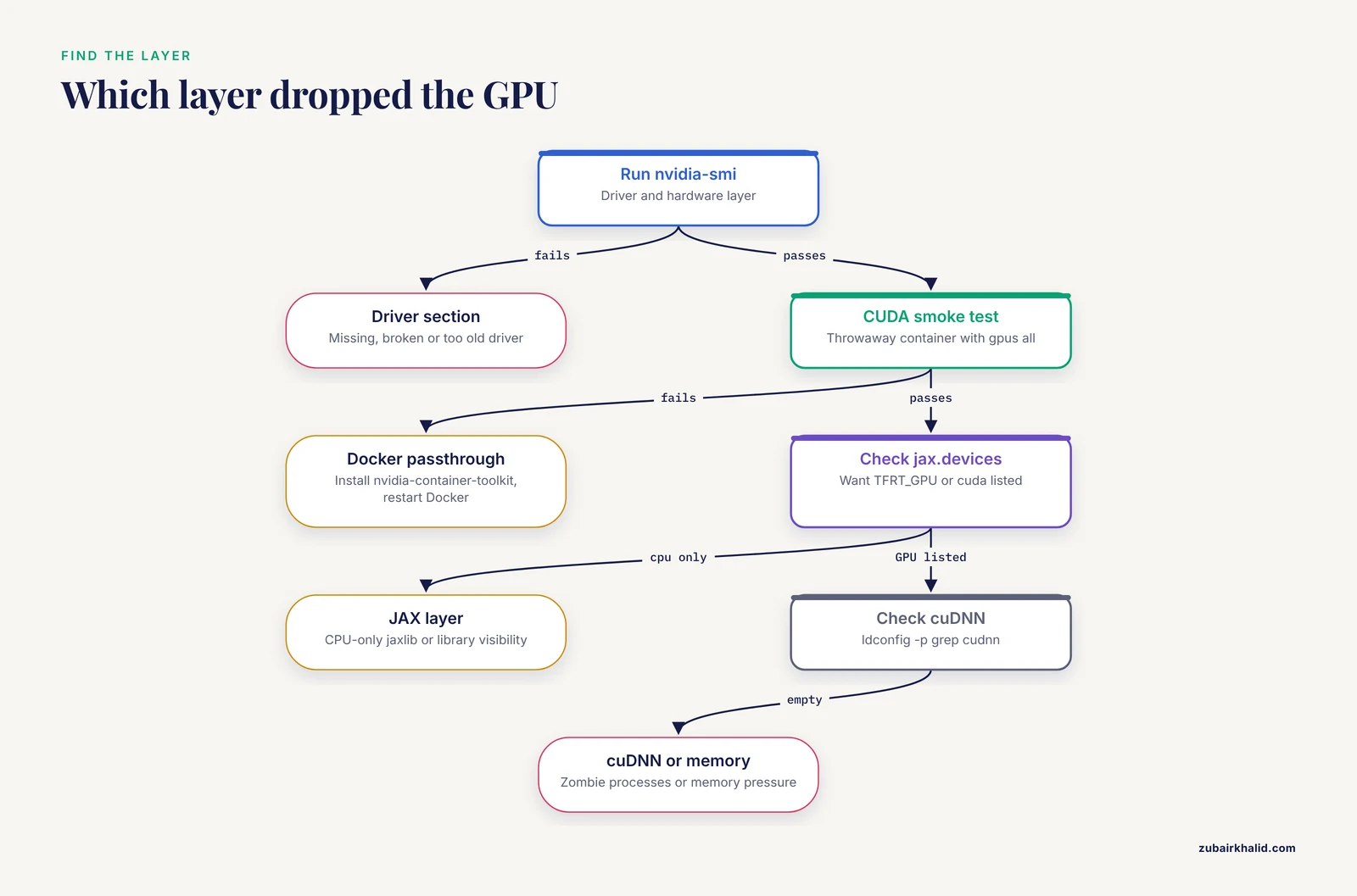
Run these checks in order. Each one tells you which section of this article to read.
- Run
nvidia-smi. Note the driver version in the top right and the CUDA version labeled "CUDA Version", which is the maximum CUDA runtime that driver supports, not a toolkit you have installed. If this fails, go to the driver section. - Run
docker run, rm, gpus all nvidia/cuda:11.8.0-base-ubuntu22.04 nvidia-smi. This starts a throwaway official CUDA container and runs the same check inside it. If the host check passed but this fails, your problem is Docker GPU passthrough, not the driver. - Run
docker info | grep -i runtimeand confirmnvidiaappears in the runtime list. If not, install nvidia-container-toolkit. - Inside your AlphaFold environment, run
python -c "import jax; print(jax.devices())". You want to see a TFRT_GPU or cuda device listed. If you only see cpu, the JAX build or its library visibility is the problem. - Check cuDNN visibility with
ldconfig -p | grep cudnn. Inside the AlphaFold container this should return several libraries. Outside a container on a bare-metal install, an empty result means cuDNN is missing. - Start a short AlphaFold run with a small single-chain FASTA and watch
nvidia-smi -l 5in a second terminal. If memory climbs to the ceiling within the first minutes and then the process dies, you are looking at an out-of-memory problem rather than a setup problem.
Completing this sequence pins the failure to one layer. The sections that follow work from the most common cause to the rarest and give the fix for each.
Cause 1: The NVIDIA Driver Is Missing, Broken, or Too Old
This is the single most common root cause behind an alphafold cuda error, and it is also the cheapest to fix once identified. The driver is the only component that must be managed on the host when you run AlphaFold in Docker. DeepMind's AlphaFold container includes its own CUDA runtime, so the host toolkit version is largely irrelevant, but the driver must satisfy the compatibility requirement of that CUDA version.
Symptoms and mechanism
The telltale messages are nvidia-smi: command not found on a machine that clearly has an NVIDIA card, NVIDIA-SMI has failed because it couldn't communicate with the NVIDIA driver, and, when a program runs but fails at CUDA initialization, CUDA driver version is insufficient for CUDA runtime version. The mechanism differs by case. A missing driver means no kernel module ever loaded, so /dev/nvidia* device files do not exist. A broken driver usually follows a kernel update: the NVIDIA kernel module is compiled against a specific kernel version, and without dynamic kernel module support it silently fails to build for the new kernel. A too-old driver loads fine but refuses to serve a CUDA runtime newer than it supports, which is exactly the insufficient-version message.
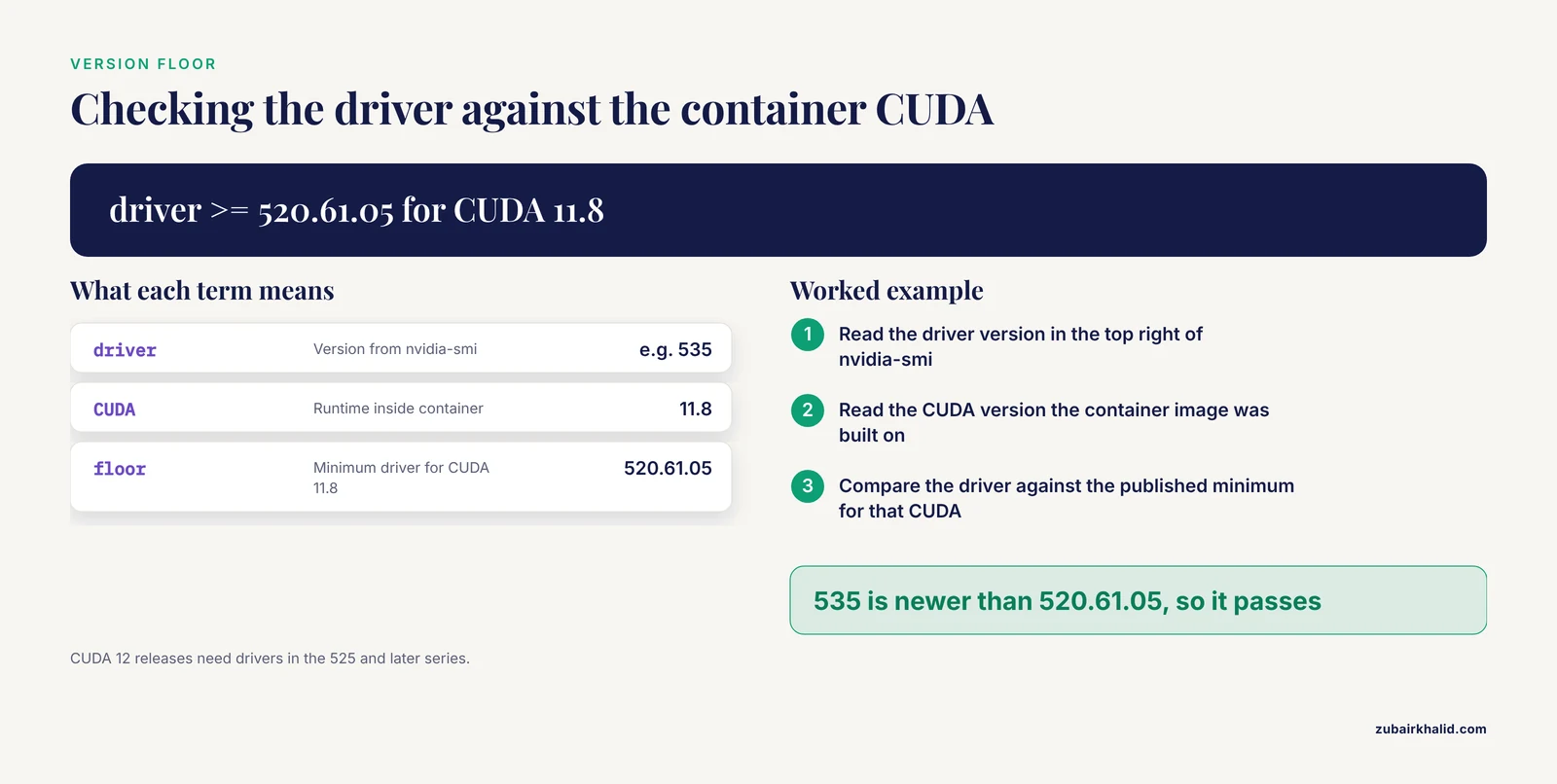
The driver-to-CUDA relationship is versioned and documented by NVIDIA in its CUDA compatibility documentation. As a reference point, CUDA 11.8 requires a Linux driver of version 520.61.05 or newer, and the CUDA 12 releases require drivers in the 525 and later series. The AlphaFold containers through version 2.3.x are built on CUDA 11, so any driver from the 5xx series comfortably satisfies them. When in doubt, install a current production driver rather than trying to match an exact version.
How to fix it
On Ubuntu, install the driver from the graphics-drivers package stream:
sudo apt update
sudo apt install -y nvidia-driver-535
sudo reboot
After the reboot, run nvidia-smi again and confirm the driver line appears. On servers where you manage kernels with DKMS, verify the module registered correctly with dkms status, which should show an installed module for the currently running kernel reported by uname -r.
A short safety note applies here. Driver installation and kernel module loading require root access, and an interrupted driver upgrade can leave a machine unable to start its display server or, in rare cases, affect boot. Never upgrade a driver while an AlphaFold run is executing, run the installer from a stable session rather than over SSH into a graphical workstation mid-session, and confirm you can reboot the machine before starting.
Cause 2: Docker Never Gets the GPU
The second most common cause is a container that starts successfully but never sees the GPU. The signature error is:
docker: Error response from daemon: could not select device driver "nvidia" with capabilities: [[gpu]].Docker prints this the moment you add -gpus all to a run command on a machine where the nvidia runtime hook is not registered. The mechanism is straightforward. Docker normally hands a container only what a regular Linux process would see. GPU access requires special device files, libraries, and driver user-space components injected by the nvidia-container-toolkit. Without that toolkit, Docker has no way to satisfy the GPU capability request and refuses to start the container at all.
Confirming and fixing
First confirm the driver itself works on the host, because the toolkit cannot compensate for a missing driver. Then install the toolkit:
sudo apt-get install -y nvidia-container-toolkit
sudo systemctl restart docker
Docker reads its runtime configuration at startup, so the restart is not optional. After restarting, verify with docker info | grep -i runtime that nvidia appears. Then run the smoke test from the diagnostic sequence:
docker run --rm --gpus all nvidia/cuda:11.8.0-base-ubuntu22.04 nvidia-smiIf that prints the GPU table, passthrough works and AlphaFold will inherit it. Two subtleties catch people here. On some older Docker setups, GPU access was configured through -runtime=nvidia in the daemon.json rather than the -gpus flag, and mixing the two styles produces confusing behavior. If you manage a legacy cluster, pick one style and apply it consistently. Second, on systems with multiple GPUs you can restrict exposure with -gpus '"device=0"' or by index, which is useful when you want to reserve one card for interactive work while AlphaFold occupies another.
Cause 3: CUDA Version Mismatch and the Container Trap
The third cause is the one that generates the most wasted effort. Someone sees a CUDA version error, installs a new CUDA toolkit on the host, spends an hour editing PATH and LD_LIBRARY_PATH, and the error stays exactly the same. The reason is the container trap described earlier. When AlphaFold runs in its official Docker image, the CUDA runtime lives inside the image. The host toolkit plays no role in that execution path at all.
The only version relationship that matters in a containerized setup is driver to container CUDA. The driver must be at least as new as the minimum required by the CUDA version in the image. That is why a driver upgrade fixes CUDA driver version is insufficient for CUDA runtime version while a toolkit upgrade does not.
The situation reverses for non-containerized installs. If you installed AlphaFold dependencies natively, or if you run ColabFold-style local JAX pipelines directly on the host, then the CUDA toolkit and cuDNN must be installed and visible to the Python environment, and version matching becomes strict. JAX release notes and the jax repository installation pages specify which jaxlib builds pair with which CUDA and cuDNN versions, and those pairings are exact. A jaxlib built for CUDA 12.1 with cuDNN 8.9 will not run cleanly against a CUDA 11 toolkit, and the failure surfaces as initialization or library-loading errors rather than a clear version complaint.
How to check what you are actually running
Inside the AlphaFold container, inspect the toolkit:
nvcc --version
ls /usr/local | grep cuda
Compare that against the image tag you pulled. If you pinned an older AlphaFold release, the CUDA inside it is older too, and a very new host driver still supports it because drivers are backward compatible with older CUDA runtimes. Driver forward compatibility is the safe direction. The broken direction is a new container on an old driver.
Cause 4: cuDNN Failures
cuDNN problems produce some of the strangest error text in this whole stack, often mid-run rather than at startup. Typical messages include Could not create cudnn handle: CUDNN_STATUS_INTERNAL_ERROR, CUDNN_STATUS_NOT_INITIALIZED, and stream executor complaints that mention cuDNN convolution launch failures.
Why cuDNN fails when CUDA seems fine
cuDNN initializes by allocating workspace memory on the GPU and creating internal handles bound to the CUDA context. Two failure modes dominate. The first is memory. If some other process, or an earlier AlphaFold attempt that did not exit cleanly, already holds most of the GPU memory, cuDNN can fail to allocate its workspace and report an internal error that looks nothing like a memory message. Check nvidia-smi for zombie processes before assuming anything more exotic. The second mode is a genuinely broken or mismatched library. On a bare-metal install, cuDNN must match the CUDA toolkit version and the framework expectations. Inside the AlphaFold container, the shipped cuDNN is consistent with the shipped CUDA, so true library mismatch is rare, and repeated cuDNN errors in a containerized run more often point to the driver or to GPU memory pressure.
Fixes, in order of likelihood
Reboot the node if processes will not release memory, then rerun. If the error persists in a containerized run, upgrade the host driver, because driver instability is the most common upstream cause of cuDNN internal errors. On bare-metal installs, verify the cuDNN libraries are discoverable with ldconfig -p | grep cudnn and reinstall the correct cuDNN package for your CUDA version from NVIDIA's archive. If you run several GPU jobs on one machine, stagger them, because concurrent cuDNN workspaces multiply memory demand beyond what the sum of the models alone would suggest.
Cause 5: Out of Memory and the Preallocation Trap
AlphaFold is memory hungry in a way that surprises people who have run other models on the same card. The official guidance for the DeepMind distribution calls for a GPU with at least 16 GB of memory for full monomer predictions, with substantially more capacity needed for the multimer system and for comfort at larger sequence lengths. Memory usage grows steeply with input length because attention over the residue-pair representation scales with the square of sequence length. A 300-residue protein and a 1,500-residue complex are not five times apart in memory, they are in different worlds.
The trap is that AlphaFold often dies with an out-of-memory error on cards that objectively have enough free memory, and the mechanism is preallocation. XLA, by default, grabs most of the GPU's memory up front and manages it internally. If you run two things on one GPU, the second one sees an apparently full card. The error text, something like Resource exhausted: Out of memory arriving at the very first model step, is the giveaway.
Fixes
For the official containerized run, the run scripts already set unified-memory environment variables, and the documented behavior expects most of the GPU. If you need to share a GPU or run on a card near the limit, set the JAX preallocation flag before launching:
export XLA_PYTHON_CLIENT_PREALLOCATE=falseThis makes XLA allocate as it goes and return memory between operations, at a modest performance cost and with a higher fragmentation risk on very long sequences. If you still exceed capacity, the honest options are a larger GPU, or reducing the problem: split a large complex into individual chains and predict them separately, use the reduced database preset to avoid unrelated memory pressure during the MSA stage, or move long multimer jobs to a machine with an A100-class card. Repeated out-of-memory errors at modest sequence lengths on a card that meets the 16 GB guidance can also mean ECC memory on the card is partially reserved, which the next section covers.
Cause 6: JAX and XLA Configuration Problems
When the GPU passes every lower-level test but JAX still reports No GPU/TPU found or AlphaFold logs a CPU-only fallback, the problem sits at the framework layer. Three distinct situations produce this.
First, the Python environment contains a CPU-only jaxlib build. JAX publishes separate builds with and without CUDA support. Run pip show jax jaxlib inside the environment AlphaFold actually uses, confirm the versions, and reinstall the CUDA-enabled jaxlib that matches your CUDA and cuDNN pairing if you are on a native install.
Second, the libraries exist but are not discoverable. JAX locates libcuda, cuDNN, and related libraries through the standard loader paths. On bare-metal installs, a missing LD_LIBRARY_PATH entry pointing at the CUDA lib directory produces exactly this symptom. Inside containers this is handled for you.
Third, XLA cannot find CUDA support components such as libdevice, producing Unable to load libdevice errors. This happens when someone points XLA or JAX at a host toolkit path while running inside a container that carries its own. The fix is to remove the host-path overrides and let the container's own toolkit be found. As a rule, if you did not explicitly set an environment variable like XLA_FLAGS or CUDA_HOME for a native install, do not add one to fix a container problem.
Cause 7: Hardware and Environment Issues (Rare)
Once the software layers check out, a small residue of failures is genuinely hardware related.
ECC error accumulation on data-center cards can poison computations and manifest as hangs or silent wrong results rather than clean errors. Query it with nvidia-smi -q and look at the ECC and retired-pages sections. Resetting ECC error counts requires root and, on many cards, a GPU reset:
sudo nvidia-smi --gpu-resetOnly reset a GPU when no processes are using it. If errors accumulate repeatedly, the card or its memory may be failing.
Thermal shutdowns look like a run that dies partway through with no useful error message. Watch temperature in nvidia-smi -l 5 during a heavy job. AlphaFold sustains near-maximum load for hours, and a workstation GPU in a case with weak airflow or a clogged server filter will throttle and eventually fail where lighter jobs survive.
On Windows systems used with WSL2, driver behavior differs from native Linux, and some container features behave differently. For serious AlphaFold work, native Linux is the supported and stable path.
AlphaFold Tutorial: A Clean Install Path That Avoids These Errors
If you are setting up from scratch, following this order prevents nearly every error in this article. This short alphafold tutorial sequence assumes a Linux host with an NVIDIA GPU.
- Install the current NVIDIA production driver and reboot. Confirm with
nvidia-smiand record the driver version. - Install Docker Engine from Docker's own repository, not the distribution's often-stale package, then install nvidia-container-toolkit and restart Docker.
- Run the CUDA smoke test shown earlier. Do not proceed until a throwaway CUDA container can print the GPU table. This one check eliminates the two most common failure classes before they ever touch AlphaFold.
- Pull the DeepMind AlphaFold repository and its Docker image. The image carries matching CUDA and cuDNN, so resist the urge to install a host CUDA toolkit for this purpose. It is not needed and only adds confusion later.
- Download the genetic databases using the scripts in the repository, choosing the reduced preset for an initial test if disk space is limited. The full databases are hundreds of gigabytes and take far longer to fetch than the software itself.
- Run a short single-chain test case with the reduced databases before committing to a long queue. A small protein finishing end to end validates the GPU path, the MSA tools, and the output directory permissions in one pass.
- Only then scale up to full databases, multimer mode, and batch submission.
If you run AlphaFold through a management wrapper or a shared cluster scheduler rather than raw Docker, the same logic applies one layer up. The scheduler must pass GPU resources to the job, and any GPU limits it sets interact with XLA preallocation exactly as described in the memory section.
When to Use AlphaFold Server Instead
Local GPU troubleshooting is not always the right investment. AlphaFold Server is Google's hosted web service for AlphaFold 3 predictions, accessed through a browser without any local CUDA, driver, or Docker configuration. For a single protein or a small complex, submitting sequences to the hosted service takes minutes and sidesteps this entire stack. It carries usage limits and terms that restrict outputs to non-commercial use, so check the current terms on the service page before relying on it for a production workflow.
The trade is control for convenience. The server gives you fixed model versions and no infrastructure decisions, while a local install gives you batch throughput, custom databases, scripting, and the ability to run relaxed or modified pipelines. A reasonable division of labor for many labs is to use the hosted server for interactive exploration and small jobs, and a properly configured local or cloud GPU for bulk work. If your alphafold server requests start failing with capacity messages, that is a service-side limit, not a local CUDA problem, and no amount of driver work on your machine will change it.
Common Mistakes and Limitations
These are the errors people actually make while chasing GPU failures, listed so you can avoid the expensive ones.
- Installing a host CUDA toolkit to fix a container error. The container brings its own CUDA. Only the driver matters on the host in a Docker setup, and toolkit installs add PATH and library-path noise that causes later confusion.
- Upgrading the driver while a run is active. CUDA contexts do not survive driver reloads, and a mid-job upgrade can corrupt the run and occasionally leave the machine in a state needing a reboot to recover.
- Mixing CUDA, cuDNN, and jaxlib versions on a native install. These have exact, published pairings. Guessing a combination produces initialization errors that look like hardware problems.
- Trusting the CUDA version shown by
nvidia-smi. That number is the maximum CUDA the driver supports, not a statement about any toolkit installed on the disk. Confusing the two leads people to believe they have CUDA 12 when nothing of the sort is installed. - Ignoring zombie processes. A crashed AlphaFold job that left a process holding 15 GB of VRAM will make the next job fail in ways that look like cuDNN errors. Always check
nvidia-smifor stray processes before debugging libraries. - Testing with a large multimer as the first run. If the first job you try is at the edge of memory, you cannot distinguish a configuration failure from a capacity failure. Always validate with a small chain.
- Reinstalling everything at once. Change one layer, test, and only then move up. If you upgrade the driver, the toolkit, cuDNN, and JAX in the same session and things break, you have four suspects instead of one.
On limitations. This article describes the standard DeepMind AlphaFold 2.x distribution and common derivatives, and exact version pairings, database sizes, and recommended driver versions shift with each release, so always check the repository's current documentation for the version you deploy. Individual installations, cluster schedulers, and cloud images vary, and a specific environment may need adjustments beyond what any general guide covers.
Prevention Practices
Once a setup works, a few habits keep it working. Pin your versions. Record the driver version, the AlphaFold release, and the image digest in the same place you track your analysis code, so that a reproducer knows exactly what worked. Schedule driver updates rather than letting them ride along with routine system updates, and always reboot and rerun the CUDA smoke test after a driver change. On multi-user machines, add a lightweight queue or at minimum a shared convention for who holds which GPU, because preallocation makes simultaneous jobs conflict even when total memory would suffice. Set up a weekly health check that runs nvidia-smi -q and flags ECC errors or persistent high memory before they cause a mid-run failure. Finally, keep one small test FASTA in the repository root with a one-line command that runs it end to end. When something breaks after a system update, thirty seconds of test run tells you which layer failed, and you fix the actual problem instead of the nearest guess.
Frequently Asked Questions
Why does AlphaFold report no GPU when nvidia-smi works fine?
The GPU passes the driver test but not the framework test. Either Docker is not passing the GPU into the container because nvidia-container-toolkit is missing, or the Python environment contains a CPU-only jaxlib build. Run the CUDA smoke test container and jax.devices() inside your environment to see which layer drops the GPU.
Do I need to install the CUDA toolkit on the host to run AlphaFold?
No, not if you use the official Docker image. The image contains its own CUDA and cuDNN. The host needs only the NVIDIA driver, at a version new enough for the CUDA inside the container. Installing a host toolkit does not fix container errors and often creates new path problems.
Which NVIDIA driver version does AlphaFold need?
AlphaFold 2.x containers are built on CUDA 11, which any current production driver from the 5xx series supports. As a reference point, CUDA 11.8 requires a Linux driver of 520.61.05 or newer. Install a current driver and you are covered for the containerized AlphaFold releases in common use.
Why does AlphaFold run out of memory on a GPU that should have enough?
XLA preallocates most of the GPU memory up front, so a second job on the same card sees a full device, and the error arrives before any real computation. Set XLA_PYTHON_CLIENT_PREALLOCATE=false to allocate on demand, or reserve the GPU exclusively for AlphaFold. For genuinely large sequences, you need more VRAM or a smaller input.
Can I run AlphaFold without a GPU?
Technically yes, but not usefully. The neural network portion on CPU is orders of magnitude slower, turning hours into weeks for a single prediction. If you have no local GPU, use AlphaFold Server for individual predictions, or rent a cloud GPU instance with the same driver and container setup described here.
What is the difference between CUDA and cuDNN?
CUDA is NVIDIA's platform and runtime for running general computation on GPUs. cuDNN is a specialized library of deep learning primitives built on top of CUDA. AlphaFold needs both, and they fail differently. CUDA problems usually appear at startup as version or library-loading errors, while cuDNN problems often appear mid-run as handle or workspace allocation errors.
How do I check which CUDA version my AlphaFold container uses?
Run nvcc, version and ls /usr/local | grep cuda inside the container, or check the base image tag of the AlphaFold release you pulled. The container's CUDA version determines your minimum driver requirement, and that relationship, not the host toolkit, is the one that matters in a Docker setup.
Is AlphaFold Server a fix for local GPU errors?
It is a way to avoid them entirely, not a fix. The hosted service runs on Google's infrastructure, so driver, CUDA, and memory problems on your machine never come into play. Use it for small or occasional predictions, keeping in mind its usage limits and non-commercial terms, and keep a local or cloud GPU setup for bulk or customized work.