Zotero Overleaf Citations Not Showing: Common Problems and Fixes
By Dr. Zubair Khalid, DVM, MS, PhD ·

When Zotero citations fail to appear in an Overleaf document, the most likely cause is a stale .bib file. You exported your library once, uploaded it to Overleaf, and added new sources to Zotero afterward. The LaTeX project never saw the new entries, so every \cite command pointing at them renders as a bold question mark or a blank. Check this first before assuming anything more exotic is wrong: download the .bib file sitting in your Overleaf project, open it in a text editor, and search for the exact key you used inside \cite{}. If the key is absent, the file is out of date or the wrong file was uploaded, and you have found your problem.
This guide covers the full range of reasons citations vanish between a reference management tool like Zotero and a LaTeX platform like Overleaf, ordered from the most common failure to the rarest. It explains the mechanism behind each failure, gives a diagnostic sequence you can follow in a few minutes, and ends with the workflow habits that prevent the problem from returning.
How Zotero and Overleaf Actually Communicate
Zotero is a desktop and web-based reference management program that stores your library of papers, books, and web pages, along with their metadata. Overleaf is a cloud LaTeX editor. Neither tool natively speaks the other's format. Citations move between them through one of three pathways, and knowing which one you are using is the first step in any diagnosis.
Pathway one is manual export. You select items in Zotero, choose File then Export, pick a BibTeX or BibLaTeX format, save a .bib file, and upload that file to your Overleaf project. The citation keys in the file are either generated by Zotero's default scheme or, if you use the Better BibTeX extension, by Better BibTeX's configurable key format. The weakness of this pathway is obvious. The file is a snapshot. Every new source, every metadata correction, and every deletion in Zotero leaves the snapshot unchanged until you export again and re-upload.
Pathway two is auto-export through Better BibTeX. Better BibTeX is a widely used Zotero plugin built specifically for LaTeX users. When you export a collection with its auto-export option enabled, Better BibTeX watches the library and rewrites the .bib file on your computer every time a relevant item changes. If you then point Overleaf at that file, you still need a mechanism to get the updated file into Overleaf, because Overleaf does not reach into your local filesystem. Common bridges include a synced folder service, a GitHub repository that Overleaf pulls from, or simply re-uploading the file when it changes.
Pathway three is Overleaf's built-in Zotero integration. Overleaf can connect to your Zotero account after you authorize it. It imports your library or selected collections as a .bib file inside the project. This is convenient but is also a snapshot. If you add a reference in Zotero next week, the imported file on Overleaf does not know about it until you re-run the import.
Every one of these pathways introduces a synchronization gap, and that gap is where the overwhelming majority of missing citations originate.
A Five-Minute Diagnostic Sequence
Work through these checks in order. Most people stop at step two or three.
- Identify the exact citekey in your .tex file. Open the document and read the argument of
\cite{},\citep{}, or\autocite{}. Note it character for character, including capitalization. - Search the .bib file that Overleaf is actually compiling. In the Overleaf file tree, click the .bib file and use the browser search to look for that key. An entry looks like
@article{smith2023crispr, ...}and the key is the text inside the first braces. - If the key is missing, refresh the file. Re-export from Zotero, re-run the Overleaf Zotero import, or let auto-export and your sync bridge do their work. Recompile.
- If the key exists but the citation still shows as [?], check the bibliography commands. Make sure the document contains a line pointing at the .bib file and a command that prints the bibliography. Details appear below.
- Check the compile log. Overleaf's log panel lists LaTeX warnings such as "Citation undefined" and errors from BibTeX or Biber. Read the first error, not the last one. The first error usually causes everything after it.
- Clear the cache. Next to the Recompile button is a small dropdown with an option to clear cached files. Stale auxiliary files from an earlier broken compile can keep undefined citations alive even after you fix the underlying issue.
If all six steps pass and citations still fail, continue to the detailed causes below.
Troubleshooting Table
This table is the core of the article. Match your symptom in the left column and follow the row across.
| Symptom | Likely cause | How to confirm | Fix |
|---|---|---|---|
| Citation renders as [?] or a bold question mark | Citekey in \cite{} does not exist in the .bib file on Overleaf | Search the .bib file in the Overleaf file tree for the exact key | Re-export from Zotero or correct the key, then recompile |
| New references missing, old ones fine | Stale .bib snapshot on Overleaf | Open the .bib file and check its modification date or search for the new source's title | Re-export and re-upload, re-run the Overleaf Zotero import, or refresh auto-export |
| Every citation is missing and the bibliography is empty | Missing \bibliography{} or \addbibresource{} line, or missing \printbibliography | Read the .tex preamble and the end of the document | Add the correct commands for your bibliography package |
| Citations missing and the log mentions BibTeX errors | The .bib file has syntax errors, often from special characters or truncated fields | Open the log panel, find the first BibTeX error and the entry it names | Fix or remove the malformed entry, usually by cleaning up an unusual character |
| Log complains about a biblatex and biber version mismatch | Project uses biblatex with the biber backend but the TeX Live version on Overleaf does not match the biblatex version the project expects | The log names both versions explicitly | Change the TeX Live version in the Overleaf menu, or adjust the biblatex version, so the two match |
| Citations show parentheses where you expect brackets or vice versa | natbib and biblatex commands mixed, or the wrong package loaded | Check which package the preamble loads and which citation commands the body uses | Use \citep and \citet with natbib, or \parencite and \textcite with biblatex, consistently |
| A citation renders but with wrong authors, year, or journal | Metadata error in the Zotero item, or duplicate Zotero entries with different data | Compare the rendered reference with the Zotero item | Correct the metadata in Zotero, merge duplicates, re-export |
| Bibliography contains entries you never cited | \nocite{*} in the document, or you exported the whole library instead of a collection | Search the .tex file for \nocite | Remove \nocite{*} or export only the relevant collection |
| Citations worked yesterday and broke after an edit | Duplicate keys were introduced, so BibTeX dropped or overwrote an entry | Check the log for repeated citation key warnings | Make keys unique, easiest with Better BibTeX's unique key settings |
| Citations vanish after changing computers or collaborators join | The .tex file references a .bib filename or path that is not in this Overleaf project | Compare the filename in the bibliography command with the file tree | Upload the correctly named file or fix the path |
| Compilation succeeds but nothing changes after a fix | Overleaf cached auxiliary files from earlier broken runs | Fixes that should work keep failing | Recompile from scratch by clearing cached files |
Common Causes, From Most to Least Common
The .bib file is out of date
This is the dominant cause of Zotero Overleaf citations not showing, and it deserves its own section. Reference management software only helps your LaTeX document if the bibliography data reaches LaTeX in its current state. A manually exported .bib file is frozen at the moment of export. Graduate students frequently export in week one of a project, keep writing for two months, add thirty papers to Zotero along the way, and then wonder why new \cite{} commands fail.
The mechanism is simple. LaTeX resolves a citation by matching the key in \cite{author2024} against the entry keys in the .bib file named by your bibliography command. A key with no matching entry produces an undefined citation warning, and the compiled PDF shows [?] or a blank where the number or author-year label should appear.
The fix depends on your pathway. If you export manually, re-export the relevant collection and upload the file to Overleaf, replacing the old one. Keep the filename identical so your .tex file does not need editing. If you use Better BibTeX auto-export, confirm the file on your local disk actually updated (open it and check the timestamp), then confirm your bridge to Overleaf moved the new version. If you use Overleaf's Zotero integration, re-run the import. None of these platforms live-sync continuously in the background, so plan a refresh step into your writing routine.
Citekeys in \cite{} do not match the .bib file
The second most common cause is a key mismatch, and it has several sub-flavors.
Case sensitivity. LaTeX citation keys are case sensitive in practice, and BibTeX behavior around keys that differ only in case is inconsistent across styles. If Zotero generated Kumar2023 and you typed kumar2023, the match can fail.
Changed keys. Zotero's default export generates keys at export time from author, year, and title. Edit the item's author list in Zotero and the exported key changes. Every \cite{} in your paper that referenced the old key now dangles. Better BibTeX solves this with pinned keys. Right-click an item in Zotero, choose the option to pin the BibTeX key, and the key stays fixed no matter how the metadata changes.
Manual typos. A space or a missing character inside \cite{} is invisible in the source but fatal at compile time. Copying keys directly from Better BibTeX's item view rather than typing them removes this class of error entirely.
Multiple keys in one command. \cite{a, b, c} fails as a whole if any single key is missing, which makes it look like more citations broke than actually did. Test suspect keys one at a time when narrowing down.
Missing or incorrect bibliography commands in the .tex file
A complete bibliography requires two things in your LaTeX source. Something must tell LaTeX where the .bib data lives, and something must tell it to print the reference list. If either is missing, citations render as undefined regardless of how perfect your .bib file is.
For traditional BibTeX, the document needs \bibliographystyle{plain} (or another style name) and \bibliography{refs} near the end, where refs is the filename without the .bib extension. For biblatex, the preamble needs \usepackage[style=authoryear]{biblatex} (or your chosen style) plus \addbibresource{refs.bib}, and the body needs \printbibliography.
Two details trip people up. First, \addbibresource takes the filename with the .bib extension, while \bibliography takes it without. Second, the filename in the command must match the file in the Overleaf project exactly, including capitalization. If your file is RefS.bib and the command says refs, the lookup fails.
Wrong compile sequence or backend
Traditional BibTeX and modern biblatex use different processing backends. BibTeX uses the bibtex program. Biblatex can use bibtex but strongly prefers biber, and many biblatex features only work with biber. If your document loads biblatex with the default settings but Overleaf compiles with plain bibtex, citations and the bibliography fail in confusing ways.
Overleaf normally detects the correct backend automatically and runs the required sequence, which for BibTeX is LaTeX, then BibTeX, then LaTeX twice more to resolve all cross references. Problems appear when the automatic detection is defeated by a misconfigured project, or when auxiliary files from an earlier wrong configuration linger. Running a fresh compile after clearing cached files resolves a surprising number of these situations.
biblatex and biber version mismatch
This is a classic, well-documented LaTeX failure. Biblatex and biber are developed in parallel, and each biblatex version expects a matching biber version. If a project written with a newer biblatex is compiled on an older TeX Live installation, the log announces that the biber version does not match the biblatex version, and the bibliography is skipped entirely.
Overleaf lets you choose the TeX Live version for your project in the project menu. If you inherited a project from a collaborator and citations stopped working, check the menu first. Aligning the TeX Live version with the one the project was built under, or updating the biblatex version reference in the project so both components agree, resolves it. On a local machine the equivalent fix is updating your TeX distribution so biber and biblatex move together.
Mixing natbib and biblatex commands
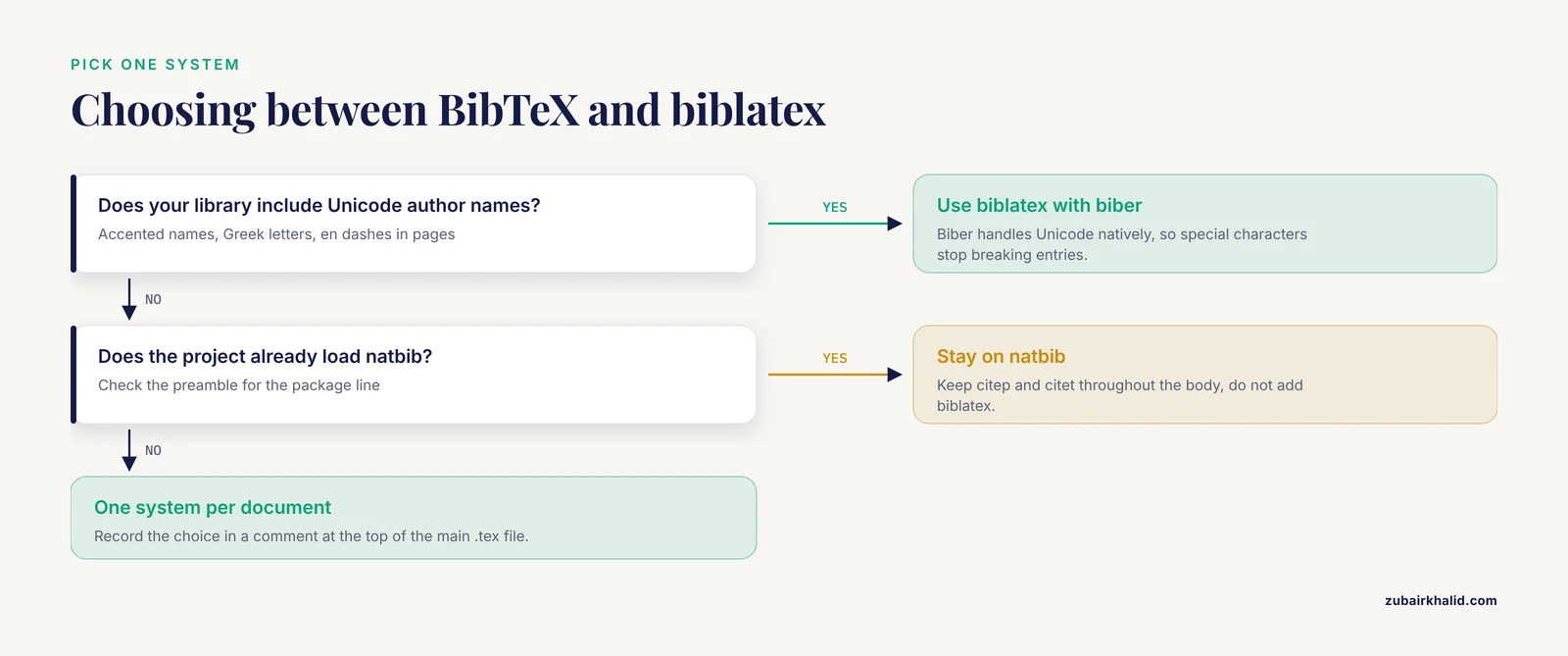
Natbib is an older package that extends traditional BibTeX with author-year citation commands such as \citep{} for parenthetical citations and \citet{} for textual ones. Biblatex, the modern replacement, uses its own command vocabulary, with \parencite{} and \textcite{} filling the same roles.
The failure mode is loading one system and invoking the other's commands. If the preamble loads natbib but the body calls \parencite{}, compilation errors. If biblatex is loaded and the body calls \citep{}, behavior depends on the biblatex options and can fail silently or loudly. Pick one system per document. If you switch systems, search the body for old citation commands and convert them.
Unicode and special characters
Traditional BibTeX is an old program that predates comfortable Unicode handling. Zotero metadata is full of characters that BibTeX historically chokes on: accented author names, en dashes in page ranges, curly quotation marks, Greek letters in titles, and ampersands. When BibTeX hits one it cannot handle, it reports an error and may drop the entry, which then reads as a citation not showing.
Biber handles Unicode natively, which is one of the strongest reasons to prefer biblatex for any library with international authors. If you must stay on traditional BibTeX, transliterate problematic characters into their LaTeX escaped forms in the Zotero item fields, or use one of the Unicode-aware bibtex variants. When a single stubborn entry breaks an otherwise working bibliography, opening the .bib file and looking at the named entry almost always reveals the culprit character.
Duplicate keys and case collisions
BibTeX assumes keys are unique. If two entries share a key, BibTeX emits a repeated entry warning and keeps only one, so the second source becomes uncitable. This happens easily when two papers by the same author in the same year are exported with keys that differ only by a suffix, or when a whole-library export is merged with an earlier partial export.
Better BibTeX addresses this directly with settings that force keys to be unique across the library, appending disambiguating letters or numbers automatically. If you manage keys by hand, adopting a deliberate scheme (for example, surname, year, first significant title word) and checking the compile log for repeated-key warnings keeps the problem visible.
File path and filename problems
The bibliography command and the actual file must agree. Common mismatches include the file living in a subfolder (fix with a path like \bibliography{bib/refs} or \addbibresource{bib/refs.bib}), files that were never uploaded because a collaborator's project import skipped them, and Overleaf projects where someone renamed the file after the .tex was written. Overleaf's file search makes this a ten-second check.
Stale cache on Overleaf
Overleaf caches compiled auxiliary files to speed up recompiles. If a previous run produced broken auxiliary files, subsequent runs can keep reproducing the broken result even after you fix the .bib file. The remedy is to clear the cached files from the dropdown next to the Recompile button and compile fresh. This is rare compared with the causes above, but it is the correct move when you have verified everything else and the PDF refuses to change.
Building a Workflow That Prevents the Problem
Fixing the current breakage is half the job. The other half is arranging the pipeline so it stops breaking.
Standardize on Better BibTeX if you use Zotero with LaTeX. The plugin gives you stable pinned keys, automatic key uniqueness, configurable key formats, and auto-export. Install it from within Zotero, set a key format you like (author, year, and a title word is the common choice), and pin the keys of items you have already cited anywhere.
Export collections, not the whole library. Exporting a single project collection keeps the .bib file small, reduces the chance of duplicate keys from other projects, and makes re-exports fast.
Put the refresh step in your routine. Auto-export updates the local file, but Overleaf still needs to receive it. Writers who end each session by uploading the current .bib file, or who connect Overleaf to a GitHub repository so a git push carries the .bib file along with the .tex files, rarely see missing citations.
Treat the compile log as a checklist, not noise. Undefined citation warnings name the exact keys that failed. Repeated-key warnings name the duplicates. Reading the log turns a mysterious blank citation into a one-line fix.
Keep one citation system per document. Decide between natbib with BibTeX and biblatex with biber at the start of a project, record the decision in a comment at the top of the main .tex file, and follow it.
Choosing Among Reference Management Tools for LaTeX Work
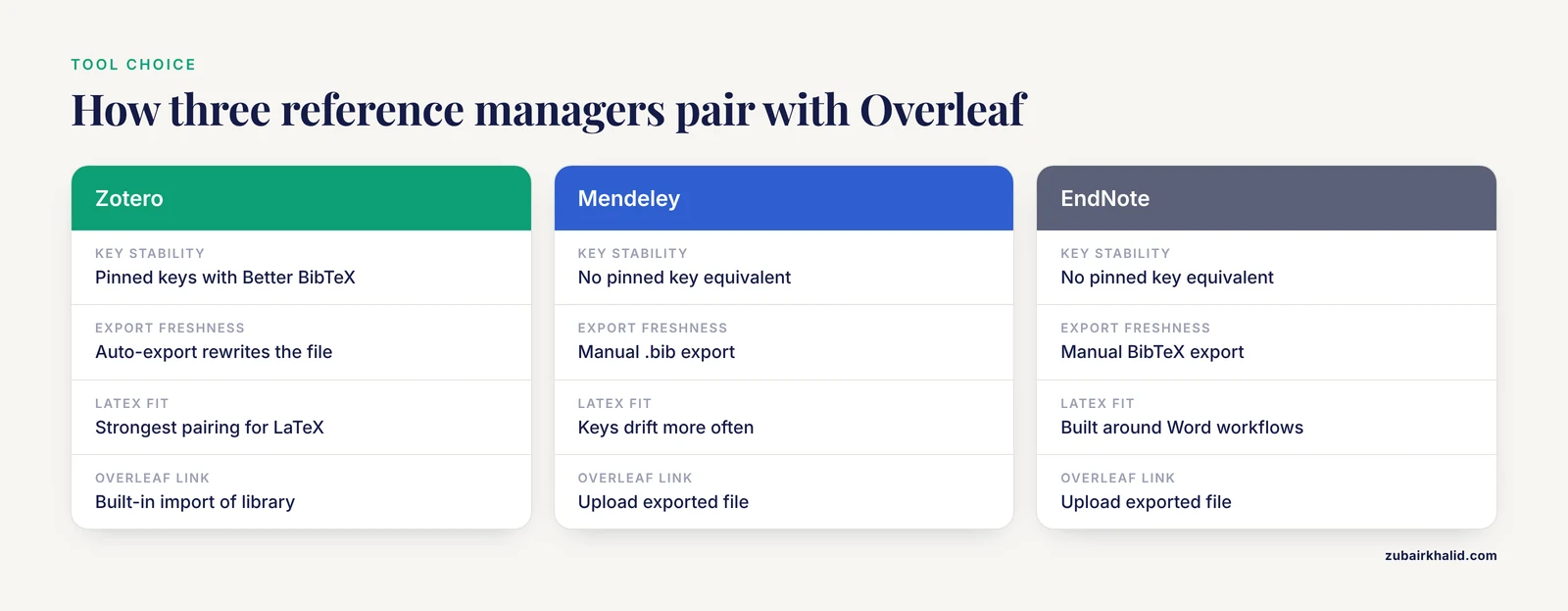
Because the failure modes above stem from how citation data travels between tools, your choice of reference management software shapes your risk. Zotero is free and open source, has the Better BibTeX extension purpose-built for LaTeX workflows, and integrates with Overleaf through Overleaf's own import feature. Mendeley offers direct .bib export and a Word plugin but lacks an equivalent of Better BibTeX's pinned, auto-updating keys, so LaTeX users often fight key drift. EndNote exports BibTeX but is designed primarily around Word workflows and is the least common pairing with Overleaf.
The practical comparison for Overleaf users comes down to key stability and export freshness. If stable keys and automatic re-export matter most to you, Zotero with Better BibTeX is currently the strongest pairing, and the integration pathway inside Overleaf gives Zotero a further advantage that the citation manager comparison question usually resolves in its favor. Papers written in pure Word templates with numbered citations face none of these issues, which is why some teams simply keep Word for grant documents and LaTeX for manuscripts.
Common Mistakes and Limitations
Editing the .bib file by hand on Overleaf. Any manual edit is destroyed the next time the file is re-exported from Zotero. Fix the data in Zotero, the source of truth, and re-export.
Fixing the symptom instead of the sync. Copying an entry into the .bib file by hand makes the citation appear today and disappear next week when the file refreshes.
Assuming the Overleaf Zotero import is live. It is an import, a snapshot taken when you run it. Re-run it after adding sources.
Diagnosing from the end of the log. LaTeX error chains start early. A malformed entry in line one of a .bib file can produce a dozen downstream errors. Always address the first error.
Ignoring case in keys. Andersson2019 and andersson2019 are different keys to LaTeX. Adopt one convention and search when in doubt.
Blaming the tool chain for metadata problems. A citation that renders with the wrong year or a missing author is a Zotero metadata problem, not a sync problem. Clean the item, merge duplicates, re-export.
A note on scope. The behaviors described here reflect how Zotero, Better BibTeX, BibTeX, biblatex, biber, and Overleaf are documented to work at the time of writing. Software updates can change menu names, default settings, and integration details. When a specific instruction in this article does not match what you see on screen, the official documentation for the relevant tool is the authoritative check, and the underlying mechanism (key matching between the .tex file and the .bib file, processed by a bibliography backend) has been stable for many years.
Frequently Asked Questions
Why do my citations show as [?] in Overleaf?
The key inside your \cite{} command has no matching entry in the .bib file that Overleaf is compiling. Search the .bib file for the exact key. If it is absent, re-export from Zotero or fix the key, then recompile.
How do I update my bibliography on Overleaf after adding references in Zotero?
Re-export the collection from Zotero and upload the new .bib file, or re-run Overleaf's Zotero import. If you use Better BibTeX auto-export, confirm the local file updated, then transfer it to Overleaf through your usual bridge.
Does Zotero sync directly with Overleaf?
Not continuously. Overleaf can import your Zotero library as a .bib file after you authorize your account, but that import is a one-time snapshot. You must re-import, re-upload, or use a git or folder sync bridge to move updates across.
Should I use BibTeX or biblatex with Zotero?
Biblatex with the biber backend is the better choice for most new projects. It handles Unicode author names and modern metadata cleanly, which removes the special-character errors that traditional BibTeX produces with Zotero exports.
Why does my citation render with the wrong author or year?
The metadata in the Zotero item is wrong, or two duplicate Zotero entries exist with conflicting data. Correct or merge the entries in Zotero, then re-export. The citation pipeline faithfully reproduces whatever the .bib file contains.
Why does Overleaf say my bib file is missing or empty?
The filename in \bibliography{} or \addbibresource{} does not match an uploaded file, or the file was never uploaded to this project. Compare the name in the command, including capitalization and path, with the Overleaf file tree.
Can I use Mendeley or EndNote with Overleaf instead of Zotero?
Yes. Both export BibTeX files that Overleaf can compile. The tradeoff is that neither matches Better BibTeX's stable pinned keys and auto-export, so keys are more likely to drift and you are more likely to re-export manually.
How do I stop Zotero citekeys from changing?
Use the Better BibTeX extension and pin the key on each cited item. A pinned key stays fixed even when you edit the item's authors or title later, so your \cite{} commands keep working across re-exports.
Further Reading
- Mapping the scientific research on geriatric nutritional assessment (2016-2025): A bibliometric analysis.
- Integrating patient advocacy into hepatology practice - Current perspective and future directions.
- AIDCare: A Technical Proof-of-Concept for Integrating Personalized Nutrition, Physical Activity, and AI-Assisted Care in Diabetes Lifestyle Management.
- Identifying practices for meaningful health research partnerships: series of rapid environmental scans.