How to Set Up a Shared Zotero Library for a Systematic Review Team
By Dr. Zubair Khalid, DVM, MS, PhD ·

By the end of this guide, you will have a working Zotero group library that every member of your systematic review team can search, deposit into, tag, and sync from their own computer. You will be able to import search results from databases, route records through your screening workflow, export clean RIS and CSV files for screening software and PRISMA flow diagrams, and cite those references in your final manuscript with a word processor plugin.
Here is what you need on hand before you start:
- Zotero 7 (the current desktop version) installed on every team member's computer, available from zotero.org
- The Zotero Connector browser extension for Chrome, Firefox, or Edge
- A free zotero.org account for every team member
- The Zotero username or email address of each person who will use the library
- A written screening protocol, ideally registered before you search (published review protocols commonly register in PROSPERO and cite a CRD registration number, for example CRD42023494324 [1])
- An agreed list of database sources, since typical reviews search PubMed, Embase, Web of Science, CINAHL, the Cochrane Library, and similar databases [2] [3] [4]
Why a Systematic Review Team Needs a Shared Reference Library
Systematic reviews are team workflows by design. Published protocols routinely require two reviewers to screen titles and abstracts independently, resolve disagreements through discussion, and escalate unresolved cases to a third referee [2] [3]. Some teams go further and co-produce the review with knowledge users, clinicians, and patient partners, which in one published case meant coordinating 17 team members across several roles [5]. None of that coordination works if every reviewer keeps their own private folder of PDFs and spreadsheets.
The volumes involved make this worse. One review of team-based care in hospitals retrieved 15,247 citations and screened them down to 21 included studies [6]. A pediatric emergency training review screened 1,926 abstracts and included 79 studies [4]. A review of sexual orientation and gender identity measurement managed 11,441 records with a phased manual and machine-learning screening approach [7]. Even outside health research, a bibliometric review of public library user experience studies analyzed 592 articles across two large databases [8]. When thousands of records must flow through multiple hands, a single shared reference library is the only structure that keeps screening decisions, exclusion reasons, and full texts consistent.
A shared Zotero group library also survives the life cycle of a review. Teams often update reviews years later, as one surgical group did when new randomized trials appeared after their 2018 review and prompted an updated protocol [3]. If the records, tags, and PDFs live in one group library, the update starts from a complete record of what was already screened and why.
What a Zotero Group Library Is (and How It Differs From My Library)
Zotero separates your personal workspace, called My Library, from shared workspaces called group libraries. Your My Library is private to you. A group library lives on Zotero's servers, is owned by a Zotero account holder, and can be accessed by invited members through their own desktop Zotero or the web interface at zotero.org/groups.
Three properties matter for a review team:
- Synchronized items. Every item in the group library, including PDF attachments if syncing is configured, appears on every member's Zotero installation after their next sync.
- Roles. The group has an Owner, optional Admins, and Members. The Owner controls membership and storage. Admins manage library permissions. Members read, and optionally edit, depending on settings.
- A separate storage pool. Files in a group library count against the group owner's Zotero storage quota, not each member's personal quota.
Setup, Step by Step
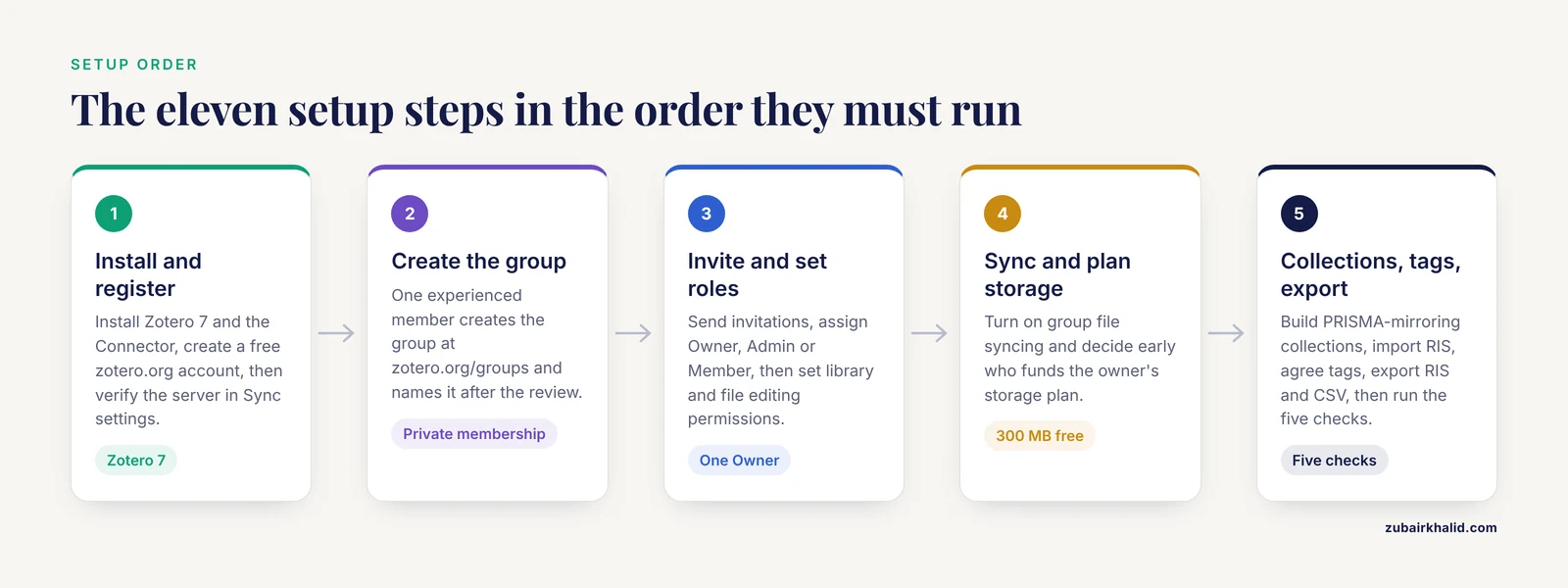
The sequence below is the zotero group library systematic review team step by step process from installation through verification. Do the steps in order, because permissions and syncing depend on the group existing first.
Step 1: Install Zotero and Create Accounts
Each team member does the following:
1. Download and install Zotero 7 from zotero.org
2. Install the Zotero Connector in your browser
3. Create a free account at zotero.org/register
4. In Zotero desktop, go to Edit > Settings > Sync (Windows)
   or Zotero > Settings > Sync (macOS)
5. Enter your zotero.org username and password in the
   "File Syncing" area, then click "Verify Server"
Expected result: a short confirmation that the username and password were accepted, and the sync icon (a circular arrow in the top right of the Zotero window) becomes active. If a team member skips account creation, they will see a sync error later, so confirm this step before proceeding.
Step 2: Create the Group
One person should create the group. Choose the most experienced member who will stay with the project, because group storage billing and ownership transfer depend on this account.
1. Log in at zotero.org
2. Go to zotero.org/groups
3. Click "Create a New Group"
4. Enter a group name, for example: "Smith-2026-Adherence-Trajectories-Review"
5. Select the group type (see the table below)
6. Click "Create Group"
Use a name that identifies the review, because teams often run several groups at once. An academic library that operates a systematic review core reported more than twenty ongoing reviews within eighteen months of launching the service [9], and distinct group names per review keep that kind of workload organized.
Step 3: Choose the Group Type
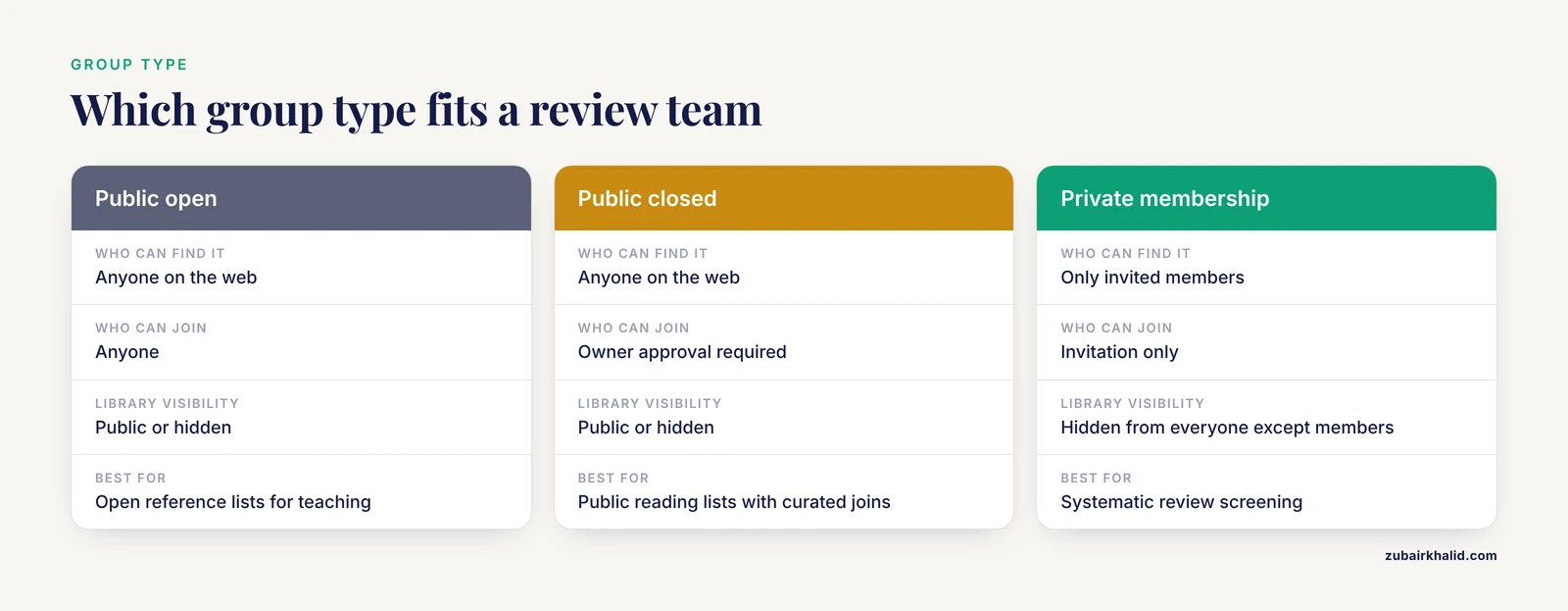
Zotero offers three group types. This table summarizes the key options:
| Group type | Who can find it | Who can join | Library visibility | Best for |
|---|---|---|---|---|
| Public, open membership | Anyone on the web | Anyone | Public or hidden | Open reference lists for teaching |
| Public, closed membership | Anyone on the web | Owner approval required | Public or hidden | Public reading lists with curated joins |
| Private membership | Only invited members | Invitation only | Hidden from everyone except members | Systematic review screening |
For a systematic review team, choose Private membership. Screening decisions and exclusion reasons are working data, and an unpublished review should not be publicly visible before the manuscript is ready. A private group also avoids any confusion between provisional inclusions and the final included studies list reported under PRISMA 2020, which is the reporting standard most recent reviews state they follow [1] [10].
Step 4: Invite Members and Assign Roles
1. On the group page at zotero.org, click "Manage Members"
2. Click "Send More Invitations"
3. Enter each member's zotero.org username or email
4. Assign a role: Owner, Admin, or Member
5. Click "Send Invitations"
6. Each member accepts the invitation from the link in their
   email, or from zotero.org/settings/groups when logged in
Role guidance for a review team:
- Owner. The principal investigator or the person whose storage plan will hold the group's PDFs. There is exactly one.
- Admin. The information specialist or librarian managing the search and deduplication process. An academic librarian co-managing a review is a common and productive arrangement, and dedicated librarian-led review services have formalized exactly this role [9].
- Members. Screeners and data extractors. Grant them edit rights only if you want them adding items and tags directly in the group library.
Larger and more heterogeneous teams, including the kind of mixed researcher, trainee, clinician, and patient partner teams described in co-production case studies [5], benefit from keeping most members at read-only access with a small number of designated screeners doing the tagging.
Step 5: Configure Library Permissions
On the group page at zotero.org, open the group settings:
1. Click "Group Settings" > "Library"
2. Under "Library Reading", set who can read the library
   (choose "Anyone" only for public groups, otherwise "Members")
3. Under "Library Editing", set who can add, edit, and remove items
   (choose "All group members" or "Admins only")
4. Under "File Editing", set who can add and delete attachments
   (match your Library Editing choice)
For most review teams, a practical configuration is Library Editing set to "All group members" with a written team rule about what members may delete. If your screeners will only tag and not import, set editing to "Admins only" and have the information specialist handle all imports.
Step 6: Turn On Syncing and Plan Storage
On every member's computer:
1. Open Zotero > Edit > Settings > Sync
2. Under "File Syncing", check
   "Sync attachment files in My Library using: Zotero" (optional, personal files)
3. Check "Sync attachment files in group libraries using Zotero"
4. Click "Sync Now" from the circular arrow icon
Storage planning is the part teams most often underestimate. A review that includes and stores full texts for hundreds of studies, with PDFs commonly running several hundred kilobytes to several megabytes each, will pass Zotero's free 300 MB quota quickly. Group library files count against the group owner's quota, so decide early whether the owner needs a paid storage plan and who funds it. If you expect very large PDF volumes, have screeners request full texts through institutional access and attach only the records your protocol actually requires, or store supplementary files in a separate institutional repository and keep Zotero focused on the bibliographic records and core PDFs.
Step 7: Build Collections That Mirror Your PRISMA Flow
Inside the group library, create a collection hierarchy that matches your review's stages:
Top-level collection: Smith 2026 Adherence Review
  01-All-Retrieved
  02-Duplicates-Removed
  03-Title-Abstract-Screening
  04-Full-Text-Retrieved
  05-Full-Text-Assessed
  06-Included
  07-Awaiting-Decision
This structure maps directly onto the PRISMA flow diagram your manuscript will need, which counts records identified, screened, excluded, retrieved for full text, and finally included [1] [10]. Items in Zotero can live in multiple collections, so a record can sit in 01-All-Retrieved for provenance and also in 03-Title-Abstract-Screening while it is under review. Removing an item from one collection does not delete it from another.
Step 8: Import Search Results the Right Way
Each database and each information specialist exports results in a standard exchange format. RIS is the most common. A typical RIS record looks like this:
TY  - JOUR
TI  - Example Article Title About Medication Adherence
AU  - Example, Author
PY  - 2022
JO  - Systematic Reviews
DO  - 10.0000/example.doi
ER  -
Import steps:
1. In Zotero, select the target collection, for example 01-All-Retrieved
2. Go to File > Import
3. Choose the exported RIS or BibTeX file
4. Confirm "Place imported collections and items into new collection"
   is handled according to your team's rule, then click "Continue"
Expected result: a dialog showing how many records were imported, and the items appearing in the selected collection with titles, authors, and DOIs populated.
For individual papers, use the Zotero Connector in your browser. Clicking the Connector icon on a journal article page captures the metadata and, when the publisher allows it, the PDF. For records you already have as DOIs, use the magic wand icon ("Add Item by Identifier") in the toolbar, paste the DOI string, and press Enter. Zotero retrieves the full metadata automatically.
One caution about duplicates. Screening teams usually remove duplicates in a dedicated screening tool before or during title screening, because the duplicate counts feed the PRISMA flow diagram. Zotero's duplicate detection works most reliably in your personal My Library, so a common team practice is to deduplicate large exports outside Zotero, or to sort the group library by title and DOI and flag suspected duplicates with a tag for an admin to resolve. Either way, record the number of duplicates removed, because that number goes into your published flow diagram.
Step 9: Agree on a Tag Vocabulary Before Screening Starts
Tags are how a Zotero group library records screening decisions. Agree on the vocabulary in writing before anyone screens, and put the list in your protocol documentation:
# Screening status
awaiting-title-screen
title-include
title-exclude
awaiting-fulltext
fulltext-include
fulltext-exclude

# Exclusion reasons (apply exactly one)
excl-off-topic
excl-wrong-population
excl-wrong-intervention
excl-wrong-design
excl-wrong-language

# Workflow flags
needs-fulltext-pdf
second-reviewer-done
consensus-resolved
data-extracted
quality-assessed
This scheme supports the dual independent screening that protocols require [2] [3] and makes disagreement visible. A saved search (called a smart search in Zotero) finds records awaiting their second reviewer:
Saved search name: Awaiting Second Review
Match all of the following:
  Tag  is  title-include
  Tag  does not contain  second-reviewer-done
Any item matching that search appears in the saved search folder automatically, which is how the second reviewer picks up their queue without asking around the team.
Step 10: Export for Screening Tools and PRISMA Counts
Most dedicated screening platforms import RIS directly. Export from Zotero:
1. Select the collection or saved search to export
2. Right-click > Export Collection
3. Choose format: RIS, and check "Export Notes" if your team
   records decisions in notes
4. Save the file, then upload it to your screening platform
For the PRISMA flow diagram, export the same collection as CSV and count records with a short script. This example counts retrieved records and duplicates removed by DOI:
import pandas as pd

records = pd.read_csv("all_retrieved_export.csv")
records["doi"] = (
    records["DOI"].astype(str)
    .str.strip()
    .str.lower()
    .str.replace("https://doi.org/", "", regex=False)
)

n_retrieved = len(records)
n_unique = records.drop_duplicates(subset=["doi"]).shape

print(f"Records retrieved: {n_retrieved}")
print(f"After deduplication: {n_unique}")
print(f"Duplicates removed: {n_retrieved - n_unique}")
Expected output for a mid-sized review:
Records retrieved: 3412
After deduplication: 2987
Duplicates removed: 425
Those three numbers are exactly the first rows of a PRISMA flow diagram. Your screening platform then reports the exclusions at title and full text, and the final included count matches what your synthesis stage pools, as in a meta-analysis that ended with 22 studies and 45 effect sizes [1] or a hamstring injury meta-analysis that pooled data from 63 included articles [11].
Step 11: Verify the Setup Works
Before real screening begins, run a five-minute test:
- One member adds a test item with a PDF attachment to the group library.
- Every other member clicks the sync arrow and confirms the item and PDF appear and open.
- One member tags the item and confirms the tag syncs to everyone else.
- Export a two-item collection as RIS and open the file in a text editor to confirm the RIS fields are present.
- Check the group storage usage on the owner's zotero.org account page so you know your starting quota.
If all five checks pass on every machine, your library is ready for the real search results.
Error Messages You Will Hit and How to Fix Them
"You do not have permission to add items to this group library." The member's role or the group's Library Editing setting blocks the action. The owner opens Group Settings on zotero.org and either changes Library Editing to "All group members" or promotes that person to Admin.
A storage limit warning during sync, stating that the account has reached its storage limit. The group owner's quota is full. Fixes, in order of cost: remove attachments from items that no longer need full texts, ask the owner to upgrade to a paid Zotero storage plan, or move large supplementary files to an institutional repository and keep only bibliographic records and core PDFs in the group.
A sync conflict dialog listing an item with conflicting versions. Two members edited the same item while offline. Choose the version with the more complete metadata, or use the merge option when offered, then re-sync. Conflicts are rare once the team tags rather than rewrites item metadata.
"Zotero could not find any identifiers" from the magic wand. The pasted DOI or PubMed ID is malformed, or it was copied with surrounding text. Paste the identifier alone, for example 10.1136/bjsports-2022-106037 style strings with no extra characters, and retry. If a paper has no DOI, import it through the browser Connector on the publisher page or add the fields manually.
"Invalid username or password" on sync. The member mistyped credentials or is syncing before verifying the account. Have them click "Verify Server" in Sync settings. Password resets happen at zotero.org.
Common Mistakes and Limitations
These are the zotero group library systematic review team common mistakes that cause the most rework:
- Creating a public group by accident. Public groups can expose your whole working dataset, including exclusion reasons and preprints, to anyone on the web. Always confirm "Private membership" at creation.
- Sharing one person's login instead of using a group. When five reviewers work under one account, Zotero cannot attribute edits, storage is consumed unpredictably, and any password change locks out the whole team. Groups exist precisely to avoid this.
- Making the least senior person the owner. If the owner graduates or leaves, storage upgrades and membership management stall. Put the library under the stable institutional account of the principal investigator, and transfer ownership before a departing owner loses access.
- Importing directly into the final Included collection. Records must pass through your screening-stage collections so the PRISMA flow diagram remains auditable [1] [10].
- Free-tagging without a vocabulary. If one reviewer writes
excluded-dupand another writesduplicate, your exclusion counts will not add up. Publish the tag list and correct off-list tags during a weekly audit. - Skipping the storage plan. A team that uploads hundreds of PDFs without checking quota discovers the problem mid-screening, when attachments stop syncing and reviewers work from incomplete libraries.
- Assuming the group library replaces a screening platform. Zotero stores and organizes references and PDFs, and it exports beautifully, but blinded dual screening, per-record conflict tracking, and audit logs are the job of dedicated tools. Reviews increasingly pair reference libraries with automated prioritization and screening software [7], and Zotero's RIS export is the bridge between them.
- No backup outside Zotero. Monthly, export the full group library as BibTeX or RIS plus a folder of PDFs and archive it in your institutional drive. This is your insurance if a member leaves, storage lapses, or you need a snapshot at a protocol-defined search date.
One honest limitation of any reference library: it records decisions, but it does not make them. Your review's scientific validity comes from the protocol, the search strategy, the eligibility criteria, and the independent dual screening that the literature consistently specifies [2] [3], supported by formal methods training when the team is new to the work, such as the online systematic review methods courses developed by the Campbell Collaboration [12].
Zotero Compared With Other Reference Management Software
A brief citation manager comparison, since teams often choose during the planning stage:
- Zotero is free and open source, has a polished browser Connector, and its group libraries are built into the platform with role-based permissions at no extra subscription cost beyond optional storage upgrades. For a team on grant-limited or zero budget, this is usually the deciding factor.
- Mendeley offers shared groups and integrates with a large publisher ecosystem, but group features and storage have changed over the years, and teams relying on free-tier sharing have hit caps.
- EndNote provides robust shared libraries and deep Word integration that many clinical teams prefer, but it is paid software, and every collaborator needs a license, which gets expensive for large or international teams.
- Rayyan, Covidence, and similar tools are not full reference managers. They handle screening and conflict resolution, and most teams pair one of them with Zotero or EndNote rather than replacing either.
For a systematic review team that needs a shared, permission-controlled, free-to-start reference store with clean RIS and CSV exports, Zotero group libraries are the most accessible starting point, and the setup takes under an hour.
Frequently Asked Questions
Can my whole team use Zotero for free?
Yes. The desktop application, browser Connector, group libraries, and a modest storage allowance are free, and any member can participate without paying. The only cost that typically arises is a storage upgrade for the group owner when your PDF collection exceeds the free quota.
Who pays for storage in a Zotero group library?
The group owner does. Files uploaded to a group library count against the owner's personal Zotero storage quota, not against each member's quota, so budget for the owner's plan before the full-text retrieval stage begins.
Should we share one Zotero account instead of making a group?
No. A shared login destroys edit attribution, breaks storage accountability, and locks everyone out whenever the password changes. A private group library gives each member their own account with role-based access and takes minutes to configure.
Can we deduplicate references inside the group library?
Partially. Duplicate detection and merging work most reliably in your personal My Library, so most teams deduplicate large multi-database exports in a screening tool or script before import, or flag suspected duplicates with a tag for an admin to resolve, and record the count for the PRISMA flow diagram.
How do we move records from Zotero into a screening tool like Rayyan?
Right-click the collection or saved search, choose Export Collection, select the RIS format, save the file, and upload it to the screening platform. RIS is the standard exchange format that screening tools accept, and it carries titles, authors, abstracts, and DOIs.
What happens if the group owner leaves the team?
Transfer ownership before they lose access. On the group settings page, the owner can promote an admin to owner. If ownership is already lost, contact Zotero support with documentation of the project, but the far better move is planning the handoff at the start, typically to the principal investigator's institutional account.
Can we sync group library attachments to our own WebDAV server?
No. WebDAV file syncing in Zotero applies to your personal My Library. Group library attachments sync through Zotero's own storage and count against the group owner's quota, which is one more reason to plan storage deliberately.
How is a Zotero group library different from EndNote or Mendeley sharing?
Zotero's group libraries are free, permission-controlled, and integrated with the same sync system you use personally, whereas EndNote sharing requires paid licenses and Mendeley sharing operates within its own platform's limits. For a systematic review team on a budget that needs roles, private libraries, and standard exports, Zotero's model is usually the simplest to administer.
Sources
- Effects of Perceptual-Cognitive Training on Anticipation and Decision-Making Skills in Team Sports: A Systematic Review and Meta-Analysis
- What methods are used to study the association between medication adherence trajectories, estimated with the group-based trajectory modeling (GBTM) method, and health-related outcomes?-a protocol for a systematic review
- Optimal reconstruction methods after distal gastrectomy for gastric cancer: a protocol for a systematic review and network meta-analysis update
- Simulation-Based Emergency Team Training in Pediatrics: A Systematic Review.
- Co-production of a systematic review on decision coaching: a mixed methods case study within a review
- Team-Based Care and Patient Satisfaction in the Hospital Setting: A Systematic Review.
- Automated tools for systematic review screening methods: an application of machine learning for sexual orientation and gender identity measurement in health research
- A bibliometric and systematic review of public library user experience studies: trends and future directions
- Building the Systematic Review Core in an academic health sciences library
- The efficacy of team-based learning in developing the generic capability of problem-solving ability and critical thinking skills in nursing education: A systematic review.
- Incidence and prevalence of hamstring injuries in field-based team sports: a systematic review and meta-analysis of 5952 injuries from over 7 million exposure hours
- Introducing an online training course in Campbell systematic review methods