How to Deduplicate Your Reference Library in Zotero
By Dr. Zubair Khalid, DVM, MS, PhD ·

By the end of this guide, you will be able to find every duplicate pair in your Zotero library, merge them without losing PDFs, notes, or tags, verify that the cleanup worked, and decide whether Zotero's built-in tools are enough for your project or whether you need a dedicated deduplication workflow. You need the Zotero desktop application (version 6 or 7, free from zotero.org) installed on your computer, a few minutes of uninterrupted attention, and a backup of your library before you change anything.
Duplicate references are the most common hygiene problem in any reference management software. They waste your time during writing, inflate the record counts you report in systematic reviews, and can produce two different citation numbers for the same paper in a document. The good news is that Zotero handles most of this work for you. The better news is that knowing exactly how its duplicate detection works lets you catch the cases it misses.
Why duplicates pile up in Zotero
Duplicates enter a Zotero library through predictable routes:
- You import the same paper from more than one database. PubMed gives one metadata record, Scopus gives another, and Google Scholar gives a third, so Zotero treats them as three items.
- You save an item twice from the browser connector, once from the publisher landing page and once from the PDF viewer.
- You import a PDF, let Zotero retrieve its metadata, and later add the same paper manually or by DOI (Digital Object Identifier, the persistent alphanumeric identifier assigned to most scholarly articles).
- A preprint and its published journal article both enter the library. Zotero stores them as different item types, so it will not flag them as duplicates.
- Collaborators in a group library each add the same reference independently.
Reference deduplication is a real methodological problem, not just a tidy-up chore. A study that compared de-duplication methods for systematic review references found that the accuracy of common electronic tools varies considerably, and that no single default setting catches everything [1]. That finding applies to everyday libraries too. Zotero's detector is good, but it is not magic, and understanding its matching rules is the foundation for using it well.
Step 0: Back up your library before merging
Merging in Zotero is designed to be safe, but a cleanup that touches hundreds of items deserves a safety net. Do this first, every time.
- Open the Zotero desktop app.
- Right-click My Library in the left sidebar.
- Choose Export Library.
- Check Export Notes and Export Files if you use PDFs and notes.
- Choose the Zotero RDF format (it preserves the most Zotero-specific data) and save the file to a folder outside your library, such as your desktop or a cloud drive.
If you sync your library through Zotero's servers, syncing before you start also gives you a restore point, because sync keeps a record of changes. The export is your local, offline backup. Five minutes here protects years of collected references.
How to deduplicate your reference library in Zotero, step by step
This walkthrough uses the built-in Duplicate Items pane, which is the core tool for Zotero deduplication. Follow the steps in order.
Step 1. Open the Duplicate Items pane
In the left sidebar of the Zotero window, find the section under your library called Duplicate Items. Click it. Zotero immediately scans your library and shows every item that matches at least one other item under its detection rules. The center pane now lists the duplicate sets.
A typical view looks like this when you first open it:
Duplicate Items (12)
  Smith J, Lee K. Tumor microenvironment signaling in...
    2021 | Nature Reviews Cancer | has attachment
    2021 | Nat Rev Cancer       | 2 notes, no attachment
  Okafor P. Machine learning approaches to protein...
    2020 | Bioinformatics | PDF attached
    2020 | Bioinformatics | PDF attached
Each cluster shown here is one duplicate set, meaning two or more items Zotero believes describe the same work. The number in parentheses, here 12, is the total number of items involved, not the number of sets.
Step 2. Work through one duplicate set at a time
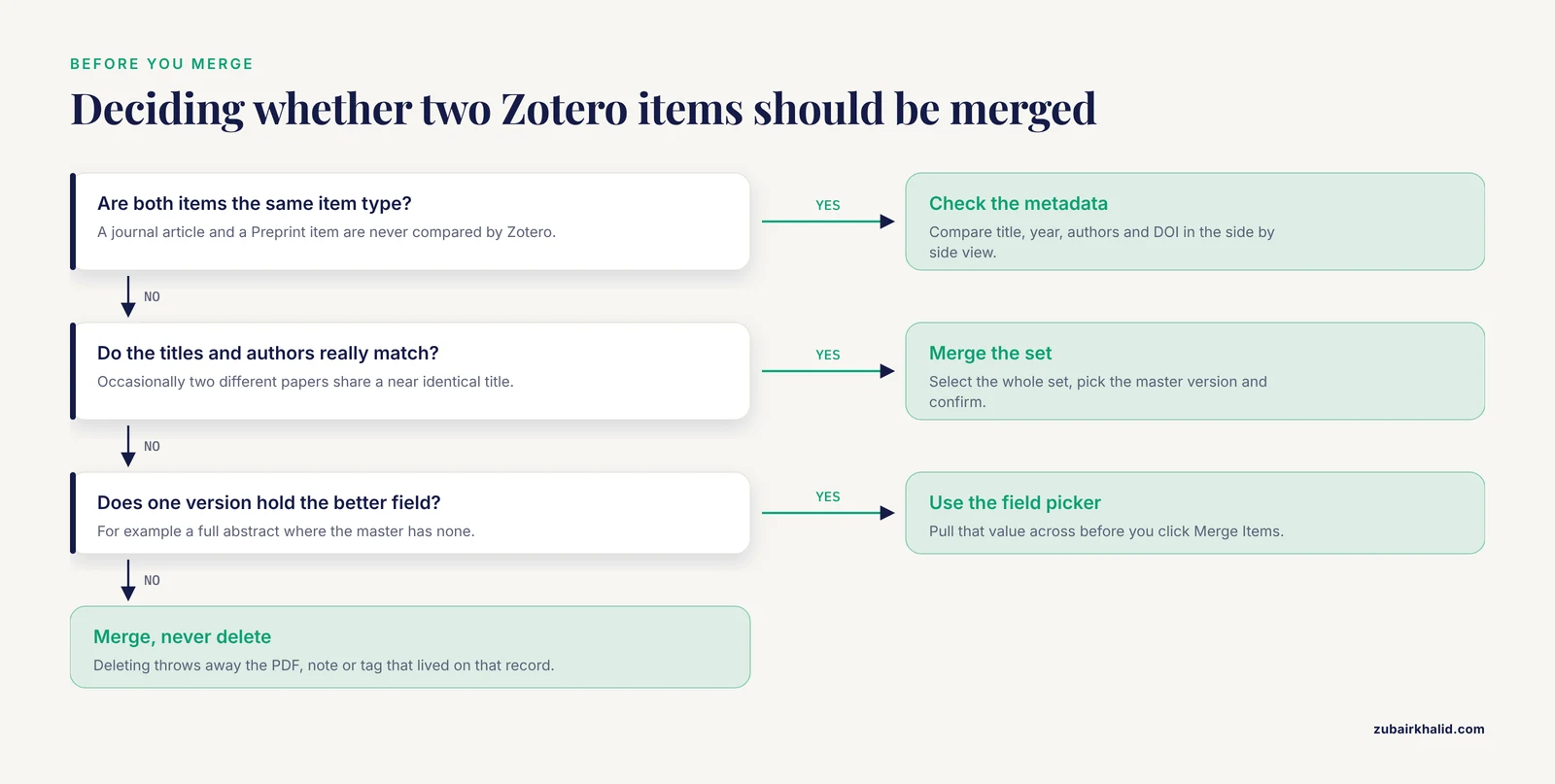
Click the first title in the pane. Zotero displays the duplicate versions side by side in the right panel so you can compare their fields. Confirm that the items really are the same work. Nine times out of ten they are. Occasionally you will find two genuinely different papers with nearly identical titles, or a conference paper and its journal extension, and those should not be merged. If the items are different, leave them. Zotero gives you no direct way to permanently dismiss a pair, but unrelated items that you leave alone will simply reappear in the pane, so a quick mental note of known false positives saves time on future cleanups.
Step 3. Choose the master version
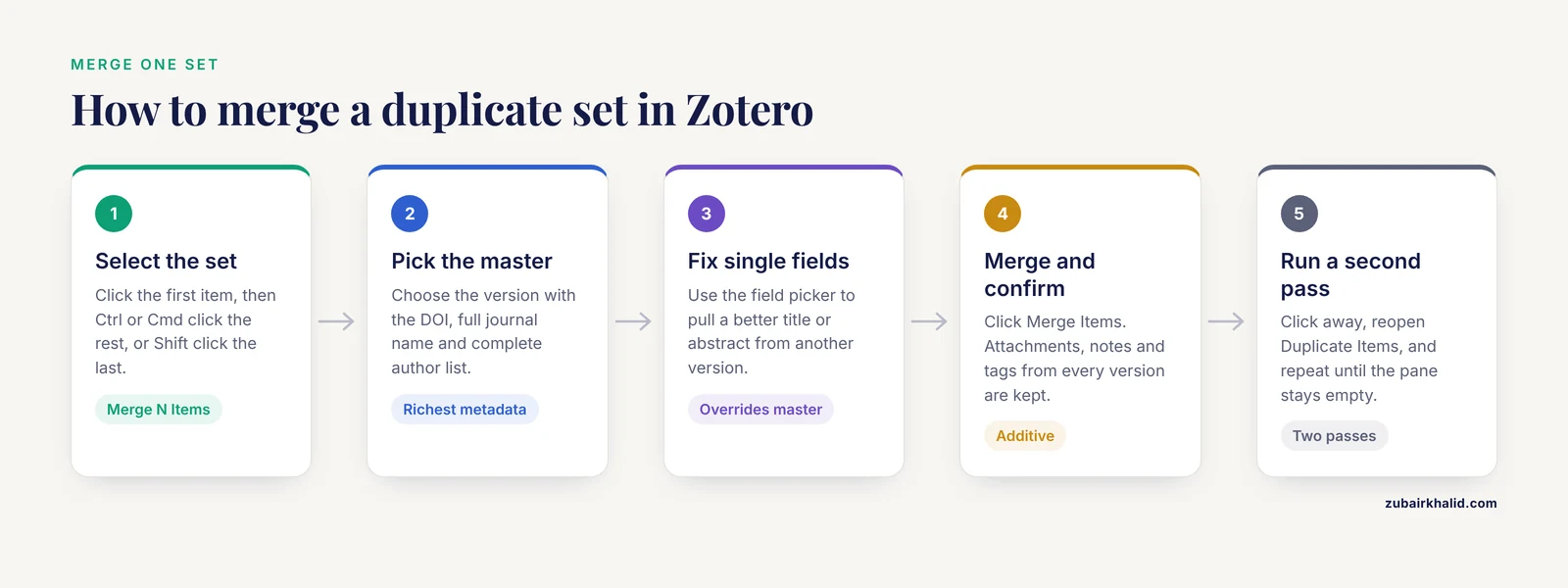
When you are ready to merge, select every version in the set. For a pair, click the first item, then hold Ctrl (Windows or Linux) or Cmd (Mac) and click the second. For a set of three or more, click the first, then Shift-click the last. With the full set selected, the button in the upper right of the item pane reads Merge N Items, for example Merge 2 Items or Merge 3 Items.
Click it. Zotero now asks you to pick the master version, the item whose metadata will be the base after the merge. Pick the version with the richest, most accurate metadata. A good default is the version with the DOI filled in, the full journal name rather than an abbreviation, and the complete author list. You can drag or click to reorder the candidate list, and the selected version's fields fill the preview.
If one version has a better title and another has a better abstract, you are not stuck. Under the preview, Zotero offers a field picker for each field.
| Field | Master version | Other version | Better choice |
|---|---|---|---|
| Title | Genetic determinants of X | Genetic determinants of x | Master (correct capitalization) |
| Date | 2019-04-02 | 2019 | Master (full date) |
| Journal | Nature Medicine | Nat Med | Master (full name) |
| DOI | 10.1000/xyz123 | (empty) | Master |
| Abstract | (empty) | Full abstract text | Other version |
Use the dropdown next to any field to pull in the value from another version. Anything you change here overrides the master.
Step 4. Merge and confirm the result
Click Merge Items. Zotero combines the records into one item. Critically, merging is additive for attachments, notes, and tags. If version A had the PDF and version B had two notes, the merged item has the PDF and both notes. Nothing childlike is thrown away. What can be lost is competing values in the same bibliographic field, which is why the field picker in Step 3 matters.
The merged item returns to your main library. The duplicate set disappears from the pane.
Step 5. Repeat, then run a second pass
Work down the pane set by set. When you reach the end, click away to another collection and click Duplicate Items again. This matters because Zotero recomputes duplicate sets as your library changes. Merging a trio can leave the survivor still duplicating a fourth record that did not match the original group, so a second and even third pass is standard practice for a thorough cleanup.
You are finished when the pane reports that no duplicate items were found, and a second pass immediately afterward reports the same thing.
Step 6. Verify with targeted searches
Zotero's detector catches near-identical records, but metadata disagreements can hide duplicates from it. Run a few spot checks:
- Sort your main library by Title and scroll through the alphabetical neighborhood of papers you imported more than once.
- Sort by Date if you did a burst of importing around one deadline.
- Use Ctrl+F (or Cmd+F) to search for a distinctive word from a title you suspect was imported twice. Exact duplicates with identical titles will surface side by side.
If Zotero's built-in view keeps coming back empty but you still suspect duplicates, the advanced options below cover larger or messier libraries.
How Zotero decides that two items are duplicates
Zotero's duplicate detection compares items within the same item type and looks for agreement across several fields. Strong signals include an identical DOI or ISBN, and closely matching titles. Publication year and author names factor in as well. The detector is deliberately tuned toward sensitivity for identical works, which means it occasionally shows you pairs that are not duplicates, and you confirm each merge by hand.
Three boundaries of the built-in detector shape your strategy:
- Different item types are not compared. A journal article and its preprint, stored as a Preprint item, sit in the same library without ever being flagged. The same applies to a book chapter and the book.
- Metadata quality drives detection. If one version has a typo in the title, a missing DOI, or a different transliteration of an author name, the pair may fall below the matching threshold.
- Detection is within a library or group. Items live in collections, but duplicates can sit in two different collections of the same library and still be matched. Duplicate detection operates on the library as a whole, which is a point in Zotero's favor over approaches that scan collection by collection.
These boundaries explain most "Zotero missed a duplicate" reports. The fix is not a better detector, it is a different detection unit, which brings us to bulk strategies.
Bulk strategies for large libraries
Merging by hand is fine for a library of a few hundred items with a dozen duplicate sets. For thousands of items, or for a systematic review with thousands of retrieved records, work at a different scale.
Reduce duplicates at the point of import
The cheapest duplicate is the one never created. Two habits help enormously:
- Add items by DOI, PubMed ID, or arXiv ID using the magic wand icon (Add Item by Identifier) instead of importing the same paper from several different databases. A single identifier produces a single, consistent record.
- Use a community plugin such as Zoplicate, which checks incoming items against your existing library as you add them and can offer to discard or merge duplicates at import time. Plugins install through Zotero's plugin manager and are maintained by the Zotero community, so check that a plugin is current for your Zotero version before relying on it.
Deduplicate before or during a systematic review
If your project is a systematic or scoping review, the stakes are higher, because the number of records you screen and the number you report as removed as duplicates are both part of your methods. The comparative study of deduplication methods, which tested default settings in Ovid multifile search, EndNote desktop, Mendeley, Zotero, Covidence, and Rayyan against a manually verified benchmark, found that Ovid multifile search, Covidence, and Rayyan were the most accurate methods overall. Ovid and Covidence showed the highest specificity, meaning the fewest wrongly merged records, while Rayyan showed the highest sensitivity, meaning it caught the most true duplicates [1]. Zotero with default settings performed less accurately than those three, so for a review protocol you should not rely on Zotero's Duplicate Items pane as your only deduplication step [1].
A sound workflow looks like this:
- Export records from each database in RIS format.
- Import them into a screening platform such as Rayyan or Covidence, or run database-level multifile deduplication if you search Ovid directly.
- Deduplicate there, document the number removed for your PRISMA flow diagram, and optionally export the deduplicated set back into Zotero for full-text management and citation writing.
Deduplication sits at the start of the screening pipeline, and the tools further down the pipeline can also save time. In a study of AI-assisted screening in ASReview, automated prioritization reduced the number of titles and abstracts a screener needed to review compared with manual screening of the full record set [2]. That stage only works correctly if deduplication upstream has already removed redundant records, which is one more reason to treat this step seriously in review projects.
Zotero compared with other citation managers
Because the choice of reference management software shapes your deduplication options, here is how the major tools line up. The accuracy findings come from the comparative benchmark, which evaluated each tool with its default settings on the same reference sample [1].
| Tool | Cost model | Deduplication approach | Benchmark performance [1] |
|---|---|---|---|
| Zotero | Free, open source | Built-in Duplicate Items pane, manual merge, plugins | Tested, less accurate than the top methods at defaults |
| EndNote (desktop) | Paid | Manual "Find Duplicates" with review dialog | Tested, not among the most accurate at defaults |
| Mendeley | Free with account | Automatic grouping of suspected duplicates | Tested, not among the most accurate at defaults |
| Rayyan | Free for screening | Systematic review screening platform with dedup module | Most accurate overall, highest sensitivity |
| Covidence | Paid subscription, review platform | Deduplication as part of review pipeline | Among the most accurate, highest specificity |
| Ovid multifile | Paid database platform | Deduplication at the database search stage | Among the most accurate, highest specificity |
For everyday writing, Zotero's combination of zero cost, open development, and a capable built-in detector is why it is the most recommended free option in citation manager comparisons. For formal evidence synthesis, the benchmark supports pairing Zotero with a dedicated screening platform rather than trusting any single desktop tool alone [1].
Common Mistakes and Limitations
These are the errors people actually make when they deduplicate references in Zotero, with the fix for each.
- Selecting everything in the Duplicate Items pane and merging. The pane shows many unrelated duplicate sets at once. Select all with Ctrl+A and click merge, and Zotero will merge every item in the view into one giant record. Select one set at a time, every time.
- Merging a preprint with its published version. Zotero will not even offer this pair, but people sometimes force it by editing one record to match the other. Keep them separate, or your citations will point to the wrong version of record. If you only want the published version, delete the preprint record rather than merging.
- Assuming merging deletes attachments or notes. It does not. Merged items keep attachments, notes, and tags from every version. The only thing you choose manually is which bibliographic field values survive.
- Trusting the pane count as a deduplication audit. The number Zotero reports reflects its matching rules, not ground truth. For a systematic review, the benchmark evidence shows default settings in desktop tools, including Zotero, miss duplicates and occasionally merge distinct records [1]. Document your method and, where the protocol requires it, verify a sample by hand.
- Doing one pass and stopping. Merges change your library, and changed libraries produce new candidate sets. Run at least two passes.
- Cleaning up without syncing first. If you use Zotero on two computers, clean up on a machine that has fully synced, or the same duplicate will reintroduce itself when the other machine syncs.
- Deleting duplicates instead of merging. Deletion throws away whichever PDF, note, or tag lived on the deleted record. Merge instead, and you lose nothing.
- Expecting duplicate detection across item types. Journal article versus preprint, book versus book chapter, and report versus journal article pairs are invisible to the detector. Sort by title and author for these.
One general limitation applies to every automated method in the benchmark study and every desktop tool, including Zotero. Automated deduplication is a screening aid, not a decision maker, and a human confirms each merge. Budget the manual review time accordingly.
How to check that the cleanup worked
A verified cleanup has three properties.
- The Duplicate Items pane is empty, and stays empty on a second pass five minutes later.
- Counts reconcile. If you record how many items were involved in duplicate sets before you started and how many merges you performed, the arithmetic should make sense. For example, if the pane listed 12 duplicate items arranged as five pairs and one trio, you should have performed six merges and removed six records, going from 12 to 6 surviving items in those sets.
- Spot searches come back clean. Search for the titles of the three or four papers you know you imported repeatedly. Each should now appear exactly once, with its PDF and notes attached.
For systematic reviews, also keep your export files and the deduplication report from your screening platform. Reviewers and journal editors increasingly ask for the numbers behind the "records removed before screening" box.
Next steps
Once your library is clean, keep it clean. Enable Zotero sync so every device works from one copy rather than accumulating parallel imports. Consider the Zoplicate plugin if you frequently add items by identifier from multiple sources. If a systematic review is on your horizon, set up Rayyan or Covidence early, run deduplication there as a distinct protocol step, and reserve Zotero for full-text storage, note taking, and citation insertion. And if your review will use AI-assisted screening, know that tools such as ASReview perform best on a deduplicated record set, because screening effort saved by automation should not be wasted on reviewing the same paper twice [2].
A deduplicated library is quieter to work in. Every search returns one paper, every citation resolves to one record, and the number in your PRISMA diagram is one you can defend.
Frequently Asked Questions
Does Zotero have a one-click button to deduplicate all references?
No. Zotero's Duplicate Items pane finds duplicate sets for you, but each merge is confirmed manually, one set at a time. This design protects you from wrongly merging distinct papers, but it means large libraries are cleaned up in batches rather than with a single click.
Why does Zotero miss some duplicates in my library?
Zotero only compares items of the same item type, and it relies on metadata agreement, so a journal article and its preprint, or two records with a typo in one title, can both escape detection. Sort your library by title and by date to catch these cases manually, and improve detection by adding complete metadata, especially DOIs, to your records.
Will merging duplicates delete my PDFs, notes, or tags?
No. When you merge duplicate items, Zotero combines the attachments, notes, and tags from every version into the surviving record. The only values at risk are competing entries in the same bibliographic field, and you choose which value wins with the field picker during the merge.
How do I stop duplicates from being created in the first place?
Add items by DOI or PubMed ID with the Add Item by Identifier tool rather than importing the same paper from several databases, and let Zotero sync fully before adding items from a second computer. A community plugin such as Zoplicate can also check new imports against your existing library and flag duplicates at the moment you add them.
Is Zotero's deduplication good enough for a systematic review?
Not on its own. A comparative benchmark of deduplication methods found that Zotero at default settings was less accurate than Ovid multifile search, Covidence, and Rayyan, which were the most accurate methods tested [1]. For a formal review, deduplicate in your screening platform, document the number of duplicates removed, and use Zotero for managing the full texts that survive screening.
Can Zotero deduplicate items across different groups or libraries?
Duplicate detection runs within a single library, so it covers all collections in that library, but it does not compare items across separate group libraries or between your personal library and a group library. If your project spreads records across multiple libraries, consolidate them into one library before you deduplicate.
What is the fastest keyboard workflow for merging duplicates in Zotero?
Click the first item in a duplicate set, Shift-click the last item to select the whole set, press the Merge button, pick the master version, adjust fields if needed, and confirm. Then move to the next set. Avoid Ctrl+A for this, because it selects every set in the pane and would merge unrelated items together.
How does Zotero compare with EndNote and Mendeley for handling duplicate references?
All three are reference management software with built-in duplicate detection and a manual merge review, and all three were tested at default settings in the same comparative study without ranking among the most accurate methods [1]. Zotero is free and open source, EndNote is paid, and Mendeley is free with an account, so for most researchers the choice comes down to ecosystem and workflow rather than deduplication ability, with dedicated platforms like Rayyan and Covidence providing the extra accuracy that formal reviews demand.
Further Reading
- Imaging-derived coronary fractional flow reserve: advances in physics-based, machine learning, and physics-informed methods.
- Costs of surgeries in low- and middle-income countries: a systematic literature review.