Zotero Connector Browser Extension: Step-by-Step Guide
By Dr. Zubair Khalid, DVM, MS, PhD ·

By the end of this guide you will be able to install the Zotero Connector browser extension, save journal articles, web pages, and PDFs into your Zotero library with one click, send formatted citations directly into Google Docs or Microsoft Word, and fix the most common saving errors. You will need the Zotero desktop application installed, a supported browser such as Firefox, Chrome, Edge, or Safari, and about twenty minutes. A free Zotero account is optional but recommended if you want your library to sync across devices.
What the Zotero Connector Actually Does
The Zotero Connector is the official browser extension for the Zotero reference management software. Zotero itself is a free, open-source citation manager developed by the Corporation for Digital Scholarship, a nonprofit organization. The desktop application stores your library of references, PDFs, notes, and screenshots. The Connector extends that library to your browser so that whenever you are reading a journal article, a preprint, a news story, or a database search result, you can capture the record and its attached PDF without typing anything by hand.
When you click the Connector icon, it reads the page you are viewing and detects the metadata embedded in it. Modern scholarly pages carry embedded metadata in standards such as Highwire Press tags, Dublin Core, or the Citation Typing Ontology (CiTO) markers used by many publisher sites. The Connector translates that metadata into a Zotero item of the correct type, such as a journal article, a book, a web page, or a conference paper, and saves it straight into your desktop library. On publisher pages that provide PDFs, the Connector also downloads the full text and attaches it to the record, provided you have institutional access or the paper is open access.
If you have ever spent an afternoon retyping author names and DOIs from a database into a reference manager, the Connector replaces that entire workflow. One click on a publisher page, an arXiv listing, a PubMed abstract, or a Wikipedia article produces a clean record with authors, title, year, journal, DOI, and abstract already populated.
The Connector also handles proxy access. Many universities route journal access through an authenticated proxy URL, and Zotero's proxy detection learns that pattern after the first off-campus article you save. After that, the Connector can automatically rewrite future links through your institution's proxy so that PDFs download even when you open them from search results.
What You Need Before You Start
Complete these three prerequisites in order. Each takes a couple of minutes.
- Install the Zotero desktop application for your operating system from the official download page at zotero.org/download. Version 7 is the current major release for Windows, macOS, and Linux.
- Open Zotero once and leave it running. The Connector communicates with the desktop app through a local connection on your own computer. If Zotero is closed, the extension can still save records to zotero.org, but PDFs and full integration require the desktop app.
- Confirm you have administrator rights on the computer if you are on a managed machine, because browser extensions install at the browser level and the desktop app installs system wide.
Installing the Connector Step by Step
This walkthrough covers Chrome, Edge, and Firefox. Safari follows the same logic with a permissions step described at the end.
Step 1. Download the Connector
Go to the Zotero download page and click the button matching your browser. The site detects which browser you are using and shows the correct button first. For Chrome and Edge, this sends you to the Chrome Web Store listing. For Firefox, it opens the Firefox Browser Add-ons page.
Step 2. Install and Confirm Permissions
In the browser store, click the install or add button. The browser will show a permissions prompt listing what the Connector can do, such as reading the content of pages you visit and communicating with the Zotero application. These permissions are what allow the extension to detect citation data on any page and pass it to the desktop app. Accept the prompt to finish the installation.
On Safari, after installing, you must also open Safari's settings, go to the Extensions pane, select Zotero Connector, and set the permission level so the extension is allowed on all websites. Without this step, the Connector cannot read article pages and will appear grayed out.
Step 3. Verify the Toolbar Icon
After installation, look for the Zotero icon in your browser toolbar. The icon changes shape depending on what it detects on the current page.
- A page icon means the Connector recognized a single item, such as a journal article or book record, and can save it.
- A folder icon means the Connector detected several items on the page, such as a database search results list, and clicking it will show checkboxes for each result so you can choose which ones to save.
- A generic Z icon means no structured data was detected, and the Connector will save the page as a simple web page record with a snapshot.
If you do not see the icon, click the puzzle-piece icon in Chrome or Edge and pin Zotero Connector to the toolbar.
Step 4. Save Your First Item
Open any article page. A good test case is a paper on a publisher site or a record in PubMed. Click the Connector icon. You should see a small popup confirming the save with the item title, the destination collection, and a progress bar for the PDF if one is attached. The expected output is a new item in your Zotero desktop library within a few seconds, with the PDF attached and the metadata fields filled in.
To confirm the result, switch to the Zotero desktop app, select My Library, and check that the new item appears at the top of the center pane. Click the item and look at the right-hand pane. Authors should be split into separate first and last name fields, the title should be in the Title field, and the DOI should be in its own field. If everything landed in the right place, your installation works correctly.
Step 5. Sign In to Syncing (Optional but Recommended)
Click the gear icon in the Zotero desktop app, open Preferences or Settings, and go to the Sync pane. Enter your zotero.org username and password. Free accounts include generous storage for metadata, with file storage available in tiers, so you can sync references everywhere and choose whether to sync PDFs as well. Syncing matters for the Connector in one specific way. It enables the fallback mode where, if the desktop app is not running, the Connector saves directly to your online library at zotero.org.
Configuring the Connector: Settings That Matter
Open the Connector's preferences page to adjust behavior. In Chrome and Edge, right-click the toolbar icon and choose Options or Manage extension and then Details and Extension options. The settings you are most likely to touch are summarized below.
| Setting | Where it lives | What it controls |
|---|---|---|
| , - | , - | , - |
| Save to collection | Popup next to the save button | Which Zotero collection new items land in, with an option to ask every time |
| Automatic tags | General preferences | Whether subject keywords from the publisher are added as tags automatically |
| Associated snapshots | General preferences | Whether a saved copy of the web page is stored alongside the record |
| PDFs | General preferences | Whether full-text PDFs are downloaded when available |
| Proxy settings | Proxies pane | Automatic detection and rewriting of institutional proxy links |
| Keyboard shortcut | Advanced preferences | A customizable key combination to save the current page without moving the mouse |
Two of these deserve explanation. The snapshot option saves an archived copy of a web page inside your library, which protects you when a page changes or disappears. For news articles, government pages, and organizational reports that you cite, leave snapshots on. For journal articles where you already have the PDF, snapshots add clutter and you can turn them off.
The proxy setting deserves care. Zotero learns proxy patterns automatically the first time you follow a proxied link from your library. In the Proxies pane you can review which proxy hostnames Zotero has remembered and disable automatic proxy rewriting if it interferes with other sites on a shared computer. Zotero's own documentation warns that automatic proxy rewriting can cause problems when the same proxy configuration is shared across unrelated institutions, so review this pane if you use more than one library system.
Saving Different Kinds of Content
Journal Articles and Publisher Pages
On a publisher page, the Connector saves the article record, pulls the abstract and keywords, and attempts to download the PDF. Zotero 7 added an improved PDF retrieval path that works with most major publishers' open metadata. If you have access through your institution and are logged in through the browser, the Connector can typically retrieve the PDF in the same session. If a PDF is not found, the record still saves, and you can drag the PDF file onto the item in Zotero later to attach it manually.
Search Result Lists
On database results pages, the Connector shows the folder icon. Click it and a window appears listing every result on the page with checkboxes. Select the ones you want, or use the select-all option, and save them all in one action. This is the fastest way to build a literature review library from a Web of Science, Scopus, PubMed, or Google Scholar results page.
Google Scholar Caveats
Google Scholar works with the Connector, but its result pages do not always expose full metadata for every entry, so quality varies more than on publisher pages. A practical habit is to prefer saving from the publisher's own article page when both are available, then use Zotero's built-in metadata retrieval on any sparse records. In Zotero 7, right-click an item or use the Add Item by Identifier function, which accepts a DOI, ISBN, arXiv ID, or PubMed ID and fetches complete metadata automatically.
Web Pages, Reports, and Videos
When no structured metadata exists, the Connector saves a basic web page item with the URL, access date, and title. The title comes from the page, so check it and edit if the page used a clumsy headline. Add the site publisher and publication date by hand in the right-hand pane. For videos on YouTube and similar platforms, the Connector captures creator, title, and date where the page provides that data in its embedded metadata.
Right-Click Saving
Right-click anywhere on a page and look for the Zotero Connector entry in the context menu. It offers choices such as saving with a snapshot, saving to a specific collection, and saving a selection of text as a note with an automatic page citation. That last option is genuinely useful for quoting. Highlight a paragraph on a web page, right-click, save it as a note, and the note carries the link and access timestamp back into Zotero.
Using the Connector with Word Processors
Once the desktop Zotero app is installed, the Word for Windows, Word for Mac, LibreOffice, and Google Docs integrations become available. For Google Docs, the Connector adds a Zotero menu and a Zotero button inside the document editor. Click it, search your library in the red Zotero search bar, select a reference, and it inserts an in-text citation. Click again to insert a bibliography that stays linked to your citations.
A worked example shows the payoff. Type a sentence, click the Zotero button, search for an author's surname, pick the reference, and Google Docs inserts something like (Alvarez 2019). When you add a second citation and click Refresh, Zotero updates every citation and the bibliography in one pass. If you switch a document from APA to Chicago style, changing the style once in the Zotero document preferences rewrites every citation in the document to the new format. That single feature can save hours on a thesis or manuscript revision.
Troubleshooting: Exact Errors and Fixes
These are the errors you are most likely to hit, with the wording you will actually see and the fix for each.
The Connector Cannot Reach Zotero
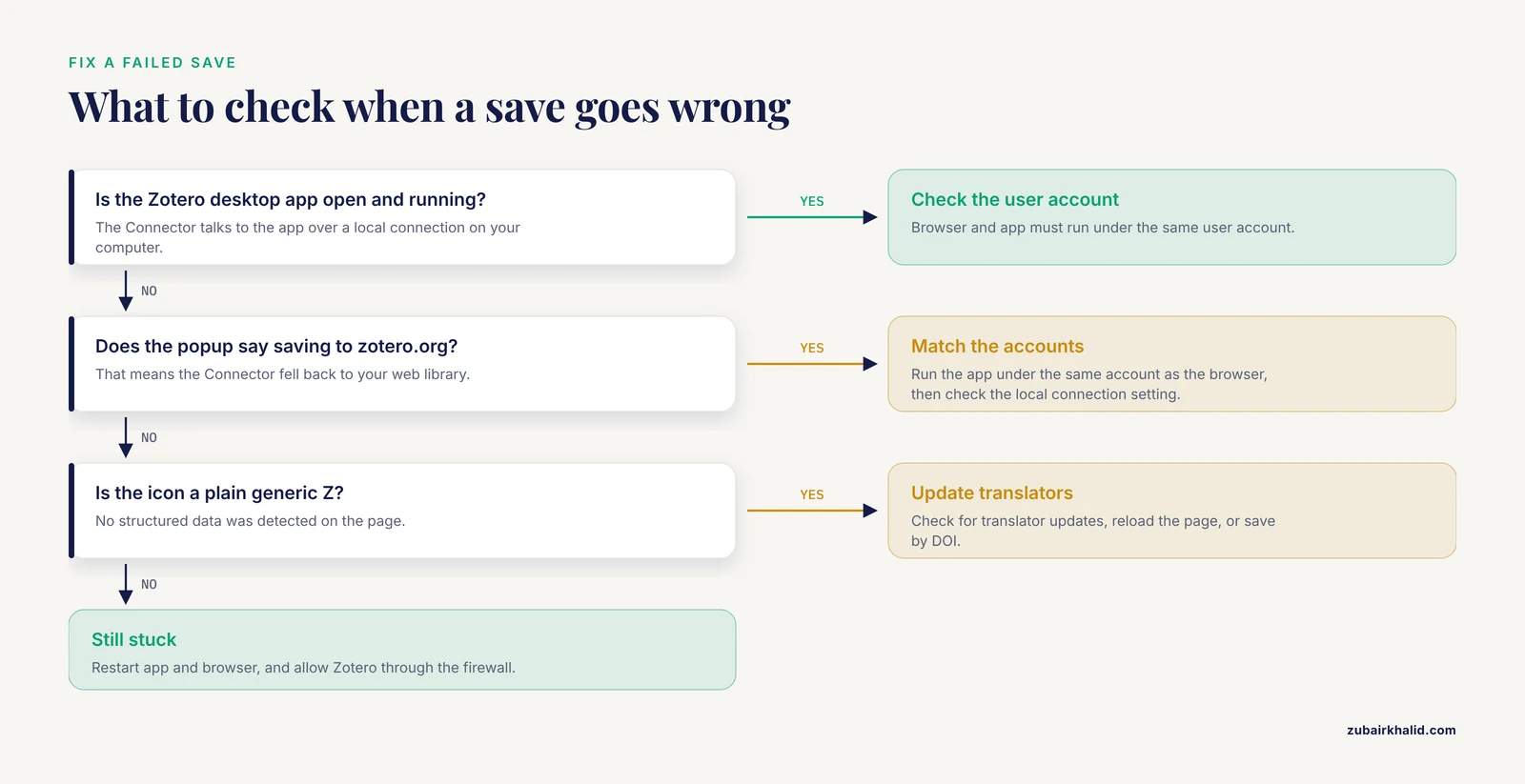
You click save and the popup reports that the Zotero Connector was unable to communicate with the Zotero application, or you see a message that Zotero is currently offline. The cause is almost always that the desktop app is closed, or that it was launched in a way that blocks the local connection. Fix: open the Zotero desktop app and try again. If the app is open and the error persists, restart both the app and the browser. On rare occasions a system firewall blocks the local port the Connector uses, and allowing Zotero through the firewall resolves it.
Saves Go to zotero.org Instead of Your Library
If the popup says saving to zotero.org, the Connector has not found the desktop app and is falling back to your web library. This happens when Zotero is closed or when the browser and the app were installed under different user accounts. Fix: make sure the desktop app is running under the same user account as the browser, then check in the Connector preferences that the local application connection is enabled.
The Icon Stays Generic on an Article Page
When you expect a page or folder icon but see only the plain Z, the page's embedded metadata is missing or the Connector's translators have not updated. Zotero's translators, the small scripts that read each site's structure, are updated continuously and the Connector pulls updates automatically. Fix: check for translator updates in the Connector preferences, reload the page, and try again. For stubborn pages, right-click and save the URL, then use Add Item by Identifier in Zotero if you have the DOI.
PDF Download Fails
The record saves but the PDF attachment does not appear. The usual causes are no institutional access to that journal, an off-campus session that is not logged in through the proxy, or a publisher page structure the retriever cannot parse. Fix: confirm you can open the PDF in the browser itself. If you can and the Connector still misses it, download the PDF manually and drag it onto the item in Zotero. Then use Zotero's Retrieve Metadata for PDF function if the record itself is missing.
Duplicate Items Pile Up
Saving the same article from the abstract page and then again from the PDF view creates two records. Zotero flags duplicates in the Duplicate Items pane, where you can merge them and their attachments. Fix routinely: empty that pane every week or two rather than letting hundreds of duplicates accumulate.
How Zotero Compares with Other Citation Managers
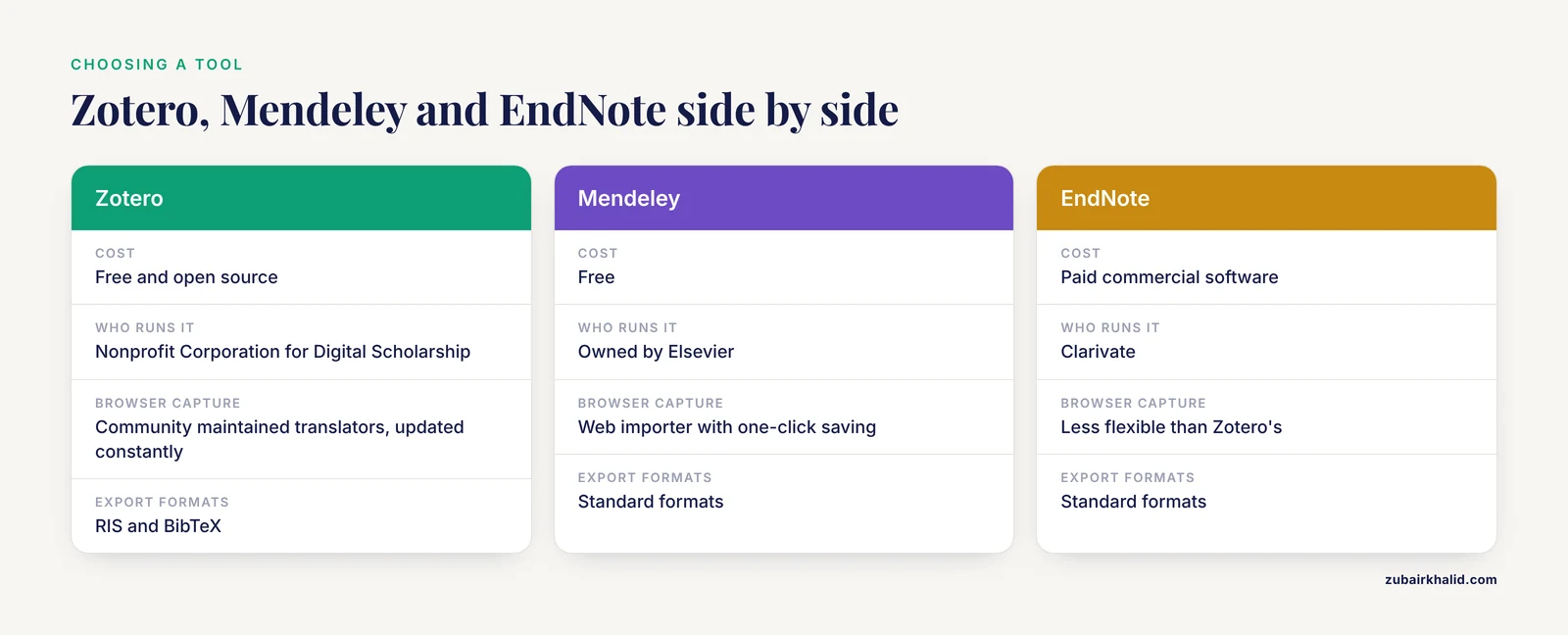
Zotero is one of several major reference management software packages. A brief citation manager comparison helps you judge whether the Connector workflow fits your situation.
Mendeley is owned by Elsevier and offers a web importer with similar one-click saving. Its strengths are integrated social features and generous reference storage, though its PDF annotation tools moved to the separate Mendeley Reference Manager application. EndNote, from Clarivate, is the long-standing commercial standard in many biomedical departments, with deep Microsoft Word integration and a large style library, but it is paid software and its browser capture tool is less flexible than Zotero's. Papers and newer entrants focus on polished PDF reading experiences.
Zotero's distinguishing points are that it is free and open source, that its metadata translators are community maintained and updated constantly for publisher site changes, and that it supports essentially every major citation style through the Citation Style Language, including thousands of journal-specific styles from the open style repository. For group work, Zotero offers shared libraries with granular permissions at the free tier. If your department mandates EndNote, you can still use Zotero for capture and export a Bibliographic Resource Framework (BibTeX) or Research Information Exchange (RIS) file for the other tool. All of these programs export in standard formats, so your choice is not a lifetime commitment.
Zotero Connector Browser Extension Tips
These habits make the biggest difference in daily use.
- Save from the article page, not the search results page, whenever you want the richest metadata. Search pages give you speed, article pages give you completeness.
- Create collections before you start a project. Choosing the destination collection in the save popup takes one click if the collection already exists.
- Use tags deliberately. Add a tag like methods-review at save time through the popup, and filtering by tag later becomes instant.
- Learn the folder icon. On a database results page with forty hits, selecting all and saving beats opening each record individually.
- Use the right-click note capture for quotes from web sources. The note arrives in Zotero already linked to the page.
- Check the PDF after each save session. Scan the attachment column in your library to spot items saved without their PDFs while you still remember where you were.
- Keep the Connector and the desktop app updated together. Translator updates flow through the Connector, and major features arrive through the desktop app.
- On shared or public computers, disable proxy rewriting and sign out of your Zotero account when you finish, because the Connector retains session state in the browser profile.
Common Mistakes and Limitations
Expect these specific problems, and avoid the habits that cause them.
- Installing the extension without the desktop app. The Connector can save metadata to zotero.org, but PDF retrieval, word processor integration, and local storage all require the desktop application. Many new users install only the extension and conclude Zotero is broken.
- Trusting metadata blindly. Automated capture pulls whatever the publisher embeds. Author names occasionally land as single strings, journal abbreviations vary, and web page dates can be missing. Skim each record once before you cite it.
- Saving from Google Scholar when a publisher page exists. Scholar records are sometimes thinner than publisher records, and the difference shows up later in your bibliography.
- Ignoring the duplicate problem. Repeated saves from abstract pages, PDF views, and different databases create duplicates that crowd searches. Merge them in the Duplicate Items pane regularly.
- Assuming every PDF will be found. Paywalled content you have not authenticated for, and some publisher platforms, will not yield a PDF automatically. Manual attachment takes seconds, so treat it as routine rather than a failure.
- Expecting mobile support. The Connector is a desktop browser extension. On phones and tablets, Zotero offers apps for iOS and Android that can add items by identifier and access your synced library, but there is no equivalent one-click capture from a mobile browser page.
- Relying on snapshots for permanent archival. A snapshot is a faithful working copy, not a certified preservation record. For sources you must cite long term, also record the URL and access date, which the Connector stores by default.
One general limitation applies to any reference workflow. Automated metadata is a strong starting point, and a final human pass before submission remains necessary for citation accuracy.
Frequently Asked Questions
Does the Zotero Connector work without the Zotero desktop app running?
It works in a limited mode. With the desktop app closed and a Zotero account connected, the Connector saves records directly to your online library at zotero.org. PDF retrieval and word processor integration require the desktop app, so run the app whenever you are actively collecting sources.
Is the Zotero Connector free?
Yes. Zotero, the desktop application, the Connector, and the word processor plugins are all free and open source. Storage for metadata syncing is free, and optional paid plans exist for large PDF storage needs on zotero.org.
Can I use the Zotero Connector on a phone or tablet?
No. The Connector is a desktop browser extension for Firefox, Chrome, Edge, and Safari. On mobile devices, the Zotero apps for iOS and Android let you read your synced library, add items by identifier, and annotate PDFs, but they do not provide one-click capture from browser pages.
Why does the Connector sometimes show a folder icon instead of a page icon?
The folder icon appears when the Connector detects multiple items on the current page, such as a database search results list. Clicking it opens a checklist of every detected result so you can pick and save several records at once.
How do I save PDFs with the Connector?
On a publisher or database page where you have access, the Connector attempts PDF download automatically when you save the record. If no PDF appears, open the article through your institution's authenticated link and save again, or download the PDF manually and drag it onto the item in Zotero.
Does the Connector work with Google Docs and Microsoft Word?
Yes. The Connector adds a Zotero menu and button inside Google Docs when the desktop app is installed. Word for Windows and Mac and LibreOffice receive a Zotero tab from the desktop installation. Citations inserted through these plugins stay linked to your library and update when you refresh or change citation style.
How is Zotero different from Mendeley and EndNote?
Zotero is free and open source, with community-maintained capture translators and a large open style repository. Mendeley is free but owned by a commercial publisher and has a different feature split across its applications. EndNote is paid commercial software with strong Word integration. All three save web sources through a browser tool and export in standard formats such as RIS and BibTeX.
Can I use the Connector in private or incognito browsing windows?
Only if you enable the extension for private windows in your browser settings. Chrome, Edge, and Firefox all keep extensions off in private windows by default. Even after enabling it, remember that anything you save in a private window goes to your permanent library, just like a normal save.