Word vs. Google Docs for Lab Notebook Templates
By Dr. Zubair Khalid, DVM, MS, PhD ·

Microsoft Word stores your lab notebook as a file you own and control, while Google Docs stores it as a live cloud document that saves, syncs, and updates itself. That single difference drives almost every practical decision between the two. The rule of thumb is simple: choose Word when you need exact print layout, stable files, and long-term archival control, and choose Google Docs when you need continuous autosave, built-in version history, and easy sharing with a labmate or advisor. Both tools can host a perfectly usable lab notebook template. Neither one, on its own, turns a word processor into a compliant electronic lab notebook, so the real question is which tool fits the way your lab actually works.
Why the Tool Choice Matters for Lab Records
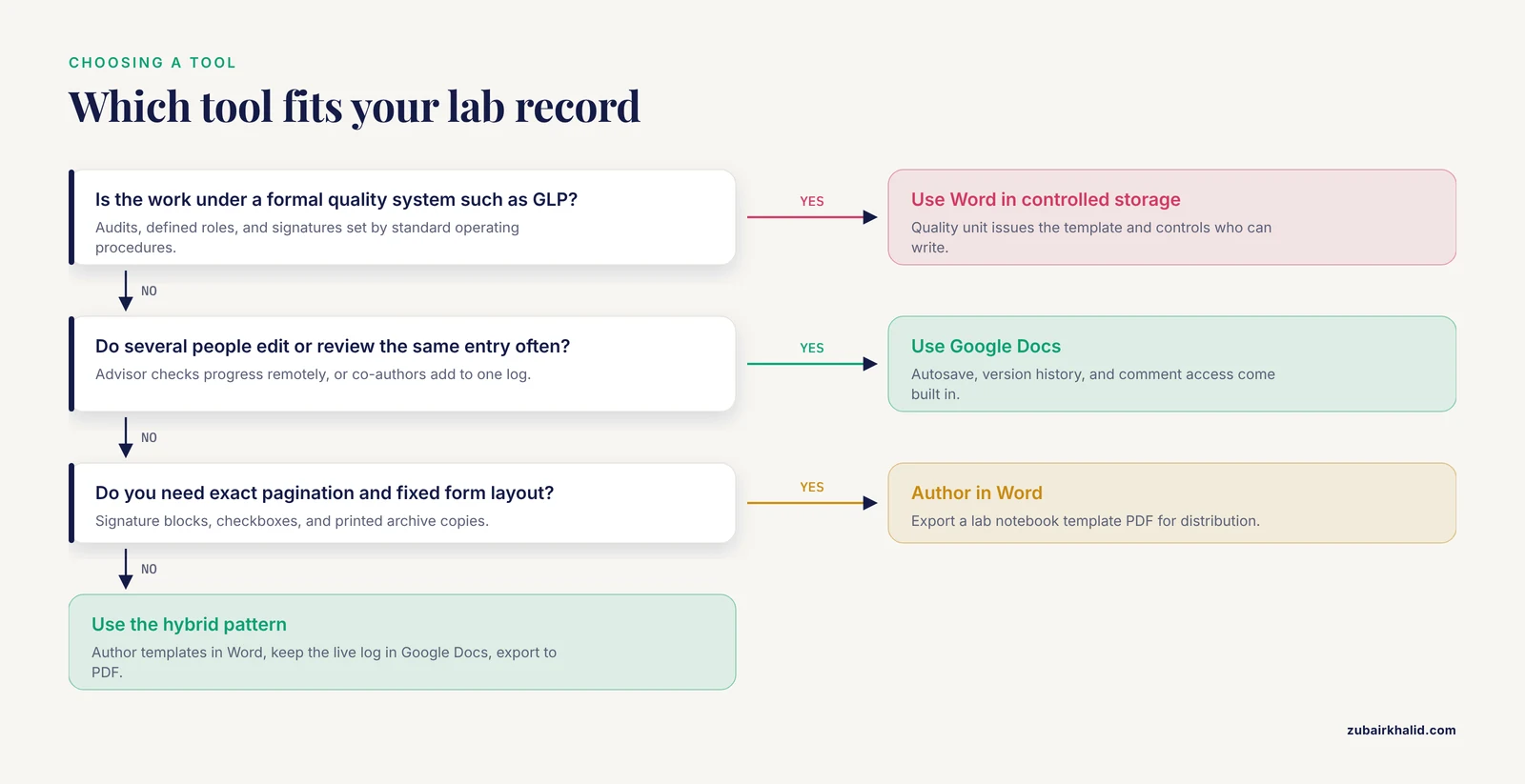
A lab notebook is the chronological record of what you did, when you did it, what you observed, and what you concluded. It exists so that a stranger with your training could repeat the work and get the same result. In academic research, the notebook supports authorship disputes, data management plans, and reproducibility. In regulated settings, such as work conducted under Good Laboratory Practice (GLP), the FDA regulations at 21 CFR Part 58 describe requirements for study records, and 21 CFR Part 11 governs electronic records and signatures when records are created and kept electronically.
The choice between Word and Google Docs is not a cosmetic one. It affects four things at once:
- Whether an entry can change silently. In Word, an edited file replaces the old file unless you keep copies. In Google Docs, every save creates a version you can revisit.
- Whether a witness can read your work. A paper notebook is physically signed and dated by a witness. A digital file needs a sharing model that lets someone review it without being able to rewrite your history.
- Whether the record survives five years. Funding agencies and journals expect data to remain available for years after publication. The NIH Data Management and Sharing Policy, in effect since January 2023, asks researchers to plan for preserving and sharing scientific data, which makes file format and storage location part of notebook design.
- Whether you can print a clean, paginated copy. Many labs archive signed paper copies or PDF exports, and the quality of that export depends on the tool.
Word processors were never designed to be laboratory notebooks. Paper notebooks have fixed, sequentially numbered pages. Word and Google Docs give you flexible documents, which means you have to impose the structure yourself through a template. That is exactly why the template, and the tool you build it in, deserves deliberate thought.
What a Lab Notebook Template Has to Do
Before comparing the two tools, define the job. A working research template, whether digital or on paper, needs to capture the same core elements every time:
- A header block with experiment title, date and time, operator name, and project or experiment ID
- A purpose or hypothesis statement, one or two sentences
- A materials and reagents section with lot numbers, concentrations, and catalog or source information where applicable
- A methods section describing what you actually did, including deviations from the planned protocol
- A results section for raw observations, measurements, printouts, images, or references to where instrument files are stored
- A notes section for problems, contamination events, instrument malfunctions, and ideas
- A signature and date line for the person who performed the work, and where required, a witness line
A good template also enforces good habits. Date fields should be filled automatically or at least be impossible to skip. Page numbers should exist in the footer so that printed pages can be reassembled in order if the binder is dropped. Continuation language such as "continued on page 7" belongs in paper notebooks, and in digital notebooks the equivalent is a stable experiment ID that ties entries together.
With those requirements set, the differences between Word and Google Docs become concrete rather than abstract.
Side-by-Side Comparison
The table below is the core of the difference between Word and Google Docs for a lab notebook. Read the row that matters most to your situation first.
| Criterion | Microsoft Word | Google Docs |
|---|---|---|
| Where the file lives | On your computer and any cloud drive you choose | On Google's servers, synced to your Google account |
| Saving | Manual save, autosave only with OneDrive or SharePoint | Continuous autosave, no save button |
| Version history | Available through SharePoint or OneDrive versioning, or manual file copies | Built in, browsable by date, with named versions |
| Offline work | Fully native, no internet needed | Requires offline mode set up in advance in Chrome |
| Simultaneous editing | Limited, practical for one author at a time | Native, multiple people can edit the same entry |
| Comments and suggestions | Track Changes and comments, geared to document review | Comments, suggestions, and assigned action items, geared to ongoing collaboration |
| Print and page layout control | Strong, precise margins, headers, footers, section breaks | Adequate, but fewer controls and occasional browser printing quirks |
| Equations | Mature equation editor suited to stoichiometry and formulas | Basic equation insertion, fine for simple expressions |
| File format and export | DOCX natively, PDF export, easy long-term storage | Exports to DOCX, PDF, and other formats on demand |
| Template reuse | Save as a DOTX template file that opens fresh each time | Save a master document and duplicate it, or use a template link |
| Search across notebooks | Depends on your file storage and naming discipline | Strong search across all documents in the account |
| Sharing and access control | You control each file and its permissions explicitly | Granular per-document permissions with view-only and comment roles |
| Cost picture | Requires a Microsoft 365 subscription or a one-time license for full features | Free with a Google account, with paid tiers through Google Workspace for organizations |
| Suitability for regulated work | Easier to pair with controlled file systems and signatures | Auditable version history is useful, but validation and access control need planning |
No single row decides the question. A regulated GLP study and a graduate student's exploratory notebook weight these rows very differently, which the worked scenarios later in this article show.
Using Word for Lab Notebook Templates
Word is a desktop-first document editor. You open a file, you edit it, you save it to a location you chose. That ownership model is its central strength for lab records.
Strengths of Word
Exact layout control. Word gives you precise control over margins, header and footer content, table dimensions, and page breaks. If your lab archives printed notebook pages in a binder, or if you generate a lab notebook template PDF for distribution to a whole cohort, Word produces clean, predictable output. Header fields can carry the experiment ID on every page, and the footer can carry "Page X of Y" numbering that survives printing.
True template files. Word's native template format, DOTX, lets you save a master notebook page that opens as an unsaved copy every time. Your team cannot accidentally overwrite the template, because the template itself never opens for editing. This is a small mechanical detail with a large practical payoff in a lab where ten people share one research template.
Mature equation handling. The Word equation editor handles fractions, subscripts, chemical notation, and units cleanly. For work involving dilution calculations, molarity, or reaction equations, entries stay readable.
File longevity. DOCX is a documented, widely supported format. Files you create today will still open in desktop software years from now, including in free viewers. You can copy a folder of DOCX notebooks to an external drive, an institutional server, or an archive service without asking permission from any vendor.
Offline reliability. Field stations, cold rooms, and animal facilities often have poor connectivity. Word works with no connection at all, and you sync or back up on your own schedule.
When to Use Word
Choose Word when any of the following describe your situation:
- Your lab archives printed or PDF copies of notebook pages and cares about exact pagination
- You work under quality systems where files must sit in controlled storage with explicit access permissions
- You write long methods sections with complex equations and embedded instrument figures
- You work in places with unreliable internet
- You want a single-author notebook where each experiment is one file you own completely
The Weaknesses of Word
Word's weaknesses mirror its strengths. Because you control the file, you also control its backups, and a laptop theft or a deleted folder can erase a semester of records unless you have set up your own versioning. Simultaneous co-editing through SharePoint or OneDrive exists but behaves less smoothly than Google's. Track Changes, Word's revision tool, is designed for manuscript review rather than continuous experimental logging, so the audit trail is a workflow you build rather than a feature you get by default.
Using Google Docs for Lab Notebook Templates
Google Docs is a browser-first editor where the document, the save process, and the sharing permissions all live in the cloud. For many research groups, that model matches how notebooks are actually used.
Strengths of Google Docs
Autosave and version history. Every keystroke is saved, and the version history panel shows the document's state over time, down to named snapshots you create before big edits. If you accidentally delete a paragraph of observations from last Tuesday, you can restore it. If a co-author overwrites your entry, you can see who changed what and when. This built-in audit trail is the single biggest difference between Word and Google Docs for lab notebooks, and it directly addresses the "can an entry change silently" problem described earlier.
Frictionless sharing. You can give your advisor view-only access, a rotating undergraduate comment access, and a collaborator edit access, all on the same document. Witnessing, in the informal sense of having someone read and acknowledge your record, becomes a comment rather than a scheduling problem.
Search across everything. Because every notebook entry is a document in one account, searching for a reagent lot number across two years of experiments takes seconds. In a Word-based workflow, the same search depends entirely on how well your shared drive is organized.
Easy duplication of a research template. The standard pattern is to keep a master template document and make a copy for each experiment. Google Docs copies inherit the structure, and you can restrict editing on the master so nobody modifies it. Some institutions maintain a template gallery their members can draw from.
Comments as a discussion layer. Comments and suggested edits let a supervisor question an interpretation without altering the record. The distinction between the original text and the discussion about it is preserved, which mirrors how a good notebook works.
When to Use Google Docs
Choose Google Docs when any of the following describe your situation:
- Multiple people contribute to or review the same notebook in near real time
- Your advisor expects to check progress remotely and often
- You value automatic, always-on version history over manual file management
- Your work is exploratory and collaborative rather than contractually regulated
- You want every entry searchable from one place without a file-server strategy
The Weaknesses of Google Docs
Google Docs depends on connectivity and on Google's account system. Offline editing works, but only if you enabled offline mode in advance while connected, and syncing conflicts after long offline stretches can surprise new users. Page layout control is shallower than Word's, which matters when you print or export. Equations are functional but basic. Ownership is a real consideration: your records live in an account controlled by your institution or by you personally, and if the account closes, the documents go with it unless you exported them. Exporting to DOCX or PDF is easy, but it is a step you must actually take.
Head-to-Head on the Criteria That Decide Real Choices
Version Control and Audit Trail
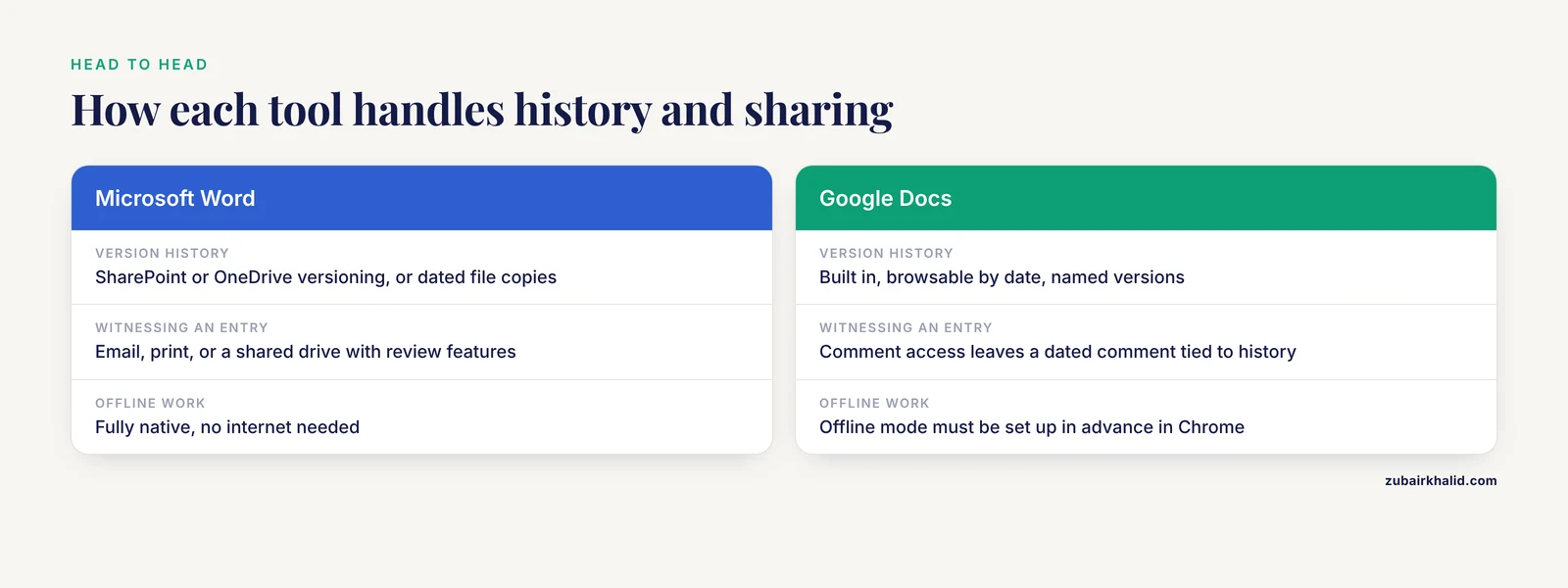
For a lab record, the question is whether the history of the entry is preserved. Google Docs answers with built-in version history, timestamped and attributable. Word answers with whatever system you attach to it: SharePoint versioning, OneDrive history, or a habit of saving dated copies such as "Notebook_2026-03-14_exp032.docx." If your lab already runs on SharePoint, Word can match or exceed what Google offers. If your lab has no file-versioning infrastructure, Google Docs gives you an audit trail with zero setup, and that is often the deciding factor in the word vs. google docs for lab notebook templates question.
Collaboration and Witnessing
A notebook entry gains credibility when a second person can verify it. In Google Docs, a witness with comment access can read the entry and leave a dated comment, and the version history ties that comment to a point in time. In Word, witnessing usually means emailing the file, printing it, or using a shared drive with review features. Neither tool provides the cryptographically signed, unalterable record that a dedicated electronic lab notebook (ELN) platform offers, but Google Docs gets closer to the witnessing workflow with less effort.
Formatting, Printing, and the Lab Notebook Template PDF
Exporting a lab notebook template PDF is a common requirement, whether for a course packet, a lab's standard operating procedure binder, or an archive copy. Word handles this natively and precisely. Google Docs exports to PDF through the download menu, and results are usually good, but complex tables, check boxes, and signature lines occasionally shift in browser-driven rendering. If your template includes tightly controlled form fields, checkboxes, and fixed signature blocks, Word is the safer authoring tool. A practical hybrid, covered below, is to author in Word and distribute the frozen template as a PDF while the live records live elsewhere.
File Ownership and Longevity
Word files are objects you possess. You can hold them on a drive you physically own, and no vendor can change their behavior under you. Google Docs documents are objects you access. They are durable in practice, and export is easy, but your access depends on an account that an employer or a university issues and can revoke. Graduates who built their notebooks in a university Google account routinely discover this at departure, when institutional policies terminate access. If your records matter to your thesis, your patent claim, or your future publications, plan the export before you lose the account.
Search and Organization
Across a multi-year project, the ability to type a lot number or a cell line name and find every experiment that touched it is enormous. Google Docs wins here by default because all documents are indexed in one place. Word-based labs replicate this with disciplined file naming, shared drive search, or a reference manager, all of which take effort to maintain.
Compliance and Regulated Work
For GLP studies or FDA-regulated records, the software is only one ingredient. What matters is the whole system: access control, attribution of every change, retention schedules, and signature procedures. A Word file in a permission-controlled institutional repository with a signing procedure can satisfy a quality system more straightforwardly than a cloud document, because the organization controls the storage layer. Google Workspace can be configured for controlled environments, but that configuration is an institutional project, not an individual choice. If you work under formal quality systems, the tool decision belongs to your quality unit, not to this article.
Worked Scenarios
Scenario 1: A Graduate Student Running an Independent Project
Maya is a second-year graduate student in molecular biology. She runs her own experiments, her advisor wants weekly progress visibility, and her university issues Google accounts. Her records are exploratory, her protocols evolve, and her biggest risks are lost observations and forgotten details.
Google Docs fits. She keeps a master research template, duplicates it per experiment, tags each document with a project code, and shares the whole notebook folder with her advisor in view-only mode. Version history quietly protects her against her own edits. At thesis time, she exports the complete folder and archives the files.
Scenario 2: A Regulated GLP Study
David works in a contract research organization running a GLP toxicology study. Every record is subject to audit. The study director, the quality assurance unit, and the sponsor all have defined roles. File storage, retention, and signatures are dictated by standard operating procedures.
Word, inside the organization's controlled document system, fits. The template is issued by the quality unit, stored where only authorized staff can write, and printed or signed per procedure. In this setting, Google Docs would require an institutional validation effort that is rarely justified when a compliant Word-and-repository workflow already exists.
Scenario 3: A Multi-Site Academic Collaboration
Priya coordinates a project across three universities. Different partners have different software, and the shared notebook needs to accept contributions from everyone. The team decides on Google Docs for the shared experiment log because anyone with the link can contribute and comment, and version history settles disputes about who wrote what. Site-specific protocols that need precise printed formatting are authored in Word and circulated as PDF exports. This hybrid is common and works well, provided the team agrees in writing on which documents are records and which are drafts.
Scenario 4: A Teaching Laboratory
An instructor needs to hand a structured notebook template to 120 undergraduates in the first week of class. The deliverable is a form: header fields, pre-printed tables for absorbance readings, and signature lines. The instructor authors the research template in Word, where the layout and the tables behave exactly as drawn, exports a lab notebook template PDF, and posts it to the course site. Students print it and handwrite, or, in a paperless version, the instructor shares a Google Docs copy of the template that each student duplicates into their own account. Word authors the form, Google Docs distributes the live version, and each tool does the job it is best at.
Scenario 5: Fieldwork With Unreliable Connectivity
A ecology team samples streams hours from the nearest signal. Google Docs offline mode works only on devices where it was set up ahead of time, and a lost connection on an unprepared device means no notebook at all. Word, running locally with the template saved on each laptop, never depends on a signal, and the team syncs files when they return. For this team, when to use Word is answered by geography.
Building a Research Template That Works in Either Tool
The template itself transfers well between the two tools. Build it once with this structure:
- Header block. Experiment title, date, operator, project ID, and a one-line purpose. Use table cells so the fields cannot drift.
- Protocol reference. Name the SOP or published protocol and version, and describe only deviations from it.
- Materials table. Columns for reagent, source, lot number, concentration, and storage conditions.
- Procedure log. A dated, timestamped running account, written as work happens rather than reconstructed afterward.
- Data and observations. Space for raw values, embedded images, and instrument file names or storage locations.
- Deviation and problem notes. A dedicated section so anomalies get recorded rather than absorbed into prose.
- Conclusion and next steps. Two or three sentences interpreting the result.
- Signature and date lines. The operator's line, plus a witness line where your lab's practice requires one.
- Footer. Page numbers and the template version identifier, so a printed page can always be traced to the form it came from.
In Word, save this as a DOTX template and lock the layout parts you want protected. In Google Docs, keep the master in a restricted folder and instruct the team to duplicate it. In both cases, test the template on one real experiment before you roll it out, because the first honest use will reveal which fields are missing.
Common Mistakes and Limitations
Treating a word processor as a validated ELN. Word and Google Docs are general-purpose editors. They do not provide the authentication, attribution, and locking features that formal electronic lab notebook systems and electronic signature regulations contemplate. For routine academic record-keeping they are fine. For regulated submissions, follow your institution's quality system rather than improvising in either tool.
Editing entries after the fact without a trace. The core sin of notebook keeping is rewriting history. In Word, a saved-over file loses its prior state unless versioning was configured. In Google Docs, version history preserves state, but only if you and your collaborators resist the habit of cleaning up old entries. If an entry was wrong, the correct practice is a new dated entry that explains the correction, not a silent rewrite.
Assuming autosave means backed up. Google Docs autosave protects against a browser crash, not against account deletion or institutional access loss. Export your records on a schedule and store them where your access does not depend on a single credential.
Letting template sprawl happen. When every lab member builds a personal variant, comparisons between experiments become guesswork. Keep one master template, version it, and announce changes.
Ignoring the printed page. Digital records get lost in format churn. A dated, signed, paginated PDF export of each completed experiment is cheap insurance and satisfies many archival expectations in one step.
One general limitation. This article addresses the software choice and template design, not the content requirements of any specific field, institution, or regulatory program. Individual labs should follow their own standard operating procedures and, where applicable, their quality or compliance unit for what a record must contain.
Frequently Asked Questions
Is Google Docs acceptable as an official lab notebook?
For everyday academic research, yes, provided entries are dated, attributed, and never silently altered. For regulated work under formal quality systems, acceptability is decided by your institution's procedures, and a dedicated ELN or a controlled document system is usually required.
Can I make a lab notebook template PDF from Word or Google Docs?
Yes, both tools export to PDF. Word gives you tighter control over pagination and form layout, which matters for fixed templates with signature blocks. Google Docs exports to PDF through the download menu and is usually sufficient for simpler forms.
What is the real difference between Word and Google Docs for a lab notebook?
The difference is the storage and history model. Word gives you a file you own with strong print control and no dependence on connectivity. Google Docs gives you continuous autosave, built-in version history, and effortless sharing, at the cost of depending on a cloud account.
Which tool is better for equations and complex formatting?
Word. Its equation editor and page layout controls are more capable, which matters for notebooks with dilution calculations, chemical notation, or tightly designed forms.
Do I need to pick one tool for my whole lab?
No. A common and effective pattern is to author templates and print-critical documents in Word, keep the collaborative experiment log in Google Docs, and export final records to PDF for archiving. The important part is agreeing on which tool holds the official record.
Should I use a dedicated electronic lab notebook instead?
If your institution licenses one, and especially if your work is regulated, multidisciplinary, or rich in instrument data, a purpose-built ELN offers structured templates, inventory links, and audit features that no word processor matches. Word and Google Docs are the right tools when cost, simplicity, and flexibility matter more than those features.