Troubleshooting Common Errors in Nextflow, Snakemake, and Galaxy
By Dr. Zubair Khalid, DVM, MS, PhD ·

Most failures in Nextflow, Snakemake, and Galaxy share one root cause: the workflow cannot find or read a file it expects, because of a path typo, a failed upstream step, or an input in the wrong format. The first thing to check is therefore the exact error message and the log behind it, not your code. Each tool records the failure in a predictable place: the .nextflow.log file for Nextflow, the terminal output of a Snakemake run, and the View error panel on a failed Galaxy dataset. That message almost always names the file, rule, or process at fault, which turns a vague failure into a specific fix.
All three programs are workflow management systems (WMSs), software that chains individual analysis tools into a single rerunnable pipeline. A scoping review of WMS evaluations for bioinformatics users identified twelve recurring criteria for judging these systems, including usability, learnability, scalability, reproducibility, and support [1]. Troubleshooting skill sits underneath nearly all of them, because a pipeline that fails without a readable error is a pipeline nobody can trust.
This guide covers the errors you are most likely to meet in each tool, the mechanism behind each failure, a diagnostic routine that works for all three, and the habits that prevent repeat failures.
Why These Workflows Fail: Three Mechanisms
Nearly every error falls into one of three failure classes. Knowing the mechanism makes the fix obvious.
File resolution failures. Nextflow runs each task in its own hash-named folder under the work directory and stages inputs there as symbolic links (shortcuts that point to the original file). After a command finishes, Nextflow checks that every declared output exists at the exact declared path. Snakemake builds a directed acyclic graph (DAG), a map of which jobs depend on which files, before it runs anything, and refuses to start if an input is missing or two rules conflict. Galaxy links each tool's output dataset to the next tool's input in your history. In all three, a name, path, or format that does not match stops the run.
Resource exhaustion. Analyses fail when they exceed the memory, disk space, or time allocated to them. The operating system or the job scheduler kills the process, and the workflow reports a nonzero exit code (the number a program returns to describe how it ended). Exit code 137, for example, means the process received the SIGKILL signal, the standard signature of an out-of-memory kill.
Environment mismatch. A pipeline that worked last month can fail today because a tool version changed, a container image (a packaged, frozen copy of the software environment) was updated, a conda environment (a packaged set of software and dependencies) failed to build, or a Galaxy server quietly updated a tool. The error often looks like a crash inside the tool rather than a workflow problem, which is what makes this class confusing.
Start Here: A Five-Minute Diagnostic Sequence
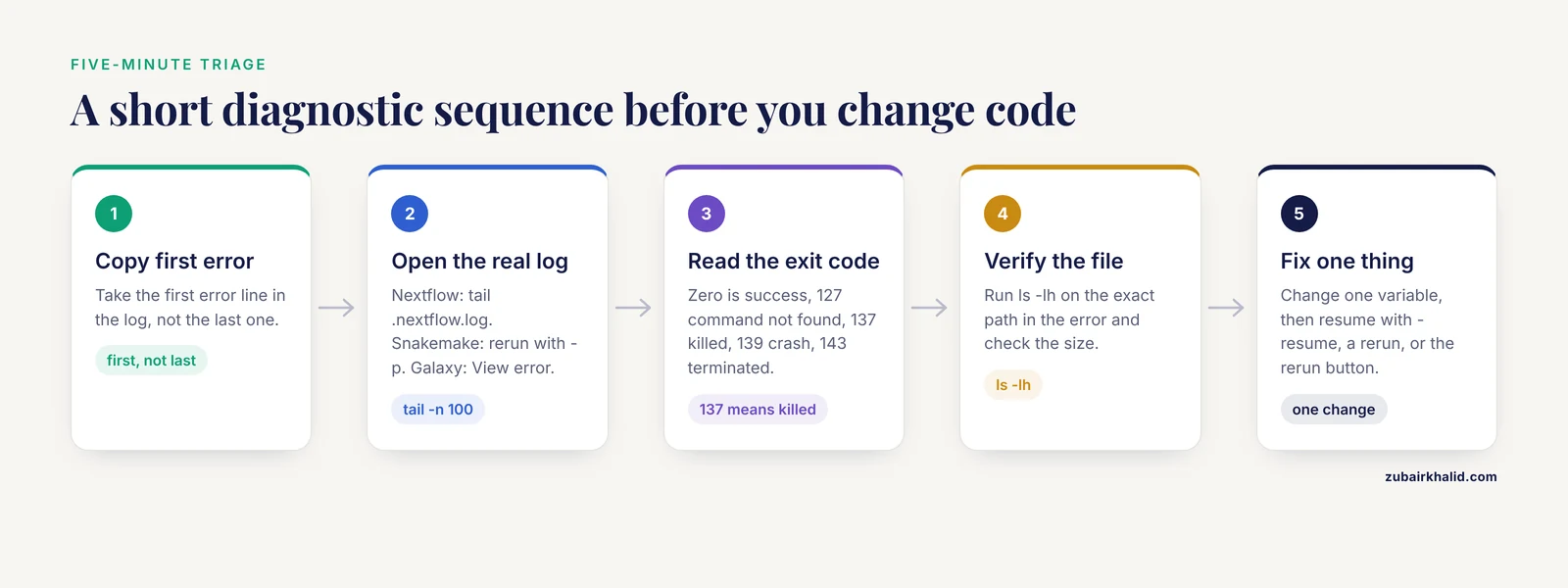
Follow these steps in order before changing any code.
- Copy the exact error line. The first error in a log, not the last, usually names the true cause. Later errors are often cascade effects.
- Open the real log. For Nextflow, run tail -n 100 .nextflow.log. For Snakemake, rerun with the -p flag to print each shell command and read the failing command's output. For Galaxy, click the red dataset and choose View error to see the tool's stdout and stderr (the standard output and error streams a program writes while running).
- Read the exit code. Zero means success. 127 means a command was not found. 137 means the process was killed, usually for memory. 139 means a segmentation fault (a crash inside the program). 143 means termination, often by a scheduler time limit.
- Verify the file exists. Run ls -lh on the exact path in the error message. Confirm the spelling, the directory, and that the file size is not zero.
- Isolate the failing step. Run the single failing rule, process, or tool on a small test input, outside the workflow. If it fails alone, the problem is in that step. If it succeeds, the problem is in how the workflow passes data to it.
- Fix one thing, then resume. Nextflow resumes with nextflow run -resume, Snakemake skips already-completed jobs when you rerun, and Galaxy reruns a single tool with its rerun button. Change one variable at a time so you know what worked.
The Master Troubleshooting Table for Nextflow, Snakemake, and Galaxy Errors
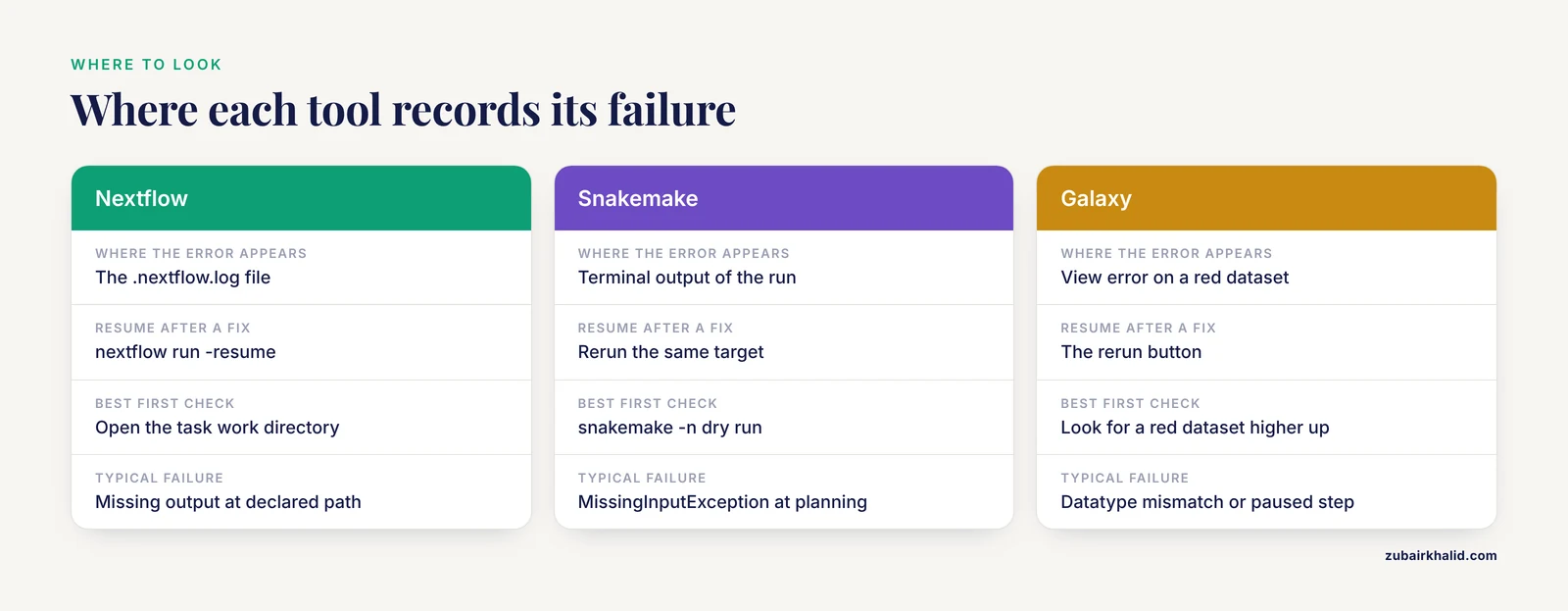
The following table maps the most common symptoms to their causes, confirmation steps, and fixes. The sections after it explain each mechanism in detail.
| Symptom | Likely cause | How to confirm | Fix |
|---|---|---|---|
Nextflow: "Missing output file(s) x expected by process" | The command did not create the declared output at the exact declared path | Open the work directory named in the error and run ls -lh | Make the output declaration match the file the tool really writes |
| Nextflow: task dies with exit status 137 | Out-of-memory kill by the operating system or scheduler | Search the kernel or scheduler log for a memory kill | Raise the memory directive, for example memory '16.GB', and request matching queue resources |
| Nextflow: exit status 127, command not found | The tool is absent from the container, conda env, or loaded module | Enter the same environment interactively and run which toolname | Pin an image or environment that contains the tool |
| Nextflow: shell variables come out empty or unrecognized | Nextflow interpreted $var as a Groovy variable inside a double-quoted script block | Check how the script block is quoted | Use triple single quotes or escape as \$VAR |
| Nextflow: will not start, Java error | Missing or unsupported Java runtime | Run java -version and compare with the release requirements | Install a supported Java version |
| Nextflow: -resume reruns finished tasks | Code, parameters, inputs, or container changed, invalidating the cache | Compare runs with nextflow log and nextflow info | Keep inputs and process code stable, then rerun with -resume |
| Snakemake: MissingInputException | The path is wrong, or no rule produces that file | Run snakemake -n and read the printed path | Fix the path or add a rule that creates the file |
| Snakemake: wildcards cannot be resolved | A wildcard in the output is absent from the inputs | Read the wildcard name in the error | Move wildcards into producing rules or add wildcard_constraints |
| Snakemake: CyclicDependencyException | Two rules depend on each other's outputs | The error lists the cycle | Split one rule into two steps |
| Snakemake: AmbiguousRuleException | Two rules can produce the same target | The error names both rules | Add a ruleorder line or make output names distinct |
| Snakemake: SyntaxError or IndentationError at load | Python formatting problem in the Snakefile | The traceback names the line | Fix indentation, avoid tabs, rerun snakemake -n |
| Snakemake: jobs run locally but die on the cluster | Rule resources exceed scheduler limits | Read the job log, often slurm-jobid.out | Set threads and resources such as mem_mb in the rule |
| Galaxy: dataset turns red | The tool failed, usually from a bad input or parameter | Click the dataset, then View error, and read stderr | Fix the input or parameter and click rerun |
| Galaxy: job terminated with a resource message | Memory, time, or disk limit exceeded | The error text states which limit was hit | Filter or downsample inputs, or run on a bigger installation |
| Galaxy: datasets show as paused | An upstream input failed or was deleted | Look for a red dataset higher in the history | Fix the upstream tool, then rerun the paused step |
| Galaxy: rerun gives different results | The tool version changed on the server | Compare versions shown in the history | Pin tool versions in the workflow and rerun in full |
Fixing Nextflow Errors
Nextflow is written in Groovy (a scripting language that runs on the Java virtual machine) and executes each process in an isolated work directory. Its errors fall into a handful of recognizable patterns.
Missing output files
The error "Missing output file(s) results.bam expected by process align" means the command exited without creating the declared output at the declared path. The command itself may have succeeded but written a different filename than the process declared, or it may have written nothing because its own input was empty. To confirm, open the task's work directory, which the error message prints in full, and run ls -lh to see what the command actually created. To fix, make the output declaration match the file the tool really writes, or change the command. Watch for tools that add their own suffixes or write into a subdirectory.
Exit status 137 and memory limits
Exit code 137 is 128 plus 9, the signal number for SIGKILL. The kernel or the cluster scheduler killed the task, and the overwhelming majority of cases are out-of-memory kills. Confirm by searching the node's kernel log with dmesg | grep -i kill, or by reading the scheduler's job log. Fix by adding or raising a memory directive in the process, for example memory '16.GB', and by making sure your queue or partition configuration requests matching resources. If a single sample genuinely needs more RAM than the machine has, split the input into smaller chunks so each task stays within budget.
Command not found and container gaps
Exit code 127 with "command not found" means the shell could not find a program the process tried to run. The container image, conda environment, or environment module loaded for that process does not contain the tool. Confirm by entering the same environment interactively, for example docker run -it image bash, then running which toolname. Fix by pinning an image or environment that contains the tool at the version you expect.
Groovy syntax and dollar-sign escaping
In a process script block written with double quotes, Nextflow interprets $var as a Groovy variable rather than a shell variable. The classic symptom is a shell variable that comes out empty, or an unrecognized variable error at runtime. The fix is to write script blocks with triple single quotes, as in ''' ... ''', so Nextflow passes the text through untouched, or to escape shell variables as \$VAR. Once you keep Groovy variables (which you want interpolated) and shell variables (which you do not) distinct, this error stops appearing.
Startup and Java failures
Nextflow runs on the Java virtual machine, so a missing or unsupported Java runtime stops it before any pipeline code executes. If startup fails with a Java-related message, run java -version and compare it against the requirement stated for your Nextflow release in the official documentation. Network and proxy problems can also block the initial download of a pipeline or its plugins, and the error text will name the resource it could not reach.
When -resume reruns everything
The -resume flag reuses cached tasks whose inputs, code, parameters, and container are unchanged. If a resumed run redoes every task, something changed: a parameter default, an edit inside a process, or the input files themselves. Run nextflow log and nextflow info to compare runs and see what differed. Remember that the cache lives in the work directory, so deleting work/ throws away all resume state.
Fixing Snakemake Errors
Snakemake parses your Snakefile (a Python-format file of rules) and builds the DAG before running a single job. Most errors therefore appear at planning time, which makes the dry run your best diagnostic tool.
MissingInputException
"MissingInputException in rule X" with a list of missing files means the file is neither on disk nor the output of any rule Snakemake knows. The most common cause is a relative path resolved from the wrong directory: Snakemake resolves paths relative to where you invoke it, not where the Snakefile sits. Run snakemake -n (a dry run that validates the DAG without executing anything) and read the path it prints. Fix the path, add a rule that produces the file, or launch from the project root.
Wildcard errors
Wildcards are named placeholders such as {sample} in file patterns. Two errors dominate. "Wildcards in output files must be present in input files" means Snakemake cannot work out what value a wildcard should take, because the inputs do not contain it. "Target rules may not contain wildcards" means your default rule, usually rule all, lists a pattern instead of concrete filenames. The fix for both is structural: rule all should enumerate real file names, and wildcards belong in the rules that produce files, where their values can be inferred from the inputs.
Cyclic and ambiguous rules
CyclicDependencyException means two rules depend on each other's outputs, so no valid execution order exists. The error lists the cycle. Split one rule into two steps to break it. AmbiguousRuleException means two rules can produce the same target file, so Snakemake cannot choose between them. Add a ruleorder line that ranks them, or make the output names distinct.
Snakefile syntax errors
A Snakefile is Python code, so indentation and tabs matter. An IndentationError or SyntaxError at load time almost always points to mixed tabs and spaces or a missing colon. The traceback names the line. Fix the formatting, then rerun snakemake -n to confirm the file parses cleanly before launching real jobs.
Conda and cluster failures
With the, use-conda flag, Snakemake builds environments from YAML specification files. Build failures usually come from network problems or conflicting package channels. Test the specification directly with conda env create -f environment.yaml to see the raw error. On clusters, jobs that run fine locally can be killed by scheduler limits. Read the job's log file, often named slurm-jobid.out, and set threads and resources in the rule, for example resources: mem_mb=16000, so the scheduler allocates enough.
Fixing Galaxy Errors
Galaxy runs each tool as a job and records the result as a dataset in your history. Dataset colors encode state: gray for queued or running, green for success, red for failure. Learning to read these states is most of Galaxy troubleshooting.
Opening the real error message
A red dataset means the tool failed. Click the dataset, then View error, to read the tool's stdout and stderr. The last few lines usually name the problem: a missing index, a malformed input, or an out-of-memory termination. The rerun button reopens the tool form with the same parameters, so you can correct one setting and try again without rebuilding the analysis.
Datatype mismatches
Every Galaxy dataset carries a datatype label, such as fastqsanger, BAM (the standard binary alignment format), or tabular. A tool refuses inputs whose declared type it cannot use, and Galaxy's automatic detection sometimes guesses wrong, particularly with gzipped FASTQ files (the standard raw sequencing read format). Check the datatype shown under the dataset name. Fix it with the edit-attributes pencil icon, or convert the format with the appropriate tool, then rerun.
Paused datasets
When an upstream input fails or is deleted, dependent jobs do not fail. They pause, shown as a paused state on the dataset. Fix the upstream tool first, then rerun the paused step. Chasing errors in the middle of a history when the real fault sits higher up wastes more time than any other Galaxy mistake.
Server limits and quotas
Public Galaxy servers cap the memory, time, and disk each job may use. When a job is terminated for exceeding a limit, the error text says so directly. The fixes are to filter or downsample the input, split the analysis into smaller jobs, or move the workload to a local or cloud installation with higher limits. Histories also count against your disk quota, so delete datasets you no longer need and purge deleted items to reclaim space.
Version drift on reruns
Rerunning a workflow months later can invoke a newer tool version than the original run, and a new version can behave differently. Your history records the version that actually ran for each dataset. For analyses that must be reproducible, pin tool versions in the workflow editor and rerun the whole workflow rather than stitching together outputs from different versions.
Choosing the Right Tool for Your Lab
Which system you should troubleshoot depends on your team and infrastructure, and a careful research software comparison is more useful than any single best-software-for-researchers verdict. A scoping review that examined 21 evaluation studies published since 2018, together with documentation for 55 available systems, distilled twelve recurring evaluation themes: basic computing demands, functions, security, scalability, cost and efficiency, sustainability, usability, learnability, reproducibility, FAIRness (Findability, Accessibility, Interoperability, and Reusability), flexibility, and support [1]. The same review found that evaluations centered on noncomputational users favored graphical interfaces with plenty of guidance, while developer-focused evaluations favored text-based interfaces [1].
That split maps cleanly onto the three tools. Galaxy offers the graphical, guided experience that suits students and experimentalists running standard analyses. Nextflow and Snakemake offer the scalability, container support, and version-control integration that production pipelines on clusters need. Many labs use both: Galaxy for interactive exploration, a text-based system for the finalized pipeline.
The payoff for investing in a robust pipeline is consistency across platforms. In a validated sequencing study, a platform-agnostic bioinformatics workflow covering human read removal, taxonomic assignment, and characterization of Mycobacterium tuberculosis complex achieved 98.3 percent concordance in species classification between Oxford Nanopore and Illumina data, with a median of zero single-nucleotide polymorphism (SNP, single-letter DNA difference) differences between platforms after masking [2]. One pipeline produced the same answers from two very different sequencers.
Safety note: the laboratory work upstream of that analysis involved cultures of M. tuberculosis complex, a pathogen that requires appropriate biosafety containment under institutional regulations. The computational analysis itself carries no infection risk.
Prevention: Habits That Stop Errors Before They Start
Run the smallest test first. Before launching on real data, run the pipeline's test profile or a single tiny sample. Most catastrophic failures, from bad paths to missing tools, appear in minutes on test data instead of hours into a real run. One sequencing study applied the same idea to data volume, subsampling long-read data at 1, 6, and 72 hours to find the minimum needed for reliable species identification [2].
Validate before you execute. Snakemake's -n dry run checks the entire DAG without running anything. A two-minute dry run catches missing inputs, wildcard problems, and rule conflicts before they consume cluster time.
Pin your software. Fix container images, commit conda environment files, and pin tool versions in Galaxy workflows. Version pinning converts the entire environment-mismatch error class into a non-event.
Turn on logging by default. Nextflow's -with-trace and -with-report options and Snakemake's -p flag produce records that make the next failure fast to diagnose.
Protect your inputs. Keep raw data read-only and write outputs to a separate directory, so a buggy command cannot destroy the data it was supposed to process.
Write down the fix. A lab README entry for each solved error turns one person's debugging session into the whole team's reference.
Common Mistakes and Limitations
- Reading only the end of a long log. The first error usually causes everything after it, so scroll up before you fix anything.
- Resetting by deletion. Deleting work/ or the .snakemake directory makes a stuck run start fresh but destroys resume caches and removes the evidence you need for diagnosis. Understand the cache before you clear it.
- Changing several parameters at once. If the run then succeeds, you will not know which change mattered. Change one thing per attempt.
- Blaming the workflow when the data is the problem. Corrupt downloads, empty files, and the wrong reference genome build all produce errors that look like pipeline bugs. Check input sizes and integrity early.
- Trusting automatic format detection, especially in Galaxy. Verify datatypes whenever a tool rejects an input that looks correct.
- Mixing tool versions within one analysis. Finishing a project with outputs from two versions of the same tool undermines the comparison you were trying to make.
- A limitation of any general guide: individual pipelines have their own conventions, and complex or clinically significant analyses deserve review by someone with domain and bioinformatics expertise before results are acted on.
Frequently Asked Questions
What is the most common cause of Nextflow, Snakemake, and Galaxy errors?
A mismatch between the files a workflow expects and the files that actually exist is the most common cause. Read the exact error message first, then verify the path it names with ls -lh.
How do I fix a "Missing output file(s)" error in Nextflow?
Compare the declared output with the files the command actually created in the task's work directory. The error message prints the directory path, so list its contents and correct the output declaration or the command so the names match.
Why does Snakemake report a missing input file that exists on disk?
The path is usually resolved from the wrong directory or contains a typo. Snakemake resolves relative paths from the launch directory, so run snakemake -n from the project root and check the exact path it prints.
What does a red dataset in Galaxy mean and how do I fix it?
Red means the tool job failed. Click the dataset, choose View error, read the stderr for the underlying message, correct the input or parameter, and click rerun.
What does exit code 137 mean in a workflow log?
Exit code 137 means the process was killed by SIGKILL, which in practice almost always means it exceeded its memory allowance. Confirm with the system or scheduler log, then raise the memory directive or reduce the input size.
Do I need containers to avoid workflow errors?
Containers are not required, but they prevent most software environment errors. Pinning a container image or a conda environment file locks the tool versions and makes the pipeline portable between machines.
Which tool is best for researchers who do not code?
Galaxy is the usual choice for researchers who prefer point-and-click analysis, because it runs in a browser and records every step in a visual history. Nextflow and Snakemake suit teams comfortable with the command line and version control.
How do I resume work after fixing an error?
Nextflow reruns with -resume to reuse unchanged cached tasks, Snakemake automatically skips completed jobs when you rerun the same target, and Galaxy reruns a single tool with the rerun button. Fix the underlying cause first, or the resumed run will fail at the same step.