Real-Time Syncing in Reference Managers
By Dr. Zubair Khalid, DVM, MS, PhD ·

By the end of this guide you will be able to set up real-time syncing in reference management software on two or more devices, verify that your library actually matches across them, and diagnose the sync errors that most often interrupt writing projects. You will need a reference manager installed on your main computer (this walkthrough uses Zotero as the worked example), a free account with that tool's cloud service, and a second device such as a laptop, office desktop, or phone.
What Real-Time Syncing Actually Does
Real-time syncing in reference managers means that every change you make to your library, adding a reference, tagging a PDF, highlighting an annotation, propagates to a central cloud server and then to your other devices without you copying files by hand. The alternative is the older model: export a library file, email it to yourself, import it on another machine, and hope nothing was edited in between.
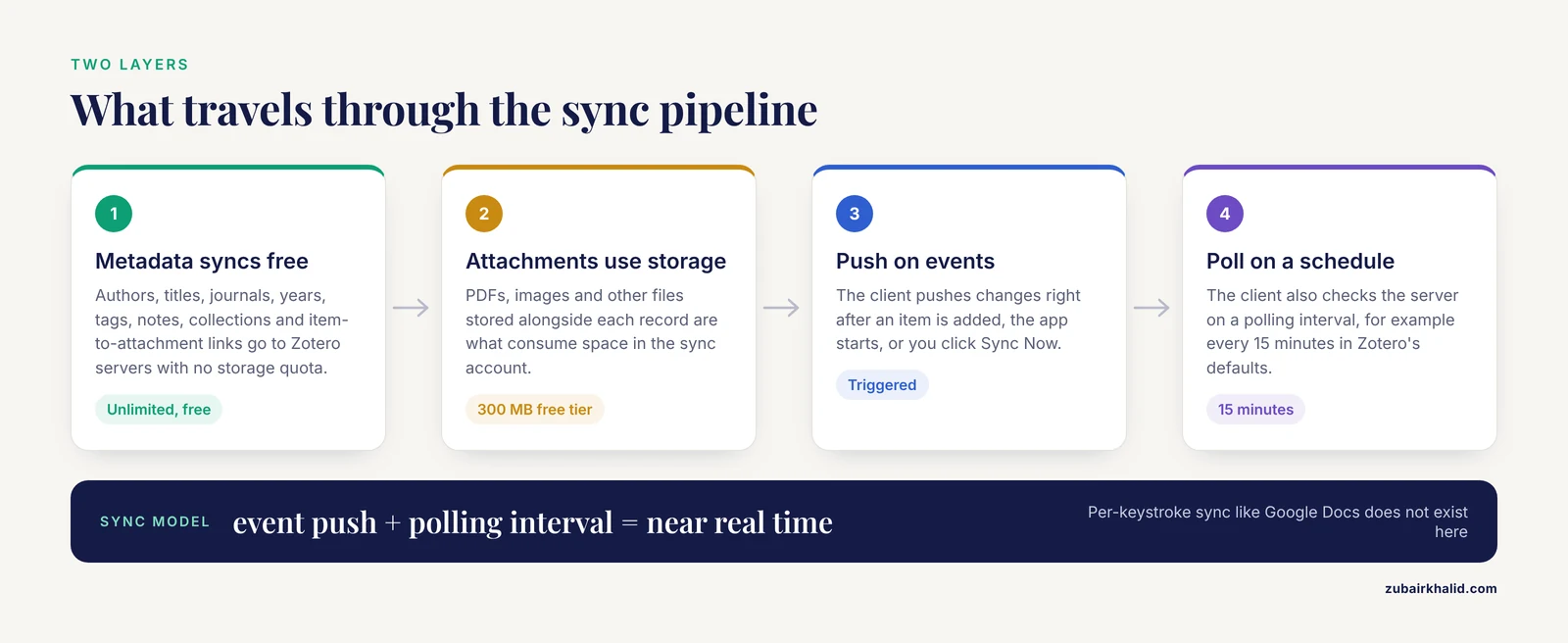
Two distinct layers travel through the sync pipeline, and confusing them causes most problems:
- Metadata sync. The bibliographic records themselves: authors, titles, journals, years, tags, notes, collections, and the links that connect items to attachments. In Zotero, this layer syncs to the Zotero servers with no storage quota at all, which is why even a library of thousands of records costs nothing to keep in sync.
- Attachment sync. The PDFs, images, and other files stored alongside each record. These are what consume storage. Zotero's free tier includes 300 MB of file storage through its own servers, and the tool also supports third-party WebDAV storage as an alternative.
A third concept matters for understanding how "real time" the process is. Most reference managers use a scheduled plus triggered model: the client pushes changes immediately after certain events (an item is added, the app starts, you click sync), and then also checks the server on a polling interval, for example every 15 minutes in Zotero's default settings. True per-keystroke sync, the kind you see in Google Docs, does not exist in mainstream citation managers. If you expect a colleague's edits to appear mid-paragraph, you will be disappointed. If you expect a PDF added on your laptop to be on your phone when you open the app a few minutes later, you will be satisfied.
Citation Manager Comparison: How the Major Tools Handle Sync
Before choosing a workflow, compare how the major reference management software packages move data. The table summarizes the sync architecture of the four tools most researchers consider.
| Tool | Sync backend | Metadata quota | Attachment storage | Sharing model |
|---|---|---|---|---|
| Zotero | Zotero servers, WebDAV optional for files | Unlimited (free) | 300 MB free, paid plans for more | Group libraries with per-member permissions |
| Mendeley Reference Manager | Elsevier's Mendeley cloud | Included with account | About 2 GB of personal cloud storage | Shared groups with invited members |
| EndNote | EndNote Web (Clarivate) with desktop library sync | Tied to EndNote Web account | Library sharing up to 1,000 EndNote Web users per shared library | One owner shares a full desktop library |
| Paperpile | Google Drive and Google's infrastructure | Included with subscription | Stored in the user's own Google account | Shared folders and link sharing |
Three practical differences follow from this table. First, Zotero separates metadata from files, so a huge library of records with few PDFs costs nothing. Second, Paperpile stores your files in your own Google Drive, so you manage storage through a Google One plan you may already pay for. Third, EndNote's sharing model is built around one shared library with one owner, which works well for a lab that wants a single canonical bibliography but less well for teams that want independent collections.
Reference Manager Real-Time Sync Step by Step (Zotero Worked Example)
The following walkthrough sets up a two-device Zotero sync from a clean install. The same logic transfers to other tools, and the next section covers their settings briefly.
Step 1: Create and verify your account
Go to zotero.org and create a free account. Confirm the verification email before doing anything else. An unverified email is the single most common cause of failed first syncs, and the error message does not always make that clear.
Step 2: Enter credentials in the desktop app
Open Zotero, then open the settings panel (Edit > Settings on Windows, Zotero > Settings on macOS) and select the Sync pane. Enter your username and password in the account fields.
Step 3: Choose what to sync
In the same pane, check which data types to include. The default checkboxes for notes and tags are sensible for most users. Leave "Sync attachment files in My Library" unchecked for now if you have more than 300 MB of PDFs, because enabling it with an over-quota library produces a partial sync that is harder to clean up later.
Step 4: Pick a file storage backend
Under File Syncing you have two options:
- Zotero. Files upload to Zotero's own storage against your 300 MB free quota.
- WebDAV. Files upload to a third-party storage provider that speaks the WebDAV protocol. The URL looks like this:
davs://your-server.example.edu/dav/zotero/The davs prefix means WebDAV over HTTPS. If your provider uses plain HTTP, the prefix is dav, but avoid that on shared networks because attachments travel unencrypted.
Test any WebDAV endpoint with a connectivity check before pointing Zotero at it:
curl -u username:password -I https://your-server.example.edu/dav/zotero/Expected output starts with a status line like:
HTTP/1.1 200 OKA 401 response means the credentials are wrong, and a 404 means the directory does not exist yet. Create the directory in your provider's web interface, or let Zotero create it on first sync, then run the check again.
Step 5: Trigger the first sync
Click "Sync Now" in the upper right of the main window. Watch the sync icon, the small circular arrow beside the search box. A spinning blue arrow means the sync is running. A red exclamation mark means an error occurred, and clicking the icon shows the message.
Expected result on a fresh install with, say, 40 items and 25 PDFs under the storage limit: the sync completes in under a minute, the icon returns to a plain arrow, and zotero.org shows your collections when you log into the website.
Step 6: Configure the second device
Install Zotero on the second device, sign in with the same account in the Sync pane, and click Sync Now. Choose "Restore to Zotero server" only if you are certain the local (empty) library should overwrite the cloud. On a second-device setup you want the opposite, "Restore from Zotero server," which pulls the cloud library down.
Step 7: Verify the sync end to end
Never assume. Verify with a concrete test:
- On device one, create a new collection named
sync-testand add any item to it. - Wait for the sync icon to finish, or click Sync Now.
- On device two, click Sync Now and confirm
sync-testappears with the item inside. - Delete the test collection on device one, sync, and confirm it disappears on device two after its sync.
If both directions work, your reference manager real-time sync is functioning. The delete test matters because write access problems often hide until you try to remove or modify something.
Quick Setup for Mendeley and EndNote
Mendeley Reference Manager. Sign in with your Mendeley (Elsevier) account and the desktop client syncs continuously in the background. Storage counts against roughly 2 GB of personal cloud space. Shared groups sync to every invited member, but attachments added to a group count toward group storage, so large shared PDF sets can exhaust group space even when personal space looks empty.
EndNote. In EndNote 21 and later, open the Library menu, choose "Sync," and connect your desktop library to an EndNote Web account. Sync is periodic rather than instant, typically on an automatic schedule with a manual sync available at any time. Library sharing is configured through EndNote Web, and a shared library can include up to 1,000 EndNote Web users per Clarivate's documentation. The one-owner model means the owner controls the master copy, which prevents split-brain problems but concentrates risk on that account.
Common Errors, Their Exact Messages, and Fixes
"Your email and password are not correct"
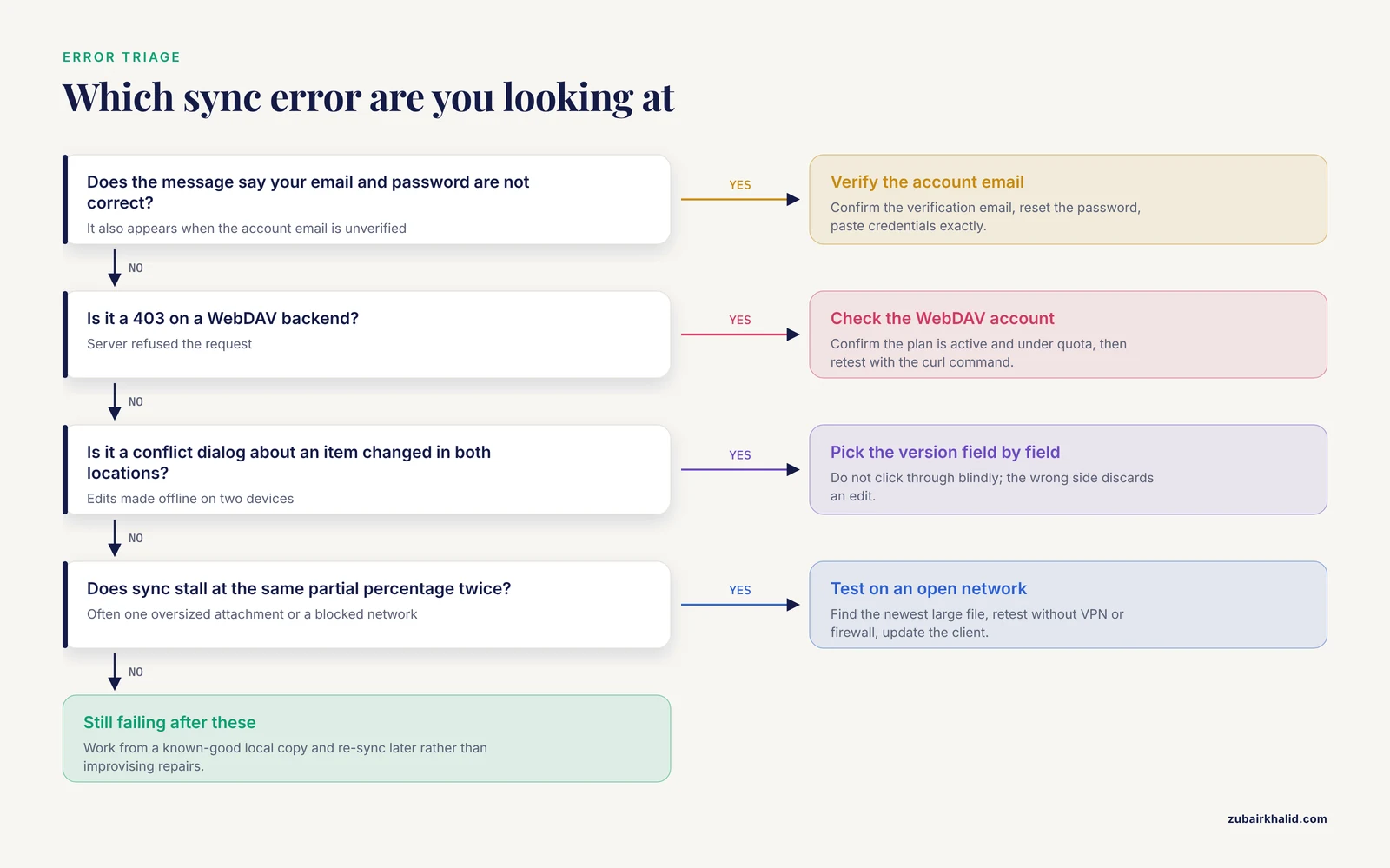
This Zotero message appears with wrong credentials, but it also appears when the account email is unverified. Fix: confirm the verification email, reset the password if needed, and re-enter credentials exactly. Passwords with unusual characters occasionally fail when typed with a different keyboard layout, so paste them.
"The server returned an error (403)" on WebDAV
A 403 on a WebDAV backend means the server refused the request. Common causes are an expired or over-quota storage plan, a server-side rate limit, or a directory that does not accept PUT requests. Fix: log into the provider's web interface, confirm the account is active and under quota, then retest with the curl command shown earlier.
Sync conflict dialog: "This item has changed in both locations"
Zotero shows a conflict dialog when the same item was edited on two devices while offline and the edits cannot be merged automatically. The dialog lists the local and server versions of each changed field. Fix: choose the version you want to keep, field by field if needed. Do not click through blindly, because picking the wrong side discards an edit. If conflicts involve PDF annotations, check both copies of the file in the storage folder before deciding, since annotations live inside the attachment.
"Storage is full" or quota warnings
Zotero shows a warning banner and stops uploading attachments when the 300 MB free quota is exhausted, though metadata keeps syncing. Fix: move file syncing to WebDAV, delete orphaned attachments, or upgrade storage. Note that attachments synced before the quota hit remain on the server and still reach other devices.
"Record is currently in use" in EndNote
EndNote displays this when a sync or sharing operation tries to update a record the local client considers locked, often after an unclean shutdown. Fix: close and reopen EndNote, run a "Repair Library" if prompted, then sync again. Persistent errors justify a fresh compressed library copy rather than fighting a corrupted database.
Sync stalls forever at a partial percentage
A sync frozen at the same percentage across two sessions usually means one oversized attachment or a network device (a VPN, a corporate firewall) blocking the upload. Fix: identify the most recently added large file, test the sync on an unrestricted network, and check the provider's status page if the problem affects WebDAV.
How to Check That Your Sync Is Correct
Verification beats hope. Three checks cover nearly everything:
- Item count parity. In Zotero, the library pane shows the total item count at the bottom left. Compare it on both devices after a sync. A difference of even one item means the sync did not finish or something was filtered.
- Server-side spot check. Log into zotero.org or mendeley.com in a browser and confirm a recently edited item shows the new title or tag. This tells you whether the change left your device at all, which separates a local problem from a downstream one.
- Attachment integrity. Open a PDF synced to the second device, not just its record. Metadata can arrive while the file behind it is still queued, and a record that opens an empty or missing attachment is the classic symptom.
Reference Manager Real-Time Sync Tips
These field-tested habits prevent the majority of sync problems:
- Sync before you close the app. Real-time does not mean instant. A change made and abandoned thirty seconds before shutdown can be lost if the app closes mid-upload. Click Sync Now before quitting, especially at the end of a library session.
- Keep one device as the golden copy during heavy edits. If you are doing a bulk cleanup, a deduplication pass, or a large import, work on one machine only and let others pull afterward. Concurrent bulk edits are where conflict dialogs multiply.
- Turn off attachment sync for read-only devices. On a tablet used only for reading, metadata-only sync is fast and saves bandwidth. Fetch the PDFs you need on demand.
- Label group library permissions deliberately. In Zotero, a group can be read-only, read-and-write for members, or fully open to admins only. Set the strictest mode that fits the team. A colleague who can edit attachments can also delete them, and sync happily propagates deletions everywhere.
- Watch the first sync of a large library. Uploading thousands of PDFs on hotel Wi-Fi is how hours disappear. Start big initial uploads on a fast, stable connection and let the queue run overnight.
- Use the browser connector on every device. Saving a paper from the browser on your phone into a synced group library, then finding it on your desktop, is the everyday payoff of real-time syncing in reference managers. Install the connector everywhere so captures never depend on being at your desk.
- Check the version of the desktop client. Sync protocols change between major versions. Running a years-old client against current servers produces intermittent, hard-to-diagnose failures. Update the app before troubleshooting anything exotic.
Common Mistakes and Limitations
Treating sync as backup. Sync propagates changes, including deletions and corruption. If you delete 200 items on a laptop at midnight and the sync runs, the server faithfully records the deletion. Keep a separate, periodic backup of your library. In Zotero, the automatic backup of the zotero.sqlite database covers metadata for a rolling window, but attachments need their own copy, so back up the entire Zotero data directory on a schedule.
Editing PDF annotations on two devices offline. Annotation sync conflicts are the most painful failure mode in real-time syncing. If you highlight page 12 on your tablet offline and your collaborator highlights the same page on their laptop, some tools merge cleanly, others present a conflict, and Zotero's behavior depends on whether the attachments live in Zotero storage or on WebDAV, since WebDAV files sync as whole units and cannot merge at the annotation level. Store heavily annotated PDFs in the tool's native storage if annotation merging matters to you.
Assuming group and personal storage are separate everywhere. Mendeley group attachments draw on group storage, Zotero group files draw on storage purchased by the group owner or counted under the owner's plan. Check whose quota a shared library consumes before filling it.
Syncing through a WebDAV provider with rate limits. Some third-party cloud providers throttle rapid successive requests. A library with thousands of small files, for instance a note per item, can trip those limits and produce errors that look random. Reduce request volume by consolidating notes or switch providers.
Ignoring the direction of restore operations. The Restore options in Zotero overwrite one side completely. Clicking "Restore to Zotero server" on a laptop that somehow lost half its library will push that half-empty library over your good cloud copy. Read the dialog before clicking, every time.
Expecting true multi-user real-time editing. No mainstream reference manager offers the simultaneous co-editing feel of a shared document. Two people editing the same item at the same moment will generate a conflict, not a merge. Structure collaboration around separate group libraries or division of labor.
One general limitation to keep in view. Sync quality depends on the storage provider, the network, and the specific versions installed, so behavior varies between setups. When a sync problem threatens a deadline, working from a known-good local copy and re-syncing later is always safer than improvising repairs.
Frequently Asked Questions
Does real-time sync also upload my PDFs?
Not automatically in every tool. Zotero keeps metadata sync unlimited and free, then uploads attachment files separately only if you enable file syncing and stay under the 300 MB free storage quota or point file syncing at a WebDAV server. Mendeley and Paperpile handle files as part of their default cloud model, with Paperpile storing files in your own Google Drive.
Is Zotero's sync service really free?
The metadata sync is free and unlimited, and the free tier includes 300 MB of file storage. Larger PDF collections need either a paid storage plan or a third-party WebDAV provider for attachments.
Can I use my own cloud storage instead of the built-in service?
For Zotero, yes, through any WebDAV-compatible provider for attachment files, while metadata still syncs to Zotero's own servers. Note that Dropbox and Google Drive folders placed inside the Zotero data directory do not count as sync and frequently corrupt the database, so use the WebDAV mechanism rather than folder sync. Mendeley, EndNote, and Paperpile do not offer an equivalent self-hosted option.
What happens if two devices edit the same item while offline?
The next sync detects the divergence. Zotero raises a conflict dialog that lets you pick the correct version field by field. Unmerged attachments, especially PDFs with competing annotations, are the case most likely to lose work, so pick one annotation device per document when working offline.
How do I sync a shared library with collaborators?
In Zotero, create a group library on zotero.org, invite members by email, and set their permission level from read-only to full write. In Mendeley, create a shared group and invite members. In EndNote, the library owner shares the desktop library through EndNote Web, with up to 1,000 users per shared library supported by Clarivate's documentation.
Do I still need a separate backup if my library syncs?
Yes. Sync copies changes rather than preserving history, so deletions and database problems propagate along with everything else. Export a periodic copy of your full library, including attachments, to an external drive or archive service.
Why does sync stall on one device but not others?
Stalls on a single device usually trace to that device's network path (VPN, firewall, captive portal), an oversized or problematic attachment added on that device, or an outdated client version. Test on a different network, remove or re-add the most recent large file, and update the app before deeper troubleshooting.
Which reference manager has the most reliable real-time sync?
Reliability depends on your setup more than on the tool. Zotero's architecture is the most forgiving for large libraries because metadata sync is unlimited and file storage is replaceable through WebDAV. EndNote suits teams that want one authoritative shared library under a single owner. Mendeley fits researchers already inside the Elsevier ecosystem. Choose by matching the sharing model and storage structure to how your team works.