Reference Manager PDF Attachment Options Compared
By Dr. Zubair Khalid, DVM, MS, PhD ·

The core difference between PDF attachment options is who controls the file: a stored attachment is a copy that lives inside your library and syncs with it, while a linked attachment is a pointer to a file that stays in your own folder system where your reference manager never moves or copies it. The rule of thumb is simple: if you work on more than one computer or share a library with others, use stored attachments synced through the software's own cloud, and if you manage a large local archive or must keep files in an institutional folder structure, use linked attachments with a well-planned folder scheme.
This guide walks through every common attachment option in reference management software, explains the tradeoffs of each, and compares them on the criteria that actually decide real projects: sync reliability, storage cost, collaboration, backup safety, and what happens when you switch tools or computers. It ends with worked scenarios, common mistakes, and direct answers to the questions students and researchers ask most often.
Why the Attachment Setting Matters More Than You Think
Most people pick a citation manager by its word processor plugin or its citation styles and give almost no thought to how PDFs attach to records. That decision turns out to be one of the most consequential settings in your whole workflow, because it controls three things at once.
First, it controls where your PDFs physically live. Stored attachments are copied into a database or managed folder owned by the software. Linked attachments stay wherever you put them. That single difference changes your backup strategy, your storage costs, and your risk of losing files.
Second, it controls sync. Reference management software can only sync what it manages. If your PDF is a stored attachment, the desktop app, the web library, and every other device you sign into will see it. If your PDF is a linked file pointing to a folder on your office desktop, your laptop and your phone will see a broken link.
Third, it controls what happens when you leave. Libraries differ in how easily attachments export, and a choice that feels convenient in year one of a PhD can create hundreds of broken pointers by year five.
The options below appear in some form in nearly every serious citation manager comparison, though the names vary between products.
The Main PDF Attachment Options
Stored attachments
A stored attachment is a copy of the PDF that the software imports into its own data directory. When you drag a PDF onto a Zotero item, let Mendeley's file importer grab it, or use EndNote's attachment import, you are creating a stored attachment. The original file on your desktop becomes irrelevant, because the manager now owns a copy.
The main strength of stored attachments is coherence. The PDF belongs to the reference record. Rename it, move it, delete the original download, and nothing in your library breaks. Annotations, notes, and highlights attach cleanly to the stored copy, and the whole package, record plus PDF plus notes, travels together through sync, export, and backup.
The main weakness is storage. Every stored PDF counts against whatever storage the software or its sync service provides. Zotero, for example, gives each account a base amount of free syncing space and offers paid plans for larger libraries, and it supports storing attachment files on alternative WebDAV servers if you prefer to manage that storage yourself, a flexibility described in Zotero's official documentation. Mendeley stores PDFs associated with your account in Elsevier's cloud. EndNote desktop libraries keep attachments inside the library structure, with an option to sync them through EndNote Web. In every case, the same principle applies: the manager stores your files, and storage is finite.
The second weakness is opacity. Because stored files sit inside an application-managed directory, often with hashed or renamed filenames, you cannot easily browse them in Finder or File Explorer or share a single PDF with a colleague by grabbing it from a folder. You work through the application's interface.
Linked attachments
A linked attachment is a file path, not a file. The reference record stores something like C:\Users\you\PDFs\smith-2021-coral.pdf or /Users/you/PDFs/smith-2021-coral.pdf, and the software opens the file at that path when you double-click the record. The file itself stays untouched in your folder, under your naming scheme, inside your backup routine.
The strength of linked attachments is control. You can organize thousands of PDFs in a folder hierarchy that makes sense to you, name files exactly as a journal or funder requires, and use them directly with other tools that expect plain files in known locations. Linked attachments also cost nothing in sync quota, because the manager does not sync the file at all.
The weakness is fragility. Move the file, rename it, change a hard drive letter, or switch to a computer that does not have the folder, and the link breaks. Linked attachments do not travel with the library. This is the single most common source of broken libraries among students who copy their citation database to a laptop without copying the PDF folder, a failure mode discussed in guidance for several major reference managers.
Zotero offers a partial fix called the linked attachment base directory. You designate one root folder, store all linked PDFs somewhere beneath it, and Zotero records file paths relative to that root. When you set the same base directory on another machine and place the folder there, previously broken links resolve again. This works well if your folder structure is identical on each machine, and it fails if paths diverge.
Hybrid setups (linked files plus selective stored attachments)
Some workflows deliberately mix the two. A researcher might link large PDF archives on a lab workstation while storing only the thirty papers relevant to an active manuscript, so those thirty sync to a laptop and tablet for reading on the go. Others store everything but link to a few enormous files, such as supplementary datasets, that would waste sync quota.
The hybrid approach gives you the benefits of both options but requires discipline. You must decide, item by item, which category a new PDF falls into, and document the rule so future-you remembers it. A common convention is to store anything you intend to read or annotate and link anything you intend to archive.
Web links and snapshots
A third category deserves mention because people confuse it with attachments. A web link attachment is simply a URL saved to a reference record, for example the landing page of a journal article. Some managers, notably Zotero, can also save a snapshot, which is a stored copy of the web page as it appeared when you captured it, including images and formatting.
Web links cost no storage but suffer link rot, the gradual death of URLs as pages move or sites shut down. Snapshots preserve the page but consume storage like any stored attachment. Neither is a substitute for the actual PDF of a paywalled article, which is why most researchers use web links only as a supplement, a pointer to a supplement, a data repository, or an author page.
Cloud-synced attachment storage
This is less a separate option than the delivery mechanism for stored attachments, but it behaves differently enough across products to deserve its own analysis. When stored attachments sync, they travel through a service operated by the software maker or through a server you point the software to.
The vendor cloud is the simplest path. You sign in, and PDFs follow you. The tradeoffs are quota, cost, and dependence on the vendor's service. If your library outgrows the free tier, you either pay, prune attachments, or switch to linked files. Zotero's documentation describes its storage plans and the WebDAV alternative in detail, and Mendeley's help center describes attachment handling through its own account storage. The practical lesson from official documentation across products is the same: check how attachments sync before your library reaches hundreds of megabytes, not after.
A subtler point is what the cloud does for collaboration. Shared group libraries in Zotero sync stored attachments to every group member subject to the owner's quota, which makes stored attachments the default choice for lab-wide reading lists. Linked files cannot be shared this way at all, because a path on one person's machine means nothing on another's.
Auto-managed folders and file renaming
Several tools occupy a middle ground. Mendeley has long offered to keep a copy of your library in a folder of your choosing, organizing PDFs into subfolders and applying a renaming pattern such as author-year-title. EndNote can copy imported files into a library-linked folder and rename them on import. Third-party plugins in the Zotero ecosystem, historically including the widely used Zotfile, have exported managed copies of attachments into structured folders.
These tools give you browsable, human-named files while the manager keeps its own stored copy. The cost is a second copy on disk and a rule set you must understand, because the managed folder is a mirror, not the master. If you edit files in the managed folder, you may be editing a copy that the manager ignores.
Side-by-Side Comparison
| Option | Where the file lives | Syncs across devices | Collaborative sharing | Main strength | Main drawback | Best for |
|---|---|---|---|---|---|---|
| Stored attachment | Inside the library's data directory | Yes, through vendor cloud or WebDAV | Yes, in group libraries | One coherent package, links never break | Consumes storage quota, files are not freely browsable | Most students and researchers, any multi-device workflow |
| Linked attachment | Your own folder, referenced by path | No, unless you sync the folder yourself | No | Full control over naming and organization, no quota | Fragile, breaks when files move or machines change | Large local archives, strict institutional file policies |
| Linked with base directory | Your folder, path stored relative to a root | Only if you replicate the folder | No | Partially portable between identical setups | Requires identical folder structures on each machine | Researchers who sync a PDF folder with Dropbox or a lab server |
| Hybrid | Mixed | Partial | Partial | Balances quota and control | Requires discipline and documentation | Large libraries with a small active reading set |
| Web link / snapshot | None, or a stored page capture | Link yes, snapshot yes | Follows the record | Zero cost for links, captures page content | Link rot, not a substitute for the PDF | Supplementary material, ephemeral pages |
| Auto-managed folder | Manager's copy plus a mirrored folder | Follows the stored copy | Follows the stored copy | Human-readable filenames in a browsable folder | Two copies to back up, rules to maintain | People who want both an app library and a browsable archive |
The Criteria That Decide Real Choices
A useful reference manager PDF attachment comparison has to judge options the way researchers actually use them. Five criteria separate a comfortable setup from a frustrating one.
Device and location flexibility
If you read on a laptop in the lab, a desktop at home, and a tablet on the train, stored attachments are close to mandatory. Sync delivers the exact annotated file everywhere. Linked attachments force you to build your own replication layer, typically a cloud folder service, and then keep the manager's base directory pointing at the synced folder on every machine. That works, but it adds moving parts. The gold standard test is simple: open the same annotated PDF on two devices and confirm that a highlight made on one appears on the other. Official documentation for the major managers describes this sync behavior, and testing it with a small library before committing is the cheapest insurance available.
Storage cost and quota
Stored attachments trade quota for convenience. The arithmetic is unforgiving at scale. A typical journal PDF runs a few hundred kilobytes to a few megabytes, and a decade of reading can reach tens of gigabytes. Every manager that stores attachments offers a free tier and paid tiers, and the right planning question is not the current price, which changes, but whether your growth curve will hit the ceiling during your program. If it will, plan either a paid tier, a WebDAV alternative where the software supports one, or a linked-file architecture from the start.
Collaboration
Group work changes the calculus decisively toward stored attachments. A shared library where every member sees every PDF is one of the strongest reasons to use reference management software at all, and it only functions when the files themselves sync. Linked files in a group library produce links that resolve only on the machine where the file lives. If your lab runs a shared reading list, stored attachments through the group's storage are the workable choice.
Backup and data safety
Stored attachments centralize backup: one library directory contains everything, and backing it up protects records, PDFs, and annotations together. Linked attachments scatter the risk across two systems, the library and the PDF folder, and both must be backed up or the links outlive the files. Whichever option you choose, the 3-2-1 principle applies, meaning at least three copies of your data, on two different media, with one copy off-site. University libraries that teach citation manager workshops, including many graduate writing centers, repeat this advice because data loss at the dissertation stage is both common and preventable.
Tool independence and exit paths
Attachment choices age differently when you switch software. Stored attachments export cleanly between the major managers, which all import reference libraries from their competitors and generally bring stored PDFs along. Linked attachments survive export too, but their paths must resolve on the new machine, which returns you to the base-directory problem. Web links survive everything and carry nothing. Before adopting an elaborate linked-file scheme, export a test library and open it on a second machine, because five minutes of testing prevents the most painful class of migration problems.
Worked Scenarios
A first-year PhD student
Priya reads on a department desktop, a personal laptop, and occasionally a phone. She annotates heavily. Stored attachments synced through the vendor cloud fit her perfectly. Her library will fit inside free or low-cost storage for years, sync keeps annotations current everywhere, and she never has to think about paths. Her one obligation is a periodic export of the whole library as a backup.
A systems administrator with a 40,000-file archive
Marcus has collected PDFs for fifteen years in a rigorously named folder tree that other tools, including scripts and a local search index, already depend on. Converting to stored attachments would duplicate the archive and break his tooling. Linked attachments with a base directory are the right answer, with the folder synced by his own backup system rather than the citation manager. He accepts that opening his library on a new machine requires restoring the folder first.
A lab running a shared journal club library
The lab needs every member to see the same PDFs with shared annotations. This is the textbook case for stored attachments in a group library, with the group owner managing storage quota. Linked files would show most members nothing. One member volunteers to keep the group storage below its limit by removing attachments from superseded records.
A researcher under a data compliance policy
Elena works with unpublished manuscripts from collaborators and is required to keep confidential documents on approved institutional storage only. Vendor cloud sync for stored attachments may conflict with that policy. Linked attachments to a folder on institutional encrypted storage, with no cloud sync of the files, keep her compliant while the reference manager still organizes records, notes, and citations. The general lesson is that confidentiality requirements can override convenience, and checking with an institution's data governance office before syncing confidential PDFs to any third-party cloud is part of responsible data handling.
Common Mix-Ups
People comparing attachment options repeatedly stumble over the same handful of issues.
Confusing the record with the attachment. A reference record and its PDF are separate objects. Deleting a PDF attachment does not delete the citation, and deleting the citation can orphan the PDF. Knowing which one you selected prevents most accidental losses.
Assuming linked files are backed up. A synced library is not a synced archive if the PDFs are links. Researchers who back up only the library file discover, too late, that the PDFs lived elsewhere.
Double-copying through auto-managed folders. If the manager stores a copy and also mirrors files into a watched folder, disk usage doubles and edits in the mirror may not reach the library copy. Pick one master.
Renaming files outside the manager. Renaming a linked PDF in Finder or File Explorer breaks the link silently. With stored attachments, renaming the file on disk changes nothing at all, which surprises people in the opposite direction.
Expecting snapshots to be PDFs. A saved web page snapshot is HTML, not a PDF. It preserves a page for citation verification but cannot substitute for the article file.
Ignoring quota until sync fails. Sync stops cleanly when storage runs out, but by then a laptop may be weeks behind the desktop. Watching storage usage in account settings prevents the surprise.
Choosing Between the Options
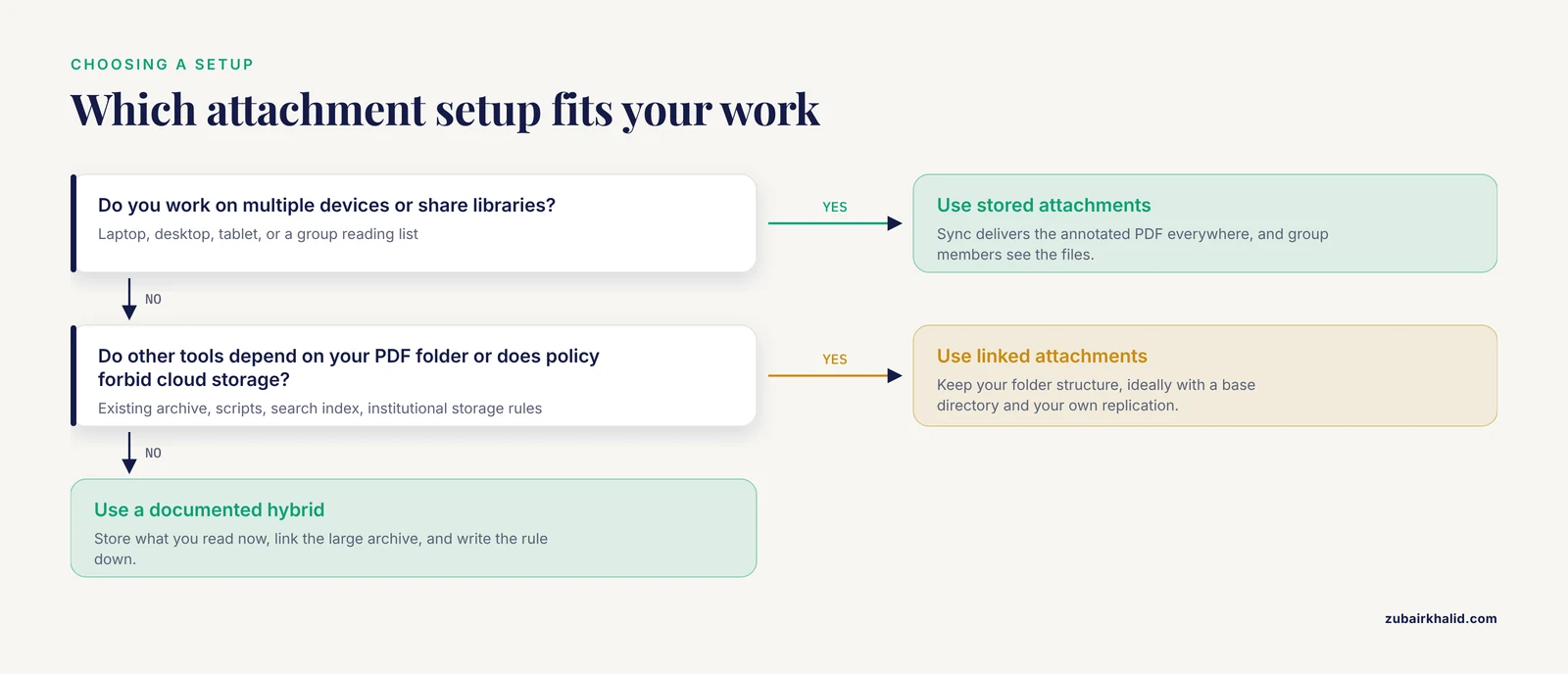
The best reference manager PDF attachment comparison is the one that matches options to your actual constraints, so condense the analysis above into three questions.
Do you work on multiple devices or share libraries? If yes, stored attachments are the default answer, and the only real decision is which storage backend, vendor cloud or self-managed WebDAV where supported.
Do you have an existing PDF archive that other tools depend on, or a policy that forbids third-party cloud storage? If yes, linked attachments, ideally with a base directory and your own folder replication, preserve your structure and your compliance.
Are you somewhere in between, with a huge archive and a small active project set? If yes, a documented hybrid, stored attachments for current reading and linked files for the archive, captures most of both benefits at the cost of a rule you must actually follow.
Common Mistakes and Limitations
Every attachment option fails in predictable ways, and most failures trace back to a short list of preventable errors.
- No tested backup. Whatever option you choose, export or copy your complete library, records and attachments together, on a schedule, and verify the copy opens on another machine. An untested backup is a hope, not a backup.
- Broken linked files after migration. Copying a library to a new computer without replicating the PDF folder, or without setting the same base directory, breaks every linked attachment at once. Test migration with ten records before migrating thousands.
- Storage quota surprises. Large stored libraries exceed free sync tiers, and sync pauses when they do. Check usage quarterly if your library grows quickly.
- Annotations stranded in the wrong place. Highlights made in an external PDF reader on a linked file may not flow back into the reference manager's annotation layer. Annotations made in the manager's built-in reader on a stored attachment sync reliably. Know which reader your workflow uses.
- Vendor lock-in through stored files. Stored attachments live inside a proprietary structure. Periodic exports in a standard format, with attachments included, keep your exit open.
- Confidential material in the cloud. Unpublished manuscripts, patient data, or industry secrets should not sync to a commercial service without checking institutional policy first.
- Overbuilt systems. Elaborate linked-file schemes with scripts and renaming rules fail when their author graduates. Prefer the simplest setup that meets your actual needs.
One limitation applies to every option: no attachment system survives a poorly maintained library. Duplicates, records without metadata, and PDFs attached to the wrong reference corrupt any architecture. Clean the library first, then choose the attachment strategy.
Frequently Asked Questions
Should I use linked or stored attachments in Zotero?
Use stored attachments if you sync your library across devices or share groups, and linked attachments with a base directory only if you must keep PDFs in your own folder system. Zotero's official documentation describes both modes and the WebDAV option for offloading stored attachment sync. Most users, especially students, are happiest with stored attachments.
What happens to my PDFs if I stop paying for storage?
Your local library keeps every stored PDF regardless of payment status, because the files live on your computer. What stops is syncing new or changed attachments to the cloud, so your other devices and the web library go out of date. Export a full backup before any lapse.
Can two people share the same PDF library?
Yes, through group libraries with stored attachments, which sync files to every member within the owner's storage quota. Linked attachments do not share, because a file path on one person's computer points nowhere on another's. For real-time document collaboration, pair the group library with a separate tool designed for coediting.
How do I move my library to a new computer without breaking links?
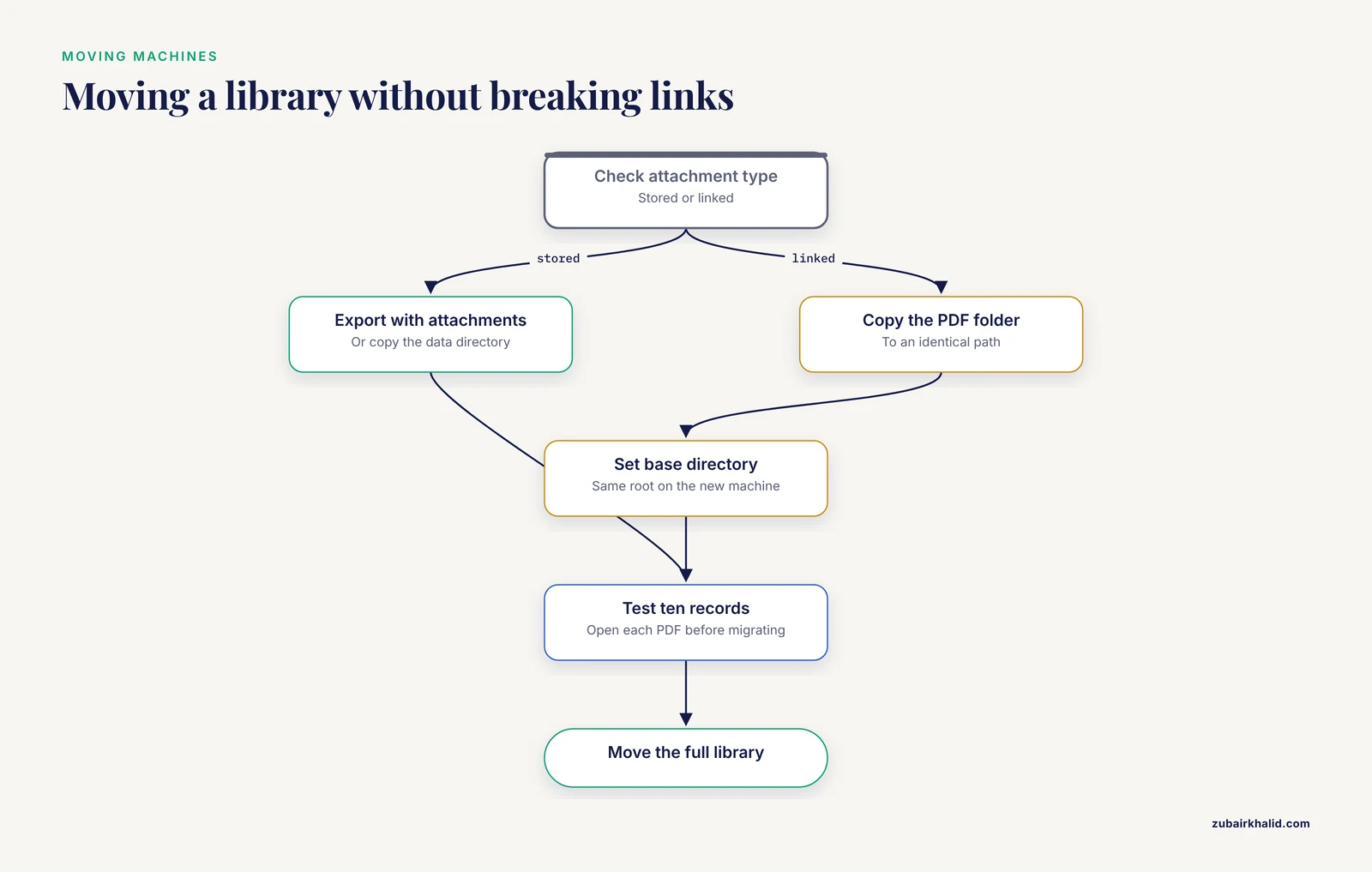
For stored attachments, export the library with attachments or copy the complete data directory, and links cannot break. For linked attachments, copy the PDF folder to an identical path or set the same base directory on the new machine before opening the library. Test with a few records first.
Do annotations sync across devices?
Annotations made in the reference manager's own PDF reader sync with the stored attachment across all signed-in devices. Highlights made in outside PDF editors generally do not flow back automatically, which is the strongest practical argument for doing your reading inside the manager's reader when you use stored attachments.
Can I keep my own folder structure instead of the manager's?
Yes, with linked attachments your folders stay exactly as you built them, and auto-managed folder features in several managers can generate browsable, renamed copies while the library keeps its own master. The tradeoff is that you own the backup and consistency of those folders, since the manager treats linked files as external.