Jira for Clinical Research: Configuring Workflows
By Dr. Zubair Khalid, DVM, MS, PhD ·

By the end of this guide you will be able to design, build, and publish a Jira workflow that tracks a clinical research study from site feasibility through database lock. You will set up issue types, statuses, transitions with validators and post functions, screens, saved JQL filters, board columns, and one automation rule. To follow along you need administrator access to a Jira Cloud site or Jira Data Center instance, a company-managed project you are allowed to configure, and about two hours. No scripting experience is required.
Agile tools such as Jira are increasingly common outside software engineering. Researchers have adopted scrum practices in collaborative research settings, and interviews with 17 researchers at a distributed research center showed that agile methods can support coordination of research tasks, provided teams stay flexible and learn by doing [1]. Clinical research adds structure that generic agile boards lack, so the configuration work described here focuses on mapping a study lifecycle onto Jira's workflow engine.
Why Configure a Workflow Instead of Using the Default
A default Jira project ships with a three-status workflow: To Do, In Progress, Done. That is enough for a task list and not enough for clinical operations, where a single activity such as "open a site" passes through feasibility review, regulatory submission, contract execution, and activation, each with different owners and evidence requirements.
Two research findings argue for deliberate workflow design. First, studies of flow-based project management show that teams implementing flow tools encounter real-world challenges that generic implementations do not anticipate, and that successful adoption depends on adapting the tool to the actual working environment rather than applying it out of the box [2]. Second, project management software research going back decades shows that usage patterns and fit to the organization, not raw feature counts, determine whether the software gets used at all [3]. A workflow that mirrors your study's real gates produces usable status data. A generic workflow produces noise.
There is also a coordination argument. Systematic reviews of software project management for globally distributed teams report that coordination, planning, and monitoring are the most frequently studied needs, appearing in roughly 40 percent of the mapped literature, and that collaboration across time zones remains a persistent difficulty [4]. Multi-site clinical studies have the same shape: sites in different cities, monitors on the road, a data management center elsewhere. A shared workflow with explicit statuses is a coordination instrument.
Planning Your Workflow on Paper First
Before touching Jira, write the lifecycle of the objects you track. For a typical interventional study, four issue types cover most operational work:
- Study. The parent record for the protocol.
- Site Activation. One issue per site, tracking feasibility, regulatory documents, contract, green light.
- Subject Screening and Enrollment. One issue per subject per visit window, or one per subject with visits as subtasks.
- Data Query. One issue per discrepancy raised by data management against the database.
For each issue type, list the statuses it needs and who moves an issue between them. Keep the list short. A practical rule is 5 to 8 statuses per issue type. Every additional status is a place where work stalls unnoticed, and the flow literature warns that overly complex tool configurations are a documented failure mode when teams adopt flow-based management [2].
A worked example for the Site Activation issue type:
Feasibility → Regulatory Submission → Contracting → Green Light → ActivatedEach arrow is a Jira transition, and each transition can carry conditions, validators, and post functions. Those three mechanisms are the core of configuration:
- Condition. Controls who can see and use the transition. If the condition fails, the button is hidden.
- Validator. Runs when someone clicks the transition. If validation fails, the transition is blocked and the user sees an error.
- Post function. Runs after the transition succeeds, for example setting a field or assigning the issue.
Step-by-Step Configuration
Step 1. Create a Company-Managed Project
From the Jira top navigation, choose Projects → Create project → Software, then select a company-managed template. Company-managed projects expose full workflow editing, which team-managed projects restrict. For clinical work you want the company-managed type because workflow schemes, screen schemes, and permission schemes live at the instance level and can be reused across studies.
Choose a project key that matches your internal protocol code, for example ONC-2214. Every issue will then carry an identifier such as ONC-2214-17, which is what you will use in discussions and exported reports.
Expected result: a project home page showing a board and backlog, both empty.
Step 2. Define the Issue Types
Navigate to Settings → Issues → Issue types. Create four issue types: Study, Site Activation, Subject Visit, Data Query. Give each a distinct icon so they are visually separable on the board.
Add them to your project's issue type scheme at Settings → Issues → Issue type schemes, and set Subject Visit as the default for this scheme if subject visits will dominate your issue count.
Step 3. Build the Workflow for Site Activation
Navigate to Settings → Issues → Workflows, click Add workflow, and name it Site Activation Workflow. Jira opens the diagram editor. Create the five statuses from your plan, then draw the transitions.
The underlying workflow can be written out in text form, which is a useful review artifact before you click anything:
Workflow: Site Activation Workflow
Issue type: Site Activation

Statuses:
  1. Feasibility            (category: To Do)
  2. Regulatory Submission  (category: In Progress)
  3. Contracting            (category: In Progress)
  4. Green Light            (category: In Progress)
  5. Activated              (category: Done)

Transitions:
  Start Feasibility         Feasibility → Regulatory Submission
    Validator:  FieldRequiredValidator on "Feasibility decision"
    Post function: Update status of parent Study if all sites greenlit
  Submit Contract           Regulatory Submission → Contracting
    Validator:  FieldRequiredValidator on "Regulatory packet version"
    Post function: Set field "Contract start date" to current date
  Grant Green Light         Contracting → Green Light
    Condition:  UserIsInProjectRole "Study Manager"
    Validator:  PermissionValidator, role "Study Manager"
  Activate Site             Green Light → Activated
    Validator:  FieldRequiredValidator on "First patient in planned date"
    Post function: Fire WebHook "site-activated"
In the Jira editor, each condition, validator, and post function is added from the transition's properties panel. Search for the validator by name in the Add validator dialog, select the custom field you require, and set the error message users will see when the field is empty. A good error message names the field and the fix, for example: Feasibility decision is required before regulatory submission can begin.
Expected result: the diagram shows five nodes connected by four labeled arrows, and clicking a transition highlights its conditions, validators, and post functions in the properties panel.
Step 4. Configure the Data Query Workflow
Data queries benefit from a two-person loop that generic task workflows do not have. A query is raised by data management, answered by the site, and either closed or reissued. Build this as a cyclical workflow:
Open → Assigned to Site → Site Response → Under Review → Closed
                ↑                                |
                └────────── Reissued ────────────┘
The Reissued transition returns the issue from Under Review to Assigned to Site and increments a custom numeric field called Query cycle. Add a post function on Reissued that uses an edit to increment that field, so the number of cycles per query is queryable later. This field becomes one of your key quality indicators, because repeated cycles on the same visit flag systematic data entry problems rather than isolated errors.
Step 5. Publish and Assign the Workflow Scheme
Workflows only apply to issues through a workflow scheme. Go to Settings → Issues → Workflow schemes, create a scheme named after the study, and map each issue type to its workflow:
| Issue type | Workflow |
|---|---|
| Study | Study Workflow |
| Site Activation | Site Activation Workflow |
| Subject Visit | Subject Visit Workflow |
| Data Query | Data Query Workflow |
Associate the scheme with your project and migrate existing issues when prompted. If your project is empty the migration is instant. On a project with existing issues, Jira maps old statuses to new ones and reports any unmapped statuses, which you resolve by choosing a target status per old value.
Step 6. Add Screens and Custom Fields
Custom fields carry your study-specific data points. Go to Settings → Issues → Custom fields and create, for example:
- Feasibility decision (select list: Feasible, Not feasible, Deferred)
- Regulatory packet version (short text)
- First patient in planned date (date picker)
- Query cycle (number)
- Query severity (select list: Major, Minor)
Add these fields to the screen associated with each workflow transition that requires them. If a validator demands a field, that field must be on the transition screen, otherwise the user cannot supply the value and the transition can never complete. This is one of the most frequent configuration errors, and Jira surfaces it as a validation failure rather than a configuration warning, which makes it confusing at first encounter.
Step 7. Write Saved JQL Filters
JQL, Jira Query Language, is the query syntax for searching issues. Saved filters feed boards, dashboards, and subscription emails. Three filters cover daily clinical operations:
Find all sites awaiting green light, ordered by planned activation:
project = ONC-2214 AND issuetype = "Site Activation"
  AND status = "Contracting"
ORDER BY "First patient in planned date" ASC
Expected output: a result list showing issue keys such as ONC-2214-07, ONC-2214-11, each with the site name, the assignee, and the planned first-patient-in date.
Find queries stuck with sites, open more than 14 days:
project = ONC-2214 AND issuetype = "Data Query"
  AND status = "Assigned to Site"
  AND updated <= -14d
ORDER BY updated ASC
Find repeat offenders, queries with more than one cycle:
project = ONC-2214 AND issuetype = "Data Query"
  AND "Query cycle" > 1
ORDER BY "Query cycle" DESC
Save each filter under a clear name and share it with the project role that needs it. Dashboard gadgets accept saved filters as their data source, so one well-built filter populates a site activation tracker, a query aging chart, and a subscription digest without duplication.
Step 8. Map Board Columns
Open your board, choose Board settings → Columns, and add columns matching your status groups. For Site Activation, four columns work well: Feasibility, In Regulatory and Contracting (holding both statuses), Green Light, Activated. Set a work-in-progress limit on the contracting column. Flow research shows that limiting work in process and measuring cycle time are central to flow-based delivery, yet implementing these measures in real organizations surfaces challenges that teams must work through iteratively [2].
Set each column's status mapping by dragging statuses into columns, then verify by dragging a test issue across the board. A drag that crosses a transition with a validator will fail with the validator error if the required field is empty, which is the expected behavior.
Step 9. Add One Automation Rule
Go to Project settings → Automation → Create rule. A rule that earns its keep early: when a site reaches Activated, notify the data manager and create a Subject Visit backlog seed.
Configure the trigger as Field value changed, condition Status changed to Activated, then two actions: send a Slack or email notification to the study team, and add a comment reading "Site activated. Confirm site training completion within 5 business days." Turn the rule on and move a test issue to Activated to confirm the notification arrives.
More elaborate AI-assisted automation is an active research area. AI-based decision support frameworks for agile project management have demonstrated 94 percent accuracy in risk identification and improved resource scheduling in testing against conventional agile systems [5], and surveys of machine learning in project management report that risk assessment models help minimize project losses [6]. Those capabilities are maturing, and Jira's marketplace and automation engine are where they typically land first in practice.
Step 10. Set Permissions Before Going Live
Open Project settings → Permissions. Restrict the transition to Activated behind the Administer projects permission or a dedicated Study Manager project role, so only authorized staff can mark a site live. Restrict the Reissued transition on queries to data management. Verify by logging in as a test user with a site-level role and confirming that restricted transition buttons are hidden.
Verification Checklist
Before releasing the configuration to the study team, run through this sequence:
- Create one issue of each type and walk it through every transition, both the happy path and one rejection path.
- Confirm each validator error message appears with the exact field name you wrote.
- Confirm the board columns match statuses and that no status is orphaned from a column.
- Run each saved JQL filter and check the returned columns and sort order.
- Fire the automation rule on a test issue and confirm the notification and comment.
- Log in as a low-privilege test user and confirm hidden transitions stay hidden.
- Check the issue history on a transitioned issue, which records who moved it and when.
Common Mistakes and Limitations
Validators without screen fields. A validator that requires a field not present on the transition screen creates a transition nobody can complete. Symptom: users report the error Field 'x' cannot be set. It is not on the appropriate screen. Fix: add the field to the transition screen in the workflow editor.
Status sprawl. Teams add a status for every exception instead of using a flag or a linked issue. Six months later nobody remembers what "On Hold Pending Review 2" means, and cycle-time reporting becomes meaningless. Research on flow implementation identifies configuration complexity as a genuine adoption challenge in real projects, not a theoretical one [2].
Copying a software team's workflow wholesale. A clinical study is not a sprint. Scrum ceremonies translate imperfectly to research, and the case study of scrum in a distributed research center found success depended on adapting principles rather than importing rituals [1]. Keep sprint mechanics out of the study board unless the team actually runs sprints.
Treating Jira as an EDC system. Jira tracks work. It does not capture case report form data under database lock, and it should not be positioned to. Use it for operational tracking alongside your validated data capture systems.
Ignoring distributed-team friction. Studies of global software development consistently find that coordination and communication across sites are the dominant success factors, and that tools alone do not solve them [7], [8]. If two sites disagree on what "Regulatory Submission" means, no workflow will fix it. Write a one-page status definition sheet and circulate it.
Over-indexing on features when selecting tools. Evaluations of project management software show that users value fit for their specific needs over the most sophisticated package [9], and multi-criteria evaluations such as the MARCOS method rank tools against user-defined criteria rather than feature checklists, with Smartsheet rated best by users in one such UAE-based evaluation [10]. When you compare Jira against alternatives for your research context, score the comparison on your own workflow requirements, not on marketing feature lists.
Jira for Clinical Research Tips
- Build the workflow in a sandbox project first, then export and reuse the workflow scheme for the next study. Scheme reuse is where multi-study programs save the most time.
- Put the study protocol amendment number in a custom field on the Study issue and reference it in JQL, so you can slice dashboards by amendment period.
- Use issue links, not comments, to connect a Data Query to the Subject Visit it concerns. Links survive reassignment and are queryable with
issueLinkTypein JQL. - Schedule a monthly workflow retrospective. The "learn by doing" adjustment documented in research settings is the mechanism that keeps a configuration aligned with reality.
- Write transition error messages for the person who will read them at 6 pm on a monitoring visit day. Name the field, name the fix.
Where This Fits Among Research Software
A research software comparison has to start from what you are tracking. Cloud-based research project management systems built for universities organize work around application, review, progress, and completion modules, and they demonstrably reduce manual coordination effort in that setting [11]. Construction project management research shows software selection varies strongly by project type and practice, with different tools dominating different sectors [12]. Jira sits in the sweet spot for operational coordination, issue-level tracking, and automation, while dedicated systems win where regulatory data capture or deep resource planning is the core need.
If your evaluation is formal, borrow the structure used in published tool comparisons. Scoring models against ISO-derived software evaluation criteria have been used to compare packages attribute by attribute [9], and multi-criteria decision analysis methods have been applied to rank project management software from the user's perspective [10]. Both approaches translate directly to a Jira-versus-alternatives decision for a clinical research group.
Extending the Setup
Once the workflow is live and stable, three extensions are worth considering. First, risk modeling. A published risk prediction model for software projects used context histories from completed projects to recommend risks for new ones, and validated the recommendations against the final 30 percent of each project's execution [13]. A study team with several closed studies can apply the same logic, using past query and deviation patterns to predict where the next study will struggle. Second, decision support. Research on AI decision support in agile project management shows measurable gains in risk prediction and resource allocation [5], and surveys of AI in software engineering identify project planning as a leading application area. Third, hybrid methods. Reviews of agile practice in high-tech development recommend blending agile with lean and DevOps-style continuous feedback, noting that hybrid approaches help when standard methods face scalability limits [14]. For a clinical program, that usually means pairing the Jira board with a monthly metrics review rather than a daily standup.
Frequently Asked Questions
Can Jira be used in regulated clinical research environments?
Jira can track clinical research operations work, but Jira itself is not a validated data capture system. Use it for workflow and task tracking, and keep regulated source data and case report form data in validated systems, with your quality team defining the boundary.
Is Jira one of the best software for researchers?
It is among the most widely adopted tools for task-level coordination, and its workflow engine is unusually flexible. Published evaluations suggest the best choice depends on fit to your specific processes rather than any universal ranking [10],.
How do I make a transition require approval from a specific person?
Add a condition on the transition that restricts it to a project role or group, and add a permission validator so the transition button only appears for approvers. The Grant Green Light transition in this guide shows the pattern.
Can Jira replace an EDC system?
No. Electronic data capture systems handle data entry, edit checks, and database lock under regulatory expectations. Jira handles the operational work around them, such as query resolution tracking and site activation.
What is the difference between company-managed and team-managed projects?
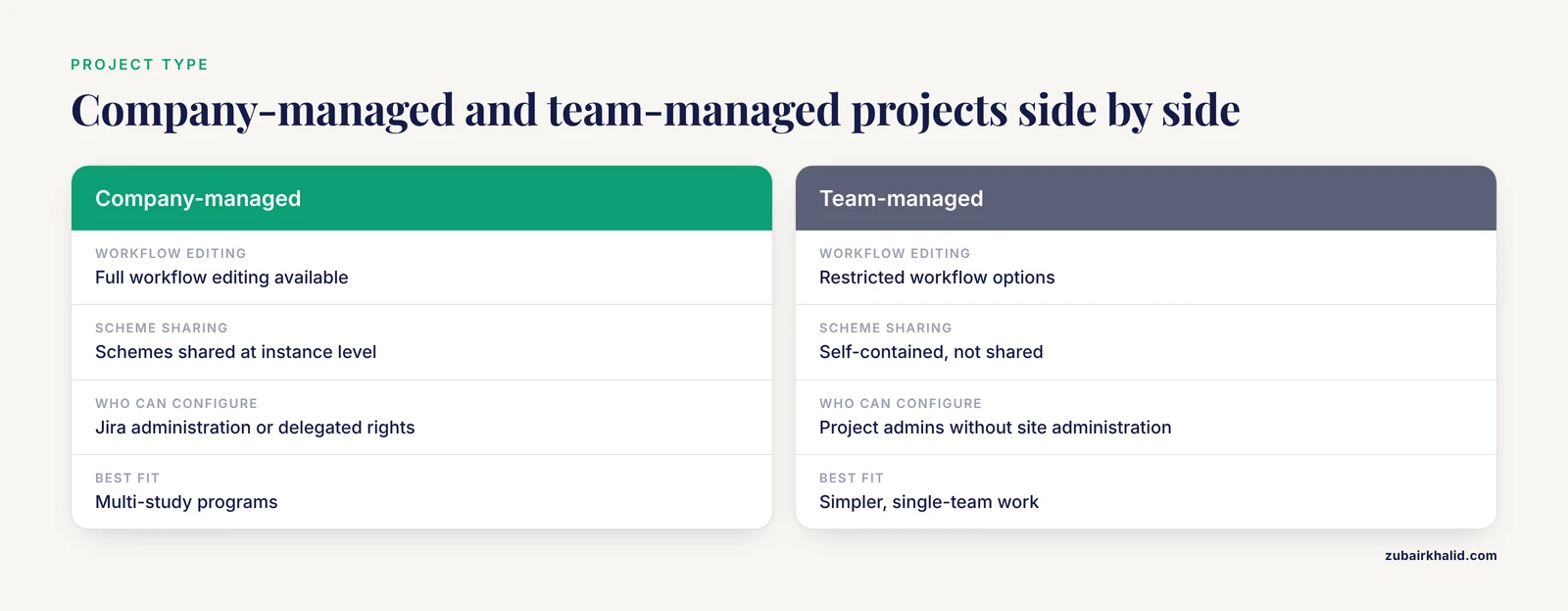
Company-managed projects share schemes at the instance level, support full workflow editing, and suit multi-study programs. Team-managed projects are self-contained and simpler, with restricted workflow options.
How many statuses should a clinical research workflow have?
Five to eight per issue type is a practical range. Fewer statuses hide important gates, and more statuses create stalls that are hard to monitor.
Can I automate recurring study tasks in Jira?
Yes. Jira Automation rules can trigger on field changes, schedules, or issue creation, and can send notifications, edit fields, and create linked issues, as shown in the site activation rule above.
Do I need an administrator to configure workflows?
For company-managed projects you need Jira administration rights or delegated workflow editing rights, depending on how your instance is configured. Team-managed projects let project admins adjust simplified workflows without site-level administration.
Sources
- Adapting the scrum framework for agile project management in science: case study of a distributed research initiative
- Identifying Challenges and a Research Agenda for Flow in Software Project Management
- Project Management Software Usage Patterns and Suggested Research Directions for Future Developments
- Software project management approaches for global software development: a systematic mapping study
- AI-Driven Decision Support Systems in Agile Software Project Management: Enhancing Risk Mitigation and Resource Allocation
- Software Project Management Using Machine Learning Technique-A Review
- Evaluating Success Factors of Software Project Management in Global Software Development
- Empirical Analysis of Critical Success Factors for Project Management in Global Software Development
- Evaluating Project Management Software Packages Using a Scoring Model-A Comparison between MS Project and Primavera
- Project Management Software Evaluation by Using the Measurement of Alternatives and Ranking According to Compromise Solution (MARCOS) Method
- University Research Project Management System Based on Cloud Platform
- Investigate the Efficiency of Project Management Software in Construction Projects
- A risk prediction model for software project management based on similarity analysis of context histories
- Optimizing agile project management methodologies in high-tech software development