Version Control for Non-Programmers: A Beginner's Guide to Git
By Dr. Zubair Khalid, DVM, MS, PhD ·

By the end of this guide you will be able to turn any project folder into a Git repository, save a snapshot of your work with a commit, look back at what changed between two snapshots, recover an earlier version of a file, use a branch to test a risky change, and share your work through GitHub. You need a computer with Git installed (installation instructions appear below), one small text file to practice with, and, later in the walkthrough, a free GitHub account. No programming experience is required. Every command in this guide is something you type into a terminal window, and every command comes with the output you should expect to see.
This guide is written for lab scientists, clinicians, students, and analysts who keep their work in spreadsheets, analysis scripts, manuscripts, and folders full of files named things like analysis_final_v3_REAL.ipynb. Version control for non-programmers solves the same problem those file names are trying to solve, in a way that scales and never lies to you about which version is which.
Why reproducible research needs version control
Reproducible research means that another person, or you six months from now, can rerun your analysis and get the same numbers. Two things make that possible. The first is documenting what you did. Published studies model this well: a 2025 cross-sectional study of cardiovascular risk in patients with type 2 diabetes reported its exact analysis environment, naming SPSS version 25 and a significance threshold of p less than 0.05, so any reader knows precisely which tools and settings produced the results [1]. The second is knowing which version of each file produced each result.
Modern analyses make the second point urgent. A 2025 study in Diabetologia quantified the architecture of more than 250,000 endocrine cells across more than 3,500 pancreatic islets using an automated image-analysis pipeline built in QuPath, software capable of running on a standard laptop [2]. When a pipeline touches that many data points, an undocumented change to one threshold can silently alter every downstream number. Version control records the exact state of every script, notebook, and document at the moment of each commit, so the question "which code made Figure 2?" has a definite answer instead of a guess.
Git is the standard tool for this. It is free, runs on Windows, macOS, and Linux, and works on any folder of files, whether those files are Python scripts, R notebooks, Word documents, or plain text.
Core concepts in plain language
Five terms cover most of what you need.
Repository (often shortened to "repo") is a project folder that Git is watching. Git stores its history in a hidden subfolder called .git. A folder either is or is not a repository, and you can check which at any time.
Commit is a saved snapshot of every tracked file in the repository, plus a message describing why you made the change. Commits are permanent, numbered, and stacked in order, like pages in a lab notebook. Each commit gets a unique identifier called a hash, such as a1b2c3d, which you can use to travel back to that exact state.
Staging area (also called the index) is a waiting room between your edits and your next commit. You choose which changes to stage, then commit the staged changes together. This lets you split unrelated edits into separate, well-labeled commits.
Branch is a parallel line of history. The default branch, usually named main, holds your stable work. A branch lets you try a new analysis or draft without touching the stable version, then merge the branch back in if it works.
Remote is a copy of your repository on another computer, most often GitHub. Pushing sends your commits to the remote. Pulling fetches commits from the remote and merges them into your local copy.
Installing and setting up Git
Download the installer for your operating system from the official Git website at git-scm.com, or on macOS install it as part of the Xcode command line tools. On Windows, the installer's default options are sensible for beginners. After installation, open a terminal (Command Prompt or PowerShell on Windows, Terminal on macOS or Linux) and confirm Git works:
git --versionExpected output (your number may differ):
git version 2.43.0If you see command not found or 'git' is not recognized, the installation did not add Git to your system path. Close and reopen the terminal first, then reinstall if the message persists.
Next, tell Git who you are. Every commit records an author name and email, so this one-time setup matters:
git config --global user.name "Ada Obi"
git config --global user.email "[email protected]"
git config --global init.defaultBranch main
The -global flag means these settings apply to every repository on this computer. Your email should match the one you use on GitHub if you plan to push work there, so your commits link to your account. Verify with:
git config --global --listYou should see your name, email, and the default branch name echoed back.
A step-by-step walkthrough
This walkthrough uses a small analysis project. Type each command exactly as shown and compare your output to the expected output.
Step 1: Create the project and make it a repository
mkdir pilot-analysis
cd pilot-analysis
git init
Expected output:
Initialized empty Git repository in /Users/ada/pilot-analysis/.git/The folder is now a repository. Nothing visible changed except a hidden .git folder, but Git is now listening.
Step 2: Check status before doing anything else
git statusExpected output:
On branch main

No commits yet

nothing to commit (create/copy files and use "git add" to track)
git status is your dashboard. Run it whenever you feel lost. It tells you which branch you are on, which files changed, and what is staged.
Step 3: Add a file and stage it
Create a file called methods.md containing a few lines of notes (any plain text editor works, or type them with nano methods.md). Then check status again:
git statusExpected output:
On branch main

No commits yet

Untracked files:
  (use "git add <file>..." to include in what will be committed)
	methods.md

nothing added to commit but untracked files present (use "git add" to track)
"Untracked" means Git sees the file but is not saving its history yet. Stage it and commit:
git add methods.md
git commit -m "Add initial methods notes"
Expected output:
[main (root-commit) 4f8a1c2] Add initial methods notes
 1 file changed, 3 insertions(+)
 create mode 100644 methods.md
The string 4f8a1c2 is the short hash of your first commit. Yours will differ. The -m flag supplies the commit message in quotes. Write messages that a colleague could understand a year from now, for example Add initial methods notes rather than stuff.
Step 4: Edit a file and inspect the difference
Open methods.md, change a line, and save. Then run:
git diffExpected output (yours will match your edit):
diff --git a/methods.md b/methods.md
index 3c4e9b1..7d2f0a8 100644
--- a/methods.md
+++ b/methods.md
@@ -1,3 +1,3 @@
-Primer concentration: 250 nM
+Primer concentration: 500 nM
Lines beginning with a single minus sign were removed. Lines beginning with a single plus sign were added. Reading git diff before every commit is the single best habit in this guide, because it shows exactly what you are about to record.
Stage and commit the edit:
git add methods.md
git commit -m "Correct primer concentration to 500 nM"
git log
Expected output:
commit 9b3e7d4 (HEAD -> main)
Author: Ada Obi <[email protected]>
Date:   Tue Nov 11 09:14:02 2026 -0500

    Correct primer concentration to 500 nM

commit 4f8a1c2
Author: Ada Obi <[email protected]>
Date:   Tue Nov 11 09:02:47 2026 -0500

    Add initial methods notes
HEAD is a label meaning "where you are right now" in the history. Each entry is one snapshot, newest first.
Step 5: Recover an earlier version of a file
Suppose the 500 nM edit was a mistake. You can restore the file to how it looked at the previous commit:
git restore methods.mdRunning git diff afterward shows no output, which means the file matches the last commit. git restore discards uncommitted edits, so it is the tool for "undo everything I have not saved yet." If you want an earlier commit rather than the latest one, use git log to find its hash, then run git restore, source 4f8a1c2 methods.md, replacing the hash with the one you want.
Step 6: Keep raw data out with a .gitignore
Create a file named .gitignore containing lines like these:
data/
*.csv
*.xlsx
results/
Then stage and commit it:
git add .gitignore
git commit -m "Ignore raw data and output files"
Git now skips everything in the data/ and results/ folders and every .csv and .xlsx file, so an accidental git add . will not sweep forty gigabytes of sequencing output into your history. The principle is to version the recipe (scripts, notebooks, configuration) and leave the bulk ingredients (raw data) in a backup system built for large files.
Step 7: Branch, experiment, and merge
Make a branch for a risky change:
git switch -c new-normalizationExpected output:
Switched to a new branch 'new-normalization'The -c flag creates the branch and switches to it in one step. Edit a script, commit on this branch, then return to your stable line and merge:
git switch main
git merge new-normalization
Expected output:
Updating 9b3e7d4..c5f2a8b
Fast-forward
 analysis.py | 4 ++--
 1 file changed, 2 insertions(+), 2 deletions(-)
A fast-forward merge means the main branch simply advanced to include the branch's commits. If Git cannot reconcile edits made to the same lines in both branches, it will stop and report a conflict, which is covered in the errors section below.
Step 8: Push to GitHub
Create an empty repository on github.com, note its web address, then connect and upload:
git remote add origin https://github.com/adaobi/pilot-analysis.git
git push -u origin main
Expected output:
Enumerating objects: 6, done.
Writing objects: 100% (6/6), done.
Branch 'main' set up to track remote branch 'main' from 'origin'.
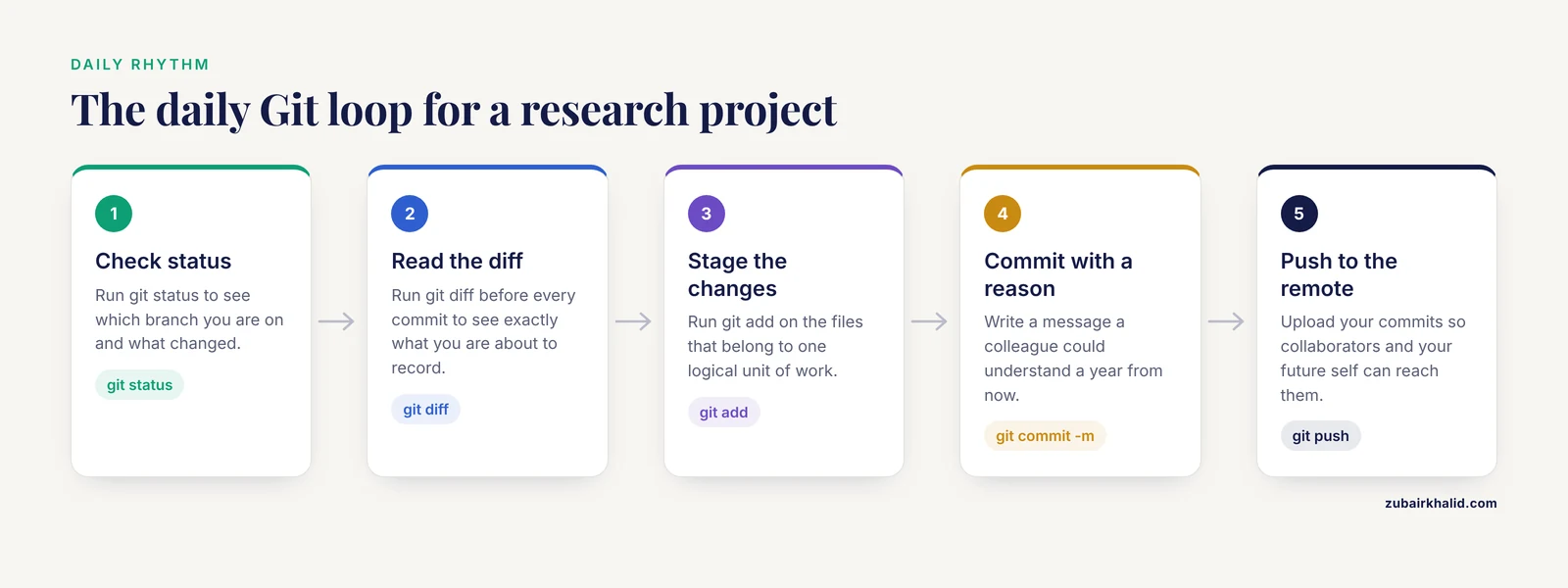
origin is the conventional nickname for your main remote. -u links your local main to the remote copy so that future pushes need only git push. From now on, the rhythm of daily work is: edit, git status, git diff, git add, git commit, git push.
Quick reference table
| Command | What it does | When to use it |
|---|---|---|
git status | Shows branch, staged and unstaged changes | Before and after every action |
git add FILE | Stages a file for the next commit | After finishing a logical unit of work |
git commit -m "message" | Saves a snapshot with a message | Each time a unit of work is complete |
git diff | Shows unstaged edits line by line | Before every commit |
git log | Lists commits, newest first | Finding a hash to restore |
git restore FILE | Discards uncommitted edits to a file | Undoing work you have not committed |
git switch -c NAME | Creates and enters a new branch | Starting an experiment |
git merge NAME | Brings a branch's commits into the current branch | Finishing an experiment |
git pull | Fetches and merges commits from the remote | Before starting work each day |
git push | Uploads your commits to the remote | After committing |
Common errors and their exact fixes
fatal: not a git repository (or any of the parent directories): .git. You ran a Git command in a folder that is not a repository. Run pwd (or cd with no arguments on Windows) to see where you are, then cd into your project folder, or run git init if this folder genuinely should become one.
error: pathspec 'methdos.md' did not match any file(s) known to git. A typo in a file name. Run git status to see the exact file names Git knows, then retype the command.
nothing to commit, working tree clean. This is not an error. It means every change is already committed. If you expected uncommitted work, check whether you staged it and then committed it already, using git log to confirm.
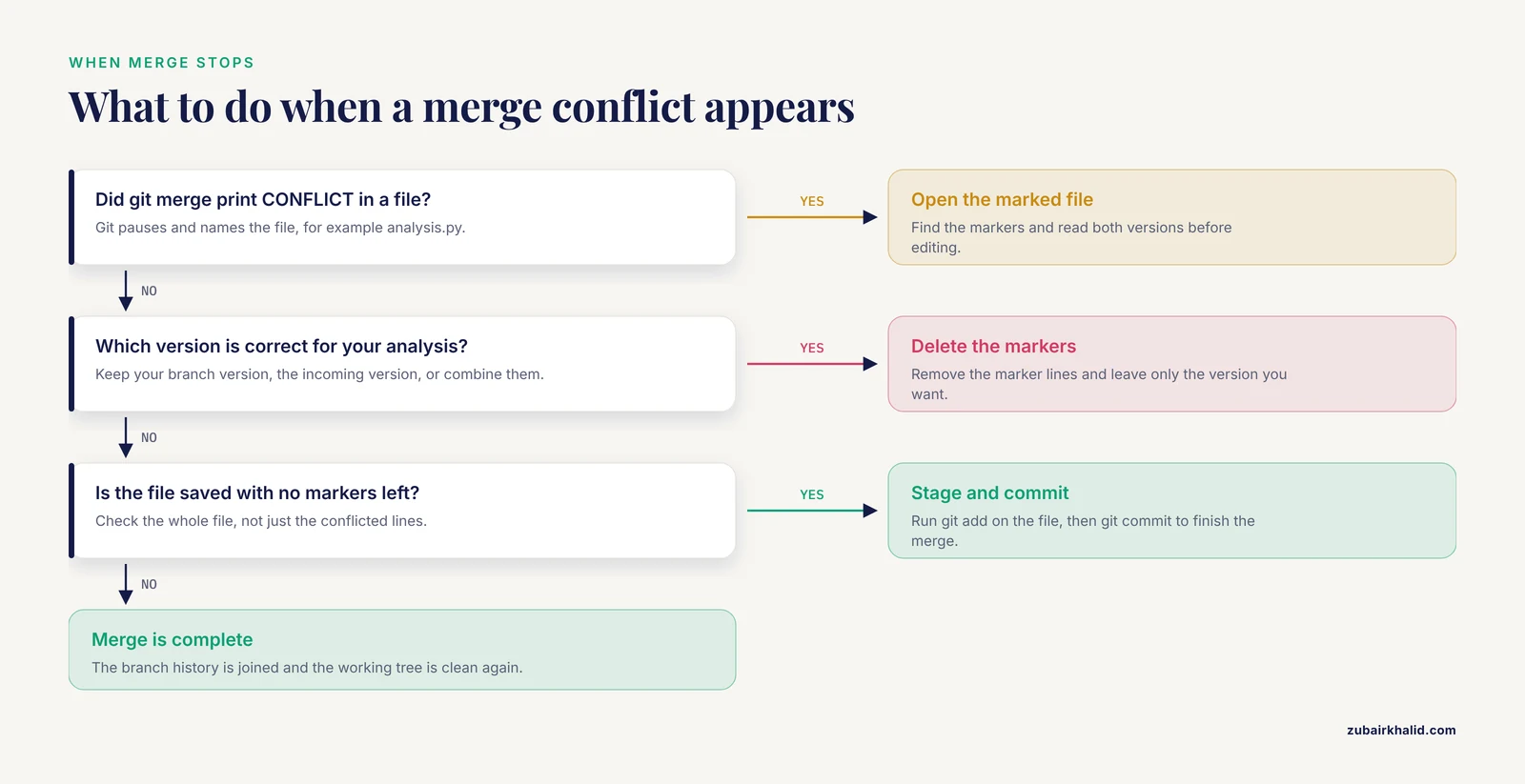
Merge conflict markers in a file. When both branches edited the same lines, git merge pauses and prints CONFLICT (content): Merge conflict in analysis.py. Opening the file reveals markers:
<<<<<<< HEAD
threshold <- 0.05
=======
threshold <- 0.01
>>>>>>> new-normalization
Everything between the first two markers is your current branch's version, everything after the ======= line is the incoming branch's version. Delete the markers and keep whichever version is correct (or combine them), then finish with:
git add analysis.py
git commit
! [rejected] main -> main (fetch first). The remote copy has commits you do not have locally, often because you pushed from another machine. Run git pull, resolve any conflict the same way as above, then git push again.
fatal: 'origin' does not appear to be a git repository. The remote address is wrong or the remote was never added. Run git remote -v to list configured remotes. If the list is empty, repeat git remote add origin with the correct address copied directly from the GitHub page.
Tips for using Git in a research workflow
Commit small and commit often. A commit that contains one logical change ("switch normalization method") is far more useful six months later than a commit containing three weeks of mixed edits, because you can find and reuse the exact state that produced a given result.
Write commit messages as a lab notebook, not a diary. Compare Fix buffer pH and rerun standard curve against update. The first message lets a future reader reconstruct decisions.
Version the recipe, not the ingredients. Scripts, notebooks, manuscript text, and small configuration files belong in the repository. Raw imaging data, fastq files, and multi-gigabyte outputs belong in institutional storage or a dedicated data repository, kept out of Git by your .gitignore.
Treat the repository itself as part of your methods. A study that documents its analysis in detail, down to the software version and significance threshold, is following the same instinct that good commit messages express: record the exact conditions under which each number was produced [1]. Similarly, the coordinate-level cell outputs in the islet architecture study were made possible by a scripted, automated pipeline rather than manual annotation, and a pipeline of that kind is exactly the sort of artifact version control was built to track [2].
Use branches for anything you would regret breaking. New statistical model, revised figure code, a restructure of the manuscript. Branch, experiment, merge when satisfied, delete the branch with git branch -d NAME.
Pair Git with an environment file. Version control records what your code looked like, and an environment file (such as requirements.txt for Python or an exported environment description for R or Conda) records what your software stack looked like. Together they answer both halves of the reproduction question.
A reproducibility checklist for your repository
Run through this list before you share a repository with a collaborator, a reviewer, or your future self:
- A README file at the top level explains what the project is, how to run the analysis, and in what order.
- A
.gitignoreexcludes raw data, generated outputs, and system files. - Every software dependency and version is recorded, either in an environment file or in the documentation, matching how published papers state their analysis tools [1].
- Commit messages describe reasons, not just file names.
- The repository contains no passwords, API keys, or direct patient identifiers.
- A branch or tag marks the exact commit that produced each submitted manuscript, so reviewer requests can be answered against a frozen state.
git statusis clean andgit logreads like a sensible narrative when someone else opens it.- Anyone cloning the repository can rerun the pipeline end to end by following the README alone.
Common Mistakes and Limitations
Treating Git as a backup button. Committing once at the end of a project gives you one snapshot, which is barely better than the folder of final_v2 copies you started with. The value lives in frequent, well-labeled commits along the way.
Committing large or sensitive files. Raw datasets and output files bloat a repository until it becomes unusable, and files committed by mistake remain in the history even after deletion, because history is the whole point. Patient-identifiable data should never enter a repository at all, and anything sensitive requires review under your institution's data governance policy before sharing.
Confusing Git with GitHub. Git is the version control program on your computer. GitHub is one hosting service for repositories. You can use Git entirely alone, and you can use hosting services other than GitHub.
Expecting Git to handle every file type equally well. Git diffs and merges text beautifully. Binary formats such as .docx, .xlsx, and SPSS .sav files are stored as whole objects, so Git can tell you that the file changed but not which cell or paragraph. For heavily edited documents, plain text formats (Markdown, LaTeX, or CSV) get far more value from Git than binary formats do.
Nested repositories by accident. Running git init inside a folder that is already inside another repository creates confusion. If a collaborator sends you a project, check for a .git folder before initializing.
Undo fear. Almost every Git mistake is recoverable before a force-push, and beginners should simply never use force flags. If you are unsure of your footing, copy the commit hash from git log, write it down, and ask for help. The history is the safety net.
One practical limitation deserves plain acknowledgment: Git does not design your analysis or check your statistics, it records the evolution of your files. Sound methods and appropriate analysis remain your responsibility, and individual projects with unusual data or compliance requirements need input from your institution's IT or data office.
Frequently Asked Questions
Do I need to know how to program to use Git?
No. The core workflow uses about ten commands that you type exactly as shown, and none of them involve writing code. Git tracks whatever files you give it, including manuscripts, protocols, and notebooks.
Is GitHub the same thing as Git?
No. Git is the version control program running on your computer. GitHub is a website that hosts copies of repositories so collaborators can share work. Git works fine with no account anywhere.
How is Git different from saving copies named final_v2?
Git stores every snapshot permanently with a timestamp, author, and message, and can show the exact line-by-line difference between any two snapshots. Renamed copies store no differences, lose information, and create ambiguity about which copy is authoritative.
Can I version control Excel files or SPSS outputs?
Yes, Git will store them, but it treats them as indivisible binary objects, so it cannot show you what changed inside them. Text-based formats such as CSV for tables or Markdown for documents work far better with Git.
What happens if I commit something by mistake?
Before pushing, you can amend the last commit or use git restore, source with a hash to recover file contents from any earlier snapshot. Once you understand a few recovery commands, mistakes become routine rather than catastrophic.
Do I have to use the command line?
No. Graphical tools such as GitHub Desktop, or the Git panel built into editors like VS Code, cover the full beginner workflow with buttons. Learning the commands still helps, because error messages and online guidance assume them.
How much Git do I actually need for a research project?
The workflow in this guide (init, status, add, commit, diff, log, restore, switch, merge, push, pull) covers the daily needs of a single-author or small-lab project. Advanced features can wait until a specific problem demands them.
How does Git support reproducible research?
Git gives every result a definite provenance, because each figure and table corresponds to a specific commit whose full contents can be recovered exactly. Combined with recorded software versions and environment files, that makes your analysis rerunnable by others.