How to Fix Duplicate References in Your Reference Manager
By Dr. Zubair Khalid, DVM, MS, PhD ·

By the end of this guide you will be able to find every duplicate record in your library, merge them safely in Zotero, Mendeley Reference Manager, or EndNote, clean duplicate entries out of a BibTeX file before a LaTeX compile, confirm your bibliography still renders correctly, and change a few habits so duplicates stop coming back. You need about thirty minutes, your reference manager installed, and a folder where you can stash a backup. Formal training for this kind of routine software troubleshooting is thin in most research programs, so most people learn by trial and error. This guide replaces the trial and error with a fixed procedure you can reuse every semester.
Why Duplicate References Pile Up
A reference manager is a small database that you write to constantly. You create records, read them, update them, and delete them, and data inconsistency across those create, read, update, and delete operations is a recognized failure mode in this class of software [1]. Every duplicate in your library traces back to one of a handful of causes.
- Two import routes for the same paper. You saved a record from PubMed during your literature search, then later imported the same paper from the publisher website. The two records differ slightly in formatting, so the matcher treats them as separate works.
- Drag-and-drop after manual entry. You typed the metadata by hand last week, then this week dragged the PDF into the library, and your manager created a fresh record from the file.
- Sync conflicts between devices. A laptop and a lab workstation both held unsynced changes, and the sync resolved the conflict by keeping both versions of the record.
- Merging libraries. You imported an exported library from a colleague or an old account, and every shared source arrived twice.
- Preprint plus published version. The arXiv or bioRxiv record and the journal article carry different identifiers, so they look like separate sources to the software.
- Unsynced edits. You corrected a typo in a title on one machine, but another machine synced an older copy, and both survived.
Knowing the cause matters because the fix differs. A pair created by two import routes should merge cleanly. A preprint and its published version usually should not merge at all, since they have different DOIs and you may need to cite both.
How Duplicate Detection Works
Every deduplication engine in reference management software follows the same broad recipe. It normalizes records first, which usually means lowercasing titles, stripping punctuation, and collapsing whitespace. Then it compares fields, most commonly the title, the author surnames, and the publication year, using fuzzy matching that tolerates small spelling differences. If both records carry a DOI, the digital object identifier assigned to the published version, the match becomes near-certain, because a DOI is designed to be a unique persistent identifier for one work.
The weak point is the record without a DOI. Detection then falls back on text similarity, and the engine gets conservative, which is why some duplicates are never flagged. A title with one transposed letter or a transliterated author name can slip through every automated pass.
Software engineers solve this class of problem with standards. In formal automated remediation systems, each detected issue is mapped to a defined corrective action, and the whole cycle runs through common formats so tools can process the findings reliably [2]. The concept is demonstrated in published reference implementations that walk an issue from detection through resolution end to end [3]. Deduplication in a citation manager follows the same logic even when the tool never uses those words: a detected match maps to a defined merge action, and the quality of the result depends on how well the matching standard was defined.
A Citation Manager Comparison for Duplicate Cleanup
The four managers most researchers use all ship a built-in deduplication tool, and they differ mainly in how much control you get over the merge. This citation manager comparison summarizes the built-in tools in current versions, so check your own version's documentation for the exact labels.
| Manager | Where the tool lives | What it matches on | How merging works |
|---|---|---|---|
| Zotero | Duplicate Items pane in the left sidebar | Title, creators, year, publication | You pick the master record, one click merges tags, attachments, and citation history |
| Mendeley Reference Manager | Resolve duplicates review in your library | Author, title, year | Field-by-field checkboxes let you choose which value survives for each field |
| EndNote (desktop) | Library menu, Find Duplicates | Reference type, author, year, title | Keep as is, merge references, or edit before merging, surplus record moves to Trash |
| JabRef | Find menu, Find duplicates | BibTeX fields including DOI | Merge entries dialog with field selection |
Two patterns are worth noticing in that table. Zotero gives you the least to decide but the safest merge, because it preserves everything attached to both records. Mendeley gives you the most field-level control, which matters when one record has the right journal name and the other has the right abstract.
Fix Duplicate References in Your Reference Manager, Step by Step
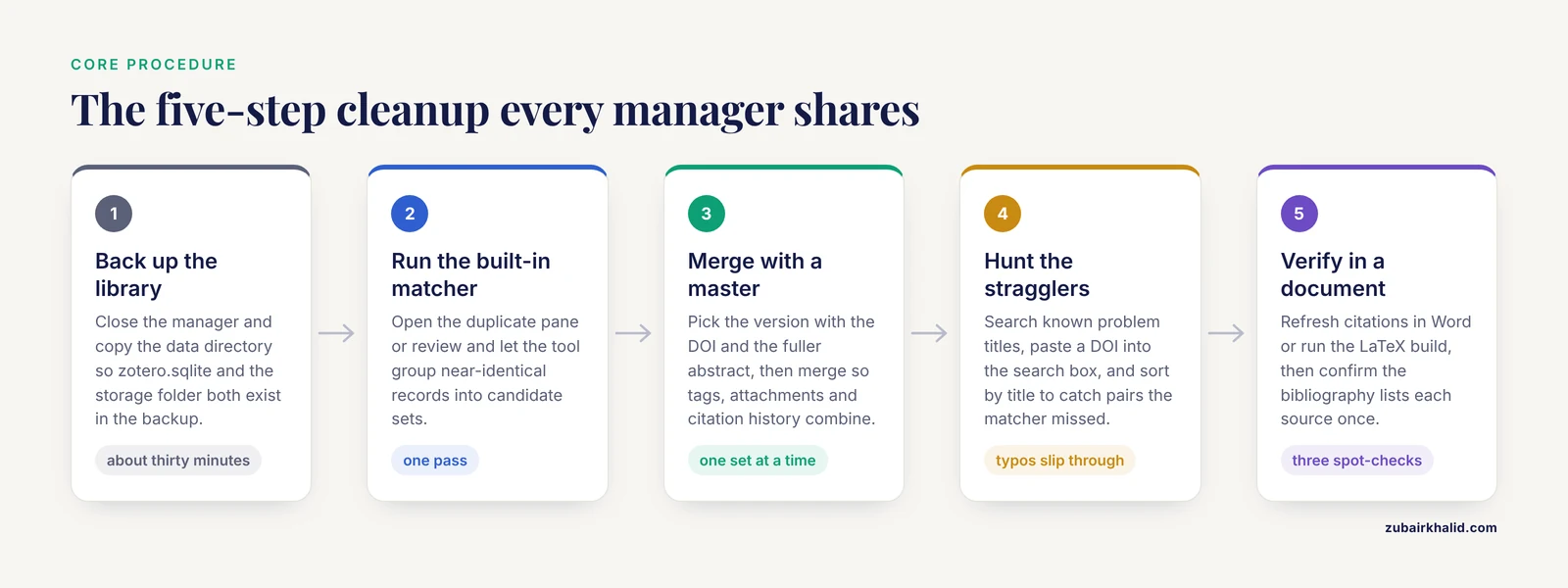
The core workflow is identical everywhere: back up, run the built-in matcher, merge with a deliberate choice of master record, hunt the stragglers the matcher missed, and verify the result in an actual document. The subsections below give the exact steps for each manager.
Zotero
Step 1. Back up the library before you touch anything. Zotero stores the whole library in a data directory, by default C:\Users\yourname\Zotero on Windows or ~/Zotero on macOS and Linux. Close Zotero completely, then copy the directory.
On Windows, in PowerShell:
Copy-Item -Recurse "$env:USERPROFILE\Zotero" "$env:USERPROFILE\Zotero-backup-2026-11-11"On macOS or Linux:
cp -r ~/Zotero ~/Zotero-backup-2026-11-11Expected output: none. The command prompt simply returns, which means the copy succeeded. Confirm the backup exists:
ls ~/Zotero-backup-2026-11-11Expected output:
storage styles translators zotero.sqliteThe file zotero.sqlite is the database itself, and the storage folder holds your attached PDFs. If both exist in the backup, you can recover from any merge mistake.
Step 2. Open the Duplicate Items pane. In the Zotero window, the left sidebar lists My Library, your collections, and then a item called Duplicate Items. Click it. Zotero shows only the records it believes are duplicates, grouped into sets, and most sets contain exactly two versions of the same source.
Step 3. Merge one set at a time. Select a set. The right pane shows the versions side by side with a button labeled Merge 2 items. Before merging, choose the master version, the record Zotero keeps as the surviving item. Pick the version with the DOI and the more complete abstract. When you merge, Zotero combines the tags, collection membership, notes, attachments, and citation history from every version into the master, and the unmerged copies move to the trash. Do this set by set. Zotero does not batch-merge the whole pane in one click, so sort the list by title and work through it in blocks.
Step 4. Hunt the stragglers. Zotero's matcher only surfaces near-identical pairs, so a duplicate with a typo in the title stays invisible to it. Search for known problem titles in the main search bar, paste a DOI into the search box to see how many records carry it, and sort All Documents by Title to scan for matching prefixes manually.
Step 5. Repeat after every import. Run one pass through the Duplicate Items pane after any bulk import, a library merge, or a long offline editing session.
Mendeley Reference Manager
Elsevier has moved users from the legacy Mendeley Desktop application to Mendeley Reference Manager, and the duplicate tool is labeled differently in each. The steps below work for either.
- Sign in and open your library in the desktop app or on the website, and wait until syncing finishes so you are reviewing one consistent copy of the data.
- Run the duplicate review. In Mendeley Desktop, select All Documents and choose Check for Duplicates. In Mendeley Reference Manager, use the Resolve duplicates review in your library. The exact label depends on your version.
- Review each candidate set field by field. Mendeley shows checkbox rows for each field, and you tick the value you want to keep. Prefer the record with the DOI filled in, the correct document type, and the complete abstract.
- Confirm the merge and move to the next set until the review is empty.
- Search for a title you know was duplicated to confirm only one record remains.
If your library lives partly on Elsevier's servers, finish all merges on one device and let the sync settle before you edit anywhere else. Two devices writing to the same library simultaneously is a classic route to resurrected duplicates and, worse, to records that diverge in their metadata after the merge.
EndNote
- Open your library file and let it finish any sync with your EndNote online account before you start.
- Open the Library menu and choose Find Duplicates.
- In the comparison window, EndNote lists candidate records side by side. By default it compares the reference type, the author, the year, and the title. You can change which fields count in the comparison and ask EndNote to ignore capitalization differences in author names, which helps when the same paper was imported from two databases that formatted the authors differently.
- For each set, choose one of three actions: Keep as is, Merge references, or Edit references first. Merging combines the fields into a single record and moves the surplus record to the Trash. Empty the Trash only after you have checked the results.
- Sync again so the online copy matches the desktop library.
Work through the candidate list in a fixed order, for example sorted by author or by year, rather than jumping around. That discipline is the same one systematic troubleshooting guides recommend for any managed software, and it is what stops you from re-reviewing the same set twice or leaving a pair half-processed [4].
BibTeX and JabRef, before a LaTeX compile
BibTeX, the bibliography format used with LaTeX, stores each source as an entry with a citation key such as smith2021crispr. Duplicates cause two distinct failures. Two entries with different keys describing the same paper make your bibliography list the work twice. Two entries sharing one key make the compile fail outright.
Find duplicate DOIs with one command. From a terminal, in the folder holding your bibliography file:
grep -ioE 'doi[[:space:]]*=[[:space:]]*["{]10\.[^"}]+' refs.bib \
  | tr '[:upper:]' '[:lower:]' \
  | sort \
  | uniq -d
This extracts every DOI line, lowercases it so that 10.1000/AbC and 10.1000/abc count as the same, sorts the lines, and prints only lines that appear more than once. Expected output for a file with one duplicated DOI:
doi = {10.1000/example-1}If the command prints nothing, no two entries share a DOI. To locate the offending entries:
grep -in "10.1000/example-1" refs.bibExpected output:
214:doi = {10.1000/example-1},
487:doi = {10.1000/example-1},
Fix the file in JabRef or by hand. Open refs.bib in JabRef, choose Find duplicates from the Find menu, review each proposed pair, and use the Merge entries dialog to keep the published version's journal details. If you prefer to work in a text editor, read both entries at the line numbers the grep command reported, keep the one with the better metadata, delete the other, and update any \cite{key} commands in your manuscript that pointed at the deleted key.
What the compile shows before and after. With duplicate keys, the LaTeX log ends with a warning of this form:
LaTeX Warning: There were multiply-defined labels.and BibTeX's own log file, manuscript.blg, lists a repeated entry alongside the key. After cleanup, run the standard build cycle:
pdflatex manuscript && bibtex manuscript && pdflatex manuscript && pdflatex manuscriptExpected result: the final pass reports no multiply-defined labels and the bibliography contains each source exactly once.
How to Verify the Fix
Do the arithmetic first. The count of items in your library should drop by exactly the number of duplicate records removed. Worked example for a Zotero library:
1,214 items before - 48 merged pairs = 1,166 items afterIf the count dropped by more than you merged, something else was deleted, and you should restore the backup and start over.
Check an actual document. In Word or LibreOffice with Zotero, click Refresh in the Zotero tab after merging, then inspect the bibliography. In EndNote, use Update Citations and Bibliography. In LaTeX, run the full compile cycle shown above. A clean run is the strongest evidence the merge succeeded.
Spot-check three citations. Open the rendered PDF or Word bibliography and confirm three randomly chosen in-text citations point at the right entry, with no doubled lines in the reference list.
Confirm attachments survived. Open two or three of the merged items and confirm the linked PDF opens. A merge that silently dropped a PDF with your annotations is annoying precisely because you only notice months later.
Tips to Stop Duplicates From Coming Back
Fixing the existing duplicates is half the job. These habits address the causes listed earlier.
- Use one import route per paper. Decide that you capture sources either from the database or from the publisher page, not both.
- Add by identifier. Zotero's Add Item by Identifier tool, the magic wand icon, accepts a DOI, a PubMed ID, or an ISBN and pulls in one clean record. Typing metadata by hand is the slowest and least accurate route and creates the variants that defeat matching later.
- Dedup immediately after any bulk import or library merge. The pairs are easiest to review while the context is fresh.
- Do not edit the library from two devices at once. Let sync finish before you switch machines.
- Decide your preprint policy in advance. A common rule is to keep only the version of record and attach the preprint PDF to that record, rather than letting both exist as separate items.
- Schedule a short monthly pass. Ten minutes through the duplicate pane per month beats an hour-long archaeology session before a deadline.
- Sort before you merge. Sorting the duplicate list by title groups similar pairs together, which speeds up review and reduces misclicks.
Common Mistakes and Limitations
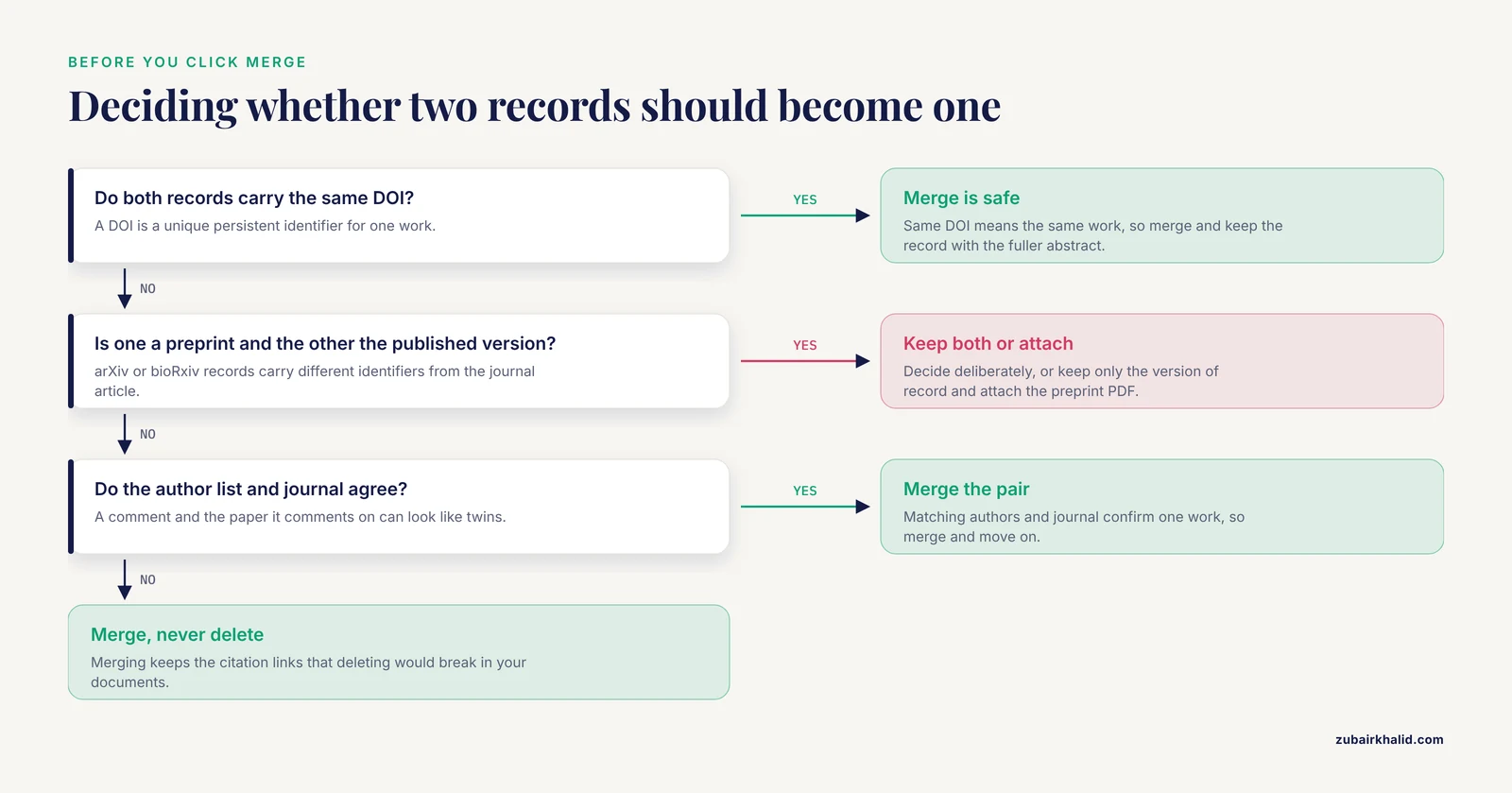
Deleting instead of merging. In-text citations in your Word or LibreOffice documents point at specific records in the library. If you delete both copies of a duplicated source, the citations lose their target, and the next refresh drops them or throws an error. Zotero users who have done this often see a message along the lines of "Zotero experienced an error updating your document." Merging, not deleting, preserves the mapping between your document and the library.
Trusting the matcher completely. Automatic matching produces both false positives and false negatives. Different published works can carry nearly identical titles, a comment and the paper it comments on can look like twins, and book chapters with the same title exist in different editions. Read the author list and the journal before you click merge. In the other direction, transliterated author names, missing DOIs, and punctuation differences defeat matching entirely, so a clean duplicate pane does not prove the library is clean.
Merging a preprint with its published version automatically. They have different DOIs and different citation implications. Decide deliberately whether both should exist in your library.
Skipping the backup. A merge produces a new combined record, and splitting it back apart is fiddly. The two-minute directory copy in the Zotero steps above is cheap insurance.
Merging during a sync conflict. If your manager shows a conflict dialog or records still show unsynced changes, resolve the sync first, then dedup.
Emptying the Trash too early. EndNote and Zotero both move merged-away records to the Trash. Leave them there until you have verified your documents.
Assuming one pass is enough. New imports create new duplicates. The fix is a schedule, not a single event.
Ignoring systematic-review obligations. If you are assembling records for a systematic review, the reporting guidelines expect you to track how many records you removed as duplicates, so note the before and after counts as you go rather than reconstructing them later.
One general limitation. Every manager's matching rules and menu labels change across versions, and individual workflows differ, so treat this guide as the general procedure and confirm the exact dialogs against your installed version's documentation.
Frequently Asked Questions
Why do duplicates keep reappearing in my library?
Because duplicates are created by your import habits, not fixed once. Every route into the library, whether a database export, a PDF drag-and-drop, or a sync conflict, can add a second record for the same source, so you need to dedup after each bulk import rather than once a year.
Should I delete duplicate references or merge them?
Merge them. Merging preserves the link between the surviving record and every document that cites it, while deleting can break citations in your Word or LibreOffice files and leaves orphaned citation fields behind.
Will merging duplicates break my Word citations?
No. Merging is designed to keep citation history intact because the merged master record inherits the citation links from all versions. Deleting a record that a document citation points to is what breaks things.
How do I fix duplicate references in a BibTeX file?
Open the file in JabRef and use Find duplicates and Merge entries, or run the grep command in this guide to list DOIs that appear on more than one entry, then delete the weaker entry and update any citation keys that pointed at it.
Do I need to remove duplicates before submitting a manuscript?
Yes. Journals expect each source to appear exactly once in your bibliography, and duplicate entries look careless to editors and reviewers. Dedup before you finalize reference formatting, not after.
Can automatic duplicate detection be wrong?
Yes, in both directions. It can flag two genuinely different works that share a similar title, and it can miss real duplicates when titles contain typos or author names were transliterated differently. Review each proposed merge rather than accepting everything.
How often should I check for duplicates?
After every bulk import, library merge, or multi-device editing session, plus one short scheduled pass each month. Small, frequent passes are faster and safer than one large cleanup before a deadline.
Which reference manager is best at handling duplicates?
All four major managers include a working dedup tool, and none is clearly superior for the merge itself. Zotero's duplicate pane combined with DOI searches covers most needs, Mendeley offers the most field-level control, and EndNote offers the most comparison options, so choose based on the rest of your workflow.
Sources
- Azure AKS CRUD Related Issues: Identification, Logging, Resolution, Examples, and Documentation
- Standards-Based Automated Remediation: A Remediation Manager Reference Implementation, 2011 Update
- Standards-Based Automated Remediation: A Remediation Manager Reference Implementation
- Troubleshooting System Center Configuration Manager