How to Export Zotero Annotations to Markdown
By Dr. Zubair Khalid, DVM, MS, PhD ·

By the end of this guide you will be able to take every highlight, comment, and image selection you made while reading a PDF in Zotero and turn it into a plain Markdown file you can open in Obsidian, VS Code, Typora, Logseq, or any plain text editor. You will learn three ways to do it: the export command built into Zotero 7, a fast drag-and-drop method, and a template-driven pipeline with the Obsidian Zotero Integration plugin that keeps your literature notes consistent across hundreds of papers.
Here is what you need on hand before you start:
- Zotero 7 or later, installed from zotero.org. The built-in Markdown note export does not exist in Zotero 6, so check your version under Help, About Zotero.
- At least one PDF in your library with annotations (highlights, underlines, notes, or image selections) made in the Zotero reader.
- A Markdown editor such as Obsidian, Logseq, or VS Code.
- Optional: the Better BibTeX plugin for stable citation keys, and the Zotero Integration plugin for Obsidian along with Pandoc if you want automated imports.
Why Export Annotations to Markdown at All
Zotero is excellent for collecting papers and reading them, but annotations trapped inside a PDF are hard to search across your whole library, hard to link to your own writing, and locked to one application. When you export Zotero annotations to Markdown, you get plain text files that every editor can read, that version control systems like Git can track line by line, and that you can link into your own research note taking workflow.
A literature notes system built on Markdown has three practical advantages. First, your notes survive even if you change reference managers later, because plain text never becomes obsolete. Second, you can search and link notes with wiki-style connections such as [[caffeine-adenosine-receptor]] instead of folders. Third, exported notes give you a permanent record that complements the PDF rather than depending on it, which matters when you are writing a thesis, a review, or a manuscript and need to trace a quote back to its page.
Before You Start: How Zotero Stores Annotations
Zotero keeps annotations in two places, and knowing the difference prevents most confusion.
When you highlight text in the Zotero PDF reader, the annotation is stored on the PDF attachment item in your library. It is not automatically a note. A separate child note (a note attached to the same parent item) is where Zotero collects text that you can export as a document. Some export methods work directly from annotations, and others work from notes, so the first step in any pipeline is usually getting annotations into a note, or using a method that does that conversion for you.
Annotation types you can export include:
- Highlights: selected text with a color.
- Underlines: selected text with an underline style.
- Notes: free text you type while reading.
- Image annotations: a cropped screenshot of a region of the page, stored as a PNG file.
- Area selections: similar to image annotations, used for figures.
How to Export Zotero Annotations to Markdown Step by Step (Built-in Method)
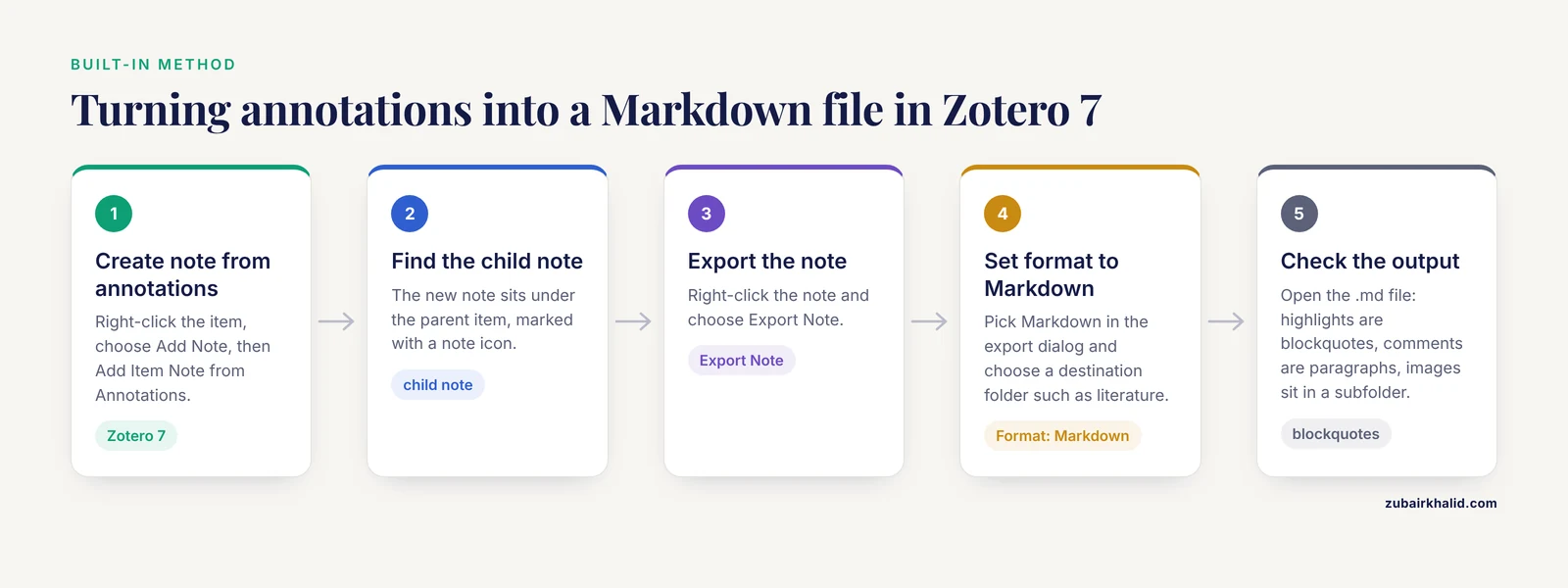
Zotero 7 can export any note directly to Markdown without plugins. This is the method to learn first because it needs nothing extra installed.
Step 1: Turn your annotations into a note
- Open Zotero and select the library item that has your annotated PDF.
- Right-click the item, choose Add Note, then Add Item Note from Annotations.
- Zotero creates a new child note containing every annotation from every attached PDF, each one tagged with its color and page number.
- Double-click the new note to open it and confirm your highlights are all there.
If you only want annotations from one PDF rather than the whole item, right-click that specific PDF attachment instead and choose the equivalent Add Note from Annotations option for the attachment.
Step 2: Export the note as Markdown
- In the items list, find the child note you just created. It sits underneath the parent item, marked with a note icon.
- Right-click the note and choose Export Note.
- In the export dialog, set Format to Markdown.
- Choose a destination folder, for example a folder called
literatureinside your Obsidian vault, and click Save.
Step 3: Check the output
Open the exported .md file. A representative result looks like this:
Smith J, Lee K (2024). Receptor signaling in adaptive immunity.
*Journal of Immunology Research*.
> The highlight text appears as a blockquote. (p. 4)
Your comment on the highlight appears as normal paragraph text.
Text highlights become blockquotes prefixed with >, your typed comments become plain paragraphs, and image annotations are saved as PNG files in a subfolder named after the note, with the Markdown file linking to them. The export also preserves internal links of the form zotero://open-pdf/library/items/XXXXXXXX?page=4, which open the source PDF at the exact page when clicked on the machine where your Zotero library lives.
Export parameters that matter
- Format: set this to Markdown. HTML is the other note format, and HTML is what Zotero 6 users remember, so a missing Markdown option almost always means you are running Zotero 6 or exporting an item rather than a note.
- Export Notes checkbox: when you right-click a parent item and use the general Export Item dialog instead of Export Note, you must tick Export Notes or your notes will not be included. This checkbox is the single most commonly missed setting.
- Destination folder: exporting into a subfolder keeps image files organized next to the Markdown file. If you move the
.mdfile without moving its image folder, the image links break.
Method 2: Drag and Drop for Quick Copies
When you want one or two annotations right now and do not care about automation, drag and drop works.
- Open the item in Zotero and select the child note (or the note created from annotations).
- Click and hold the note in the items pane.
- Drag it into your Markdown editor (Obsidian, Typora, VS Code, or an open text file) and release.
- Zotero converts the note content to Markdown at the drop location.
You can also drag individual annotation rows from the annotation sidebar inside the PDF reader into an external editor. This is fast for pulling a single quote into a draft, and it preserves the blockquote formatting and page link. The weakness is scale. Drag and drop does not name files, add metadata, or update automatically, so it works best as a supplement to the export method, not a replacement.
Method 3: Automated Imports with the Obsidian Zotero Integration Plugin
For a serious literature notes system, manual exports become a chore after the fiftieth paper. The Zotero Integration plugin for Obsidian imports a paper's annotations into a new Markdown note from a template you control, so every literature note has the same structure.
Step 1: Install the dependencies
- In Obsidian, open Settings, Community plugins, browse, and install Zotero Integration by mgmeyers, then enable it.
- Install Better BibTeX in Zotero (download from the Better BibTeX releases page and double-click the
.xpifile, or use Zotero's plugin manager under Tools, Plugins). Better BibTeX provides the stable citation keys the template needs. - Install Pandoc, which the plugin uses to process templates:
# macOS with Homebrew
brew install pandoc

# Windows with winget
winget install pandoc

# Debian or Ubuntu
sudo apt install pandoc- Restart Obsidian.
Step 2: Write a template
In Obsidian, go to Settings, Zotero Integration, and create a new template. A minimal literature note template that pulls in highlights and your comments looks like this:
---
citekey: {{citekey}}
title: {{title}}
authors: {{authors}}
year: {{date | format("YYYY")}}
tags: literature-note
---

## Annotations

{% for annotation in annotations %}
{% if annotation.annotatedText %}
> {{ annotation.annotatedText }}
([p. {{annotation.page}}]({{annotation.attachmentURIPath}}))

{% elif annotation.comment %}
{{ annotation.comment }}

{% endif %}
{% endfor %}
This template writes YAML frontmatter with the citation key, title, authors, and year at the top, then loops through every annotation. Highlighted text becomes a blockquote with a page link back into Zotero, and standalone comments become normal text.
Step 3: Run the import
- Open the Obsidian command palette with
Ctrl+P(Windows and Linux) orCmd+P(macOS). - Run Zotero Integration: Create Note.
- Type part of the paper title and pick the paper from the citation key picker.
- Choose your template. Obsidian creates a new note, named after the citation key, filled with your annotations.
Step 4: Configure the database connection
The plugin talks to Zotero through the Better BibTeX HTTP endpoint, so Zotero must be running when you import. In Better BibTeX preferences, confirm that the option to allow the HTTP endpoint is enabled. If imports fail, the fastest check is to confirm Zotero is open, then retry.
Comparing the Three Methods
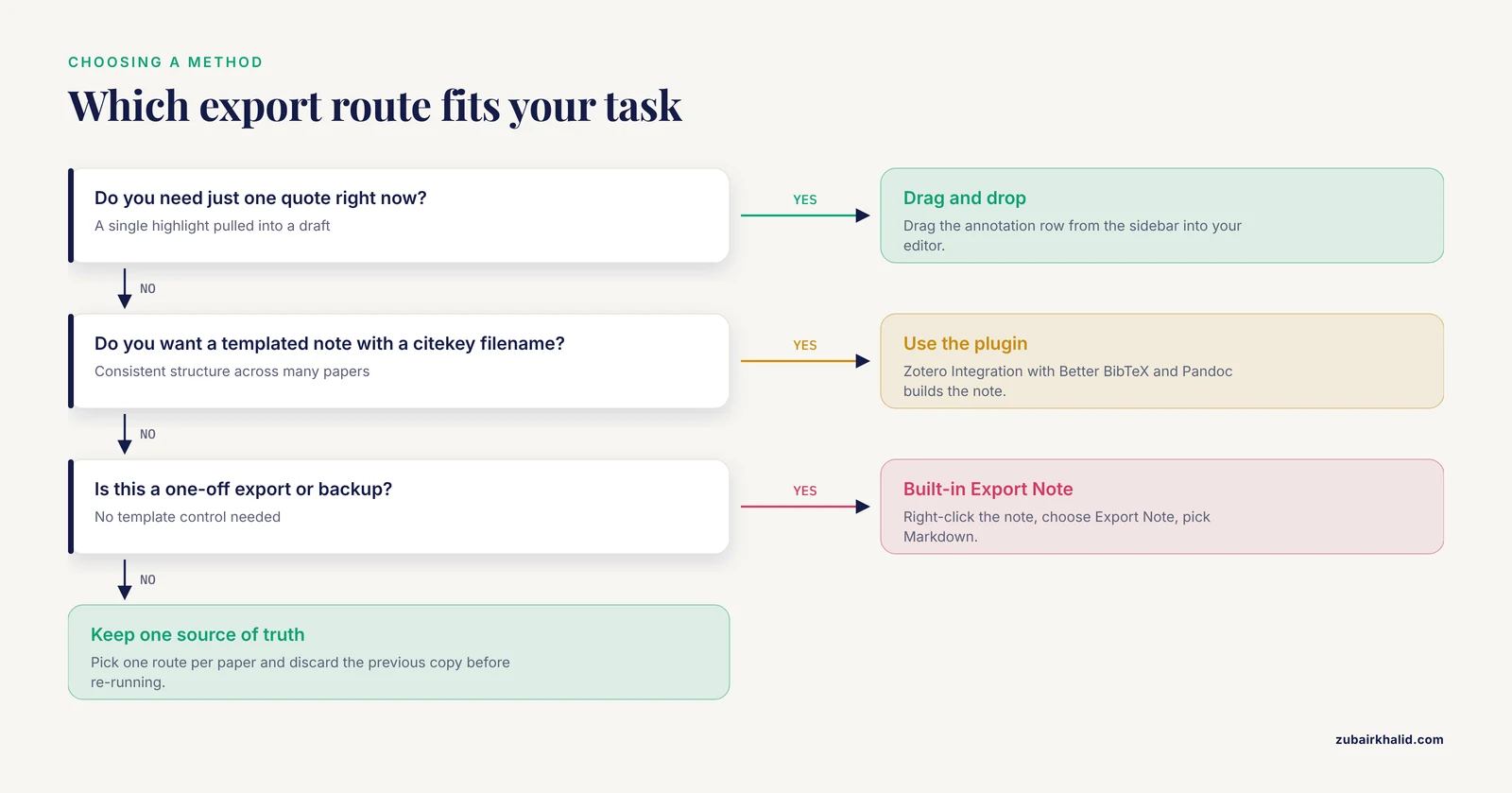
| Method | What you get | Best for | Main limitation |
|---|---|---|---|
| Built-in Export Note (Zotero 7) | One .md file per note, with images in a subfolder | One-off exports, backups, sharing with colleagues | Manual each time, no template control |
| Drag and drop | Markdown text at the cursor | Grabbing a single quote into a draft | No file naming, no metadata, no automation |
| Zotero Integration plugin | templated note with frontmatter, citekey filename, page links | Building a consistent literature notes system at scale | Requires Obsidian, Better BibTeX, Pandoc, and a running Zotero |
Building a Literature Notes System from Your Exports
Exporting is mechanical. The value comes from what you do with the files afterward.
Use citation keys as filenames. With Better BibTeX, set a citation key format such as auth+year in the plugin preferences so Smith 2024 becomes smith2024. Name every exported literature note smith2024.md. This gives you one predictable, collision-free name per paper across Zotero, Obsidian, BibTeX, and your manuscript citations.
Separate capture from synthesis. Keep the exported annotations section at the top of each note untouched, and write your own summary below it under a heading like ## My interpretation. When you later doubt whether an idea came from the paper or from you, the boundary is visible. This habit is the core of reliable research note taking.
Link, do not folder. Instead of nesting folders by topic, put wiki links in each note ([[adaptive-immunity]], [[review-thesis-ch2]]) and let your editor's backlink panel show every place a concept appears. A literature note that is linked from five places is five times more useful than one buried in a folder tree.
Tag annotation colors deliberately. In Zotero, you can assign colors to highlights with shortcuts 1 through 9, and the note created from annotations carries those color tags. Decide a personal convention, for example yellow for definitions and red for methods you question, and your exported notes inherit that structure for free.
Schedule a re-export review. Annotations made after an export do not appear in the old file. Treat the exported Markdown as a snapshot and re-export when a paper becomes active in your writing again, or rebuild the note with the plugin, which regenerates from the current library state.
Practical Tips for Better Exports
- Clean up the note before exporting. Delete annotation rows you no longer care about, because the note from annotations can be edited like any other note and your edits persist.
- Add your own heading structure inside the note before export. Headings survive as Markdown headings and give the exported file immediate structure.
- Use the
zotero://page links in the exported file to jump back to the exact page while writing. These links are also usable from other apps on the same computer. - Keep image annotation counts low. Every image annotation becomes a PNG file and a link, and a note full of cropped figures is slower to re-export and harder to keep organized than text.
- If you collaborate, export the Markdown file itself rather than asking collaborators to open Zotero. Plain text files attach cleanly to email, repositories, and lab wikis.
- Back up before bulk operations. If you plan to delete annotations from PDFs after exporting, keep the Zotero data directory backup first, since the exported file is a copy, not a live link.
Common Mistakes and Limitations
Exporting the item instead of the note. Right-clicking the parent item and choosing Export Item without ticking Export Notes produces a file with no annotations at all. The fix is to either right-click the note itself and use Export Note, or tick the Export Notes checkbox in the item export dialog.
Running Zotero 6 and expecting a Markdown option. In Zotero 6 the note export format is HTML only. Upgrading to Zotero 7 is the fix. This is the most common reason people conclude the feature does not exist.
Losing image annotations by moving only the .md file. Image annotations export as PNG files inside a subfolder. If you drag just the Markdown file into another vault, every image link breaks. Move the note and its image folder together, or re-export after moving.
Duplicated annotations after re-export. If you regenerate a note from annotations twice, or run the Obsidian import again without deleting the old note, you get two copies of every highlight. Decide on one source of truth. Either keep the exported file as the archive and never re-export, or treat the plugin output as regenerable and always discard the previous version before re-running.
Broken zotero:// links on other machines. The page links inside exported notes point into your local Zotero library by item key. On a colleague's computer with a different library, they do nothing. This is expected behavior, not a bug, and it is why the plain text of the highlight matters more than the link in shared notes.
Expecting the export to be two-way. Export to Markdown is one-directional. Edits you make in the Markdown file never flow back into Zotero annotations. If you need a single source of truth, keep annotations in Zotero and treat Markdown as the output layer, or write your synthesis in Markdown and treat annotations as read-only input.
Missing Pandoc for the plugin. The Obsidian Zotero Integration plugin needs Pandoc installed and available on your system path. If imports fail immediately after setup, verify by typing pandoc, version in a terminal. A version number in the output means Pandoc is reachable, and an error about the command not being found means you need to install it or restart your terminal so the path updates.
Assuming the export captures reader discussion. Notes typed in a separate PDF app rather than the Zotero reader will not exist in Zotero at all. Annotation export only moves annotations Zotero knows about, so read in the Zotero reader if you plan to export later.
One structural limitation to plan around: exported annotation notes are snapshots, so an active research workflow needs a habit (re-export when a paper re-enters active use) rather than a one-time action. Building that habit into your weekly research note taking routine costs minutes and prevents stale notes from misleading your writing.
Frequently Asked Questions
Can Zotero export annotations directly to Markdown?
Yes, Zotero 7 can. First create a note from your annotations by right-clicking the item and choosing Add Item Note from Annotations, then right-click that note, choose Export Note, and select Markdown as the format. Zotero 6 cannot do this, so upgrade if the Markdown option is missing.
Where do image annotations go when I export?
Each image annotation is saved as a PNG file inside a subfolder named after the exported note, and the Markdown file contains links to those images. Move the note and its image folder together, or the image links will break.
Do I need a plugin to export annotations to Markdown?
No. The built-in Export Note command in Zotero 7 handles Markdown export without any plugins. Plugins such as Better BibTeX and Obsidian's Zotero Integration add citation keys and template-driven automation, which matter mainly when you are processing many papers.
How do I keep a link back to the exact page of a highlight?
Zotero's exports include links in the form zotero://open-pdf/library/items/ITEMKEY?page=4. Clicking one opens the source PDF at that page in the Zotero reader. The links work on the machine where your Zotero library lives and do nothing on other computers.
Why did my exported note leave out the comments I typed on highlights?
Standalone reader notes and comments attached to annotations are both included in a note created with Add Item Note from Annotations, but an export run from a different or older note may predate them. Regenerate the note from annotations so it captures your current annotations and comments, then export that fresh note.
Can I export annotations from several PDFs at once?
Yes, with a small workaround. Select multiple items in Zotero and create a note from annotations for the selection, or use the Obsidian Zotero Integration plugin, which processes one paper per run but makes each run take only a few seconds from the command palette.
Will my exported Markdown update when I add new highlights?
No. An exported file is a snapshot of the note at the moment you exported it, and editing the Markdown does not change anything in Zotero. When you add new annotations you care about, regenerate the note from annotations and export it again, or re-run the Obsidian import.
Does this workflow work with Logseq or Notion?
Yes, because Markdown is plain text. Logseq opens exported files directly and handles block-level editing well. Notion imports Markdown files through its import menu, though wiki-style links and some blockquote formatting may need light cleanup after import.