How to Keep Your Virtual Audience Engaged During a Science Talk
By Dr. Zubair Khalid, DVM, MS, PhD ·

By the end of this guide you will be able to plan a virtual scientific presentation from scratch, build research presentation slides that hold attention on a screen, deliver your talk with energy on camera, run an interactive question period, and measure whether your engagement actually worked. You will need a video conferencing platform such as Zoom, your slide software of choice, a quiet room with a working microphone, and ideally a second screen or printed notes so you can glance at your material without reading it.
Virtual talks are now a permanent part of scientific life. The shift to remote and hybrid formats changed the norms of how findings are shared and created new challenges for presenters who trained for in-person rooms [1]. The good news is that engagement on a screen follows learnable rules, and researchers who organize virtual conferences have documented what works across formats from symposia to poster sessions [2][3].
Why Virtual Audiences Disengage
An in-person audience sits in a dark room with nowhere else to look. A virtual audience sits one click away from email, and their attention fragments in seconds. Cognitive processing research applied to presentation design shows that people cannot read dense slides and listen to you at the same time, and this problem gets worse when the slide competes with a dozen browser tabs [1].
Virtual formats also strip away the social pressure that keeps an in-person room attentive. Nobody can see if a remote attendee checks their phone. This means your talk has to earn attention deliberately rather than assume it. Organizers of large virtual meetings, including the fully virtual 2021 Conference on Retroviruses and Opportunistic Infections, found that engagement had to be engineered through the platform and the program structure, not left to chance [4]. The sections below turn that principle into a concrete workflow.
Engage Audience Virtual Science Presentation Step by Step
This walkthrough takes you from a blank calendar to a delivered talk. Work through the steps in order because each one builds on the last.
Step 1: Find the One Sentence That Is Your Talk
Before opening slide software, write a single sentence that states what your audience should believe or do after your talk. A modern tutorial on scientific presentations calls this identifying your scientific story, and it is the first of four core skills the tutorial teaches: story, slide design, data presentation, and delivery [1].
Write it in this format:
"After this talk, my audience will understand that [finding],
because [evidence], which matters because [implication]."
Example:
"After this talk, my audience will understand that soil nitrogen
addition changes pea root nodulation, because our at-home
experiments measured nodulation under two nitrogen conditions,
which matters because it connects fertilizer practice to
symbiotic bacteria."
If you cannot write this sentence, you are not ready to build slides. Every later step tests slides against this sentence.
Step 2: Budget Your Time With a Calculation, Not a Guess
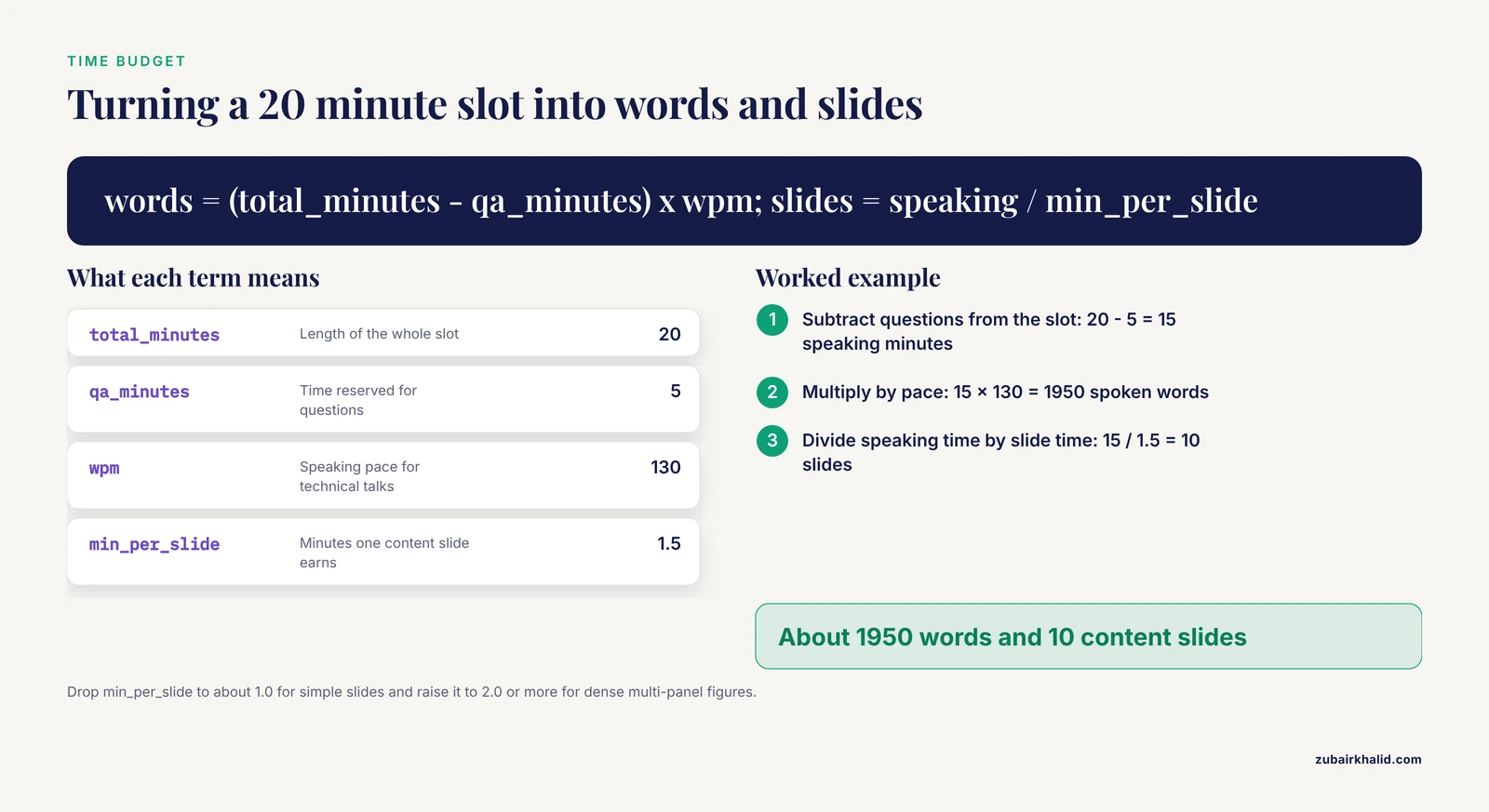
Most virtual talks run 10 to 25 minutes before questions. Convert your speaking time into a word budget and a slide count before you write anything. A conversational speaking pace sits near 130 words per minute for a technical talk, and a content slide earns roughly 1.5 minutes when you walk through a figure.
def talk_budget(total_minutes, qa_minutes, wpm=130, min_per_slide=1.5):
    speaking = total_minutes - qa_minutes
    words = speaking * wpm
    slides = speaking / min_per_slide
    return round(words), round(slides)

print(talk_budget(20, 5))
Expected output:
(1950, 10)A 20-minute slot with 5 minutes of questions gives you about 1,950 spoken words and roughly 10 content slides. If your draft script runs to 3,000 words, you have two choices, cut material or request more time. Presenters who skip this calculation routinely run over, which is the fastest way to lose a remote audience because their next commitment is visible on their own calendar.
Parameters that matter. The wpm value of 130 is a working default for technical content with pauses for figure explanations. If you speak faster in rehearsal, measure your actual pace on a recording and substitute that number. The min_per_slide value drops to about 1.0 for simple slides and rises to 2.0 or more for a dense multi-panel figure.
Step 3: Design Slides for a Screen, Not a Projector
Research presentation slides that work in a seminar room often fail on a laptop screen. Apply three rules drawn from established guidance on slide design and cognitive load [1]:
- One message per slide. If a slide needs the word "and" in its title, split it.
- Build the figure gradually. Show a multi-panel figure one panel at a time rather than revealing everything at once.
- Put your conclusion in the slide title. Write "Expression doubled under nitrogen limitation" instead of "Results."
You can check slide density mechanically before your talk. Paste the text from each slide into a quick check:
def slide_density(text, max_words=40):
    words = len(text.split())
    status = "OK" if words <= max_words else "CUT TEXT"
    return words, status

print(slide_density("Expression doubled under nitrogen limitation."))
Expected output:
(5, 'OK')Any slide above about 40 words is a document, not a slide. Move the extra text into your speaker notes or a handout.
Step 4: Configure Your Platform for Interaction
Engagement features must be switched on before the talk, not improvised during it. The organizers of a 3-day virtual symposium hosted on Zoom and Twitter, which drew over 1,000 registered participants from 46 countries, credited deliberate platform setup and planning for their successful execution [2]. Use this checklist in the platform settings:
BEFORE THE TALK
[ ] Test audio and video in the platform's own test panel
[ ] Enable chat and decide who monitors it
[ ] Prepare 2 to 3 polls and upload them in advance
[ ] Enable nonverbal feedback (raise hand, reactions)
[ ] Set screen share to share a single window, not the desktop
[ ] Close email, messaging apps, and notification popups
[ ] Upload slides as a backup file to the meeting chat or host
Common errors and fixes. If screen sharing shows a black box instead of your slides, you are sharing the wrong window or your slide software is in presenter mode on a second display, so exit presenter mode or share the slide window directly. If attendees report hearing an echo, you have two audio sources live, usually your laptop microphone and a phone dialed in, so mute one. If the platform shows a bandwidth warning such as "Your connection is unstable," close other streaming applications, turn off your own video if you are screen sharing, and switch to a wired connection.
How to verify. Run a full rehearsal with one colleague as an attendee. Ask them to confirm three things: your audio is clear, slides advance smoothly, and the poll appears on their screen.
Step 5: Rehearse Out Loud on Camera
Delivery is the fourth core skill in established presentation training, and it changes on camera [1]. Look at the camera lens when you make your key statements, because looking at the lens reads as eye contact to viewers while looking at your own screen reads as looking away. Record one full run-through and watch it once. Most presenters find two fixable problems on the first viewing, typically a monotone pace during methods sections and a habit of reading slides verbatim.
Rehearse the first 60 seconds until you can deliver it without notes. Remote attention drops fastest in the opening minute, and a confident open buys patience for the whole talk.
Step 6: Build Interaction Into the Talk Itself
Passive listening ends engagement. Successful virtual formats share one trait, the audience participates. Presenters who bring language science to elementary students over videoconference engage children as young as 7 by combining virtual backgrounds with guided discovery learning, where the presenter poses questions and lets the audience reason toward the answer rather than stating conclusions first [5]. Survey data from 157 elementary students found those presentations both interesting and educational, which shows the method scales down to young audiences and scales up to scientists [5].
Practical moves for a research audience:
- Open with a poll that taps prior knowledge, then reference the result in your introduction.
- Ask the chat a question at the 5-minute mark and read two answers aloud by name.
- Use a virtual background related to your study system, which signals preparation and gives the audience something to ask about.
- Pose a "predict the result" question before revealing your key figure, then show the data.
For hands-on or discussion-based sessions, breakout rooms recreate small-group interaction that a webinar format loses. The systems chemistry symposium organizers used parallel structure and audience interaction to keep a global, multi-day crowd engaged [2].
Step 7: Run a Q&A That People Actually Join
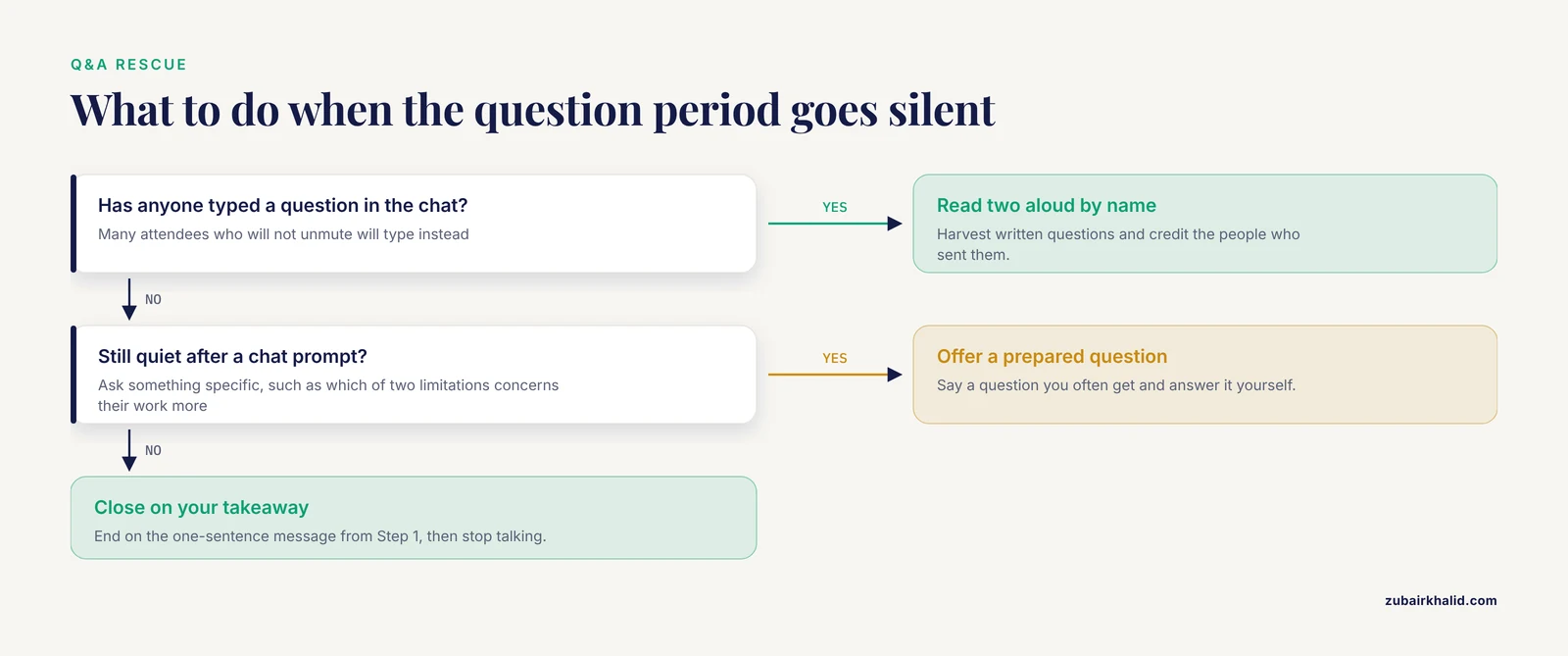
Dead air kills the final minutes of a virtual talk. Prepare two questions of your own, phrased as "A question I often get is..." and deploy them the moment the moderator asks for questions. Monitor the chat during the talk and harvest written questions, because many attendees who will not unmute will type. Moderators at large virtual meetings coordinate this handoff explicitly so that written and spoken questions interleave [4].
End on your one-sentence takeaway from Step 1, then stop talking. A crisp ending followed by an orderly Q&A reads as competence.
Techniques That Work, Mapped to Talk Format
| Technique | Best for | What it looks like | Grounding |
|---|---|---|---|
| Guided discovery questions | Any audience, especially mixed expertise | Ask "what would you predict?" before showing data [5] | [5] |
| Preloaded polls | Talks of 15 minutes or more | 2 to 3 polls, launched at transitions [2] | [2] |
| Virtual backgrounds | Outreach and teaching talks | A background tied to your study system [5] | [5] |
| Chat harvest during talk | Webinars with large audiences | Moderator collects typed questions live [4] | [4] |
| Companion hashtag | Conferences and symposia | A dedicated hashtag aggregating highlights [6] | [6] |
| Asynchronous poster thread | Poster sessions | Poster images and narration posted as a thread [7] | [7] |
| Custom audio layer | Recorded or exhibit-style talks | A soundscape matched to your visuals [8] | [8] |
| Breakout discussion | Workshops and multi-day events | Small rooms with a assigned prompt [2] | [2] |
Use a Parallel Social Channel
A second screen is part of the modern conference. A deliberate social media campaign extends the reach of a scientific meeting well beyond registered attendees, and the Society for Cardiovascular Magnetic Resonance adapted its strategy specifically for the all-virtual 2021 annual meeting to re-create the sociability of an in-person conference while promoting global dissemination of the science [6].
For your own talk, three moves cover most situations:
- Agree on a hashtag with the organizer and put it on your title slide.
- Post one thread or post summarizing your key figure during or right after your slot.
- Reply to questions in the tag for 24 hours after the talk.
Social platforms also let students and early-career researchers present work to audiences far larger than a meeting room. A biology education consortium ran an entire scientific poster session on Twitter, and the format pushed presenters to simplify their science into short, visual posts for a broad community [7]. With over 300 million active users on that platform at the time, student presenters reached varied audiences they could never have met in person [7].
Virtual Posters Deserve Their Own Design
If your talk includes a poster component, treat the poster as a conversation starter, not a shrunken paper. Two studies show virtual poster sessions work when interaction is structured. In a nursing program, 73 Doctor of Nursing Practice students presented across 12 synchronous virtual sessions on Zoom, drawing more than 150 attendees, and audiences engaged in robust discussion with presenters [3]. Undergraduate medical students presenting e-posters during pandemic lockdown reported that audience and judge comments gave them a platform to brainstorm on projects before publication, and their mean presentation performance score was 8.9 out of a possible 10 with a standard deviation of 2.1 [9].
Design rules that fall out of these experiences:
- Send the poster PDF to the host in advance so it can be shared if your connection fails.
- Prepare a 90-second spoken version of the poster and a 5-minute deep version.
- Open with a question to each visitor rather than a rehearsed monologue.
Make the Talk Accessible and Inclusive
Accessibility expands engagement rather than constraining it. Design work on universally designed virtual reality applications shows that applying universal design principles significantly improves accessibility, user satisfaction, and engagement and retention of educational content for diverse audiences [10]. Translate the same principle to video talks:
- Enable live captions and speak at a measured pace so they track you.
- Describe figures aloud, because attendees joining audio-only or using a screen reader cannot read your screen share.
- Check color contrast on research presentation slides, since laptop screens and dim rooms crush subtle color differences.
- Offer slides as a downloadable file so attendees can follow at their own pace.
Inclusivity also means designing for your least expert attendee. Training programs that moved online reached a wider and more diverse audience with no decrease in trainee satisfaction or perceived impact, which suggests virtual formats reward presenters who explain terms clearly rather than assume a homogeneous room [11].
Sound, Presence, and Emerging Formats
Two findings from adjacent fields point to where virtual engagement is heading. In an online experiment with virtual museum exhibits, soundscapes customized to exhibited objects significantly enhanced audience engagement, and more engaged viewers chose to keep viewing and to seek more information [8]. The lesson for presenters is sensory specificity, meaning generic background music helps nobody, but audio and visuals matched to your content hold attention.
Immersive formats are also maturing. A laboratory experiment with 147 participants found that disaster news presented through immersive virtual reality produced greater presence and cognitive empathy than a two-dimensional screen, with presence mediating emotional outcomes [12]. Virtual reality platforms now support cross-platform streaming so lower-end devices can join shared immersive sessions without device-specific software [13]. These formats remain the exception for a typical scientific presentation, but meeting organizers watching platform capabilities should expect immersive and hybrid options to become routine.
Story-driven engagement works in person and translates to virtual formats. The Flipped Science Fair puts middle school students in the role of judges evaluating early career scientists, and presenters attend three workshops beforehand to distill their research message to that audience [14]. Students reported increased interest in science and presenters reported improved communication skills and greater confidence in public speaking [14]. The takeaway for any virtual scientific presentation is that practicing your message for a demanding, non-expert audience improves the expert-facing talk too.
Common Mistakes and Limitations
These are the errors that appear most often when scientists present remotely, with the fix for each.
- Reading slides verbatim. The audience reads faster than you speak, so they finish and wait. Fix, put nothing on the slide you cannot explain in your own words.
- Sharing your whole desktop. Notification popups and file names leak into the talk. Fix, share a single window and turn on do-not-disturb.
- Ignoring the chat. Half your questions arrive as text. Fix, assign chat monitoring to the moderator or a coauthor and check it at transitions.
- One giant methods section. Remote attention does not survive ten minutes of buffers and reagents. Fix, compress methods to one slide and offer a backup slide for questions.
- Skipping the time budget. Running over punishes a remote audience more than an in-person one because they can simply leave. Fix, run the calculation in Step 2 and rehearse with a timer.
- No backup if technology fails. Fix, upload your slides to the meeting chat, keep a dial-in number, and agree on a moderator who can share slides on your behalf.
- Assuming engagement features are on. Polls disabled by default waste your prepared interaction. Fix, complete the Step 4 checklist in a rehearsal room, not the live room.
A final limitation, individual situations vary. A virtual defense, a conference symposium, and a public outreach webinar have different norms, and the organizer's instructions override any general advice here. When in doubt, ask the organizer what the audience expects and what the platform allows.
Frequently Asked Questions
How early should I prepare for a virtual scientific presentation?
Start at least two to three weeks before the talk. Write your one-sentence message first, build slides in week two, and reserve the final days for two full recorded rehearsals and a technology check on the actual platform.
Do I need special software to engage a virtual audience?
No. A standard video conferencing platform with chat, polls, and screen share covers most needs. Advanced tools such as virtual reality add immersion but are optional, and the core techniques of story, slide design, and interaction cost nothing [1].
What should I do if nobody asks a question?
Have two questions ready that you answer yourself, phrased as questions you often hear. Then prompt the chat directly with a specific question, such as "Which of these two limitations concerns your work more?"
Should I keep my camera on during the talk?
Yes for the introduction, your key results, and the Q&A. Viewers engage more with a visible face, but turning video off during long methods sections conserves bandwidth and resets attention without hurting the talk.
How long should a virtual science talk be?
Shorter than the equivalent in-person talk. A 20-minute slot with 5 minutes of questions is a common and workable target for a scientific presentation, and attention on screen decays faster than in a room, so front-load your key finding.
How do I engage an audience that includes non-experts?
Use guided discovery, meaning ask the audience to predict or interpret before you reveal the answer, and define every technical term the first time it appears. This approach has kept children as young as 7 engaged in real science content over videoconference [5].
How do virtual poster sessions work in practice?
Presenters join a video call with their poster shared on screen, give a short spoken introduction, and then take questions. Synchronous sessions run this way have drawn over a hundred attendees and produced active discussion between presenters and audiences [3].
How can I tell whether my engagement strategies worked?
Measure three things, attendance duration if the platform reports it, the number of poll responses and chat messages during the talk, and the number and quality of questions afterward. A post-talk survey with one rating question and one open comment gives you a comparable metric across talks.
Sources
- Effective Scientific Presentations Across Formats: A Modern Guide for Science Trainees and Researchers.
- Ten Steps to Organize a Virtual Scientific Symposium and Engage Your Global Audience.
- An Innovative Virtual Poster Session for Doctor of Nursing Practice Student Project Presentations.
- CROI 2021: Summary of Basic Science Research in HIV and SARS-CoV-2.
- Taking language science to zoom school: Virtual outreach to elementary school students.
- Social media to enhance engagement and science dissemination during in-person and virtual medical conferences: the SCMR 2020 and 2021 experiences: a report of the SCMR social media task force.
- Twitter: More than Tweets for Undergraduate Student Researchers.
- Sonic enhancement of virtual exhibits.
- Conventional to virtual poster presentation in scholars' day during coronavirus disease-19 lock down: Medical students' performance and perspective.
- Universally Designed Virtual Reality: Creating Inclusive and Immersive Learning Experiences with 'VRinDanger'.
- What Happens When Training Goes Virtual? Adapting Training and Technical Assistance for the School Mental Health Workforce in Response to COVID-19.
- The Auxiliary Role of Virtual Reality in Enhancing the Effects of Disaster News on Empathy and Fear: The Mediating Role of Presence.
- Loka: A Cross-Platform Virtual Reality Streaming Framework for the Metaverse.
- Flipped Science Fair: Engaging Middle-School Students in STEM while Training Researchers in Science Communication.