Troubleshooting Common ELN Data Loss and Sync Issues
By Dr. Zubair Khalid, DVM, MS, PhD ·

Most ELN data loss is not loss at all. The single most common cause of "missing" work is an unsaved browser session that never reached the server, and the first thing to check is the entry's revision history or autosave record. If your entry appears on another device or in the trash or drafts folder, you have a sync or save problem, not a deletion. This article walks through troubleshooting common ELN data loss and sync issues in the order you are likely to meet them, from a forgotten save button to a failed migration between platforms.
Electronic lab notebooks (ELNs) have largely replaced paper notebooks because they offer searchability, shareability, and stronger data security [1]. That same shift means that when something goes wrong, the failure is usually electronic in nature: a connection dropped, a session expired, a conflict between two editors, or an attachment that never finished uploading. Understanding the mechanism behind each failure is what separates a five-minute fix from a panicked email to your whole lab.
How ELN Sync Actually Works
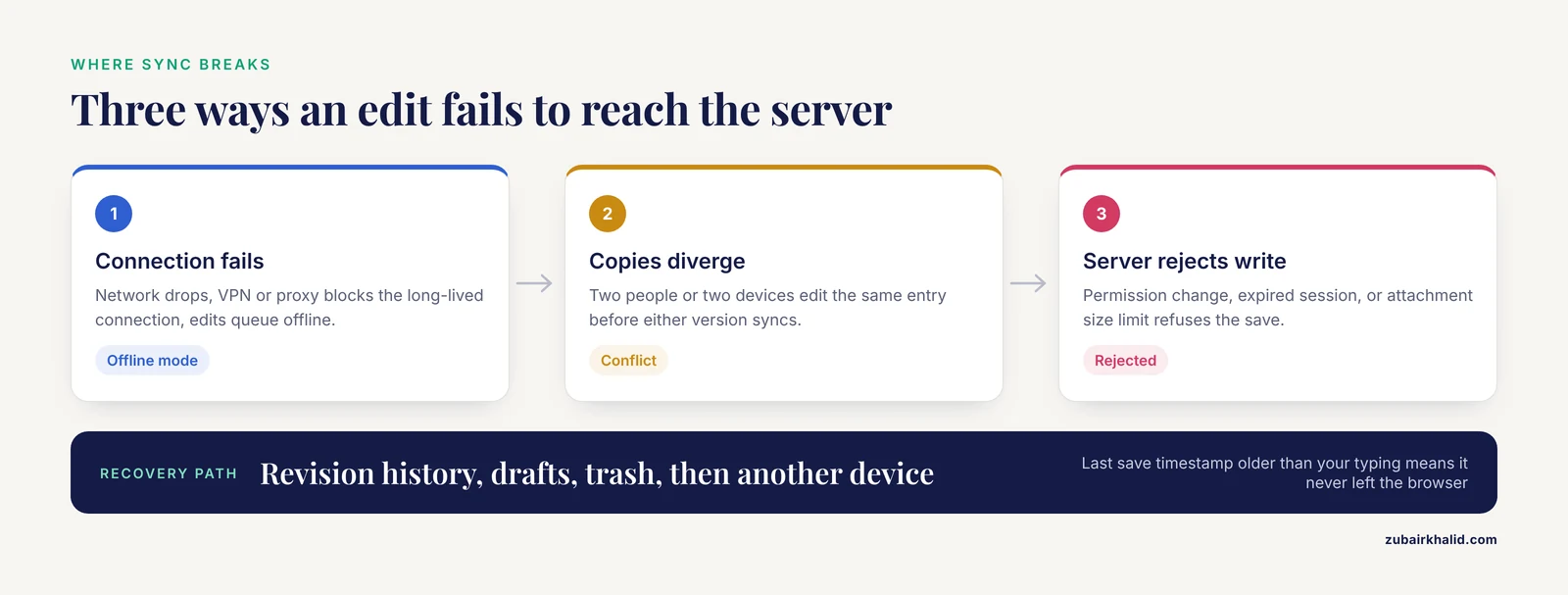
An ELN entry lives in two places. The working copy sits in your browser tab or local application. The authoritative copy sits on a server, either hosted by the vendor or run by your institution. Sync is the process of pushing your local edits to that server and pulling other people's changes back down.
Three things can interrupt this exchange. First, the connection between client and server can fail, which is the classic network problem. Second, the two copies can diverge, which happens when two people or two devices edit the same entry before either version is synced. Third, the server can reject a write, which happens with permission changes, session timeouts, or attachment size limits.
ELNs keep metadata alongside your content precisely so that these failures are recoverable. Perpetual revision history, unchangeable time stamps, and audit trails are core design goals of modern systems. Structured entries with headings, tables, and links also make provenance reconstruction possible after an incident [3]. When you know where those records live in your platform, most data loss troubleshooting becomes a lookup rather than a rebuild.
The First Five Minutes: A Diagnostic Sequence
Run these checks in order before assuming anything is gone.
- Stop editing and stop syncing. Close nothing, delete nothing, and do not reopen the entry in a second tab. Additional actions can overwrite recoverable drafts.
- Check another device or another browser. If the entry appears there, your local copy is stale and the problem is client side.
- Open the revision history or activity log for the entry. Most ELNs timestamp every save event. If the last save predates your recent work, your edits never left the local session.
- Search drafts, trash, and archived notebooks. Many platforms divert unsaved or deleted content rather than destroying it.
- Check your connection and sync indicator. Look for the cloud, spinner, or "offline" badge that most ELNs display near the entry title.
- Confirm you are logged into the right account. In institutions with single sign-on, expired sessions can silently route you to a personal or guest workspace.
- Note the exact time the work was lost. You will need this timestamp if the case escalates to your local administrator or the vendor support team.
Troubleshooting Table
| Symptom | Likely cause | How to confirm | Fix |
|---|---|---|---|
| Entry text vanished after closing the browser tab | Edits were never saved to the server | Revision history shows no recent save event | Check autosave or local drafts, then re-enter from memory while the incident is fresh |
| Entry exists but is hours old on one device only | Sync delay or offline mode | Sync badge shows pending or offline | Reconnect, force a manual sync, refresh the page |
| Edits from a colleague are missing | Concurrent edit conflict | Activity log shows two authors writing to the same entry | Restore the correct version from revision history and copy in lost passages |
| Attachment shows a broken icon or error | Upload exceeded limits or was interrupted | File size exceeds platform limit, or the upload started while offline | Re-upload on a stable connection, compress or split large files |
| "Permission denied" or read-only banner | Role or sharing change | Check the entry's share settings and your account role | Request write access from the notebook owner |
| Whole notebook missing after login | Wrong workspace or expired SSO session | URL or account avatar points to a personal space | Log out, clear the session, sign in through institutional single sign-on |
| Repeated "sync failed" errors on one computer only | Corrupted local cache or a browser extension | Problem disappears in an incognito window or another browser | Clear the site cache, disable extensions, update the browser |
| Entries lost during a platform migration | API or export mismatch between systems | Missing fields match fields that had no mapping in the migration plan | Restore from the pre-migration export, remap fields, rerun the transfer |
| Entry reverts to an older version | Version rollback or conflict resolution picked the wrong branch | Timestamp of the current version is older than your last edit | Manually restore the newest version from history |
ELN Data Loss Troubleshooting Causes, From Most Common to Rarest
1. Unsaved work and session timeouts
This is the top cause in eln data loss troubleshooting. Browser-based ELNs hold your typing in the page until a save event fires. If the tab crashes, the laptop sleeps, or the network drops before autosave completes, those edits exist only in volatile memory. Session timeouts make this worse. After an idle period, many systems invalidate your authentication, so the next save attempt fails silently or produces an error you dismiss.
The mechanism is simple. A save is a write request from your browser to the server. If the request never fires, or fires with an expired token, the server never learns about your work. Confirm this by opening the revision history. A last-save timestamp that predates your recent typing is diagnostic. The fix is to check for locally cached drafts, then re-enter the missing content immediately while you still remember it, and save in short intervals from then on.
Human error compounds this. In a clinical data study of automated versus manual entry, discrepancies between two data sources were judged to be data entry errors in 78 percent of reviewed cases [4]. The same pattern applies in notebooks. When content "disappears", it was often never recorded in the first place, which is why prevention through save discipline matters more than any recovery tool.
2. Connectivity, VPN, and proxy failures
Lab buildings are hostile to wireless networking. Freezer rooms, shielded instrument suites, and concrete walls all degrade signal. When the connection drops mid-session, most ELNs switch to an offline mode and queue your changes. Queued changes sync later, which creates the second most common complaint: an entry that looks fine on the device where you typed it and is stale everywhere else.
Confirm this by comparing the entry on two devices. If the device you edited shows newer content, the queued writes have not flushed. Fix it by reconnecting to a stable network, forcing a manual sync if the platform offers one, and refreshing. If you connect through a VPN or an institutional proxy, verify that the ELN's domain is not being routed through a filter that blocks long-lived connections, because vendors of cloud-hosted notebooks document this class of problem in their support knowledge bases.
3. Concurrent editing conflicts
Collaboration is a headline benefit of ELNs, and it is also a source of loss [5]. When two people edit the same entry before either version syncs, the server must reconcile two divergent histories. Platforms handle this differently. Some lock the entry to one editor. Some merge changes automatically. Some keep both versions as branches and ask the user to resolve the conflict.
Loss happens when a user resolves the conflict without reading the diff, or when a lock held by a departed colleague makes the entry appear blank or read-only. Confirm by checking the activity log for two author entries in the same time window. Fix by opening the revision history, identifying the version that contains the missing content, restoring it, and manually merging anything the automatic resolution dropped. Establishing a lab rule that each experiment gets its own entry, referenced by a shared study identifier, reduces these collisions and supports auditability [6].
4. Attachment and large-file upload failures
Text is small. Instrument exports, microscope stacks, and gel images are not. An attachment that exceeds a platform's file size limit, or an upload interrupted by a network blip, can leave a placeholder in the entry that looks like the data is present but is actually an empty reference. The notebook text syncs while the file does not, which confuses users who assume all-or-nothing behavior.
Confirm by clicking the attachment and checking whether the file opens or throws an error. Check the file size against your platform's documented upload limit. Fix by re-uploading on a wired or strong connection, compressing images, or splitting large datasets. For instrument data that is too large for the notebook itself, link the entry to an institutional data repository instead and store only the metadata and a reference in the ELN [5].
5. Account, permission, and single sign-on failures
Institutional ELN deployments usually authenticate through single sign-on, and library and IT staff who support these services report that identity and access issues are a recurring support category [2]. Symptoms include a notebook that appears empty after login, a read-only banner, or an entry that will not save. The cause is usually an expired session, a role change, or a login into the wrong workspace.
Confirm by checking the account avatar and workspace name in the interface, and the share settings on the affected notebook. Fix by signing out completely, clearing the session, and authenticating again through your institution's portal. If a collaborator's permissions changed, ask the notebook owner to re-grant write access. Because no single ELN license satisfies every discipline, many institutions run several platforms in parallel, which increases the odds of logging into the wrong one [7].
6. Version rollback and overwrite confusion
Modern ELNs preserve every saved version. That is a strength, but it produces a failure mode that reads like data loss: a user opens an old version of an entry, edits it, and saves, which creates a new branch of history that can make the newer work harder to find. Alternatively, a restore-to-previous operation is performed accidentally.
Confirm by reading the full version list and its timestamps rather than just the displayed entry. Fix by restoring the version with the most recent timestamp and verifying its content against your memory of the experiment. Because unchangeable time stamps and permanent revision history exist specifically to prove and defend research activity, never delete versions manually during recovery. Restoring forward preserves the audit trail.
7. Browser cache, extensions, and client-side corruption
If sync failures follow one computer rather than one account, suspect the client. A corrupted local cache can serve stale data. Browser extensions that modify page content, especially script blockers and privacy tools, can interfere with the JavaScript that ELNs use for autosave and sync. Outdated browsers can also break features that worked the previous week.
Confirm the diagnosis quickly by opening the same entry in a private or incognito window, which bypasses cache and most extensions. If the entry behaves correctly there, clear the site's cache, disable extensions one at a time, and update the browser. This is standard client-side troubleshooting for any web application, and it resolves a surprising share of reports that initially look like server problems.
8. Migration and interoperability failures
The rarest but most damaging category is structural: data lost while moving between platforms. As ELN adoption spreads, laboratories increasingly need to exchange data between different systems, and researchers have noted that the proliferation of ELN platforms creates real barriers to seamless transfer [8]. Migrations fail at field boundaries. A value that lives in a structured field in one system has no equivalent in another, so it is skipped, mislabeled, or truncated.
Confirm by comparing a sample of entries field by field against the pre-migration export. The fix depends on scale. For ongoing exchange between two platforms, API-based adapter tools now exist specifically to synchronize data between disparate ELN systems and to let researchers map single values and entry types between them [8]. For a one-time migration, restore from the export, correct the mapping, and rerun the transfer before decommissioning the old system. Standardization efforts aimed at FAIR-compliant, vendor-independent ELN data structures are designed to reduce exactly this failure mode [9]. Until such standards are universal, treat every migration as a data loss risk and keep the source system readable until validation is complete.
9. Server-side outages and vendor incidents
Genuinely lost data at the server level is rare because reputable vendors replicate databases and back them up, and institutional buyers evaluate data security before adoption. When an outage occurs, the symptom is platform-wide rather than personal: colleagues in other buildings report the same errors, and the status page confirms an incident. Your local drafts are typically safe because unsaved work is still on your device. Wait for the all-clear, sync, and verify. If your institution runs the server, report the incident to the local support team that administers the service [2].
How to Fix ELN Data Loss: A Recovery Playbook
Once you have identified the cause, work through recovery in this order.
- Restore from revision history. Open the entry, open its version list, and preview versions by timestamp until you find your content. Restore it. This is the primary fix for conflicts, rollbacks, and overwrites.
- Check drafts, autosave, and trash. Platforms differ in where unsaved work lands, but nearly all of them keep it somewhere for a retention period.
- Recover from a collaborator's device. If someone else had the entry open, their cached copy may contain your missing passage. Ask them to open the entry while offline and copy the text out.
- Use exports and snapshots. If your lab exports notebooks periodically, the most recent export bounds what is missing. Compare it against the live entry to reconstruct lost sections [10].
- Escalate with evidence. If local recovery fails, contact your administrator or vendor support with the entry URL, the timestamp of the last known good version, and a description of the actions you took. Structured entries, with their headings, tables, and links, make this reconstruction substantially easier because the structure itself documents what the protocol contained [3].
Do not attempt database-level recovery yourself on an institutional or vendor-hosted system. Server-side intervention requires the people who hold backups, and uncoordinated manual action can destroy the audit trail you will need later.
Prevention: ELN Data Loss Troubleshooting Solutions That Stop Recurrence
Recovery is reactive. Prevention is where the real solutions live.
Save early and save deliberately. Treat a cloud-hosted notebook like a shared document. Save after each logical section of a protocol, and confirm the saved indicator before closing the tab.
Maintain a routine export schedule. Institutional research data management guidance consistently recommends periodic exports of ELN content so that a local, independent copy exists [10]. Monthly exports in the platform's native format plus a portable format such as PDF cover both restore and compliance needs.
Write structured entries. Entries built with consistent headings, tables, and links support automated knowledge extraction and provenance documentation [3]. The same structure makes manual reconstruction after any incident faster and more accurate.
Attach the right-sized data. Store raw instrument files in an institutional repository and link them from the ELN entry, keeping attachments to sizes the platform handles reliably [5].
Train every new member on save, sync, and version history. Implementation studies in teaching laboratories show that structured onboarding, rather than the software choice alone, determines how smoothly people adopt the system [1]. Ten minutes of training on the revision history feature prevents most panic-driven mistakes.
Perform risk assessment for your platform. Researcher-support studies at research universities recommend explicit risk assessment for ELN products, covering both open data and sensitive data, before and during use [7]. Ask your administrator where backups live, how often they run, and how a restore request is handled.
Choose a platform with auditability and revision history built in. When comparing research software options, requirements analysis for ELN systems consistently maps auditability, scalability, and interoperability to concrete architectural features, and these features determine how recoverable your data is after any failure [11].
Choosing Reliable Software: A Brief Research Software Comparison
If you are troubleshooting recurring sync failures on a system your lab chose hastily, the underlying problem may be the choice itself. Selecting an ELN is a requirements-matching exercise, not a popularity contest. Evaluation frameworks for ELN selection emphasize matching platform capabilities to the needs of the laboratory, including data types, collaboration patterns, and compliance obligations [12].
Three questions separate robust platforms from fragile ones. First, does the platform keep server-side revision history with unchangeable time stamps, which is the backbone of recovery? Second, does the vendor or institution provide a responsive support channel, since library and IT partnerships that support ELN services are a documented success factor at universities [2]? Third, can the system exchange data with other platforms through documented APIs, given that interoperability is now an active area of ELN development [8]?
There is no single institutional solution that satisfies every scientific discipline, and surveys of researcher needs support offering a core set of tools with room for lab-specific tailoring [7]. Community-specific platforms exist for this reason. For example, catalysis researchers developed an ELN variant that adapts a general open-source system to complex characterization and synthesis workflows [13]. When you evaluate the best software for researchers in your field, weigh sync reliability and recoverability as heavily as features, because a notebook you cannot trust is worse than a paper notebook you can.
Common Mistakes and Limitations
- Assuming the data is gone. The most frequent error in eln data loss troubleshooting is giving up before checking revision history, drafts, and other devices. The data is recoverable in most incidents.
- Continuing to edit during an incident. Every additional save can overwrite the branch that contains your lost content. Stop, diagnose, then act.
- Skipping the export schedule because "the cloud has it". Vendor hosting is not a backup strategy you control. Institutional guidance treats periodic local exports as standard practice [10].
- Resolving edit conflicts without reading them. Conflict dialogs are where silent overwrites happen. Read the diff before choosing a version.
- Migrating platforms without a validated field mapping. Test the migration on a sample of entries, compare field by field, and keep the source system intact until validation passes [8].
- Storing everything as one giant attachment. Large monolithic files fail more often than links to repository data.
- Ignoring the limitations of any single fix. Individual incidents vary by platform, configuration, and account state. When local recovery fails, hand the case to the administrator or vendor support team, who hold the backups and audit logs.
Frequently Asked Questions
Why did my ELN entry disappear after I closed my browser?
Your edits most likely never saved to the server. Browser-based ELNs hold changes in the page until a save event fires, and a closed tab discards unsaved work. Check the entry's revision history for the last save timestamp, then look in the platform's drafts or autosave area.
How do I know if a sync problem is on my end or the vendor's?
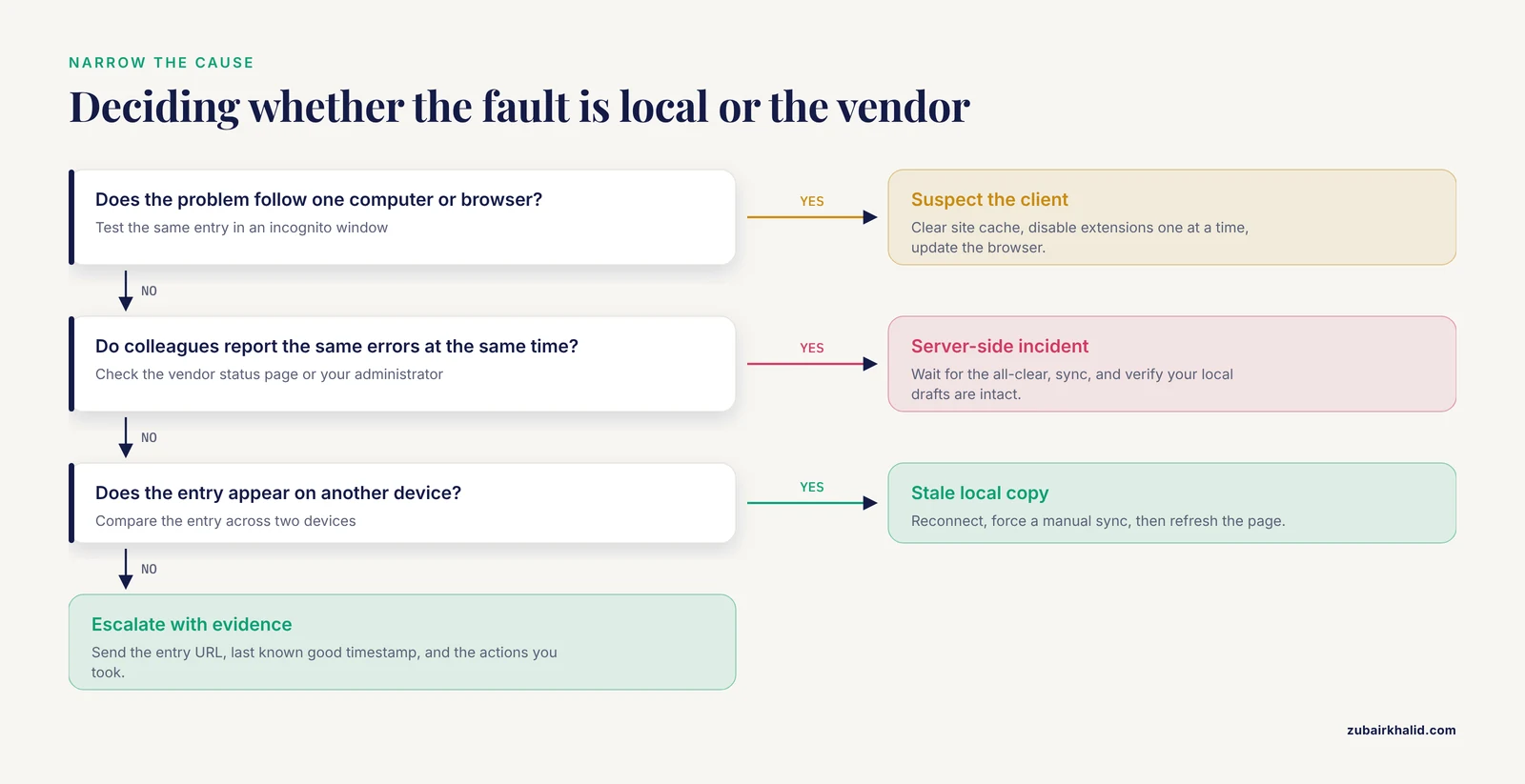
If the problem follows one computer or one browser, it is client side, and testing in an incognito window will confirm it. If colleagues across the lab report the same errors at the same time, the cause is server side, and your vendor's status page or your administrator will confirm an outage.
Can two people editing the same entry cause data loss?
Yes, when both versions sync before either is reconciled. The server keeps both histories, but automatic conflict resolution or a rushed manual choice can drop content. The fix is to restore the correct version from revision history and merge the missing passages by hand.
What should I do immediately after noticing data is missing?
Stop editing and syncing, close nothing, and open the entry's revision history. Then check drafts and trash, and view the entry from another device. Noting the exact time you last saw the content will help if the case escalates.
Do ELNs keep revision history that can restore lost work?
Most modern platforms keep a complete, timestamped version history of every entry, and permanent revision history is a core design goal of the category. Open the version list on the affected entry and preview by timestamp to find and restore your content.
Why do attached files fail to sync when the text syncs fine?
Text is small and uploads quickly, while instrument exports and images can hit file size limits or be interrupted mid-transfer. The entry shows a placeholder that looks present but is empty. Re-upload the file on a stable connection, or link to the file in an institutional repository instead.
How can I move data between two different ELN platforms without losing entries?
Test the transfer on a sample of entries and compare fields one by one before migrating everything. API-based adapter tools now exist specifically to synchronize data between disparate ELN systems, and they let you map values and entry types explicitly. Keep the source system readable until validation is complete.
How often should a lab back up its ELN content?
A routine export schedule, such as monthly, is standard institutional guidance for research data management. Export in the platform's native format plus a portable format so that you hold an independent copy that does not depend on the vendor or your account access.
Sources
- Implementation of electronic lab notebooks (ELNs) in science laboratory classes: student response and lessons learned
- Electronic Lab Notebooks: Supporting Laboratory Data in the Digital Era.
- Structure-based knowledge acquisition from electronic lab notebooks for research data provenance documentation
- Evaluating automated electronic case report form data entry from electronic health records
- How Electronic Lab Notebooks can galvanise Research Data Management
- Electronic Lab Notebooks and Experimental Design Assistants.
- Exploring electronic lab notebooks (ELNs) at a R1 institution in the Southeast USA
- ELNdataBridge: facilitating data exchange and collaboration by linking Electronic Lab Notebooks via API
- Digital Twin Supported FAIR Electronic Lab Notebooks for Simulated Experiments
- LibGuides: Research Data Management at CSHL: Electronic Lab Notebooks (ELNs)
- A Modular Solution Concept for Self-Configurable Electronic Lab Notebooks: Systematic Theoretical Demonstration and Validation Across Diverse Digital Platforms
- Evaluating and Selecting Electronic Lab Notebooks (ELNs)
- LabIMotion Electronic Lab Notebook as Research Data Management Tool in Catalysis