The Dissertation Draft Tracking Spreadsheet
By Dr. Zubair Khalid, DVM, MS, PhD ·

By the end of this article you will be able to build a working dissertation draft tracking spreadsheet in Excel, Google Sheets, or LibreOffice Calc. You will know which columns matter, how to set up status codes and color rules, how to compute word-count progress with real formulas, and how to run a weekly review that keeps your dissertation planning honest. The only tool you need is a spreadsheet program. No add-ons, no paid software, and no coding.
What a Dissertation Draft Tracking Spreadsheet Does
A dissertation draft tracking spreadsheet is a single table where every chapter, section, and administrative task of your dissertation gets one row. Each row records what the piece of writing is, how far along it is, who needs to see it next, and what the next concrete action is. The spreadsheet answers three questions in under a minute: what is finished, what is stuck, and what should I work on today.
The idea behind it is not new. Web-based dissertation management platforms built for postgraduate programs combine a central document repository for proposals, drafts, and progress reports with a dashboard that shows milestone progress at a glance, and they report gains in communication and efficiency between students and faculty [1]. A spreadsheet is the do-it-yourself version of the same architecture. You are building a lightweight document register and progress dashboard that lives in a file you control.
There are two reasons this tool earns its keep.
First, drafts multiply. A typical doctoral dissertation has five to eight chapters, and each chapter cycles through outline, first draft, supervisor review, revision, and a locked near-final state. Without a register, the state of each chapter lives in your memory and in scattered email threads. With one, it lives in a cell.
Second, status visibility drives behavior. The designers of the PG Dissertation Management System used distinct color codes for scheduling states, blue for free slots, orange for waiting confirmations, and green for confirmed meetings, specifically so students could navigate options at a glance [1]. The same principle applies to chapter status. When a row turns green, finished, or orange, waiting on your supervisor, your next action becomes obvious without any thought.
A tracking spreadsheet also protects the end point of the project. Dissertations are not private documents forever. Review teams searching for unpublished and gray literature routinely query dedicated dissertation and theses databases alongside Mednar, Trove, and OCLC WorldCat, which means a completed, deposited dissertation becomes findable scholarly work [2]. Finishing is the goal, and the tracker exists to keep you moving toward it.
Who This Spreadsheet Is For
This format works for doctoral and master's students in any discipline, and it adapts to thesis-based master's projects and multi-author review articles. If you are running a systematic or scoping review as part of your dissertation, the spreadsheet scales down from that world naturally. Published scoping reviews report their screening totals and final source counts in structured records, for example one recent review reported 367 screened records, 70 full texts, and a final evidence map of 37 sources with independent checking of extracted data [3]. That level of bookkeeping is exactly what rows, columns, and counts are for, and your dissertation deserves the same discipline at a smaller scale.
The Dissertation Draft Tracking Spreadsheet Format: Columns That Matter
The most common failure mode is building thirty columns and abandoning the file by week three. A sustainable format needs about ten columns. Here is the core layout, followed by optional extensions.
| Column | Purpose | Example entry |
|---|---|---|
| ID | Stable identifier that never changes | CH-03 |
| Piece | Chapter, section, or task name | Methods, Section 3.2 Sampling |
| Type | Chapter, front matter, task, or admin | Chapter |
| Target words | Numeric goal for the piece | 8000 |
| Current words | Latest word count, updated manually | 5400 |
| Version | Draft identifier | v0.4 |
| Status | One value from a fixed list | Revising |
| Last action date | When you last touched it | 2026-11-09 |
| Next action | The single concrete next step | Fix Figure 3 legend, email Dr. Chen |
| Waiting on | Who or what blocks progress | Supervisor |
Two design rules make this format work.
One status list, fixed in advance. Use a controlled vocabulary such as: Not started, Outlined, Drafting, Complete draft, Sent to supervisor, Under review, Revising, Reviewed, Locked. "Locked" means you have decided the piece is done unless your committee says otherwise. Do not invent new statuses mid-project, because every new value breaks your counts and color rules.
One next action per row, written as a verb. "Fix Figure 3 legend" is a next action. "Think more about figures" is not. When you open the file, the Next action column becomes your work queue for the day.
Optional columns worth adding once the core works: a Supervisor feedback received column with dates, a Target completion date, a Notes column for decisions you will need later, and a Priority column for the final semester when you must triage.
Build the Spreadsheet in Ten Steps
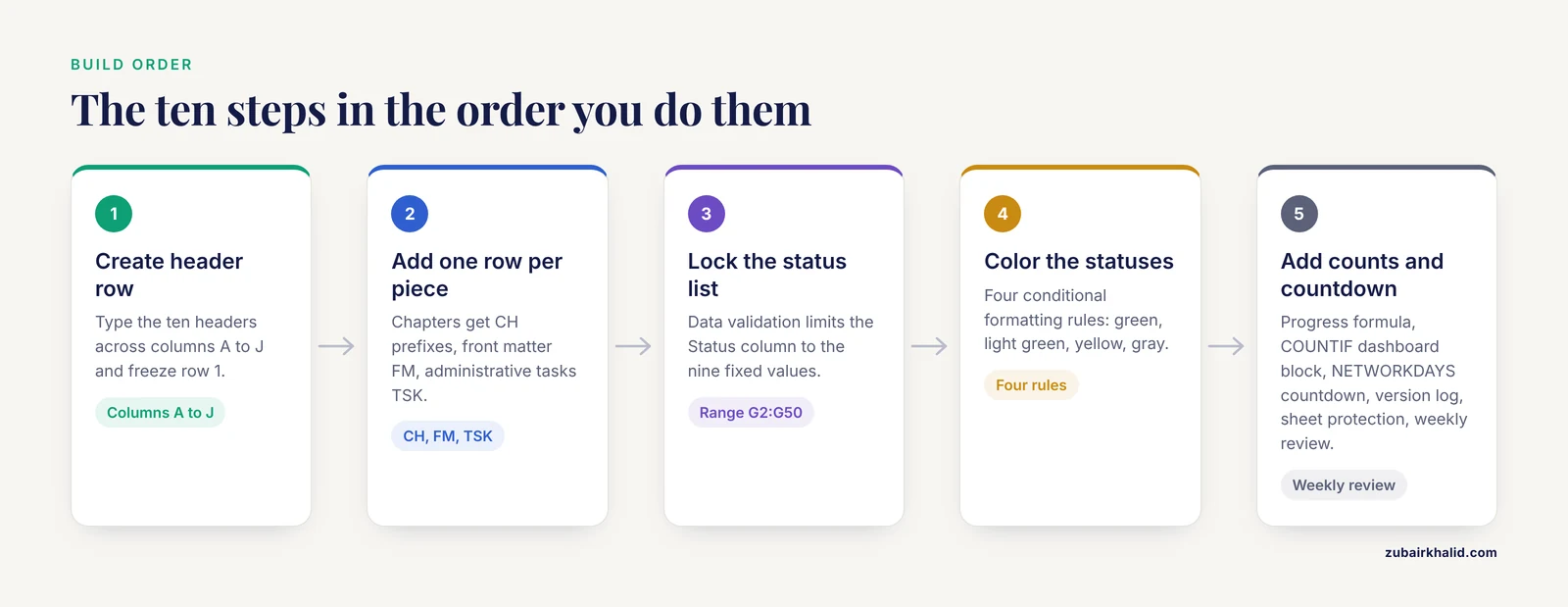
These steps use Google Sheets and Excel interchangeably. Where the two differ, the difference is stated. LibreOffice Calc behaves like Excel in every formula shown here.
Step 1: Create the file and the header row
Open a blank spreadsheet. In row 1, type the ten headers from the table above, in order, across columns A through J. Bold the header row. In Google Sheets, select row 1, then choose View, Freeze, 1 row so headers stay visible while you scroll. In Excel, select row 1, then View, Freeze Panes, Freeze Top Row.
Step 2: Enter one row per piece of writing
Fill in your chapters and major sections. A realistic starting list for a five-chapter dissertation looks like this in columns A and B:
CH-01  Introduction
CH-02  Literature Review
CH-03  Methods
CH-04  Results
CH-05  Discussion
FM-01  Abstract
FM-02  Acknowledgments
TSK-01 Format references to style guide
TSK-02 Committee review round
The TSK prefix marks administrative tasks. They get rows because they have statuses and deadlines just like chapters do, and forgetting them is a classic reason dissertations stall after the writing is done.
Step 3: Create the status list with data validation
Data validation restricts a cell to values from a list, which prevents typos from silently breaking your counts later.
In Google Sheets: select the Status column range, for example G2:G50. Choose Data, Data validation, Add rule, Dropdown, and enter the nine status values, one per line. Click Done.
In Excel: select G2:G50. Choose Data, Data Validation, Allow: List, and in the Source box type the list separated by commas:
Not started,Outlined,Drafting,Complete draft,Sent to supervisor,Under review,Revising,Reviewed,LockedClick OK. Every cell in that range now shows a dropdown arrow.
Step 4: Add conditional formatting for status colors
Select the Status range again. In Google Sheets, choose Format, Conditional formatting. In Excel, choose Home, Conditional Formatting, New Rule, Format only cells that contain.
Create four rules using "Text contains" or "Cell value equal to":
Status is "Locked"             -> green fill
Status is "Reviewed"           -> light green fill
Status is "Sent to supervisor"
   or "Under review"           -> yellow fill
Status is "Not started"        -> gray fill
Everything else                -> no fill (your active work)
This mirrors the color-code logic used in dissertation management platforms, where distinct colors for pending, waiting, and confirmed states let students read their situation at a glance [1]. The exact shades do not matter. What matters is that the colors mean the same thing every time you open the file.
Step 5: Add word-count columns and a progress formula
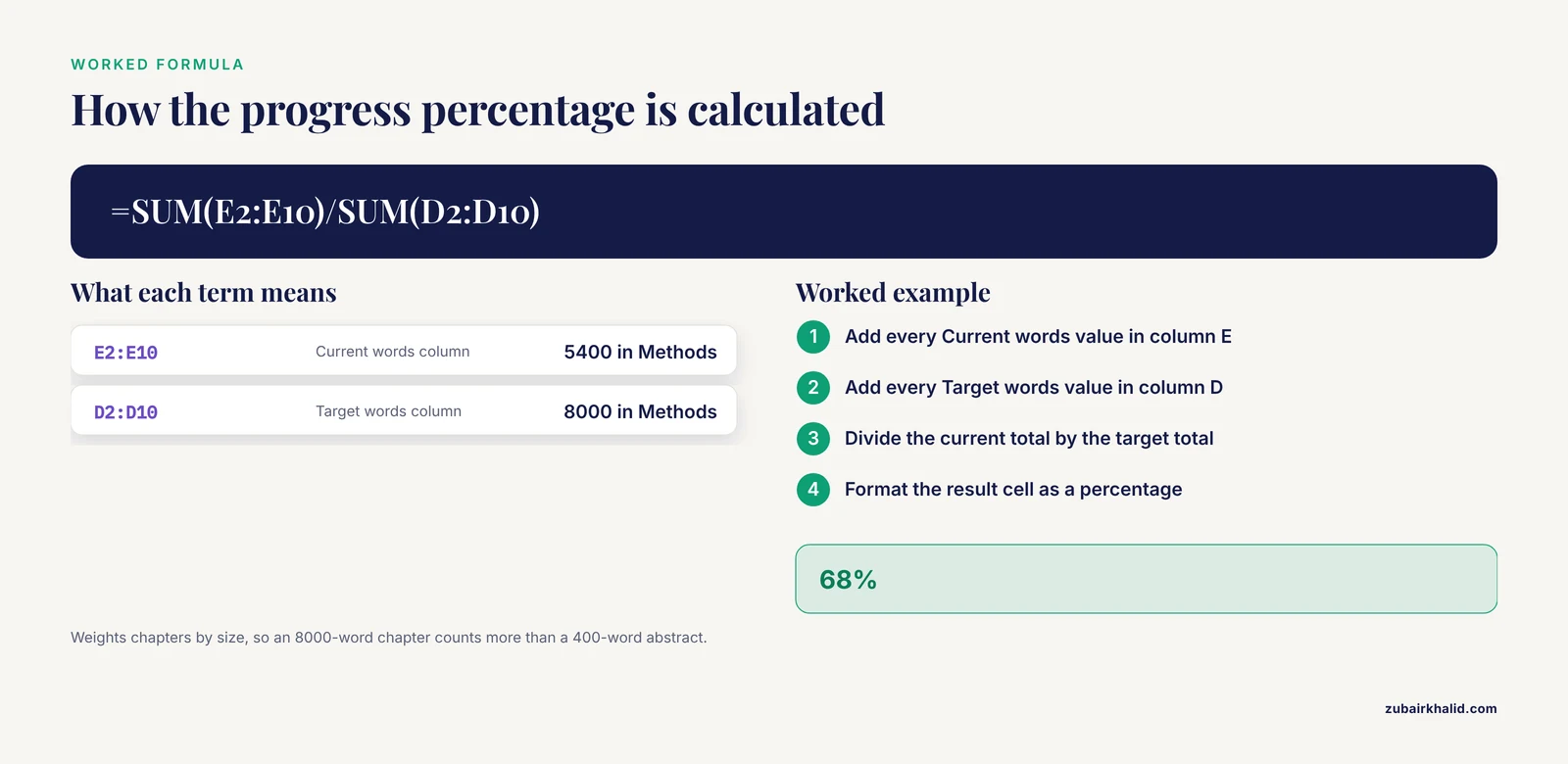
Enter Target words in column D and Current words in column E for each chapter row. Leave tasks blank or set both to zero.
In a cell below your data, for example D12, compute word-based completion:
=SUM(E2:E10)/SUM(D2:D10)Format the cell as a percentage. Expected output with a plausible mid-project state:
68%This single number is your most honest progress metric, because it weights chapters by size rather than counting chapters equally. An 8000-word Methods chapter at 90% counts eight times as much as a 1000-word abstract at 90%.
Step 6: Add status counts for the dashboard block
In cells A14 through A17, build a small summary:
A14:  Locked
B14:  =COUNTIF(G2:G10,"Locked")
A15:  Awaiting review
B15:  =COUNTIF(G2:G10,"Sent to supervisor")+COUNTIF(G2:G10,"Under review")
A16:  In active work
B16:  =COUNTA(G2:G10)-B14-B15-COUNTIF(G2:G10,"Not started")
A17:  Not started
B17:  =COUNTIF(G2:G10,"Not started")
Expected output:
Locked             2
Awaiting review    2
In active work     3
Not started        2
These four numbers are the dashboard. Two chapters locked and two awaiting review on a nine-item list tells you the project back half is filling up, which changes how you should spend the next writing week.
Step 7: Add a deadline countdown
Put your defense or submission date in one cell, for example B19 containing 5/3/2027. Then in B20:
=NETWORKDAYS(TODAY(),B19)NETWORKDAYS returns the count of weekdays between today and the date, which is a better planning unit than raw days because weekends rarely produce writing. Expected output a week out from a May defense might be:
128Pair that number with your remaining word count. If B20 shows 128 working days and your tracker shows 14,000 words left, you can compute a sustainable pace of roughly 110 words per working day, which feels manageable in a way that a vague deadline never does.
Step 8: Add a version log
Version discipline is where most drafts get lost. Two habits, both tracked in the spreadsheet itself.
First, in the Version column, use a simple scheme: v0.1 is the outline, v1.0 is the first complete draft, v1.1 and upward are revision rounds, and v2.0 is the committee-ready draft. Never overwrite a file. When you finish a revision, save a new copy named with the ID and version, for example CH-03_v1.3_methods.docx, and update the Version cell in the tracker.
Second, add a File name column (column K) so the exact file is recorded next to the status. Six months from now, when your supervisor asks whether the Figure 3 fix happened before or after the March meeting, column K plus the Last action date column answers the question in ten seconds.
Step 9: Protect the structure
In Excel, select the header row and formula cells, then Review, Lock Cell, and Protect Sheet so a stray keystroke cannot delete your formulas. In Google Sheets, choose Data, Protect sheets and ranges, and protect the header row and the dashboard block. Also decide on backup now: either enable version history in Google Sheets, which is on by default under File, Version history, or set your cloud sync client to keep the file. The tracker only works if it survives a laptop failure.
Step 10: Run the weekly review
Once a week, on the same day, spend fifteen minutes doing four things:
- Update Current words for every row you touched.
- Change any Status values that moved.
- Rewrite every Next action so it is still concrete and current.
- Read the dashboard block and pick the three rows you will work on this week.
The weekly review is the actual product. The spreadsheet is just the place where the review lives.
A Worked Example: The Spreadsheet in Mid-Project Use
Here is a compact dissertation draft tracking spreadsheet example showing eight rows of a project in its second year. Values are illustrative, not predictions.
| ID | Piece | Target words | Current words | Version | Status | Last action | Next action | Waiting on |
|---|---|---|---|---|---|---|---|---|
| CH-01 | Introduction | 5000 | 5000 | v1.2 | Locked | 09-02 | None | |
| CH-02 | Literature Review | 12000 | 12000 | v1.1 | Sent to supervisor | 10-28 | Send reminder if silent 10 days | Supervisor |
| CH-03 | Methods | 8000 | 7600 | v0.4 | Revising | 11-09 | Fix sampling justification, cite two new refs | |
| CH-04 | Results | 10000 | 3100 | v0.2 | Drafting | 11-10 | Finish cohort 2 tables | |
| CH-05 | Discussion | 9000 | 0 | v0.0 | Outlined | 10-15 | Draft first two paragraphs from outline | |
| FM-01 | Abstract | 400 | 0 | v0.0 | Not started | Write after CH-05 v1.0 | ||
| TSK-01 | Reference formatting | 0 | 0 | Not started | Export library, run style check | |||
| TSK-02 | Committee review round | 0 | 0 | Not started | Book spring meeting dates |
Reading this table takes a student about thirty seconds and yields a complete work plan. The Introduction is done and should not be touched. The Literature Review is out of your hands, so yourWaiting-on energy goes to one reminder date. The Methods row has a specific editorial task that can be finished in one session. Results is the active front. Discussion has an outline and a defined first move. Nothing about the week requires deliberation, which is precisely the point.
This structure also fits how real research projects iterate. In one published materials-development project, a multidisciplinary team moved through a six-step process of content drafting, expert validation, structured pretrial feedback, and refinement before finalizing their package [4]. Each of those steps is a row-and-status cycle in a tracker, and the iterative refinement loop, draft, get structured feedback, revise, re-check, is the same loop your chapters will run through with your supervisor and committee.
Using the Tracker for Dissertation Planning Across a Semester
A draft tracker does double duty as a dissertation planning tool when you add date columns. Three uses stand out.
Backward planning from the defense. Put the defense date in the countdown cell, then work backward. If committee review takes three weeks and full-draft revision takes four, your complete draft must exist roughly two months before the defense. Mark that date in a Target completion column for the last chapter and the committee review task. Working backward converts an intimidating end date into a chain of ordinary monthly targets.
Supervisor meeting cycles. Most advising relationships run on a submit-and-wait rhythm. Add a Feedback due column with the date you expect comments back. If two chapters are in the yellow zone with no comments after your agreed interval, the Next action is a polite reminder. Students in structured programs get scheduling help from appointment systems with visible confirmed and waiting states [1], and if your program does not provide one, your tracker's Waiting on and Feedback due columns serve the same function.
Review milestones as tasks. If your dissertation includes a literature review, keep its screening and extraction work inside the same tracker. Published scoping reviews document how many records were screened, how many full texts were assessed, and how many sources made the final map, with extracted data independently checked against full texts [3]. Translating that into your spreadsheet means one row per review stage with statuses like Screening 50% done or Extraction complete, so the review never becomes a shapeless blob of work.
Adapting the Format: Templates and Alternatives
You do not need to build the file from scratch every time. Three practical routes to a working dissertation draft tracking spreadsheet template:
Duplicate and edit. The fastest template is last semester's plan or a labmate's tracker. Copy the file, delete the rows, keep the headers, formulas, validation rules, and color rules. Ten minutes of editing gives you a working system with zero new decisions.
Google Sheets as a shared template. If your advisor wants visibility, share the sheet with comment access. The dashboard block becomes a status update they can read without a meeting. Do not share editing rights to the tracker itself, because concurrent edits by two people destroy version discipline.
Dedicated platforms. Some institutions provide full dissertation management systems with document repositories, appointment scheduling, and progress dashboards built in [1]. If yours does, use it for what it does well, especially supervisor scheduling and official document submission, and keep your spreadsheet as the working-level detail those systems usually lack.
The right amount of tooling is the amount you will maintain. A plain spreadsheet updated weekly beats an elaborate database updated monthly.
Common Mistakes and Limitations
Building the tool instead of writing. The spreadsheet can absorb unlimited tweaking. Cap your setup time at two hours, ship version one, and forbid yourself from restructuring mid-semester. Column changes cost little at week one and a lot at week fifty.
Too many statuses. Twelve status values produce color noise and broken counts. Nine is already generous. If you cannot decide between two statuses, the row probably has two pieces of work in it, and the fix is splitting the row, not adding a status.
Letting the Current words column drift. A word count updated once a month turns the dashboard into fiction. Update counts during the weekly review or, better, pasted straight from your word processor's word count dialog, which reports the count you should record.
No version discipline in files. A tracker that says v1.3 while the folder contains three files all named "methods final" is worse than no tracker, because it adds false confidence. The File name column exists precisely to bind the tracker to reality.
Tracking feelings instead of states. Statuses like "almost done" and "mostly written" are not statuses. The controlled vocabulary exists because ambiguous labels cannot be counted, colored, or acted on.
Ignoring the waiting rows. Rows in yellow with a stale Waiting on value are the highest-leverage rows in the file. A reminder email takes two minutes and often unblocks weeks.
Treating the tracker as a substitute for the dissertation. The percentage-complete cell will read 100% only if the words exist. The tool measures the work, it does not do the work.
One limitation deserves a plain statement: a spreadsheet cannot negotiate with your committee, fix a methodology problem, or replace your institution's formatting requirements. Individual dissertation situations vary enormously by program and advisor, and your program handbook and supervisor are the authorities on requirements. The tracker organizes your effort. It does not make the academic decisions.
Frequently Asked Questions
What is a dissertation draft tracking spreadsheet?
It is a spreadsheet where every chapter, section, and task of your dissertation occupies one row, with columns for word counts, draft version, status, and the next concrete action. It functions as a single source of truth for project state, similar in spirit to the dashboards and document repositories used in formal dissertation management platforms [1].
What is the best format for tracking dissertation drafts?
The best format is a table with about ten columns: ID, piece name, type, target words, current words, version, status, last action date, next action, and waiting on. Keep the status list fixed at around nine values and attach color rules to it so the file reads at a glance.
Where can I find a dissertation draft tracking spreadsheet template?
The fastest template is the ten-column layout in this article, which you can rebuild in any spreadsheet program in under an hour, or duplicate from a past project file. Building your own from the documented columns is more reliable than downloading an unknown template, because every formula and validation rule in your file is one you understand.
How do I calculate progress in a dissertation spreadsheet?
Divide the sum of current word counts by the sum of target word counts using a formula like =SUM(E2:E10)/SUM(D2:D10), formatted as a percentage. Supplement it with status counts, for example =COUNTIF(G2:G10,"Locked"), so you can see finished, waiting, and active work side by side.
How does a draft tracker help me finish my dissertation?
It converts an enormous, vague project into a short list of concrete next actions and makes stalled rows visible, which is the mechanical core of how to finish a dissertation. Completion also has a downstream payoff, since dissertations and theses are routinely searched as literature in dedicated databases and gray-literature sources [2].
Should I use Google Sheets or Excel for dissertation tracking?
Use whichever you already have and will open weekly. Google Sheets wins on automatic version history and easy sharing with an advisor, Excel wins on offline reliability and sheet protection. Every formula in this article works in both, and in LibreOffice Calc as well.
How often should I update my dissertation tracking spreadsheet?
Update it once a week during a scheduled fifteen-minute review, plus a quick touch whenever you send a draft to your supervisor or receive comments. Daily updates add bookkeeping without adding information, and monthly updates let the file drift into fiction.
What should I do when a chapter has been stuck for weeks?
Change its status back to Drafting or Outlined, whichever is honest, and rewrite the Next action as the smallest concrete step, such as drafting a single paragraph or making one figure. Stuck rows usually carry a next action that was too large, and shrinking it is the fix. If the block is substantive rather than motivational, raise it with your supervisor, since structured feedback cycles are a documented driver of progress in dissertation workflows [4].
Sources
- PG Dissertation Management System
- Impact of Training and Education Programs for Health Care Professionals on Video and Text-Based Meetings in Ensuring Health Care Quality: Protocol for a Scoping Review
- Patient-centered access to mental health care at selected life-course stages: a scoping review using the Levesque framework.
- Pathway to evolve IEC materials for addressing technology addiction among adolescents: An iterative, participatory, mixed-method approach.