Digital Lab Notebook Template: How to Organize Files and Folders
By Dr. Zubair Khalid, DVM, MS, PhD ·
By the end of this guide you will have a working digital lab notebook: a folder tree you can build in five minutes, a file naming rule that keeps every experiment in chronological order, a reusable entry template, version control for your written records, and checksum-verified protection for raw data. You will also know the specific mistakes that turn notebooks into unusable piles of files named final_final2, and how to avoid each one.
Digital lab notebook organization is less about software and more about a handful of habits: one folder tree, one naming rule, one entry template, and backups you have actually tested. Have these on hand before you start:
- A computer with a terminal. macOS and Linux include one, and Windows users can install Git Bash or WSL (the Windows Subsystem for Linux).
- A plain-text editor such as VS Code, Notepad++, or nano.
- Git, if you want version control (Step 6).
- An account on an electronic lab notebook platform, if your lab runs one (Step 8 is optional).
Every command below runs in bash or zsh. Windows-specific notes appear where they matter.
What a Digital Lab Notebook Is
An electronic lab notebook (ELN) is software that replaces the bound paper notebook as the working record of your experiments. It holds dated entries, protocols, observations, instrument settings, and results, and it can link each entry to the data files that entry produced.
Paper notebooks fail in predictable ways. Entries cannot be searched, the only copy sits in a drawer that can flood or burn, and data files live on a separate drive with no connection to the entry that generated them. A reviewer or collaborator asking "which protocol version produced this figure?" gets a shrug. Digital structure fixes all three problems, but only when it is deliberate. A folder of randomly named screenshots is not an upgrade.
Modern ELNs go beyond free text. LabIMotion, an extension of the Chemotion ELN, was built to carry structured electronic documentation from organic chemistry into other research disciplines, letting teams describe workflows with customizable, reusable components instead of loose paragraphs [1]. The design goal behind that approach is FAIR data, meaning data that is Findable, Accessible, Interoperable, and Reusable. One mechanism is linking record fields to ontologies, which are controlled vocabularies that give every term a stable identifier, so software can confirm that two records tagged with the same term describe the same thing [1]. You do not need that machinery to benefit from good organization, but the folder system below maps cleanly onto it if your lab later moves to a structured ELN.
Digital Lab Notebook Organization Step by Step
Work through the steps in order. Steps 1 through 5 take under an hour. Steps 6 and 7 add version control and data protection. Step 8 is optional.
Step 1. Choose where the notebook lives
Three setups work well:
- Plain folder plus Git. Best for a solo researcher or a small lab that mainly needs written records and file discipline. Free, portable, and fully under your control.
- An ELN platform. Best when several people share protocols, a supervisor must review and sign entries, or you need structured search across experiments rather than across file names.
- A hybrid. Entries live in the ELN, large instrument files live on a lab file server, and each entry records the exact path to its data.
Whichever you choose, build the notebook in your home directory (~/lab-notebook in the examples below). Avoid the Desktop and Downloads folders, because backup jobs and sync clients treat them differently, and desktop clutter invites accidental deletion.
Step 2. Build the folder skeleton
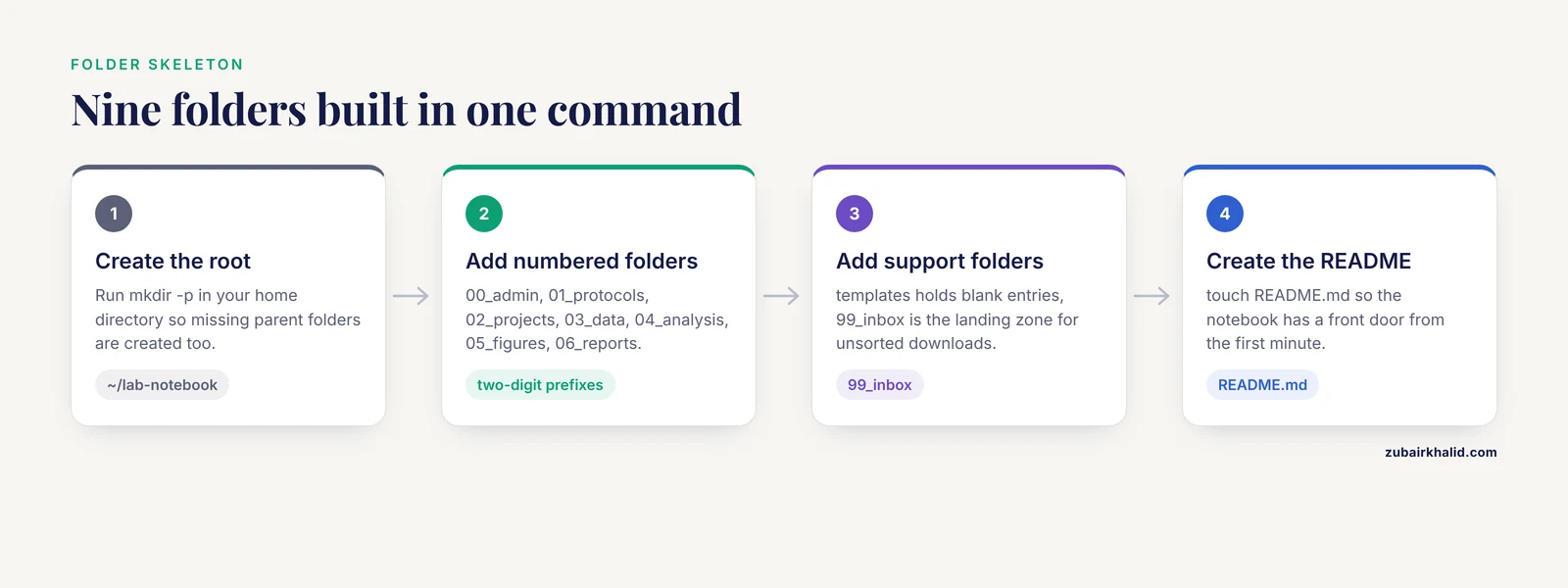
Open a terminal and run:
mkdir -p ~/lab-notebook/{00_admin,01_protocols,02_projects,03_data,04_analysis,05_figures,06_reports,templates,99_inbox}
touch ~/lab-notebook/README.md
ls -1 ~/lab-notebook
The expected output looks like this:
00_admin
01_protocols
02_projects
03_data
04_analysis
05_figures
06_reports
99_inbox
README.md
templates
The -p flag creates missing parent folders in one command. The two-digit prefixes are not decoration, they force every file browser and terminal to list folders in a deliberate order instead of alphabetical chaos. The 99_inbox folder is a landing zone for unsorted downloads, and you empty it during a weekly review.
| Folder | Holds | Example contents |
|---|---|---|
| 00_admin | Notebook administration | Instrument training records, safety forms, supplier contacts |
| 01_protocols | Versioned standard protocols | PROTO-014_rna-extraction_v003.md |
| 02_projects | One subfolder per project | 02_projects/PRO01_primer-validation/ |
| 03_data | Raw instrument output, written once | WT-01_raw.fastq.gz |
| 04_analysis | Scripts and processed results | analyze_exp007.py, exp007_quant.csv |
| 05_figures | Figures for reports and talks | fig2_dose-response_v002.png |
| 06_reports | Manuscripts, theses, slides | PRO01_manuscript_draft_v004.docx |
| templates | Blank entry and protocol templates | entry_template.md |
| 99_inbox | Unsorted downloads, emptied weekly | Today's instrument exports |
Windows note: the brace expansion with commas inside curly brackets is a bash and zsh feature. In PowerShell, list the folder names after mkdir separated by commas, or run the command above inside Git Bash.
Step 3. Fix a file naming convention
Adopt one pattern and never deviate:
YYYY-MM-DD_PROJECT_expNNN_short-description_vNNN.extA real example: 2026-11-11_PRO01_exp007_rna-extraction_v001.md
| Slot | Rule | Example | Why it matters |
|---|---|---|---|
| Date | ISO 8601, the international date format YYYY-MM-DD | 2026-11-11 | Sorts chronologically in every file browser |
| Project code | 2 to 5 characters | PRO01 | Ties a file to one project at a glance |
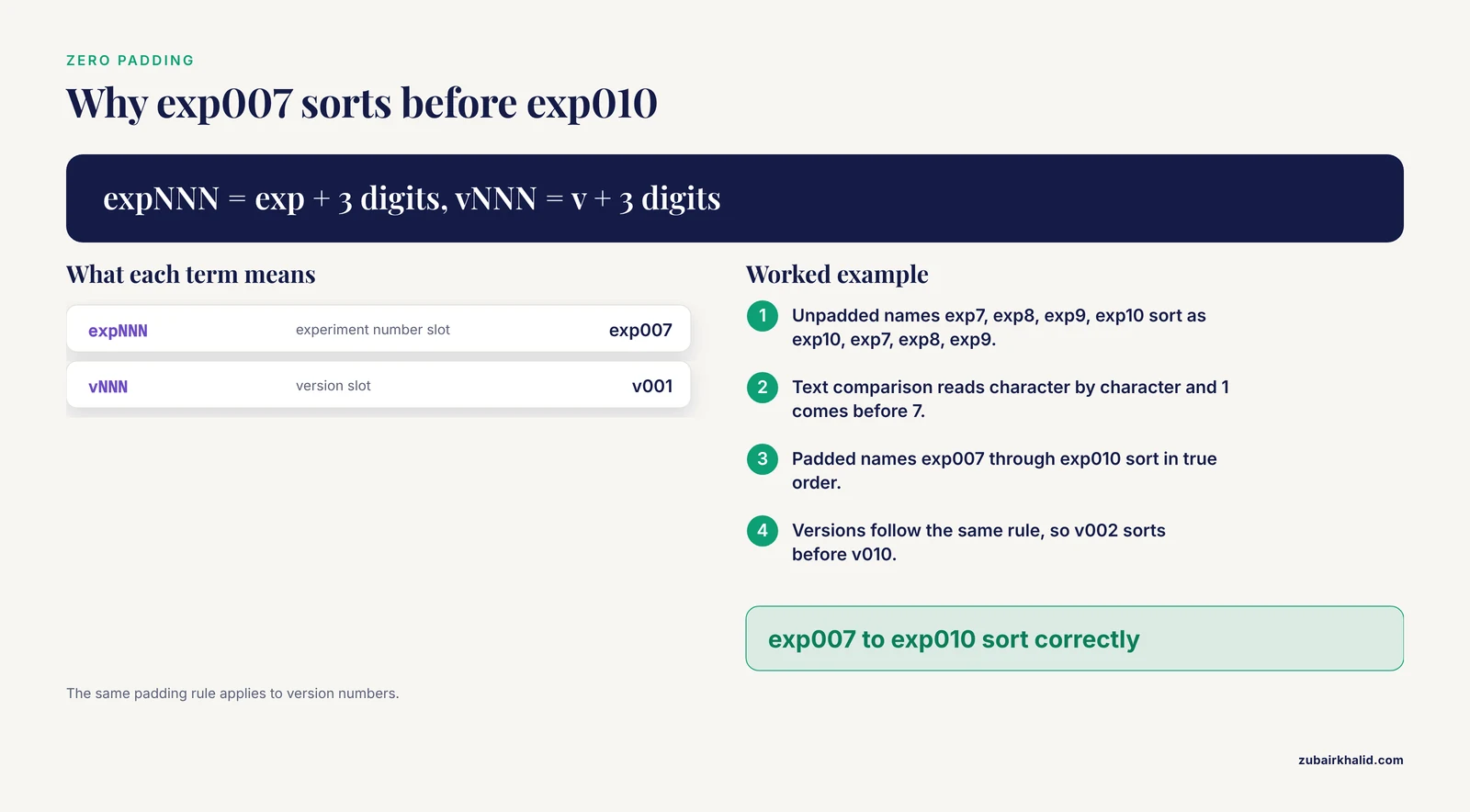
| Experiment number | exp plus 3 digits | exp007 | Zero padding keeps exp010 after exp007 |
| Description | Lowercase words joined by hyphens | rna-extraction | Readable by humans, safe in scripts |
| Version | v plus 3 digits | v001 | Ends the final_final2 problem |
| Extension | Standard for the file type | .md, .csv, .png | Tells the operating system how to open it |
Zero padding deserves a worked example. A folder holding exp7, exp8, exp9, and exp10 sorts alphabetically as exp10, exp7, exp8, exp9, because text comparison reads character by character and 1 comes before 7. Written as exp007 through exp010, the same files sort correctly. Versions follow the same rule, so a second version must be written v002 to sort before a tenth version written v010.
Spaces cause the second most common naming failure. A file named 2026-11-11 exp 7 results.csv must be quoted in every terminal command, and some analysis pipelines reject it outright. The underscored equivalent never causes that problem.
Step 4. Write the README index
The README is the front door of the notebook. Create it with any plain-text editor at ~/lab-notebook/README.md. Markdown is a plain-text format where simple marks like hash signs and pipes produce headings and tables:
# Lab notebook of Jane Doe ([email protected])

Started: 2026-11-11
Location: ~/lab-notebook, synced nightly to the lab server
Second copy: external drive, updated Fridays

## Project index
| Code | Title | Supervisor | Status |
|------|-------|------------|--------|
| PRO01 | [qPCR primer validation](/knowledge/diagnostics/molecular/qpcr-primer-validation-how-to-test-specificity-and-efficiency-before-use) | Dr. Chen | active |

## Conventions
- Dates use YYYY-MM-DD everywhere
- File names follow DATE_PROJECT_expNNN_description_vNNN
- Raw data in 03_data is never edited
- Protocols are referenced by file name and version, never pasted into entries

## Quick links
- Entry template: templates/entry_template.md
- Checksum manifests: 03_data/*/*/manifest.sha256
Test the notebook with the stranger test: hand it to a labmate and ask them to find the raw data for exp007 using only this file. If they need more than a minute, the index needs work.
Step 5. Copy the digital lab notebook template for every experiment
This is the research template that turns a folder of files into an actual notebook. Save it once as templates/entry_template.md, then copy it for each experiment:
cp templates/entry_template.md 02_projects/PRO01_primer-validation/2026-11-11_PRO01_exp007_rna-extraction.mdThe template itself:
# 2026-11-11 | PRO01 | exp007 | RNA extraction, mouse liver

**Objective:** Extract total RNA from three liver samples for qPCR primer validation.
**Hypothesis:** KO animals show lower target transcript abundance than WT.
**Protocol:** 01_protocols/PROTO-014_rna-extraction_v003.md
**Operator:** J. Doe
**Samples:** WT-01, WT-02, KO-01 (n = 3)

## Materials and lot numbers
| Reagent | Manufacturer | Catalog no. | Lot no. |
|---------|--------------|-------------|---------|

## Instrument settings
- Homogenization: (speed, time)
- Centrifugation: (temperature, g-force, duration)

## Real-time observations
- 10:15 Tissue fully homogenized in lysis buffer, no visible debris.

## Data locations
- Raw files: 03_data/PRO01/exp007/
- Analysis output: 04_analysis/PRO01/exp007_quant.csv

## Deviations from protocol
- (none, or state exactly what differed and why)

## Results and next steps
- (fill in before leaving for the day)
Three fields carry most of the value. The lot number column makes a failed reagent batch traceable months later. The protocol line records which version you actually ran, not the one you meant to run. The deviations section is where honest notes save future experiments. Adapt the field list to your discipline: a microscopy entry needs magnification and stain, a field survey needs site and weather, but keep the skeleton.
Step 6. Track changes with Git
Version control records every saved state of your text files, with a message explaining what changed. It is the digital equivalent of signing and dating each page. Run:
cd ~/lab-notebook
git init
git config user.name "Jane Doe"
git config user.email "[email protected]"
git add README.md templates/
git commit -m "Start notebook with folder structure and templates"
Expected output:
Initialized empty Git repository in /home/jdoe/lab-notebook/.git/
[main (root-commit) 8c0f4a1] Start notebook with folder structure and templates
 2 files changed, 41 insertions(+)
 create mode 100644 README.md
 create mode 100644 templates/entry_template.md
The commit hash (8c0f4a1 here) is a unique identifier for this saved state, and yours will differ.
Large raw files do not belong in Git, which is built for text. Create a file named .gitignore in the notebook root:
03_data/
.DS_Store
~$*
Thumbs.db
From then on, commit at the end of each working day:
git add -A
git commit -m "2026-11-11 exp007 first pass, KO-01 low yield"
Running git log lists every commit with its date and message, so you can find the exact state of the notebook on any past date.
Step 7. Protect raw data with checksums
A checksum is a short digital fingerprint computed from a file's bytes. Change one byte and the fingerprint changes, so comparing fingerprints over time detects silent corruption and accidental edits. Once a project's raw files are in place, for example under 03_data/PRO01/exp007/, run:
cd ~/lab-notebook/03_data/PRO01/exp007
sha256sum *.fastq.gz > manifest.sha256
sha256sum -c manifest.sha256
The first command writes a manifest, a plain-text list of files with their checksums. Each line holds a 64-character hexadecimal digest followed by the file name:
9f86d081884c7d659a2feaa0c55ad015a3bf4f1b2b0b822cd15d6c15b0f00a08 WT-01_raw.fastq.gzThe second command re-checks every file against the manifest and prints:
WT-01_raw.fastq.gz: OK
WT-02_raw.fastq.gz: OK
KO-01_raw.fastq.gz: OK
Run the check after any transfer to an analysis server or long-term storage. To make accidental edits harder in the first place, remove write permission from the raw files:
chmod a-w *.fastq.gzOn Windows, set Read-only in the file's Properties dialog instead.
Step 8. Optional: mirror the structure in an ELN
Schema-driven ELNs organize content in levels that map directly onto the folders you just built. In the Chemotion ELN with the LabIMotion extension, the top level is the Element, a record such as a sample, a reaction, or a complete workflow. Inside an Element, Segments hold structured sections with defined fields, which is the ELN equivalent of the Materials and Instrument settings blocks in the entry template. Datasets are the data files attached to an Element, equivalent to what you store under 03_data.
Because those components are customizable, a lab can define the data fields it needs, link them together, or establish workflows, and the system turns those definitions directly into usable forms [1]. Field definitions can point to ontologies, which keeps entries machine-readable and interoperable across instruments and collaborators [1]. Communities share ready-made building blocks through the LabIMotion Hub, which distributes and updates components so that teams adopt consistent structures instead of each inventing its own [1].
Choose the ELN route when several people write in the same notebook, when a supervisor must review and sign entries, or when you need to search across structured fields rather than file names. Keep the hybrid habit even then: large raw files stay on the file server, and each ELN entry records their exact path.
Common errors and exact fixes
mkdir: cannot create directory 'lab-notebook/03_data': No such file or directory Cause: a parent folder does not exist yet. Fix: run mkdir with the -p flag, which creates missing parents, as in Step 2.
fatal: not a git repository (or any of the parent directories): .git Cause: you ran a Git command outside the notebook folder. Fix: run cd ~/lab-notebook first. The same message doubles as an installation check, if the terminal reports command not found instead, Git is not installed.
mkdir: cannot create directory '/lab-notebook': Permission denied Cause: the target location is not writable by your account, for example the root of the drive. Fix: build the notebook inside your home directory.
WT-01_raw.fastq.gz: FAILED followed by sha256sum: WARNING: 1 computed checksum did NOT match Cause: the file changed after the manifest was written, through corruption, an incomplete transfer, or an edit. Fix: do not analyze that file. Restore it from a backup, find out what changed, and only then regenerate the manifest.
warning: LF will be replaced by CRLF in README.md Cause: Windows and macOS/Linux mark line endings differently, and Git reports how it will normalize them. Fix: none needed. To silence the warning, run git config core.autocrlf true on Windows or git config core.autocrlf input on macOS and Linux.
How to verify the setup
Four checks confirm everything works:
ls -1 ~/lab-notebookprints the nine folders and README.md.git statusinside the notebook reportsnothing to commit, working tree cleanafter your first commit.sha256sum -c manifest.sha256returns OK for every file in each data folder.- The stranger test passes: a labmate finds the exp007 raw data from the README in under a minute.
Digital Lab Notebook Organization Tips
- Write while you work. Timestamp observations as they happen, in the 10:15 style shown in the template. An entry reconstructed at the end of the week is a guess, not a record.
- Treat raw data as write-once. Analysis happens on copies in 04_analysis, never on the originals in 03_data.
- Reference protocols, never paste them. When a protocol changes, you need to know which version each experiment used, and a versioned file name answers that instantly.
- Record negative results and deviations. The experiment that failed, and why, is often the most valuable page in the notebook.
- Run a 15-minute weekly review. Empty 99_inbox, update the README project index, commit the week's entries, and verify one checksum manifest.
- Keep the tree shallow. Three levels of folders that everyone maintains beat six levels that nobody does.
- Make paper when you need paper. Many researchers want a lab notebook template PDF for bench use. Print a blank copy of the entry template to PDF from your editor, write on paper only where a device cannot go, and transcribe the same day.
- Name the owner and the backup plan in the README. A notebook nobody can find or restore is a diary, not a record.
Common Mistakes and Limitations
These failures show up repeatedly in real labs:
- Ambiguous dates. 11/07 means November 7 in the United States and July 11 in much of the rest of the world. ISO 8601 (2026-11-11) ends the argument permanently.
- Spaces and odd characters in file names. They break terminal commands, scripts, and some web uploads. Hyphens and underscores do not.
- Version chaos. Files named final, final2, and final_FINAL_use-this-one make version history meaningless. Use v001, v002, and freeze a version once it has been shared.
- Editing raw files to fix an obvious typo. Fix the value in the analysis copy and record the change in the entry. The raw file stays untouched.
- One flat folder with hundreds of files. Sorting becomes manual and error-prone. Add project and experiment levels.
- Structure that lives only in your head. If the README does not explain the system, the system dies the day you are away.
- A single copy on one machine. Keep three copies, on two kinds of media, with one stored off-site, and test an actual restore instead of trusting the backup icon.
- Pasting the whole protocol into every entry. You then cannot tell which version you ran. Reference the versioned protocol file.
- Sensitive material in the wrong place. Patient identifiers, unpublished patentable results, and regulated records follow stricter handling rules than ordinary data.
A note on limits: this template is a starting point, not a policy. Institutions set their own rules for data retention, intellectual property, and regulated records, and those rules override any generic scheme. Before storing confidential or regulated material, confirm the requirements with your principal investigator or research office, because individual cases need that institutional judgment. Everything else above is safe to adopt as-is and adjust as your projects evolve.
Frequently Asked Questions
What is a digital lab notebook template?
A digital lab notebook template is a reusable file with fixed fields, such as date, objective, protocol version, materials, observations, and results, that you copy for each new experiment. Working from a copy keeps entries comparable and stops you from forgetting lot numbers or deviations.
How do I organize files and folders in a digital lab notebook?
Use one root folder with numbered subfolders for admin, protocols, projects, data, analysis, figures, reports, templates, and an inbox, then name every file by date, project code, experiment number, description, and version. Steps 2 through 5 above build that structure with copy-paste commands.
Do I need an ELN, or are folders enough?
Folders plus Git are enough for solo work and many small labs. An ELN earns its keep when several people share a notebook, a supervisor must review and sign entries, or you want structured search across fields instead of file names.
How should I name experiment files?
Start with the ISO 8601 date, then add project code, zero-padded experiment number, a short hyphenated description, and a version, like 2026-11-11_PRO01_exp007_rna-extraction_v001.md.
Where can I get a lab notebook template PDF?
Many universities and ELN vendors publish printable PDF templates, and you can make your own by opening the entry template from Step 5 in any editor and using print to PDF. A text or Markdown original stays easier to edit and version than a PDF.
How do I protect raw data from accidental edits?
Write raw files to a dedicated folder, remove write permission with chmod a-w or the Windows read-only property, and keep a checksum manifest that you verify with sha256sum -c before analysis.
How often should I back up my notebook?
Automate at least one daily copy to a second location and one weekly copy off-site, then verify an actual file restore a few times a year rather than trusting the backup icon.
What should every experiment entry contain?
Date, a unique experiment identifier, the objective, the exact protocol version used, materials with catalog and lot numbers, instrument settings, timestamped observations, data file locations, deviations, and next steps.