Why Your Citations Are Not Showing Up in Word or Google Docs
By Dr. Zubair Khalid, DVM, MS, PhD ·

The single most common reason citations are not showing up in Word is that the citations were typed or pasted in as ordinary text instead of being inserted as live fields, or the field codes exist but Word has stopped displaying and updating them. In Google Docs, the usual culprit is a citation add-on that was never connected in the first place, so nothing was inserted where you expected it.
The good news is that almost every case falls into one of a small number of categories. Citations are stored in your document as invisible instructions, and something in the chain between your reference manager, the document file, and the program on your screen has broken. Once you identify which link failed, the fix usually takes minutes, not hours.
This article walks through the causes of citations not showing up in Word and Google Docs, from the most common to the rarest, explains the mechanism behind each failure, gives you a short diagnostic sequence to follow, and ends with habits that prevent the problem from coming back. It closes with a practical comparison of reference management software so you can judge whether your current citation manager is part of the problem.
Start Here: The First Thing to Check
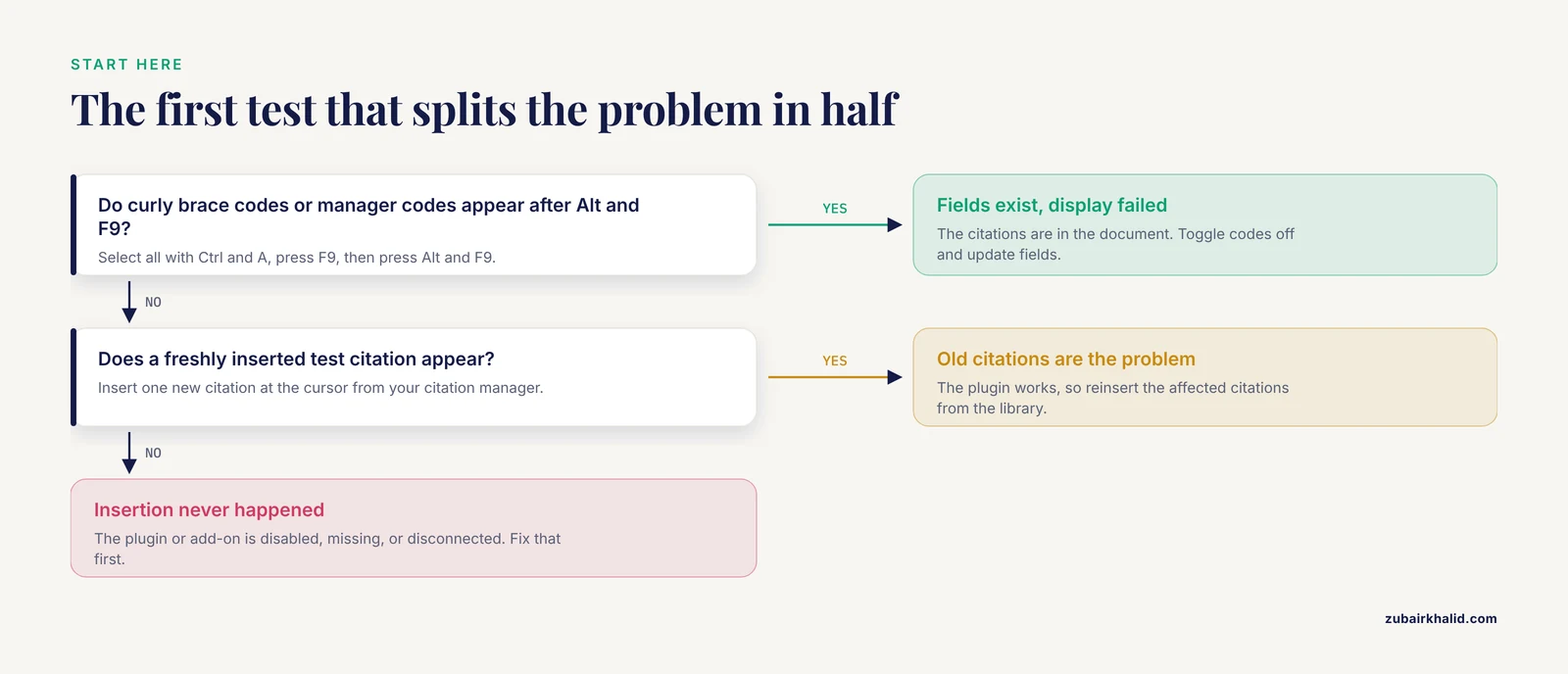
Before anything else, answer one question. Did the citation ever get inserted into the document, or was it inserted and then made invisible?
Open the document and press Ctrl and A together to select all text, then press F9 to update all fields. If citations and your bibliography suddenly appear or correct themselves, you had a field-update problem. If nothing changes, press Alt and F9 to toggle field code display. If you now see text in curly braces such as { CITATION ... } or codes that mention your citation manager by name, the citations are in the document and only their display has failed. If you see neither citations nor codes anywhere, the insertion step itself never happened, and the problem lies with your citation tool rather than with the document.
That single test splits the problem in half and tells you which half of this article to read first.
How Citations Actually Work in Word and Google Docs
Understanding the mechanism makes every fix below obvious rather than mysterious.
In Microsoft Word, a citation inserted through the References tab or through a citation manager plugin is not a piece of text. It is a field, a stored instruction that Word evaluates and then displays as readable text such as (Smith, 2020). Fields are dynamic. If you change the output style from APA to Vancouver, every citation and the bibliography regenerate because Word is re-evaluating the instructions, not rewriting static text. Your bibliography is likewise a field that lists whatever citations the document currently contains.
Reference management software such as Zotero, Mendeley, and EndNote does not write citations directly into your text. It writes its own coded markers into the document, plus instructions that its Word plugin interprets. The plugin scans the document, reads the markers, queries your library, and renders formatted citations and a bibliography. If the plugin is not running, the markers sit in the document as inert data and Word shows either nothing, placeholder text, or codes.
Google Docs has no native field-code system like Word. Its built-in citation tool in the Tools menu inserts formatted text and keeps a running list in a sidebar, but it does not auto-regenerate. Third-party add-ons such as the Zotero and Mendeley connectors work through the Apps Script add-on system and behave more like the Word plugins. This architectural difference explains why the same failure looks different in the two programs and why Google Docs problems almost always trace back to the add-on, the account, or the sidebar.
Troubleshooting Table: Symptoms, Causes, and Fixes
Use this table as the core diagnostic for citations not showing up in Word or Docs. Work from your symptom downward.
| Symptom | Likely cause | How to confirm | Fix |
|---|---|---|---|
| Citations appear as { CITATION } or similar brace codes | Field codes display is toggled on | Press Alt and F9. Codes flip to readable citations | Press Alt and F9 again to toggle display off |
| Citations vanish after edits or show stale years and page numbers | Fields have not been updated | Select all with Ctrl and A, press F9 | Update fields manually, or enable update-on-print options in Word options |
| Citation manager toolbar tab is missing in Word | Add-in disabled or not installed | Check the ribbon, then Word's add-ins management dialog | Re-enable or reinstall the Word plugin from your citation manager's settings |
| Plugin tab exists but clicks do nothing | Plugin lost contact with the citation manager app | The app is closed, signed out, or updated without the plugin being refreshed | Open the citation manager app, sign in, restart Word |
| Bibliography is empty or missing | No live citations exist in the document, or the bibliography field was deleted | Insert a test citation and try inserting the bibliography again | Insert citations through the plugin, then re-insert the bibliography at the cursor |
| Citations show in one document but not others | The broken document lost its field data, for example through format conversion or copy-paste | Compare a working document. Look for codes with Alt and F9 | Re-insert citations in the affected document from the library |
| Google Docs sidebar never opens | Add-on not installed, disabled, or blocked by your organization | Check the Extensions menu for the citation tool | Install the add-on, sign in, or contact your institution's administrator |
| Citations in Google Docs are plain gray or black text that never refreshes | Built-in citation tool was used, which inserts static text | Try changing format expectations or look for a sidebar listing | Re-insert using the citation manager add-on, or accept static text and manage the list manually |
| Citations disappear when the file is emailed or opened elsewhere | Document saved or converted in a format that strips fields, such as plain RTF or a Google Docs round trip | Check the file extension and the save history | Keep the master copy in .docx format and convert only copies |
| Citations show as errors like "invalid citation" | Document and library are out of sync, or citations from a different account | The error message names the problem when you refresh | Reinsert the affected citations from your current library |
Citations Not Showing Up in Word: Causes From Most to Least Common
Cause 1: The Citations Were Never Inserted as Fields
This is the most frequent cause and the easiest to miss. Many people type author names and years by hand, or paste a reference list from a website, and later wonder why the References tab does not recognize them. Word only manages citations it inserted itself, and citation managers only manage citations they inserted themselves.
The mechanism is simple. A typed citation is characters. A live citation is a field pointing at structured data. Word cannot format, renumber, or compile the characters into a bibliography because there is nothing behind them.
How to confirm: click on a supposed citation. If a shaded gray background or a dropdown appears when you click inside it, it is live. If the cursor behaves as if you are editing plain letters, it is static text.
The fix: delete the hand-typed citations and insert replacements through the References tab or your citation manager plugin. Tedious but reliable. Going forward, never type citations manually in a document you intend to manage automatically.
Cause 2: Field Display and Field Updating Are Turned Off or Stale
Word gives you two independent toggles that make healthy citations invisible. One toggles whether Word shows field results or field codes. The other controls whether fields update automatically.
Field codes look like { CITATION Smi2020 \\l 1033 } or, for plugins, long strings containing your citation manager's name. Seeing these does not mean your citations are broken. It means Word is showing the plumbing instead of the fixture.
The other half of this cause is staleness. Word does not always re-evaluate fields the moment underlying data changes, especially page numbers in a bibliography or citation numbers in numeric styles. A citation can exist and render but show wrong or missing details until an update pass runs.
The fix for both halves takes two keystrokes. Alt and F9 toggles code display off. Ctrl and A followed by F9 updates every field in the document. For printing workflows, Word's advanced options include a setting to update fields before printing, which prevents stale output from reaching a supervisor or a journal.
Cause 3: The Citation Manager Plugin Is Disabled, Missing, or Disconnected
When you use Zotero, Mendeley, or EndNote, the Word ribbon tab you click is produced by a plugin. That plugin is a separate piece of software that Word loads at startup. Anything that breaks the loading chain produces the classic symptom of citations not showing up in Word, namely a missing tab or a tab that no longer works.
Common breakage points include a Word update that disabled the add-in, the citation manager application itself not running or being signed out, the plugin being manually disabled in Word's add-in management screen, security software or administrator policy blocking it, and a citation manager upgrade that left the old Word component behind.
The mechanism matters for diagnosis. The Word plugin talks to the citation manager application, which holds your library and does the formatting. If the application is closed or the connection is lost, the plugin cannot resolve any citation, so inserts fail silently or produce errors.
The fix: open your citation manager application first, confirm you are signed in to the correct account, then restart Word so the plugin reloads. If the tab is still missing, reinstall the Word integration from the citation manager's own settings or preferences screen rather than hunting for installers manually. If your institution manages your computer, ask whether add-ins are restricted.
Cause 4: The Bibliography Was Never Generated, or Was Deleted
A frequent report is that in-text citations work but the reference list never appears. Two mechanisms produce this. Either no bibliography field was ever inserted, because inserting citations does not automatically create the list, or the bibliography field was deleted at some point, for example during a cleanup pass, and everyone assumed the citations would regenerate it.
Remember that the bibliography is itself a field listing whatever citations the document currently contains. Delete the field and the list vanishes even though every in-text citation is intact.
The fix: place the cursor where the list belongs and use the plugin's insert bibliography command, or the References tab's bibliography button if you are using Word's built-in system. If the list appears but is empty, that points back to Cause 1. There are no live citations for it to list.
Cause 5: Multiple Citation Tools Are Fighting Over the Same Document
Installing Zotero, Mendeley, and EndNote plugins alongside Word's native citation tool in the same document creates conflicts. Each system uses its own marker format and expects to be the only formatter. Mixed documents show symptoms like citations that vanish when one tool refreshes, a bibliography that duplicates or truncates, or error messages when you switch styles.
The mechanism is overwrite. One tool's refresh pass can strip or corrupt the markers written by another, particularly if a template or document was started under a different system.
The fix: pick one tool per document. If you are migrating, use the citation manager's own conversion feature where it offers one, or reinsert citations from scratch. Remove unused Word add-ins so you cannot click the wrong tool by habit.
Cause 6: The Document Format Stripped the Fields
Fields are fragile across file conversions. Saving or converting a document into formats that do not support Word fields, such as plain text or some stripped-down Rich Text Format outputs, converts live citations into static text or deletes them. Round-tripping a .docx file through another word processor can also degrade plugin-specific markers, because each manager stores its data in ways the others do not fully preserve.
This cause shows a characteristic pattern. Citations are present when you work, then absent when the file returns from a collaborator, a journal submission system, or an online viewer. The failure travels with the file, not with your computer.
The fix: keep a single master copy in .docx format. Create converted or exported copies only for submission, and treat the master as the sole source of truth. If a collaborator must use different software, exchange plain copies for reading and keep all citation edits in the master.
Cause 7: View Mode, Editing Restrictions, and Protected View
Less common but real. Word's Draft view can hide certain visual elements, and documents opened in Protected View, the read-only mode Word applies to files downloaded from the internet, load without full add-in functionality, so plugin citations may fail to render until you click Enable Editing. Documents with editing restrictions or opened from a location with sync conflicts can also show stale or missing fields.
The mechanism in each case is the same: Word is not running the code that evaluates the fields, either because a restricted mode blocks it or because the display mode is not showing the layer where the citation renders.
The fix: switch to Print Layout view, click Enable Editing if the yellow Protected View banner is present, and check whether the document is marked final or restricted under the Review tab.
Cause 8: The Style or Library Data Behind the Citation Is Broken
The rarest Word-side cause is corrupted data rather than broken plumbing. A citation can be a live field but render as nothing or as an error because the record it points to was deleted from your library, merged incorrectly, or lacks required fields such as an author or date in the selected style. Numeric styles like Vancouver also fail loudly when a citation marker is orphaned, because renumbering depends on a complete ordered set.
The fix: reinsert the failing citation fresh from the library. If many citations fail at once after a library import, the problem is the import, and cleaning or reimporting the library is the real task.
Citations Not Showing Up in Google Docs: Causes and Fixes
Google Docs failures divide into three patterns, and identifying your pattern is most of the fix.
Pattern one, the add-on never ran. You expected the Zotero or Mendeley sidebar, but nothing opened and nothing was inserted. Check the Extensions menu. If the citation manager is not listed, it was never installed in this account or browser profile. If it is listed but grayed out or fails to launch, your Google Workspace administrator may have restricted add-ons, or the browser is blocking the popup. Install the add-on from the Google Workspace Marketplace, sign in to the same account your library lives in, and allow the permissions it requests.
Pattern two, the built-in tool inserted static text. The citation tool under the Tools menu is convenient but simple. It inserts formatted plain text and tracks entries in a sidebar for you to add as a list. It will not renumber when you move paragraphs, and it is invisible to citation manager plugins. If you used it and later expected live citations, the text you see is all there is. To upgrade the document, insert proper citations through the plugin and remove the static ones.
Pattern three, plugin citations fail after moving or sharing the document. Add-on citations in Docs are tied to the add-on and, for some tools, to the account that inserted them. Documents copied, transferred between accounts, or edited by collaborators without the add-on can lose the association. Reconnect the add-on in the new context and reinsert affected citations.
A final Docs-specific note: because Docs has no true field system, there is no Alt and F9 equivalent to rescue hidden citations. Prevention, meaning consistent use of one tool from the start, matters more in Docs than anywhere else.
A Short Diagnostic Sequence You Can Follow
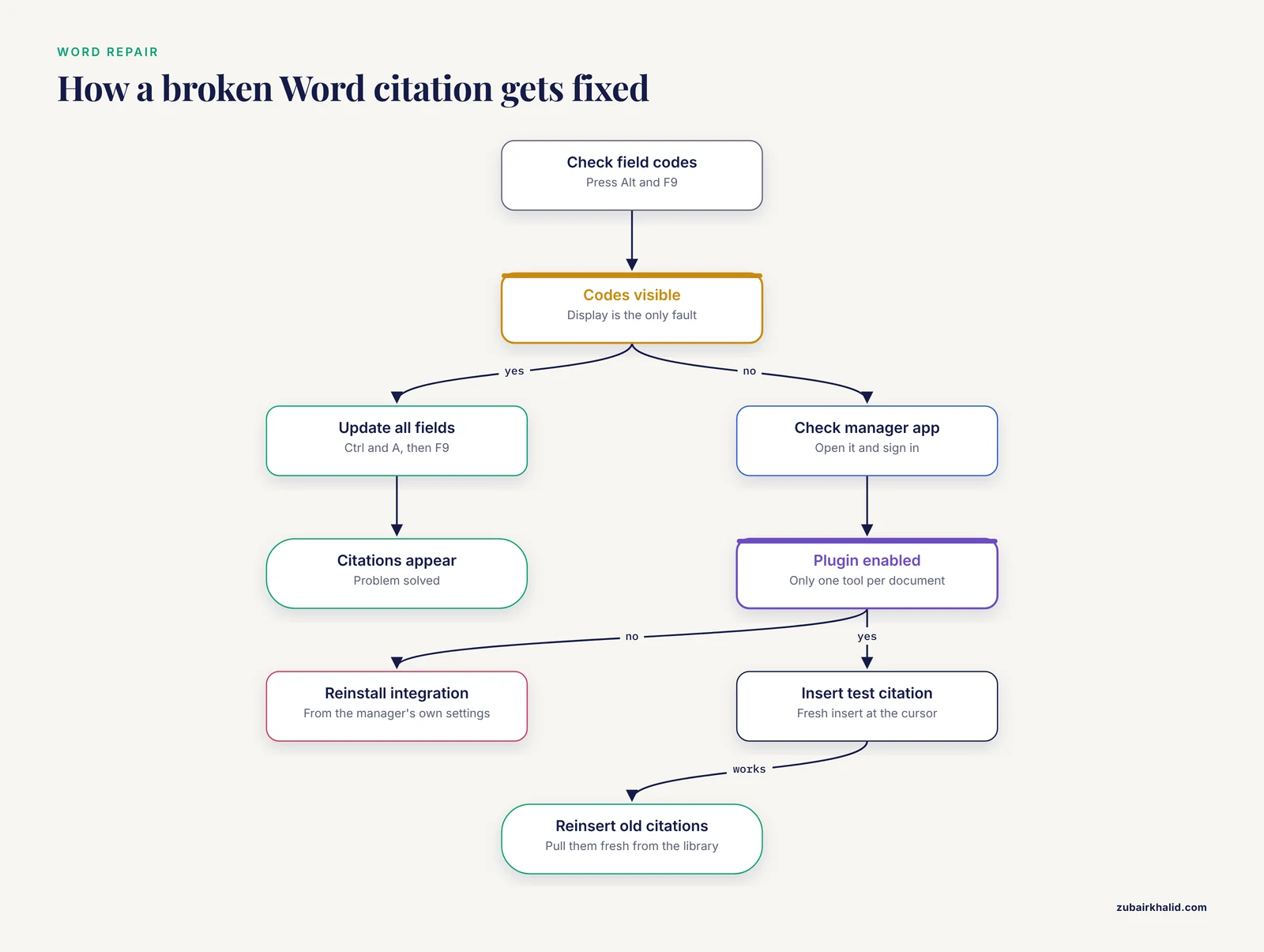
Work through this list in order. Stop when your citations appear.
- In Word, press Alt and F9 to check whether field codes are present but hidden. In Google Docs, open the Extensions menu to check whether the add-on exists.
- In Word, select all with Ctrl and A and press F9 to update fields. In Google Docs, open the citation add-on and use its refresh or rescan command if it has one.
- Confirm the citation manager application is open, running, and signed in to the account that owns your library.
- Confirm the correct plugin or add-in is enabled, and that only one citation system is enabled for this document.
- Insert one new citation at the cursor as a test. If a fresh insertion works, the old citations in the document are the problem. If a fresh insertion fails, the plugin connection is the problem.
- Check the document's history. Did the failure begin after a Word update, a file conversion, a collaborator's edits, or an account switch? Reversing the last change usually localizes the fault.
- If citations render but details are wrong or empty, check the library record and the selected output style rather than the document.
Most readers resolve the issue at steps one to three.
Reference Management Software and a Practical Citation Manager Comparison
Because so many citation failures trace back to the tool, it is worth understanding what the main options do and where they fit. Reference management software stores your sources in a searchable library, inserts citations into documents through a plugin, and formats citations and bibliographies in thousands of journal styles. The major tools differ in cost, ecosystem, and how tightly they integrate with Word and Google Docs.
| Tool | Cost model | Word integration | Google Docs integration | Best fit |
|---|---|---|---|---|
| Zotero | Free and open source | Mature plugin with full cite-while-you-write behavior | Official add-on available through the Marketplace | Students and researchers who want a free, capable default |
| Mendeley | Free with an Elsevier account | Plugin for Word (Mendeley Cite) | Add-on available | Researchers already in the Elsevier ecosystem |
| EndNote | Paid license, often provided by institutions | Long-established Cite While You Write plugin, deeply featured | Web version offers limited direct Docs use | Large libraries, systematic-style work, institutional users |
| Word built-in citations | Included with Word | Native, no plugin needed | Not applicable | Short documents with modest reference lists |
| Google Docs built-in tool | Included with Docs | Not applicable | Sidebar tool inserting static text | Quick assignments and collaborative drafts |
Three practical points from this citation manager comparison. First, Word's built-in system and the dedicated managers are not interchangeable. The built-in tool is fine for a short essay but does not handle large libraries, PDF attachment, or numeric style renumbering as gracefully. Second, whichever tool you choose, choose one per document. Third, the plugin is the component that fails most often, so familiarity with reinstalling and reconnecting your plugin is a core research skill, not an annoyance.
Common Mistakes and Limitations
The following mistakes account for most repeated failures, in this writer's experience of the documented behavior of these tools.
Typing citations by hand in a managed document. Hand-typed entries are invisible to every tool. Mixing hand-typed and inserted citations is worse than either approach alone, because the bibliography will list one set and silently omit the other.
Assuming the bibliography auto-exists. In both Word's native system and every major plugin, you must actively insert the bibliography. Nothing generates it unprompted.
Deleting and retyping instead of refreshing. When citations show stale details, people delete them and retype the corrected text. That converts live fields into dead text and guarantees the problem recurs. Update the fields instead.
Switching tools mid-document. Migrating a half-written document from Mendeley to Zotero by installing both plugins is the fastest way to corrupt citation markers. Complete one document in one tool.
Copying citations between documents by copy-paste. Pasted fields frequently lose their connection to the library. Insert citations fresh in each document.
Blaming the wrong component. When citations vanish after an update, the reflex is to suspect the document. The plugin is more often the broken link. Test with a fresh insertion before rewriting anything.
One honest limitation of any troubleshooting guide like this one. Software updates change menus and exact command names over time, and institutional configurations vary, so the location of a specific button in your version may differ from the description here while the underlying mechanism, which is what this article teaches, stays the same.
How to Prevent Citations From Disappearing Again
Prevention is mostly about keeping one system consistent.
Install one citation manager and its Word plugin, learn to insert every citation through it, and treat hand-typed citations in managed documents as an error. Keep your master document in .docx format and make converted copies only when a journal or committee requires them. Update fields before you print, share, or submit, using Ctrl and A followed by F9 in Word. After any Word or citation manager update, open a test document and insert a citation to confirm the plugin survived the upgrade, before you discover the failure inside a deadline document. In Google Docs, decide early between the built-in tool and a full add-on, because converting later costs more effort than choosing correctly at the start. Finally, back up your library itself, not just your documents. A document with live citations is only as durable as the library those citations point to.
Frequently Asked Questions
Why are my citations not showing up in Word even though I inserted them?
The citations are almost certainly present as fields but hidden or stale. Press Alt and F9 to toggle field code display off, then select all with Ctrl and A and press F9 to update fields. If codes and citations both fail to appear, the plugin that manages them is disabled or disconnected.
How do I fix citations showing as codes in curly braces?
Those braces are field codes, not corruption. Press Alt and F9 once to switch Word back to showing field results instead of codes. If pressing it once does not work, check Word's advanced options for the setting that controls field code display, since some configurations lock it.
Why does my bibliography not appear in Word?
A bibliography must be inserted deliberately. Place your cursor where the list should go and use your citation manager's insert bibliography command, or the bibliography button on the References tab if you use Word's native citations. If the inserted list is empty, the document contains no live citations for it to compile.
Why did my citations disappear after I converted or emailed the document?
Some file formats and conversions strip field data, turning live citations into static text or removing them. Keep one master copy in .docx format, convert only throwaway copies for submission, and reinsert citations in any document that came back through a lossy conversion.
How do I get the Zotero or Mendeley tab back in Word?
Reinstall or re-enable the Word integration from inside the citation manager's own settings, then restart Word. Before reinstalling, make sure the citation manager application itself is running and you are signed in, because the plugin cannot function without it.
Can I use Zotero or Mendeley in Google Docs?
Yes. Both offer add-ons through the Google Workspace Marketplace that add a citation sidebar to Docs. The add-on must be installed in the same Google account that owns the document, and some organization-managed accounts block add-ons by policy.
What is the difference between Word's built-in citations and a citation manager?
Word's built-in tool creates citations stored in the document itself and suits short documents. Citation managers maintain a searchable library of sources with attachments, insert citations through a plugin, and handle large bibliographies and style switching far better. They solve related problems at different scales.
Why do my citations show an error or say the citation is invalid?
This usually means the document's citation markers no longer match your current library, often after a library import, a merge, or a switch between accounts. Refresh the citations through the plugin, and if specific entries keep failing, delete and reinsert them fresh from your library.